

Uninstall Instructions
We are sorry to see that you want instructions to remove the Systweak PDF Editor product from your Mac.
Systweak PDF Editor Uninstall Guide
Before you remove this tool, let's quickly revisit the benefits of Systweak PDF Editor and what it brings. First, it lets you edit, merge, convert, compress, read, split, password protect and view PDFs. Second, it makes text in scanned PDFs searchable and editable. Third, it helps you comment, stamp & annotate PDF files.
If this doesn’t change your mind, follow the steps & uninstall Systweak PDF Editor.
Method 1: Uninstall Using the Built-in Uninstaller (Recommended)
This is the fastest way to remove Systweak PDF Editor and its associated files in one step.
-
Open Systweak PDF Editor.
-
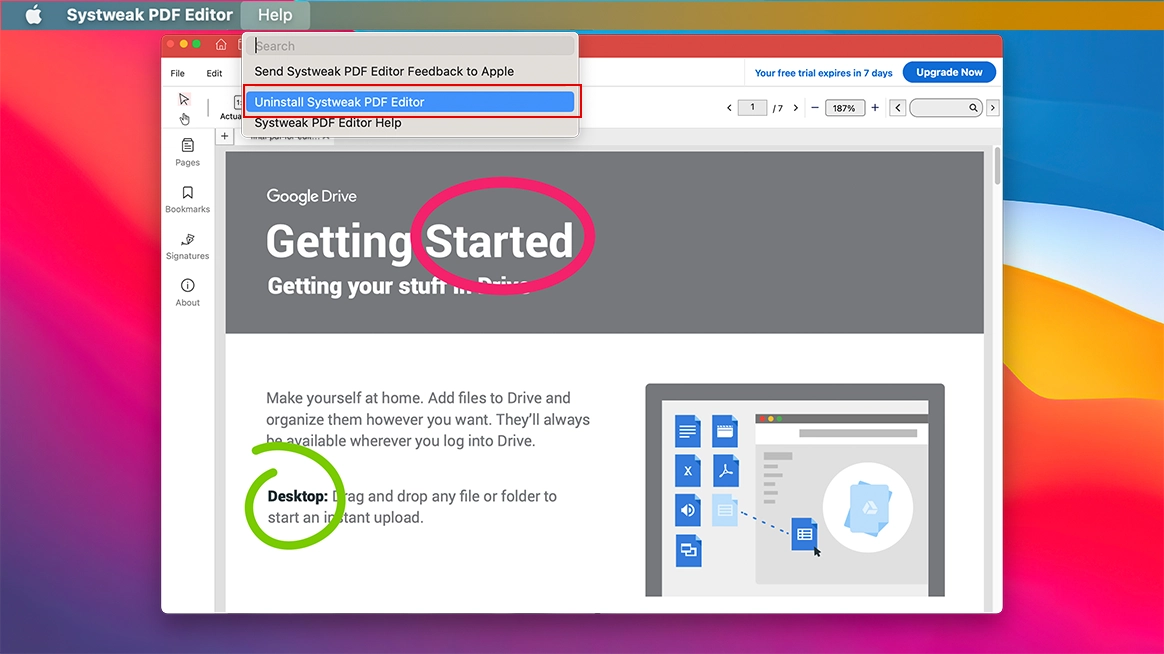
Click Help in the menu bar at the top of the screen.
-
Select Uninstall Systweak PDF Editor from the dropdown menu.
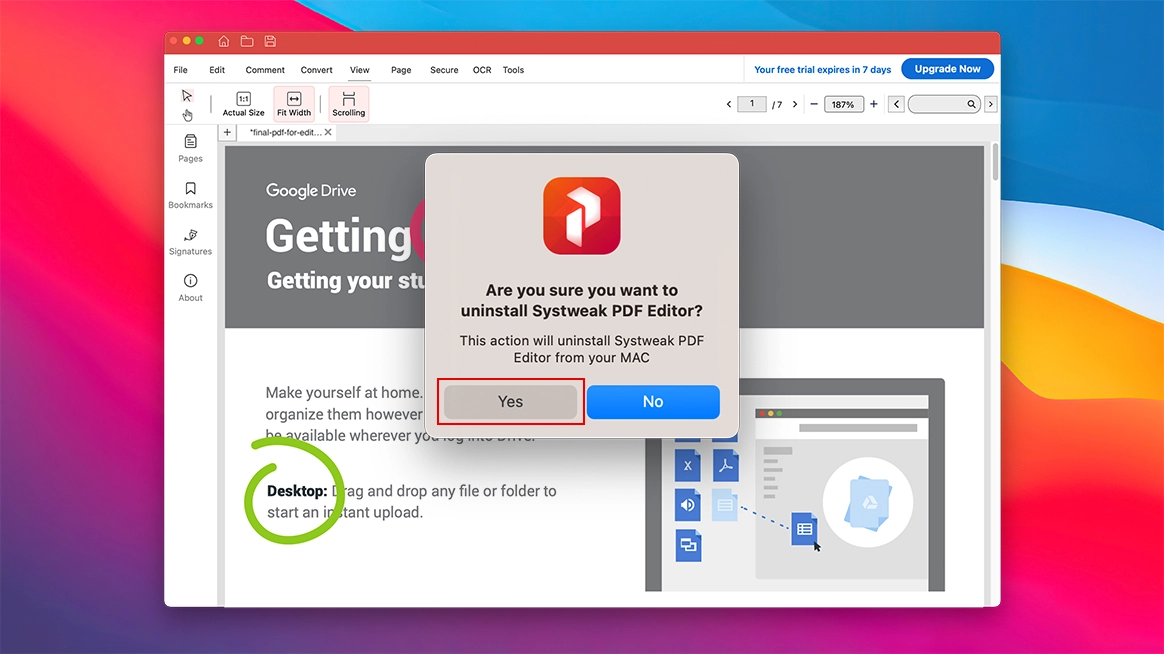
- A confirmation dialog will appear asking, "Are you sure you want to uninstall Systweak PDF Editor?" Click Yes to proceed.
- Enter your Mac's admin password when prompted, then click OK.
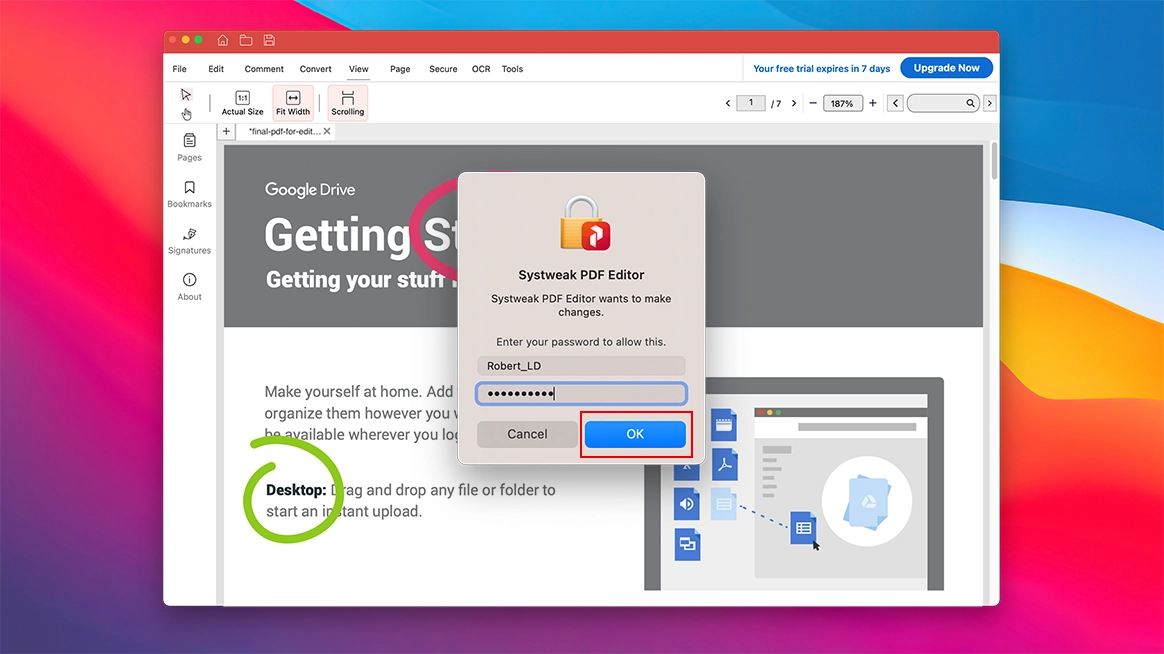
This removes Systweak PDF Editor and its associated files from your Mac.
Method 2: Manually Remove via Finder
If you prefer removing the app manually, follow these steps:
-
Open Finder and click Applications in the sidebar.
-
Look for Systweak PDF Editor in the list of installed apps.
-
Right-click the app and select Move to Bin.
- Enter your Mac's admin password when prompted. Click OK.
- Right-click the Bin in your dock and select Empty Bin to finish removing the app.
Note: For a complete uninstallation along with associated files, use Method 1.