



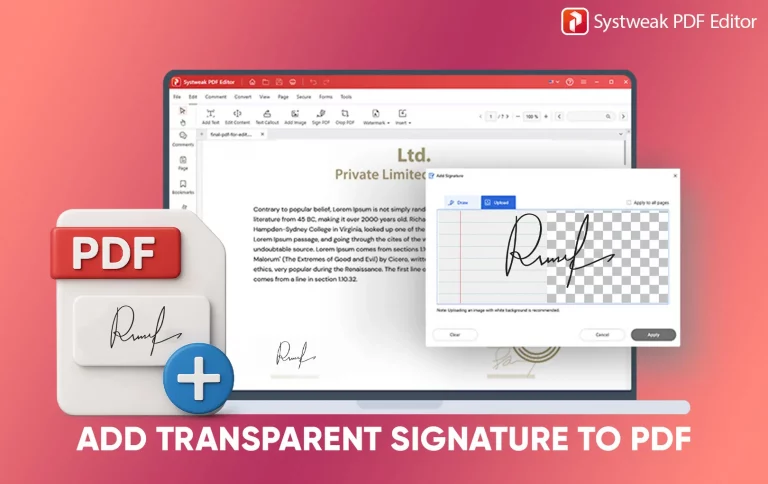

PDFs are the go-to for items ranging from official papers, such as contracts, approval forms, and even e-signatures. But the one major complaint that most users have in common is: when entering a scanned signature, it most often defaults to a white box background, making official documents look sloppy and unprofessional.
The best solution to rectify this is using a transparent signature that will blend in with the document very well, looking very natural and ink-like. In the article below, we take you through how you can add a transparent signature in PDFs on Windows safely by using appropriate tools like Systweak PDF Editor, Paint 3D, among others.
Methods to Add a Transparent Signature to a PDF on Windows
Adding a transparent signature to your document doesn’t have to be a hard task. The following are some simple and quick methods to add a transparent signature to your document:
Method 1: Adding Signature with Systweak PDF Editor (Recommended)
Systweak PDF Editor is a beginner-friendly, all-in-one software that provides many features to make your PDF presentable and easy to use, including adding a transparent signature.
The following are the steps:
Step 1: Install and Open Systweak PDF Editor
- Download Systweak PDF Editor from Systweak’s official website.
- Open the software after its done installing.
Step 2: Open the PDF File
- Press Open PDF or drag and drop your PDF into the workspace.

Step 3: Add the Transparent Signature
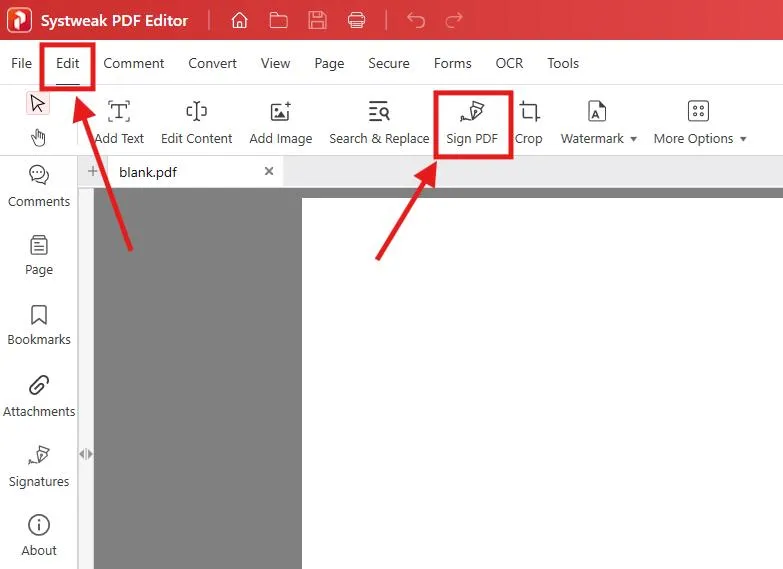
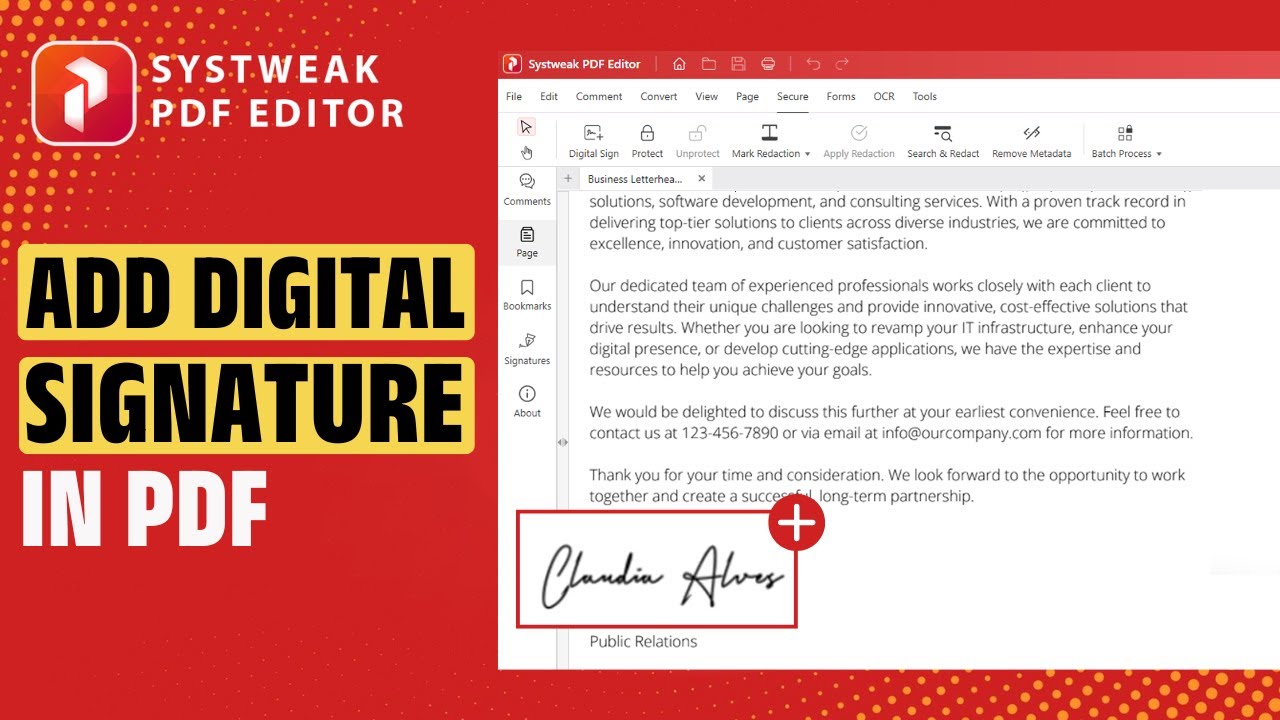
- Navigate to the Edit tab and select Sign PDF in the top menu.
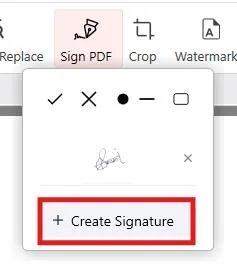
- Click on Create Signature.
- Tap on Choose Image and add your PNG signature file.
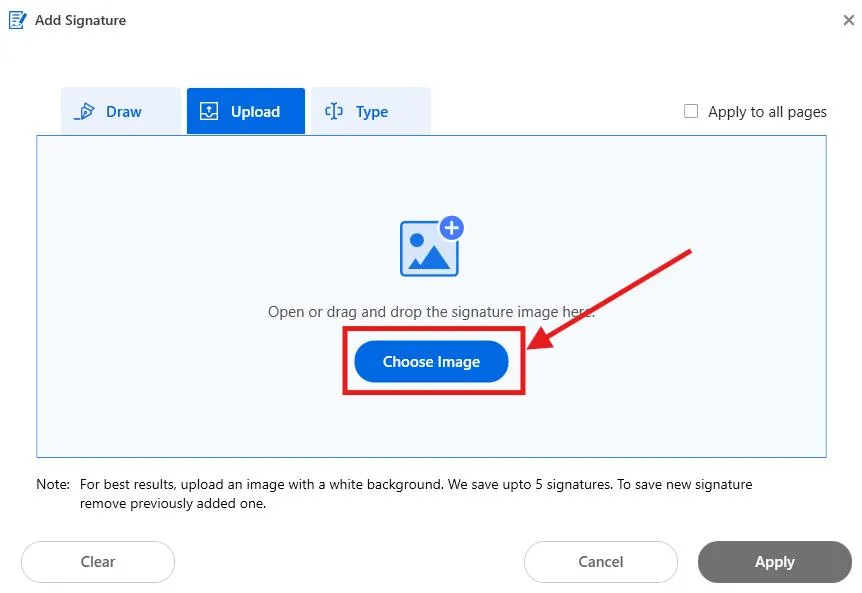
- Select your transparent PNG signature file and Apply.
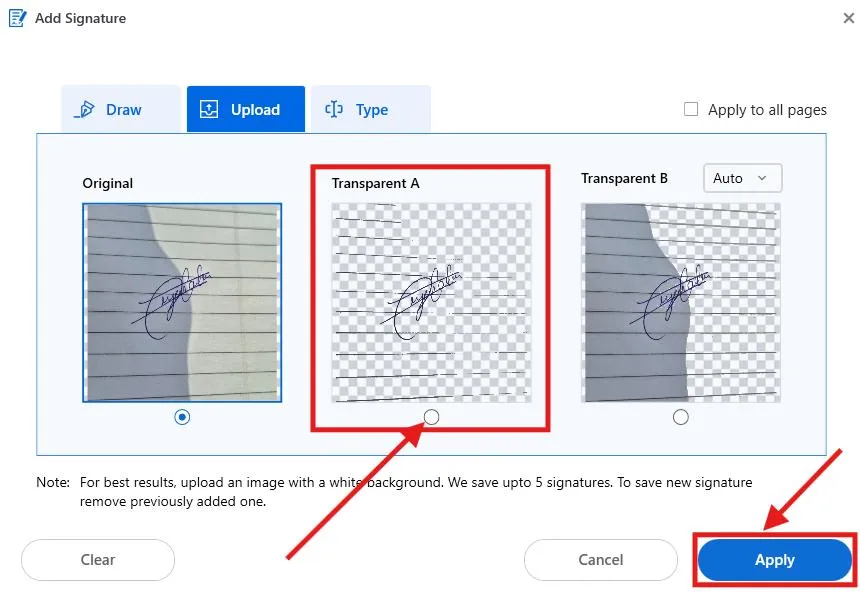
- Click anywhere on the PDF to insert it.
Step 4: Adjust Position and Size
- Use the resize handles to resize your signature proportionally.

- Place it in the intended location — usually at the document’s end.
Step 5: Save Your Document
- After positioning it appropriately, navigate to File → Save As and rename your signed PDF.

This method makes your signature appear real, leaving the document professional and readable. Secondly, being an offline working application, Systweak PDF Editor ensures your information is safe and confidential.
Method 2: Utilizing Adobe Acrobat Reader to Insert Signature
You can also use Adobe Acrobat Reader to insert an image signature, the opacity of which will depend on your document to be uploaded.
- Open the PDF document in Adobe Acrobat Reader.
- Click Tools → Fill & Sign.
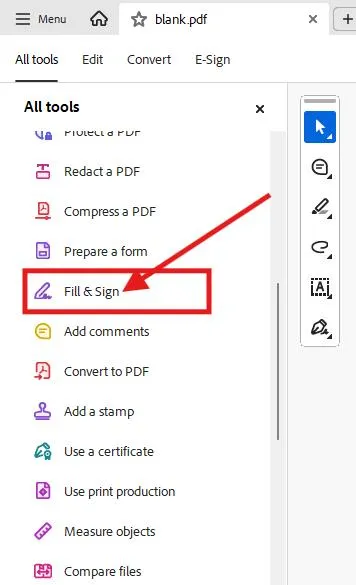
- Tap Add Signature < Image < Select Image.

- Upload your transparent PNG signature.
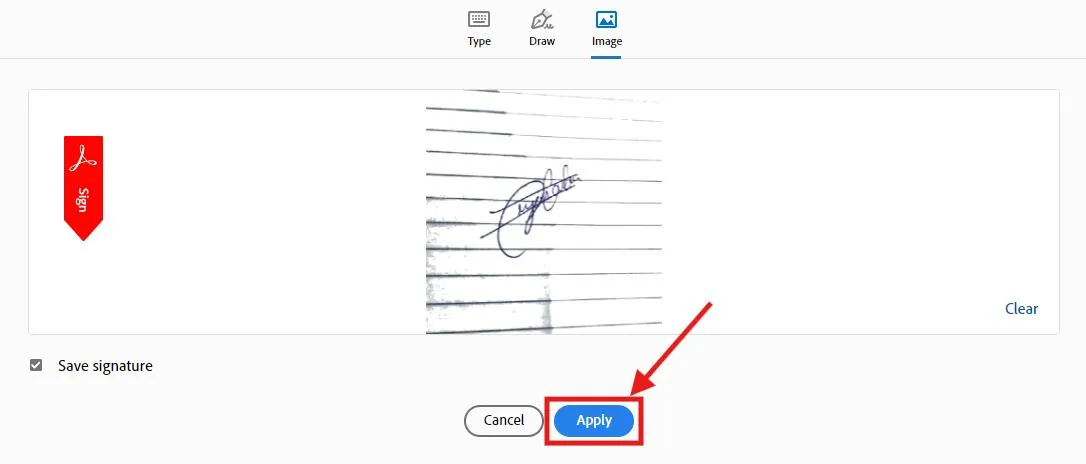
- Place it in the necessary position and save the file.
Tip: Adobe won’t clear the background automatically, so your PNG must already be transparent.
Method 3: Using Microsoft Word to Add a Transparent Signature
You may even use Microsoft Word to insert a transparent signature and export it as a PDF.
Steps:
- Open Microsoft Word and add your document content.
- Navigate to Insert → Pictures → This Device and upload your transparent PNG signature.

- Move and resize the signature to the appropriate location.
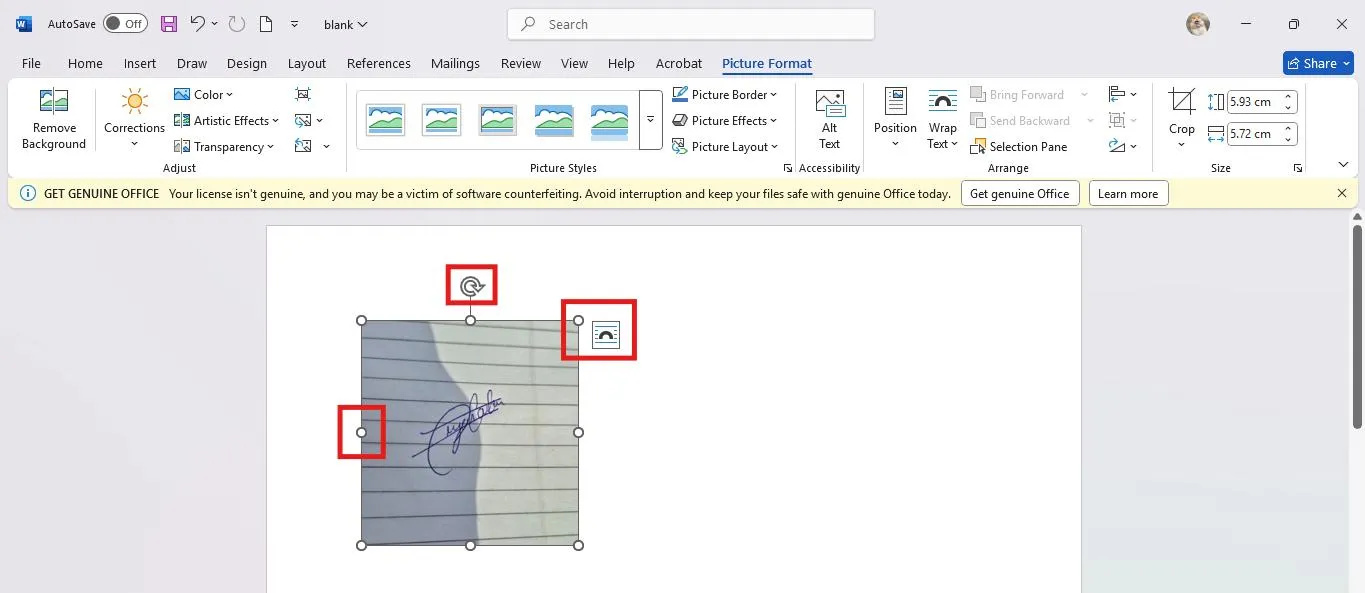
- Go to File → Save As → PDF.
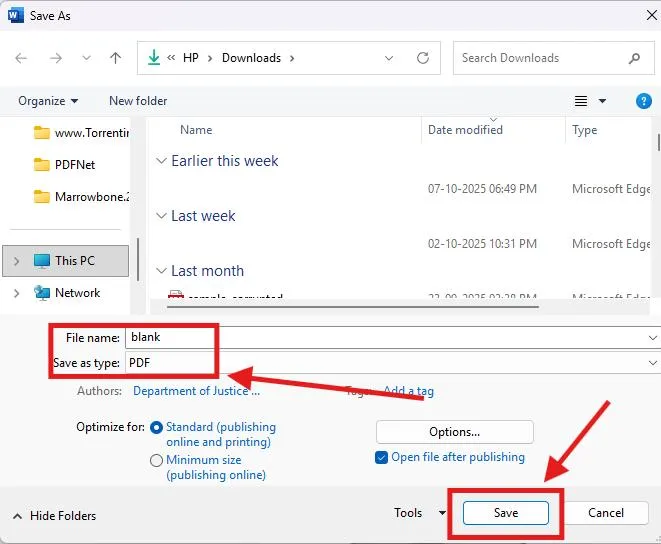
You will now have a tidy signed PDF with a transparent signature—perfect for speedy office work.
Extra: Best Practices for Transparent Signatures
To keep your transparent redaction signature looking sharp, please remember:
- Black pen: Always use black pen, because the deep color gives your signature the highest contrast to a transparent signature.
- Always PNG: Use the PNG image type, as JPG does not allow for transparent signatures.
- Clear images: Clear images – nothing blurry, and nothing stretched.
- Test fit: Don’t just sign the formal document. Use the test document to make sure you’re signing the correct information.
- Save backup: Always save a backup of your redaction signature in a locked storage folder, and you will remember to knock that out very quickly next time.
These minor, little things enhance the visual and feel of professionalism behind your signed document.
Benefits of Using Transparent Signatures
In addition to the sophisticated touch transparent signatures give to your forms, they have additional usability benefits.
- Professional Appearance:
Transparent signatures can make the e-documents looks as though they were physically ink-signed live. There isn’t a white box or other complications with background color continuity.
- Versatile:
Once you create a transparent PNG, you can use it for any type of document forms, invoices, contracts, etc., without editing.
- Better Visibility:
The signature appears equally good on-screen and in prints for the integrity of the document.
- File compatibility:
A PNG signature can be used with almost any editor. Systweak PDF Editor, Adobe Acrobat, and Microsoft Word, to name a few.
- Safe and secure:
By working with offline software, like Systweak PDF Editor, your signature and files are never outside of your computer or off your privacy.
Conclusion
Using transparent signatures will make your digital documents look even more authentic, cleaner, and professional. You can avoid managing the ugly box of white and have a signature that flows naturally for your PDFs.
With software like Systweak PDF Editor, the process is simple, secure, and fast – which is ideal for a working professional who needs to be able to sign their documents quickly, often. After creating your signature, it can be reused as often as you like and lends a sense of professionalism and authenticity to any document.
Having a transparent signature allows the signature to sit in front of the document, helping it appear as if it has been hand-signed (i.e., you can see the writing underneath the signature).
So the printed company logo looks different than the digital signature.




