

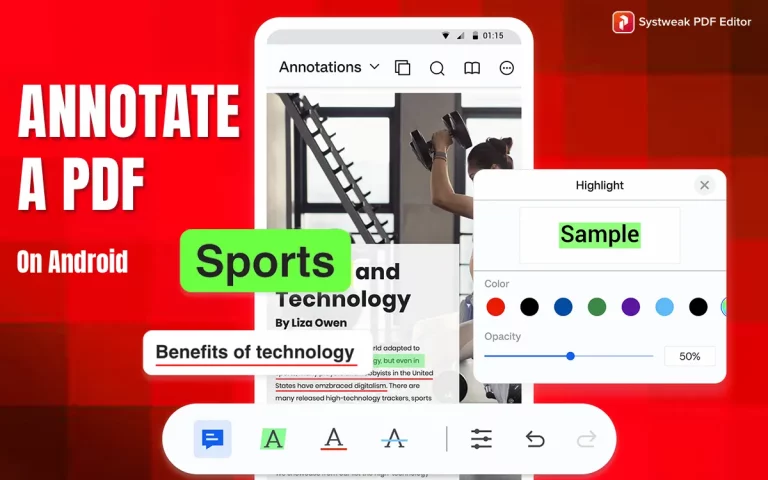

Maybe you thought you wanted to underline a text and write your comments in the margin, or leave a thin strip at the side of a document as if it were a highlighter? Well, surprise. You totally can.
With handy software like Systweak PDF Editor & Scanner, you no longer need a printer or laptop to handle documents. Whether it is reading notes, commenting on a proposal, or merely highlighting a recipe, commenting on PDFs on Android is easier than sending an SMS.
Here we will take you through annotating a PDF Android style with one of the smartest apps That Too Completely Free. From comments and highlights to freehand writing and page editing—this app does it all.
What Does Annotating a PDF Mean?
In many cases, the kind of annotation that people like to enjoy over a specific document is the PDF commenting or adding extra information without changing the original file. It’s like when you sign in the margin of a book or highlight as you read.
Annotating an Android PDF with the help of an application like Systweak PDF Editor & Scanner enables you to:
- Highlight important sections of text to draw attention to them.
- Underline or strike-through text that you must highlight.
- Add comments or notes for yourself or others.
- Draw freehand shapes, lines, or circles directly onto the page.
- Easily sign documents to approve without wasting paper.
- Edit text and images, perhaps for clarification or correction.
Whether reviewing documents informally or you’re a professional/student, annotation makes your PDFs more interactive and simpler to use.
Why Annotate PDFs on Android?
Let’s face it—most of us are glued to our phones. Why wait until you’re sitting at a desk to simply annotate a PDF, then?
PDF annotation on Android enables you to work, study, and collaborate on the go. You can be in a cafe, in transit, or on the couch, with your phone giving you the freedom to read and edit papers when and where you prefer.
Here’s why it’s a good idea to do so:
- Convenience – No laptop? No issue. Your phone is always with you.
- In-time review – Mark up and annotate a document as soon as you read it.
- No need to print – Adios paper, pens, and scanners.
- Great for making quick changes – Add a note, draw an arrow, or sign a form in seconds.
- Great for students, freelancers, and remote teams – Work effectively without being desk-bound.
With an easy-to-use app such as Systweak PDF Editor & Scanner, PDF annotation on Android does not feel hackish and is the brightest way to get things done.
Meet Systweak PDF Editor – The App That Makes It All Easy
Systweak PDF Editor & Scanner is revolutionizing the lives of real humans—students, freelancers, professionals—forced to get work done without constant app-switching. It bundles all the PDF reading, editing, note-taking, scanning, and security you require into a tidy, handy package.
This is when the benefits become most evident:
- Easy Annotate PDFs – Make comments, notes, underline, draw, and more.
- Intelligent PDF Viewing – Smooth scrolling, pinch zooming feature, bookmarks, and view of complete pages.
- Built-in Scanner – Turn paper documents into PDFs using your camera.
- Safety Options – Add passwords, watermarks, or hide sensitive information.
- Simple PDF Editing – Move, turn, remove, or take out pages.
- Shrink & Mend Documents – Make big files smaller or fix damaged PDFs.
- Quick File Change – Turn PDFs into Word, Excel, JPG, and the other way around.
- Put Your Name on Forms – Add digital signatures to forms and write on them.
Most noteworthy is that the app feels swift, responsive, and free of distractions and other nonsense. Whether you have to quickly markup class notes or sign a contract before meeting with a client. Systweak PDF Editor & Scanner makes you feel like you are doing it easily, even on a small screen.
So if you want to annotate PDFs on Android without the hassle, and to engrave the documentation, you can’t go wrong with this app.
How to Annotate a PDF on Android Using Systweak PDF Editor & Scanner?
Every job doesn’t need to be a PDF annotation project — at least not when you have a mobile-first app. So far, the best not the rest to comment, highlight, and add markups on any PDF from your Android mobile with just a few clicks:
Step 1: Get the App and Open it
- Go to the Google Play Store.
- Download Systweak PDF Editor & Scanner by Systweak.
- Tap Install, and then open the app after it has downloaded.

This app gives you annotation, editing, scanning, and security capabilities all in one package, so you’re ready for anything beyond markup.
Step 2: Import or Open Your PDF File
- Open the application.
- Click on the “Annotations” tool.
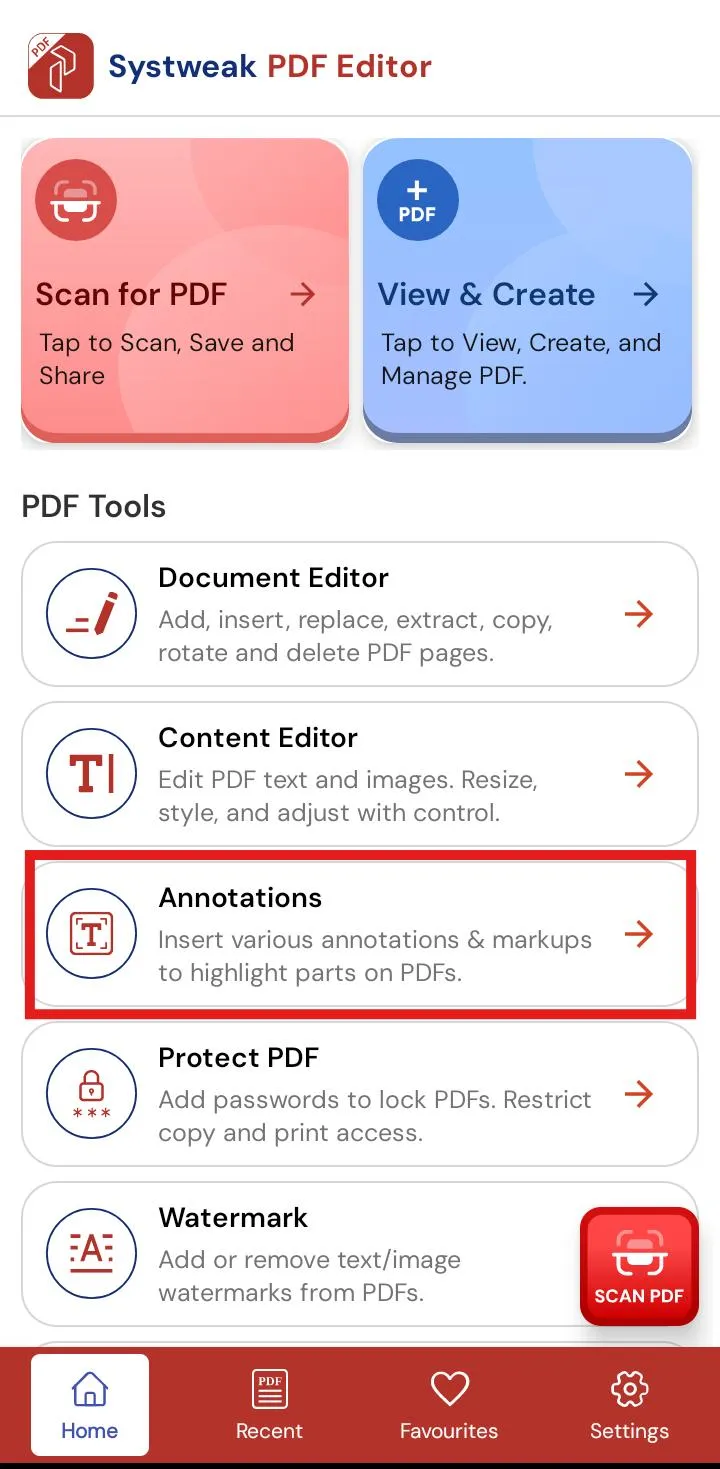
- Next, choose “Open” and choose the PDF document that you’ve been editing.
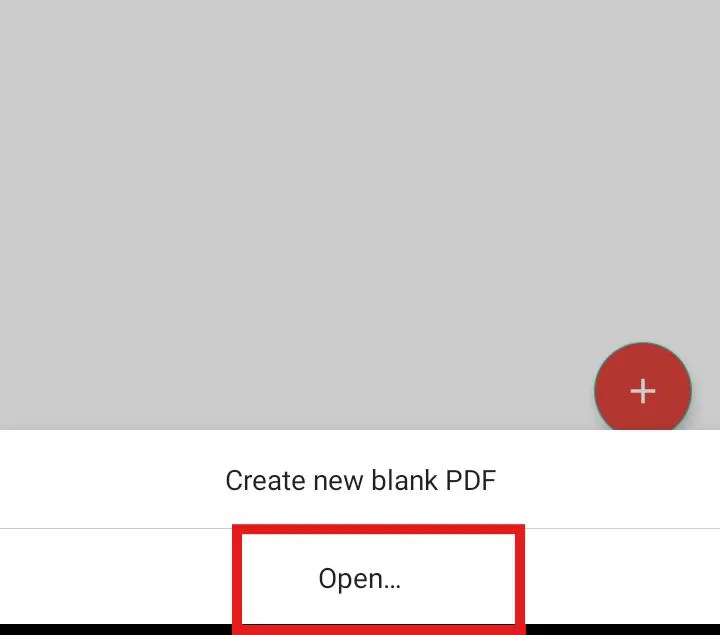
- Once you’ve opened your document, you’re now set to annotate.
Step 3: Tap the Annotation Tool
- In the bottom toolbar, look for the Annotations tools.
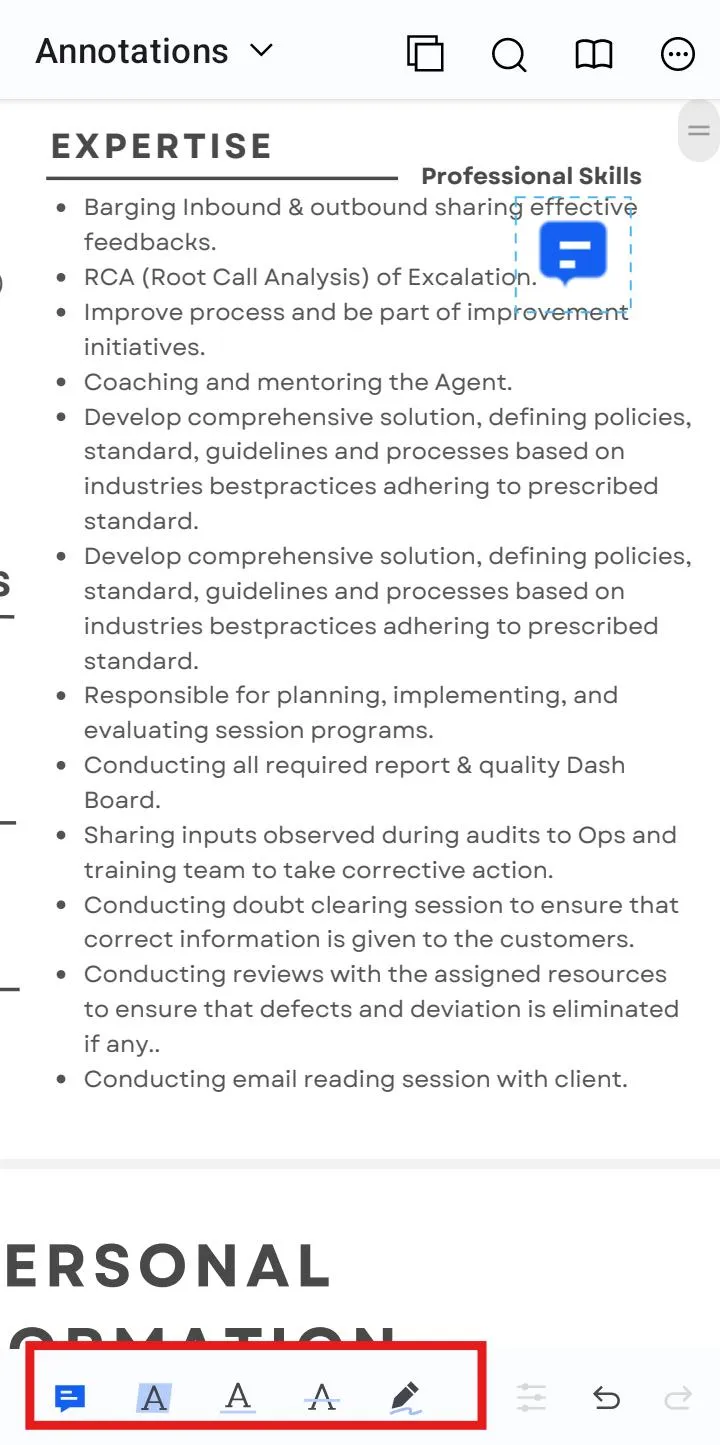
- Tap it to reveal all available markup tools.
- You’ll see:
- Comment / Note tool – to leave a sticky-style comment
- Highlighter – to mark important text
- Underline / Strikethrough – to emphasize or remove focus from content
- Freehand tool – to draw shapes, arrows, or circles manually
- Shapes (Circle and Rectangle) – to make shapes around some important text or information.
- Arrow/Straight line – draw an arrow to indicate something, and draw straight lines wherever you want.
- Text – Tap in text on your PDF document to add info.
Step 4: Add Your Annotations
Now, engage with your PDF using the tools:
- To comment: Tap where you’d like to drop a note, then type.

- To highlight: Tap the highlighter and swipe over text.

- To draw: Finger draw, like arrows, circles, or squiggles.

- To underline or strike through: Tap and highlight the text wherever you require.

- To add Shapes: You can do circles and rectangles that you draw and put on the document.

- To create an arrow or straight line: Click on the arrow/straight line icon at the bottom of the page. Put it over the desired location on the page.

- To add Text: Tap on the text button and input your text.

- You can undo marks made, undo color, and even zoom in to edit more precisely.
Step 5: Save and Share Your Annotated PDF
After marking up:
- Tap the three dots at the top right of the screen.
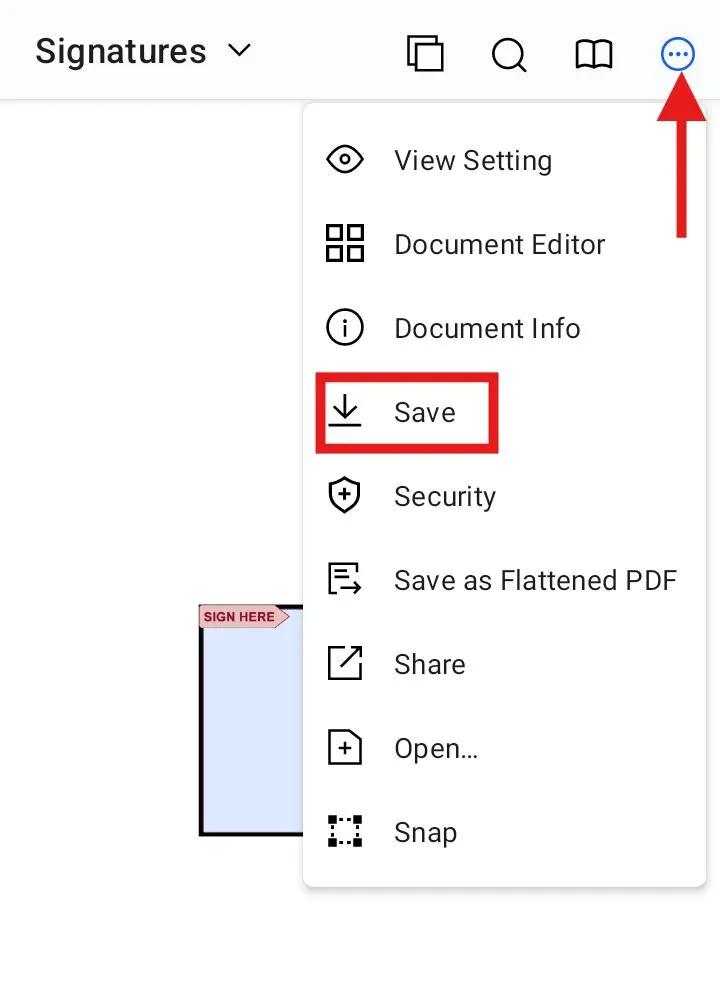
- Select “Save” and save your file.
- From there, you can also share your marked-up file by email, WhatsApp, Google Drive, and others.
Your marks are now included in the PDF and will be viewable in any standard reader.
Bonus Tip: Need to sign and password-protect your PDF? You can do any of that before or after, within the app.
In a matter of seconds, documents can be uploaded, annotated, signed, and shared on smartphones, touch-screen devices, and tablets. Laptops need not be touched. The process is streamlined and robust, perfect for seamless mobile work.
Read Also: How To Annotate PDF Documents On Windows
Bonus Tools That Come with the App
Annotation is one of the many fantastic features of Systweak PDF Editor & Scanner. There are lots of additional practical PDF functionalities to help simplify your PDF life on Android.
- Scan to PDF
You can scan any type of document or ID (single-sided or double-sided) or pictures in your gallery with your phone camera and turn it straight into a PDF.
- Create and Edit PDFs
You can create a blank PDF file and customize the page size to A3, A4 or A5, and choose either landscape or portrait orientation. You can insert documents, page snapshots, watermarks, or set IP settings in a few seconds.
- Change Content
Paste pictures or text into your PDF and then modify them—in on-the-go trim, flip a picture, change the text color or text size, align text, etc.—all on your phone.
- PDF Security
You can lock the document with both an owner password and a user password, and also inhibit printing and copying, or set your level of security (128-bit RC4, 128/256-bit AES).
- Watermark your PDFs
Inserting or deleting watermark text or images can be easily done. You can make them more or less opaque, configure the layout, and select on such pages should have the watermark text or image.
- Digitally Sign & Sign PDFs
You can sign your PDF files or send the document to others to sign. You can also see if an existing signature has been validated for authenticity.
- Editable Elements Inserted or Changed into Form Fields
Form elements (text boxes, tick boxes, round buttons, drop down lists, combo boxes, and signature fields) to make your PDF file an interactive file that you can use.
- Quickly View & Manage Recent Files
You can see and edit your recently changed PDFs in order to keep your workflow as efficient and quick as possible.
Best Tips for Smooth PDF Annotation on Android
PDF annotation on Android can be easy, however, through practice can become quicker and enjoyable as well. Here are some expert tips to enhance productivity to your workflow:
- Color Code your Highlighting
Use different colors for different types of highlighting (yellow for textual analysis, green for assignments, red for mistakes). This cleans clutter, eliminates confusion, and encourages organization within your highlights.
- Zoom for Precision
Don’t be worried to zoom in before you highlight or markup, it gives you better control, especially if you are drawing freehand arrows or underlining.
- Use Basic Tools for Quick Markup
Limited time: if time is an issue, do the quick markup with highlights, comments & underlining; you can come back with more complex edits later.
- Use the Undo/Redo Tips Sparingly
Made a mistake; no worries with Systweak PDF Editor & Scanner you can easily undo or redo any note you made, go on give it a shot.
- Sign once, reuse all the time
To make things easier, store your digital signature in the app so that you can easily insert it into another document. This will save productivity time for busy business people on the go.
- Bookmark long PDFs on sections you need to return to
Bookmarked long PDFs allow you to quickly jump to sections of interest when you are reviewing or returning to.
- Read Portrait mode, Edit landscape mode
Switch your orientation depending on your action: Portrait is best for reading, and Landscape gives you a larger space to annotate correctly.
- Stay Chime with the Updates
Updates mostly introduce performance improvements or new features; So keeping in step with your updates will introduce you to the best experience available.
Final Words
Annotating PDFs shouldn’t be such a chore–especially when you have the right tool in your pocket. Systweak PDF Editor & Scanner makes annotating, editing, and working with PDFs on Android part of your day rather than a pain.
Whether you’re stamping up study notes, reviewing work papers, or signing documents while in the field, this app folds everything you need into one simple experience. It is fast, simple, and for the serious person looking to get more from their phone.
If you haven’t tried out Systweak PDF Editor & Scanner go ahead and check it out, now is the time to give your PDFs that smart treatment.
Get Systweak PDF Editor & Scanner on Google Play now and manage PDF annotation for Android.




