




PDFs are so well-liked because they maintain their layout on different devices and operating systems. If you have a research paper, legal document, eBook, or business report, PDF is the promise of sameness. Occasionally, however, you might be in a position where a PDF page sequence isn’t quite right or must be presented in reverse. For example, perhaps you are inserting reverse-scanned images, or perhaps you simply want to create a reversed version of the document for easy reference.
Reversing the order of pages in a PDF would seem to be a complicated process, but users of Windows will find it quite simple using the following steps. From operating system print options to third-party editors and web-based programs, there are many methods through which PDF pages can be reordered easily.
Here, we will lead you through step-by-step instructions to reverse the order of a page in a PDF in Windows. Each procedure is explained in a beginner-friendly way so that you can choose the most appropriate one for you.
Methods to Reverse PDF Pages Effortlessly
Let us have a look at the best ways to reorder or reverse PDF pages on Windows.
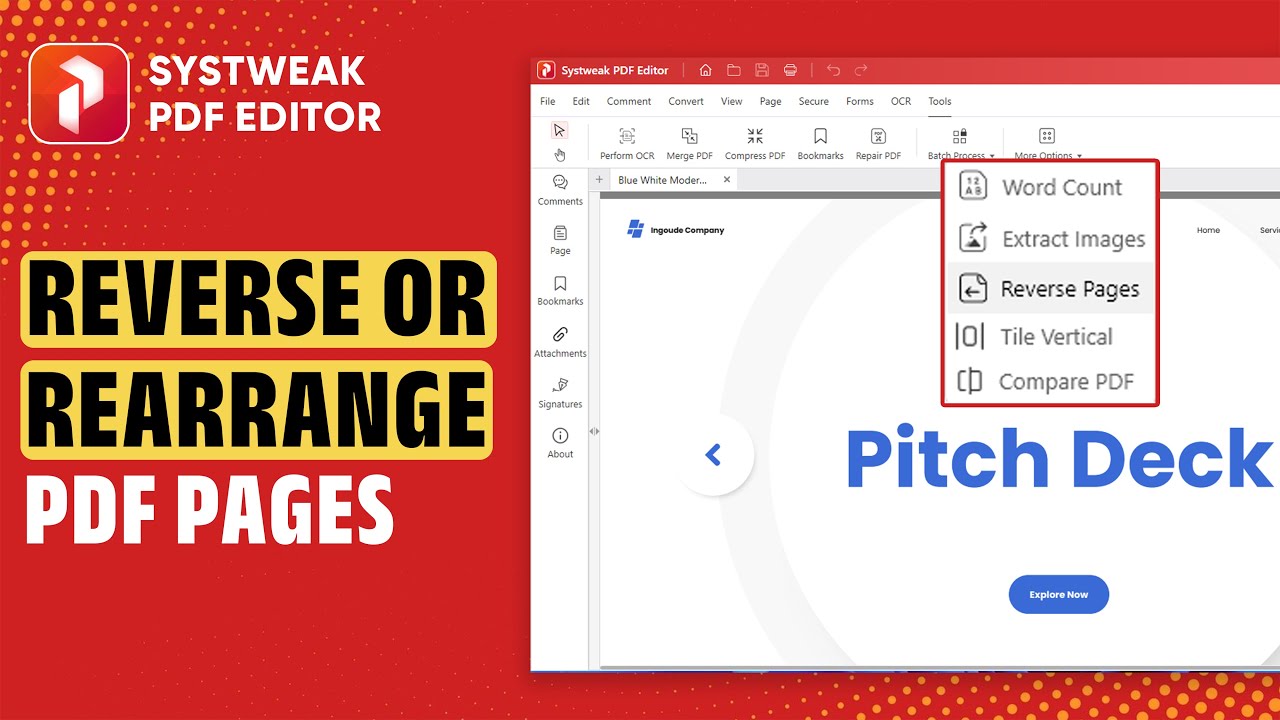
Method 1: Reversing Flipping PDF Pages using Systweak PDF Editor
For greater convenience and control, Systweak PDF Editor is an excellent software for flipping, rearranging, and editing PDF pages for Windows. Unlike the print method, this program gives you a graphical interface to work with pages for precision and flexibility.
Steps:
- Download and install Systweak PDF Editor from the official website.
- Open the app and your PDF file.
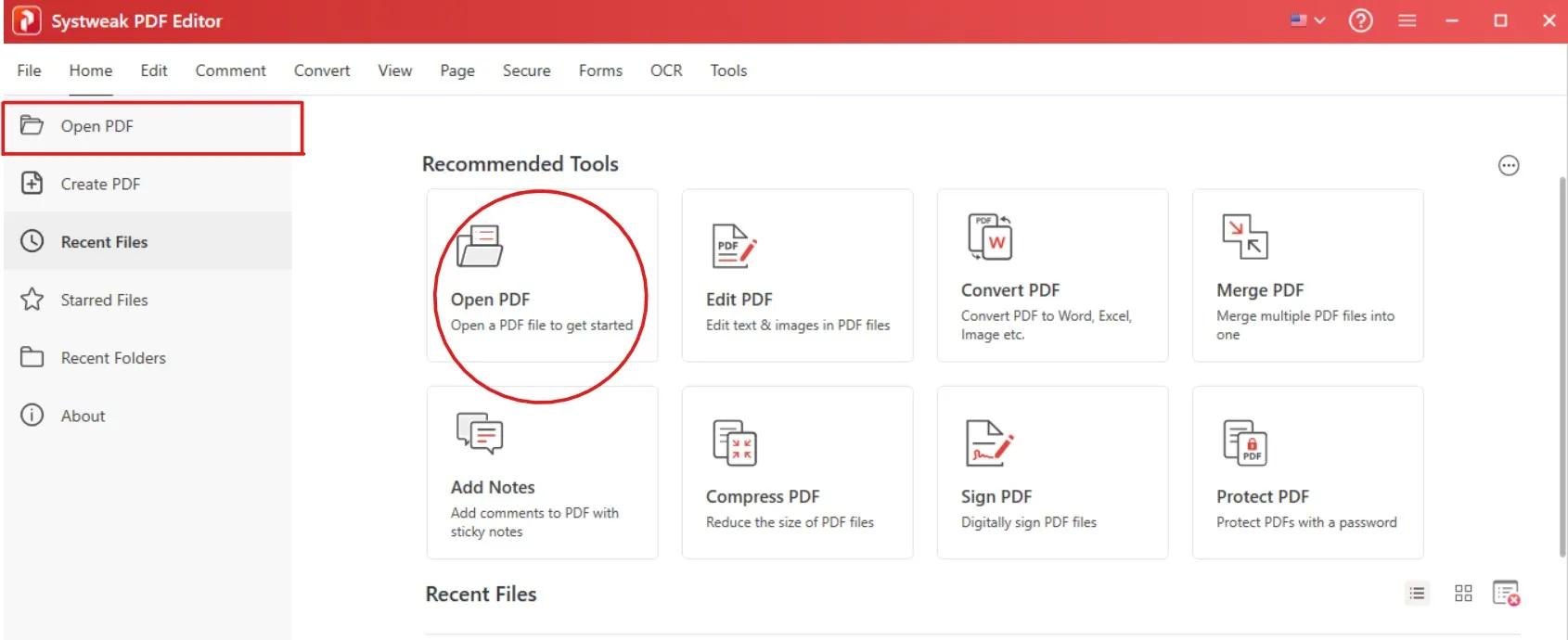
- Go to the Page section in the toolbar.
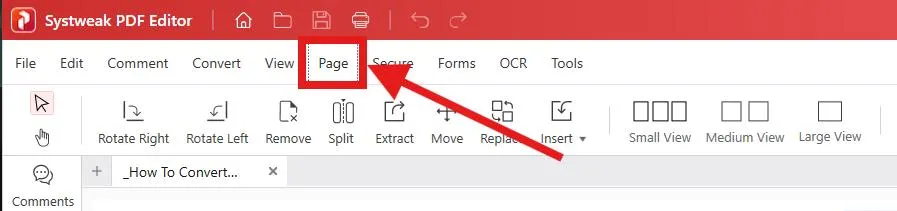
- Choose the Move Pages feature.
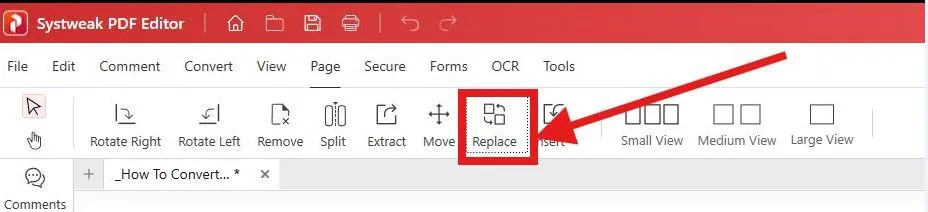
- Reorder the pages manually by placing the pages in reverse order one by one.
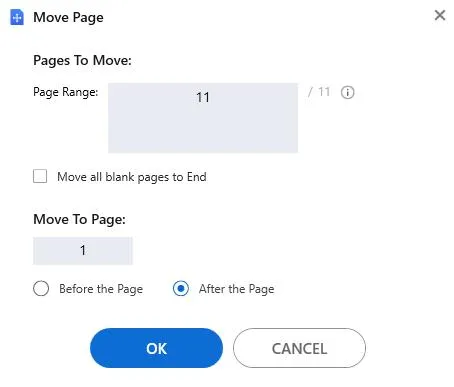
- Save the PDF file after modification.
Why Systweak PDF Editor?
- Beginner-friendly interface.
- Reverses entire documents or individual page ranges.
- Allows further editing like inserting bookmarks, annotations, hyperlinks, or splitting/merging PDFs.
- Works offline, where it keeps your documents safe.
Advantages:
- Easy drag-and-drop capabilities.
- Professional-grade editing functionality.
- Saves formatting and embedded objects like hyperlinks or bookmarks.
Disadvantages:
- Must be installed (but fast and lightweight).
If you’re constantly working with PDFs, this method is the fastest as it does more than just flipping pages over and provides a general editing solution.
Method 2: Reorder PDF Pages of a PDF Using Print
PDF page order reversal using Print to PDF is one of the simplest approaches. It is a pre-installed facility in Windows and does not need to be installed with any further software, thus offering a quick-fix solution.
Steps:
- Open your PDF file in any PDF reader (Microsoft Edge, Chrome, or another reader).
- Click Ctrl P or click on Print.
- In print dialog box:
- Select Microsoft Print to PDF as the printer.
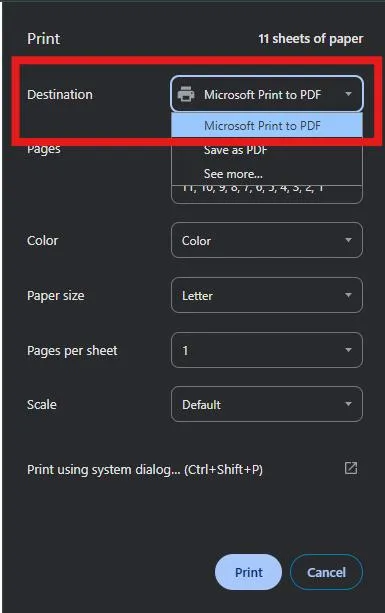
- In the Pages field, manually enter the page numbers in reverse sequence. For instance, if your PDF contains 11 pages, enter 11, 10, 9, 8, 7, 6, 5, 4, 3, 2, 1.
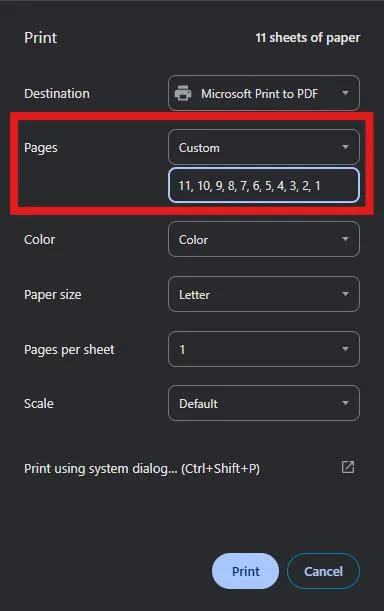 A few viewers also include an option, Reverse pages, which you can use alternatively.
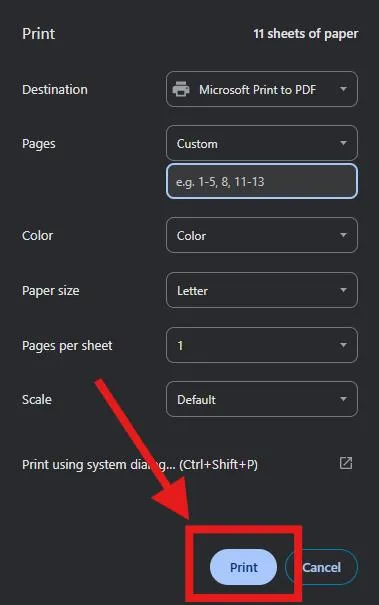
- Press Print and save the output file.
Your new PDF will have all pages in reverse order.
Advantages:
- No special software needed.
- Will run on any Windows machine.
- Extremely fast and simple.
Disadvantages:
- Will have to type in if the reverse page option is not available.
- Not as flexible as a dedicated editor.
Method 3: Reversal of PDF Page Order by Internet Tool
If you do not wish to install software, you can reverse page order through online PDF tools. There are many websites providing free PDF reordering tools.
Steps:
- Open a reliable online PDF program (ex., Smallpdf, iLovePDF, or PDFCandy).
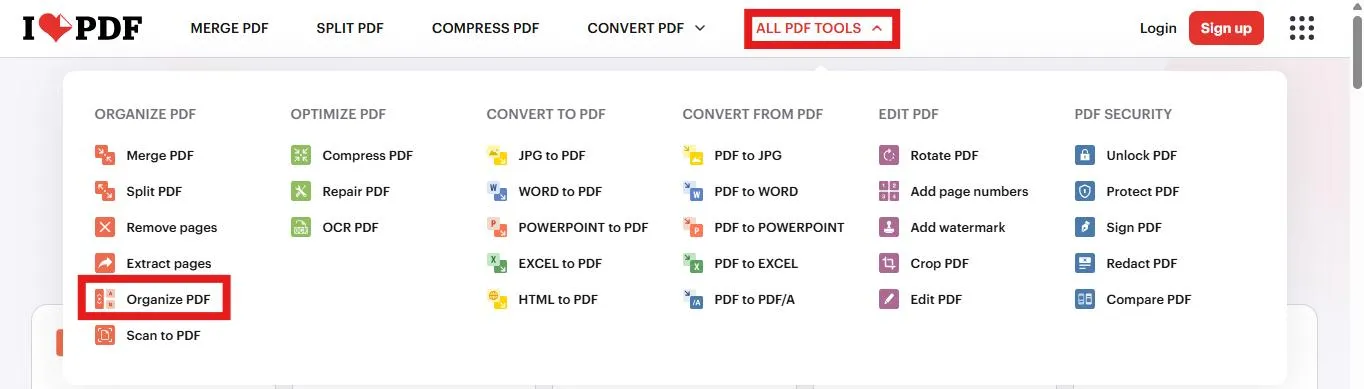
- Select All PDF Tools and click on Organize PDF.
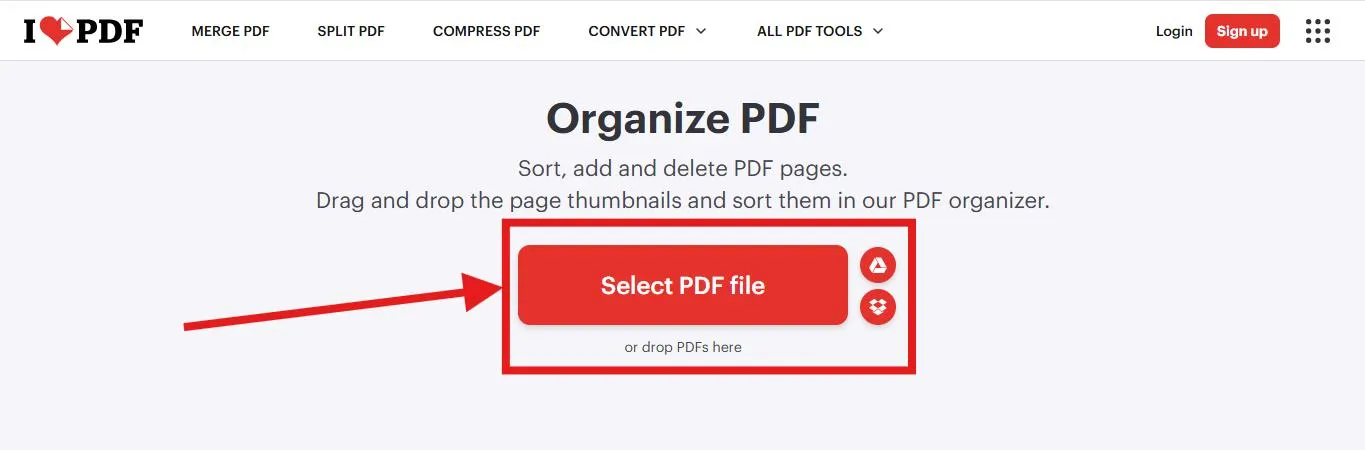
- Upload your PDF file.
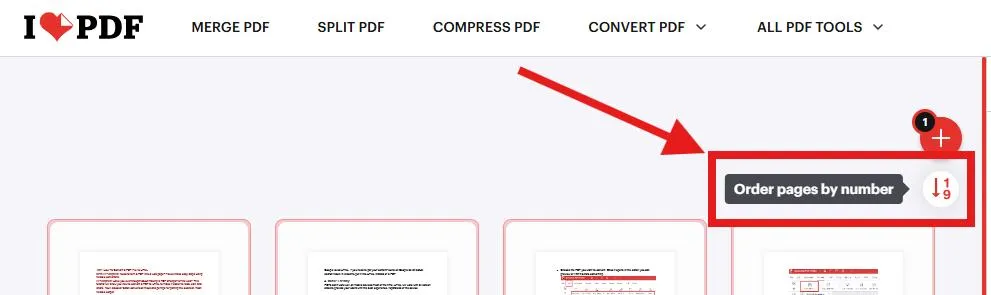
- Look for a feature like Order pages by number or manually drag and rearrange the pages in reverse order.
- Download the updated PDF when it is complete.
Advantages:
- No installation required.
- Cross-device compatibility (Windows, Mac, or mobile).
- Quick and simple.
Disadvantages:
- Internet connection required.
- Sharing sensitive documents may be a privacy concern.
- Free tool file size limitations.
Tip: Avoid using online tools if the document you are working on has confidential information. Use offline tools like Systweak PDF Editor for your privacy.
Conclusion
This doesn’t have to be a frustrating process when trying to unscramble the sequence of pages in a PDF document using Windows. Here are three major ways to achieve this:
- Re-order using the free and fast process of Print to PDF.
- Go with Systweak PDF Editor for an offline, safe, and professional process with full editing options.
- Where installability isn’t possible, online PDF tools can be used from time to time.
Your need for speed, security, or flexibility determines the method that will work for you. If you work predominantly on PDFs, it’s easy and safe to work with just one editor like Systweak PDF Editor.




