Scanned documents are everywhere, widely seen in old contracts, filled-out forms, signed agreements, data reports. They look like the usual PDF at first glance, but the moment you try to click and edit, nothing seems to work out. Don’t worry – That’s not a bug. It’s the property of how scanned files work.
In this blog, we will cover why scanned PDFs can’t be edited directly, how OCR (Optical Character Recognition) is the best solution, and how to convert your scanned documents into fully editable Word files. Along with practical tips to get professional, accurate results every time.
Why You Can’t Edit a Scanned PDF Directly
When a document is scanned, your camera captures it as a flat photograph. Being the picture of words, not the actual text. It is not a PDF that you create in Word, a scanned PDF contains no characters that can be read by machine. Hence, you are not able to do the following:
- You can’t click to edit text — there is no text layer to interact with
- Document is not searchable — the words are pixels, not searchable characters
- Copy-paste does not work — there’s nothing for your clipboard to pick up.
Remember these PDFs as a photograph: you can view it, but can’t edit.
What Is OCR and How Does It Work?
OCR (Optical Character Recognition) is the technology that converts the scanned image into editable text. It reads the characters in an image, matches them to the letter and number patterns, and presents a text layer you can work with.
Advanced OCR engines like Systweak PDF Editor can handle:
- Printed text in dozens of languages
- Multiple columns and complex layouts
- Tables, headers, and footnotes
- Mixed text and image content
Having the advanced OCR is a great help OCR but the quality depends upon the source scan. A crisp, straight, high-resolution scan at 300 DPI (dots per inch) or above will produce clear results. A blurry, skewed, or low-light scan will need manual cleanup afterward. As you have understood the basic concept of OCR, let’s discuss the step by step conversion process:
The Two-Step Process: OCR First, Then Convert
Many people have a wrong assumption converting a scanned PDF to Word is a single click. In reality, the right workflow is to integrate two separate steps:
- Firstly, Apply OCR to put a text layer on the scanned image.
- Secondly, convert to Word (.docx) once the text is complete
Skipping step one or using a tool that skips it for you without telling you is why so many conversions produce Word files where the text is actually an embedded image, still uneditable. Always confirm that genuine OCR was applied before the conversion.
How to Convert a Scanned PDF to Word Using Systweak PDF Editor
Systweak PDF Editor does both things: OCR and conversion. Along with the various other features helping further. Read the below mentioned steps
Step 1: Download and Install
Click on the button below and download the latest version. Run the installer and follow the on-screen prompts
Step 2: Open Your Scanned PDF
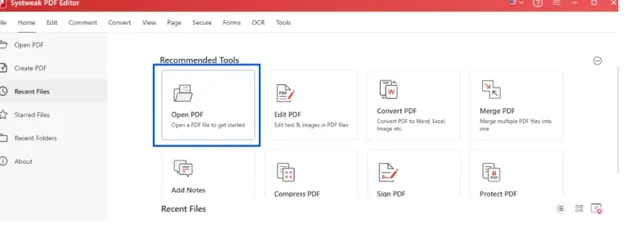
Launch the application and click Open PDF. Select the scanned document you want to perform the OCR. It will load on the screen just as it would in any PDF viewer.
Step 3: Run OCR
Please look for the ‘OCR’ given in the toolbar at the top of the page. Just below the red ribbon.
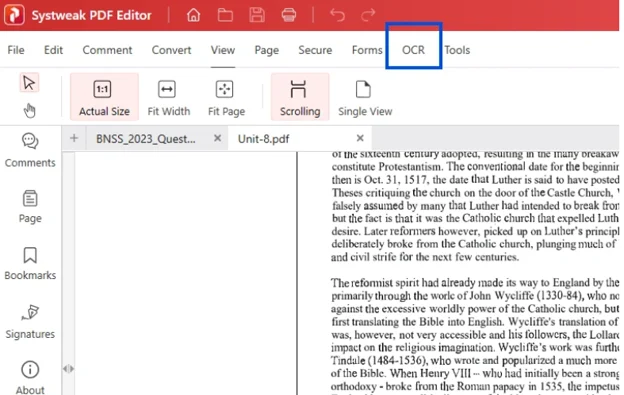
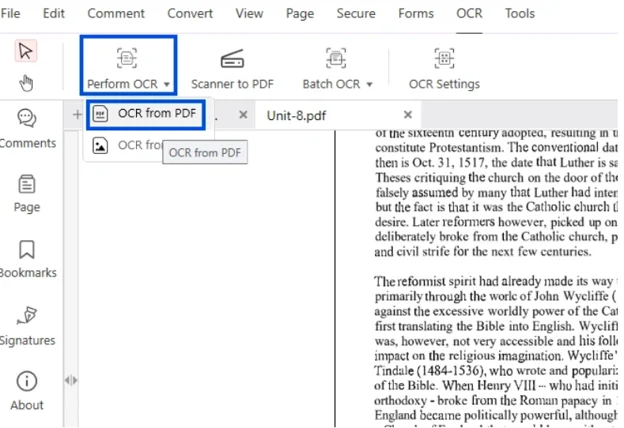
Click on it. You’ll be prompted with two options ‘Perform OCR’ and select ‘OCR from PDF’.
Step 4: Set the Output Format and Convert
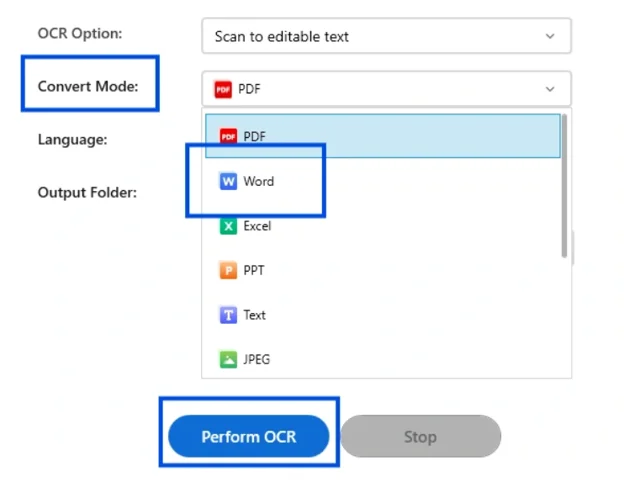
Upon selecting the previous option You’ll instantly be promoted with a dialogue box. Select ‘Convert Mode’ to ‘Word’. Apart from this, you can tweak the settings such as – Language, Output folder, and levels of OCR. When you are sure with inputs, click on ‘Perform OCR’.
Step 5: Review and Edit the Word Document
At this stage OCR is complete. Open your editable Word document and make the changes as you like it..
Best Practices for Clean Conversions
The tool is crucial. But so does your preparation. These habits will significantly impact your results.
Before You Scan (or Before You Convert)
Scan at 300 DPI or higher. This step alone is the most important variable in OCR accuracy. At 300 DPI, characters can be recognized. If you select the 150 DPI or below, chances for errors will be extremely high. It will worsen in the case of smaller font sizes.
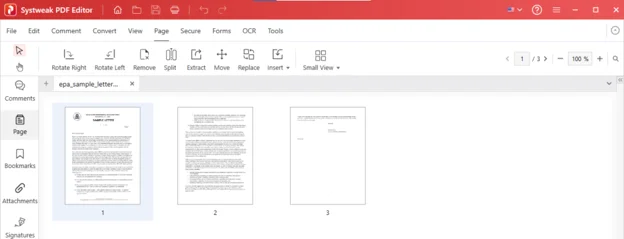
Keep the page straight. If a page is slightly tilted even a few degrees can make the recognition errors. Systweak PDF editor comes with the orientation option; use it. You can access it by clicking on the “Page” and selecting rotate right or left. To understand the detailed steps read this blog on Rotating a PDF.
Scan on a clean surface. Coffee stains, fingerprints, or over sun exposure leads to glass showing up as artifacts that can lead to errors. Clean the glass before scanning important documents.
Remove staples and flatten the page. Pages with bent edges or shadow from binding will have distorted text near the margins.
When Running OCR
Select only the pages you need. If you have a 40-page contract but the relevant pages are 5–8, apply OCR on the specifics. Processing fewer pages is faster and minimizes errors across pages you don’t need.
Set the correct language. OCR engines work on character recognition and word patterns. Running French OCR on an English document — or vice versa — makes things tough.
After Conversion
Check tables carefully. Tables generally get missed in OCR — columns can merge, rows can duplicate, and alignment often goes out of order. Please review all of them manually.
Verify numbers. Digits like 1, l (lowercase L), and I (uppercase i) are frequently confused. If you are working on financial or legal documents, a misread number can cause issues. Always verify these small things.
Keep the original PDF. Never delete the original source file. If anything goes out of plan during OCR or conversion, you’ll need the original document to restart the process. Keep a backup before starting any conversion.
Common Problems and How to Fix Them
The Word file looks like a picture, not text. OCR is not done correctly. The tool basically wrapped the image in a .docx file. Re-do the process with the tool having advanced OCR capability.
Text is garbled with strange symbols. Usually caused by a low-quality scan or the wrong language setting. Re-scan at higher resolution and ensure the correct language is selected before running OCR.
Tables are completely broken. Complex table formatting often needs your correction. After conversion, recreate the table using Word’s tools. It’s usually faster than trying to correct the errors of the OCR process.
Images are missing or low-quality. OCR is intended for text mainly; it doesn’t always preserve image quality. If images are important, take it directly from the source PDF or if convenient re-scan at better resolution.
Frequently Asked Questions
Summary:
Converting a scanned PDF to an editable Word document essentially requires two things: OCR to create a text layer on the image based PDF, and a conversion step to change it into a docx file. However, the quality of your output varies on the quality of your scan rather than on the tool. Always invest in good scans and your conversions will be lot better
For daily tasks and sensitive documents, dedicated offline software like Systweak PDF Editor is the best choice as it has advanced OCR technology. For once in a while conversions, Microsoft free online tools may be sufficient. In either case, always check the final results before using or editing the document.