



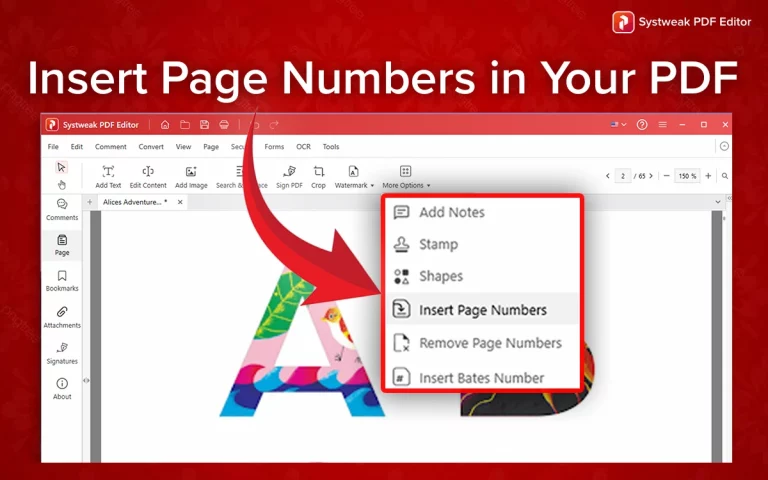

While working with documents such as reports, eBooks, academic papers, or business proposals, a small thing such as page numbers becomes noticeable. Not only do they simplify your PDF to navigate through, but they also make your work professionally presented.
If you are using Systweak PDF Editor, you’ll be happy to know that with it you can easily add numbers. Like to have a clean digital document, this tutorial is for you – how to add numbers in the pdf document.
Why Add Page Numbers to Your PDF?
Adding page numbers to a PDF document is not only for presentation purposes. Here’s why:
- Keeps readers on track, particularly lengthy documents.
- Maintains conformity with formatting standards of academic or legal documents.
- Additional touch of professionalism.
- Review and reference of particular pages significantly.
And, with Systweak PDF Editor, you can do all this in a matter of clicks.
Step-by-Step: How to Add Page Numbers Using Systweak PDF Editor
Step 1: Open Systweak PDF Editor
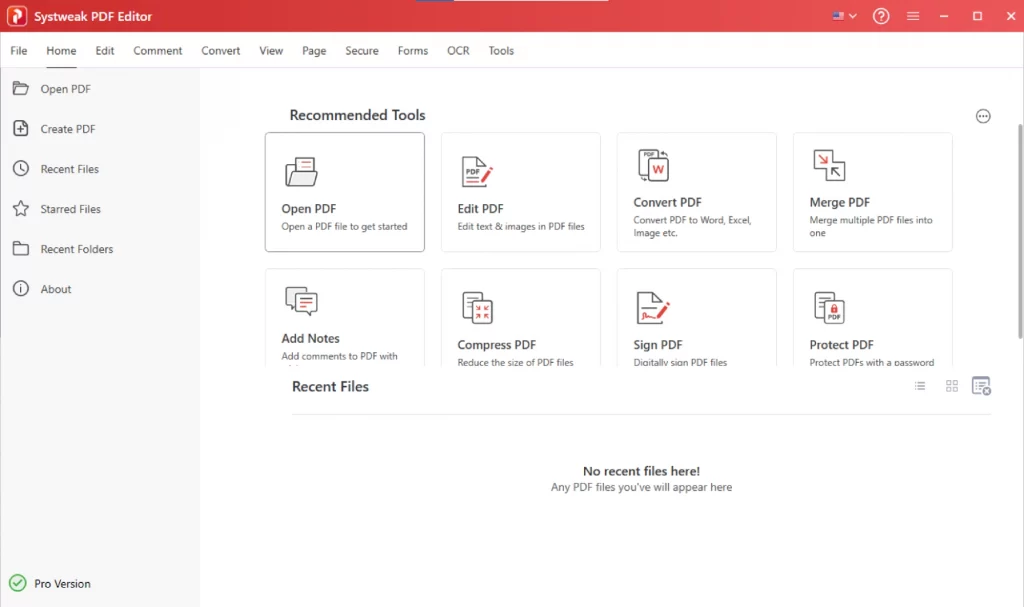
Start the Systweak PDF Editor on your computer. If it is not installed, you can download it from the website. This step can take anywhere around 5-7 minutes at max.
Step 2: Load Your PDF
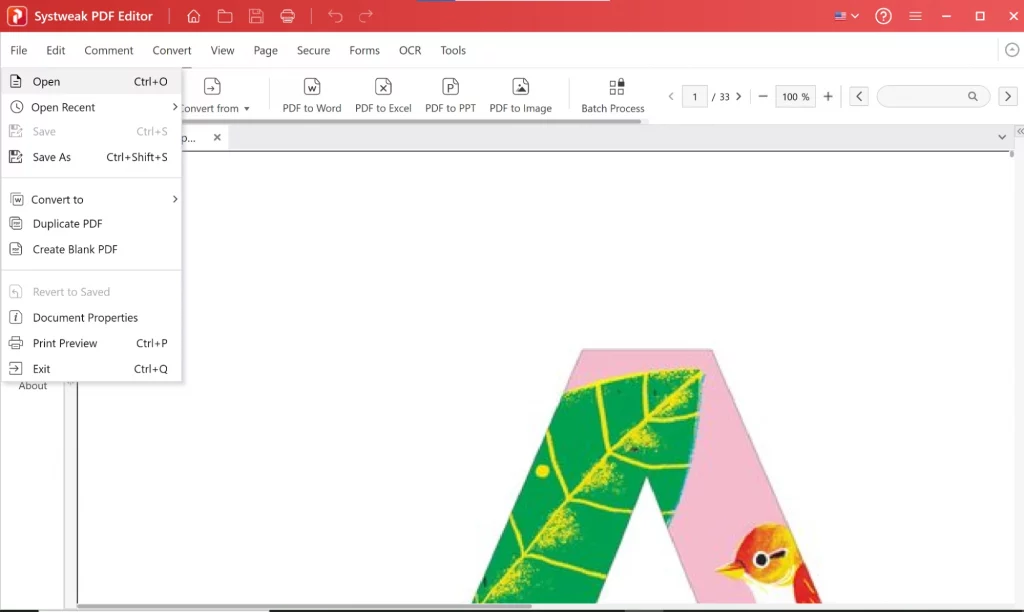
Click File > Open, and then choose the PDF file that you want to edit. Don’t worry about the file size, the Systweak PDF editor can handle large PDF swiftly.
Step 3: Access the Insert Feature

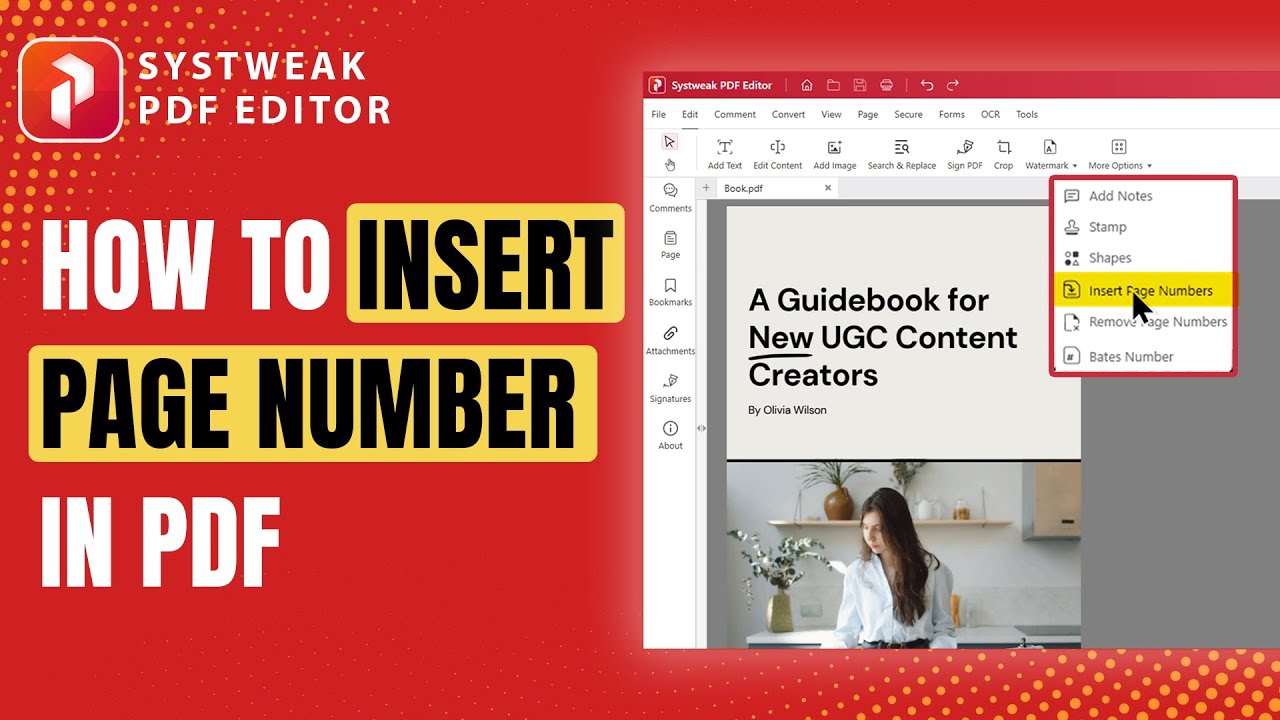
After this, you have to Navigate on the edit option given in the toolbar, go to the more options and click on the insert page numbers.
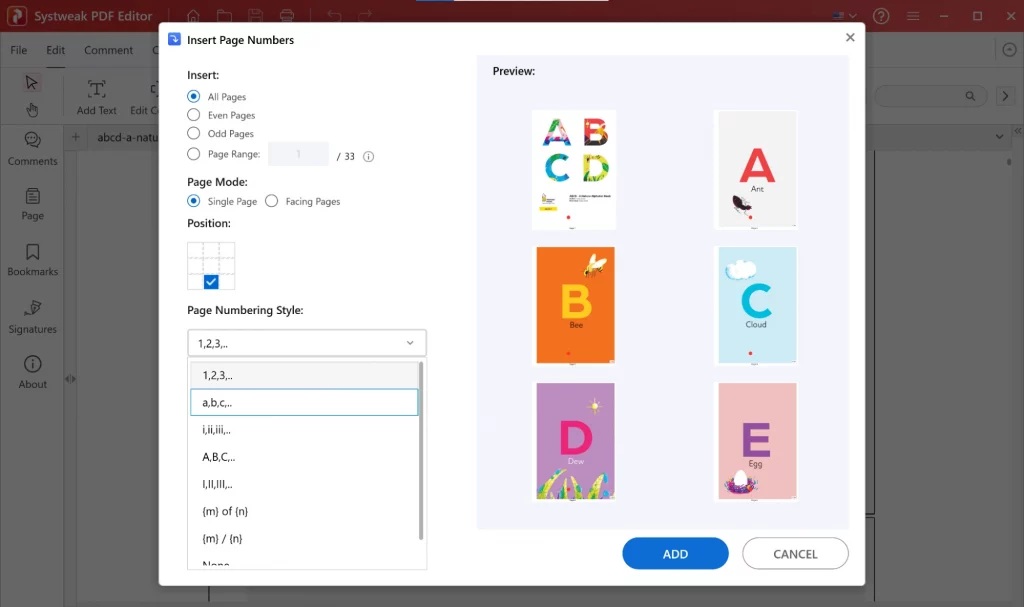
Step 4: Customize Your Page Numbers As Per Your Requirements
You can now select:
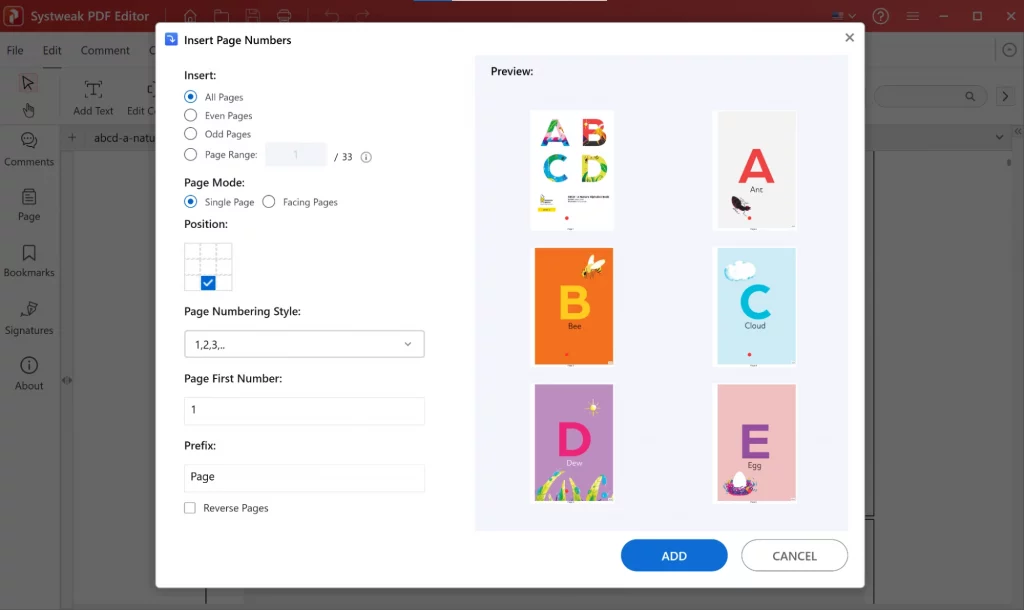
- Where the page numbers will go (top or bottom, left/center/right). This option will let you decide to place the number at the desired spot. Most PDF editors do not have it.
- Along with this you can decide upon what font, size, and color to put.
- Decide from which page you like to start the number – Whether to start numbering from the first page or later. It has the advanced option too like – All pages, Even Pages, Odd Pages and Page Range (perfect for bypassing a title page).
Step 5: Check and Apply
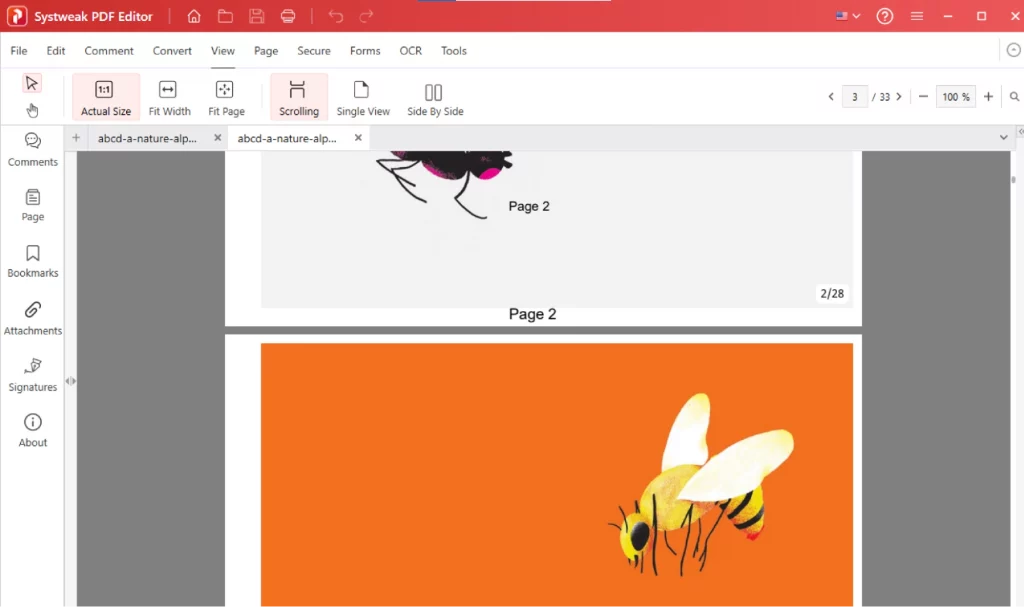
Before finalizing, use the Preview to understand everything is in place. Once you’re happy with it, go ahead and apply it.
Step 6: Save Your Updated PDF
Last but not the least, Go to File > Save As, give it a name and location, and you’re done. Your PDF got the clean, professional page numbers. Upon implementing the above steps , your file is ready to share!
Expert Tips for Better Results
- If your document has additional pages such as index or cover, you can start numbering from page 2 or beyond.
- For the professional documents, pick Roman numerals for the introduction and Arabic numerals for the body. To apply this, click on the Page Numbering style drop down as given in the photos.
- Systweak PDF Editor is equipped with functionality to merge, split, and reorganize pages with ease and large files prior to applying the numbers.
Why Choose Systweak PDF Editor?
There are a lot of PDF tools available, but Systweak PDF Editor is amazing for a couple of reasons:
- Advanced PDF Editing – It’s a lightweight tool that’s simple to use, ideal for beginners and professionals. You have access to a complete set of editing features such as Convert PDF files to Excel, Word, PowerPoint, images & vice versa.
- Different viewing modes – Single View, Scrolling, Fit Page, Fit Width, and Actual Size offered by Systweak PDF Editor makes reading PDF files easy.
- Convert PDF to Any Format – Transform PDF files into a different file type, such as Microsoft Word, Excel, or PowerPoint, without affecting the original content and formatting..
Ready to Give It a Try?
If you’re working on PDF files usually you might have to add numbers if missing, adding page numbers should be an easy task. It’s fast, it’s simple, and with Systweak PDF Editor, and a complete glitch-free experience. Visit Systweak PDF Editor and start organizing your PDFs in a smart way. Have questions or need help? Reach out to us!




