




Re-entering the password every time you open a document is quite annoying even when you own the file. Imagine getting pop-ups of ‘Require Password’ when you just want quick access to your file for something urgent! Password protections are great for security purposes, but after the main purpose of the passwords is done and now you can remove it, it’s better to remove it and not keep on typing it everytime to try to open it.
If you want to remove password from a PDF and don’t know how to, then you are at the right place. We’re going to walk you through the simple, permanent steps to remove password from PDF file using Systweak PDF Editor.
Just a quick note: This guide works when you know the original password and want to remove it for convenience. It is not about hacking files without permission.
Why Is It Important To Remove Passwords From PDFs?
Removing the security layer from a document you own is all about efficiency and control.
Here are a few common reasons people remove PDF passwords:
Stop Repetitive Typing: The most obvious reason, to avoid entering the password repeatedly when opening the same file.
Remove Permissions: Files can have a separate “Permissions Password” that prevents you from printing, editing, or copying content, merging, or sharing. Remove them and get full control of your document.
Easy Sharing: You can quickly share or print the file without having to tell the recipient the password.
Easy collaboration: You can simplify collaboration when all users are authorized to view the document.
Way to Remove Password Protection from PDF
How to Remove Passwords from PDF in Windows using Systweak PDF Editor
Systweak PDF Editor makes removing password protection simple. The entire process takes just a few clicks inside the application.
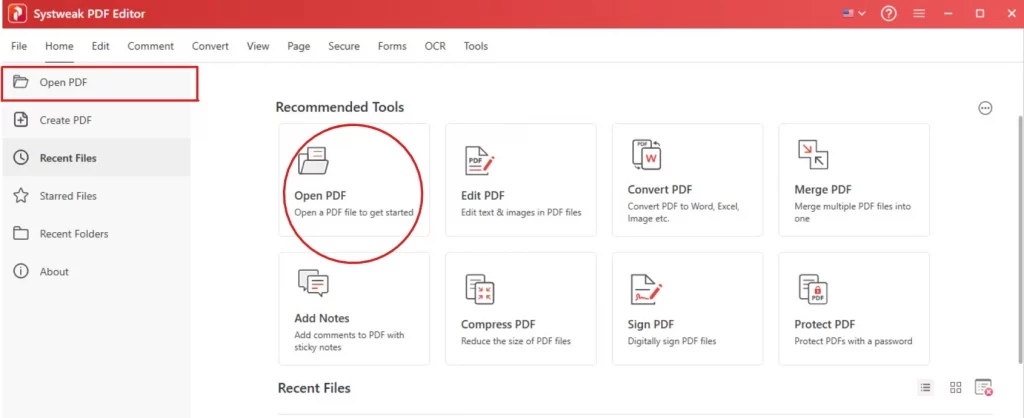
Open the File in Systweak PDF Editor
Launch Systweak PDF Editor and open the PDF file you wish to unlock.
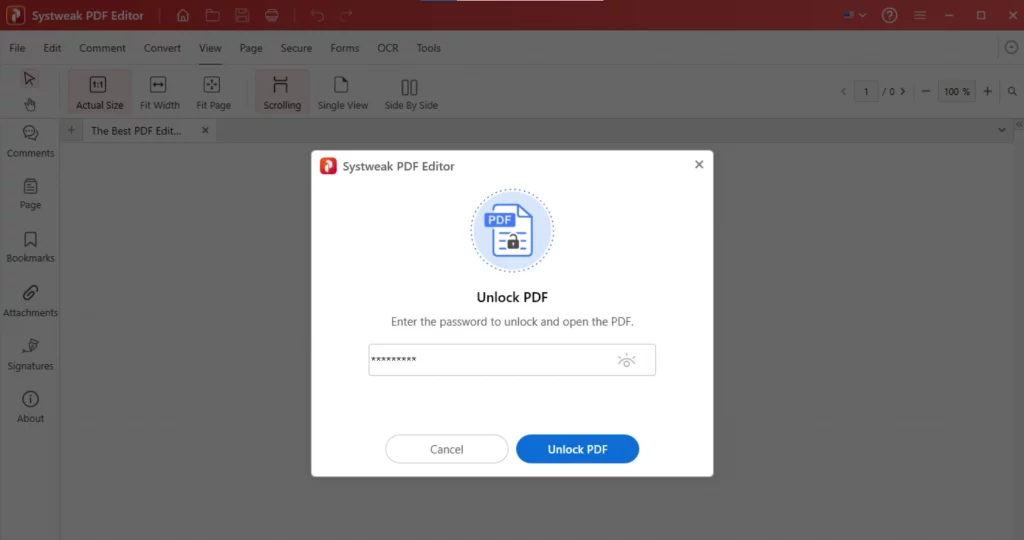
When the password prompt appears, enter the correct password to open the file, then click “Unlock PDF” .
Navigate to the Security Tab
Once the document is open, look at the top menu ribbon and click on the “Secure” tab .
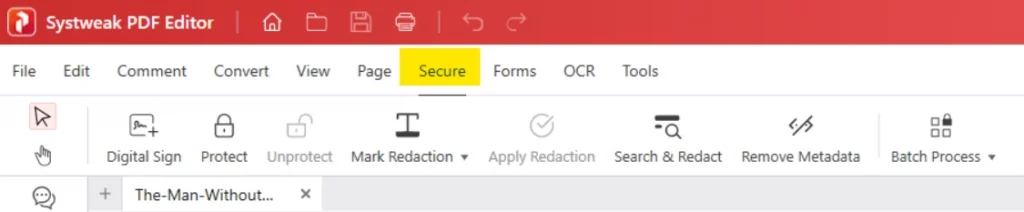
Select the Unprotect Option
In the Secure menu, click on the “Unprotect” button.
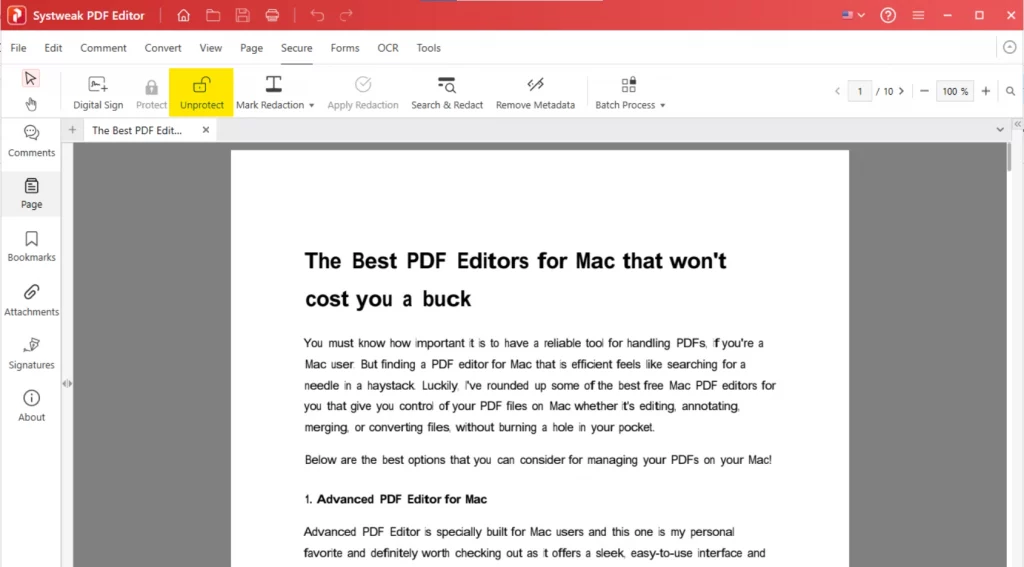
The application will ask you to enter the password to unprotect the PDF. So enter the password and click on ‘Remove Password’.
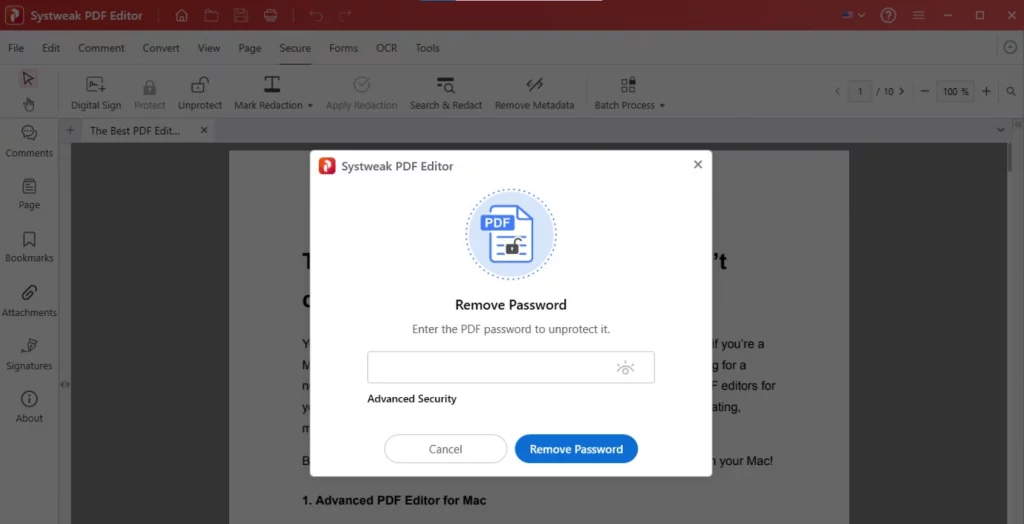
Finalize the Removal
Just type and click on ‘Remove Password’.
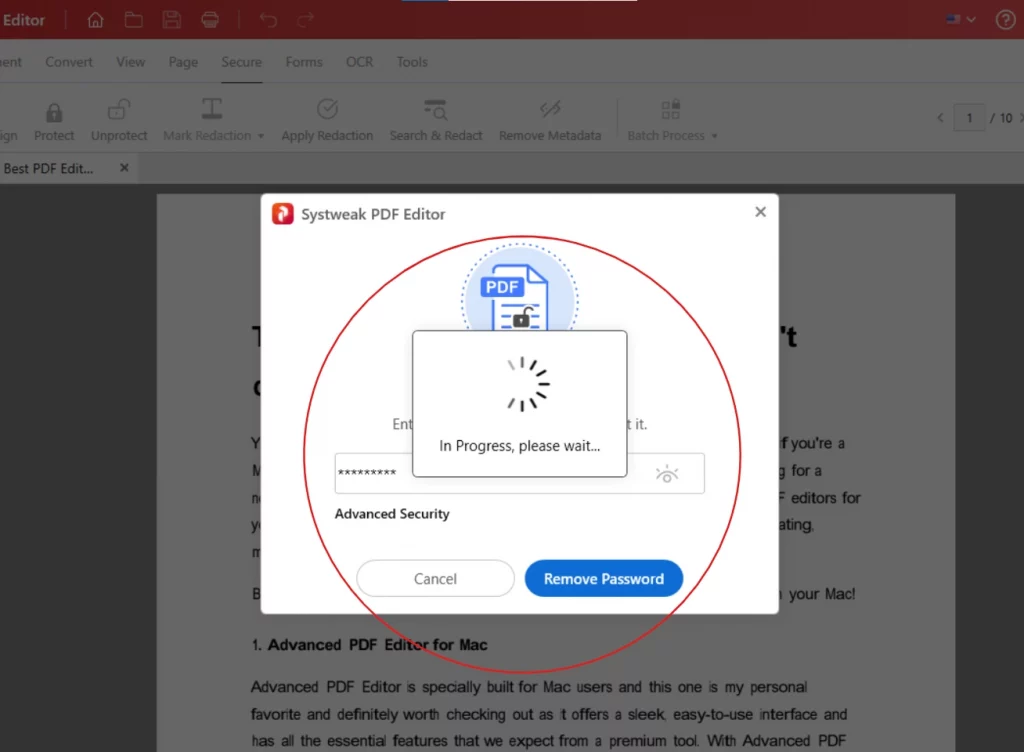
If your PDF was protected with ‘Advanced Security’ another dialog box appears with two main checkbox options. You’ll have to uncheck both to remove all security:
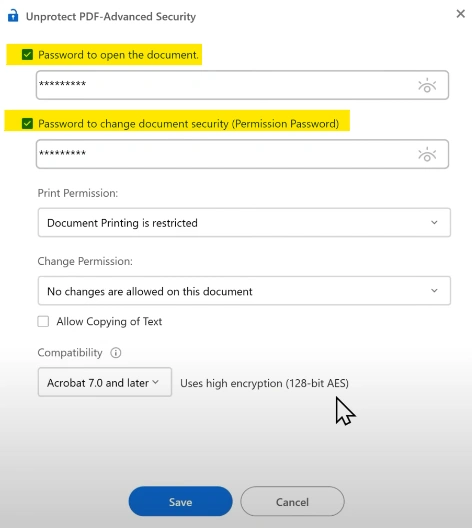
Uncheck the first option to remove the password required to open the document .
Uncheck the second option to remove the password required to change document security (the permissions password).
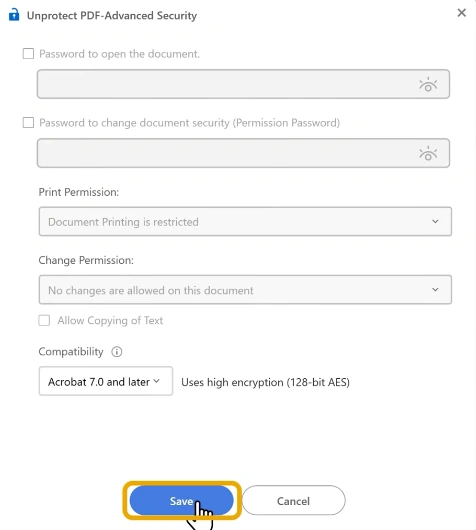
Click on “Save” and the change will be applied.
It was that simple, that’s it.
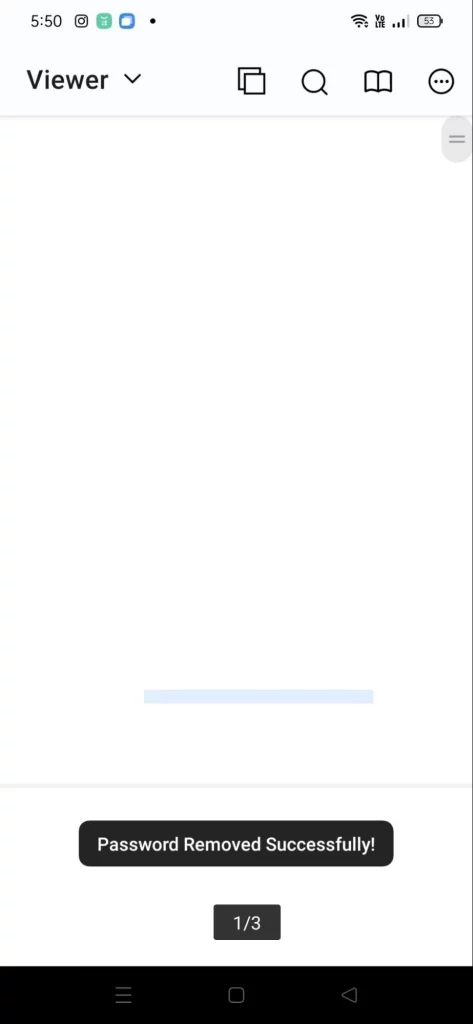
Your password has been removed and now you can open it anytime without typing the password.
How to Remove a Password from PDF in Android
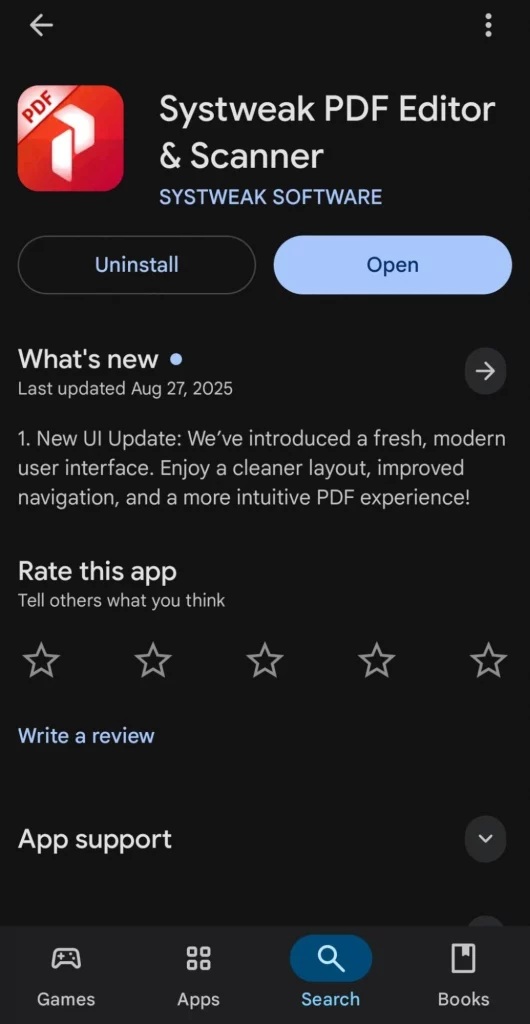
Install Systweak PDF Editor on your phone
Go to play store and install Systweak PDF editor

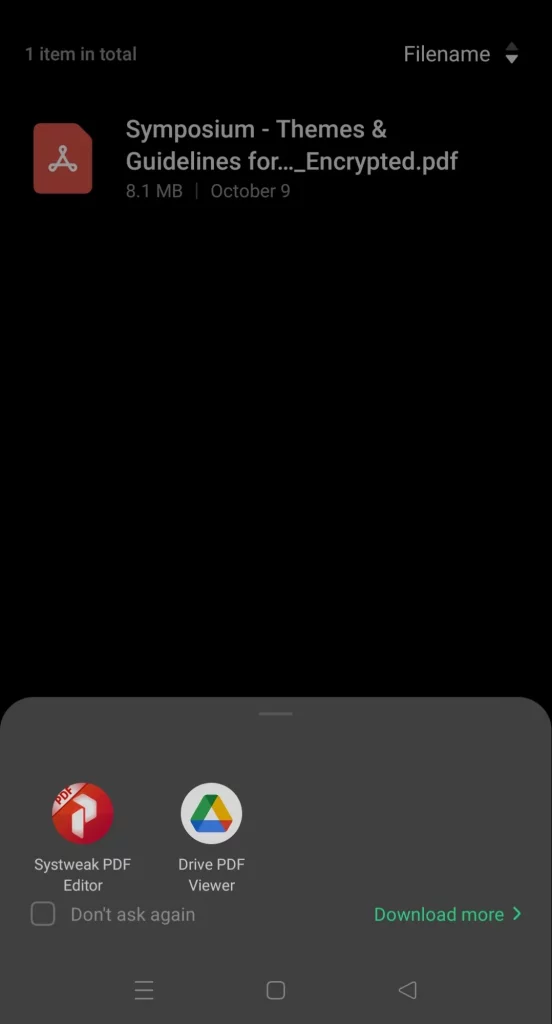
Open the Protected PDF file
You can either open it from Systweak PDF Editor itself, or just click on the PDF and choose Systweak PDF editor from the options.
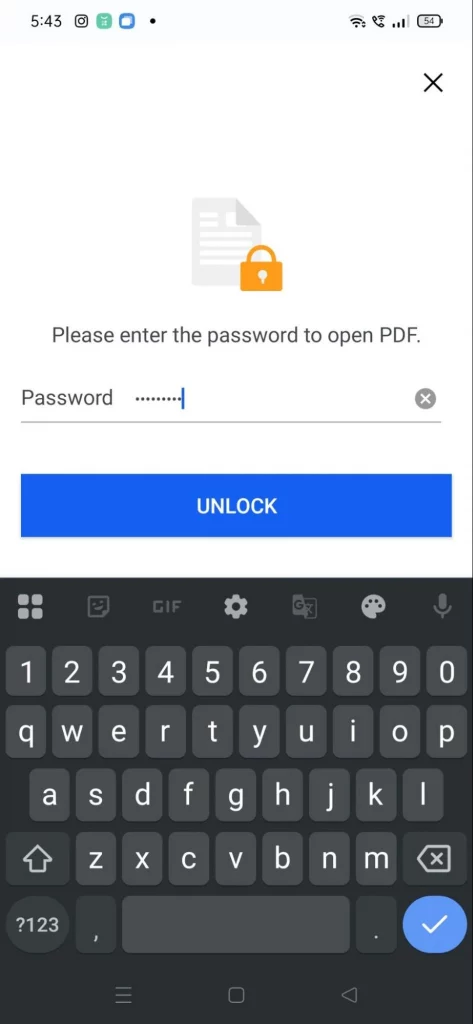
Enter your Password
Once you’ll open your file, it’ll ask for password, so enter your password and to open the PDF.
Click on the three dots
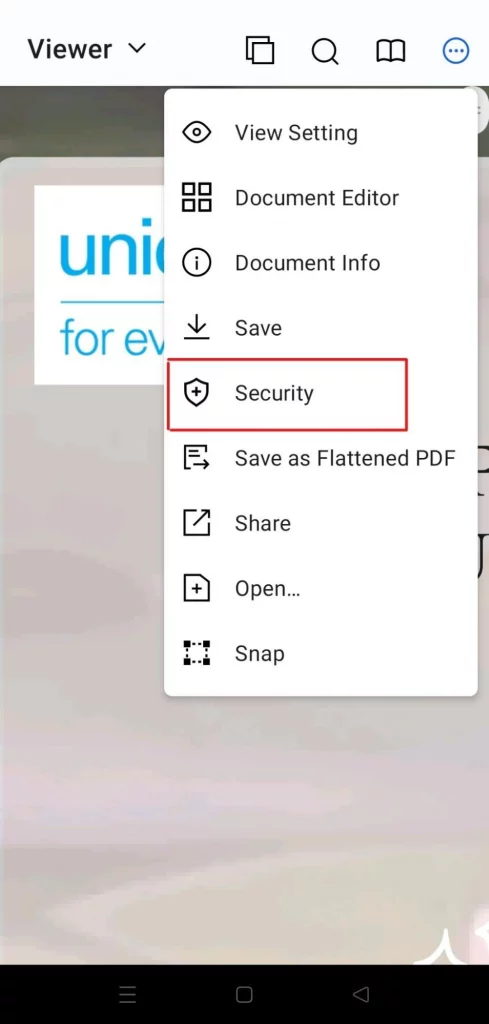
Once your PDF opens, click on the three-dots on the top right corner.

Go to Security
From the menu, click on ‘Security’ to unprotect the PDF and remove password.
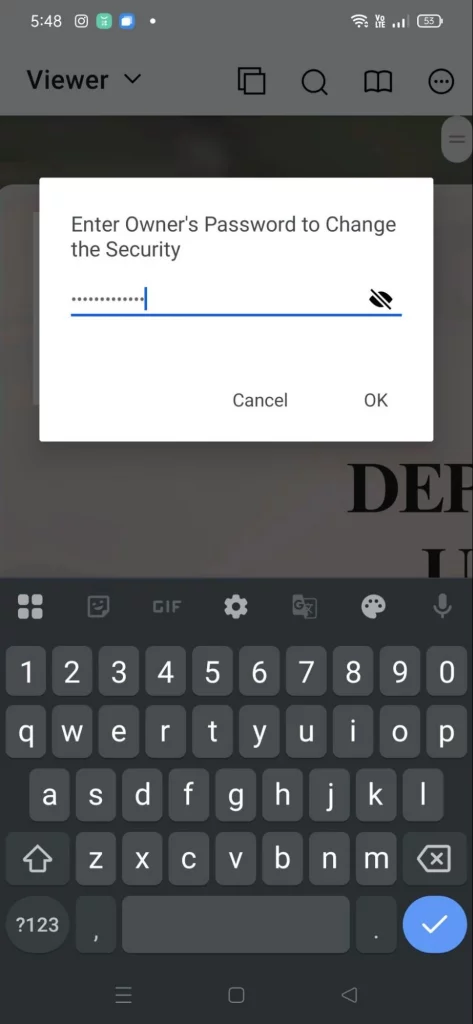
Enter the Owner’s Password
Once you click on ‘Security’, you’ll be asked to enter the owner’s password, since you can only remove passwords from PDFs that you have the ownership or full authority of.
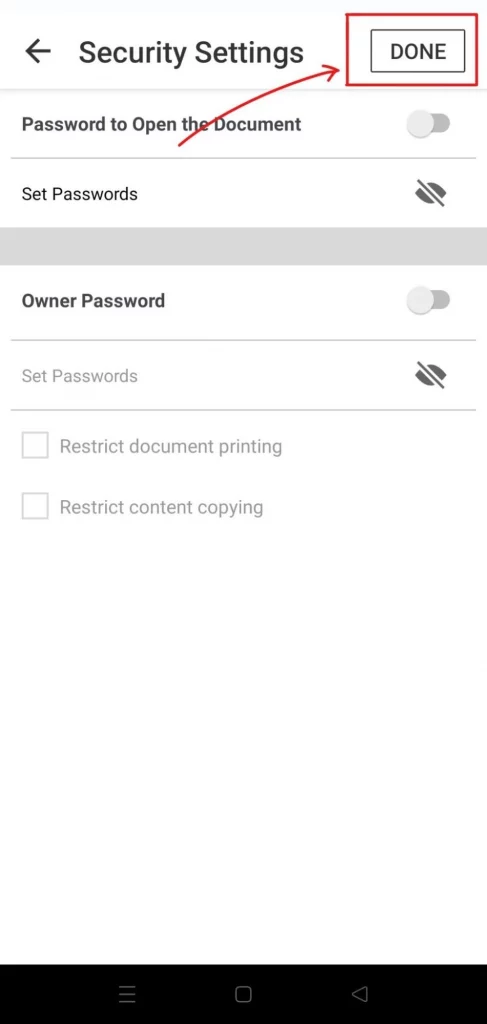
Change the Security, and Remove Password
Once you access the Security page, you can make your changes. Just Turn off both the options, ‘Password to Open the document’ and ‘Owner Password’, and click on DONE.
And your Password will be removed, just like that.
It was that simple.
Also Read: How to Password Protect a PDF (Easy & Secure Methods)
Conclusion
You don’t have to deal with passwords after the work is done, simply remove them or any other restriction and get full control over your PDF. With the Systweak PDF editor you can remove password protection easily in seconds without any complicated methods.




