
Powerful PDF Editor
for Everyone
A reliable offline PDF editor tool to edit PDFs securely without uploading files to the internet.
-
 Convert PDFs offline to & from Word, Excel, PowerPoint, images, HTML
 -
Edit, merge, split, compress, watermark, & annotate your PDFs
-
Sign, protect, unlock, redact, rotate, bookmark & combine your PDFs


Boost Productivity with Best PDF Editor for Windows
Systweak PDF Editor is an advanced all-in-one PDF editing software for Windows. Easily edit PDF text and images, annotate, batch convert, OCR, compress, organize, digital sign and secure PDF documents.
Edit PDFs Quickly and Securely
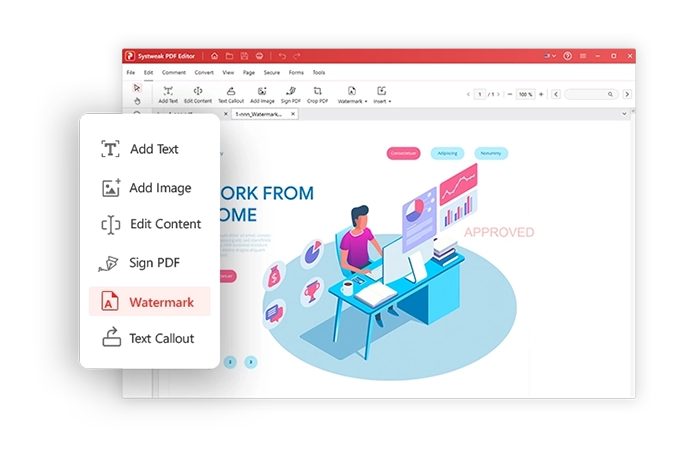
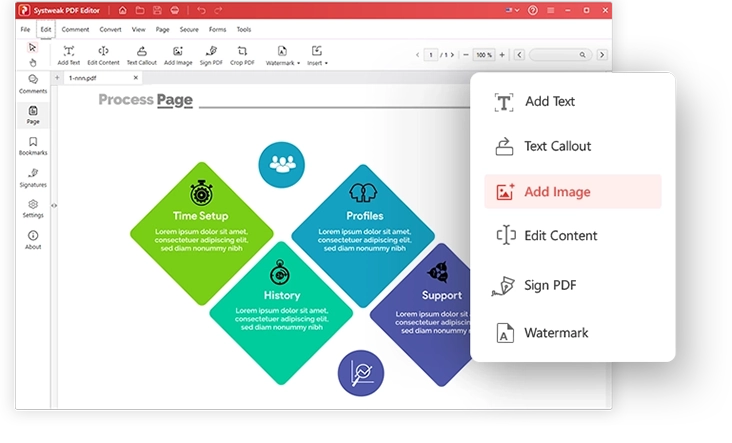
Edit PDF feature allows you to add or modify text and images while maintaining the original style, font, color, and size within your PDF document.
-
 PDF Edit and replace text – Update existing content, fix grammatical errors, and use search & replace to make quick changes.
 -
 Scanned PDF editing – Edit text in scanned documents after text recognition and make it searchable and editable pdf document.
 -
 Advanced PDF Editing - Tools like Redaction, AI based OCR, Batch Processing, Compare PDFs, Bookmarking , Form Fill PDF, Full Layout control.

PDF Converter
Convert feature allows convert PDF files to and from Word, Excel, PowerPoint, image formats and HTML while maintaining the original layout, formatting, and content.
-
 Export PDFs to multiple formats – Convert to Word, Excel, PowerPoint, JPG/PNG images, HTML, EPUB, SVG, PDF/A, and more, without uploading files.
 -
 Batch convert without limits – Drag and drop entire folders and files for conversion with no size or page restrictions.
 -
 Create PDFs from supported file types – Turn Office files, images, scanned documents, web pages, CAD files, and eBooks into PDFs and more.
OCR - Edit Scanned PDFs
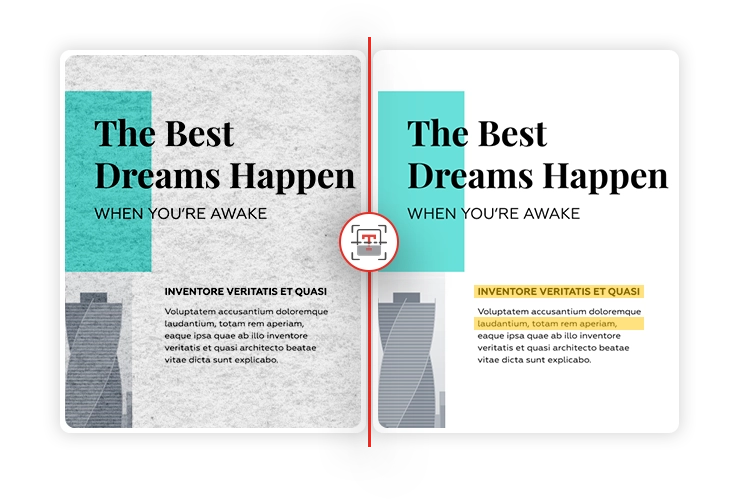
OCR feature allows Using AI backed OCR turns any scanned PDF documents and images into editable, searchable, and selectable PDF document.
-
 Make scanned PDFs editable in your desired format such as word,excel,powerpoint – Convert image-based PDFs and images into editable documents or searchable PDFs with accuracy.
 -
 Batch OCR & output control – OCR entire folder or multiple files at once. Select page ranges or convert all pages—output to Word, Excel, PPT, etc.
 -
 Advanced OCR controls – Choose between speed and accuracy modes.Automatic alignment detect orientation, retain original formatting, tables, and more.
Create PDF
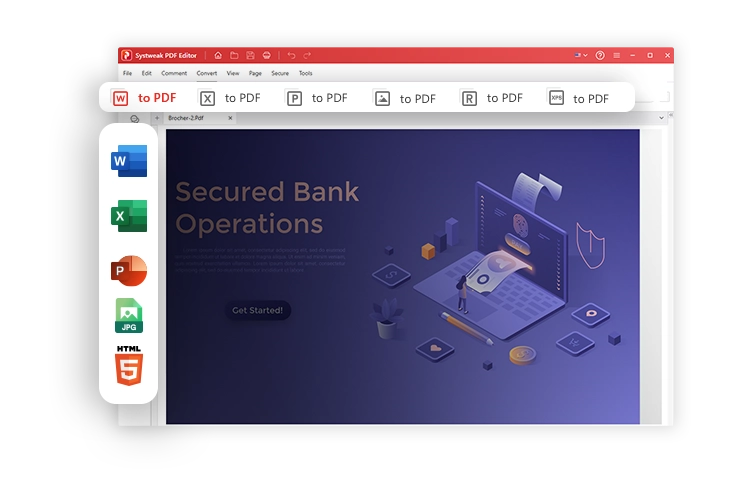
Create PDF feature allows new PDF files from scratch or generate PDFs from existing documents using customizable options.
-
 Create PDFs from multiple sources – Generate PDFs from Word, Excel, PowerPoint, images, text files, web pages, CAD files, and other supported formats.
 -
 Scan documents to PDF – Create PDFs directly from physical documents using a connected scanner.
 -
 Start from scratch – Create blank PDFs and new ones by adding, splitting, extracting, or merging.
Sign PDF
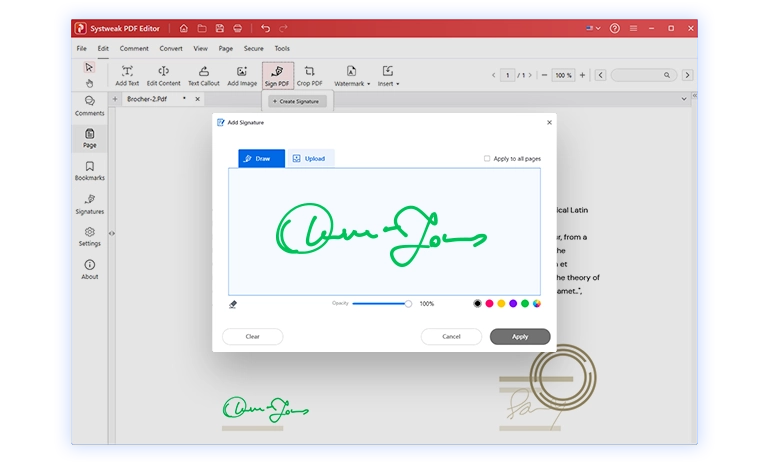
Sign PDF feature allows signing the documents securely using electronic or certificate-based signatures, directly on your computer.
-
 Add electronic signatures – Draw, type, or upload signature images and place them anywhere on the document, on single or multiple pages.
 -
 Apply digital certificate signatures – Sign PDFs using certificate files (.pfx, .p12) or the Windows Certificate Store.
 -
 Control signing permissions – Restrict document changes, allow form filling or comments, and define signature details.
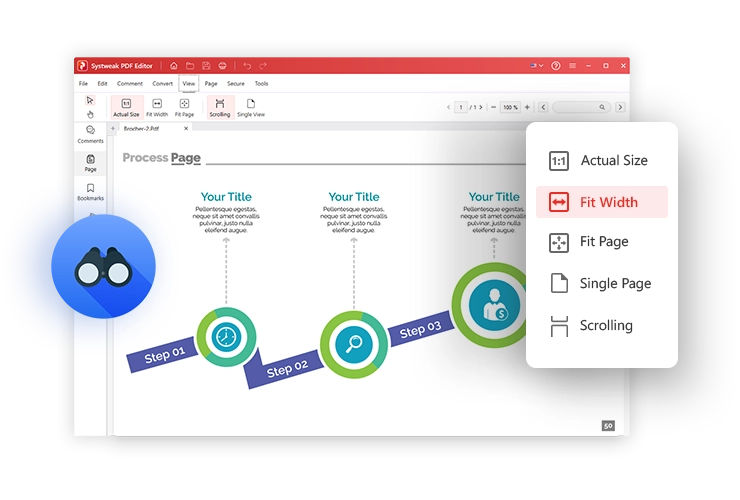
View/Read PDF
View PDF feature allows to Open, read, and review PDF documents with flexible viewing modes and smooth navigation controls.
-
 Flexible viewing modes – Switch between single page, scrolling, or side-by-side for a better reading.
 -
 Zoom & navigate easily – Zoom in or out, jump to specific pages, and move through large documents.
 -
 Bookmarks & page navigation – Use bookmarks, thumbnails, and page panels to find text quickly.
Organize PDF
Organize Feature allows to rearrange PDF documents by managing pages and documents with easy-to-use options and controls.
-
 Reorder pages easily – Drag and rearrange pages to change document flow.
 -
 Split & extract pages – Separate large PDFs or extract selected pages into new documents.
 -
 Insert Pages - Insert from other pdf, duplicate pages, replace pages.
 Merge PDFs – Combine multiple PDF files into a single, organized document.
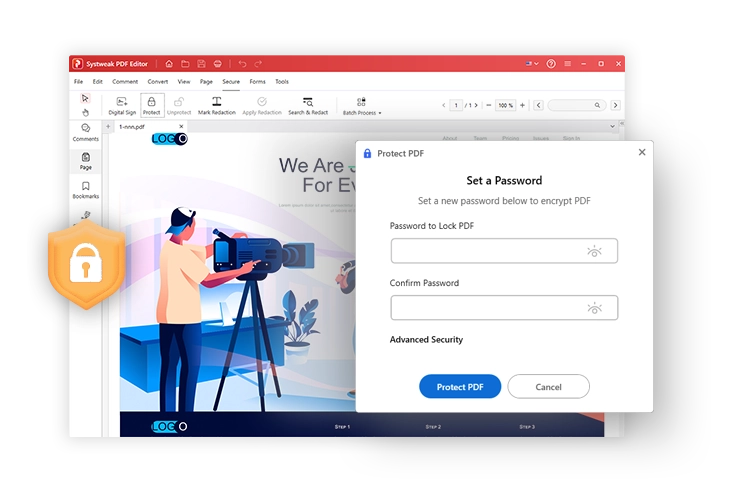
Protect PDF
Secure PDF feature allows to protect PDF documents with passwords, redaction, access controls, and advanced options, all processed on the local machine.
-
 Password-protect and restrict access – Encrypt PDFs with user and owner passwords. Control viewing, editing, copying, and printing permissions.
 -
 Redact sensitive information permanently – Mark text or regions for redaction and apply it to permanently remove confidential data. Use search-based redaction for bulk removal.
 -
 Protect Integrity of PDF Documents – Secure your PDF files from editing using digital signatures certificates.
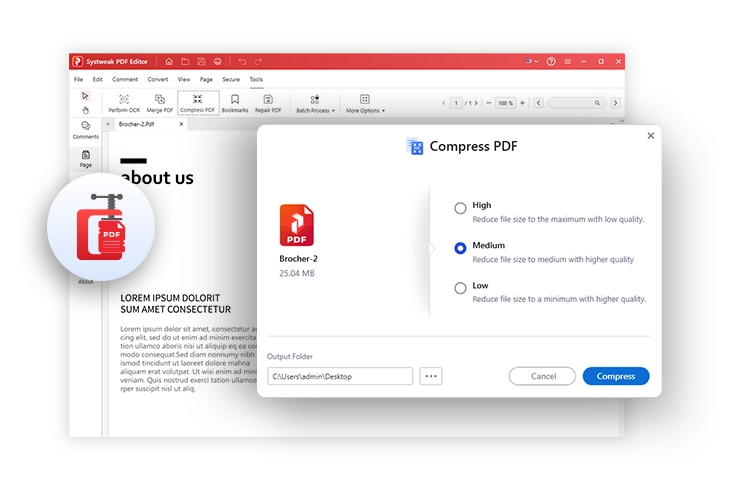
Compress PDF
Compress PDF features allows to compress PDF files without losing layout or formatting, adjusting compression from high-quality to maximum compression
-
 Multiple compression levels – Choose from low, medium, or high compression methods to balance file size and document quality.
 -
 Advanced compression options – Use standard or image-based compression methods depending on document type and size requirements.
 -
 Batch compress PDFs – Compress multiple files or entire folders at once, including subfolders, to save time.
Compare PDF
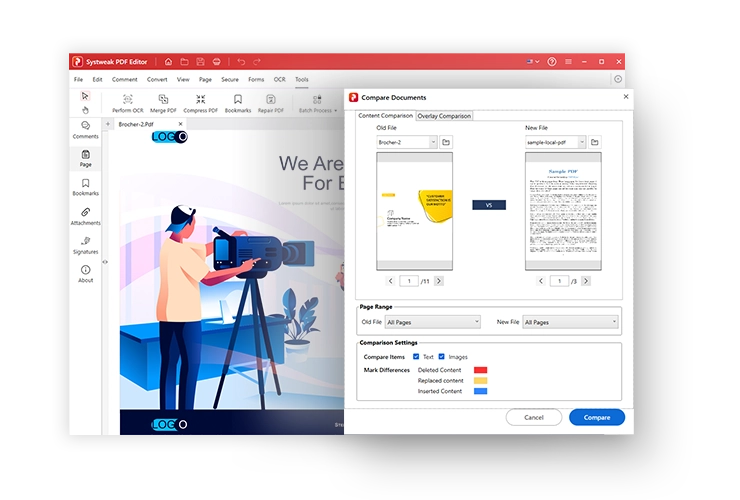
Compare PDF Feature allows two PDF documents to identify changes in text, images, and layout with clear, highlighting the visual difference in both PDF.
-
 Compare content or layout – Use content comparison or overlay comparison to detect differences between two PDF versions.
 -
 Highlight changes clearly – Automatically mark inserted, deleted, and replaced content using color-coded indicators.
 -
 Flexible page comparison – Compare all pages, odd or even pages, or select custom page ranges.
Annotate PDF
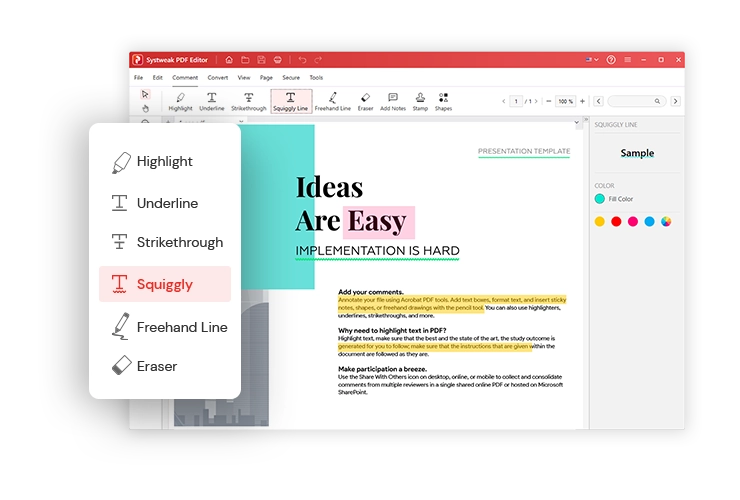
Annotate features allow the users to highlight, color text and add comments to a given text or image to make a note.
-
 Add comments and notes – Add notes to a given paragraph or text or image in the PDF document to make a note.
 -
 Highlight important text – Give different colors to make the text highlighted for different purposes.
 -
 Draw shapes or freehand markings – Allows to draw different shapes, point arrows etc Underline, strikethrough or emphasize key sections- Underline any given text or strikethrough text
Merge PDF
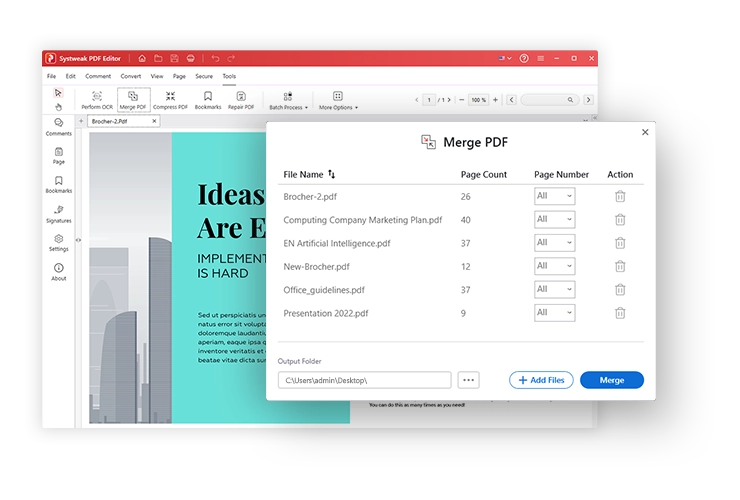
Merge PDF feature allows you to combine two or more PDF files or selected pages from them into a single PDF document
-
 Efficiently combine multiple PDF files or selected pages into a single document.
 -
 Arrange the order of PDF files to be merged.
 -
 Create a single merged file from any number of PDF pages.
Why Choose Systweak PDF Editor?
The best offline PDF editor for Windows, designed for secure PDF editing, complete privacy, and everyday productivity.
-

Easy To Use
From beginners to professionals, anyone can use the software.
-

Powerful PDF Editor
Edit, convert, sign, and manage PDFs securely offline on Windows
-

Fast Processing
Lightning-fast PDF processing for smooth, efficient offline document workflows
-

100% Secure
Fully secure offline PDF editor protecting confidential documents at all times
-

Trusted by Millions
Chosen by millions who rely on secure, private offline PDF editing
What Else You Can Do With Systweak PDF Editor
Unlock Advanced PDF Editing, Conversion, and Security Features

Advanced PDF Editing
Using Systweak PDF Editor, the comprehensive PDF editor for Windows, you can edit, compress, convert, and modify Portable Document Format (PDF) files.

Multiple Viewing Modes
Different viewing modes - Single View, Scrolling, Fit Page, Fit Width, and Actual Size offered by Systweak PDF Editor makes reading PDF files easy.

Convert PDF to Any Format
Transform PDF files into a different file type, such as Microsoft Word, Excel, or PowerPoint, without affecting the original content and formatting.

Electronically Sign PDF
Add a digital signature to your Portable Document Format (PDF) file and save yourself from signing a load of physical documents.

Built for Real-World PDF Editing for Everyone
Desktop PDF software for professionals and individuals who regularly work with sensitive PDFs and do not want to upload them online.
More PDF editing tools to boost everyday productivity
Upgrade your PDF editing tasks with more powerful tools like - Organize, Split, Rotate,Bookmark ,Sign ,Repair, Word count,Extract Images, and more.
Organize PDF
Organize PDF feature allows you manage and organize all your documents. With the Split PDF feature, you can split documents at specific pages and even split at custom ranges to suit your needs. The rotate pages feature helps to rotate any pages in any direction for proper alignment. You can also drag and drop pages to reorder, add, or remove pages. You can update your documents by replacing pages with another PDF and also add new pages from other PDFs. You can also duplicate pages to have complete control.
Add Notes
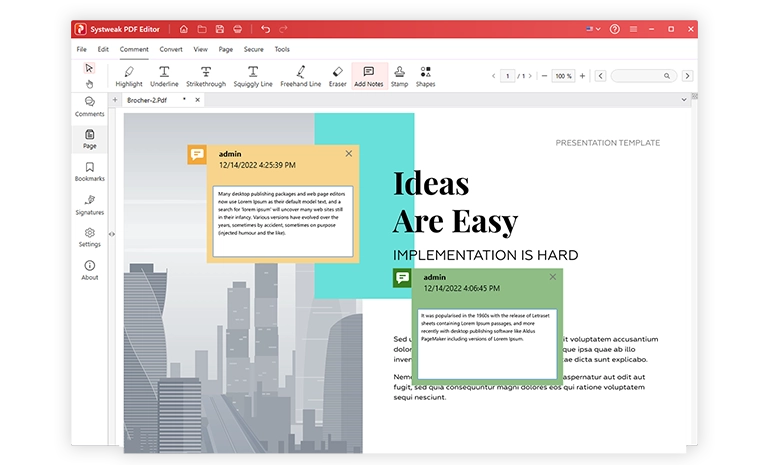
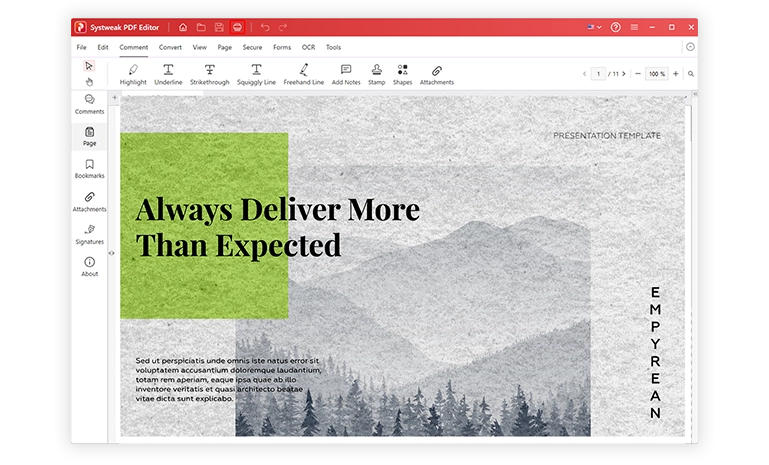
The Add notes feature allows you to insert notes and comments within your PDF document and provides additional context, information, or clarification for quick study or collaboration. Whether you are a student or a professional, adding notes helps unlock the full potential of PDF documents. Add Notes helps you to give important information on the selective places to highlight information to viewers.
Stamp & Shapes
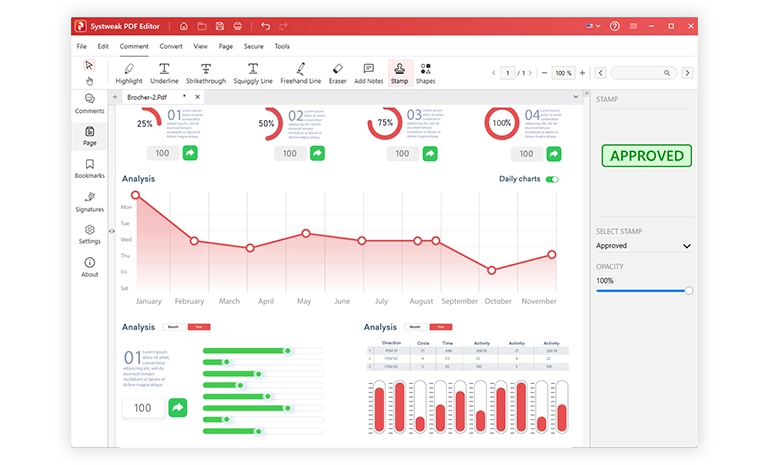
The Stamps and Shapes feature allows you to highlight specific areas with arrows, boxes, and other shapes. If you want to categorize your document as Approved, Draft, Final, or Confidential, you can choose one of those stamps or design your own to suit your workflow. Everything can be marked and organized within the PDF document.
Highlight Text
When working with long PDF documents, finding key information can be challenging. Systweak PDF Editor’s Annotate feature lets you highlight important text, making it stand out and easier to review, helping you work faster and more efficiently.

Sign PDF
The digital sign feature allows you to protect a PDF file containing confidential or legal information, which requires the authenticity and integrity of the document to be maintained. With Systweak PDF Editor, add digital certificates and signatures to strengthen your documents' security. Add custom signatures in JPG or PNG format, or draw and type your signature directly on PDF documents to sign them with authenticity. Additionally, add digital certificates to PDF documents to ensure the integrity of the confidential documents.
Rotate PDF
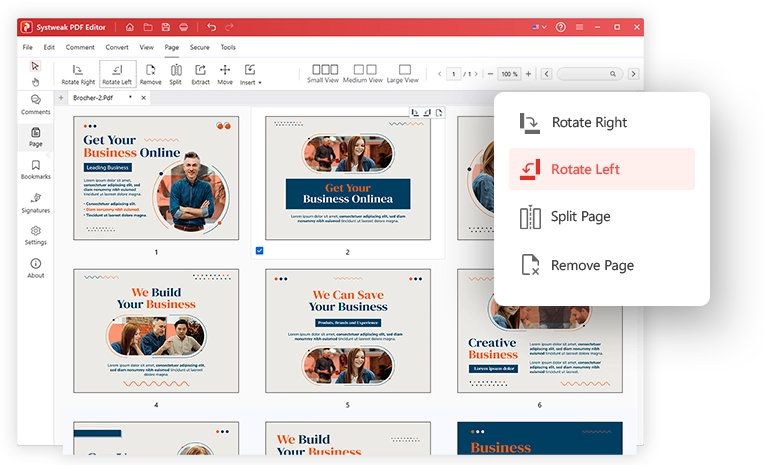
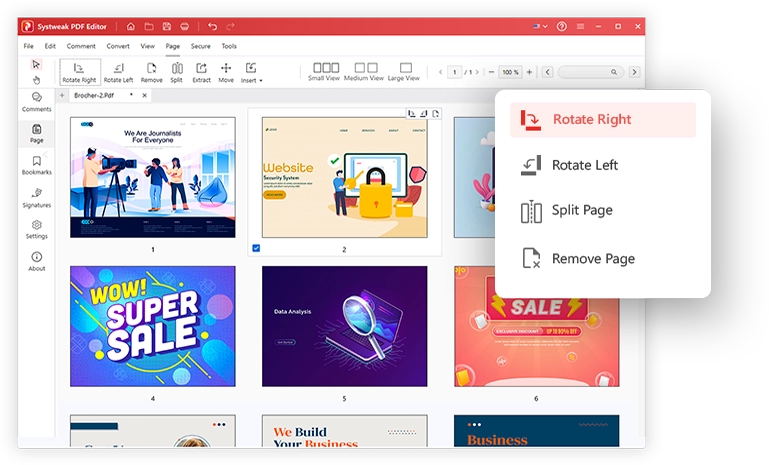
The Rotate PDF feature lets you quickly change the orientation of your PDF pages whenever needed. You can rotate a single page or multiple pages at once with just a few clicks. Pages can be turned clockwise or anticlockwise for proper alignment. With Systweak PDF Editor, adjusting page orientation is simple and hassle-free.
Arrange Pages
Rearrange, sort, and reorganize the pages within a PDF document easily with Systweak PDF Editor. The software provides a user-friendly interface and supports drag-and-drop functionality, also allowing you to decide on the beginning or end location of placement for easy page rearrangement, thus helping arrange the PDF files.
Repair PDFs
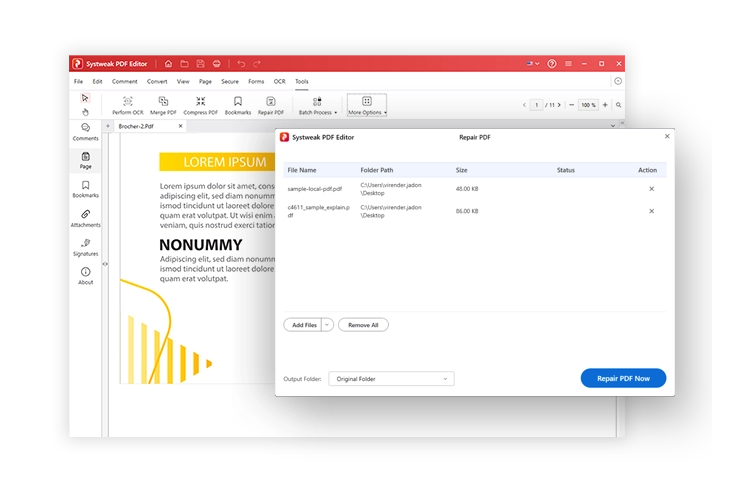
The Repair PDF feature allows you to fix corrupted or damaged PDF files and make them readable without creating documents from scratch. Restore files that won’t open or show errors using this built-in tool. It will ensure the same layout—recover text, images, and page structure without quality loss. Using this tool, you do not need any plugin or external download, and the best thing is that all repairs are done locally, without uploads or data sharing.
Extract Images
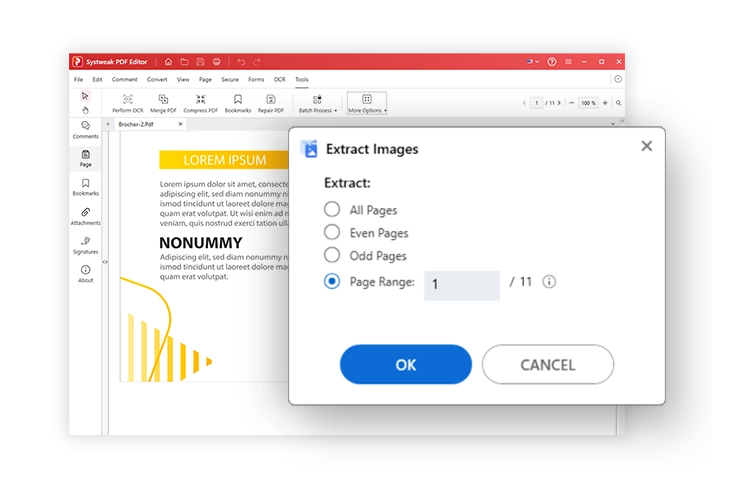
The extract images feature allows you to save images from PDF files without affecting picture quality or layout. It saves embedded images separately with a single click and maintains original quality without compression or resolution loss. It extracts multiple images from multi-page or large PDFs without uploading to external servers.
Split PDF
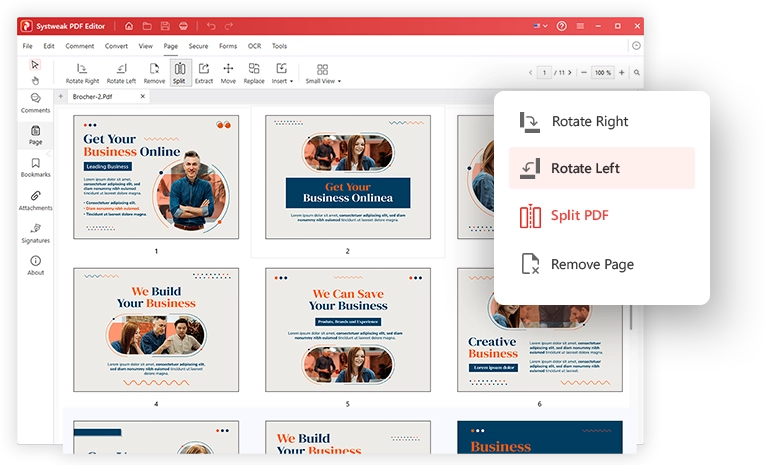
The split PDF feature allows you to divide large PDFs into smaller, manageable PDF files based on your needs. Users can specify page ranges and custom requirements to split the pages from the PDF document. The "Split by page range" feature allows users to create PDFs from selected pages, split the PDF document into either even or odd page sections, and generate multiple PDF files.
Add Header & Footer
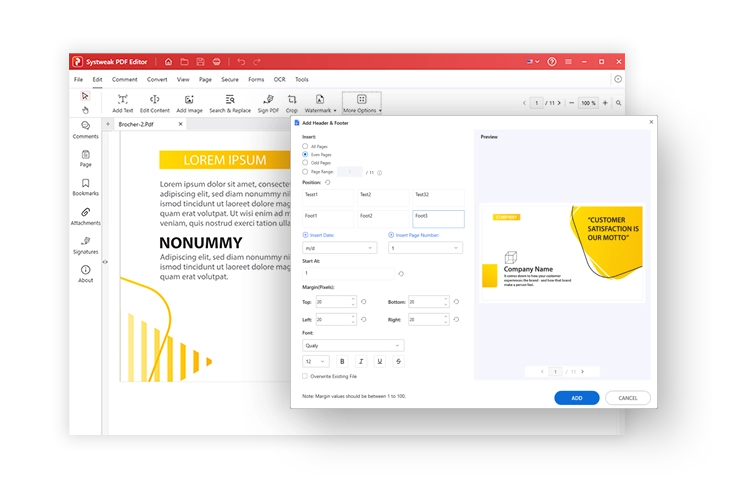
The Header and Footer feature lets you add fully customizable headers and footers across the document, just like in a Word document. You can insert dynamic or static information such as text, date & page numbers within the header and footer areas. Users can text-align left, center, or right as per the requirement, match document style and formatting, and see changes before applying.
Add Background
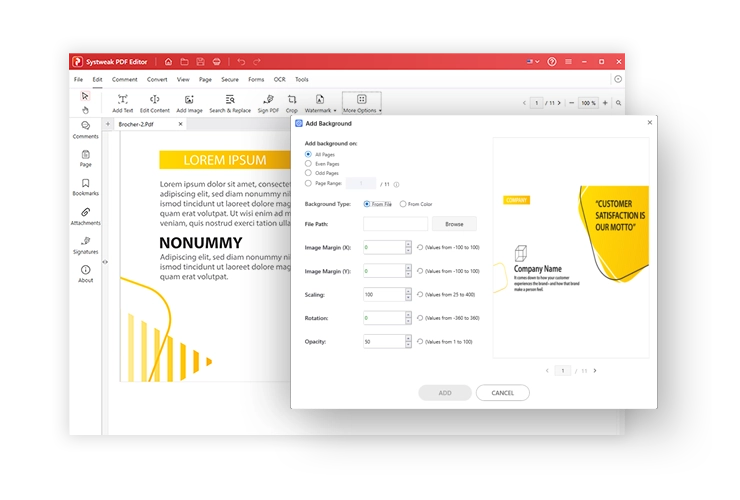
The Add Background feature lets you apply a background color or image to your PDF to improve its appearance, branding, or readability. You can choose a solid color or add a custom image to match your style or company identity. It also allows you to adjust settings such as opacity, scale, rotation, and position to get the exact look you want. You can apply the background to the entire document or limit it to specific pages or page ranges. Throughout the process, the original content of your PDF remains unchanged and fully intact.
Reverse Pages
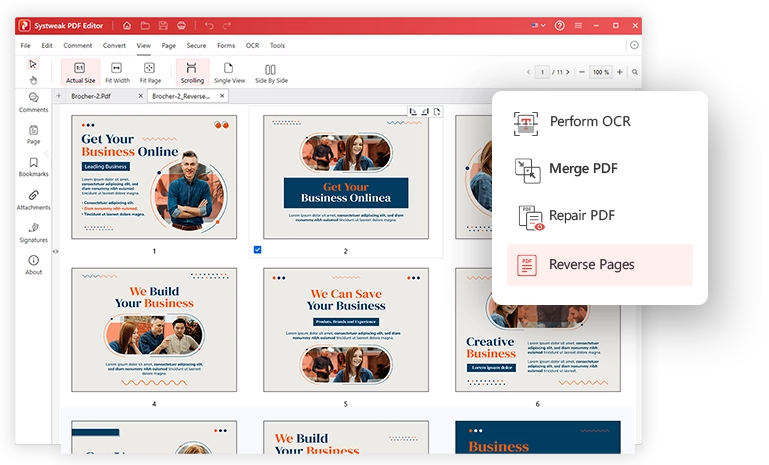
The reverse pages feature allows you to reorder PDF pages instantly by reversing the page sequence. You can flip the page order from last to first and fix incorrectly ordered documents. There is no performance lag even when working on large PDFs, while this can be done in a fast and secure way on the local machine.
Print PDF
The Print PDF feature lets you print documents directly from the app. You can choose to print all pages, selected pages, or a specific page range. It also allows you to adjust the page size, switch between portrait and landscape, and change the scale if needed. Before printing, you can preview the document to make sure everything looks right. This helps you avoid mistakes and saves paper. Overall, it makes printing easier and more accurate.
Free Vs Pro: What's the Difference?
The Free version lets you try basic PDF features, while the Pro version unlocks the advanced tools. The comparison below shows what you get in each version.
Features |
Free Trial |
Recommended
Full Version |
|---|---|---|
| Annotate and Comment PDF Files |

|
|
| Create PDF Files |
|
|
| Convert Word, Excel, PowerPoint, or other format files to PDF |
|
|
| Secure and Sign PDF Files |
|
|
| Compress PDF Files |
|
|
| Extract and split PDFs |
|
|
| Redact Sensitive Information |
|
|
| E-Sign PDF Documents |
|
|
| Remove Pages From the PDF |
|
|
| Insert Blank Page and from PDF |
|
|
| Add or Remove Background, Header, and Footer |
|
|
| Duplicate PDF |
|
|
| Add/Remove Watermark |
|
|
| Crop PDF |
|
|
| Move Pages in PDF |
|
|
| Merge PDFs (Up to 3 files or first 3 files in trial version) | Limited |
|
|
Convert PDFs to Word, Excel, PowerPoint, or other format files
(first 3 pages of PDF only in trial version) |
Limited |
|
| Edit Text in PDF Files |

|
|
| Advanced Permission Restrictions |
|
|
| Digital Sign PDF documents using (.pfx, .pfx12, and Windows certificate) |
|
|
| Make Scanned PDF Editable, Searchable, and Selectable |
|
|
| Batch Process PDF Documents (Convert, compress, create, protect, unprotect, OCR) |
|
|
| Repair PDF |
|
|
| Convert from scanner to PDF |
|
|

60-Days Money Back Guarantee 100% Risk-Free.Your satisfaction is everything to us. If you are facing issues with the product, contact us within 60 days of purchase, and we will process a refund against the product purchase. |
Free Download |

 Buy Now
Upgrade to the Pro version to unlock unrestricted PDF editing, conversion, compression, and more.
Frequently Asked Questions
Get answers to common questions about offline PDF editing
 Does Systweak PDF Editor work completely offline, and are my files ever uploaded or stored online?
Yes , Systweak PDF Editor works entirely offline and processes all PDF tasks on your computer. You can edit, convert, sign, use OCR, and secure PDFs without an internet connection. Your files stay on your local computer and are never uploaded to or stored on external servers.
Why should I choose an offline PDF editor over online PDF Editor tools?
Offline PDF editors process PDF files locally on your computer , ensuring data security and privacy. Since your PDF documents are never uploaded to online servers, there’s no risk of data breach, which means offline PDF editing is a much safer choice for sensitive or important files.
Can Systweak PDF Editor edit scanned PDF files or Images ?
Yes. You can edit scanned PDFs and image-based documents after converting them into an editable file using OCR (Optical character recognition) feature.
What formats does Systweak PDF Editor support for PDF conversion?
Using Systweak PDF Editor your PDF documents can be converted to formats such as Word, Excel, PowerPoint, images, text, HTML, EPUB, SVG, and PDF/A and vice versa PDF documents can be created from Word, Excel, Powerpoint, PDF/A, HTML, EPUB, CAD and more.
Can I password-protect and secure my PDFs using Systweak PDF Editor?
Yes. You can add a password to protect your pdf documents and can use more security features like redact, digital sign,watermarking, remove metadata to secure PDFs documents and can also set up access permissions to control how documents are shared and used. You can also sign the documents using the digital certificate to ensure the data integrity.
Who is this PDF editor best suited for?
Systweak PDF Editor used by students, professionals, businesses, and anyone who needs a reliable offline PDF editor for everyday document work
How to edit PDF for free with Systweak PDF Editor?
Yes, You can edit PDF documents for free using the 7-day free trial with limited features such as version of Systweak PDF Editor.
- 1. Launch the tool > open the PDF and use the different editing tools to edit a PDF.
- 2. Once the editing is done, save the PDF to apply changes.


Get Systweak PDF Editor!
Advanced PDF Editing tools just for you.
With a few clicks, edit, convert, compress, password-protect, rotate, combine, split, and perform other editing operations on PDF files with our powerful PDF editor.