


Most of us consider PDF files to be uneditable documents, but things are different. You do not need a desktop or a laptop PC software to make changes to PDF files; Many people have difficulty using PDF files, and often have problems maintaining the original document layout and formatting. There are issues while handling large file sizes because they generally slow down performance and sharing.
Furthermore, many users are unsure which application or tool will provide them with the highest level of security for their sensitive documents. Additionally, many users do not know about all the features of PDF editing software (for example, editing, signing, or converting) and therefore do not take full advantage of all the ways to work with PDFs.
You can make changes and edit PDF files on mobile with a free PDF editor for Android and iPhone. We are talking about Systweak PDF Editor, an app that allows you to scan documents and images, convert them to PDF instantly, and view/share them on your smartphone. This app also helps you to make changes like editing the content, adding annotations, watermarks, form elements, passwords, and signing the PDF document.
Why Do You Need A Free Mobile PDF Editor?
A PDF editor for mobile is an important tool that helps users edit and make changes to their PDFs on the go, especially while travelling or waiting for appointments. It has become a must-have tool on smartphones and tablets that allows users to fill forms, scan receipts, sign contracts on the go, and annotate study notes.
Here are some real-life cases where people have used the Systweak PDF Editor & Scanner for Android and iPhone devices.
- Some people need to make and share PDFs of their IDs or other documents immediately. This app helps to create PDFs using the phone’s camera on the spot.
- Students may revise topics during small breaks and can quickly annotate important sections, identify difficult questions, or even write reminders directly on the study materials without needing a laptop.
- Event planners may scan receipts for multiple purchases during preparation for the event, which may include decorations, catering, and other services.
- Salespersons can extract pages or add/delete pages from an existing PDF, and send relevant pages only by making a new PDF to their customers and clients.
- When traveling, people can fill out the consent forms, travel declarations, or registration documents while waiting at the airport or in transit.
- A real estate agent can open the contract on a mobile PDF editor, review it with the client, and sign the document instantly.
What To Look For In A Free Mobile PDF Editor?
Before you install any free mobile PDF editing app, it is important to understand what features you need in a free PDF editor for mobile apps. You may not get a few advanced features that are available in Windows PDF editor apps, but you can get the major features required to edit PDF on a phone for free. Here is what you need.
Scan & Create PDF. Any mobile PDF editing app will be considered as one of the best PDF editor apps only if it provides the feature to scan documents, images, and IDs and create instant PDFs that can be viewed or shared from the mobile phone itself.
View PDF. A free PDF editor app for phone must allow users to view PDFs in different modes, like single page, two page, and cover mode, with horizontal and vertical scrolling features.
Edit Content. The free PDF editor for mobile must allow users to edit all the content, including text, and image and allow you to add new content along with existing content.
Manage Pages. The best PDF editor for mobile includes all PDF managing features like adding/removing pages, rotating/rearranging pages, and duplicating or extracting pages to a new PDF file.
Maintain Privacy. The document is kept private only if the editing and other processes are carried out on the user’s device, and no file is uploaded to a cloud server.
Watermark. Always install a mobile PDF editing app that allows you to edit or remove a watermark on your PDF document. This will help you to brand the PDF documents with status such as copyright, confidential etc.
Annotation. Look for a free PDF annotation app for mobile that allows users to carry out various types of annotation on the PDF, like adding notes, highlighting text, underlining text, and strikethroughs.
Create Forms. If you want to install a free PDF editor for mobile, then you must look for an app that helps you to fill out and edit forms on the PDF document.
Sign The PDF. A free PDF editor app for phone must enable you to import, draw, add, and verify digital signatures.
Protect PDF. You must be able to add passwords to lock the PDF document as well as restrict copy and print access.
Deep-Dive: Systweak PDF Editor For Android & iOS
Systweak PDF Editor & Scanner – Android
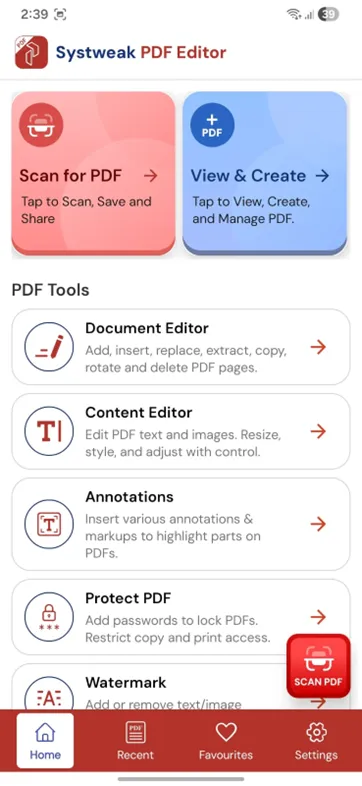
Systweak PDF Editor & Scanner for Android is a free PDF editing application that allows you to create PDFs instantly by scanning documents, images, and IDs on the move. It is a lightweight app that does not consume much of your device’s resources and has a simple interface so that you can easily carry out multiple PDF editing tasks.
The best part is that you do not have to upload your documents to cloud storage or foreign servers for processing, and it works completely offline on your Android device. We have listed the main features of Systweak PDF Editor for Android.
Scan & Create PDFs.
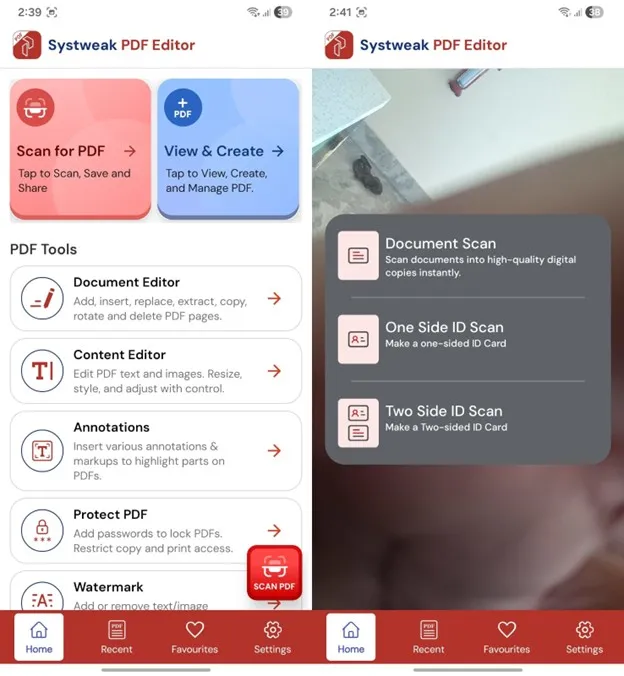
The most important feature of Systweak PDF Editor & Scanner for Android is the ability to create PDFs by scanning physical documents, offline and on the move. This includes scanning IDs, documents, receipts, notes, images, etc and instantly converting them into high-quality PDF files. Users can also use gallery images to be converted into a single PDF. This app also provides an option for both front and back, especially when scanning a two-sided ID and converting it to a PDF file.
View PDFs.
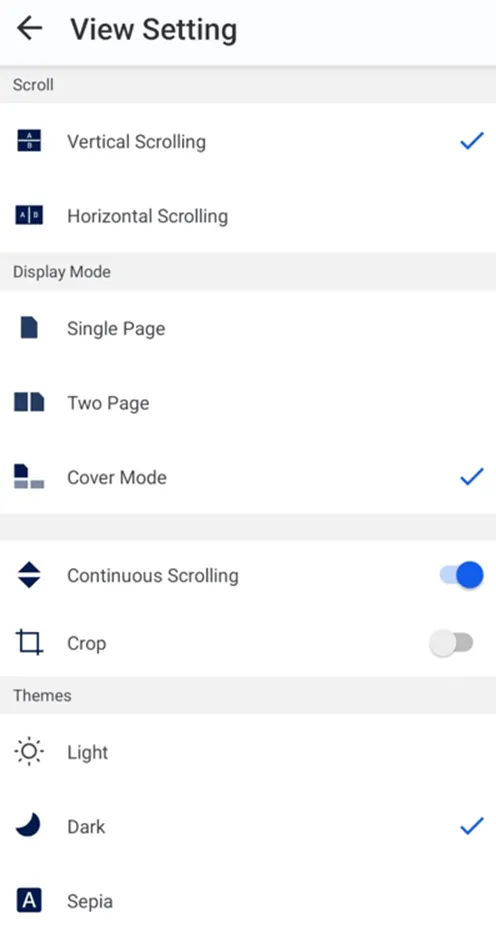
Systweak PDF Editor & Scanner for Android allows users to read their PDFs on the mobile with different viewing modes. There are options to search words, zoom the page, and share a particular section or page with others.
Document Editor
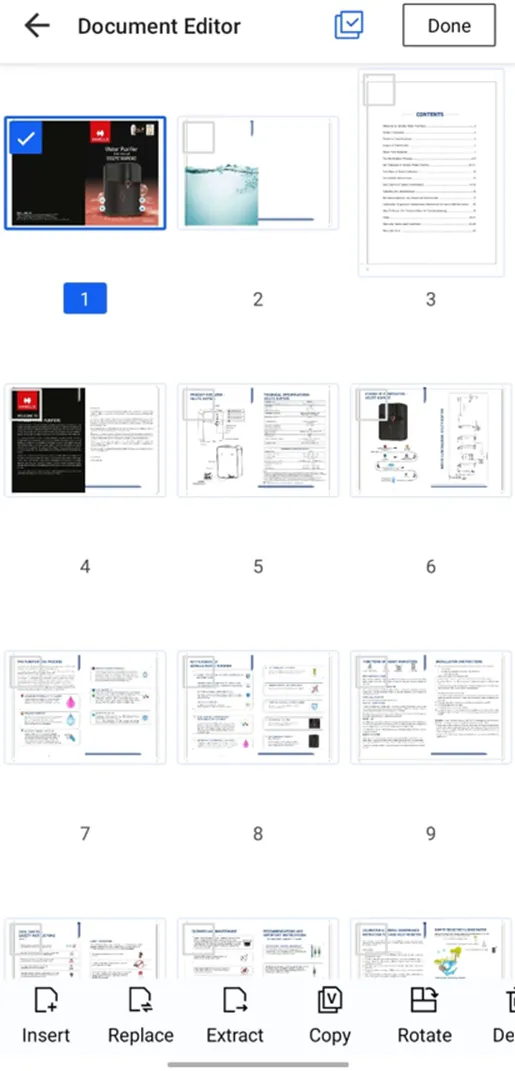
The document editor module helps users to insert, copy, replace, extract, rotate, and delete their PDF pages and hence manage the document with ease.
Content Editor
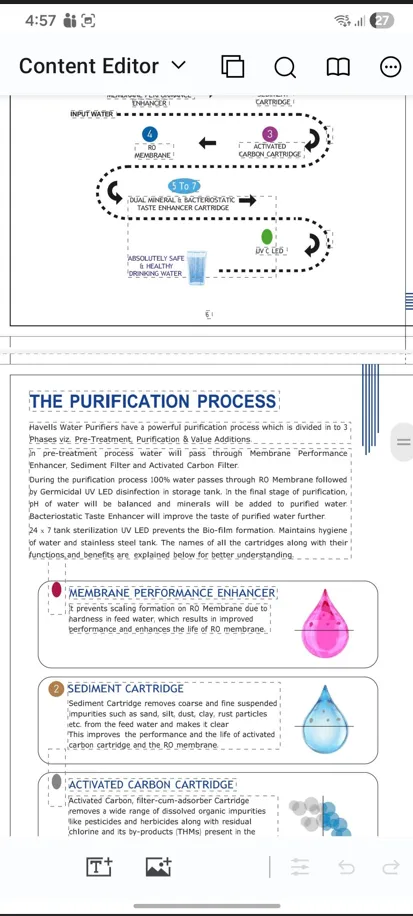
The content within the pages that includes text and images can also be changed using Systweak PDF Editor & Scanner for Android.
Annotate PDF
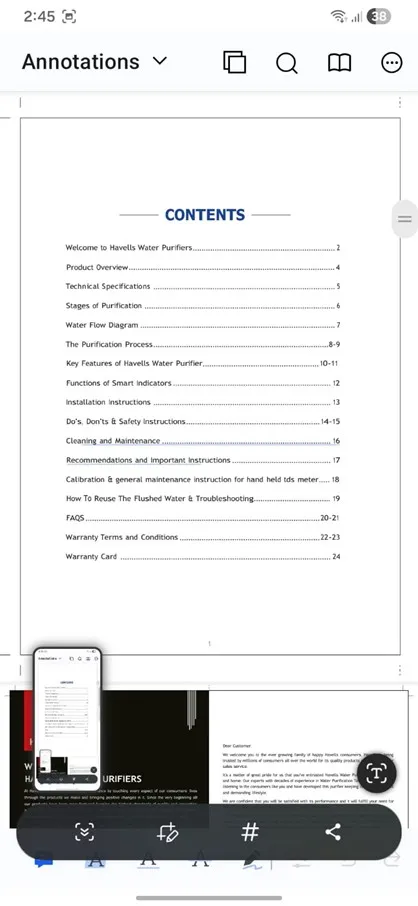
With this free PDF annotation app mobile, users can add highlights, underline, strikethrough, comment, or draw on PDFs to highlight the important content and distinguish it from the rest.
Fill Forms.
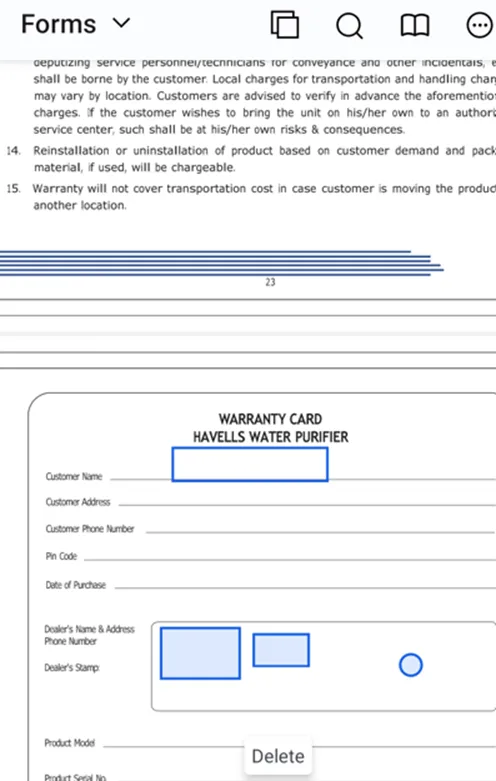
The Form element of Systweak PDF Editor & Scanner for Android helps users to create fillable forms that include checkboxes, list boxes, radio buttons, signature fields, etc.
Secure PDF
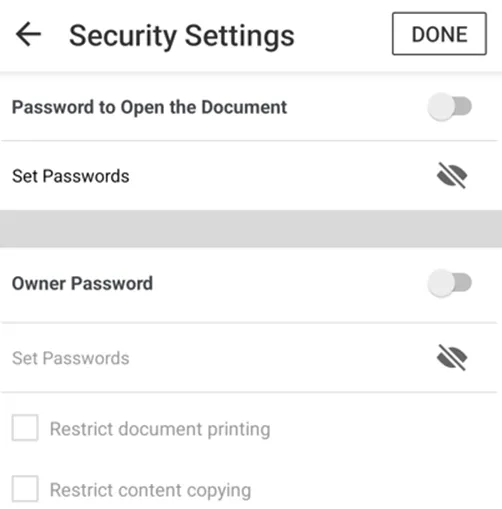
Secure any PDF document using Systweak PDF Editor & Scanner for Android by adding password protection and ensuring your file cannot be opened by anyone who does not have the password. There is a provision to add restrictions to further disable the copying and printing of content without permission.
Add Watermark
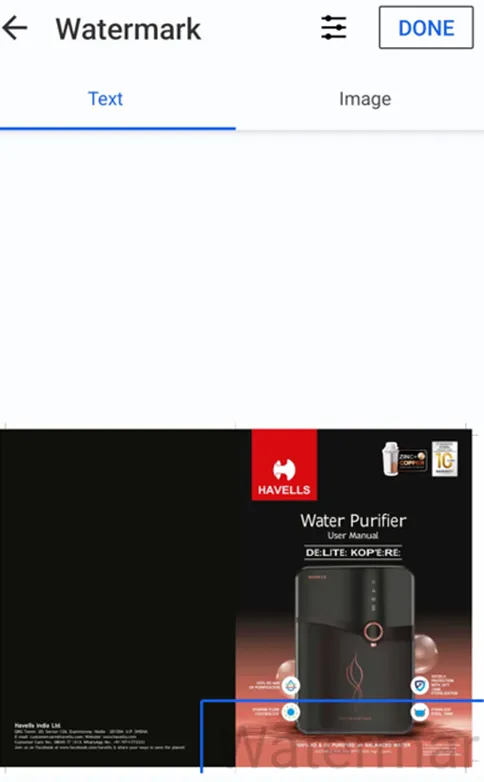
The watermark can be in the form of text or an image, and it can be customized according to your needs.
Sign PDF
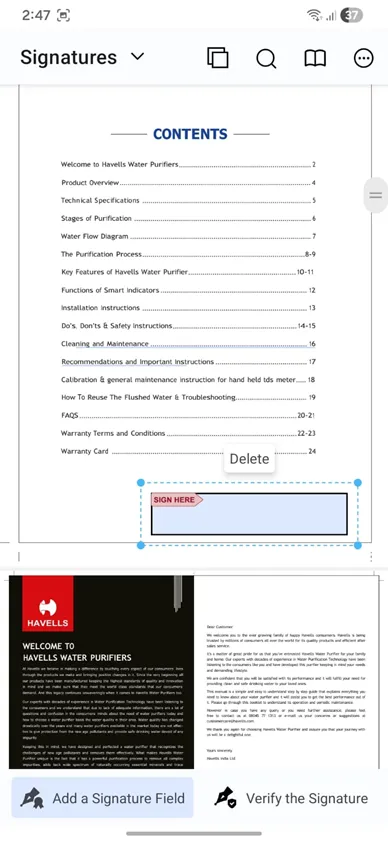
Customize your signature, add a digital signature, or draw a signature to get a PDF electronically signed.
How To Edit A PDF On Android Using Systweak PDF Editor & Scanner?
Here are the steps to use Systweak PDF Editor & Scanner to edit any PDF document on Android.
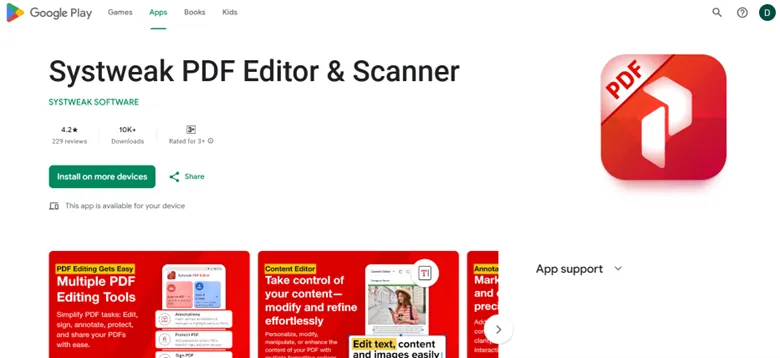
Step 1 – Install the Systweak PDF Editor & Scanner from the Google Play Store by clicking on the Download button below.

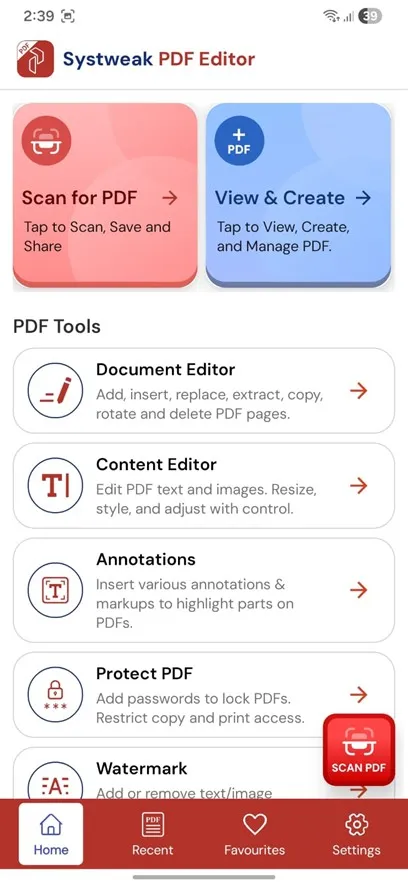
Step 2 – After installation, tap on the shortcut icon to launch the app.
Step 3 – On the home screen, tap on the Scan For PDF button if you wish to create a PDF by scanning documents, or tap on View & Create to open an existing PDF/create a blank PDF.
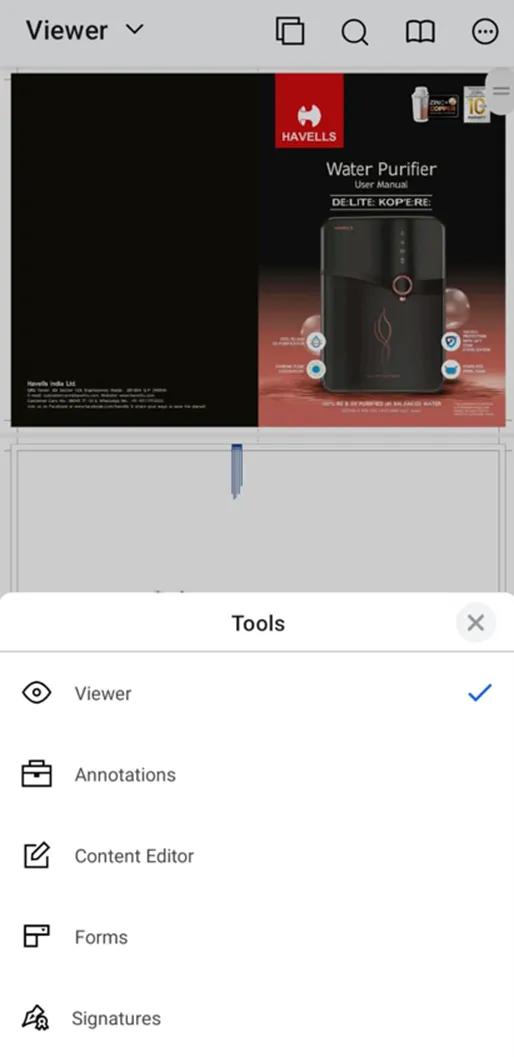
Step 4 – Once the PDF is loaded, click on the dropdown menu in the top left corner to choose the task you wish to carry out.
Or
Step 5 – Alternatively, you can also choose the task from the list and tap on it, and then open the PDF to which you wish to make the changes.
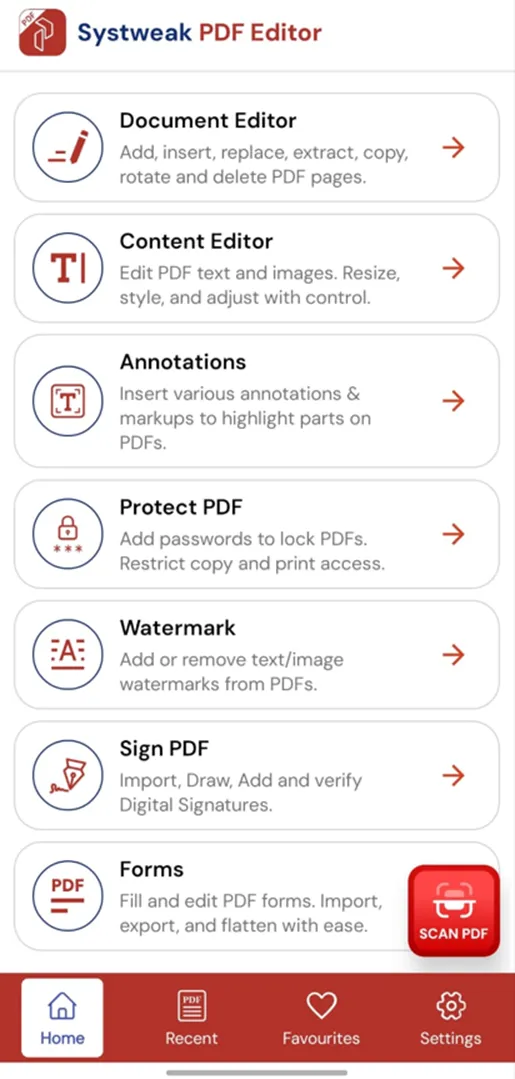
Step 6 – Click on Content Editor option to apply edit mode on your PDF. You will see that the content is highlighted in boxes.
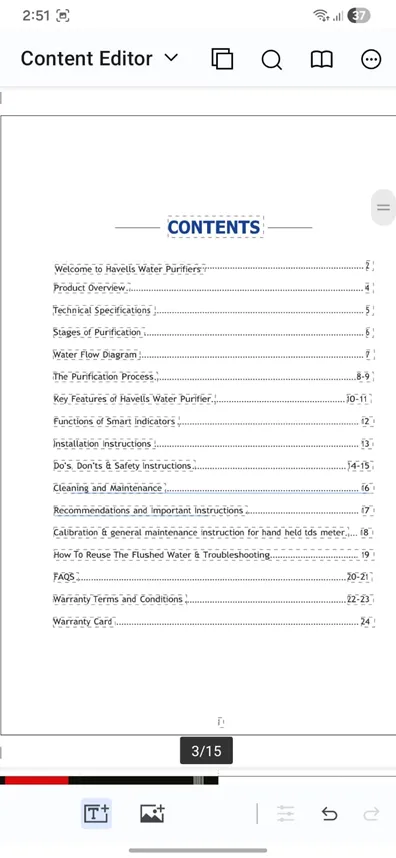
Step 7 – Double tap on any box where you wish to edit the content and you will get options to edit the text within the box.
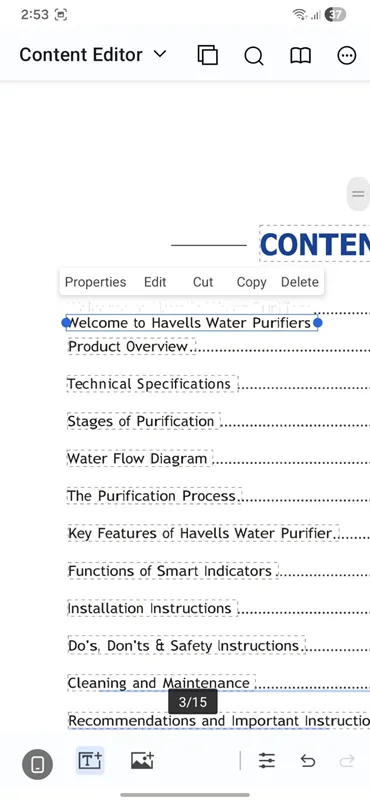
Step 8 – Tap on Edit and you will get a cursor inside the box that can be used to alter text.
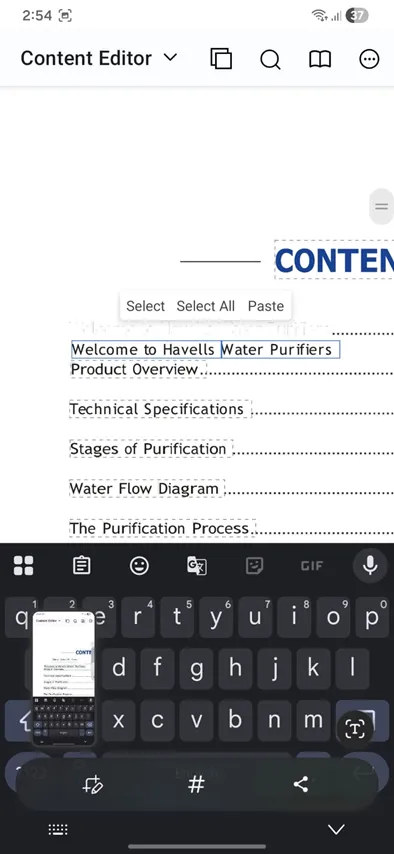
Step 9 – Use your mobile’s keypad to make changes to the text.
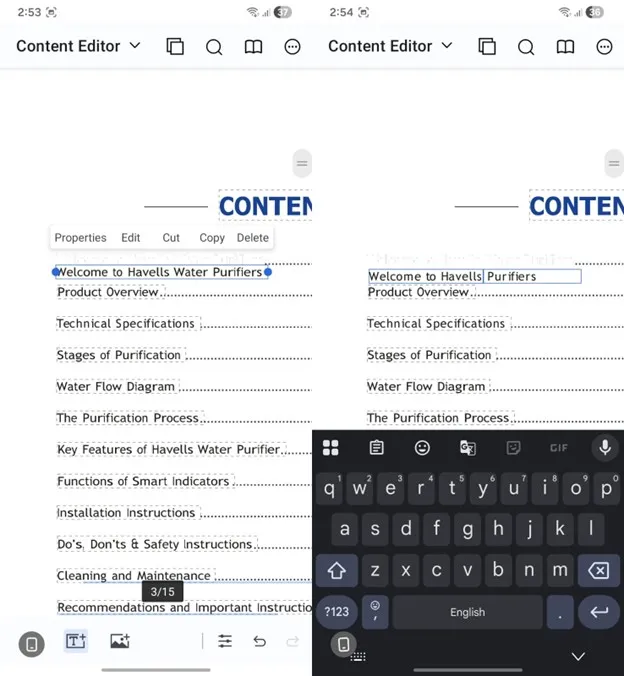
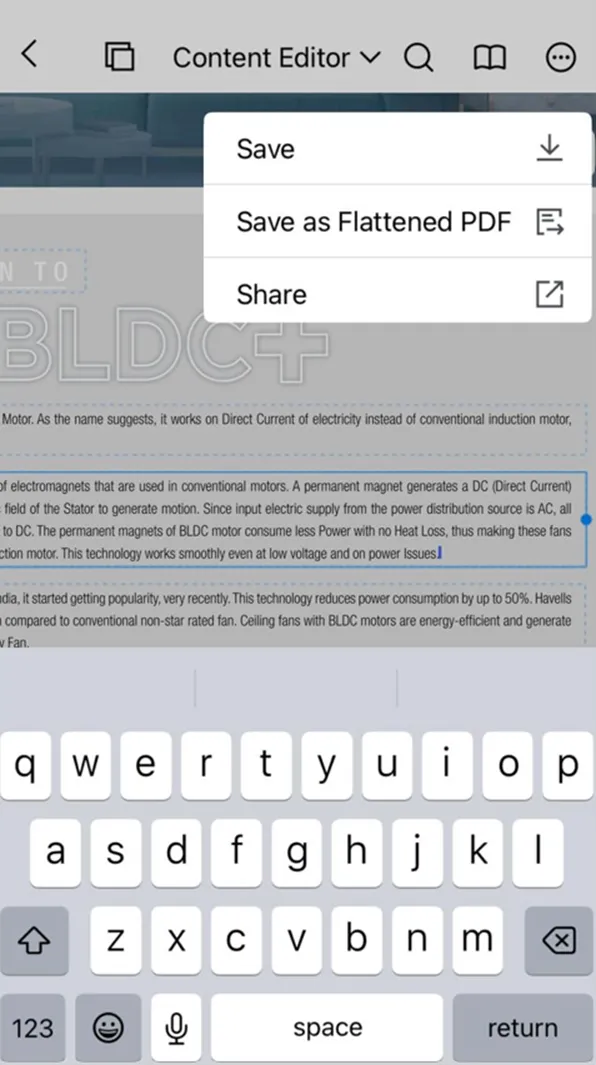
Step 10 – Complete the changes and click on the three dots in the top right corner and choose the Save button to make the changes permanent.
How To Edit A PDF On iOS Using Systweak PDF Editor?
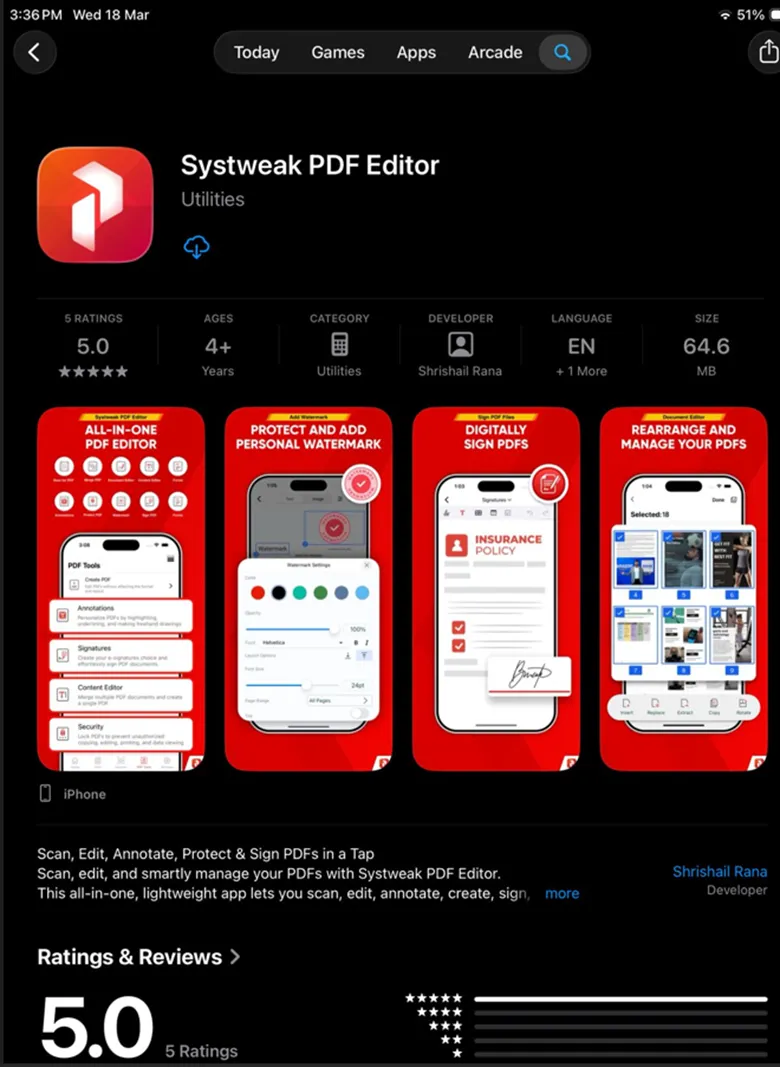
Step 1. Download and install Systweak PDF Editor for iPhone from the App Store.

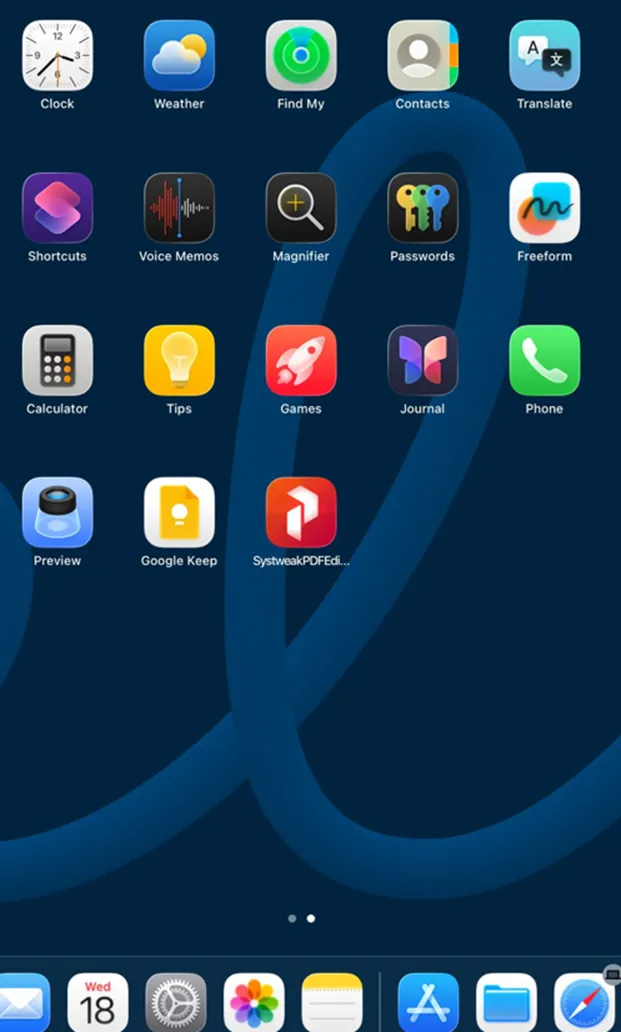
Step 2. Tap on the icon to launch the software.
Step 3. To scan any document and create a PDF, click on the Scanner tab at the bottom.
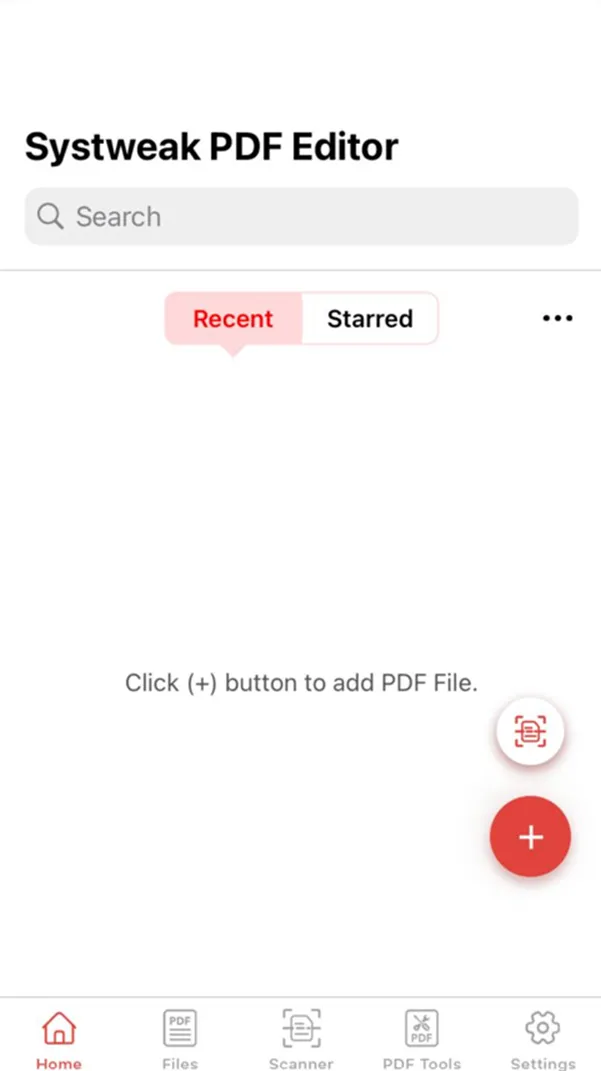
Step 4 – Choose the option between one-sided or two-sided.
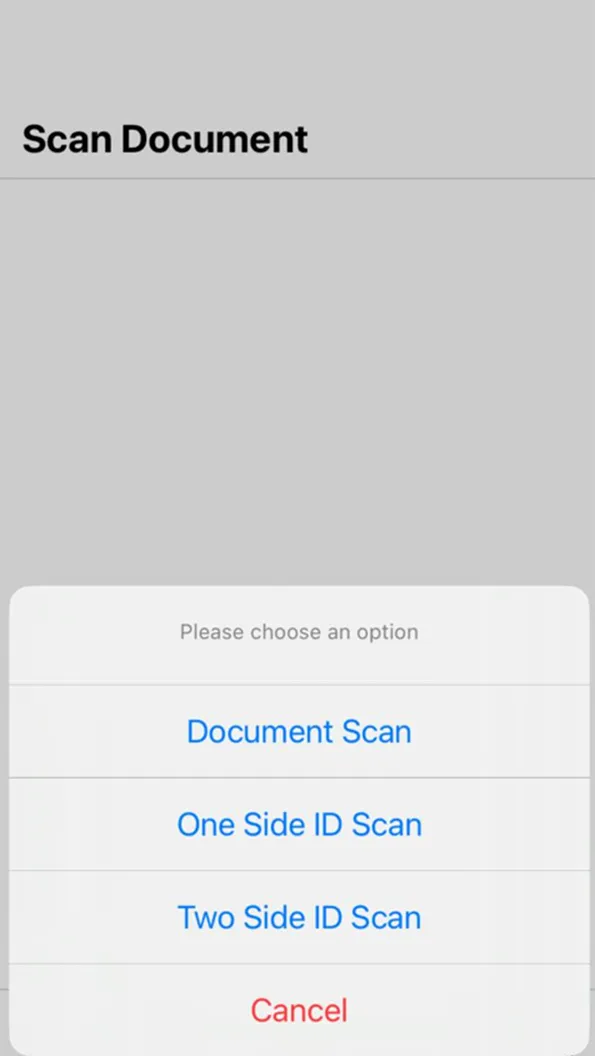
Step 5. To edit any document you wish, tap on the plus icon to add the PDF file.
Or
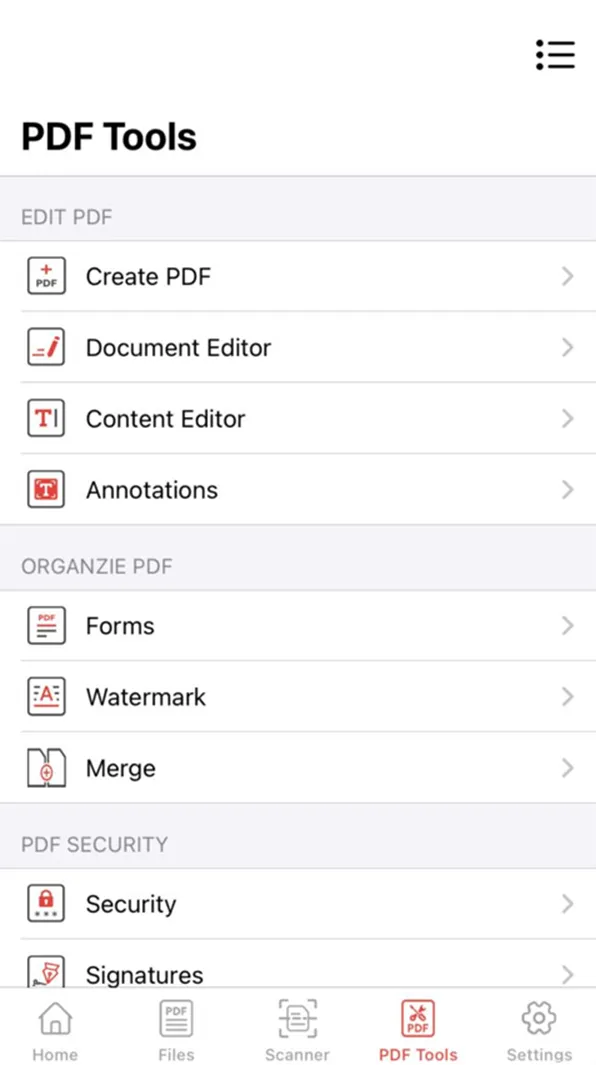
Click on the PDF Tools icon at the bottom to view the tasks that can be carried out on your PDF using Systweak PDF Editor.
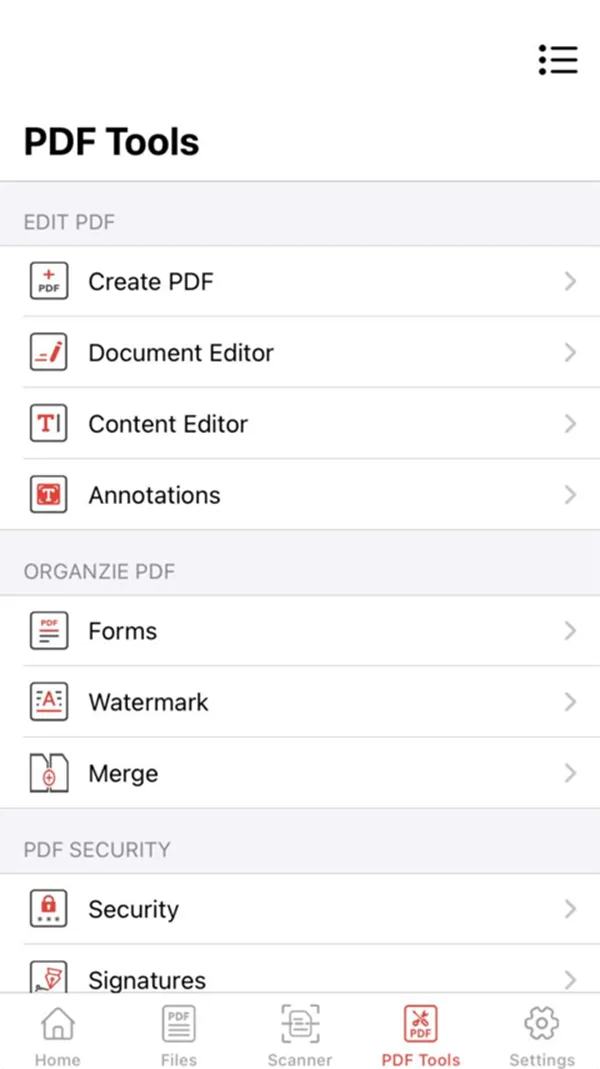
Step 6. Select Content Editor and add a PDF to edit a PDF document.
Step 7 – The document selected will open the app. Long tap on any paragraph to view the edit options.
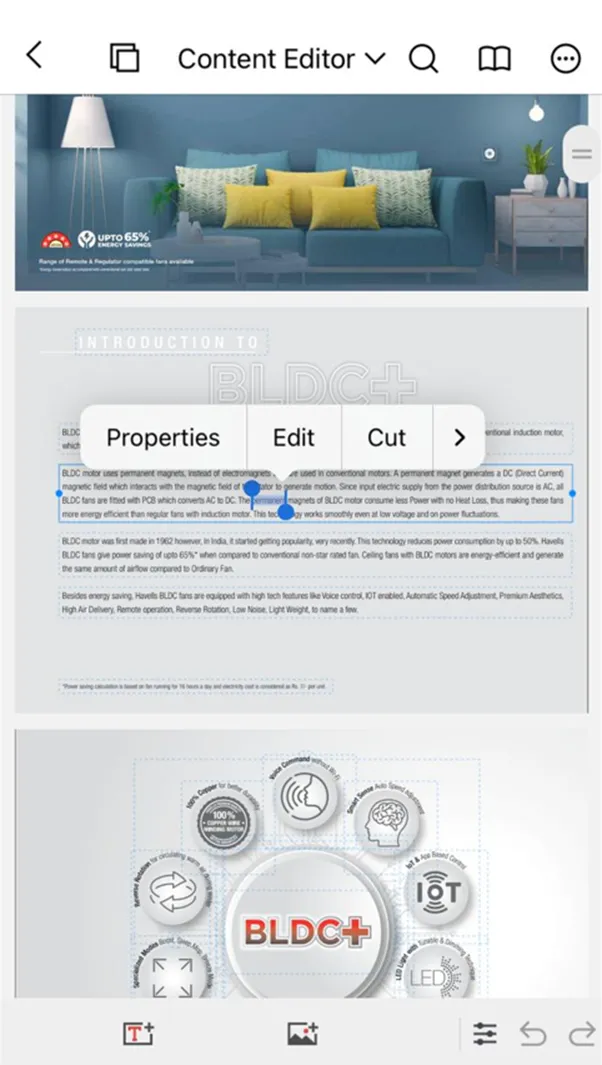
Step 8 – Tap on the Edit option and you will find a blinking cursor in the paragraph that can be used to edit the text.
Step 9. Here is a sample of how text can be edited easily.
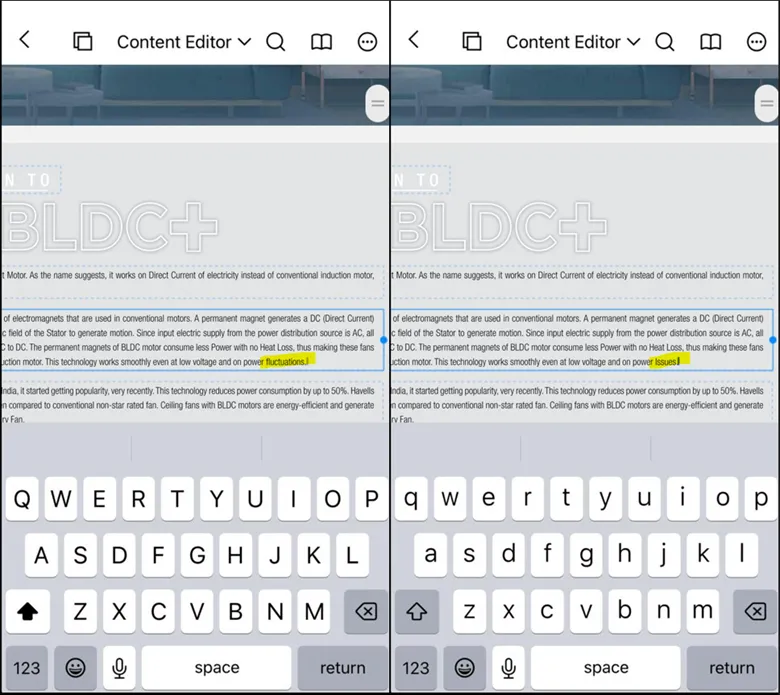
Step 10. Click on the three dots in the top right corner and choose Save option.
Systweak PDF Editor – Comparison
| Features | Android | iPhone/iOS |
| Scan Images & Documents to create Instant PDFs | Yes | Yes |
| Edit PDF Content (Text & Images) | Yes | Yes |
| Manage PDF Pages ( add, delete, rotate, extract, rearrange) | Yes | Yes |
| View PDFs | Yes | Yes |
| Create a blank PDF and insert content | Yes | Yes |
| Annotations (Underline, strikethrough, highlight, comment) | Yes
|
Yes |
| Watermark | Yes | Yes |
| Password Protect | Yes | Yes |
| Sign PDFs | Yes | Yes |
| Fill Forms | Yes | Yes |
| Merge PDFs | No | Yes |
Systweak PDF Editor – Pros & Cons.
Here are a few Pros & Cons of the Systweak PDF Editor mobile versions.
Works completely offline without having to upload PDF files to any cloud server.
All the PDF editing and managing features are completely free to use.
This PDF Editor and reader app lets you access and edit your PDFs on the go, ensuring that you stay productive no matter where you are.
Available for Windows, Android, and iOS.
Maximize productivity with All-in-one PDF tools that help to edit, annotate, protect, watermark, sign, and merge/split any PDF.
Does not include Cloud Integration.
The Final Word Conclusion On Systweak PDF Editor For Mobile.
The Systweak PDF Editor is a free PDF editing and managing app that allows Android and iPhone users to scan and create PDFs, edit PDFs, view, and share them instantly while travelling, waiting, or on the go. This practical and lightweight solution is designed for students, professionals, and personal home users who can edit and make changes to their PDFs for free, anytime and anywhere.
Frequently Asked Questions
Final Words:
Can I edit PDF files on a mobile phone for free? Do I need a PC to manage my PDF files?
Can I make changes to PDF documents using a Smartphone?
Most of us consider PDF files to be uneditable documents, but things are different. You do not need a desktop or a laptop PC software to make changes to PDF files; you can make changes and edit PDF files on mobile with a free PDF editor for Android and iPhone. We are talking about Systweak PDF Editor, an app that allows you to scan documents and images, convert them to PDF instantly, and view/share them on your smartphone. This app also
helps you to make changes like editing the content, adding annotations, watermarks, form elements, passwords, and signing the PDF document.
Many people have difficulty using PDF files, and often have problems maintaining the original document layout and formatting. There are issues while handling large file sizes because they generally slow down performance and sharing. Furthermore, many users are unsure which application or tool will provide them with the highest level of security for their sensitive documents.
Additionally, many users do not know about all the features of PDF editing software (for example, editing, signing, or converting) and therefore do not take full advantage of all the ways to work with PDFs.
