



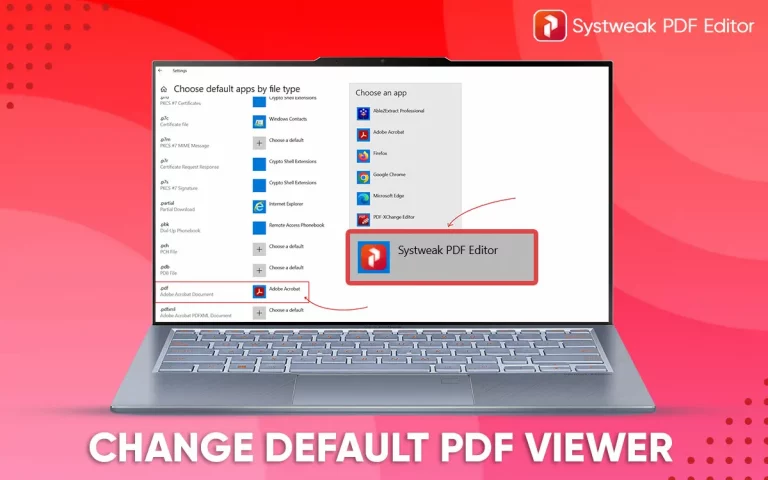

If you are tired of the wrong app opening your PDF files every time you open it and this blog is for you. Here I’ll tell you how you can change the default PDF viewer on Windows, so stay by.
I know how frustrating it is when you double-click on a PDF file, expecting it to open in the app you specially installed for PDFs, be it any PDF editor or simply some PDF reader, only to end up at Microsoft Edge or some other program that you barely use. Trust me, you are not alone!
See this is because Windows by default assigns Microsoft Edge as the primary PDF reader. Well, Edge might be handy for quick previews, but it doesn’t offer advanced features like editing, annotations, or signing. That’s why knowing how to change the default PDF viewer is important.
Well, Windows gives you complete control over which application you want to handle your files, and you can change the default PDF viewer very easily. So let’s start with ‘How you can change your default PDF viewer on your Windows and open your documents where you want them to, every time you double-click.
Why Change Your Default PDF Viewer?
If you are wondering, why bother? If the PDF opens, what’s the big deal? Well, there are a few excellent reasons why taking a minute to set your preferred default is worth it:
Missing Features. There are many better editing tools:
Some default viewers (like your web browser) are great for viewing but terrible for editing. If you need to edit your document, annotate, or sign it, you need a powerful tool that can easily do it all without occupying much of your system’s space, for example Systweak PDF Editor to open it by default.
Then comes Security and Performance:
A dedicated PDF editor has better security controls, and can open large documents much faster than web browsers. In fact web browsers usually hog system resources.
Better User Experience:
Maybe you prefer the interface of one program over another. You should be able to use the tool that makes your work easiest!
If you’ve recently downloaded a great alternative like Systweak PDF Editor, you’ll definitely want to know how to change your default PDF viewer Windows to that new, more powerful program.
See Also: How to Crop Pages in PDF
Methods to Change Default PDF Viewer on Windows
There are three main, easy ways to change this setting, whether you’re on Windows 10 or Windows 11.
Method 1: Change Default PDF viewer using the Windows Settings ( Windows 10)
This way you can also see all your default apps.
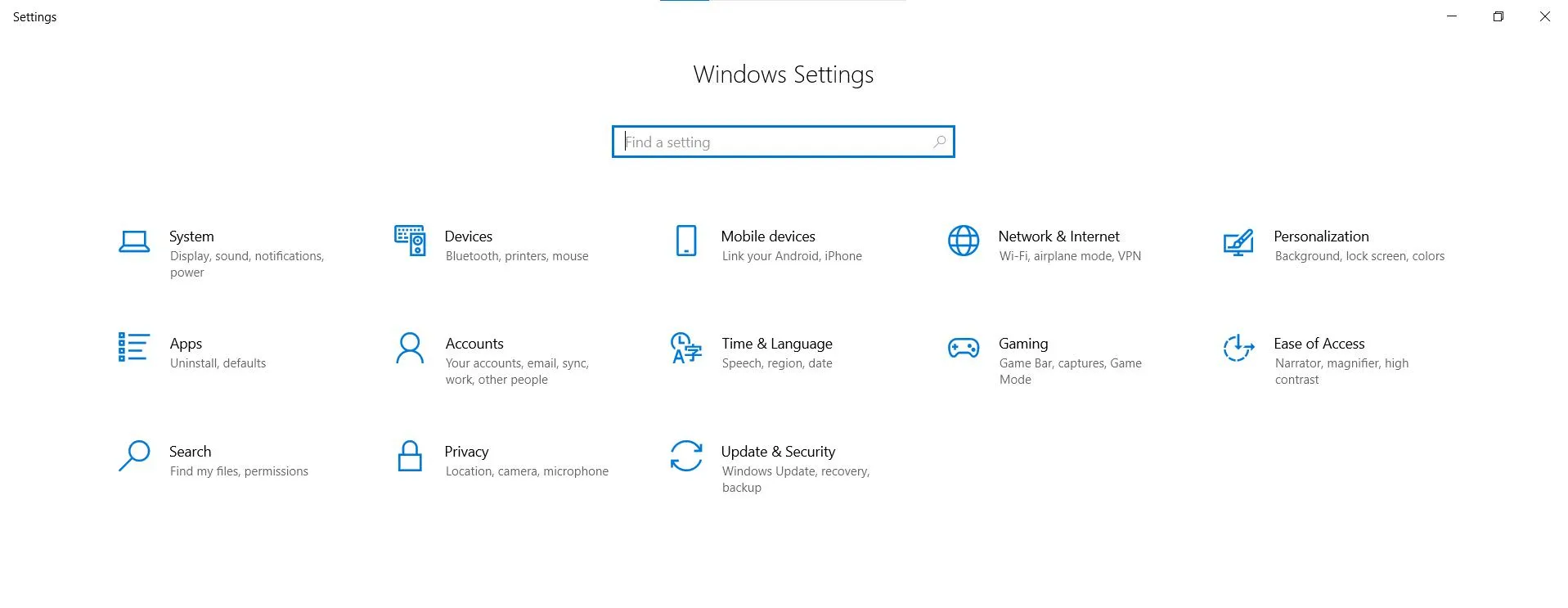
Go to Settings:
Press the Windows key + I on your keyboard, or type “Settings” in the Start Menu and open it.
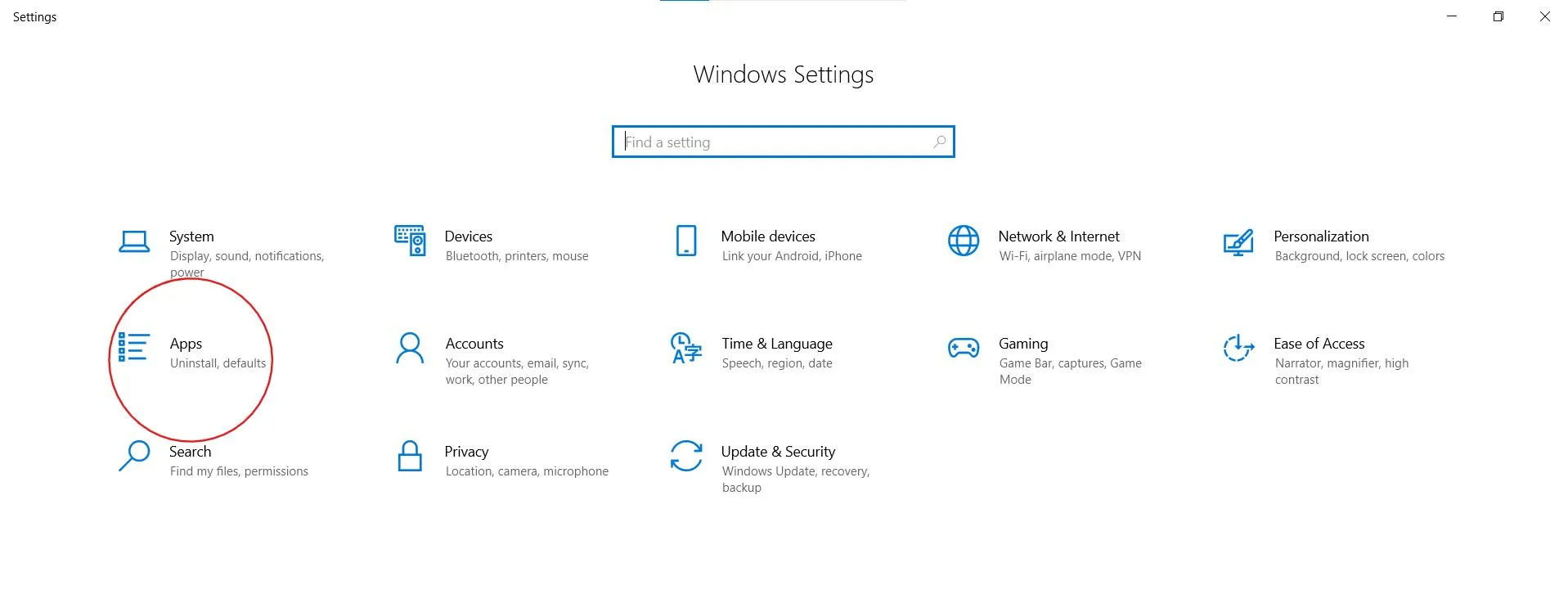
Then Apps:
In ‘Settings’ click on “Apps”, and if you are on an older version then just “System” then “Default apps”.
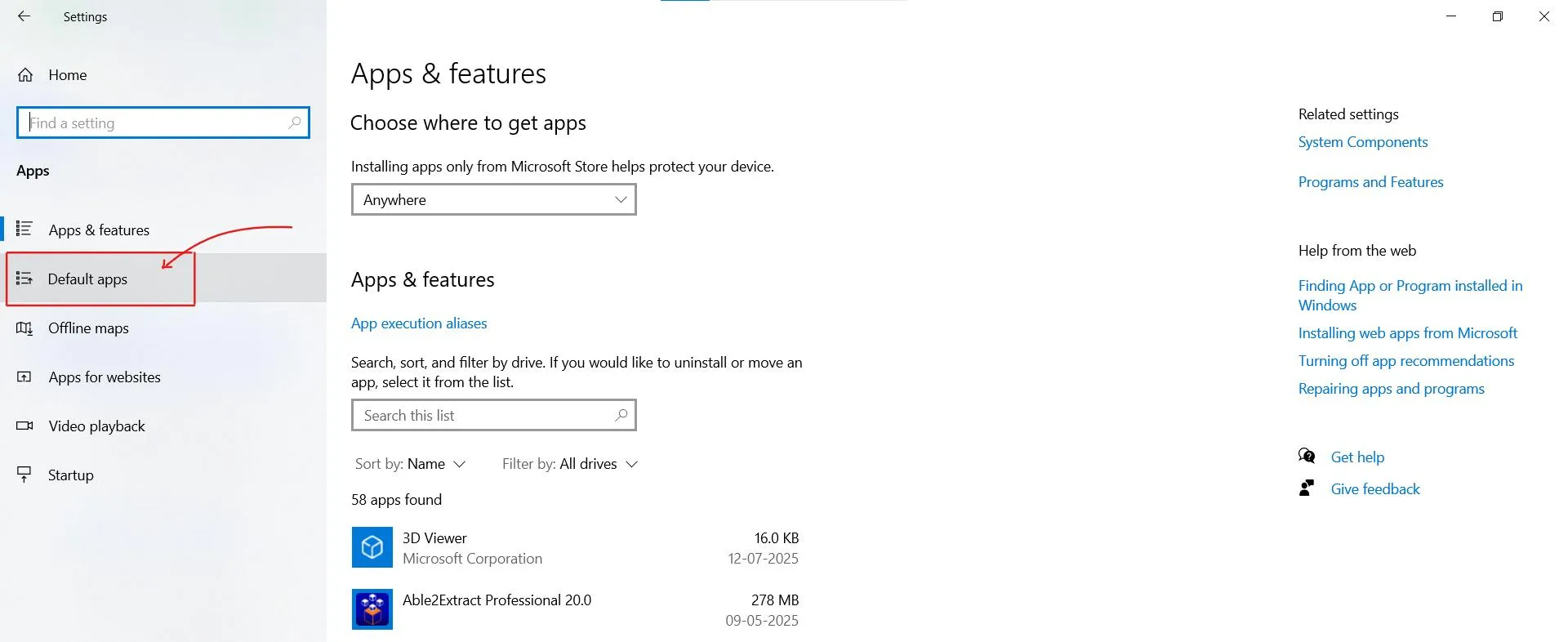
Default Apps:
In the Apps menu select “Default apps” from the left-hand menu.
Search by File Type:
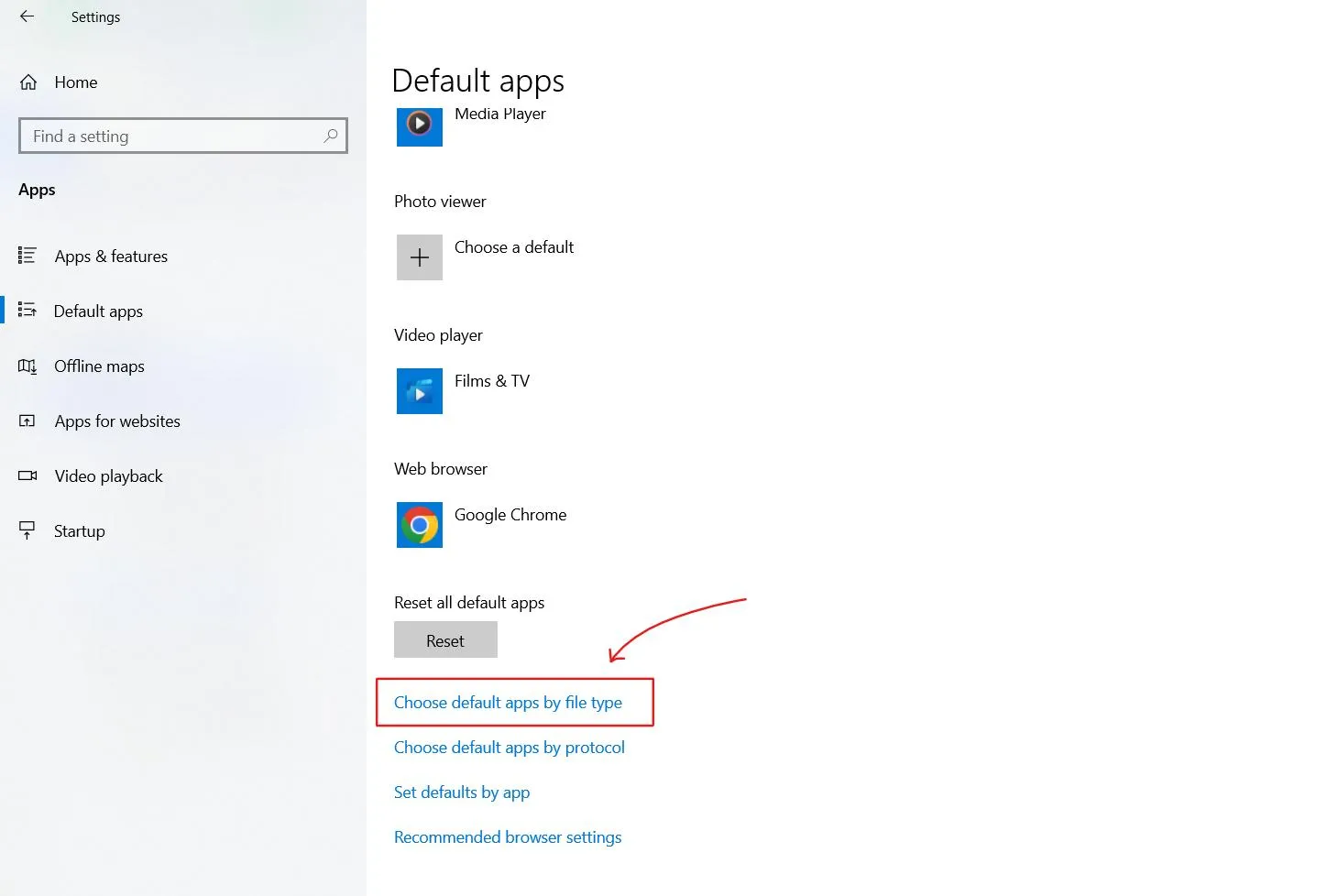
Scroll down and click on “Choose default apps by file type.” This will help for PDF files default app, it will take a moment to load, so wait till it gets loaded.
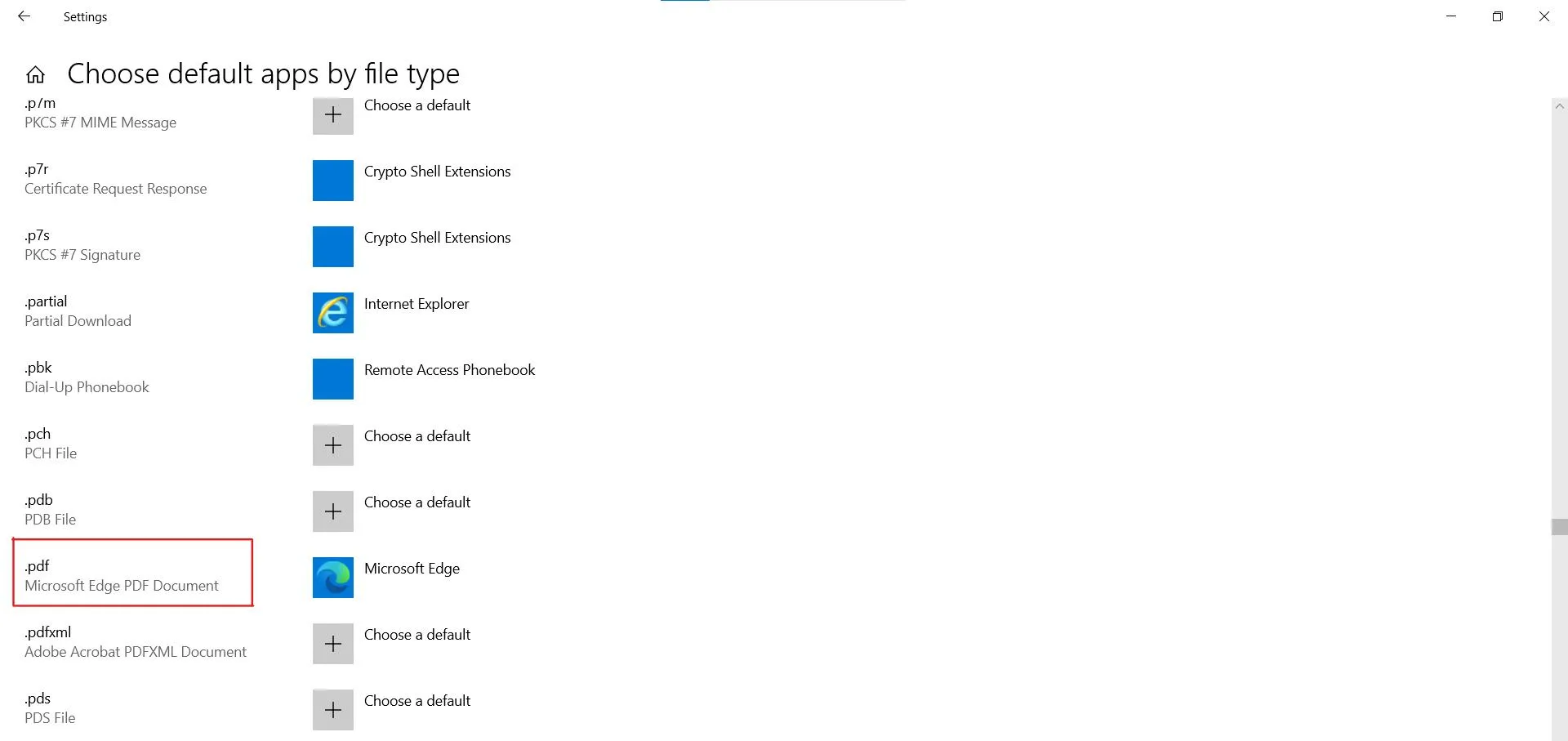
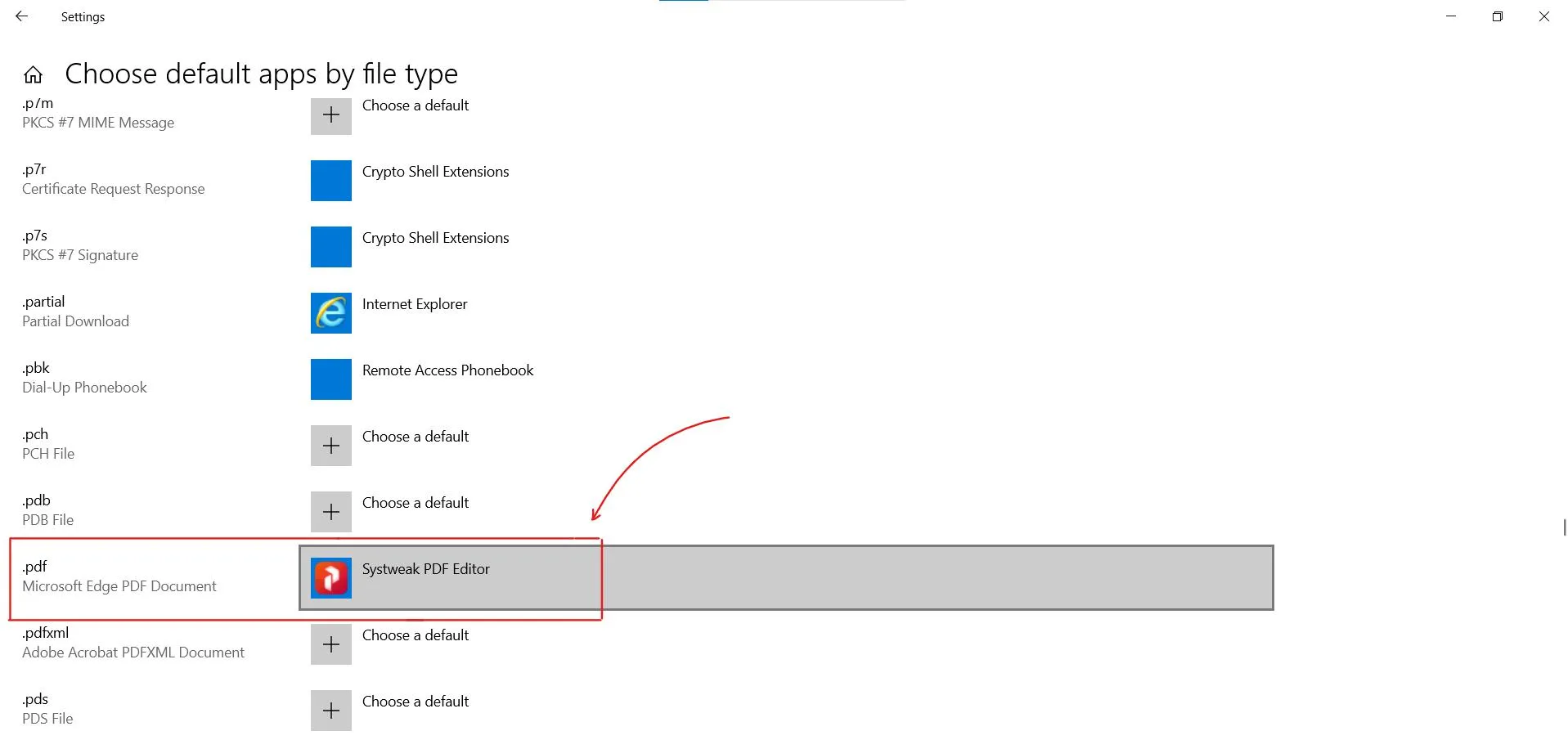
Look for “.pdf” :
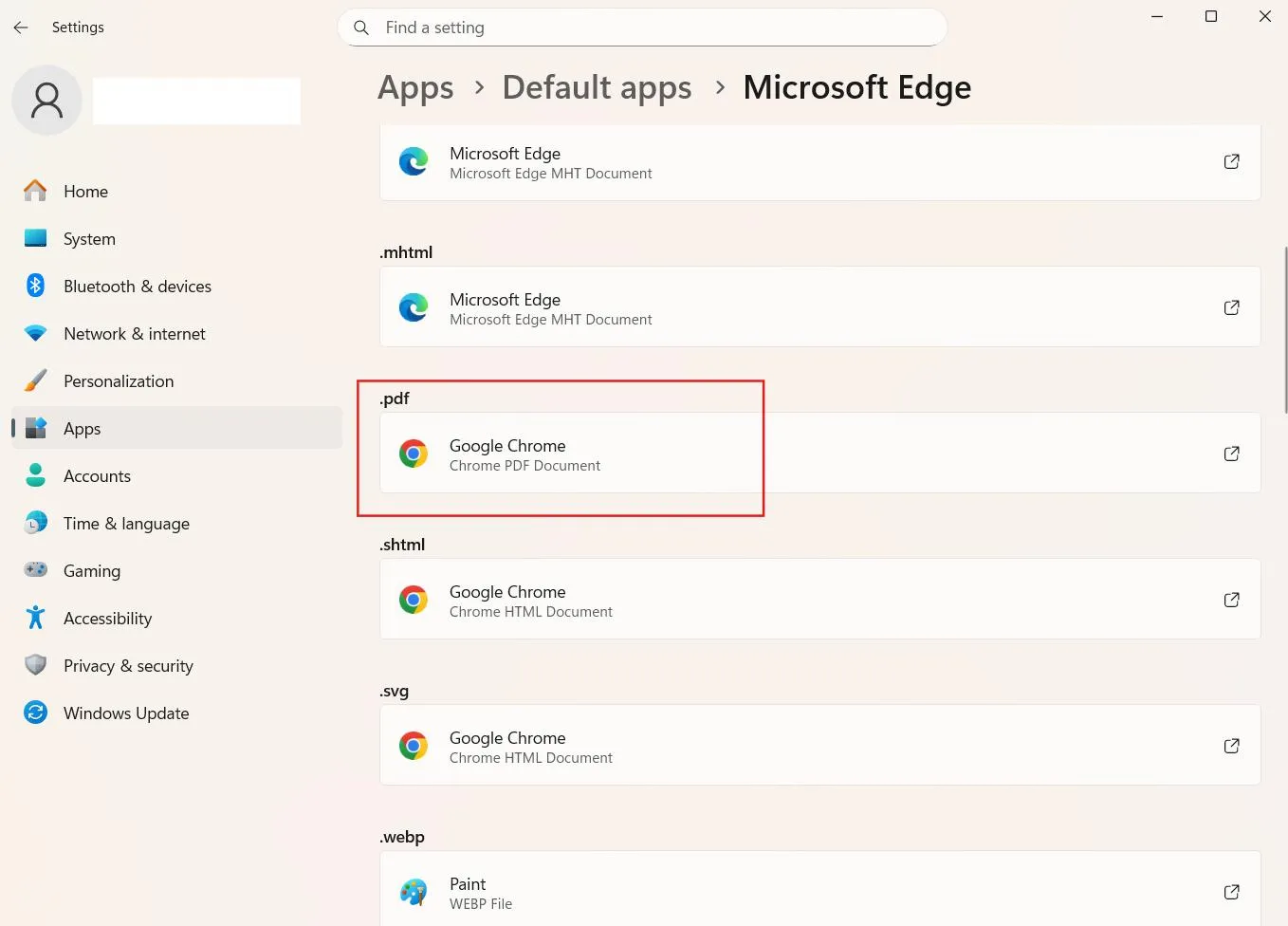
Here scroll down the alphabetical list until you find the .pdf file extension.
Click on the App:
Click on the current default app to change it (it might say Microsoft Edge or Adobe Acrobat) and a list of alternatives will appear.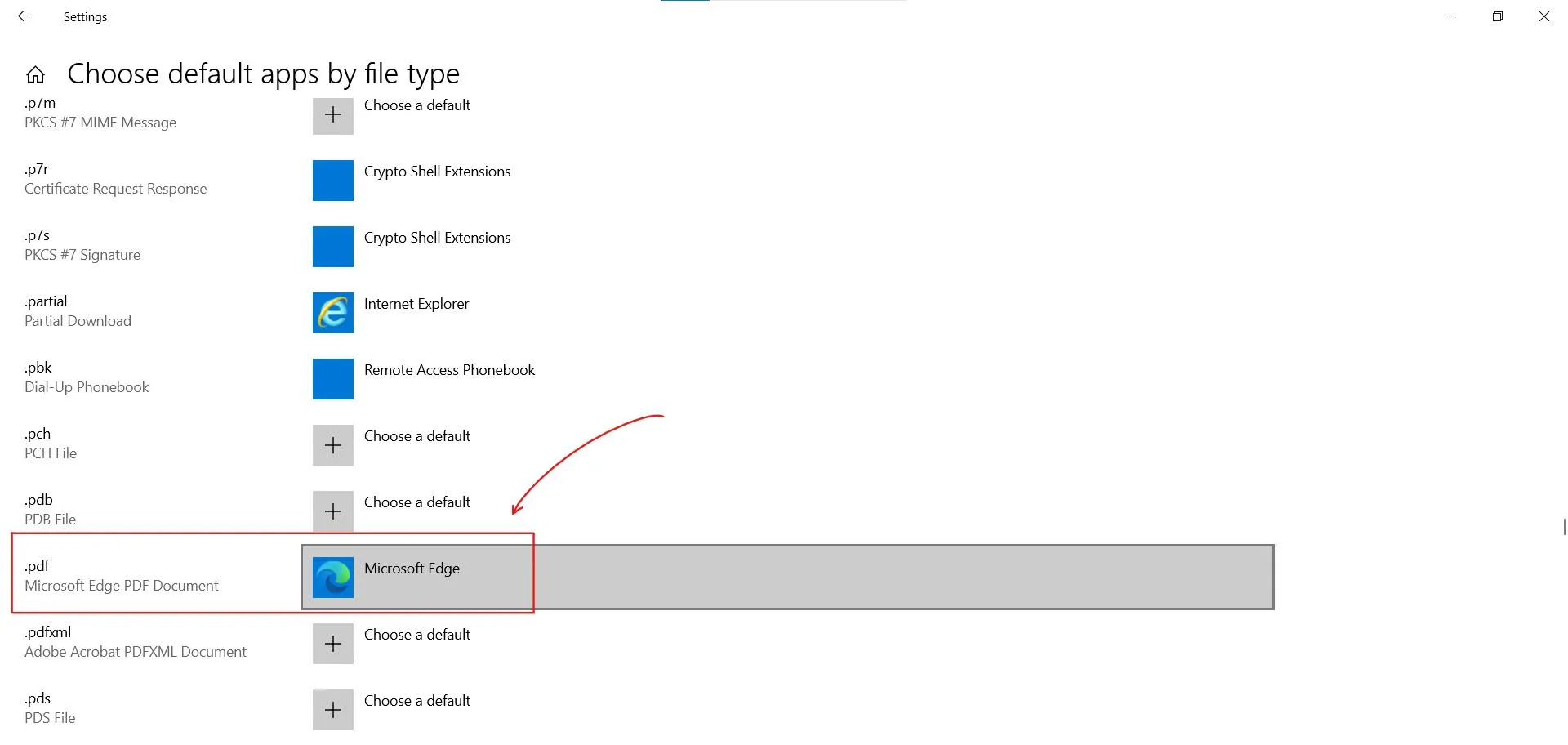
Select Your Choice:
Now you can select the application that you want as your default app, for example here I’ll select Systweak PDF Editor. Once you click on it the default app will be changed and your selected one will now be your default app.
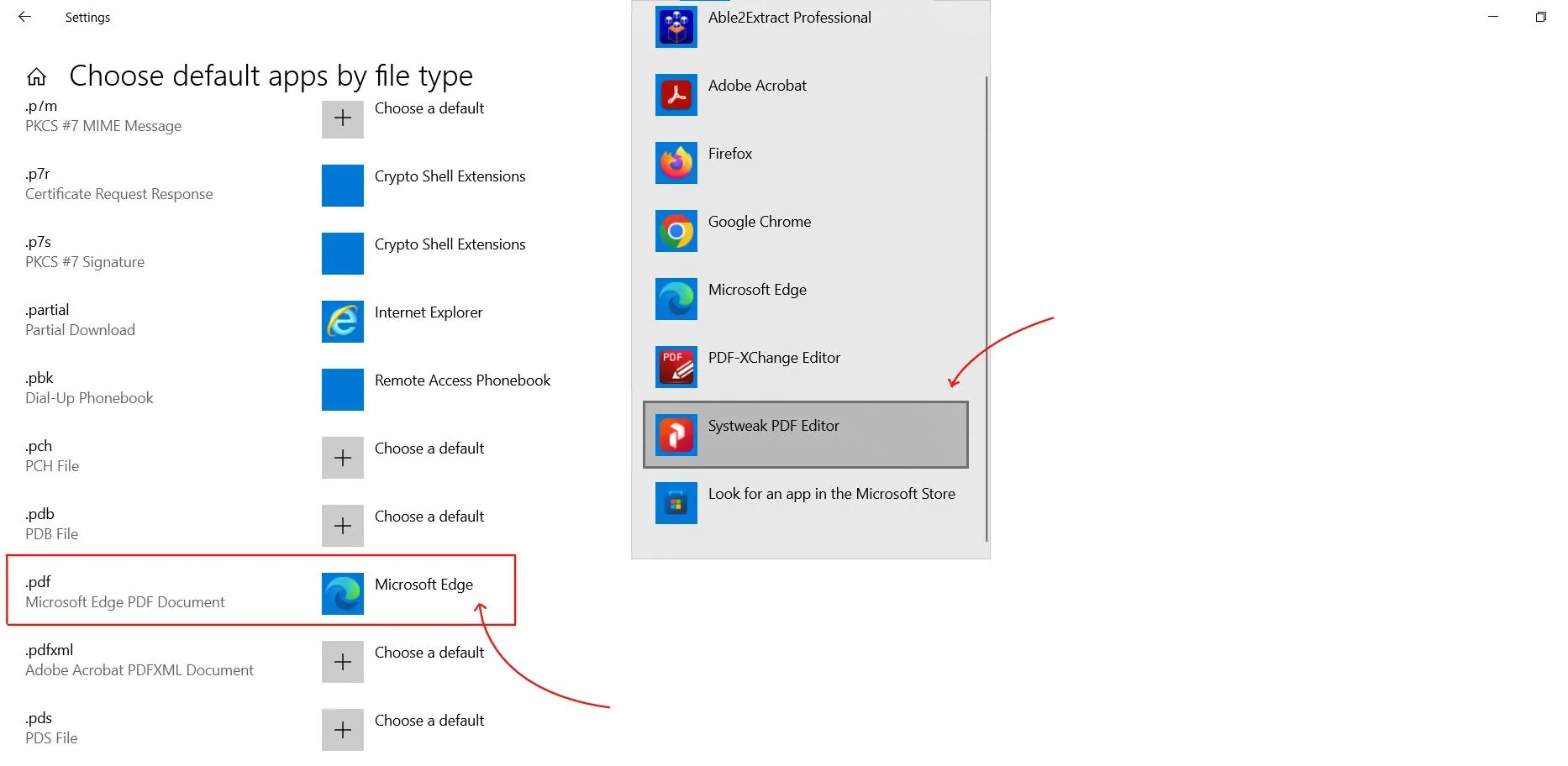
And it’s changed, it was this simple to change your default app.
Method 2: The “Open With” Right-Click Trick (Quickest)
This is the fastest way to set a new default, and it works flawlessly on all recent Windows versions.
Find a PDF:
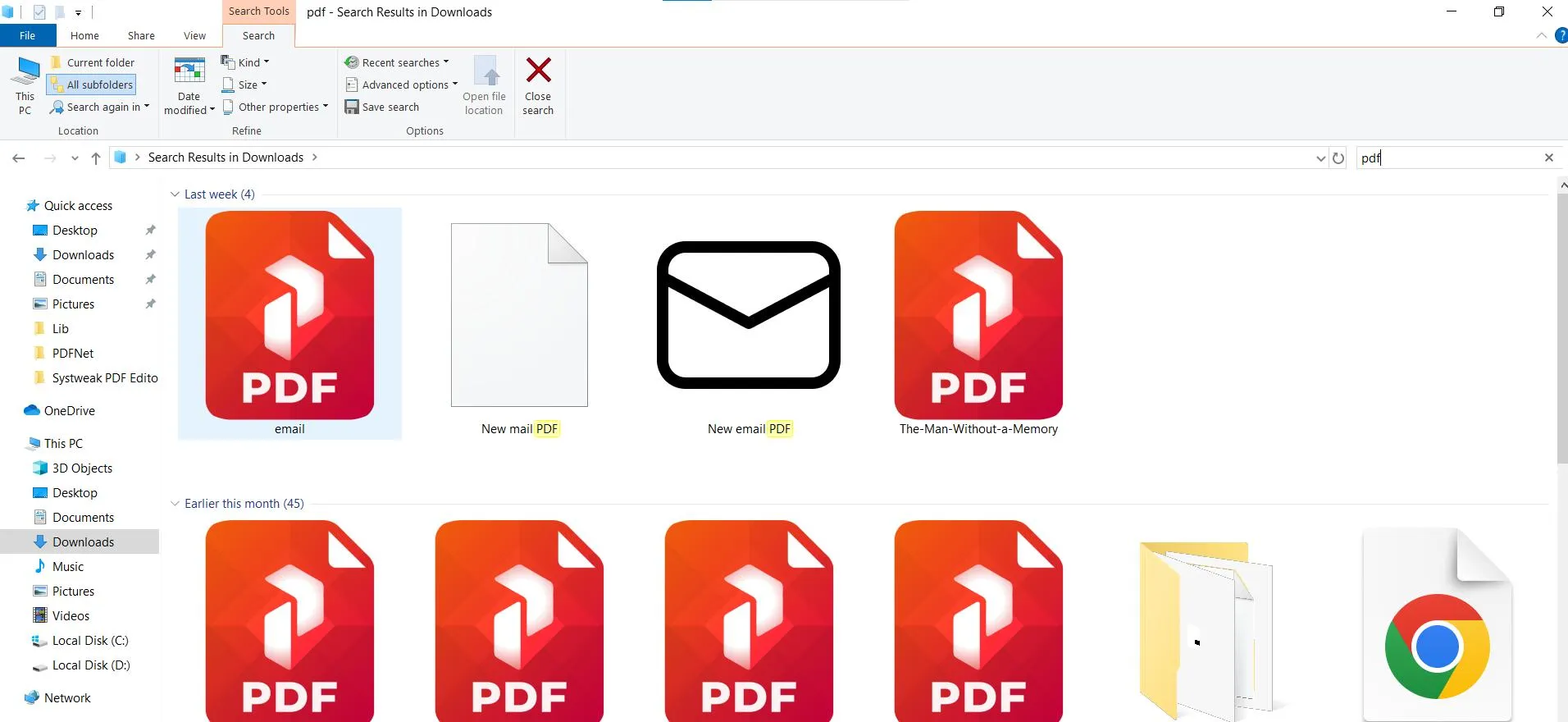
Locate any PDF file on your computer (on your desktop, in Documents, etc.).
Right-Click:
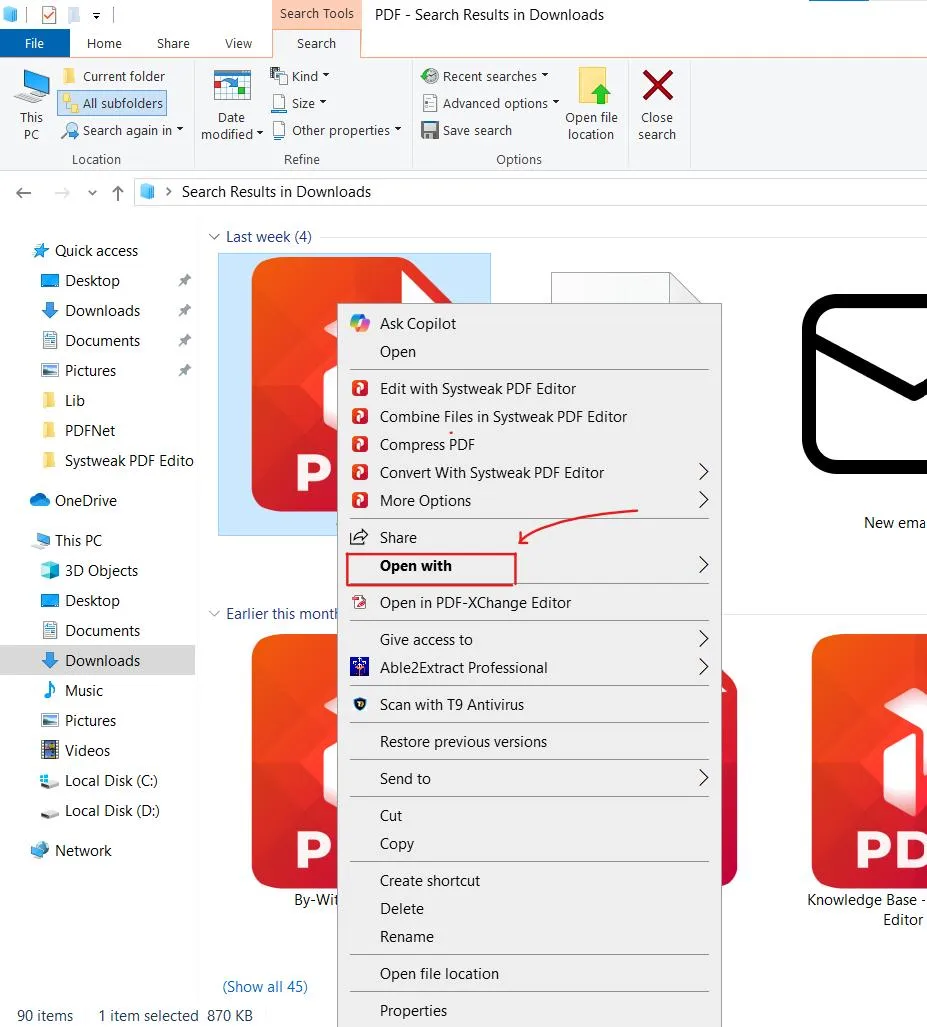
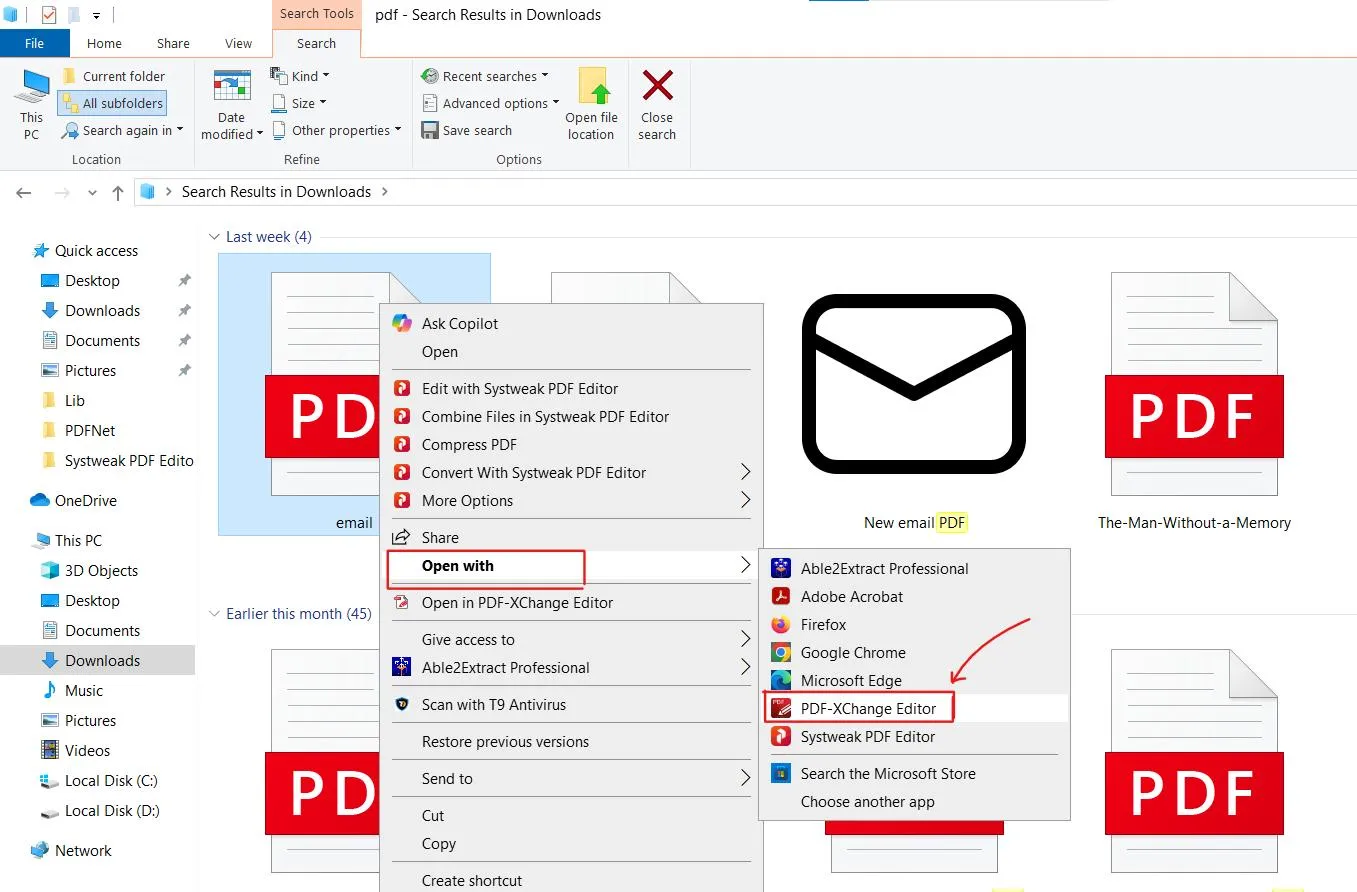
Right-click on the PDF file to open the context menu.
Choose “Open with”:
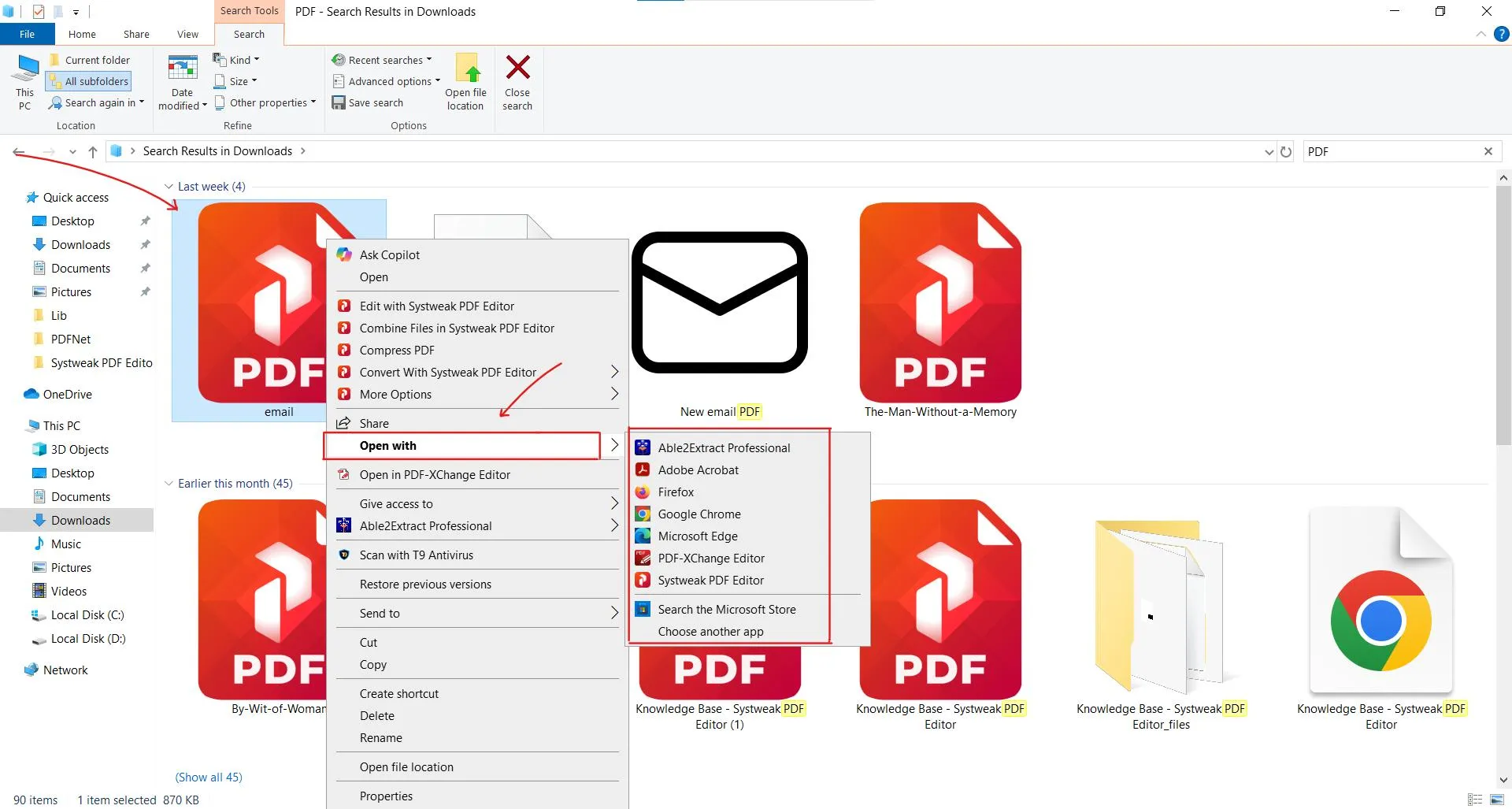
In the menu, click on “Open with” and then select “Choose another app.”
Select Your Viewer:
A window will pop up. Choose your preferred application.
Set it as Always:
Make sure you click on the option that says, “Always use this app to open .pdf files.”
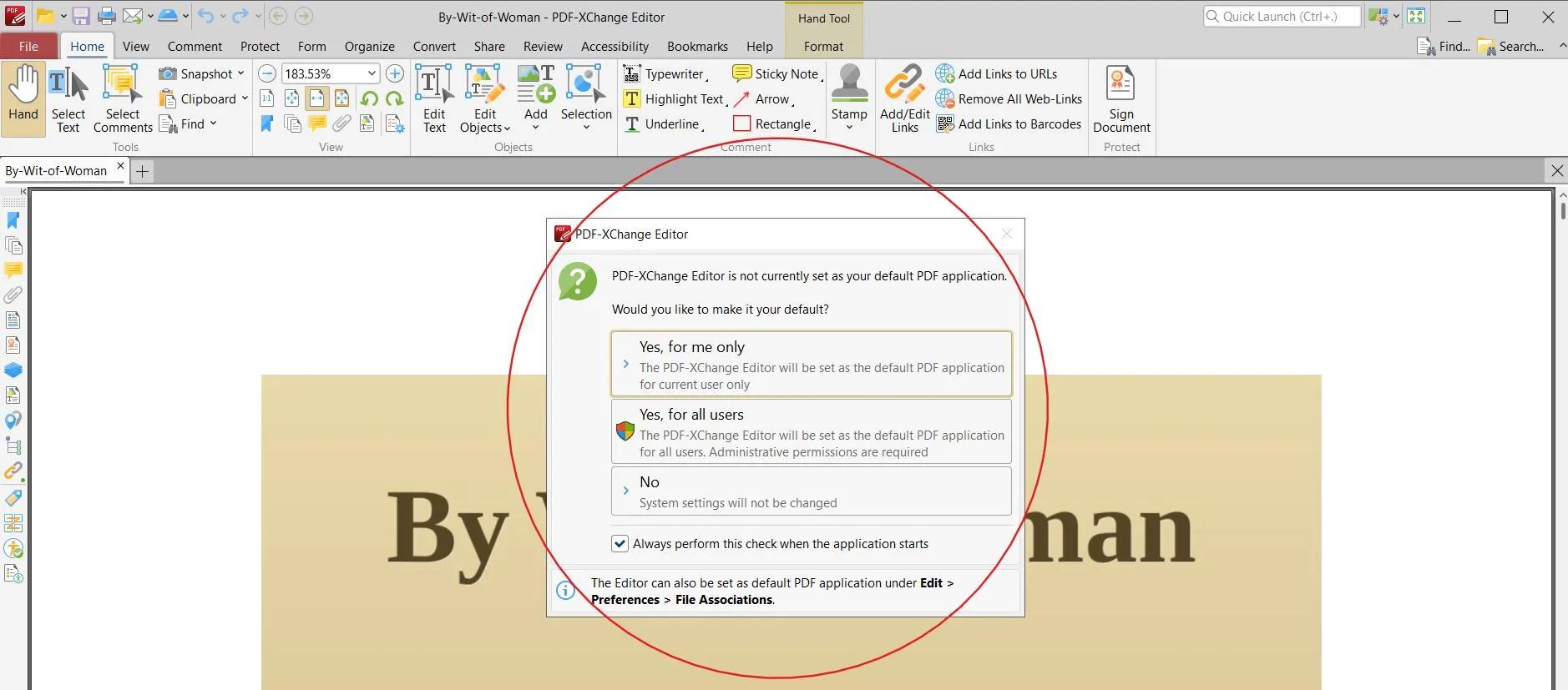
Click OK: Click OK to save your choice.
From now on, that application is set as your default PDF editor for Windows.
See Also: How to Remove Watermark in PDF
Method 3: Through Control Panel
If you’re specifically struggling with how to change the default pdf viewer Chrome or Microsoft Edge has set, this method confirms the change through file associations.
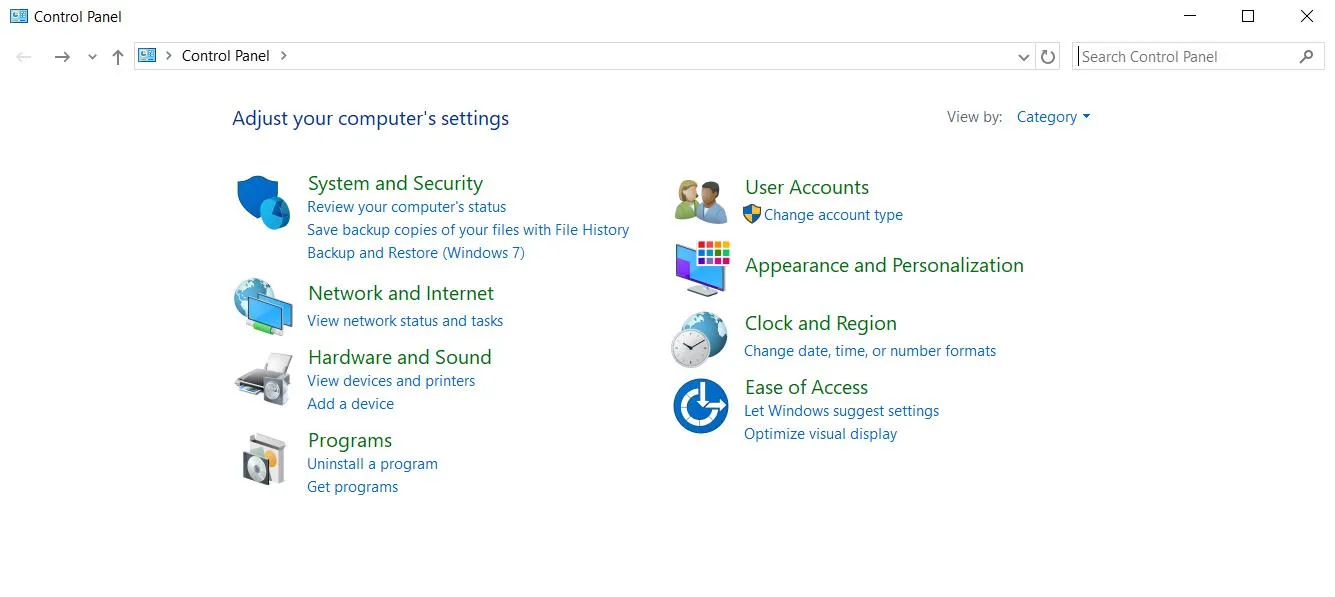
Open Control Panel:
Type for and open the “Control Panel” from the Start Menu.
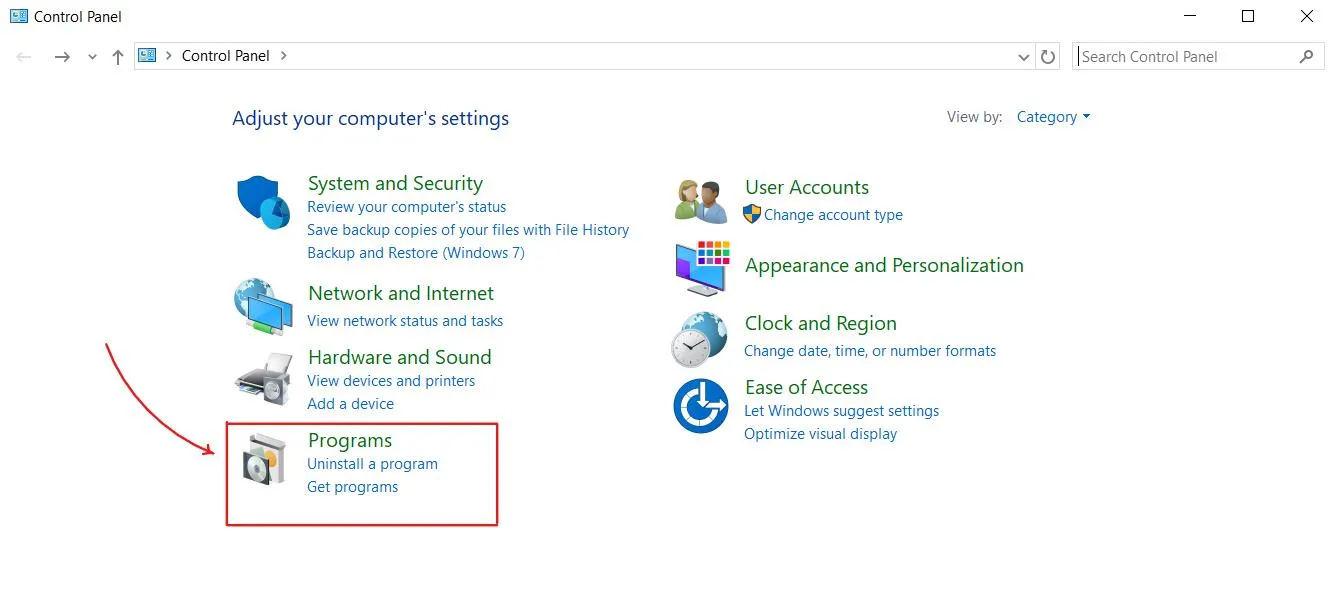
Go to Programs:
Here click on “Programs” then “Default Programs.”
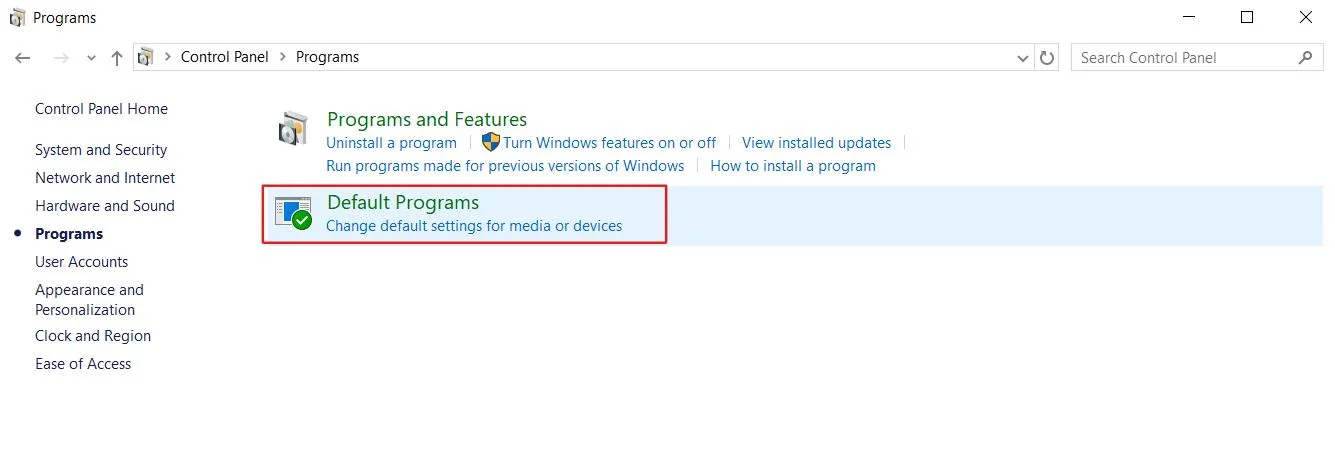
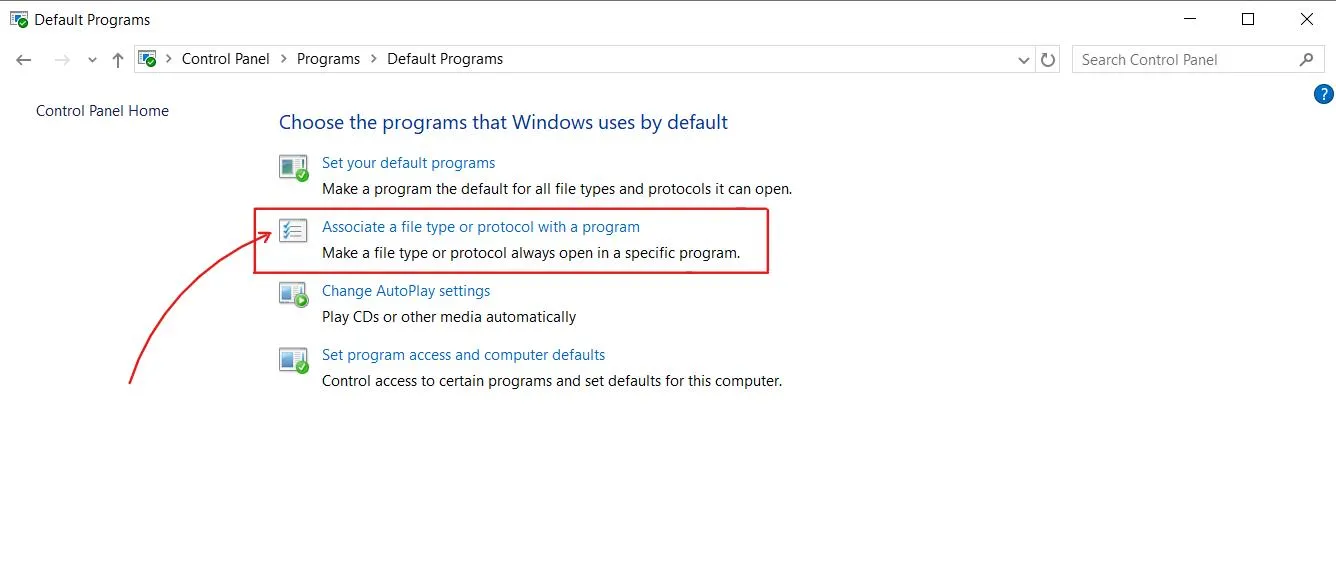
Set Associations:
Now click on “Associate a file type or protocol with a program.”
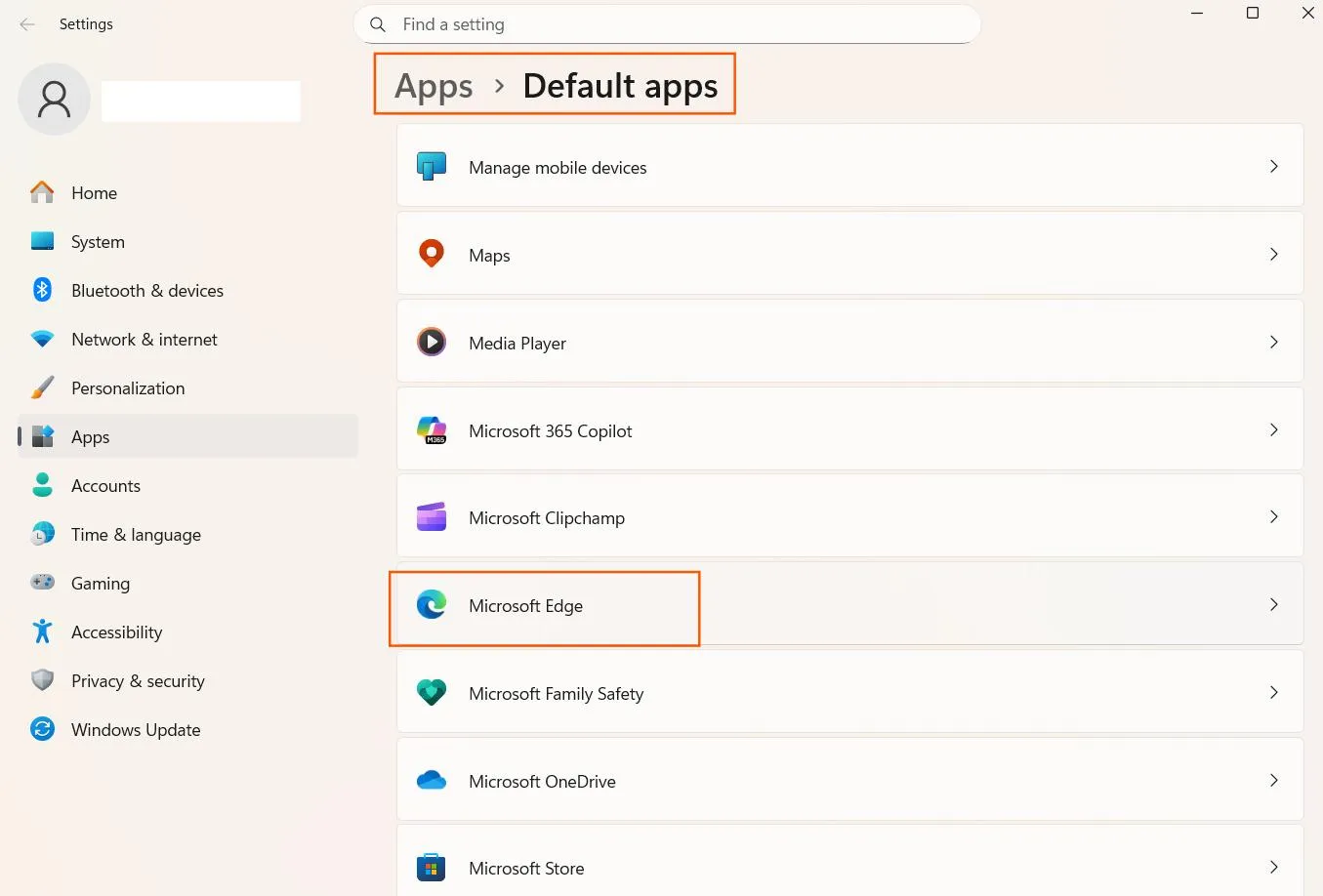
Default Apps in Settings will open, do the same process as we did in the first method. Scroll down and select the App that you want to get rid of.
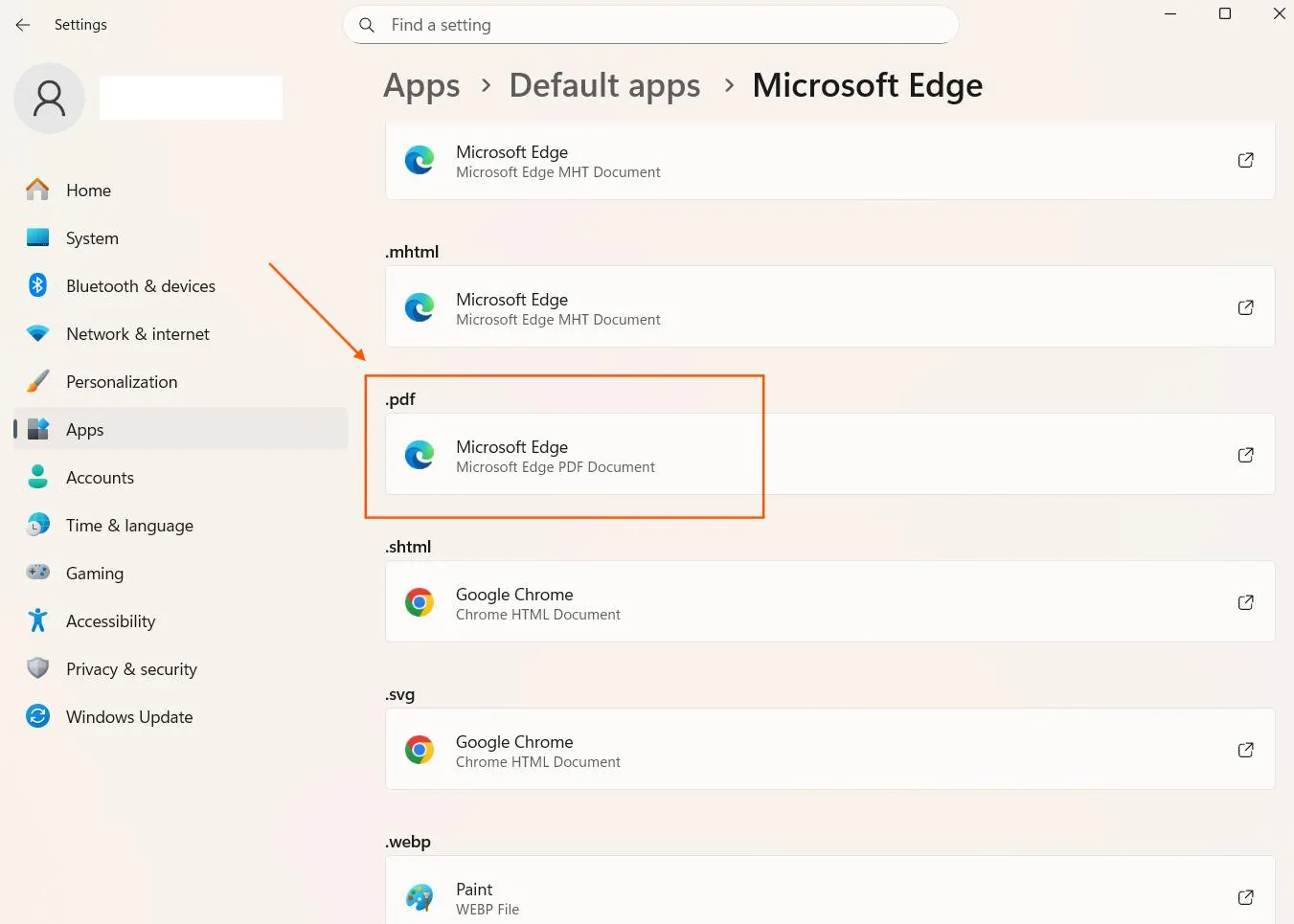
Then find ‘.pdf’ click on the app and choose another app that you want to set as default.
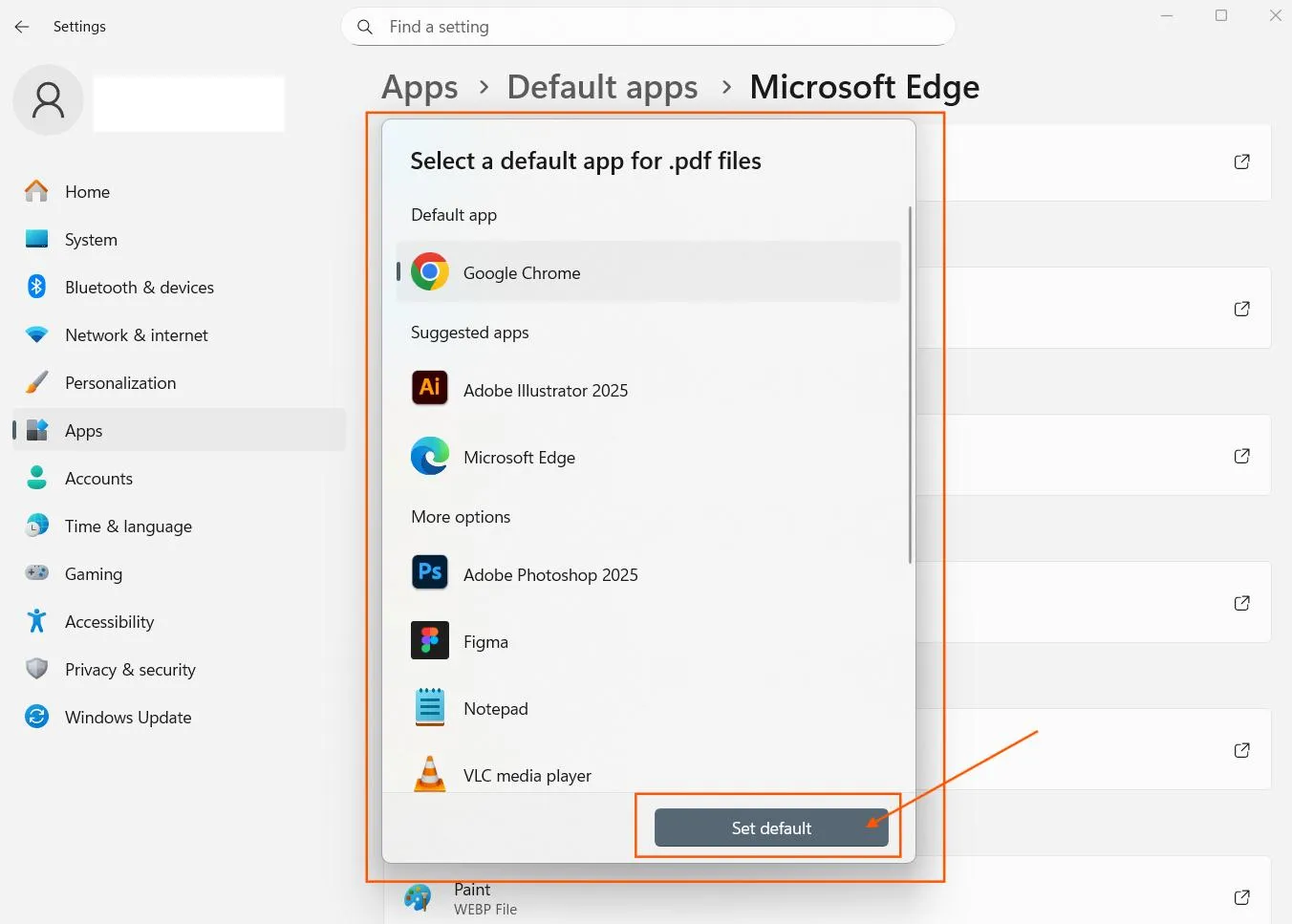
Set Default:
Click on the “Set default” button and your preferred PDF application will be set as default.
Tips for the Best PDF Experience on Windows
Now that you know how to change default pdf viewer windows, here are a few extra tips to make your document handling even smoother:
Select a Versatile App as default: Choose tools like Systweak PDF Editor that are not just limited to reading but also gives you the freedom to view, edit, annotate, and secure your files all in one place.
Keep the Editor Up to date: Make sure that your preferred PDF software is always running in the latest version for enjoying new features, better security & performance and updates bring bug fixes.
Check your change: After changing the default, test it out if it’s set as default. So double-click on several different PDF files to confirm that your new default app is opening every single one!
See Also: How to Sign PDF Document
Conclusion
Don’t let your windows decide which program opens your important documents. Just follow these simple steps, and take back your control on your system.




