



Ever opened a PDF and realized it contains private info like bank details, SSN, or other stuff you definitely don’t want shared, and wondered how to hide it before sending? I’ve had that panic moment too, when you grab a PDF for work or sharing and then notice there’s something sensitive you forgot to cover. That’s where redacting sensitive content or hiding sensitive information in a PDF becomes essential.
In this post, I’ll walk you through how to redact sensitive information, hide sensitive content, blur confidential information in a PDF, all using Systweak PDF Editor, so you can share documents without that worry.
Why Redact or Remove Sensitive Information?
There can be several reasons one wants to hide some information:
– To hide personal or financial data before sharing or uploading a file.
– To obey privacy laws or company policies.
– To prevent data leaks or misuse if the PDF gets forwarded.
– To remove or obscure portions that should not be seen.
How to Redact Sensitive Information Using Systweak PDF Editor
Here are the full steps to hide sensitive information in PDF, redacting confidential portions safely. Based on the Systweak “How to Redact PDF” tutorial.
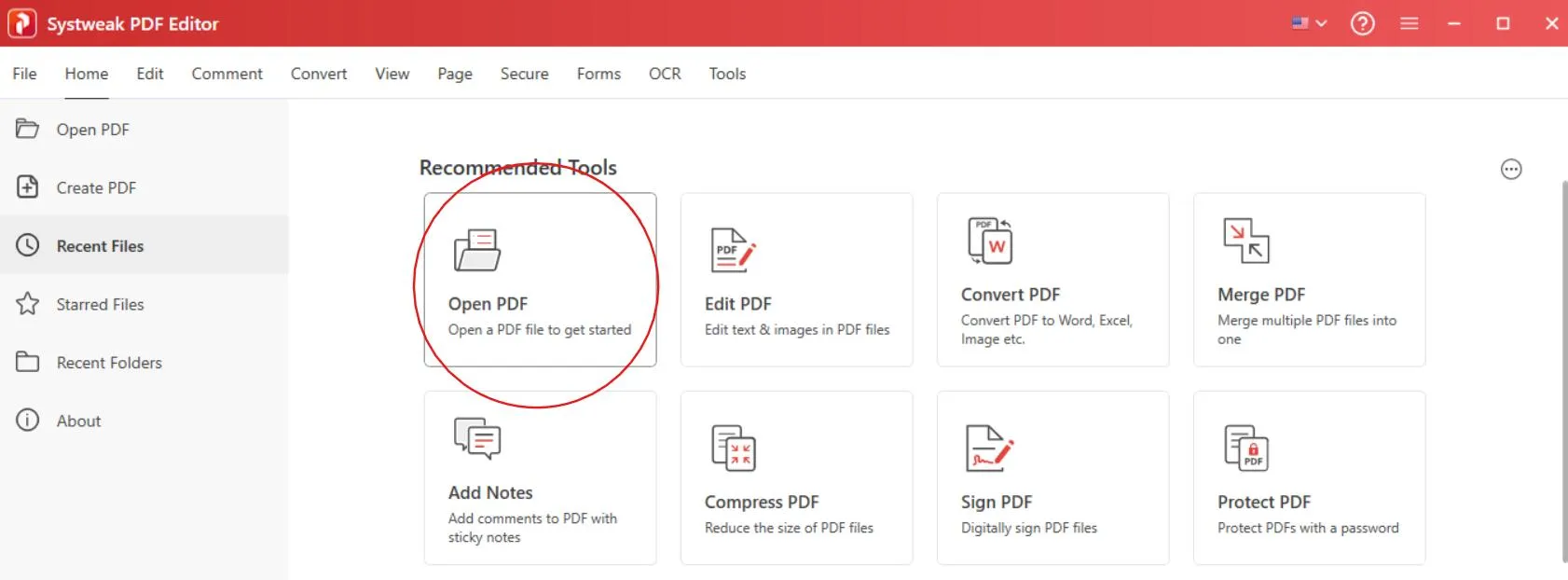
Open the PDF file
Launch Systweak PDF Editor in your system, and click on ‘Open PDF’ and select the document you want to hide information in.
Go to the Secure tab
Once your PDF is opened in the application go to the ‘Secure’ tab from the top menu bar. The Secure tab has all the protection feature options.

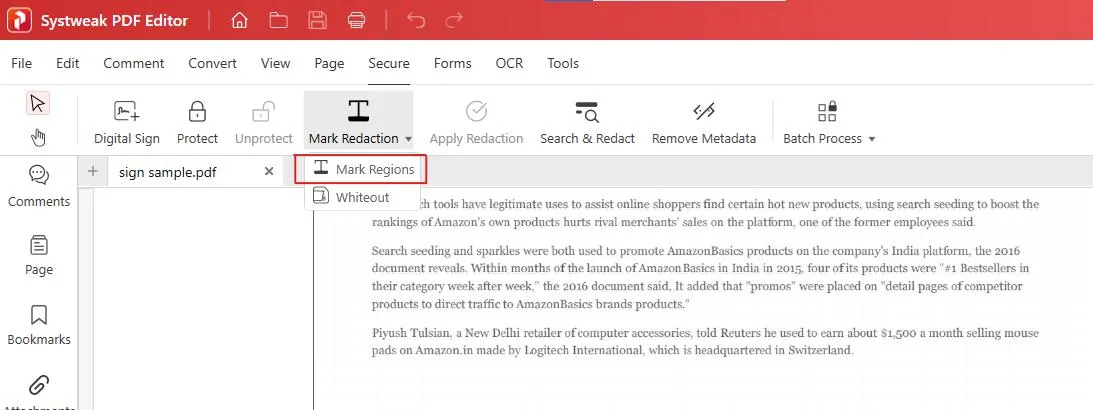
Click “Mark for Redaction”
In the Secure tab click on ‘Mark Redaction’. You’ll get options to Mark Region (mark either text) or Whiteout (mark areas) in the PDF document that has sensitive information and you want to hide.
Let’s start with ‘Whiteout’
Whiteout is used to simply cover the selected area with a white mark, it’s more like covering something with an white marker or paper.
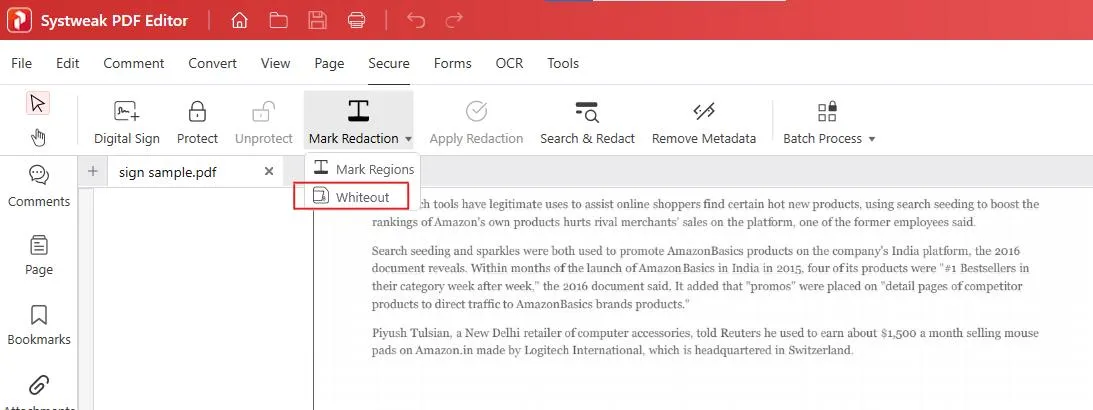
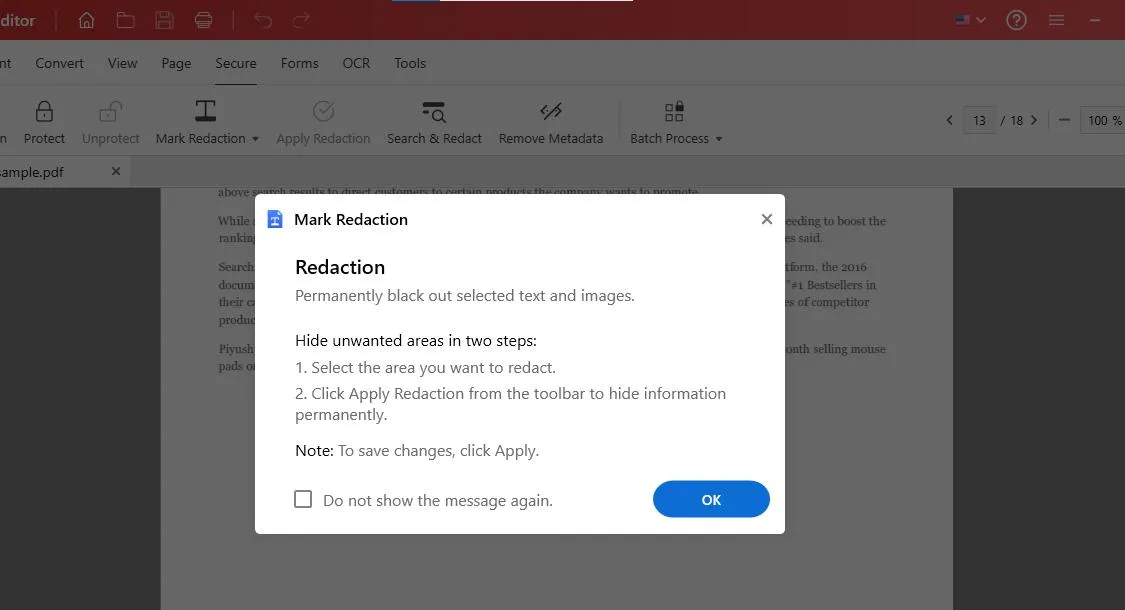
– Click on ‘Whiteout’, a tutorial message will pop up, read it for clear direction and hit OK to proceed forward.
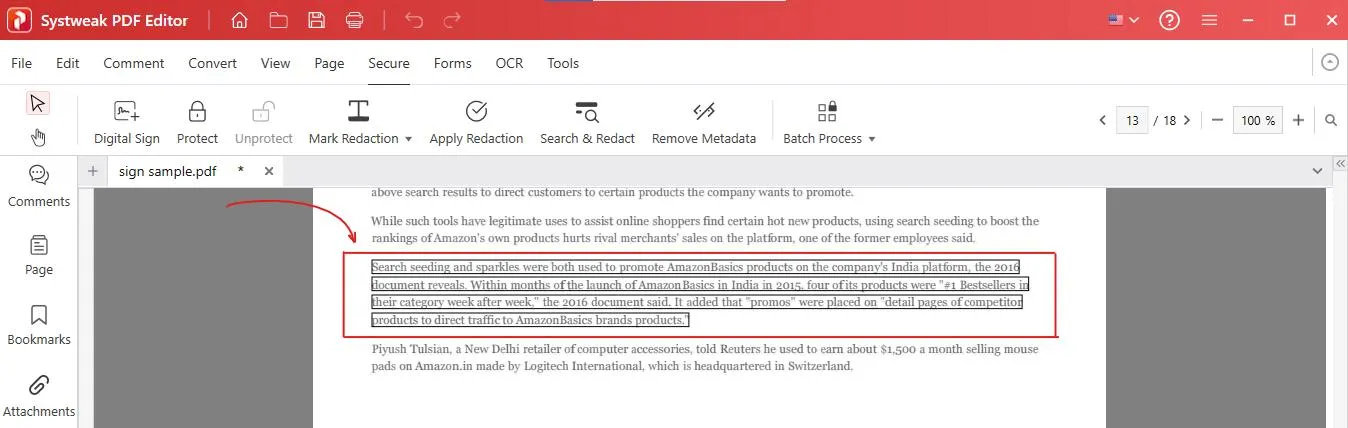
– Now Select the area that you want to hide in the PDF.
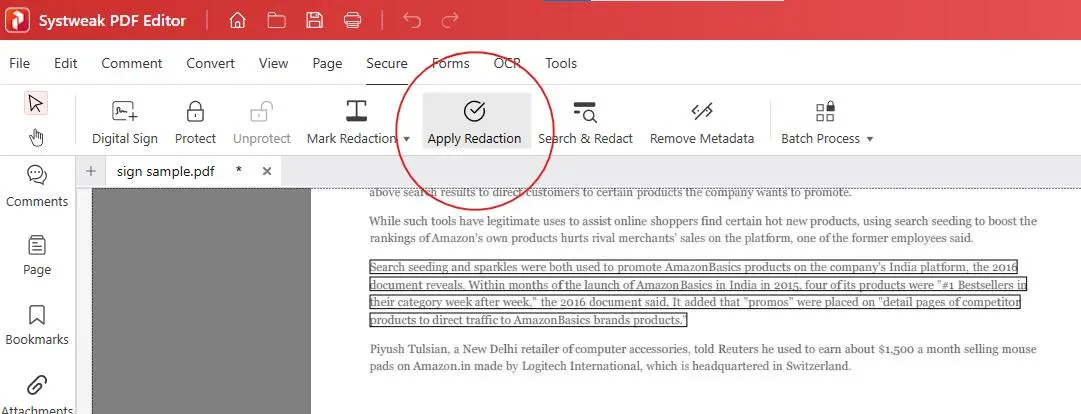
– After selecting the area click on ‘Apply Redaction’ to hide the area with white cover.
– A confirmation message will pop up, hit on OK.
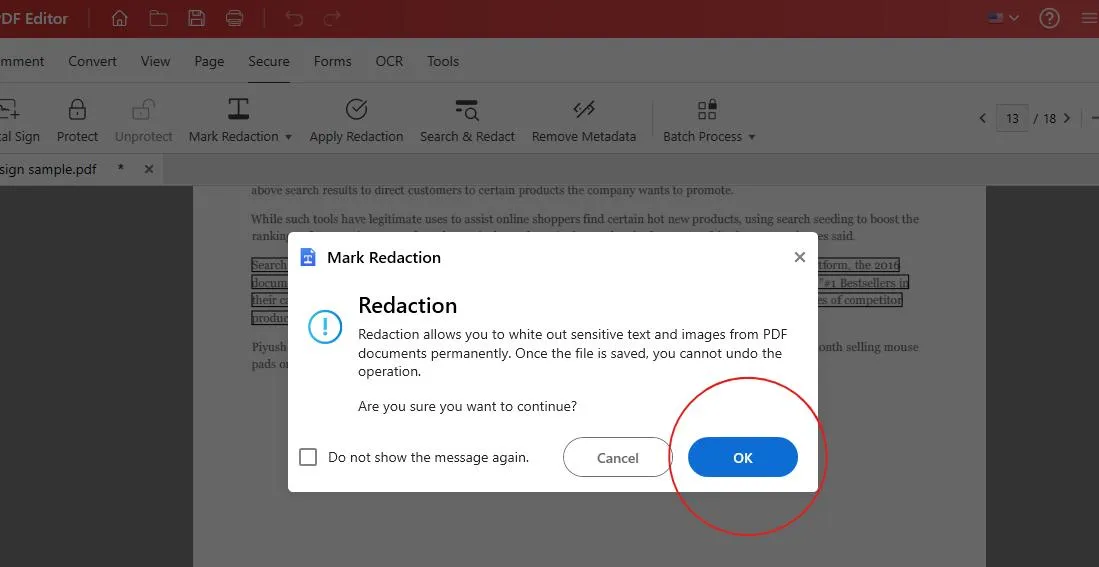
– Once confirmed, it will be permanently covered with white cover.
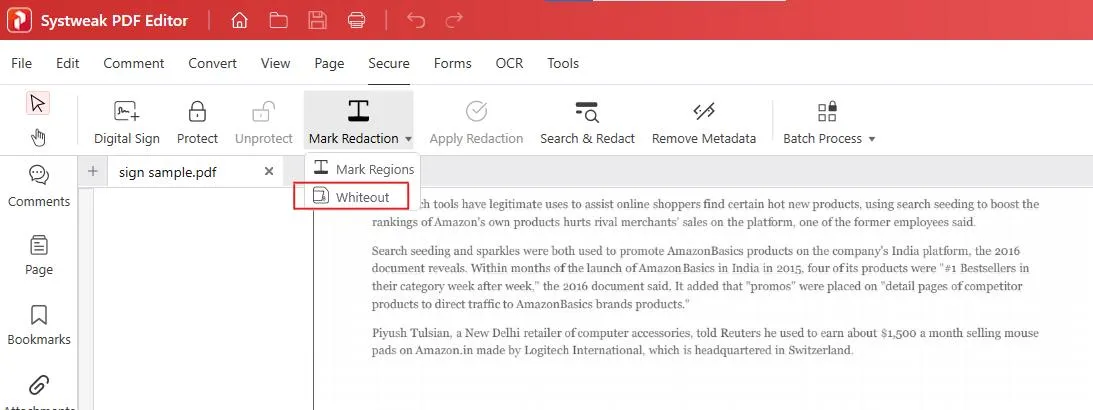
That’s all about Whiteout, you can save your secured PDF.
‘Mark Regions’ Redaction
Mark Regions is used to highlight or block out text and content in a PDF document. It works like a strong highlighter that covers the selected text and makes it invisible.
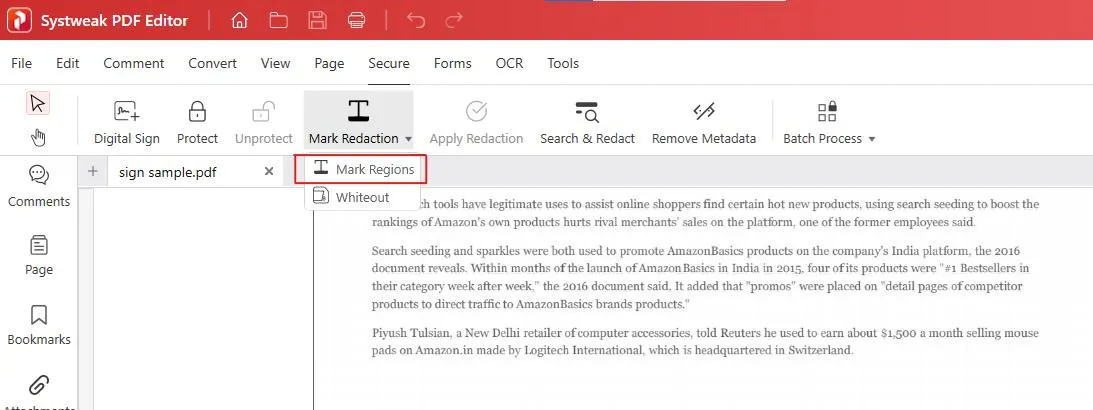
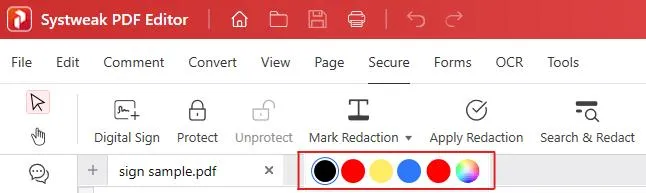
Mark Regions is different from Whiteout because it lets you highlight in different colors as you prefer.
– So click on ‘Mark Region’ a tutorial message will pop up as it happened with the whiteout, read it and hit OK to proceed forward.
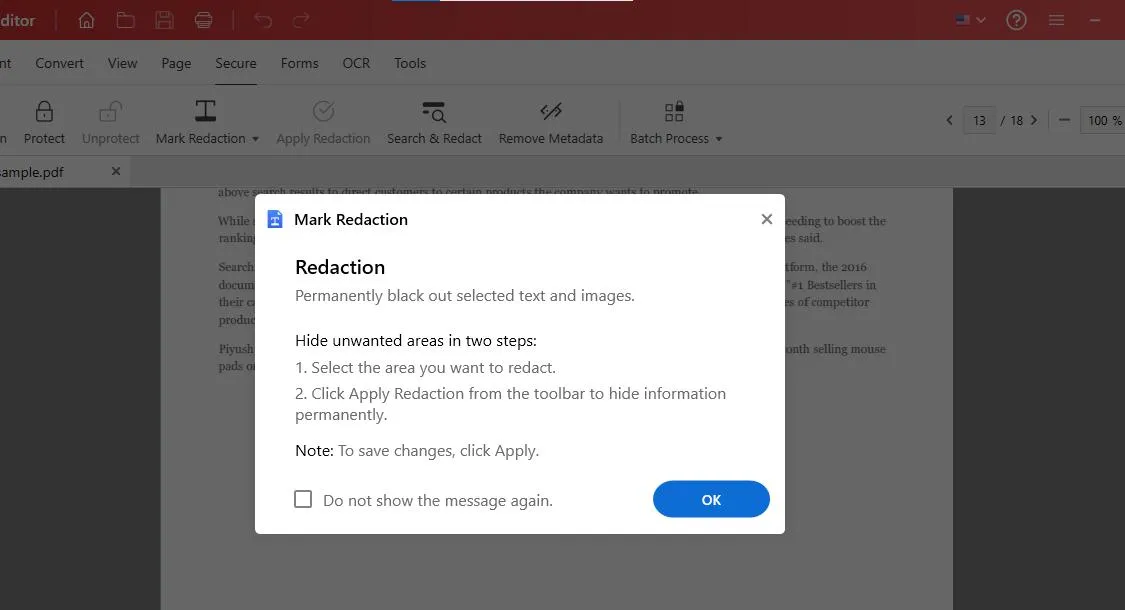
– Now Select the part that you want to hide in the PDF and choose the colour you want to hide it with.
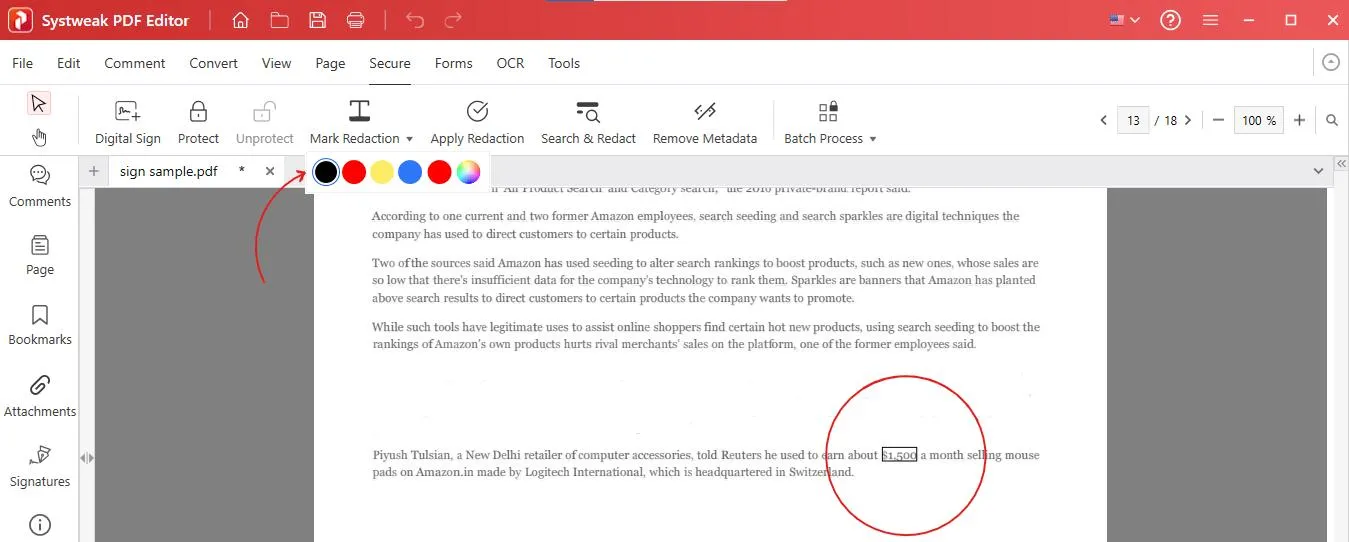
– After selecting the colour of your preference and the part or section that you want to cover click on ‘Apply Redaction’.
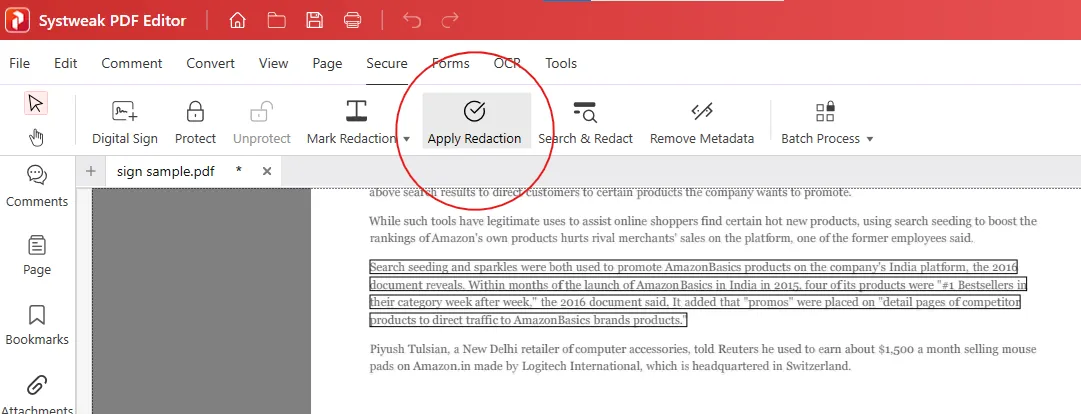
– When you click on ‘Apply Redaction’ a confirmation message will appear, click on OK.
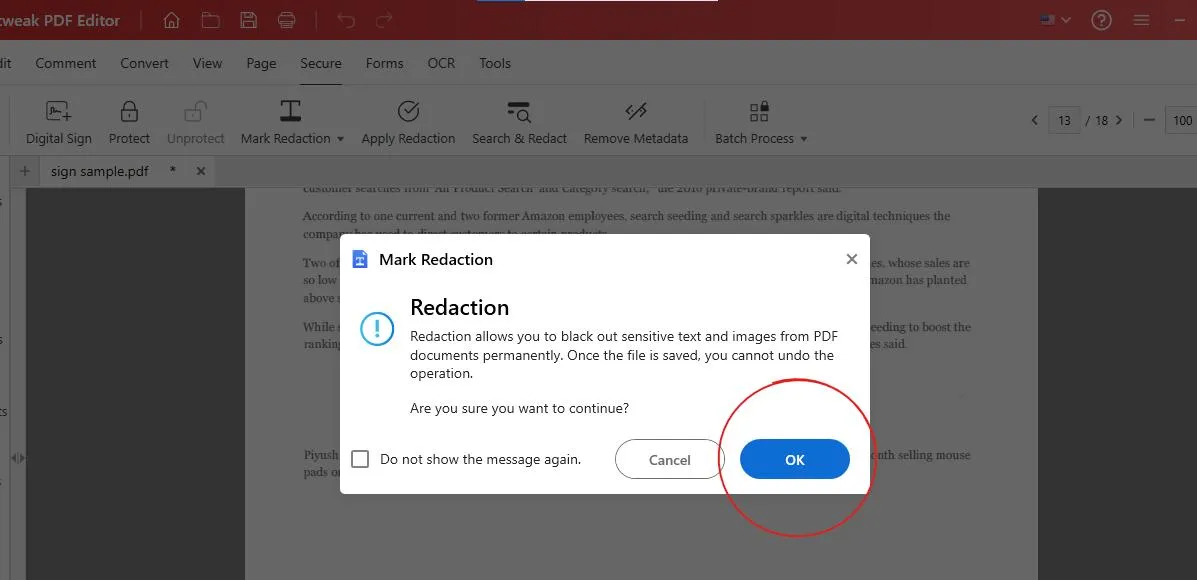
– Once confirmed, your Redaction will be applied in your PDF.
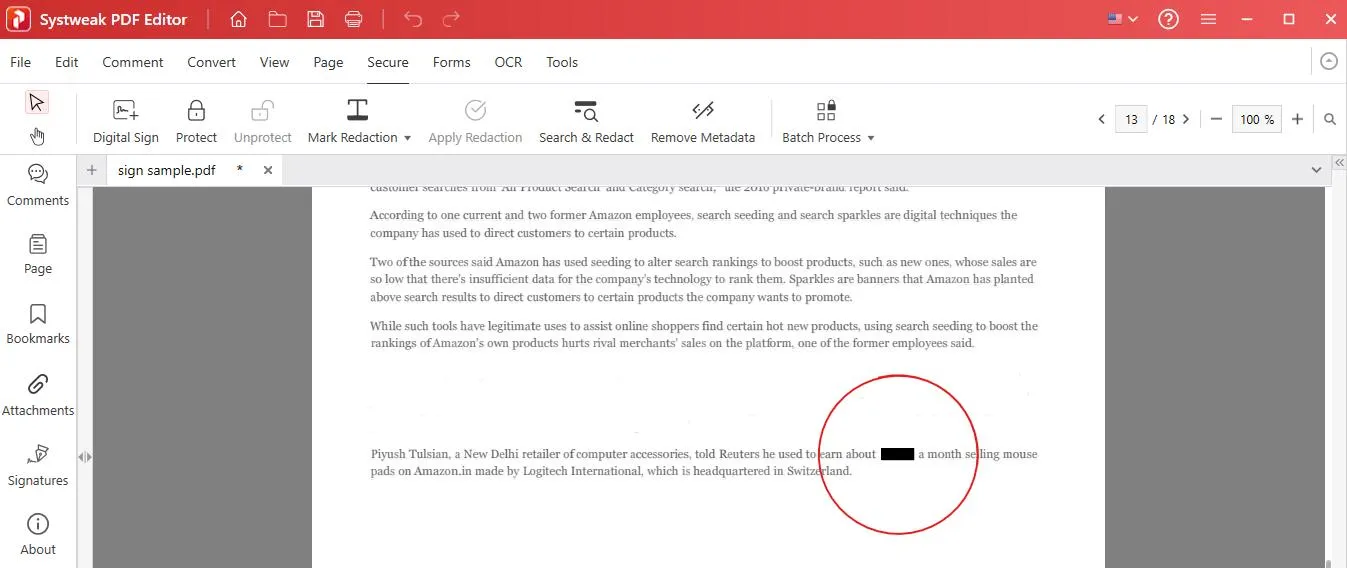
– That’s all about ‘Mark Regions’.
Search & Redact option
– You can search for phrases and sentences that you want to hide and apply redaction on them directly.

– Search for the word or sentence you wish to hide.
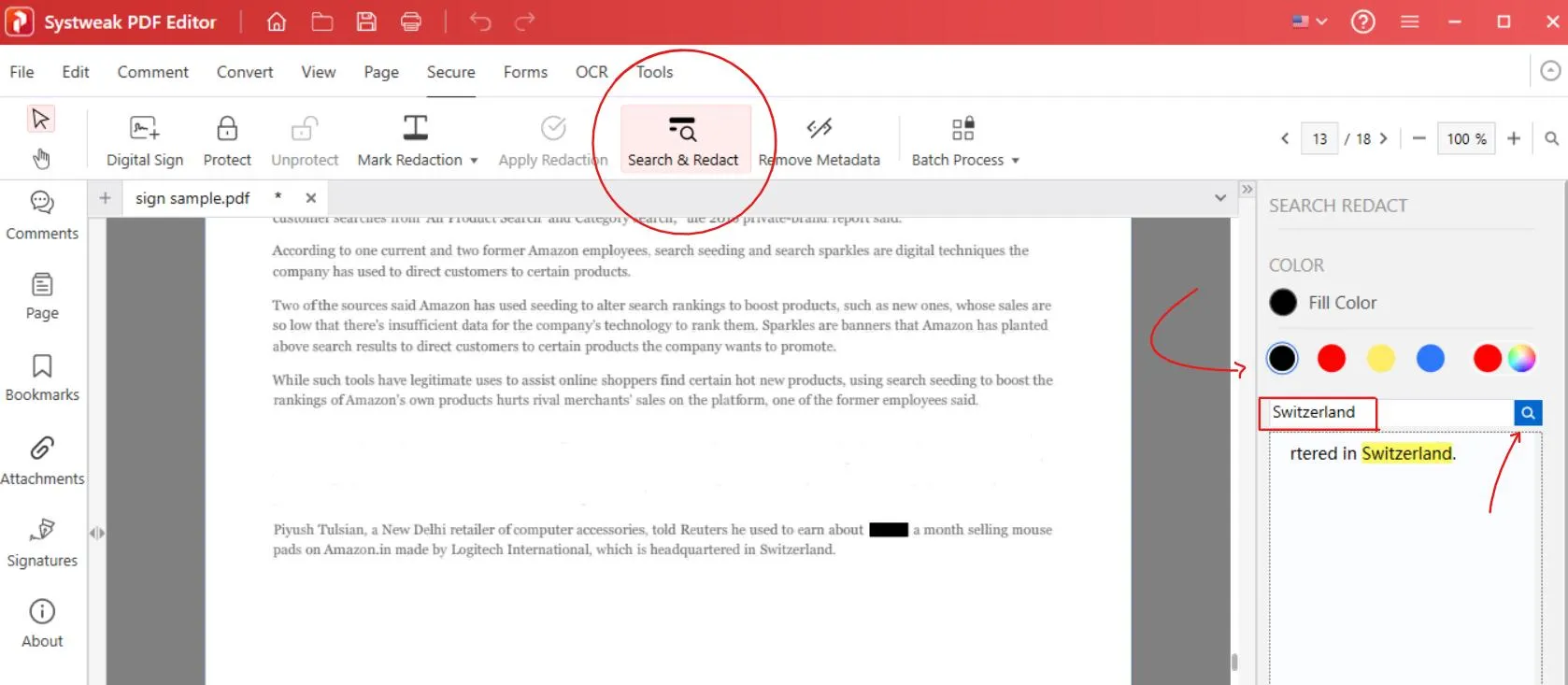
– Then click on ‘Apply all Marks’.

– A confirmation message will pop up, click on OK to proceed.
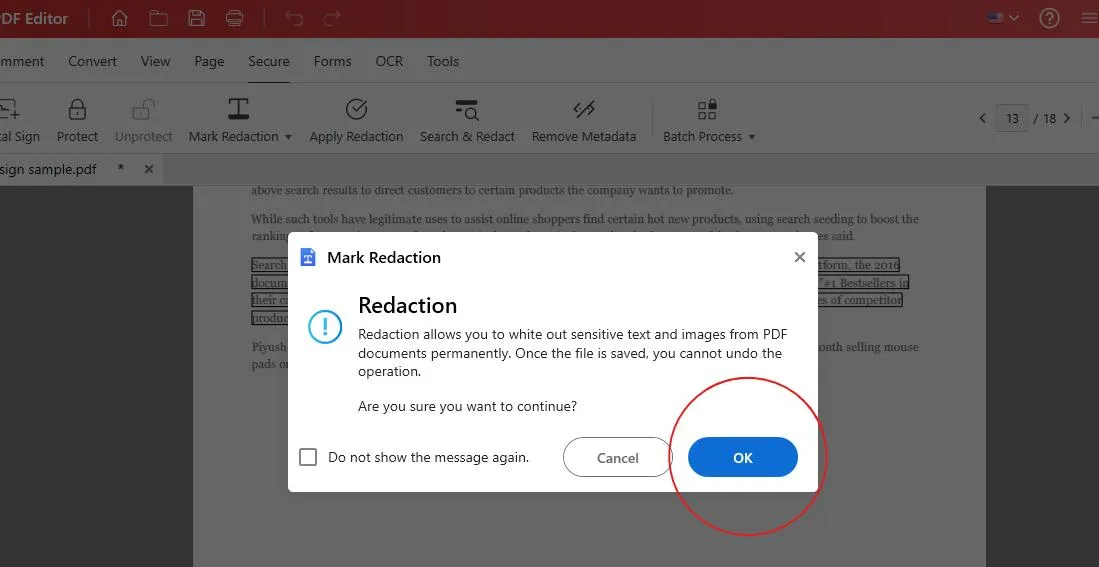
– Once confirmed, Redaction will be applied on the word you wanted.
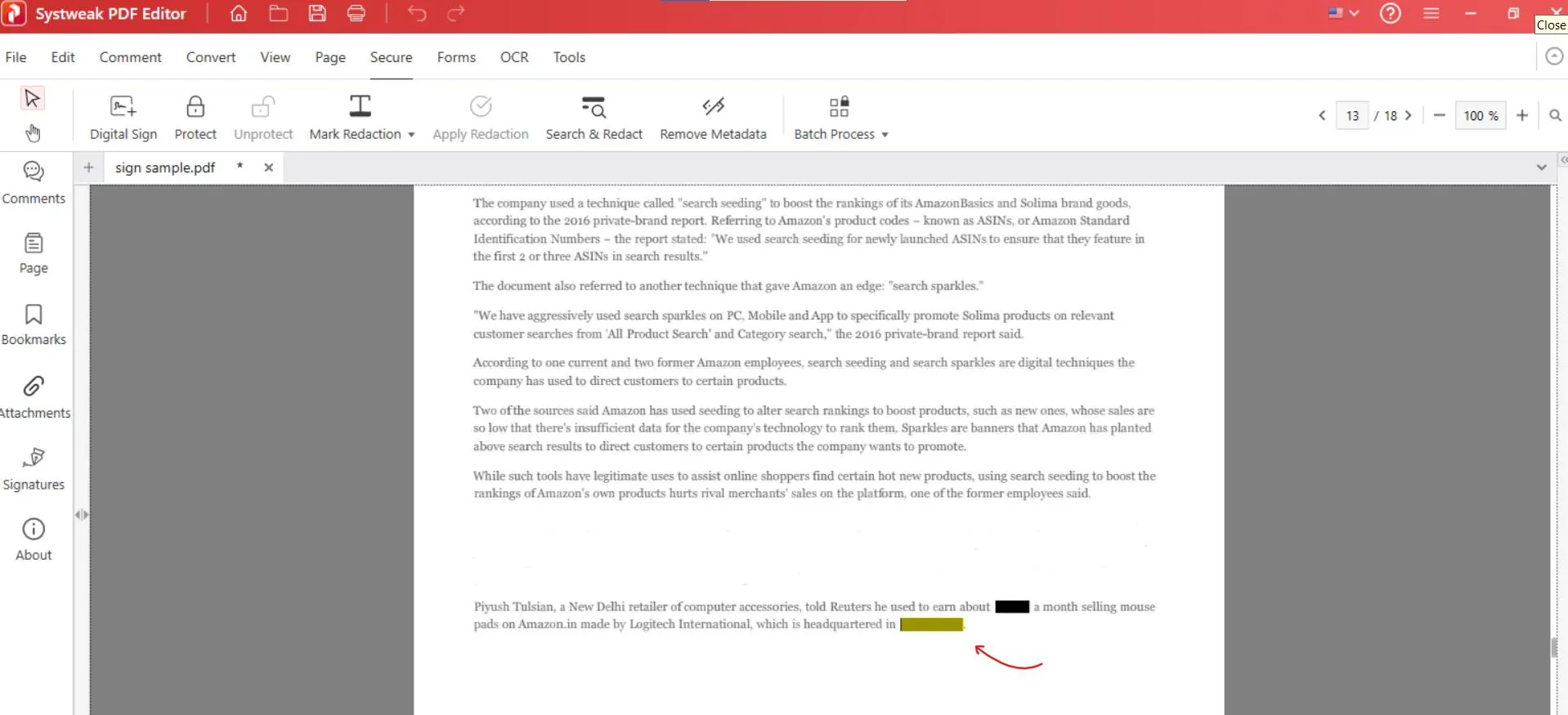
– That’s all about ‘Search & Redact’.
Finally Save your document
After all the redaction, save your secured file for sharing.
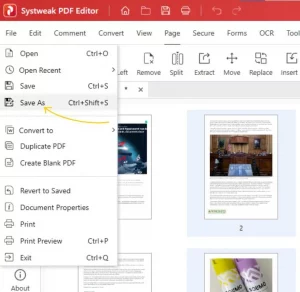
Important: once redacted and saved, you usually cannot undo. So always ‘Save As’ and keep a backup of the original file in case you need something un-redacted later.
File > Save As
Conclusion
Hiding sensitive information in PDF documents doesn’t have to be a headache. With tools like Systweak PDF Editor, redacting confidential info, blurring what you don’t want seen, or just making sure private data stays private becomes straightforward and reliable. Follow those steps, open the PDF, mark what you need to hide, apply redaction, and save. Don’t forget to keep an original copy just in case.




