

PDFs have become a daily necessity if you are working with reports, contracts, study materials, invoices, etc, because they preserve the formatting of the document across different devices like phones, laptops, Kindles, or tablets. But if the document contains a large number of pages and is very plain, then it becomes very difficult to organize and to navigate. This is where the need to add headers and footers comes as a useful tool.
Headers and footers help in identifying important information like page numbers, dates, titles, the company’s name, etc. Using headers and footers works well whether you are a student organizing notes or a professional preparing a report. It helps to make the document look professional and easy to navigate.
In this article, we’ll learn all about Headers and Footers and how to add them within a few clicks and make your document more professional with easy navigation.
What Are Headers and Footers in a PDF?
Headers and Footers are the informative content added on top as a header and at the bottom as a footer on pages of a PDF document.
A Header can be:
- Chapter Name
- Company Name
- Author Name
- Or a Document Title

A Footer can be:
- Page Number
- Date
- Confidentiality Statements
- Copyright Notice
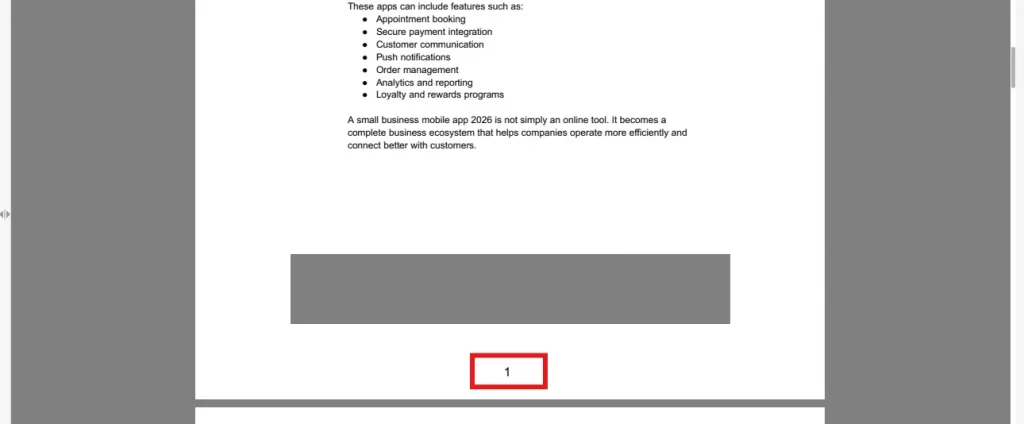
For example, a book PDF can contain the book’s title, Chapter number or name as a header, while page numbers at the bottom are added as Footers.
Why Add Headers and Footers to PDFs?
1. Make the document easier to Navigate
If the PDF document contains a large number of pages, this might get confusing for a reader, so adding page numbers as footers can make the document easy to navigate for its readers.
2. Create a Professional-Looking Document
Documents like proposals, business reports, and presentations should have information about the company in headers and footers to give it a more professional look.
3. To show Important Information
You can add headers and footers to show project names, review dates, department names, or version numbers.
Adding these can make managing the documents easier for everyone.
4. Add Copyright or Confidential Notices
Many organizations add statements like internal use only, copyright information or confidential. Adding such statements makes sure that important notices can stay visible on each page of the document that requires privacy.
5. Maintain Consistency
Adding headers and footers ensures that there is uniformity across all pages of the document, which will make the document easy to read and more organized.
Expert-Recommended Methods To Add Headers & Footers To PDF
Method 1: How to Add Headers and Footers to PDFs Using Systweak PDF Editor
If you are looking for an easy and quick way to add headers and footers in your PDF document correctly, then Systweak PDF Editor can be a useful tool for you. It has an easy interface, and a beginner can use it very easily.
The following are the steps to add headers and footers in your PDF using Systweak PDF Editor:
Step 1: Download and install Systweak PDF Editor on your Windows using the Download button provided below.
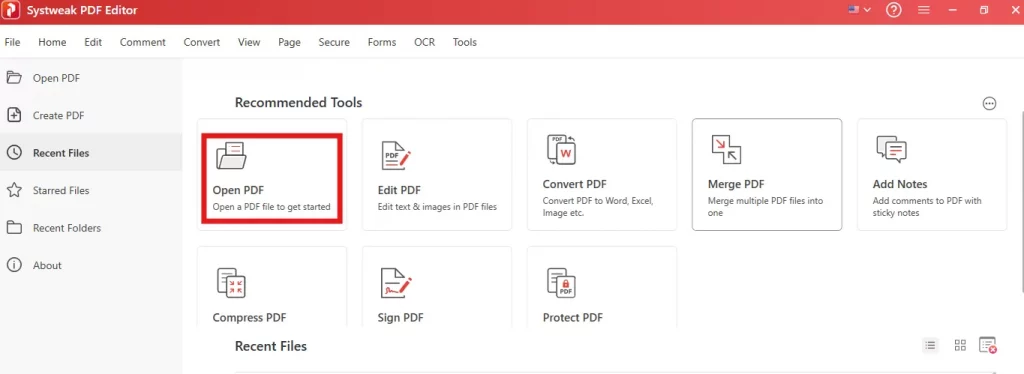
Step 2: Click on Open PDF and open the PDF document you want to add headers and footers to.
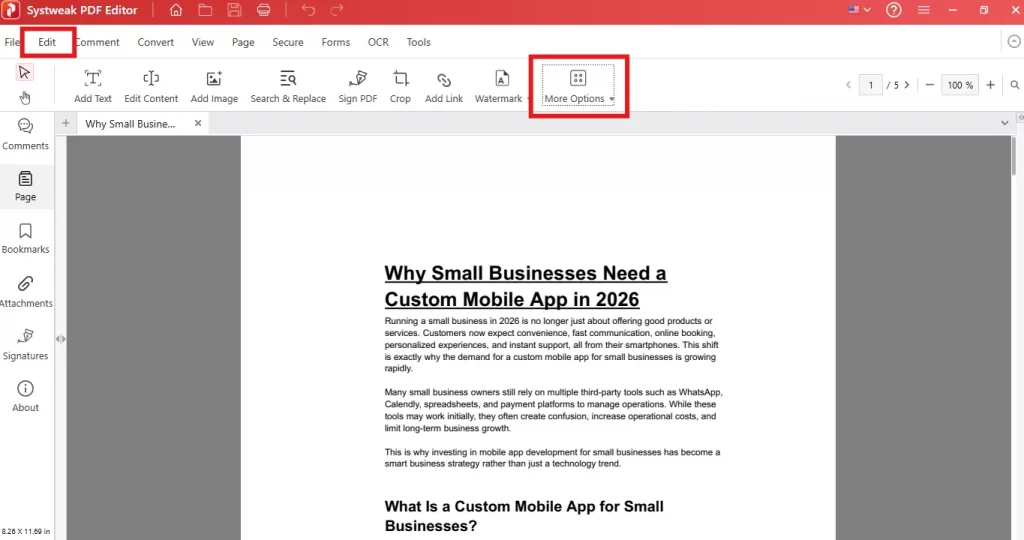
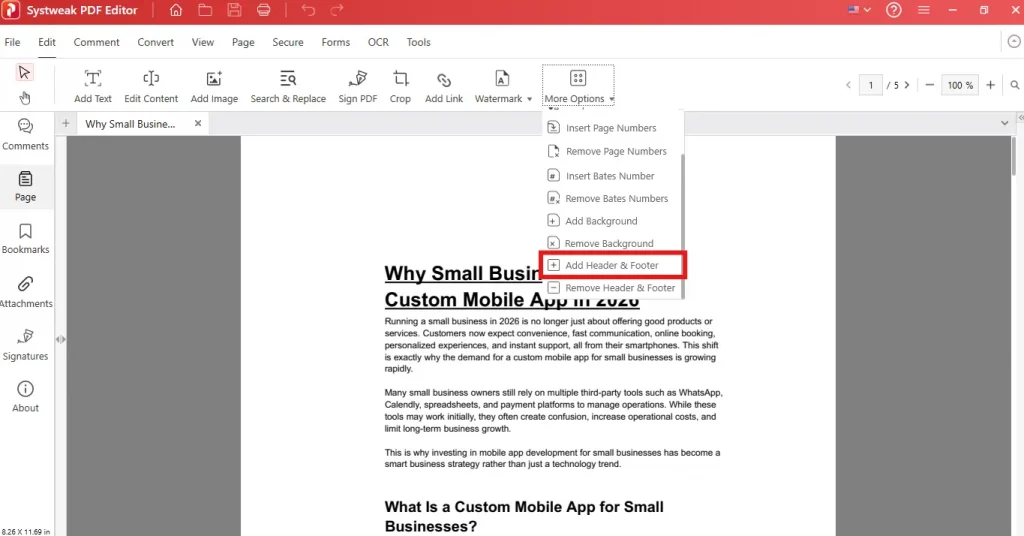
Step 3: Click on Edit and select More Options.
Step 4: Scroll down and click on Add Headers and Footers.
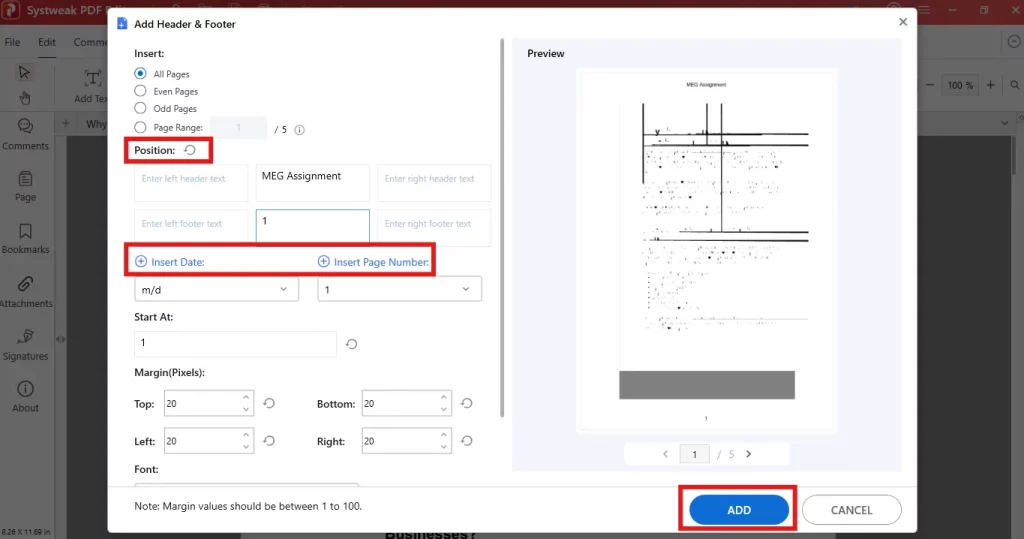
Step 5: Enter in the Headers and Footers box, write the header and footer, and select the placement. There are both date and number options available in the footer. At last, click Add.
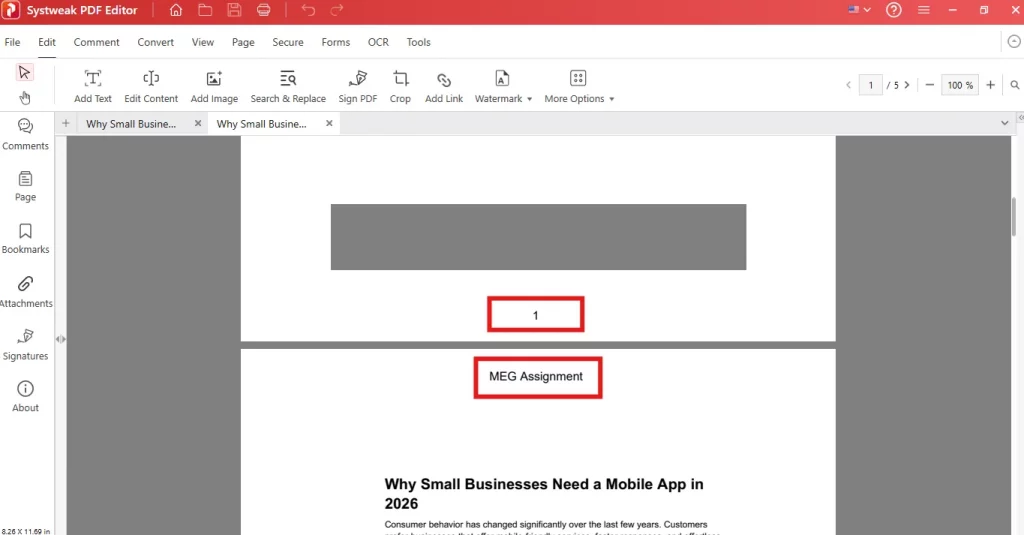
Step 6: Review the document to check if headers and footers are placed correctly, and you are done.
Method 2: How to Add Headers and Footers to PDFs Using Online Tools
There are many free online tools that can help you to add headers and footers to your PDF. However, we do not recommend the use of these tools because these online tools require users to upload their documents first onto the web tool’s server and then allow them to make changes. We have used the Drawboard PDF online tool.
Note – Uploading documents to a foreign server can be risky when considering the privacy and security of the document.
Step 1: Navigate to the Drawboard PDF tool by clicking this link.
Step 2: Click on the Open Files button. Use the File Explorer window to open and locate the file where you wish to apply Headers and Footers.

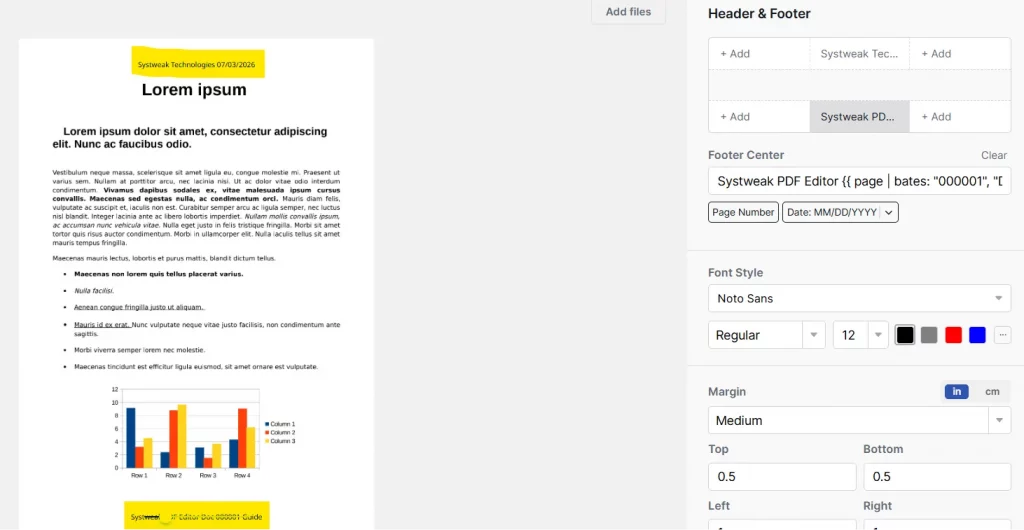
Step 3: After the PDF loads, look at the right panel, and you will see six boxes. The top three boxes stand for Header Left, Header Center, and Header Right. The bottom three boxes stand for Footer Left, Footer Center, and Footer Right.
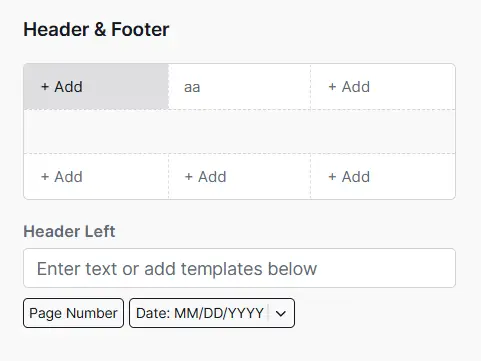
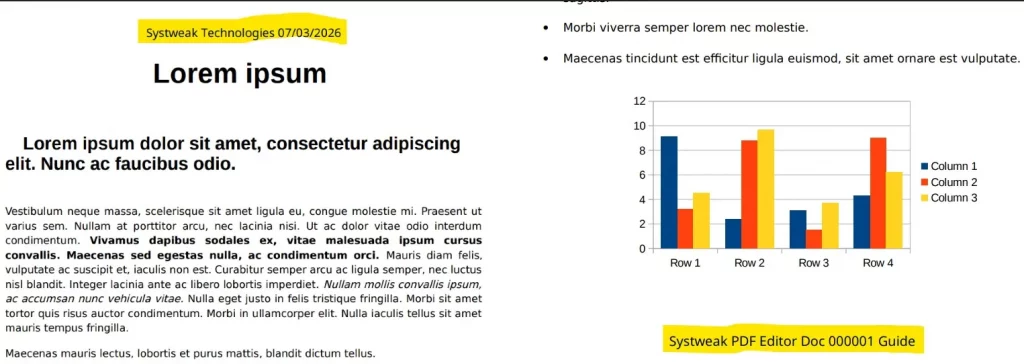
Step 4: Click on any of the boxes as per the position of the header and footer and type in the text below the boxes. You can also add the Page number and Date in different formats. Look at the screenshot below with a header and footer applied to a sample PDF.
Step 5: You can also change the font style, font size, font color as well as the margins for the placement. Select the pages where you want to apply the header and footer, or leave the “All” option selected by default.
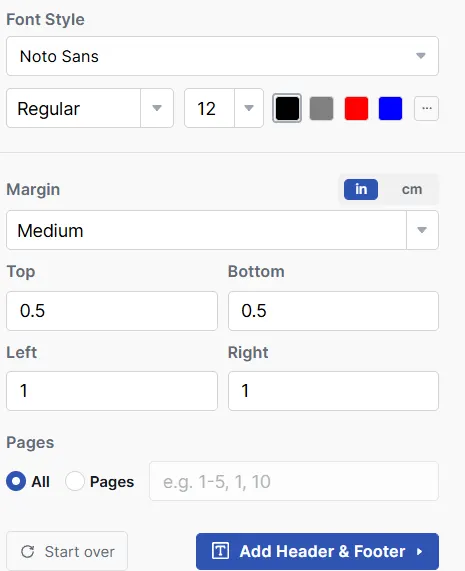
Step 6: Click on the Add Header and Footer button at the bottom right and wait for the process to complete.
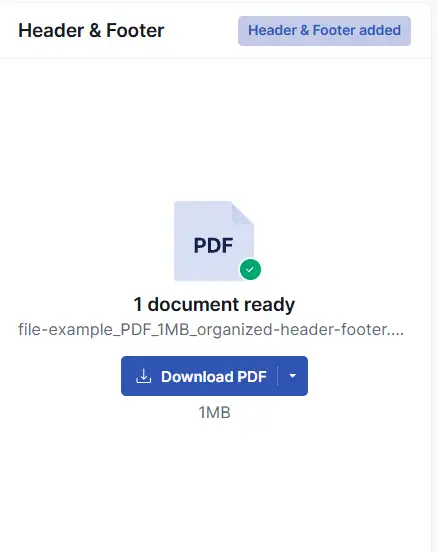
Step 7: Click on the Download PDF button in the right panel and your PDF will be downloaded with headers and footers in the browser’s default Download folder.
Method 3: How to Add Headers and Footers to PDFs Using MS Word.
The next method to add Headers and Footers to a PDF is using the MS Word software. The only challenge is that MS Word will convert the PDF to Word Doc format first, allow applying headers and footers, and then reconvert it to PDF. The conversion process results in loss of formatting and layout. There are no other limitations to this method. Here is what you need to do.
Step 1: Open the MS Word app and open the PDF document.
Step 2: Click on OK to allow the application to convert the PDF document to Word doc format.
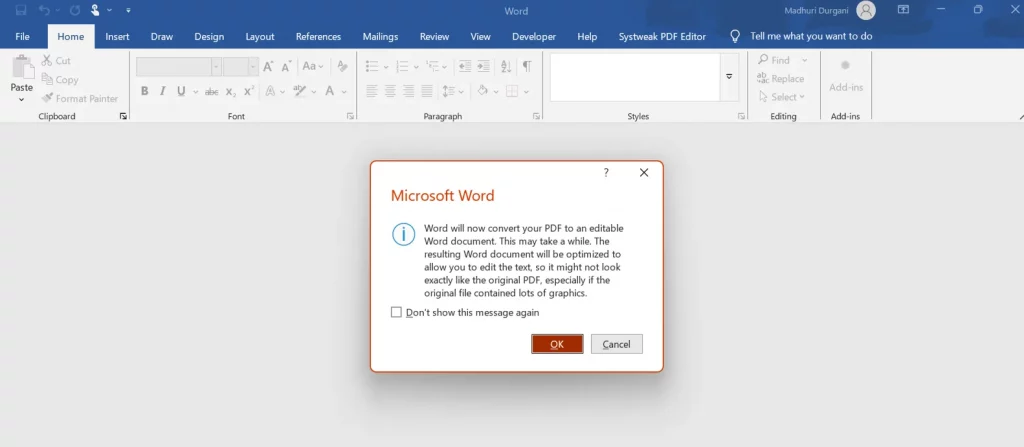
Step 3: Once the document loads, click on the Insert tab on the top ribbon and choose Header or Footer.
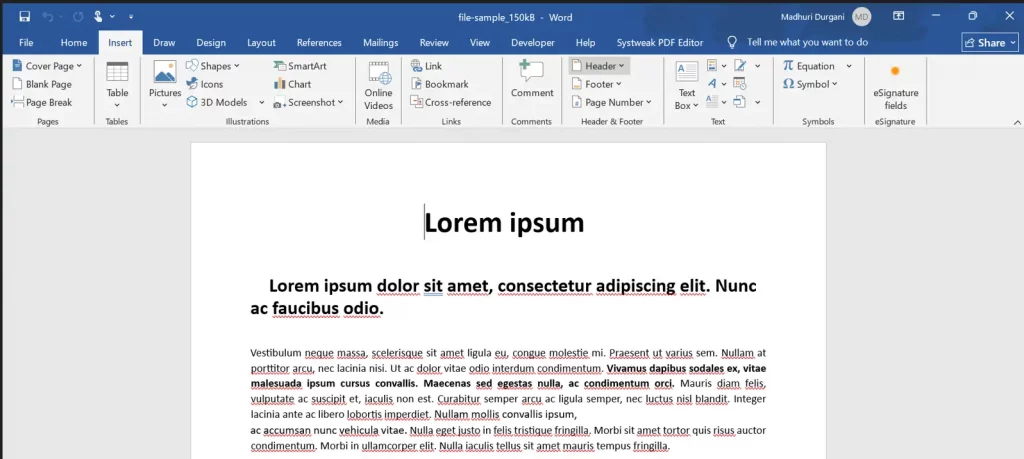
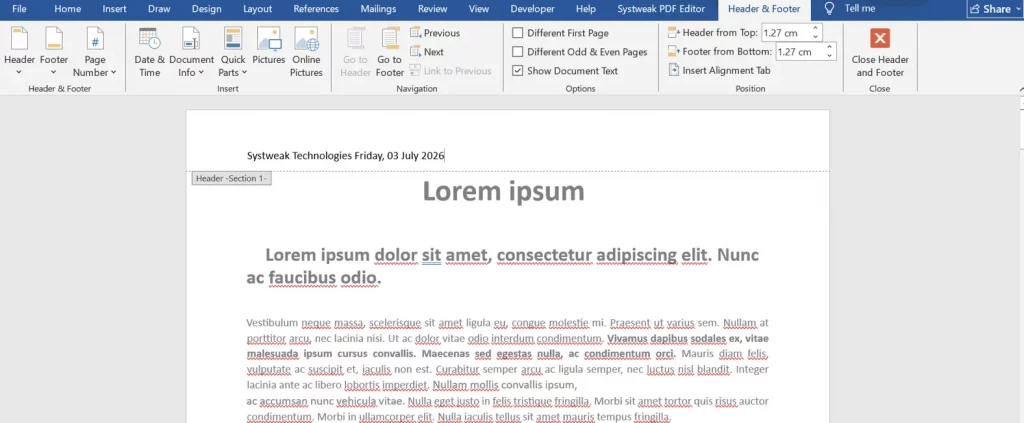
Step 4: The Header Section will now open, where you can add the header text. You also have many other options to add Page Number, Date, Time, pictures, etc.
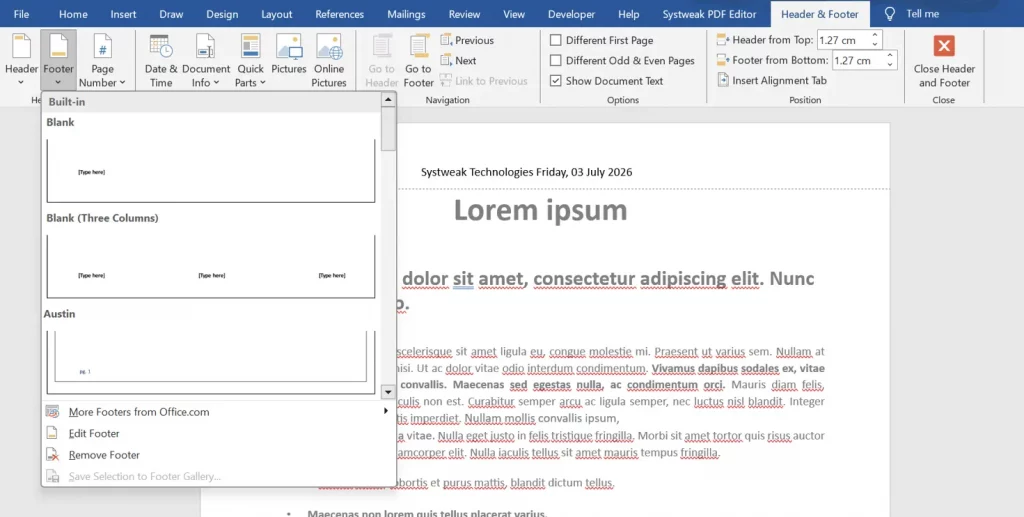
Step 5: Next, click on the Footer option in the top ribbon to add a footer.
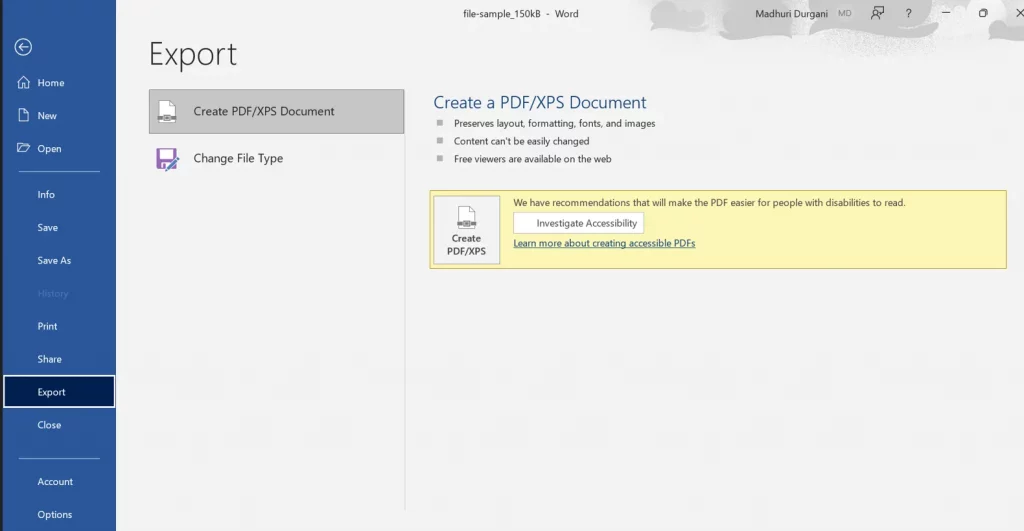
Step 6: After you have added the Header and Footer, click on the File tab and choose Export to save this document as a PDF.
Best Practices for Adding Headers and Footers
Adding Headers and Footers with unnecessary information can make your document look confusing. Follow these tips to give your PDF a more polished and professional look:
1. Keep it Simple
Only add necessary information in the headers and footers, not long passages and unnecessary details.
2. Use Readable Fonts
Select a professional-looking font and a font size which is easier to read and should not distract readers from the main content in the PDF document.
3. Keep Consistency
Maintain the same formatting on each page of the PDF document because it creates a professional-looking document and improves readability.
4. Do not Cover the Existing Content
Make sure that the headers and footers that you are adding should not cover the content like charts, graphs, tables, or text that is already in the PDF.
Common Issues and How to Fix Them
Problem: Headers and Footers overlapping existing content
Solution: Adjust the position of the header and footer and make sure that there is appropriate spacing between the content and header and footer.
Problem: Footer is too close to the edge of the page
Solution: Move the footer a little upward so it can be easily visible when you print the document.
Problem: Incorrect Page Numbers
Solution: Check the sequence of the numbers on all pages and again add them correctly.
Problem: Text is appearing differently on some pages.
Solution: Apply the same font, alignment, and size across all pages of the document.
Conclusion
Adding Headers and Footers can seem like a small detail, but it can considerably improve the readability and appearance of the document. Whether you are adding page numbers on a large report or adding the company’s name for branding, adding headers and footers plays a crucial role in keeping the document looking professional and organized.
Using reliable tools like Systweak PDF Editor can make such a task easier and maintain consistency across every page of a PDF. This guide will help you create a well-structured PDF document that is easy to read, share and organize.