
Today, transfer of digital documents is mostly done in the form of PDFs. However, what if you want to make changes to that file or work on it, like applying formulas in Excel? While the PDF format maintains the same document structure on all devices, it does not allow users to add slides like in PowerPoint or change the coding in HTML. This has become a pain point for most users who see PDFs only as a viewing format.
What we need is a PDF converter tool that will help us convert PDF files to various formats so that we can add or remove content and make desired changes. However, the conversion of files must not result in the loss of the document’s quality, formatting, or structure.
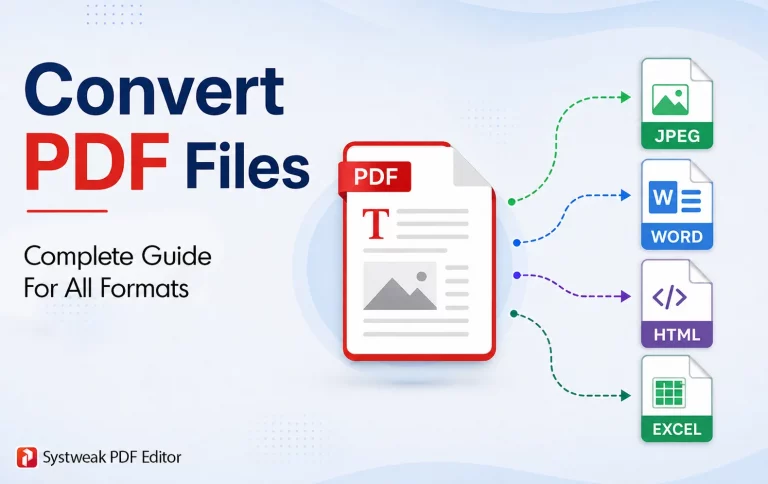
Systweak PDF Editor is an amazing PDF editor that facilitates converting PDF documents to various formats, including Word, Excel, PowerPoint, Image, Text, HTML, Epub, SVG, and XPS. There is no loss of formatting or quality, and the good news is that after you have made the required changes to the converted document, Systweak PDF Editor allows users to convert the document back to PDF format while retaining the new changes.
Why Convert PDF Files?
Conversion of PDFs to various formats has now become a necessity, because the PDF format is not flexible to edit. Below are the key reasons why PDFs should be converted:
1. Easy Editing
PDFs are not created for editing. Conversion to DOCX or XLSX format provides an opportunity to change text, and images within it.
2. Easier Data Extraction
If PDFs contain some tables and data, it might be much more convenient to convert to XLS or CSV to analyze or process information.
3. Improved Compatibility
Not all devices and programs are capable of perfectly displaying PDFs. By converting to TXT, JPG, and HTML formats, you improve your chances of accessing the information on any other device.
4. Reduced File Size
Converting documents to formats like text and images can help to reduce the size of the PDF file.
5. Reusable Data
It is possible that one may require using part of the pictures and text within a document for some other purpose. Other formats like text and word enables users to copy a part of the content.
6. Increased Accessibility
Some people prefer to use certain accessibility software when working with PDFs. This can be done by using Word format.
7. Features of Formats
Specific formats come with their own formulas and calculations, like the Excel format.
8. Fast Processing
Faster search and indexing and other types of processing can be done using some other format such as plain text.
9. Collaboration
It is easier to collaborate with team members when one uses editable formats like Google Docs or Microsoft Word.
10. Integration with Other Applications
Integration with various software applications requires that certain formats be used only.
What Is Your PDF Type?
There are two types of PDF: Text-Based PDF and Scanned PDF.
A Text Based PDF is a digital file that contains text. This means that you can easily highlight, copy, edit, and search through its content. Such files are generally small and perfect for creating books and invoices.
A Scanned PDF is basically an image created by scanning or photographing a physical document. Since the text contained in such a PDF is not actual text, but an image, you cannot perform any edits on it or search for text inside it unless you convert the file to a Text-Based PDF with the help of OCR software.
Before converting your PDF to a format like Word, PowerPoint, or Text, you must convert your scanned PDF to a text-based PDF via OCR.
How To Convert PDF To Other Formats Using Systweak PDF Editor (Recommended Method)
1. Download and install Systweak PDF Editor using the button provided below.


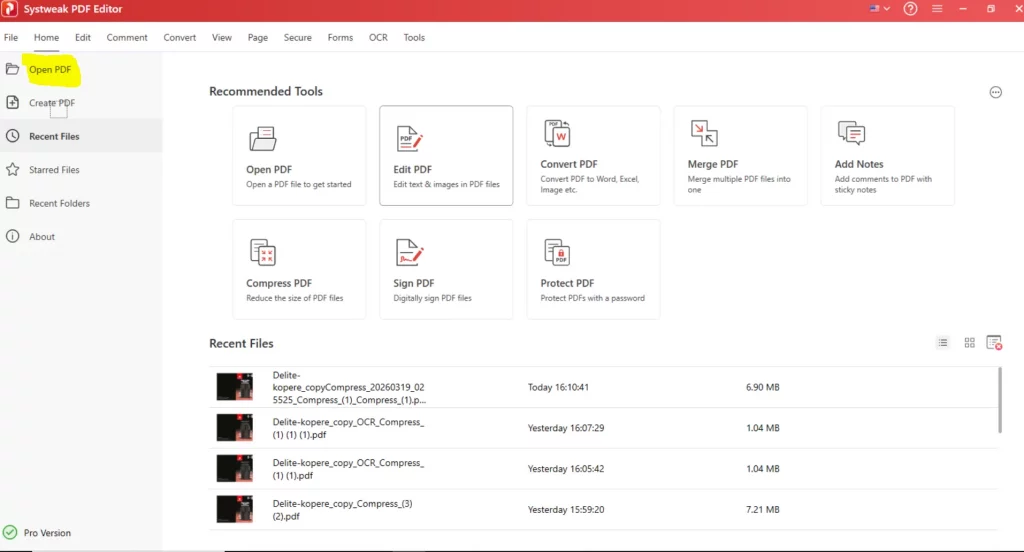
2. Open the program and click on Open PDF in the left panel.
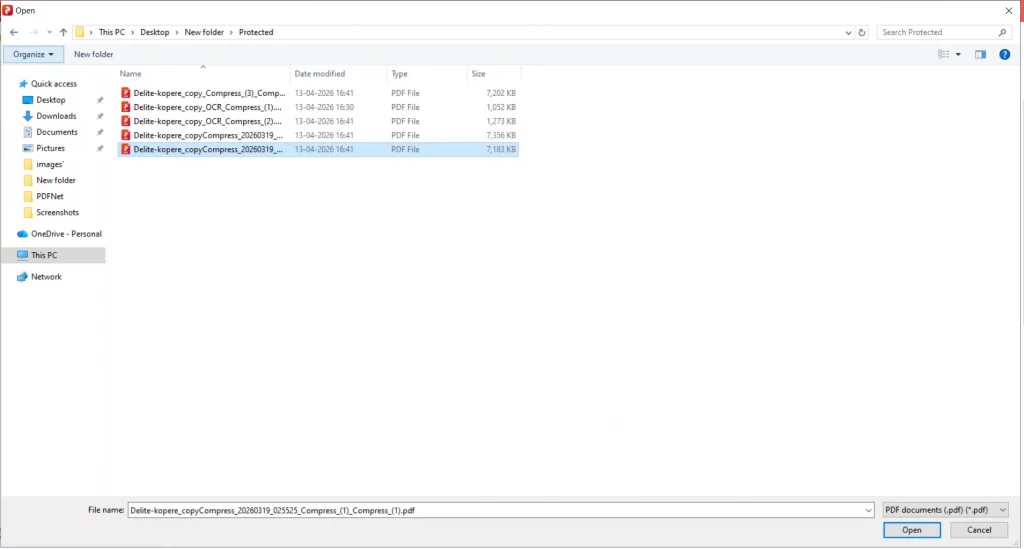
3. Choose the PDF you wish to convert and allow it to load in the app.
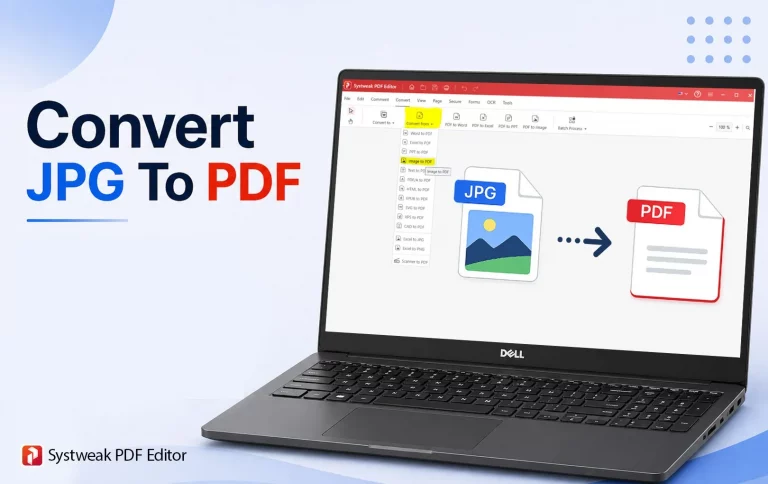
4. Next, click on the Convert option in the toolbar and then click on the Convert To dropdown button.
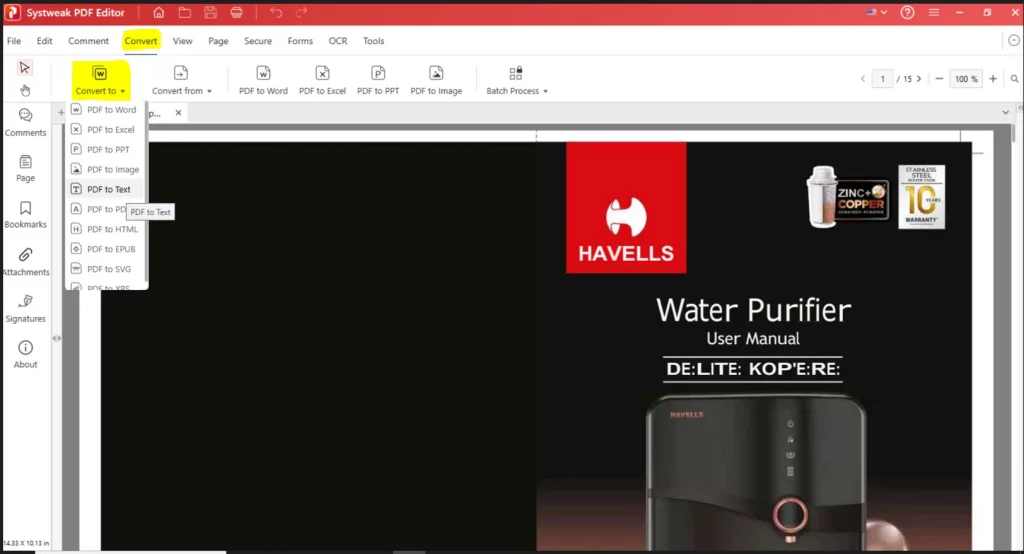
5. There are multiple conversion options to choose from. Here is a list of conversion processes currently available with Systweak PDF Editor.
PDF To Word – Click here to read more about converting PDF to Microsoft Word format.
PDF To Excel – Click here to read more about converting PDF to Microsoft Excel format.
PDF To PowerPoint – Click here to read more about converting PDF to Microsoft PowerPoint format.
PDF To Image – Click here to read more about converting PDF to an Image.
PDF To HTML – Click here to read more about converting PDF to a web page format.
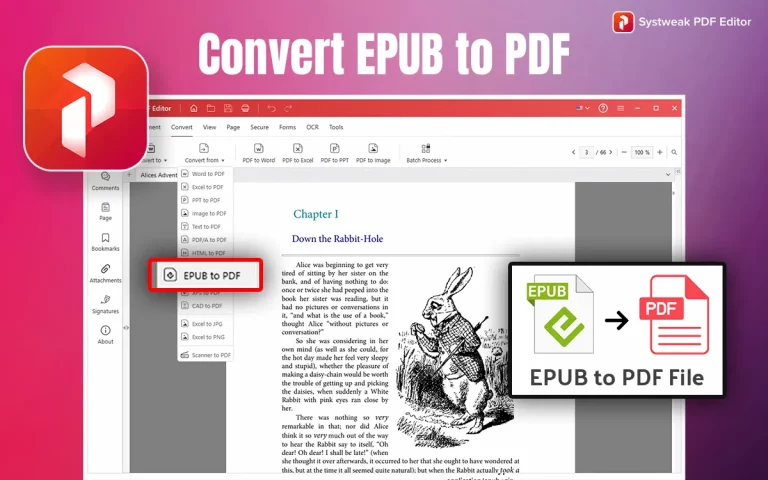
PDF To EPUB – Click here to read more about converting convert a PDF to an eBook format.
PDF To SVG – Click here to read more about converting a PDF to a Scalable Vector Graphics format.
6. Click on the format that you wish to convert your PDF to.
7. A new box will appear where you have to choose the output folder in the bottom-left corner.
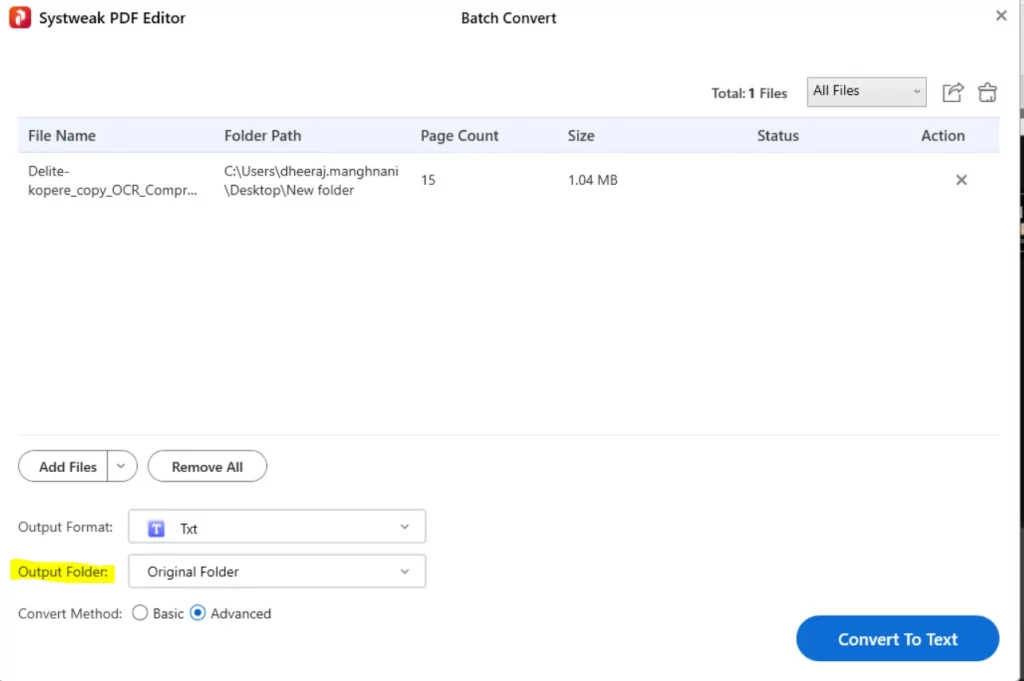
8. Click on the Convert button in the bottom-right corner and the PDF file will be saved in your preferred format.
Why Use Systweak PDF Editor For Converting PDF Files?
Systweak PDF Editor is a versatile tool that allows users to convert PDF files with ease. This program is preferred over others because it combines conversion, editing, and managing PDF pages under one interface. Here are a few more reasons –
- Systweak supports multiple format conversions from PDF to others and vice versa.
- It preserves the original layout, fonts, images, and structure during conversion.
- The interface is user-friendly, and the entire conversion process can be done in a simple and swift manner by a few mouse clicks.
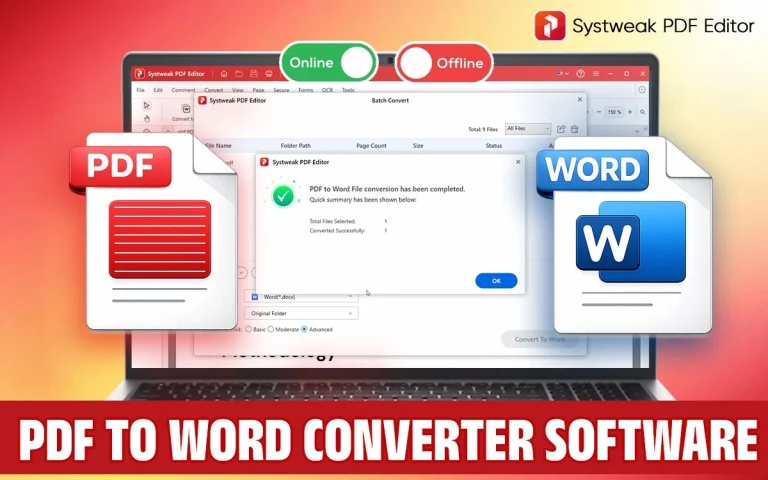
- Systweak PDF Converter supports batch conversion from the PDF format to any other format, which means users can convert multiple PDF files simultaneously.
- This is an offline PDF converter tool, which means the security and privacy of the files remain intact, and the entire conversion process is carried out on your PC without using the internet.
Here is a list of formats that you can convert your PDF to using Systweak PDF Editor.
- Word – Users can choose to convert PDF to Microsoft Word format and choose between “.doc” and “.docx” extensions.
- Excel – Users can choose to convert PDF to Microsoft Excel format and choose between “.xls” and “.xlsx” extensions.
- PowerPoint – Users can choose to convert PDF to Microsoft PowerPoint format and choose between “.ppt” and “.pptx” extensions.
- Image – Users can choose to convert PDF to an Image and choose between “.jpg”, “.jpeg”, “png”, “bmp”, “gif”, and “tiff” extensions.
- Text – Users can choose to convert PDF to a simple text format with a “.txt” extension.
- HTML – Users can choose to convert PDF to a web page format with the “.html” extension.
- EPUB – Users can choose to convert a PDF to an eBook format with a “.epub” extension.
- SVG – Users can choose to convert a PDF to a Scalable Vector Graphics format with a “.svg” extension.
- XPS – Users can choose to convert a PDF to an XML Paper Specification format with a “.xps” extension.
- PDF/A – Users can choose to convert PDF to other PDF formats and choose between “.PDF/A-1A”, “.PDF/A-1B”, “.PDF/A-2A”, “.PDF/A-2B”, “.PDF/A-3A”, “.PDF/A-3B”, “.PDF/A-2U”, and “.PDF/A-3U” extensions.
What Other Features Does Systweak PDF Editor Offer?
Systweak PDF Editor is a comprehensive PDF editor tool that contains a lot of PDF editing features. Here is a quick summary of the most important features.
- Edit PDFs – This includes adding or removing content like text or images from the PDF. Users can also add watermarks and different types of annotations.
- Convert PDFs – Users can convert their PDF to a different formats and vice versa.
- Perform OCR. This is an important feature where a scanned or camera captured PDF can be converted into text-based PDF where text is editable and searchable.
- Sign PDF – Users can digitally sign their PDFs.
- Protect PDF – Protect your PDF by assigning a password or redacting content.
- Compress PDF – You can reduce the size of your PDF without losing the quality and formatting structure.
- Organize PDF – This includes adding, deleting, reordering pages and merging or splitting PDFs.
Tips To Get the Best Conversion Results
To ensure you have good results in converting your PDFs, there are several things you can do. These are tips that may help you:
Use High-Quality Source Files – Use higher quality source files to get the better conversion quality. You should always avoid files that are blurry and have poor resolution.
Check Your PDF Type Before Conversion – It is essential to determine if your PDF document is text-based or a scanned one. In case it is scanned, always apply OCR so that you can edit text.
Choose The Correct Output Format – It would be great to take into consideration which software you have to open the final output file.
Make Your Formats Simple – This is crucial since formats with several columns, unique fonts, and graphics may cause some mistakes during conversion.
Proofread Your Output – In the end, after converting, one should proofread his work in order to control the output’s formats and the presence of text.
Do Not Convert Several Times – One should avoid making conversions several times because the quality of the document may become worse than before.
Common Issues & Fixes
Issue 1 – Text, images, or layouts appear misaligned after PDF conversion.
Fix 1 – Use a reliable tool like Systweak PDF Editor and choose the correct output format (e.g., Word for text-heavy files).
Issue 2 – You can’t edit or select text after conversion.
Fix 2 – The PDF is a scanned PDF which means you have to apply OCR before converting.
Issue 3 – Images don’t appear correctly or lose quality.
Fix 3 – Use high-resolution source files and select image-friendly formats like PNG or TIFF instead of JPG.
Issue 4 – The font changes or some characters display improperly.
Fix 4 – Embed the fonts into the original PDF or try using standard fonts.
Issue 5 – The output file becomes too large to distribute.
Fix 5 – Compress the document or convert to TXT rather than DOC.
Issue 6 – File conversion takes too much time.
Fix 6 – Reduce the file size, minimize the number of open applications, or split the conversion process.
Issue 7 – Conversion from PDF is impossible because of some restrictions.
Fix 7 – Decrypt the document with the right password.
Frequently Asked Questions
Conclusion
In conclusion, it is important to convert PDF documents to other file formats in order to increase flexibility and productivity. Depending on what one wants to achieve, the correct choice of format will make the task easier to accomplish. It is also vital to understand whether one is working with a text PDF document or a scanned document before converting the PDF. Always convert a scanned PDF to a text based PDF using OCR if you want to edit the converted document. This can be done using Systweak PDF Editor which also supports batch conversion process i.e. converting multiple files at once.