


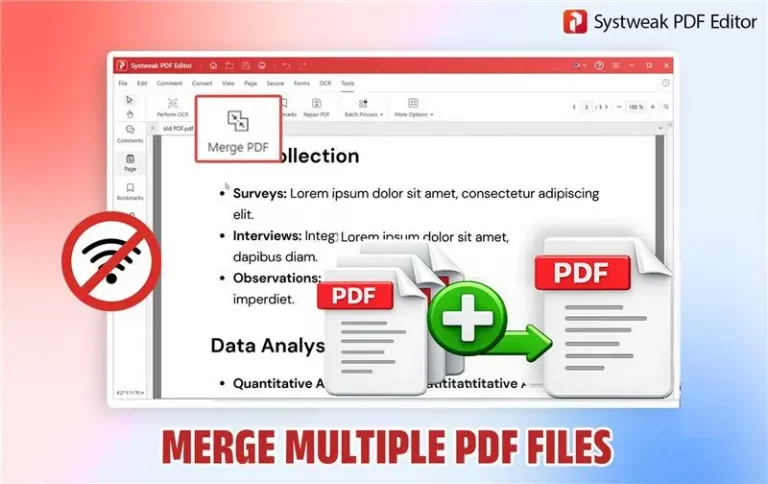

PDF documents are the most common format used when sharing or working on digital documents. Most of us feel that the PDF format is not editable or changeable. However, there are many tools available in the market that allow users to make changes to their PDF documents both Online & Offline. If your PDF files are private and contain confidential information, then it would be risky to upload them over the internet.
Instead, you could use an offline tool that can perform all the PDF editing and management tasks on your PC without the need to upload the files to any server. This article focuses on how to combine PDF files offline in different ways.
Reasons to Combine Or Merge PDF Files Offline
- The PDF files remain private and secure as they do not leave the PC while combining.
- The process of combining or merging PDF files is faster when carried out offline.
- Users do not need an active internet connection while combining PDF files using offline software.
- Offline PDF management software offers more features, which means users can make changes to the PDF before merging two documents under one user interface.
- Offline PDF programs can manage and process larger PDF documents with a huge amount of data
How To Combine PDF Files Offline
Method 1 – Using Systweak PDF Editor.
Systweak PDF Editor is a complete PDF solution and an offline PDF merge tool that can help users to make changes to their PDF documents. This includes managing the pages within the PDF and editing the content within the pages. Here are the steps to combine PDF files without internet using Systweak PDF Editor.
- Click on the button provided below to download the installer file of Systweak PDF Editor.
- Double-click on the file downloaded to commence the installation process. Adhere to the instructions onscreen to complete the process.
- Once the app has been installed, launch the program by double-clicking on the shortcut created on the desktop.
- Now, click on the Tools tab located in the top ribbon.

- Next, click on Merge PDF to open a new box where you can add PDF files to merge.

- Moving ahead, click on the Add Files button and choose the PDF files.
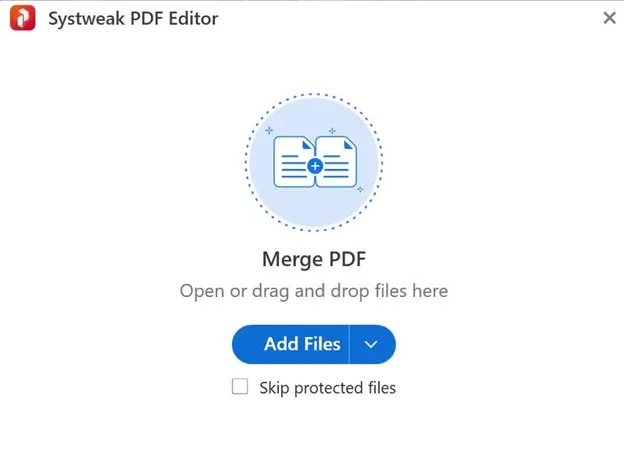
- After all the files have been added, you can see a new box with details of all the PDF files that have been selected to merge. Users can also add a folder that contains PDF files to be merged.
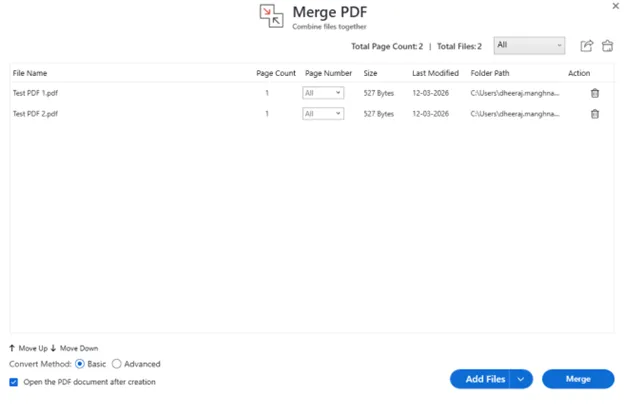
- You can rearrange the files in the order you wish to appear in the final merged PDF file and then click on the Merge Files button located at the bottom right corner. There is also an option to select a particular page range from the PDF rather than the entire PDF file.

- Provide the name of the combined file and the location where you wish to save this file.
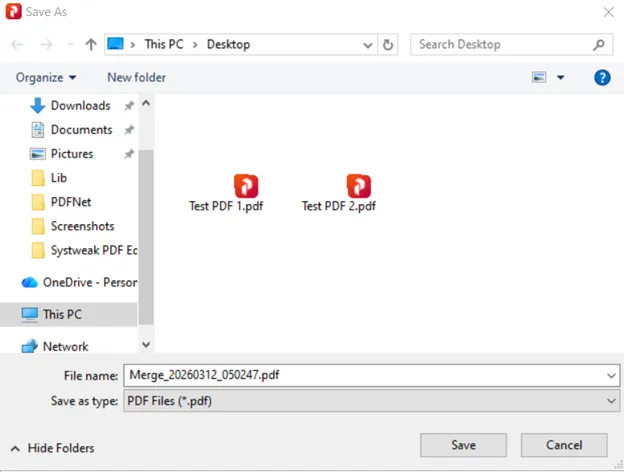
- Click on the Save button, and all the PDFs will be merged and saved in the chosen folder.
Method 2 – Using MS Word
Using the MS Word program is not a recommended option to combine PDF files. But in case you do not have the above-mentioned apps, then MS Word can function as an offline PDF merge tool. However, we cannot guarantee the quality of the content because forcibly opening a PDF into MS Word does reduce the quality of the content and can cause loss of formatting in some cases. Here is what you need to do to merge multiple PDF files offline.
- Launch the MS Word app and click on the Open option.

- Locate the PDF files you wish to merge and select all of them.
- A prompt box will appear stating the conversion of the PDF to Word document format. Click on OK.

- All the PDFs will now be converted to Word format and open in different MS Word Windows.
- Navigate to the first document and press Ctrl + End keys to reach the end of the document.
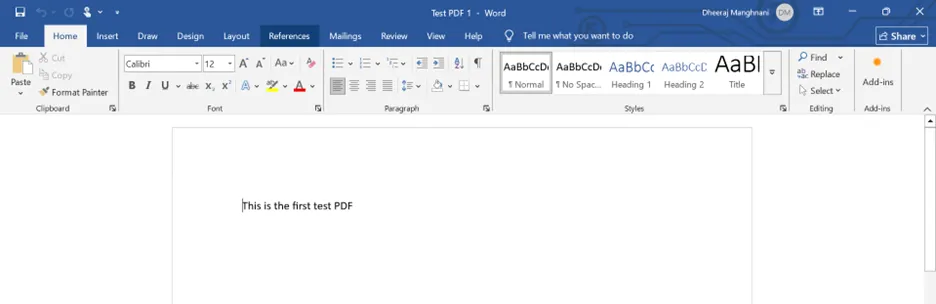
- Now go to the next document that you wish to merge, press Ctrl + A to select all the content, press Ctrl+ C to copy the content, and finally move to the first document and press Ctrl + V.
- All the content of the second document will be pasted at the end of the first document.
- Press Ctrl + End again on the first document to move the cursor to the end of the content and repeat the above steps with the third document.
- This way you can select, copy and paste all the content in the first document.
Note – The PDF to Word Document conversion process may lead to loss of formatting and structure of the document.
- Check and review the entire content and make changes if required.
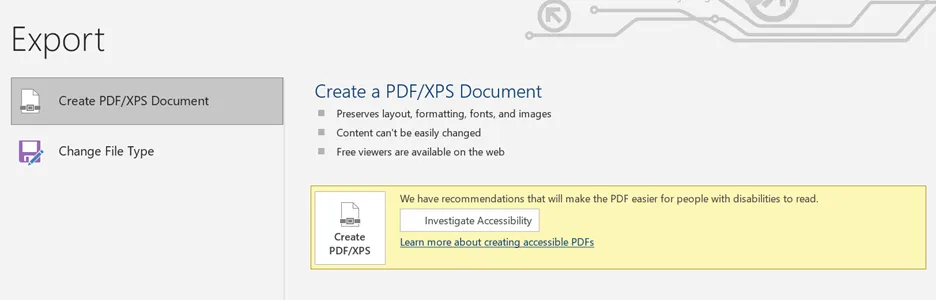
- After all the content has been pasted, press the File button in the top left corner and select Export.

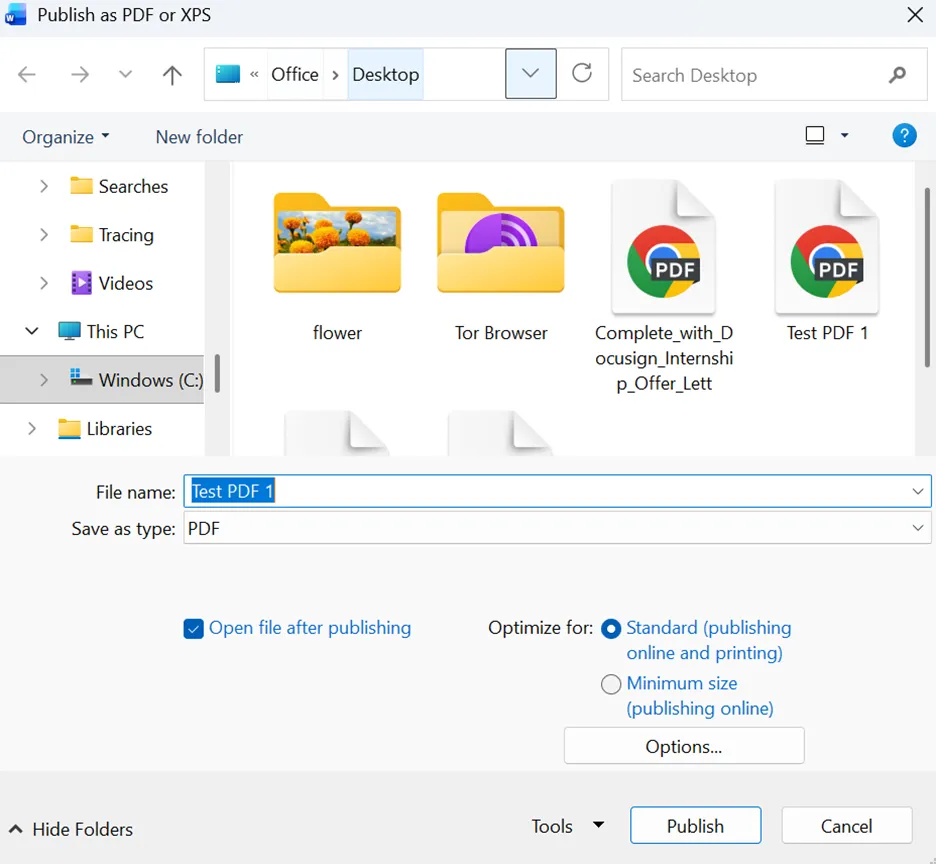
- Click on the Create PDF button, and specify the name and location of the new PDF.
- Click on Publish and your merged PDF will be ready.
Final Words
Combining PDF files has become an easy task by using Systweak PDF Editor. Although MS Word can help you to merge two or more PDF documents, but there will be a loss of quality, format, and structure of the PDF document. We strongly recommend using Systweak PDF Editor for all your PDF management tasks.




