




If you want to replace a page or multiple pages in a PDF without worrying format, then this post is for you. There can be so many reasons one may need to replace a page, from correcting errors, to replacing the content with other pdf content, updating records , or anything for that matter. And that’s why it is important to know how to change a page in a PDF. So whether it is an updated chart, graphics, text, fresh report, or any other change, you can easily do it without any difficulties.
In this guide we’ll show you how you can replace pages in a PDF without losing formatting. We’ll show you how to do it with Systweak PDF Editor and a few quick online alternatives if your PDF has no privacy concerns.
Remember these things while Replacing Pages
Before we talk about “how to”, here are a few things to keep in mind :
1. Page Size and Orientation
Make sure that the new pages have the same dimensions as the existing ones.
2. Use Original pages ( high-quality)
Don’t use scanned or low-resolution pages because they might get blurry when inserted.
3. Match Font
Make sure that the new page has the same font and style so your PDF don’t look uneven.
4. Have a Backup
It’s very important to have a Backup PDF of your original PDF in case you want to revert later.
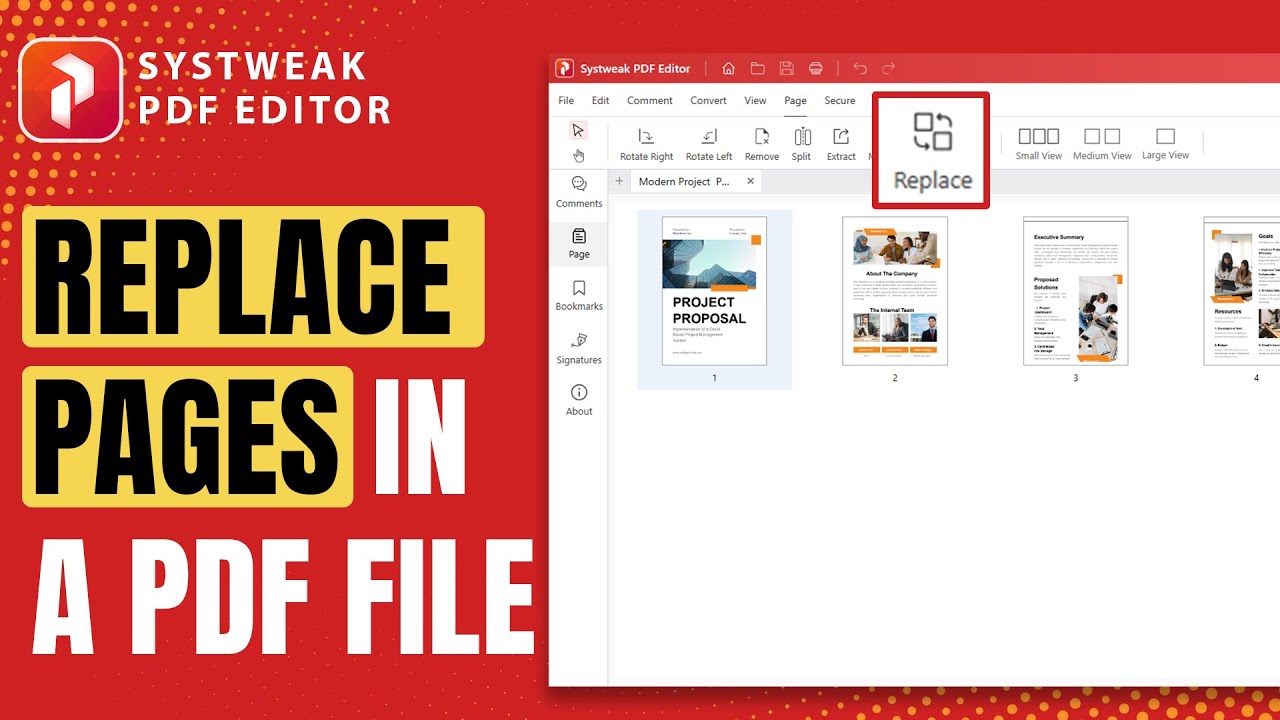
How to Replace One or Multiple PDF Pages
Use Systweak PDF Editor to Replace pages in a PDF
For a smooth and safe process prefer using Systweak PDF editor. It will keep your format and quality of content intact. And it’s the most easiest and reliable option.
Here’s how you can do it:
- Open Systweak PDF Editor in your System. If you don’t have it, click here to get it.
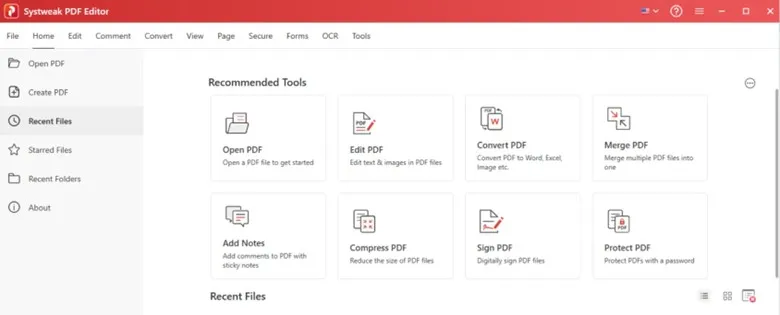
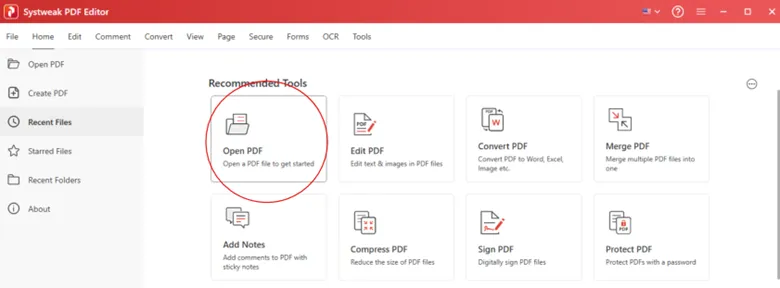
- Click on ‘Open PDF’ and select the document in which you have to replace pages. Or directly go to the ‘Page’ tab from the top toolbar and open your PDF there.
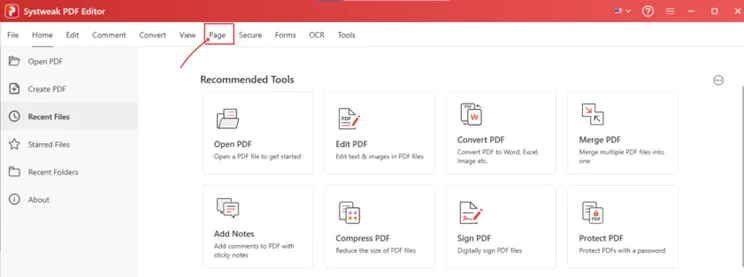
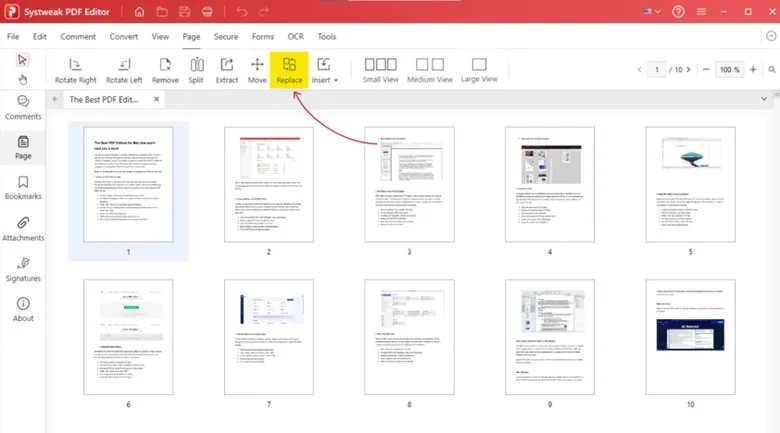
- Click on ‘Replace’, this option allows you to substitute one or multiple pages with new ones.
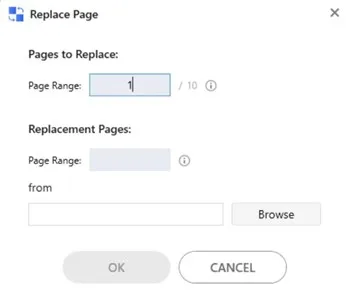
- Click on replace, and fill the Replay Page window. Put the page number you want to replace.
- Upload the new page file, Pick the new PDF or the specific page you want to insert.
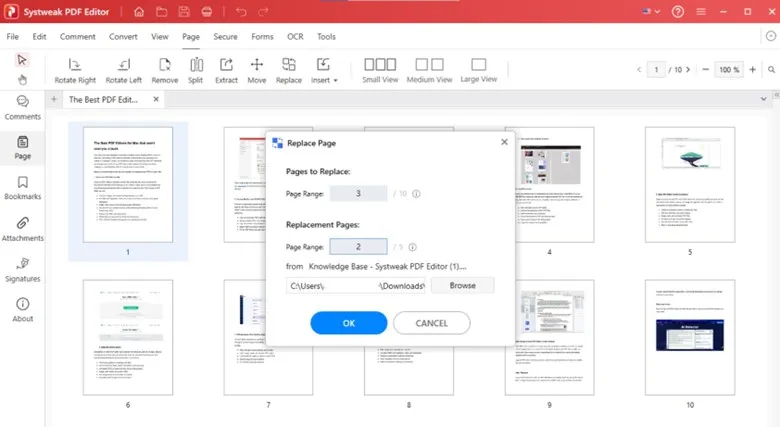
The selected page(s) will be replaced instantly while maintaining the original document’s layout and formatting.
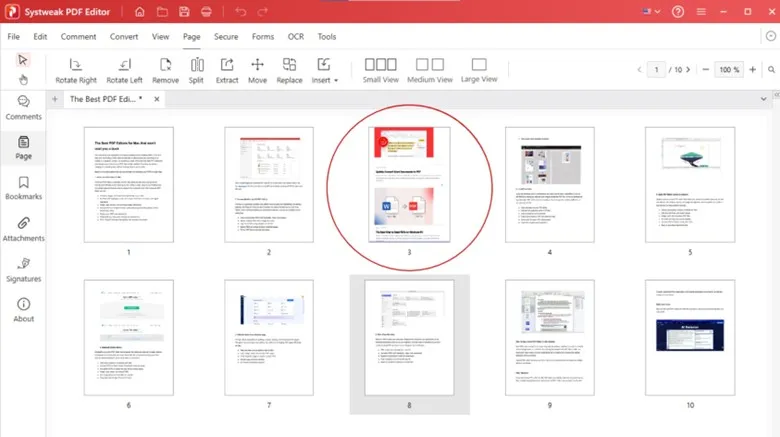
And you are done!
It was that quick and simple with the Systweak PDF Editor.
Read Also: How to Rearrange PDF Pages
Online PDF Editors that you may consider
If your document has no privacy concerns, and you want an instant fix then you can consider the following Online tools. They are fat and quick, and you can replace your page from a PDF.
Free online tools:-
- iLovePDF,
- SmallPDF, or
- PDF.io
These tools are the quickest to replace or merge pages in a PDF.
How to use them:
A general process that’s almost similar everywhere.
- Go to any reliable online PDF tool.
- Upload your main PDF file.
- Use the “Organize Pages” or “Replace Page” option.
- Select the page(s) you want to replace and upload your new file or image.
- Download the final version.
No doubt online tools are convenient, but don’t be very sure with your confidential or business files. Uploading sensitive PDFs to online servers might compromise your privacy.
And Offline tools are always better for sensitive documents. With Systweak PDF Editor you can update reports, replace pages, or correct errors without any fear of privacy, it’s quick, secure, and professional.




