
Systweak PDF Editor is a comprehensive PDF editing tool that will help users convert multiple images into a single PDF document without losing the quality of the images. This JPG to PDF converter also allows users to apply a password to that PDF document for additional security, along with maintaining a compatible and common structure across all devices.
What Is JPG to PDF Conversion, And Why Do Users Need To Convert Images Into PDFs?
JPG is a popular image format that is used by millions of people across the globe. People store their memories and moments via these images. Images are also used for professional purposes. However, there are many challenges while handling multiple images, and these problems can be fixed by converting JPG to PDF format.
Why Convert JPG to PDF on Windows
Converting images like JPG to PDF document format is the best solution for the following problems
1. Sharing multiple images with your family and friends is not very easy, as you might miss sending a few out of the many.
2. Printing many images may also create confusion and lead to duplicate photos being printed, while missing some completely.
3. Sharing images with corporate users, sending many image files to the clients may not look professional, and customers could also face issues of format compatibility on their devices.
Most people convert their images to PDF for different purposes, like submitting assignments, sharing scanned documents, or organizing photos. Converting JPG to PDF makes your files more professional and easier to manage.
- Combine multiple images into one file
- Easy to share and print
- Professional appearance
- Better compatibility across devices
- Secure file format (can add passwords)
In this guide, you’ll learn how to convert JPG to PDF using Systweak PDF Editor, which is an image to PDF converter and combines images into a single, shareable document.
Editor’s Tip – Do you know how to rotate images in a PDF document?
How to Convert JPG to PDF Using Systweak PDF Editor (Step-by-Step )
Step 1 – Download Systweak PDF Editor using the Download button provided below.
Step 2 – Install the app and open it.
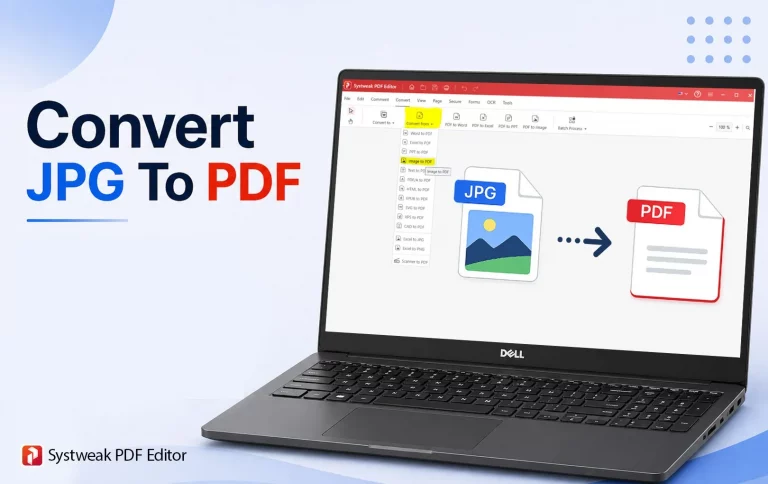
Step 3 – Click on the Convert tab at the top.
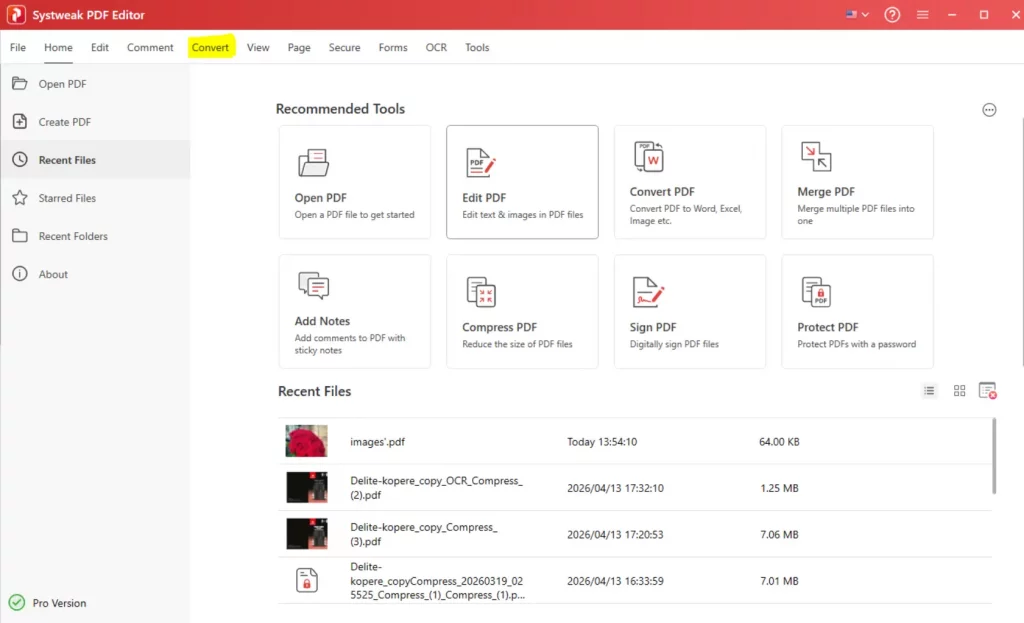
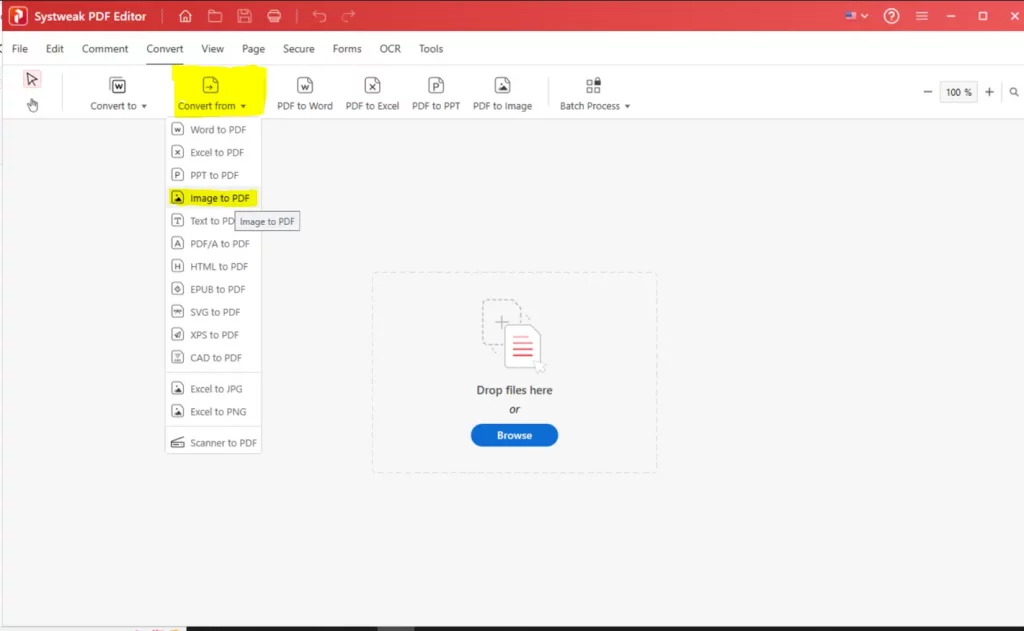
Step 4 – Next, click on the Convert From option in the ribbon and choose the Image to PDF option.
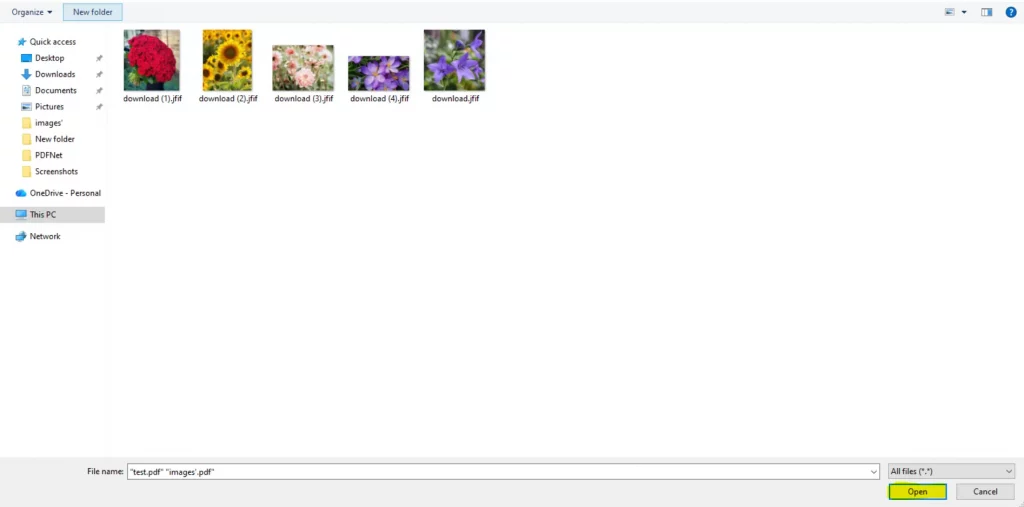
Step 5 – The File Explorer window will open, where you have to select the images that you wish to convert to PDF.
Step 6 – Select all the images and click on Open.
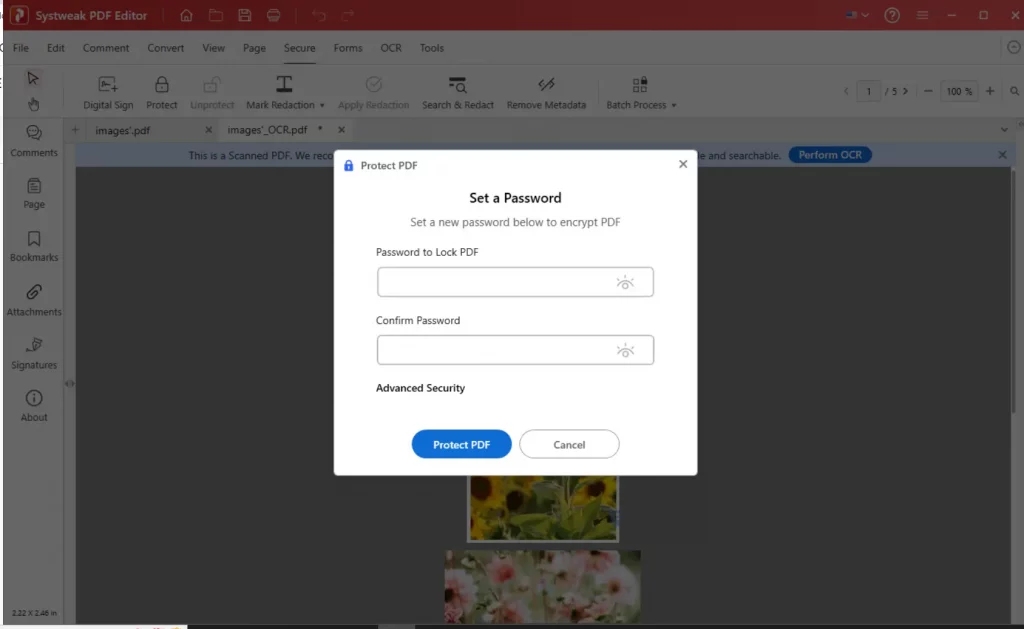
Step 7 – The images will be imported and converted to a single PDF document. This document will open in the Systweak PDF Editor tool, where you can secure the PDF by adding a password to lock it from editing.
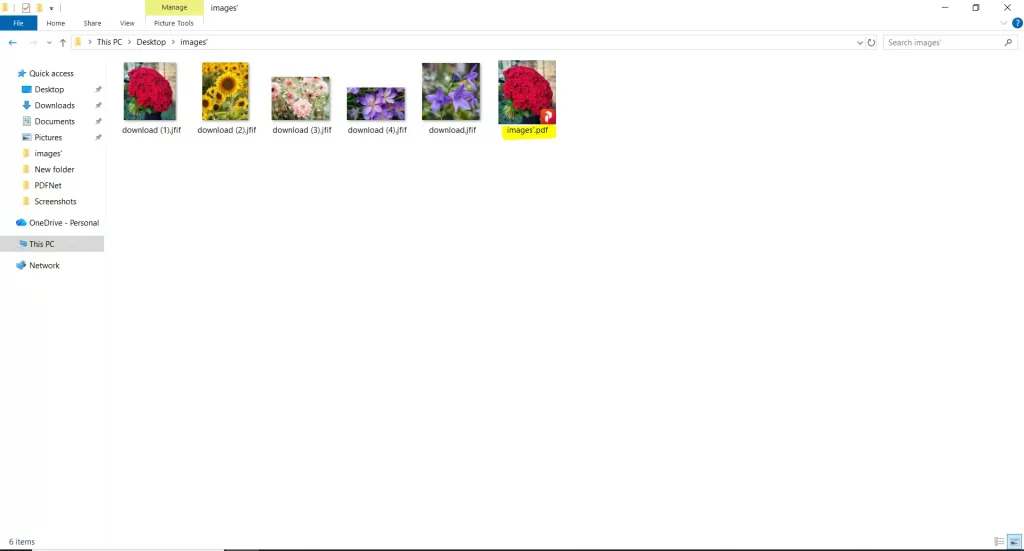
Step 8 – You will find the PDF created with a default name “Images.PDF” in the same folder where the images were stored.
Best Ways to Convert JPG to PDF on Windows
There are a few ways to convert JPG to PDF on your Windows PC, like using a PDF converter software, Windows Print To PDF, and Online PDF tools. We have explained each method in detail, along with the advantages and limitations of using each method.
Method 1: Use a PDF Converter Tool (Recommended)
You can use Systweak PDF Editor to convert JPG to PDF with easy and simple steps, as explained above. This tool will help you convert single or multiple images into one PDF without compromising on image quality. Systweak PDF Editor can do the job for you quickly and easily, and maintain the privacy and security of your document, as it is an offline PDF editor software.
An offline tool maintains the security of the document.
Users can edit the text and images within the PDF.
Contains PDF security features like password protection, redaction, watermarking, and more.
The free version is limited (short trial period)
Method 2: Use Windows Built-in “Print to PDF”
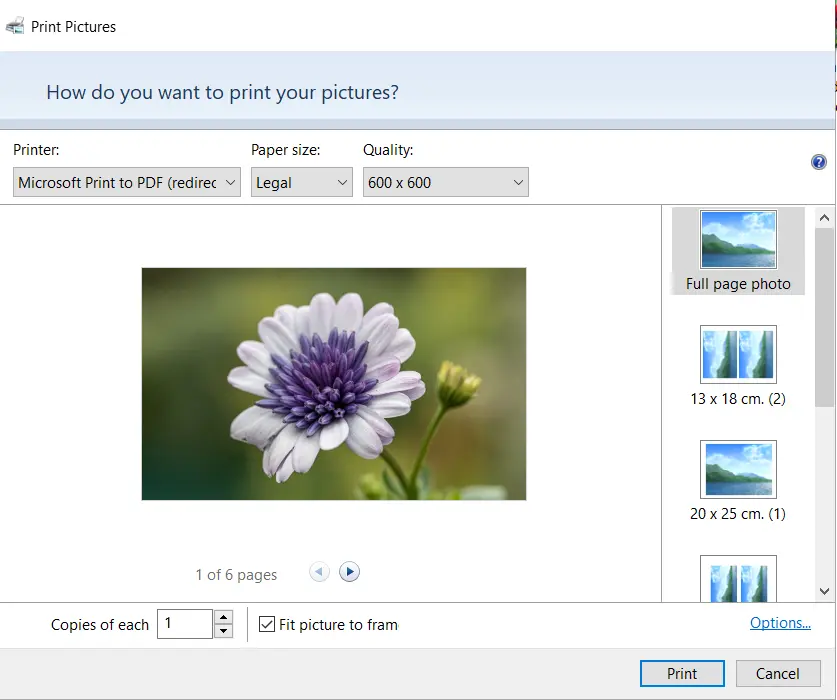
The Windows “Print To PDF” is an inbuilt tool that allows users to create PDFs from documents or images. Select all the images you wish to convert together by pressing and holding the CTRL key and right-clicking on any one to view the context menu and choose Print. Now select the Microsoft Print To PDF option and click on the Print button to save the images into one PDF.
Free to use
Cannot edit or rearrange the photos.
No control over compression or quality.
No OCR features.
Method 3: Convert JPG to PDF Using Online Tools
Many online tools can help you convert images to PDF for free. However, these tools require users to upload their images to their server, which can pose a threat to the security and privacy of the images. Here are the steps to use an online image to PDF converter if the images are not really important.
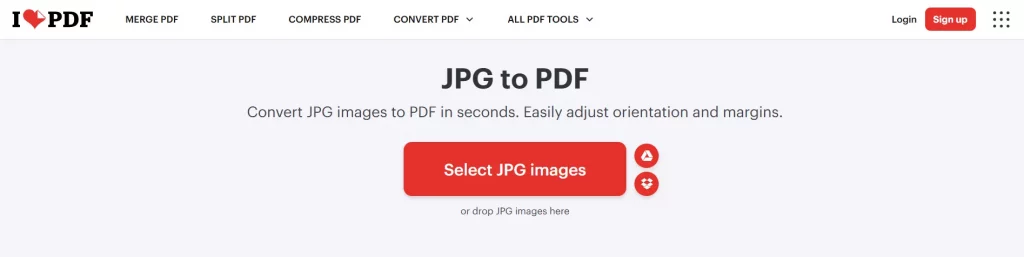
1. Visit the ILovePDF website and click on the Convert PDF tab.
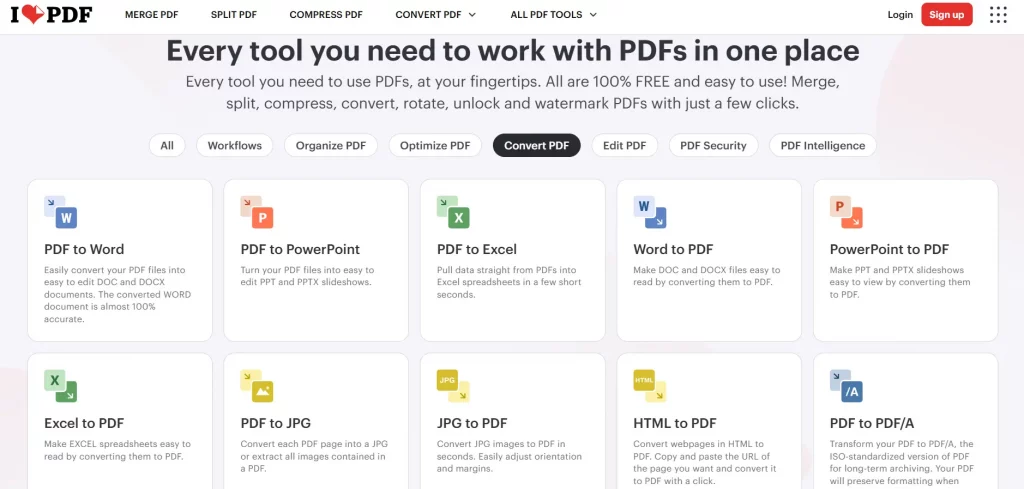
2. Locate the JPG to PDF option and click on it.
3. Next, click on the JPG to PDF button and choose the images that you wish to convert.
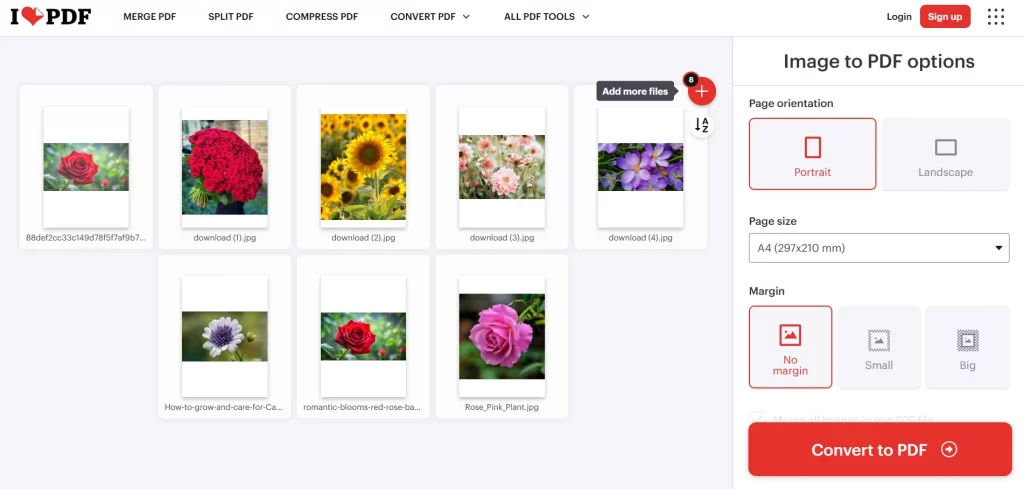
4. The next page will provide options like Page Orientation, Page Size, and Margin.
5. After you have selected the relevant options, click on the Convert To PDF button.
6. Finally, click on the Download PDF button, and the PDF file will be downloaded to your default folder.

No Installation or Update needed.
Most options are free, and tasks can be done quickly.
Works on any device that has a browser tool.
The files are uploaded to external servers and there is no guarantee what will happen to them.
Some untrusted online PDF converters may inject malware into your PC.
Does not work without an internet and needs a very stable connection to operate.
Bonus – Tips for High-Quality PDF Output
Converting JPG to PDF is no longer a challenge, and this task can easily be accomplished with one of the best JPG to PDF converters, like Systweak PDF Editor. However, maintaining the quality of the images in the PDF can be cumbersome. We have listed a few tips to get the best results.
- Use high-resolution images
- Arrange images before converting
- Avoid over-compressing images
- Check orientation (portrait/landscape)
- Compress large images before converting
- Rotate images before conversion
You can also extract all the images from a PDF into a separate folder without affecting the quality of the images.
Common Issues When Converting JPG to PDF
Below are some of the issues that can arise during the conversion. You can overcome these issues by using the trusted offline PDF editor such as Systweak PDF Editor which not only converts JPG to PDF but also gives an array of tools you can use to make PDF management easier.
Blurry or poor resolution – image gets compressed.
Wrong sizing – doesn’t fit the page correctly
Orientation issue – shows up sideways
File size is too large – PDF document size is heavy.
Images are out of order – aren’t properly organized
Text isn’t editable – can’t copy text.
Colors are altered – appear differently from the original
Privacy concerns – using online conversion services
Conversion error – file might be corrupt
Conclusion – Have You Converted JPG To PDF?
Converting a JPG to PDF using Systweak PDF Editor is very easy and is needed by both professional and personal users. Whether it is to share multiple images or archive and store images, converting them into a PDF document is the best way to organize your images. PDF files are known for appearing alike across all platforms and devices. This will also be true for your images after you convert them into PDF using Systweak PDF Editor.