

You have a PDF to send, but when you try to attach it to a contract, business proposal, or assignment, Gmail keeps rejecting it. It won’t upload to portals either, because most have a limit of 20-25 MB, and sending a Drive link feels unprofessional for a formal document.
To fix this, you find a free online PDF compressor. It reduces the size, but makes the text unreadable and pixelates the images. Your professional document now looks like a photocopied document. You wasted your time on something you cannot use. You can attach it now, but will you?
Most free PDF compressors do this.
Compressing a PDF isn’t about just making it smaller. It’s about knowing what’s increasing the size, like images, fonts, and metadata, and working on them so the size goes down, but the quality stays.
Systweak PDF Editor does exactly this. When you compress a document with this tool, it stays the same. Here’s how to compress PDFs without losing formatting, quality, or professionalism.
Method 1: How to Compress PDF Using Systweak PDF Editor (Step-by-Step)
The best and most efficient way to compress a PDF file on Windows while maintaining its quality is to use a dedicated offline tool like Systweak PDF Editor, which offers five compression levels. You can choose the one that works for you and compress the file based on how it will be used.
Steps to Compress PDF Using Systweak PDF Editor
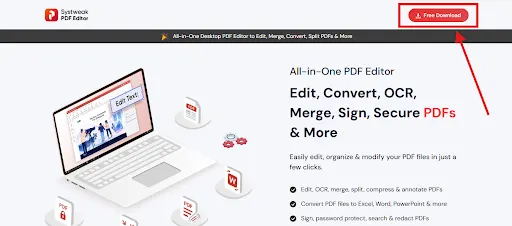
Step 1: Download and install the software on your computer. Click the button below to get the setup file.
Step 2: Run the desktop PDF editing software, click Compress PDF,select the file, and click Open.
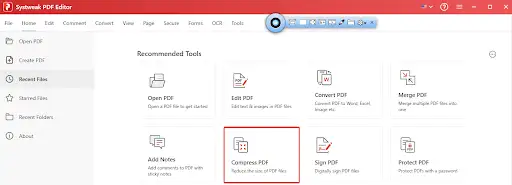
Step 3: Click Compress PDF from the Tools menu > Select the Compression method and click on Compress.
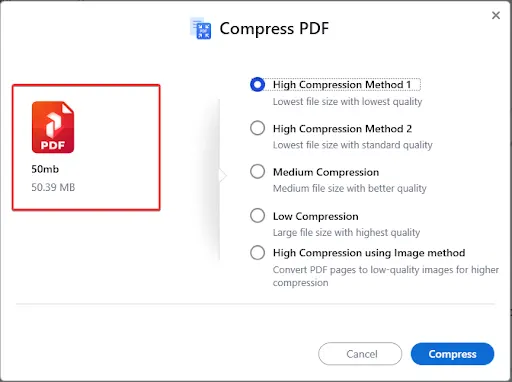
| Compression Method | File Size | Quality |
|---|---|---|
| High Compression Method 1 | Smallest | Lower quality |
| High Compression Method 2 | Smallest | Standard quality |
| Medium Compression | Medium | Good quality (Recommended) |
| Low Compression | Larger | Best quality |
| High Compression using Image Method | Smallest | Pages converted to images |
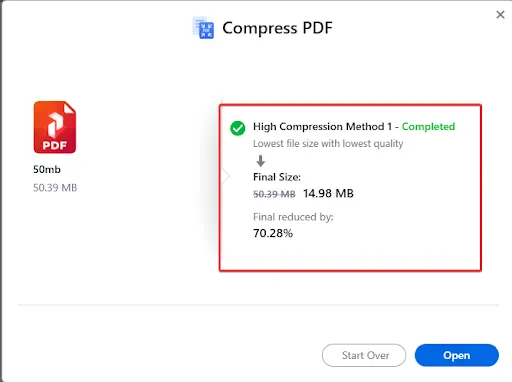
High Compression Method 1: Maximum Size Reduction
- Best for: Internal drafts, quick file transfers, backup copies for storage
- File size reduction: 70-90%
- Quality:Image quality is reduced, but text is fine.
High Compression Method 2: Balanced Quality-Size (Recommended for Most Users)
- Best for: Documents you use for professional work like, proposals, contracts, and marketing materials
- File size reduction:50-70%
- Quality:Minimal quality loss, images stay clear<
Medium Compression: (Recommended compression Method)
- Best for:Legal documents, compliance filings, documents that might be printed
- File size reduction:30-50% reduction
- Quality:Negligible quality loss
Low Compression: Quality First
- Best for: Documents going to print, legal submissions, archival copies, final masters
- File size reduction:10-20%.
- Quality:No change
High Compression using Image Method: Emergency Only
- Best for: Preview-only documents
- File size reduction: 80-95%
- Quality: Text becomes unselectable, and images are pixelated
- The user can decide the configuration and check the results of the compressed PDF file.
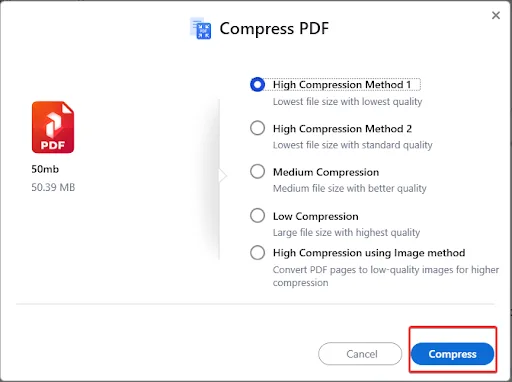
Step 4: Select the location to save the compressed file.
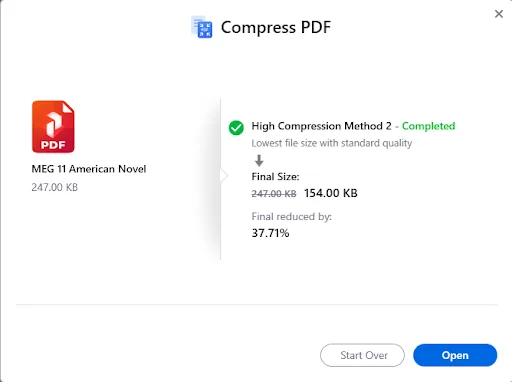
Step 5: Open the compressed file and verify it.
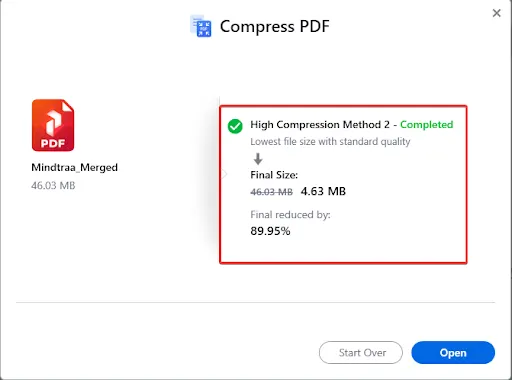
Before/After Example:
A 50MB PDF File
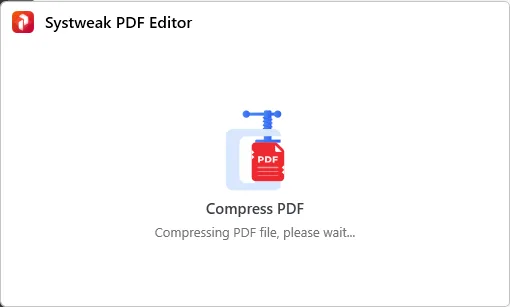
After Compression
Why This Works Better Than Online Tools
1. Unlike most free online tools that apply the same compression to all the documents, Systweak PDF Editor targets what is actually making the file heavy
2. It preserves text sharpness, keeps images clear, and removes unnecessary data without changing how the document’s appearance.
3. You can control compression settings instead of letting the website guess it.
4. Files are compressed locally, so your sensitive contracts and financial documents don’t get uploaded to third-party servers.
5. You can also batch compress multiple PDFs at once using the Batch Compress option under Tools, instead of uploading files one at a time
Method 2: Compress PDF by Optimizing Images
Images are a common contributor to large PDF sizes, especially when multiple high-resolution images, product photos, charts, or scanned documents are included.
You cannot manually adjust image settings after saving a PDF, but you can use High Compression Method 2 to optimize them inside the file.
Steps to Optimize Images Within Your PDF
Step 1: Open the PDF in Systweak PDF Editor.
Step 2: Click Toolsfrom the top panel > Compress PDF.
Step 3: Select High Compression Method 2(this specifically targets image optimization while preserving quality)
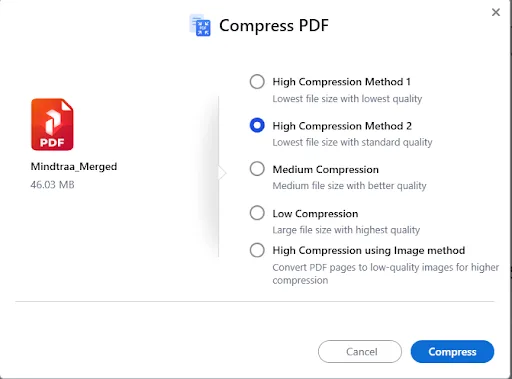
Step 4: Click Compress, then save the file to apply the changes.
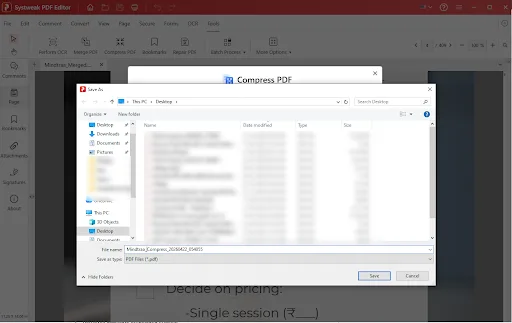
Why High Compression Method 2 Works for Image-Heavy PDFs:
- Image size is reduced by adjusting resolution (150-200 DPI).
- Clarity stays intact.
- A balance between file size and quality is maintained.
- Duplicate embedded images are removed.
- Image formats are converted to optimized formats, and unnecessary metadata (camera settings, GPS data, edit history) is removed.
Before
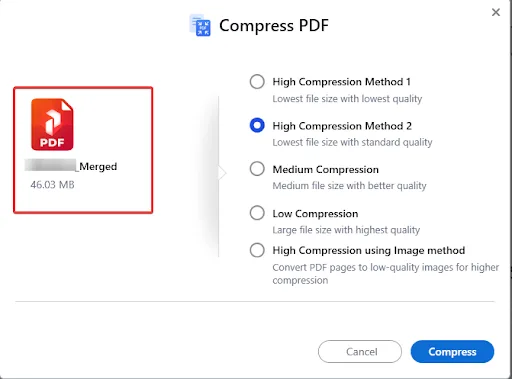
After
Method 3 – Use Built-in Browser To Reduce PDF Size (No Upload Needed)
If your PDF is image-heavy, you can shrink its size by following these steps:
Open the PDF in Edge or Firefox. You do not need to set them as your default viewer. Simply drag the file into the browser or right-click and select Open with.
Once the file is open:
- Press Ctrl + P
- Select the Microsoft Print to PDF option under destination in (Firefox) and Printer in (Edge)
- Click More settings
- Under Scale %, reduce the size to 80-90%
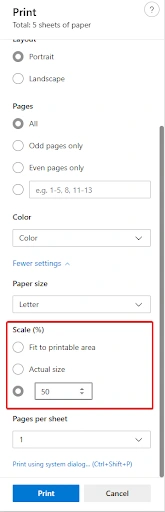
Microsoft Edge
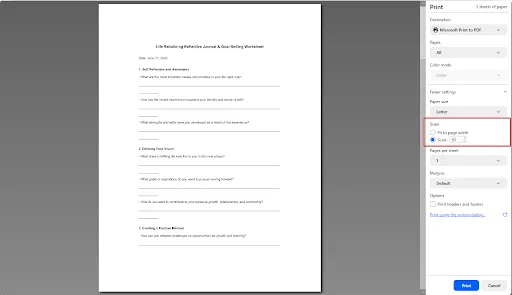
Firefox
- Turn off background graphics
- Save the file
This will reduce the file size depending on the document. It works well for simple text-heavy PDFs.
Why Use This Method:
When you don’t want to share your internal information with external clients and want to reduce the PDF file size without compression, use this method.
In addition to this, you can also reduce PDF size using the browser’s built-in Print to PDF functionality.
Method 4: Compress Scanned PDF Using OCR
Scanned PDFs, depending on the quality and resolution of the scan, can also be large. To reduce their size, convert the image-based PDFs into text-based
Once done, the PDF size will shrink, making the PDF searchable and editable
Online PDF Compressing Tools vs Offline PDF Compressing Tools: What’s Better?
| Features | Online tools | Offline tools (Systweak PDF Editor) |
|---|---|---|
| Quality Control | Limited | User gets the control to select the compression method, managing document quality |
| File size handling | Can compress any number of files of any size | |
| Internet Connectivity | Required | Not Required |
| Privacy and Security | No guarantee | Guaranteed as files are compressed and saved locally |
| Features and Optimization | Basic Compression | Advanced optimization with different compression modes. |
Bonus Tip – Remove Unnecessary Elements
Every time someone edits a document, adds comments, or embeds fonts, the PDF file size increases. To reduce it while maintaining its quality, some forums suggest removing:
- Embedded fonts that are not needed in your PDF
- Metadata – the hidden information you will find in the PDF, like author name, edit history. (if you don’t need it) should remove it.
- Annotations and comments
- Form fields
- Hidden layer
Steps to Remove Unnecessary Elements
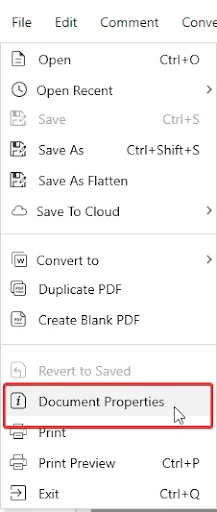
Step 1: Open PDF. Click File > Document Properties.
Step 2: Click Edit Metadata under the Description tab.
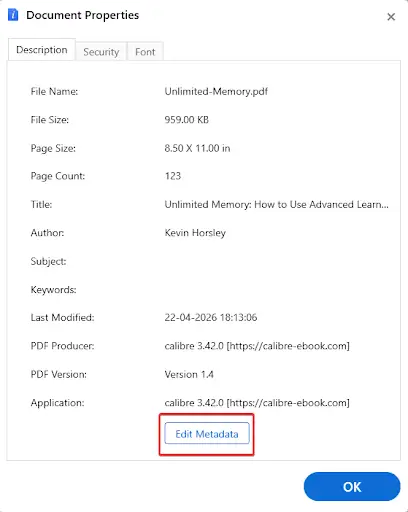
Step 3: Clear the fields you want to remove information from, then click Submit.
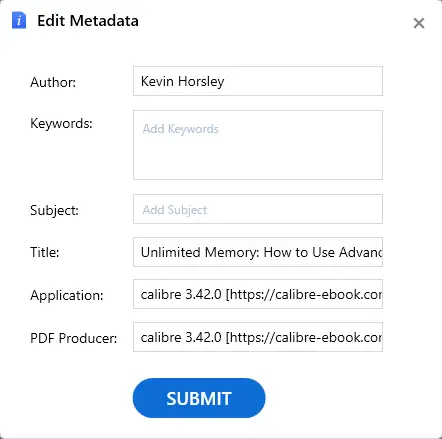
Step 4: The file will be saved with your changes.
You can also use the Remove Metadataoption under Secure to remove additional information.
Best Practices to Compress PDF Without Losing Quality
- Keep a backup of the original file.
- Avoid compressing the already compressed file
- Use medium compression settings.
- Compress images separately (if possible) before adding them to the PDF.
- Remove unnecessary elements before starting the compression.
- Use OCR for scanned PDFs.
- Re-check the compressed file before sharing.
Common Mistakes to Avoid
- Using random PDF compression online tools as they are Free.
- Overcompressing PDFs.
- Using high compression always.
- Ignoring image quality.
- Not reviewing the file after compression
Frequently Asked Questions
Final Words
Compressing a PDF file without losing quality means reducing its size without altering its quality. With the right PDF compression tool, you can shrink file size and keep documents clen and easy to read. Systweak PDF Editor offers several compression levels to optimize your PDF.