

The fastest way to count words in PDF files without converting them is to open the file in a PDF editor that has a built-in word counter, such as Systweak PDF Editor or any other reputable editor. Alternatively, if you don’t wish to install additional software, you can copy the text from their PDF document and paste it into Google Docs and press Ctrl + Shift + C. For a scanned PDF, run OCR first, then count.
Why You Don’t Need to Convert the PDF
Many PDF readers don’t have a built-in word count, so the usual advice is to convert the file to Word first. That works, but conversion can shift the layout, takes extra time and leaves you with a second file you never wanted. This guide outlines four methods by which you can determine the word count of a PDF file using Windows as your operating system. Additionally, we’ll discuss some alternative methods when dealing with a scanned PDF or if you’re only looking for a word count for a portion of the document.
First, Check Whether Your PDF Has Real Text
Every word counter needs text it can read. Open your PDF and drag your cursor across a sentence.
1. The words highlight one by one: the PDF has a text layer. Any method below will work.
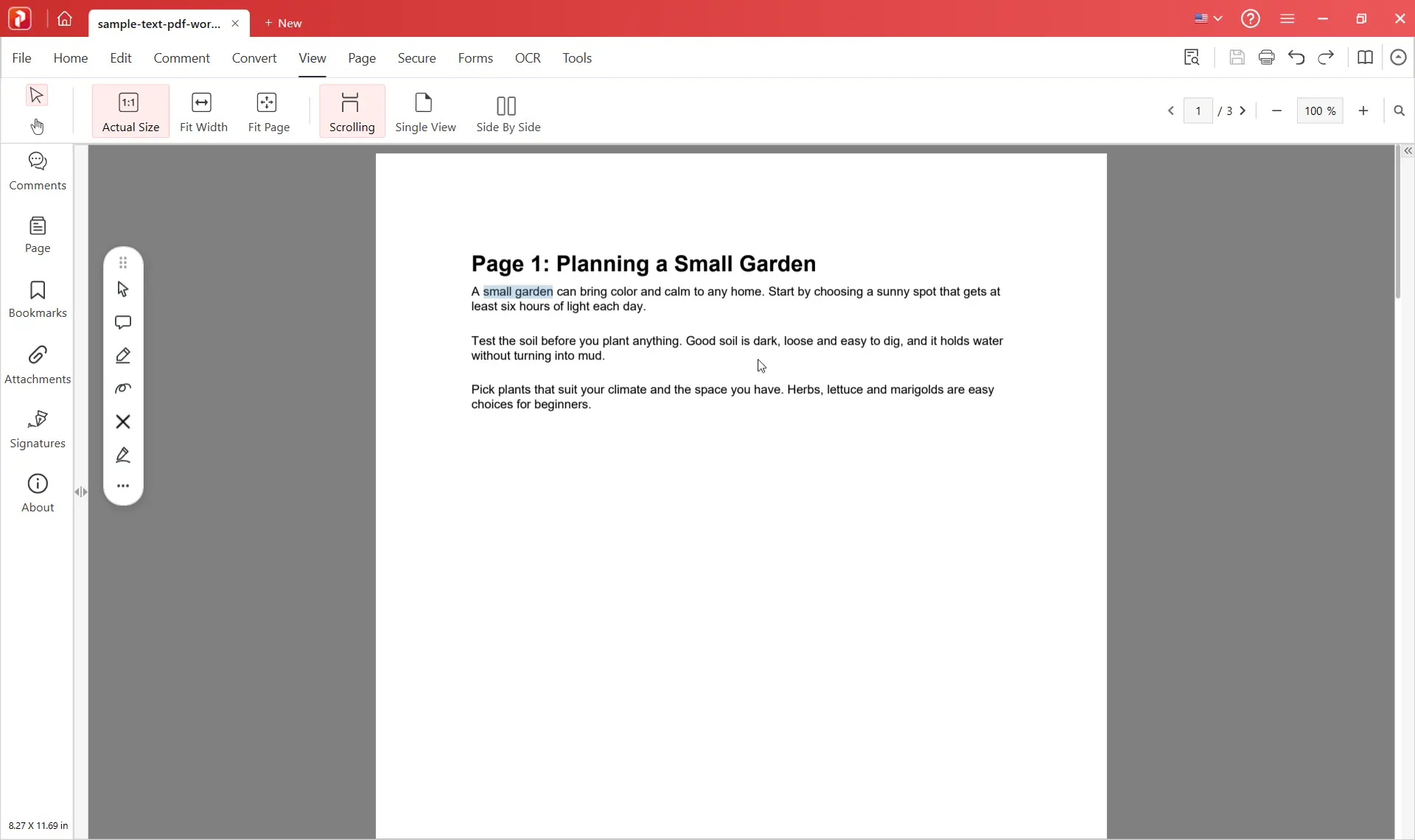
2. The whole page highlights as a single block, or nothing highlights: the PDF is a scanned image. Skip to the section on scanned PDFs.
This 10 second check saves you from getting a count of zero and wondering why.
4 Ways to Count Words in PDF Files Without Converting Them
Pick the method that fits your file and how often you need a count. The first uses a PDF editor, and the rest work with any PDF reader.
Method 1: Use the Word Count Tool in Systweak PDF Editor
Systweak PDF Editor is a Windows PDF editor with a word counter built in. It works offline and lets you count all pages, only even or odd pages, or a specific page range. This can be helpful when creating page limits, checking chapters, etc. as well as per page billing.
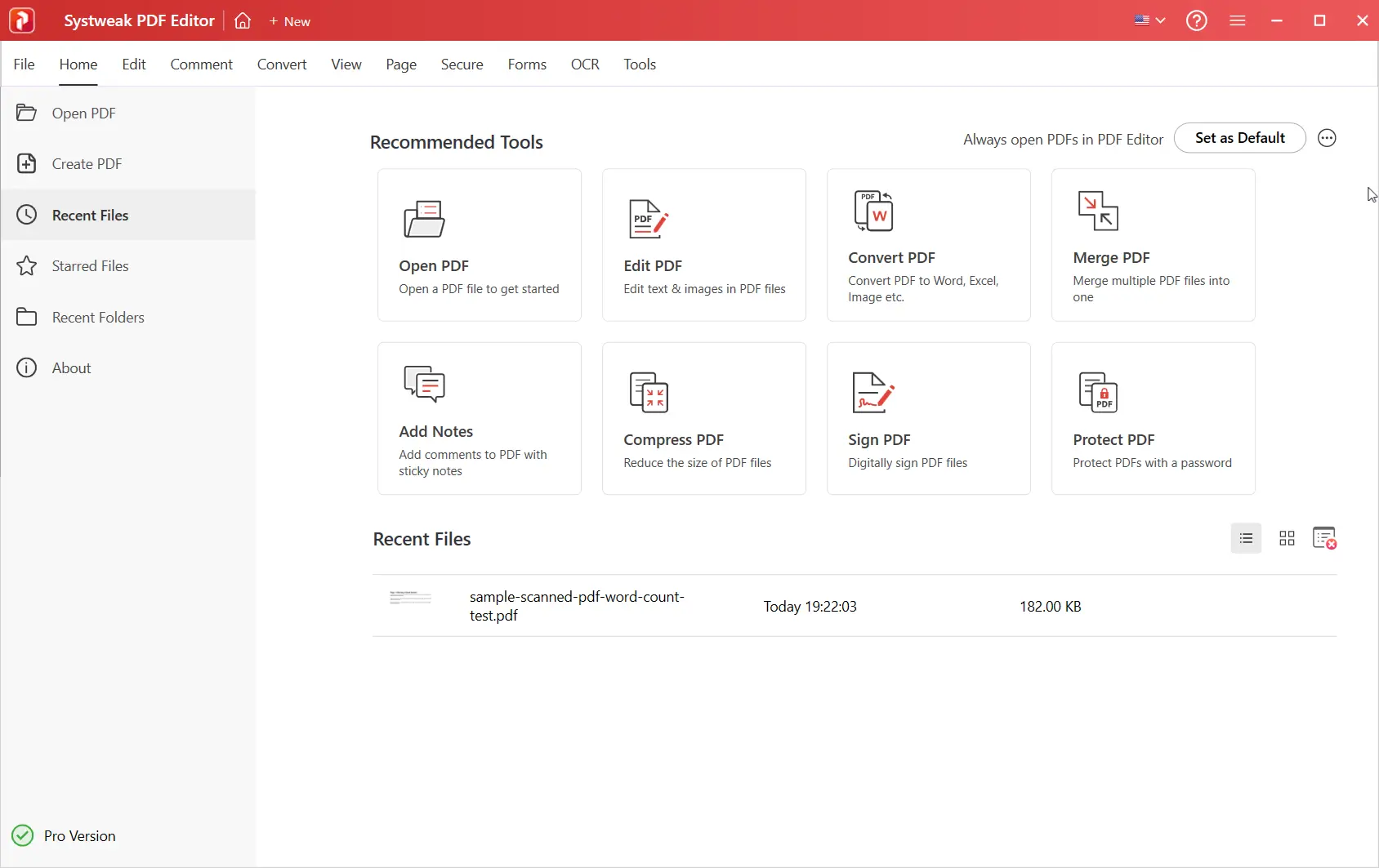
1. Open your PDF in Systweak PDF Editor.
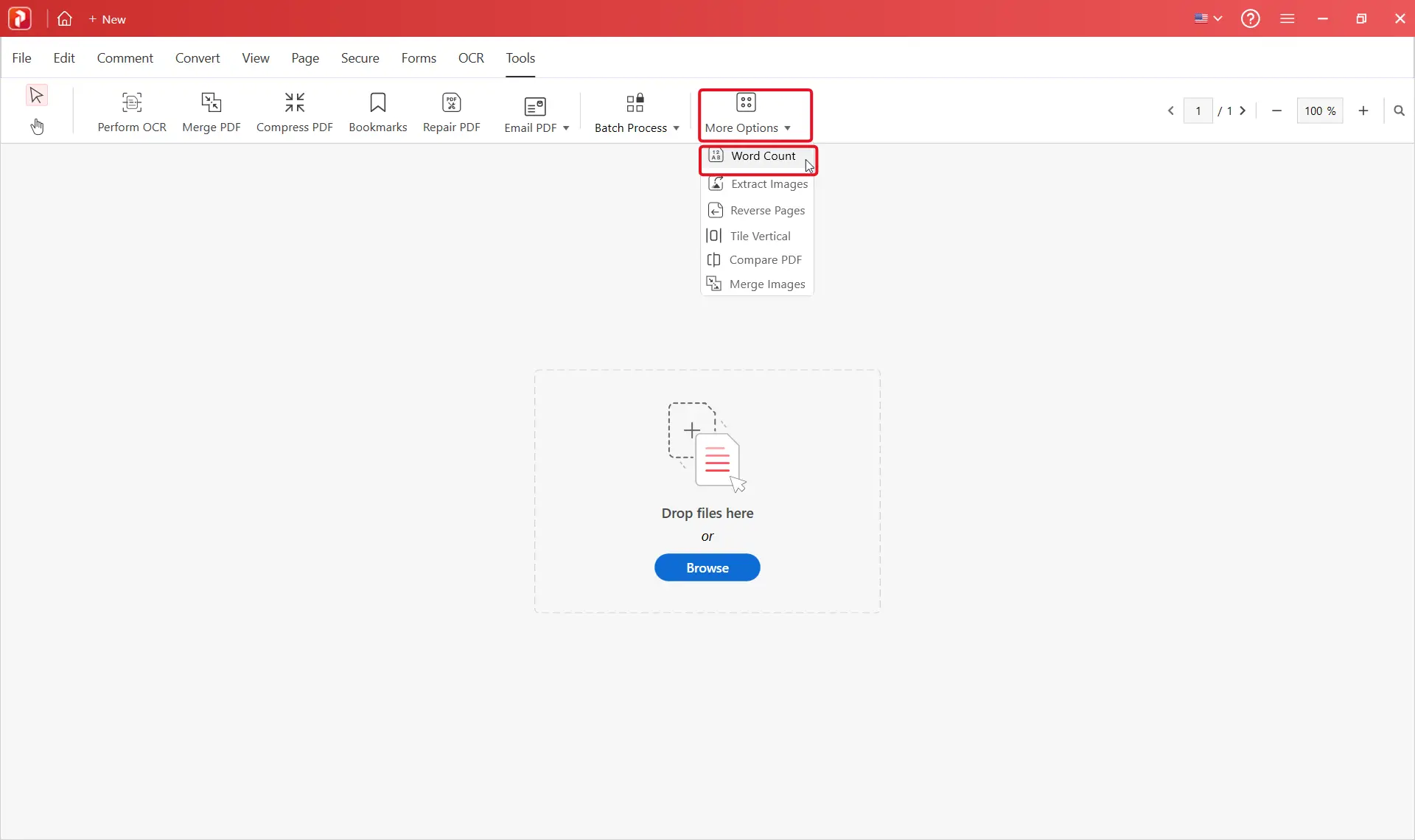
2. Click Tools at the top.
3. Click the dropdown next to More Options and select Word Count.
4. Choose what to count: all pages, even or odd pages, or a page range.
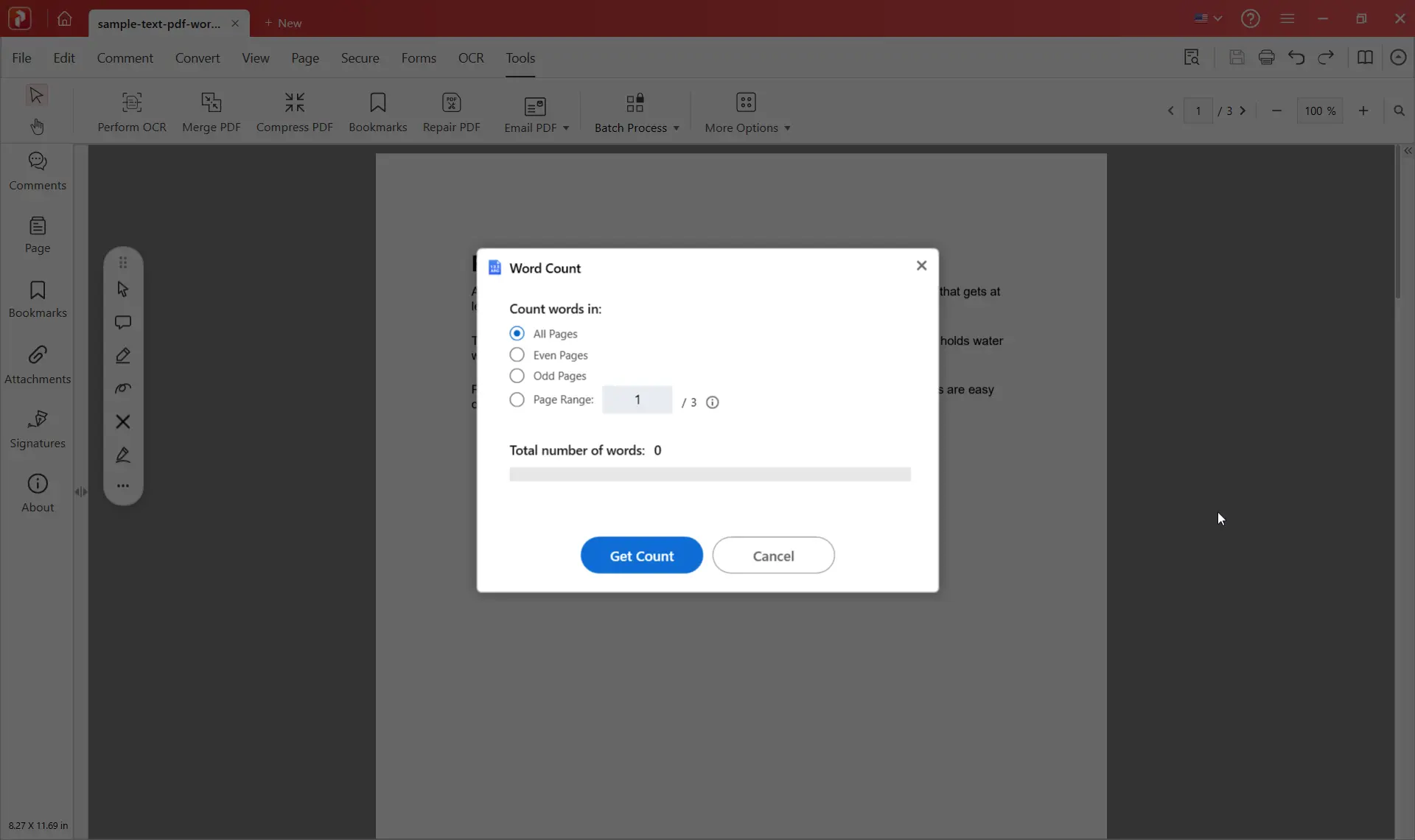
5. Click Get Count to see the total.
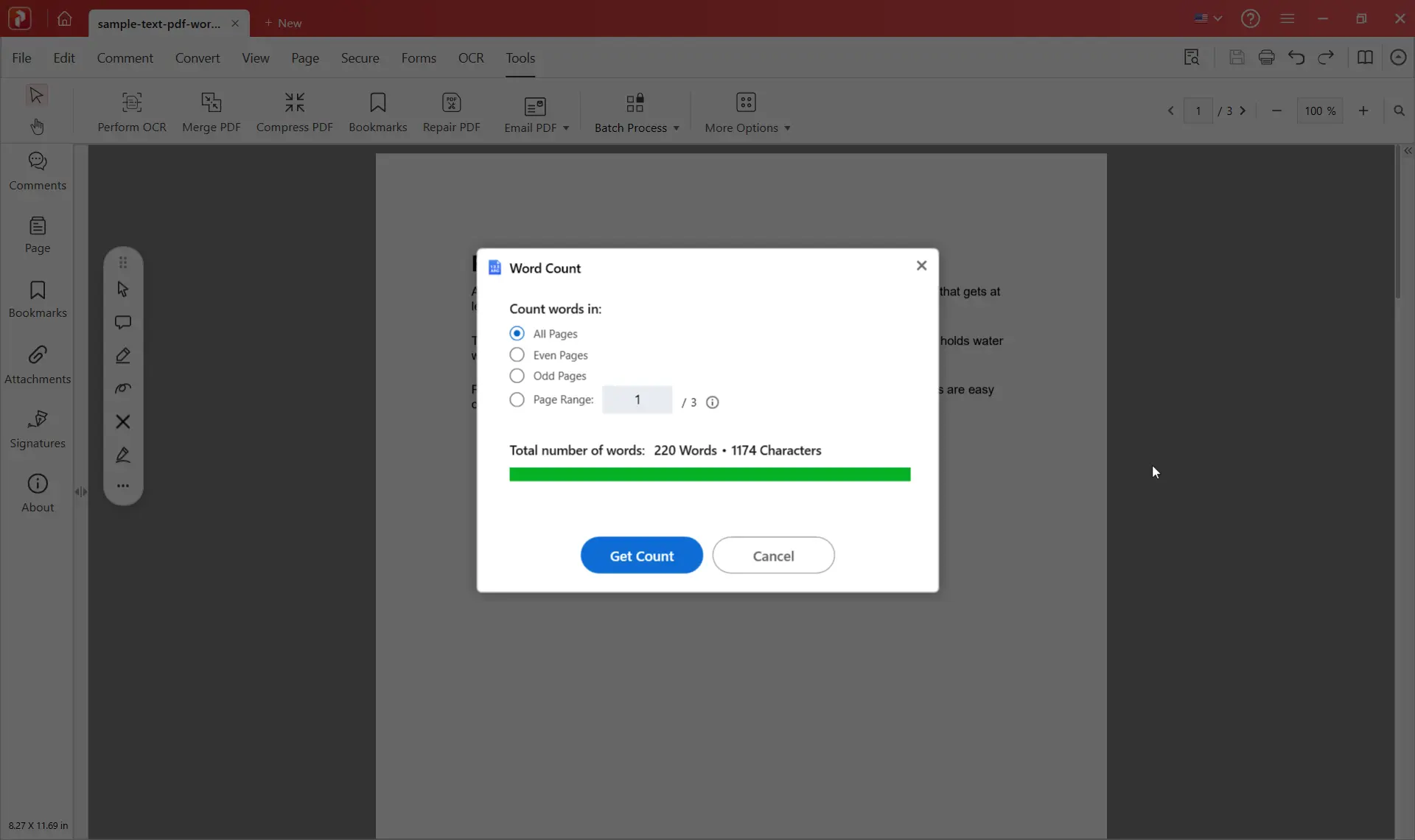
Because the file never leaves your PC, this is also a safe option for contracts, client files and anything confidential. Systweak PDF Editor runs on Windows 11, 10, 8.1, 8 and 7 SP1 (32 and 64 bit), and it also edits text, converts files and runs OCR in the same app.
Method 2: Copy and Paste Into Google Docs or Word
This method works with any PDF reader, including the one built into your browser. Nothing gets converted. You only move plain text.
1. Open the PDF and press Ctrl + A to select all the text, or drag to select just the part you need.
2. Press Ctrl + C to copy it.
3. Open a blank Google Doc or Word document and press Ctrl + V.
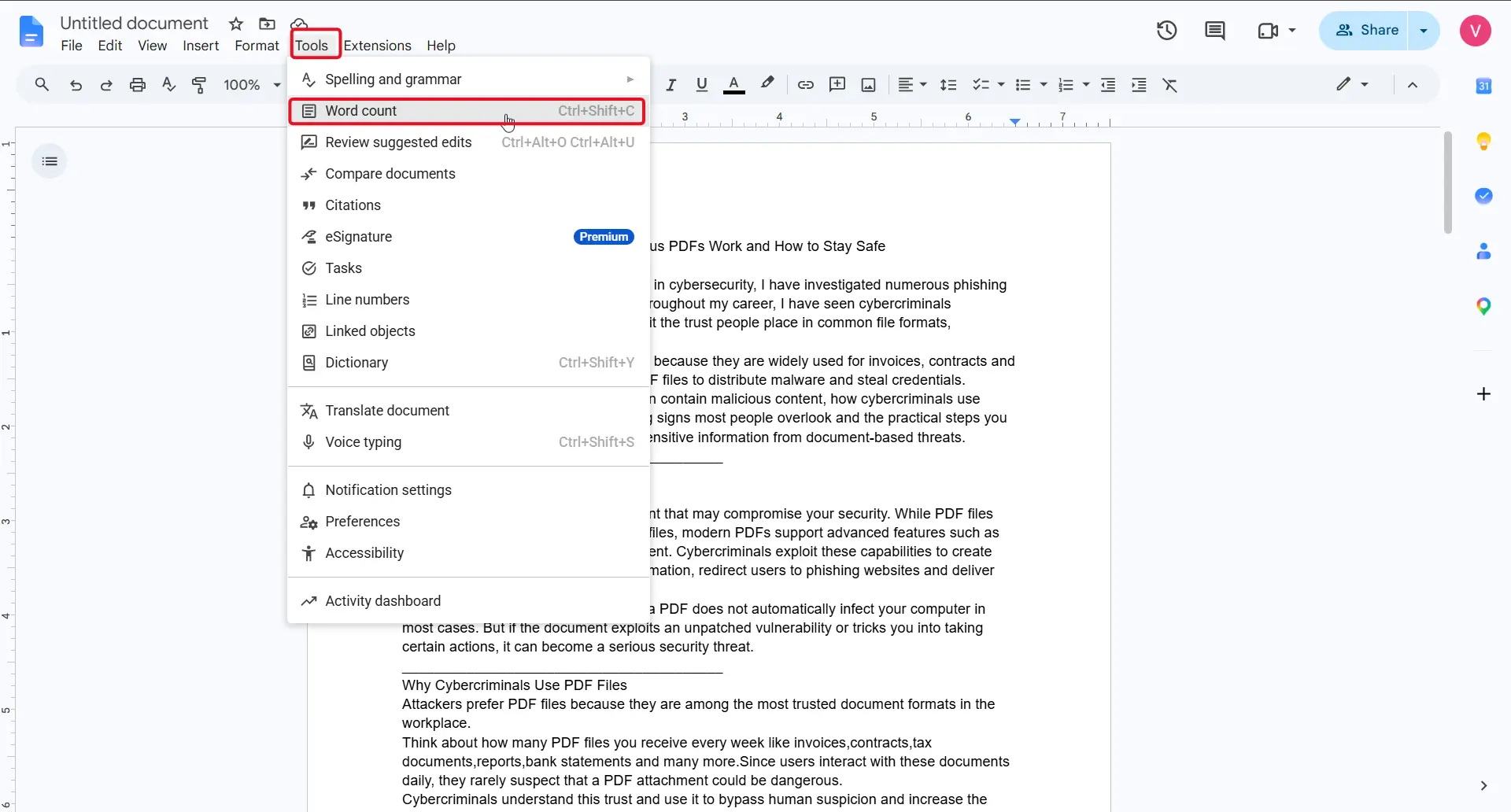
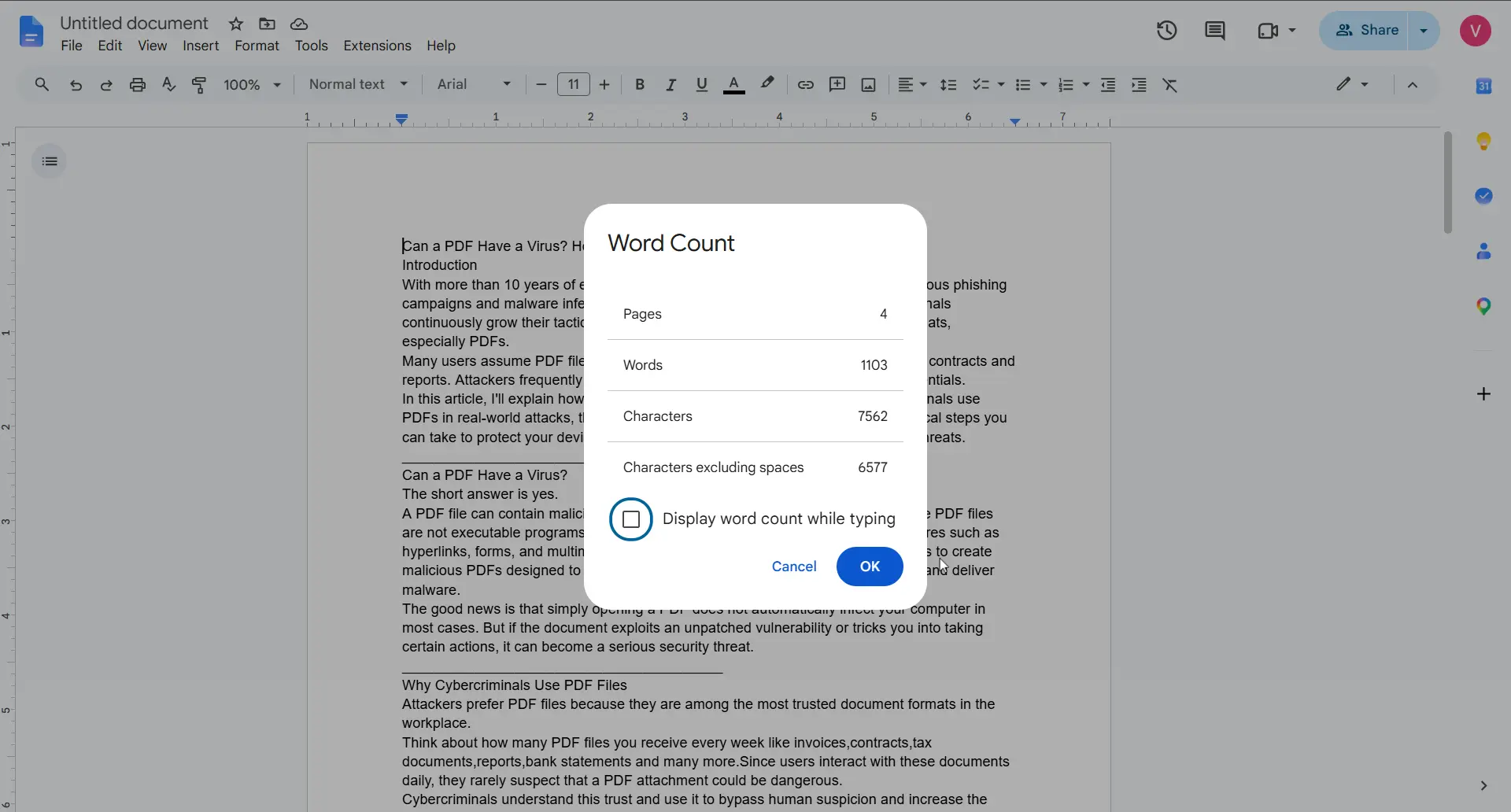
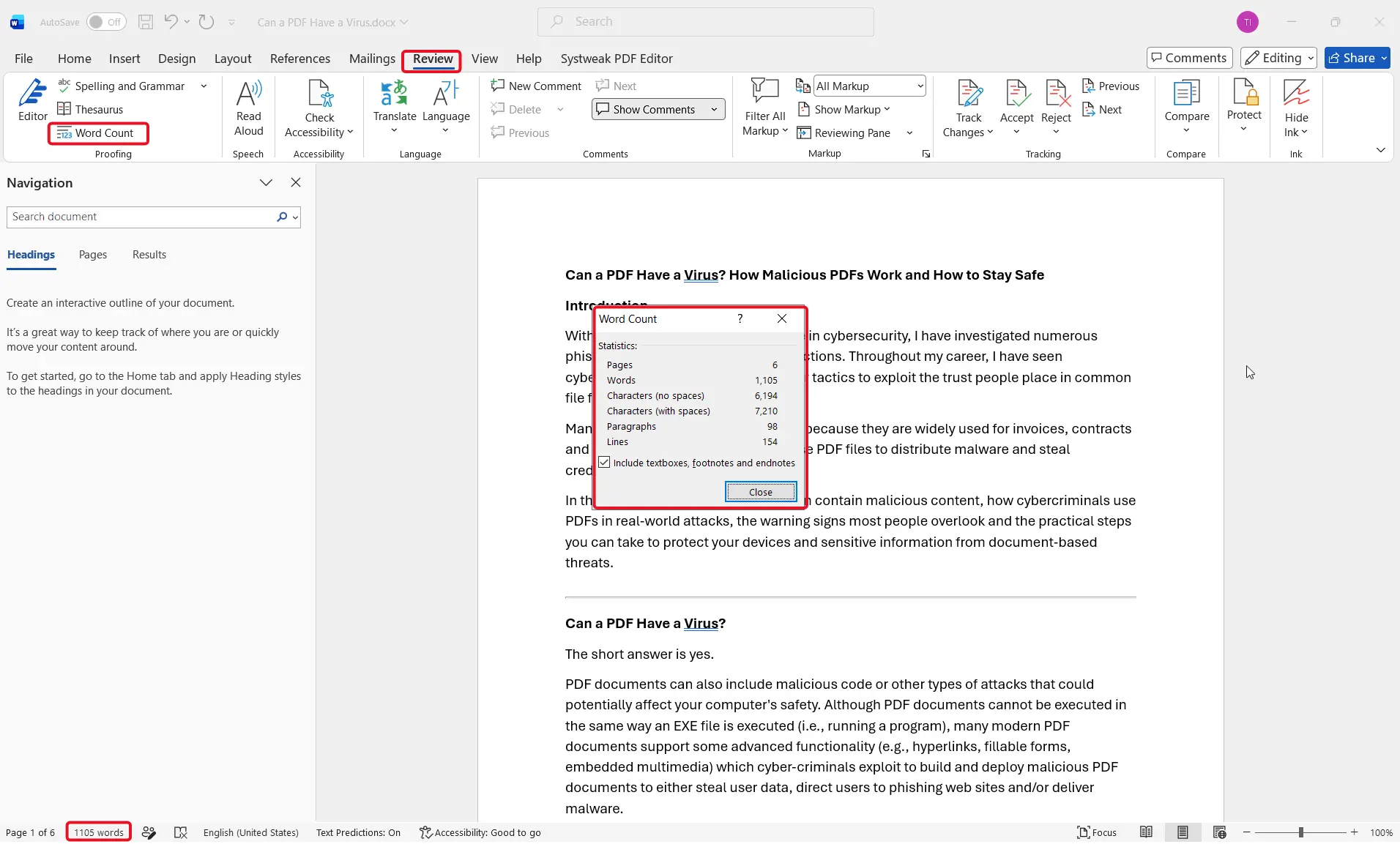
4. In Google Docs, click Tools > Word Count or press Ctrl + Shift + C. In Word, click Review > Word Count, or read the count in the status bar at the bottom left.
Method 3: Use a Word Counter Extension in Chrome
If you open PDFs in Chrome, an extension can count the words you highlight without leaving the browser.
1. Search the Chrome Web Store for “word counter” and install an extension you trust.
2. Drag your PDF into a Chrome window to open it.
3. Press Ctrl + A, or select only the text you want counted.
4. Right-click and choose the extension’s count option, or click its icon in the toolbar.
Choose with care, because a word counter extension can read the text you select. Pick one with a large number of users, good recent reviews and a recent update, and check the privacy details on its store page to see what data it collects. Not every extension works inside Chrome’s PDF viewer, so if nothing happens, use Method 2 instead. Also, browser selections can also pick up or drop some stray text depending upon how complexly laid out the document is, therefore, so double check the number if a strict limit applies.
Method 4: Use an Online PDF Word Counter
Online counters let you upload a PDF and get a number back without installing anything. They are handy for a quick, one time check of a public document. Keep in mind that uploading sends your file to another company’s server. Therefore online tools should never be used for legal, medical, financial or client documents. Use an offline editor or simply cut and paste the document into the tool instead.
How to Count Words in a Scanned PDF
A scanned PDF is a picture of text. A counter sees no words in it until OCR (optical character recognition) turns that picture into real, selectable text.
In Systweak PDF Editor:
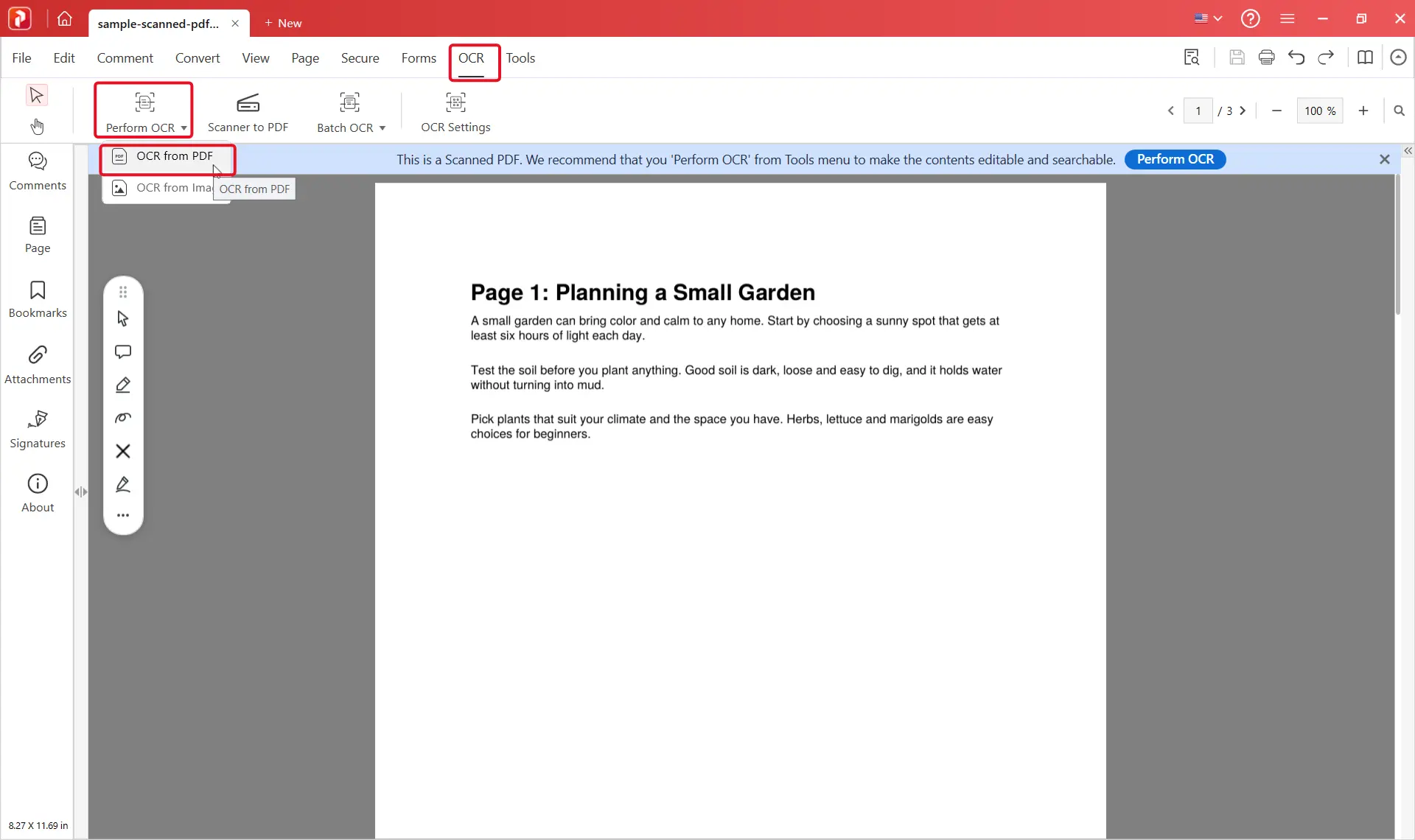
1. Select the OCR Tab.
2. Either drag & drop your PDF document containing the scanned pages, click Browse to choose your file(s) to perform OCR.”
3. Choose Perform OCR > OCR from PDF.
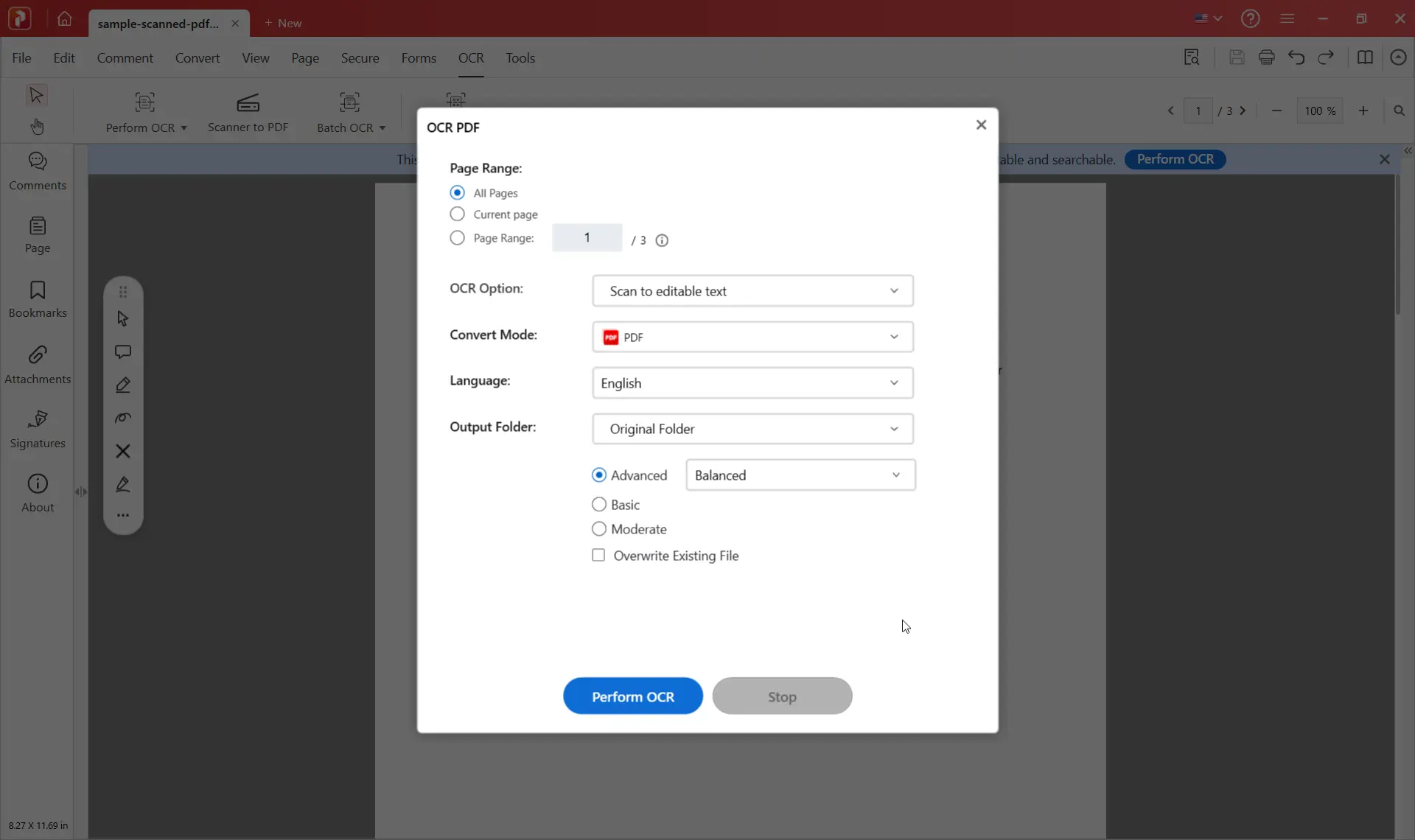
4. Set the page range and language, then click Perform OCR.
5. Open the new searchable PDF and use Tools > More Options > Word Count.
It is important to understand that using ocr for scans can be very accurate as long as the scans are clean. However, if the scan was blurry or skewed; in addition, handwritten pages may not be recognized correctly. Therefore, always take a quick look at the recognized text before relying on the total word count.
How to Count Words on Specific Pages or in One Section
You rarely need the whole document. A thesis may exclude references, and a translator may quote only the body text. Pick the option that fits:
1. A page range: in Systweak PDF Editor, choose a page range in the Word Count tool.
2. Paragraph(s) or Section: Select the paragraph(s)/section and either utilize the Chrome Extension or paste it into Google Docs for word counting.
3. One page at a time: Copy each page into Google Docs; then select the block of pasted text in order to view the total number of words.
Why Your Word Count Can Differ Between Tools
Count the same PDF in two tools and you may get two slightly different numbers. That is normal. The usual causes:
1. Headers, footers and page numbers. Some tools count them and some skip them.
2. Columns and tables. Text can copy out of order or break into fragments.
3. Hyphenated line breaks. A word split across two lines may count as two words.
4. Text within images is usually ignored unless you have run OCR on them and OCR errors can change the total.
If the numbers need to be exact, use one tool for all calculations, exclude header and footer areas from your sample, and review the paste prior to entering your data.
Which Method Should You Use?
1. You count words often or need page ranges: Systweak PDF Editor.
2. You need one quick count and have nothing installed: copy and paste into Google Docs.
3. You read PDFs in Chrome: a trusted word counter extension.
4. The file is scanned: OCR first, then count.
5. The PDF contains information that you would like to keep confidential: Never upload any form of PDF (or Word Doc.) to any website.
Frequently Asked Questions
The Bottomline
You don’t need to convert a PDF to Word just to count its words. Copy and paste into Google Docs is the quickest free option, a Chrome extension suits people who read in the browser, and OCR comes first for scanned files. If you use the built-in function of a tool to count words in pdf documents, you will save the most time. Systweak PDF Editor counts all pages, odd or even pages or a page range, works offline and handles OCR in the same app, so you can open the file, get the number and move on.