
A PDF is a document format that is used to store information of any type consistently and is used across the globe. An HTML, on the other hand, is a code that is used to build webpages. If you are a web developer and want to use the content of a PDF while building a webpage, then it is recommended to convert the PDF to HTML for better accessibility, editing content, and website publishing. This article will help you change PDF to HTML using the recommended methods.
Why Convert A PDF to HTML?
There are many reasons why someone would convert a PDF to a web page. We have listed the most common ones below.
- HTML adapts seamlessly to mobile, tablet, and desktop screens
- Easier content editing and reuse
- Search engines can crawl and index HTML content more effectively
- Reduced file size
- Faster load times
What Are The Major Challenges To Change PDF To HTML?
- Formatting issues (fonts, spacing, alignment)
- Images and graphics are not rendering properly
- Complex layouts (tables, columns)
- Embedded fonts or scanned PDFs
Different Methods To Convert A PDF To HTML
We have explained three different methods to convert a PDF to a web page: a desktop PDF to HTML Converter tool, the best free PDF to HTML converter online, and using Microsoft Word as a tool to convert scanned PDF to HTML with OCR. All methods have their benefits and limitations that we have explained below.
Method 1 – Use Systweak PDF Editor (Recommended method)
Systweak PDF Editor is an offline PDF editor tool for Windows that also functions as one of the best PDF to HTML converters. This software allows users to edit the content of any PDF file, make changes to the pages within, edit the text and images within a PDF document, and convert the PDF to other formats while retaining the formatting and layout. It is a must-have tool for anyone using a PDF document. It also allows users to add notes, watermarks, annotations, digital signatures, passwords, and more to any PDF. Converting PDF to other formats, such as HTML, is a specialty that Systweak PDF Editor caters to, and converting any PDF to HTML is a quick and simple task. Here is what you need to do to use this app to convert a PDF to HTML code for a website.
1. Download and install Systweak PDF Editor on your computer.
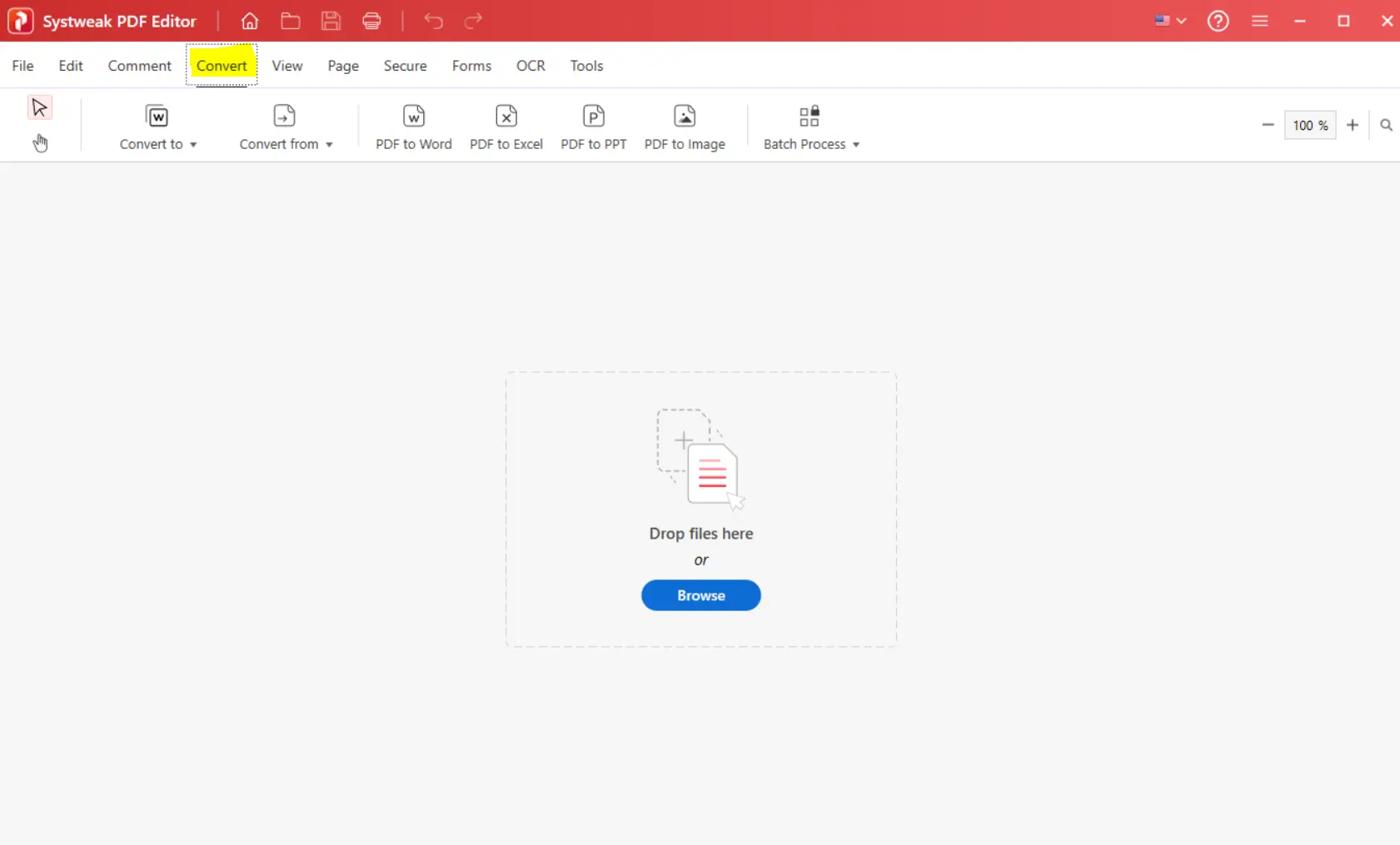
2. Open the app and click on the Convert tab in the toolbar.
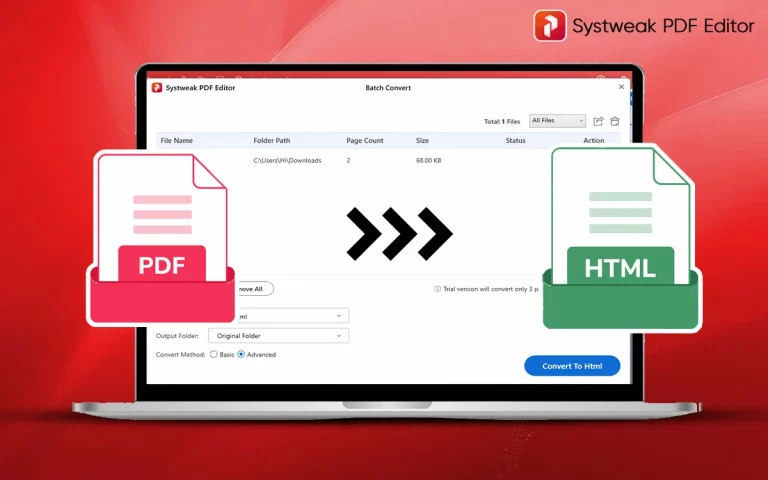
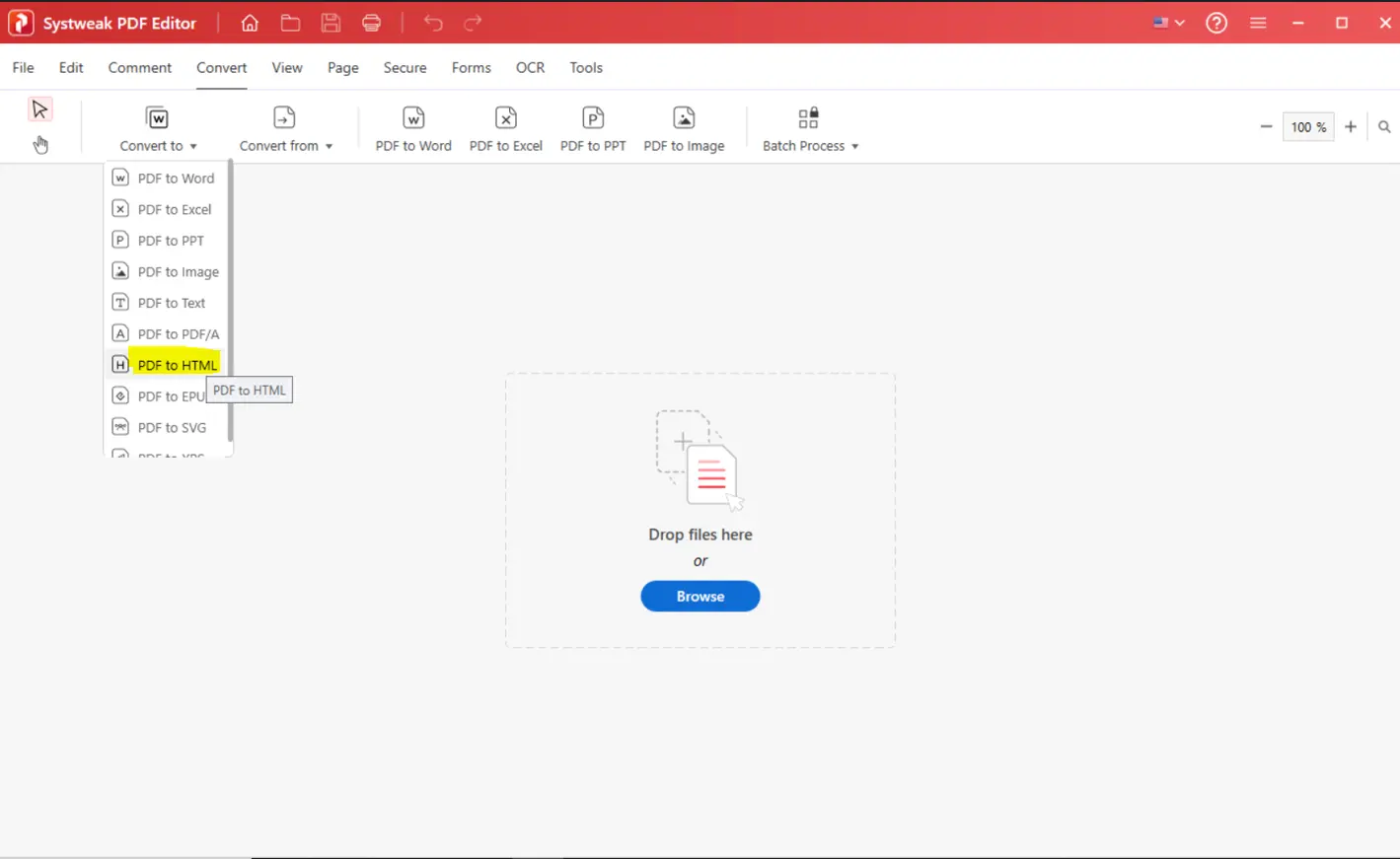
3. Next, click on the Convert To button and select the PDF to HTML option from the drop-down menu.
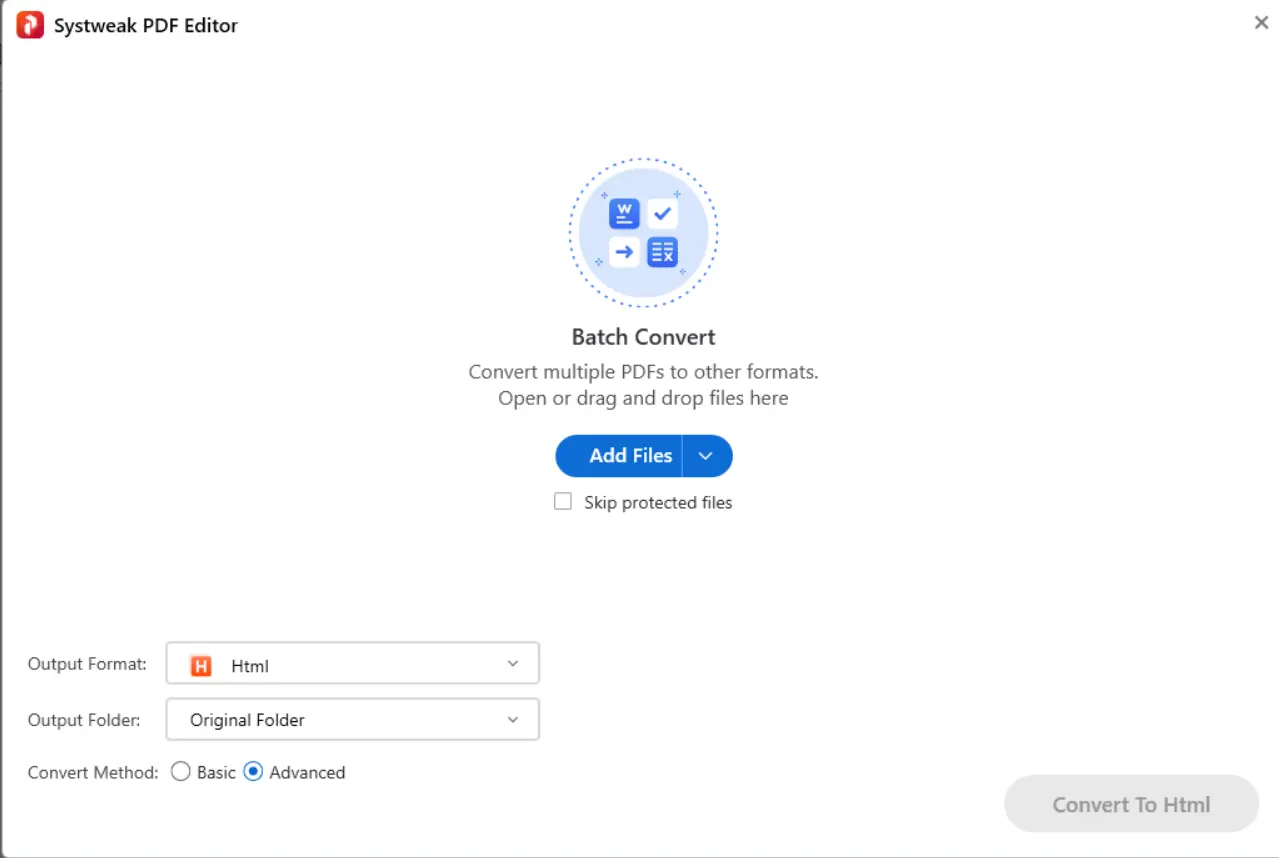
4. A new box will open, where you have to click on the Add Files button. You will get two options –
- Add Files – This allows you to add one or more files from your PC.
- Add Folder – This allows you to add a folder that contains multiple PDF files that you wish to convert to HTML.
5. After you have selected the files, you will get some information about the files you have added.
- File Name – The name of the file will be displayed.
- Folder Path – The path where the file is stored is displayed.
- Page Count – The number of pages within the PDF file.
- Size – The size of the file in KBs and MBs
- Status – This will display if the conversion process has been completed or is in process.
- Action – Click on the X mark next to each file to remove it from the PDF to HTML conversion process.
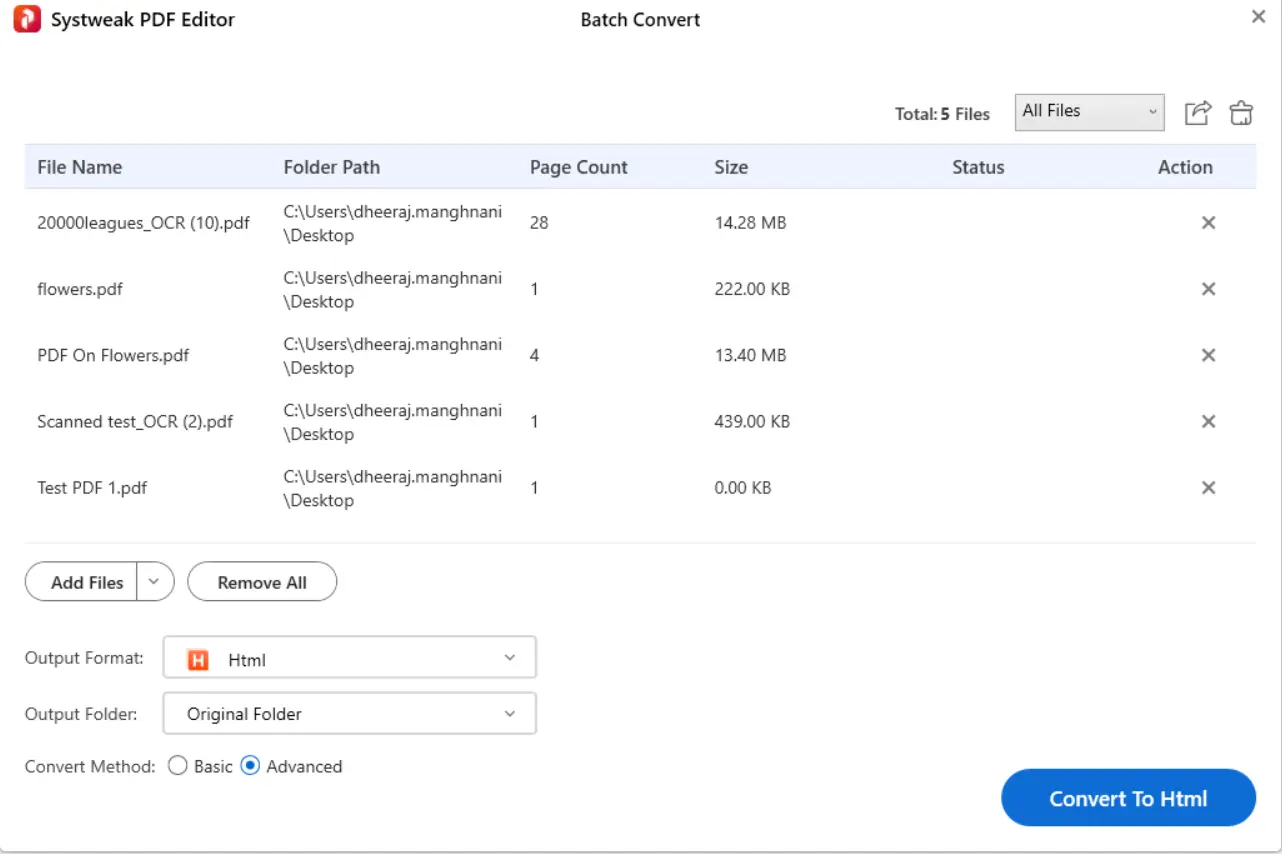
6. Then choose the final output folder in the bottom left corner.
7. Finally, click on the Convert To HTML button in the bottom right corner, and the conversion process will start.
8. After the process completes, you can navigate to the final output folder and check your new HTML files.
This software works offline, which means it ensures the privacy and security of the PDF.
The tool allows users to make changes to the PDF file and edit the content within.
Secure your PDF by applying a password, watermark, redacting content, and more.
The free version is limited (short trial period).
Method 2 – Use Microsoft Word
Microsoft Word can also help you to change PDF to HTML. This process is lengthy and requires you to have a paid version or a subscription of Microsoft Word. Here are the steps to convert a PDF to a web page.
1. Launch Microsoft Word on your PC.
2. Click on the Open button and select your PDF file.

3. The MS Word app will automatically perform OCR and convert this file into an editable document. This will help users to convert scanned PDF to HTML with OCR.
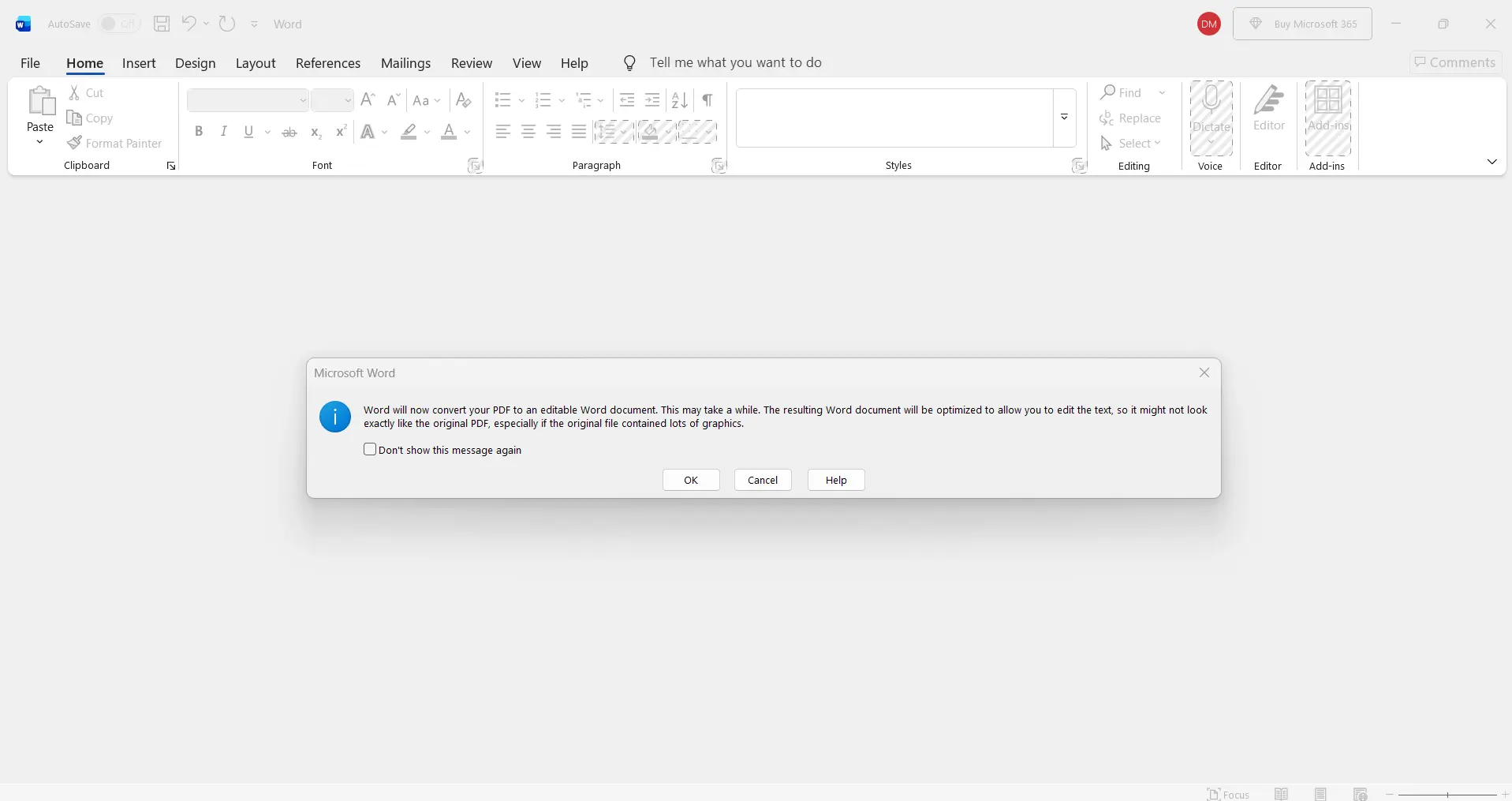
4. After you have made any required changes in the document, click on the File tab and choose Save As.
5. Specify the location, file name, and choose WebPage from the dropdown labelled as Save As Type.
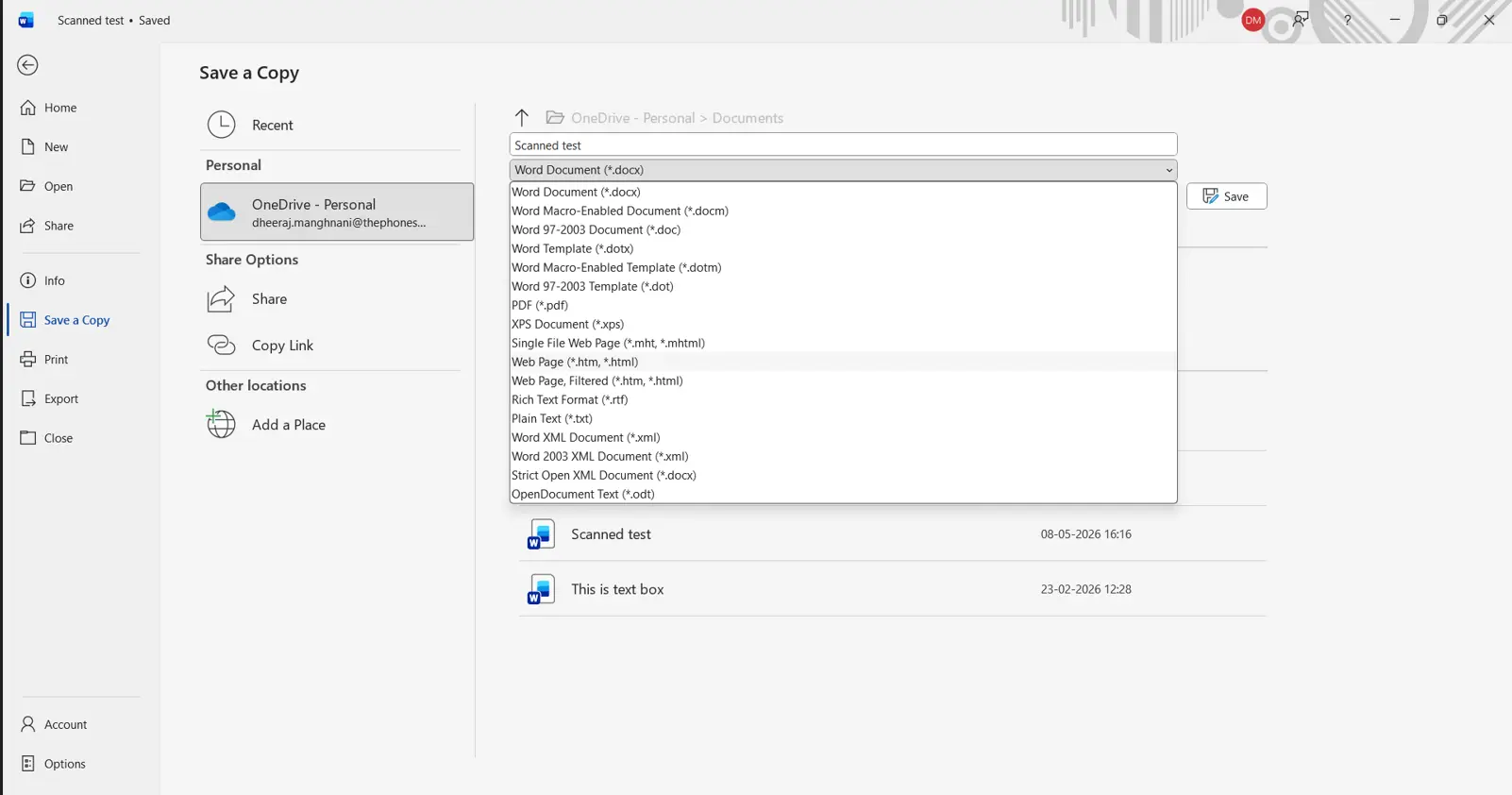
6. Click on the Save button, and your PDF that had been converted to document format will now be saved as an HTML file.
Easy to use and very familiar, as it is a Microsoft product.
Allows the user to edit the document while converting it.
Users can upload their converted files to a OneDrive account and access them anywhere on any device.
The format and layout are not always maintained.
MS Word is also a paid software that requires a license key or subscription.
Method 3 – Use Online Tools
Online PDF conversion tools are quick and easy to use, but it is difficult to determine the best free PDF to HTML converter online. Users have to upload their files to the web tool’s servers with no assurance of when the file will be deleted or what will happen to it. This method is not recommended for important files that contain sensitive data that you do not wish to share with the public. We have used several tools, but found PDF24 to be one of the best tools to convert PDF to HTML online.
1. Navigate to the PDF24 website to convert PDF to HTML online.
2. Click on the Choose Files button and select your PDF.
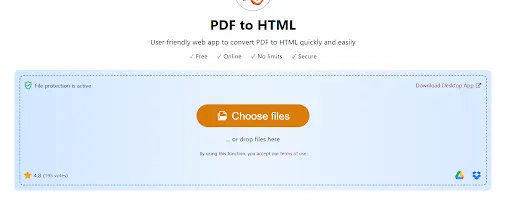
3. Click on the Convert button
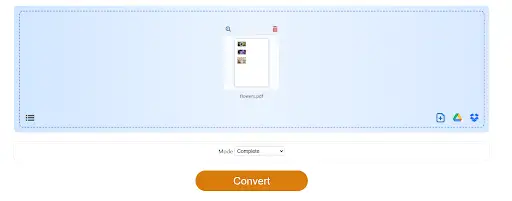
4. Wait for the process to complete.

5. Click on the Download Button, and your file will be downloaded in the default Downloads folder.
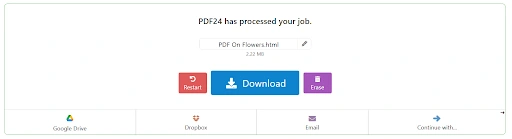
This is a web tool that works on a browser without installing it separately.
It is a simple, swift, and free tool.
Can be used on mobile phones, tablets, laptops, and desktops.
All files have to be uploaded to a foreign server.
Chances of malware being embedded in the final output file.
Requires a very good internet speed to upload and download the PDF files.
Tips for Better HTML Output
To get the best results from your conversion, follow these expert tips on how to convert a PDF to HTML.
- Use text-based PDFs instead of scanned documents.
- Use simple layouts.
- Optimize images separately
- Clean HTML code after conversion
- Apply CSS to improve design and layout
Who Should Use PDF to HTML Conversion?
This process is useful for:
- Bloggers who publish downloadable content online
- Businesses that require converting reports into web pages
- Developers who build document-based applications
- Students who edit and reuse study materials
Frequently Asked Questions
Conclusion
It is easy to convert a PDF file into HTML. You can use any of the methods explained above, like using a powerful offline PDF editor like Systweak PDF Editor, or any free online tool or Microsoft Word app. However, using the online tool poses a risk to the security and privacy of your document, and converting PDF to Word Doc and then to HTML results in loss of formatting due to multiple conversions. We suggest Systweak PDF Editor as the best option to convert a PDF to HTML code for a website and other purposes.