


We’ve all been there—receiving that crucial PDF that needs your signature under time pressure. It could be a job offer, rental contract, or freelance contract—there’s always some urgency, especially if you don’t have a printer or scanner handy.
The icing on the cake? If you have an Android phone, you can do it all online—no paper, no scanner, no fuss. With apps like Systweak PDF Editor & Scanner by Systweak Software, signing a PDF is as simple as tapping.
Here, we will know how to sign any PDF easily and securely on your Android device with Systweak PDF Editor & Scanner —a perfect choice for those who want to keep things simple, paperless, and on the move.
Why Digitally Sign a PDF?
PDF electronic signatures are no longer an expensive luxury but a convenient way of doing so for everyday life. And here’s why it is:
- Saves Time and Effort: No printing of the document, followed by manual signing, then scanning. Saves time and effort as returns are unnecessary.
- Always Available: Sign documents at any time, anywhere—you could be at home, on the way to work, or working from home remotely. No desktop or printer is required.
- Legally Binding: Digital signatures are generally legally binding and are acceptable in business and government communications and letters, and may be an appropriate substitute for physical hand signing.
- Paperless and Organized: It maintains everything in an electronic form and is organized. No more stacks of paper or lost signed forms to handle.
- Makes You Appear Professional: Timely, neat, and productive signatures show you’re business-savvy and dependable—especially in service-based or hectic careers.
Regardless of whether it’s signing papers, forms, or agreements, electronic signatures simply make sense—fast, simple, and convenient.
Meet Systweak PDF Editor & Scanner – Your Go-To PDF App for Android
If all you ask for is a no-frills yet fairly workable way to do PDF stuff on your Android phone or tablet, chances are Systweak PDF Editor & Scanner is your answer. It does things one would commonly use a PDF tool for-signing, editing, annotations, and organization, minus drowning you with features you do not need.
Key Features:
- Add and save digital signatures
- Fill and edit PDF forms
- Highlight, comment, or annotate
- Edit the content in the PDF
- Add Watermarks or Remove Watermarks from PDFs
- Password-protect files
- Work on files offline
With an easy-to-use interface, seamless performance, and all tools at your disposal, this application makes your Android phone a mobile PDF office.
How to Sign a PDF on Android with Systweak PDF Editor & Scanner
PDF signing on your Android need not be a chore. Systweak PDF Editor & Scanner has made it simple and swift, and no tech expertise is needed. Just follow these easy steps:
Step 1: Download and Install Systweak PDF Editor & Scanner
- Open the Google Play on your Android device.
- Enter “Systweak PDF Editor & Scanner” or click here to navigate to the app.
- First, tap Install, and then the app will download after waiting.
- Tap Open for app launch after installation.
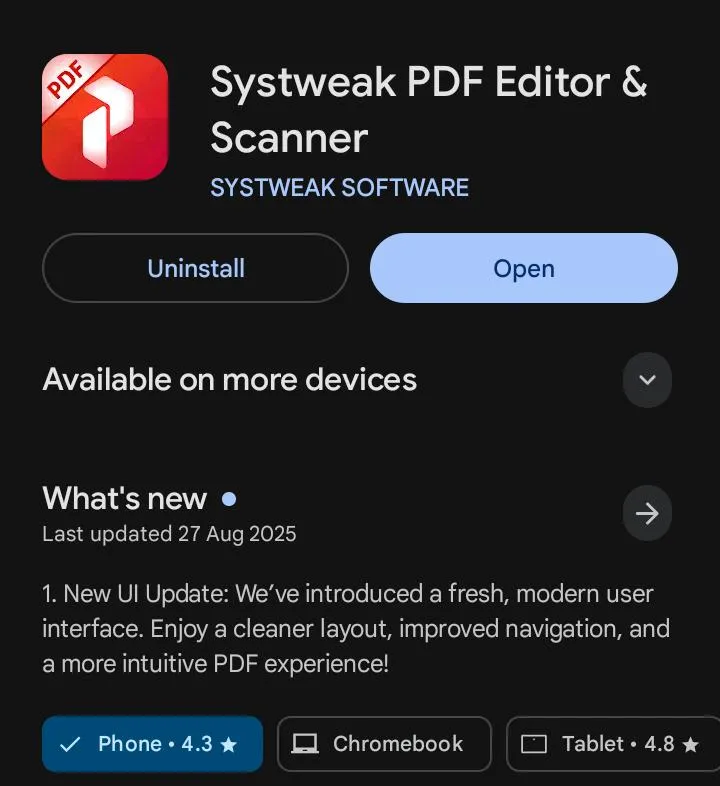

Tip: Grant the asked-for permissions when asked so that the app can have access to your storage or files.
Step 2: Open the PDF You Want to Sign
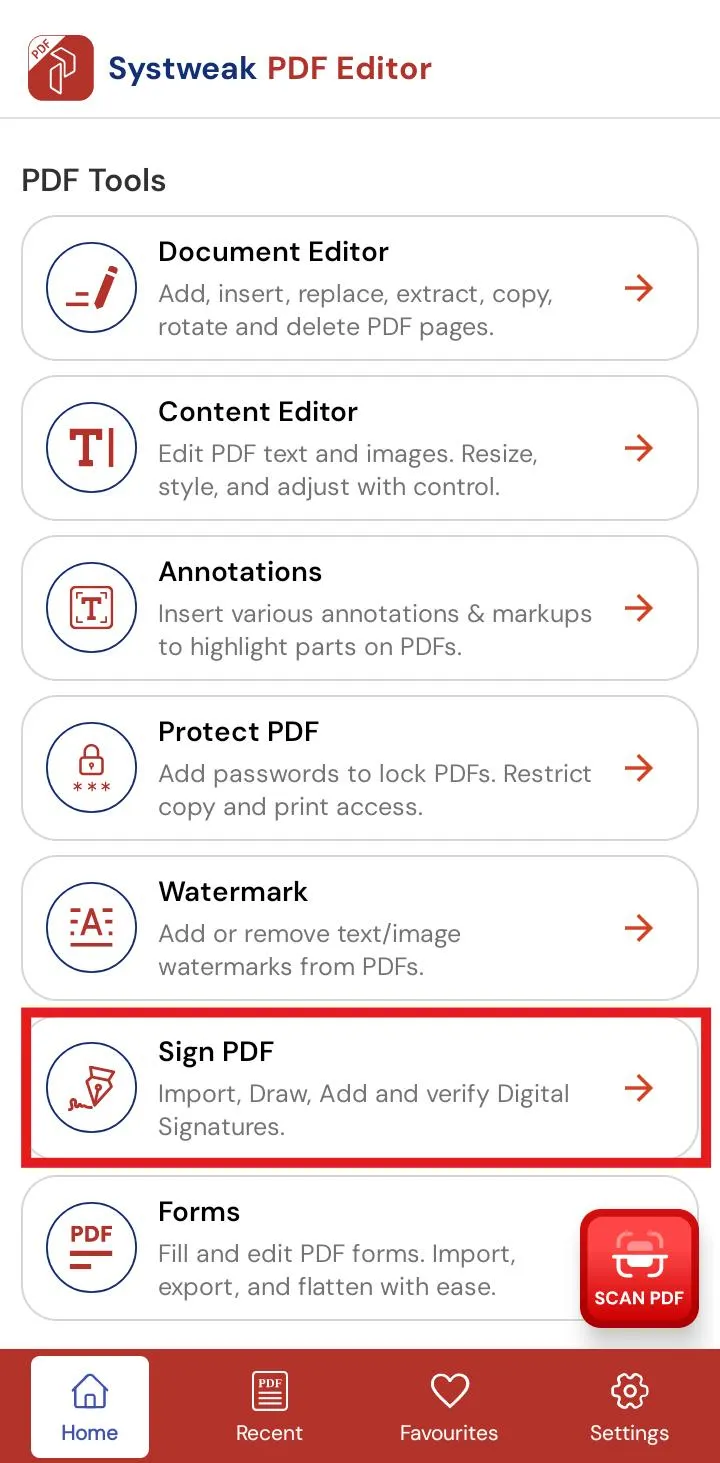
- Scroll down and select “Sign PDF”.
- Next, select “Open”.
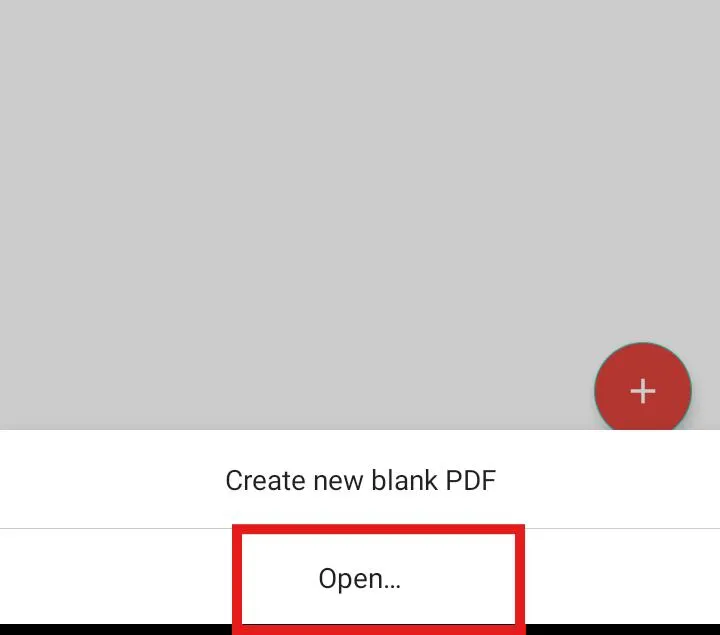
- Tap the PDF file to sign. It will be opened in the PDF Editor.
- You can even see the files recently opened from the home page if you previously opened the PDF.
Step 3: Find the Signature Tool
- After you have opened your document, click on the edit tools icon (check at the bottom of the page).
- In the two options below, select “Add a Signature field” (if you don’t have a signature field on your document).
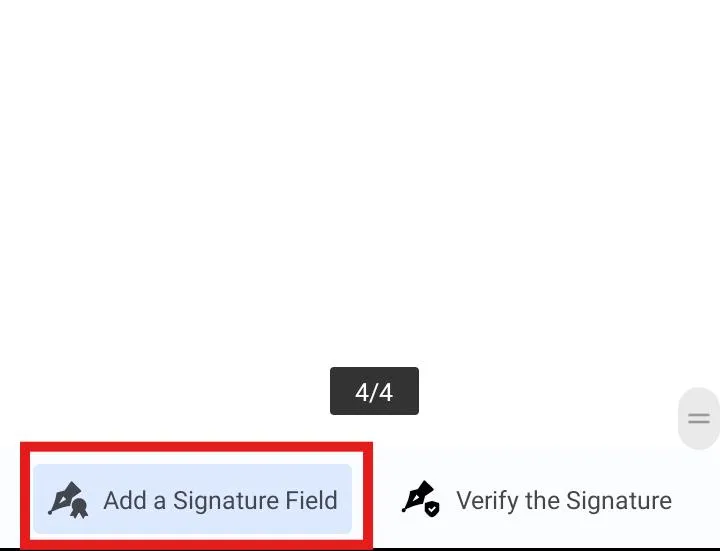
- Now, create a signature field to sign the document and save it.
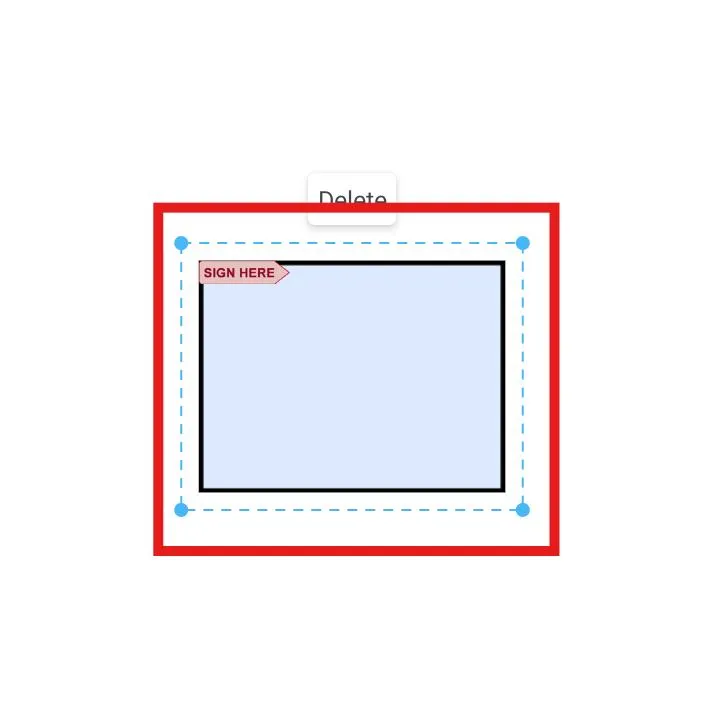
- Do not add a signature field when the document contains one already.
Step 4: Create your Digital Signature
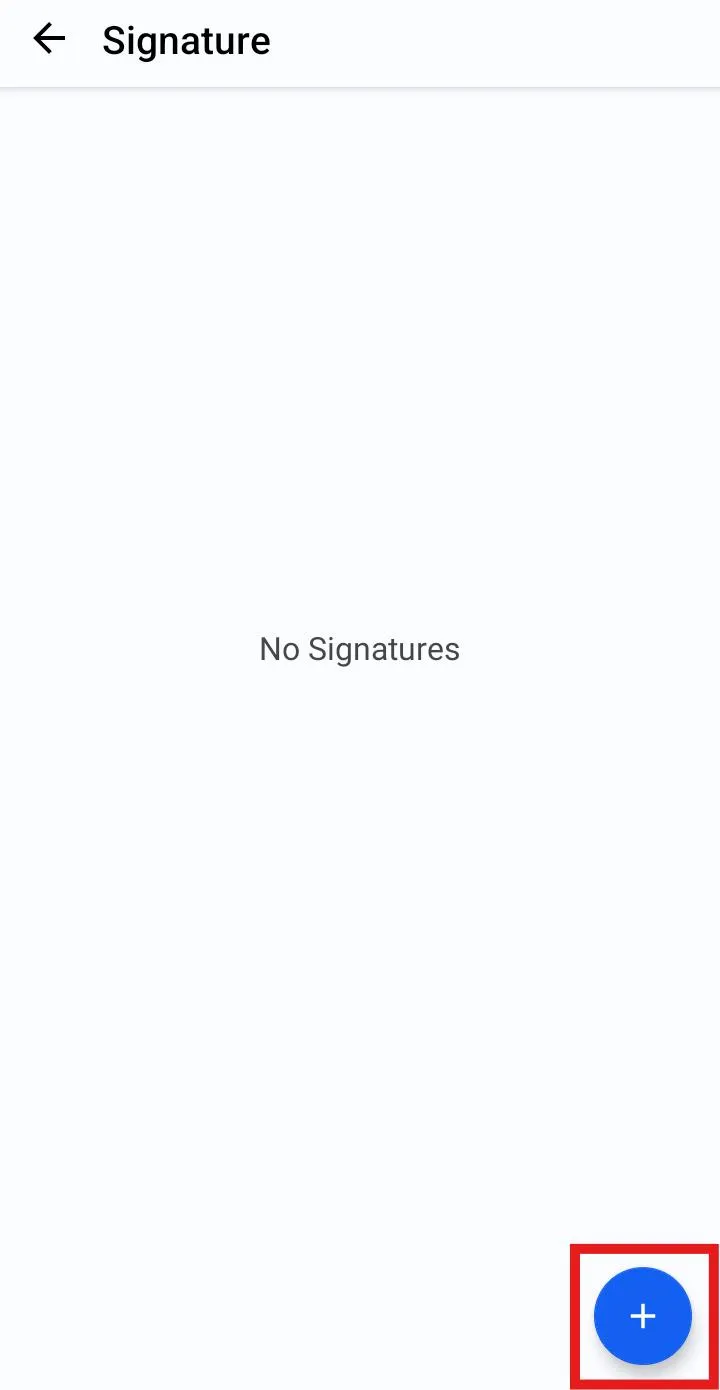
- Open the saved file in the application and click on the signature field.
- You can see a list of your signatures if you previously added them to the document, or if not, click on the “+” icon to add a new signature.
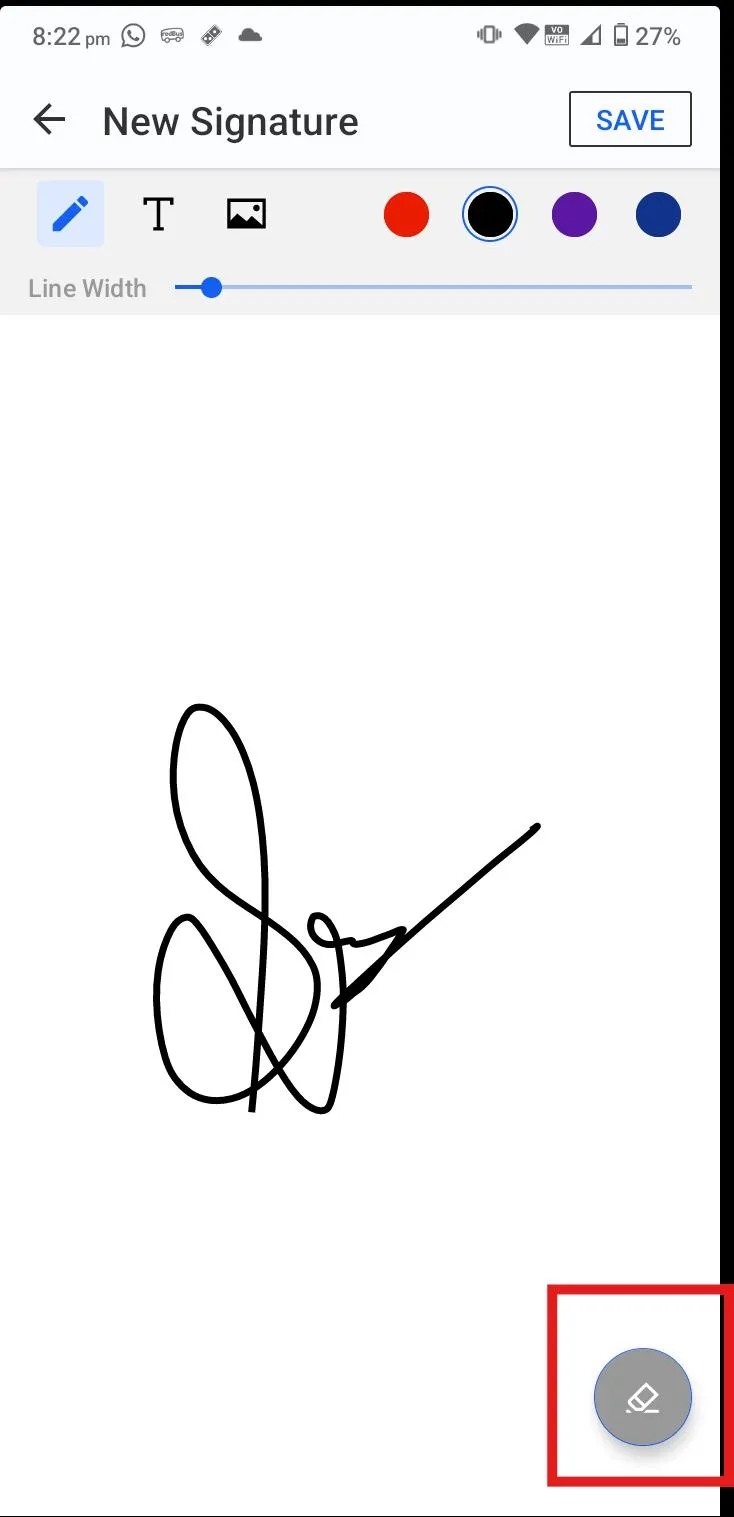
- A white signature pad will display. Sign by use of either a finger or a stylus/pen.
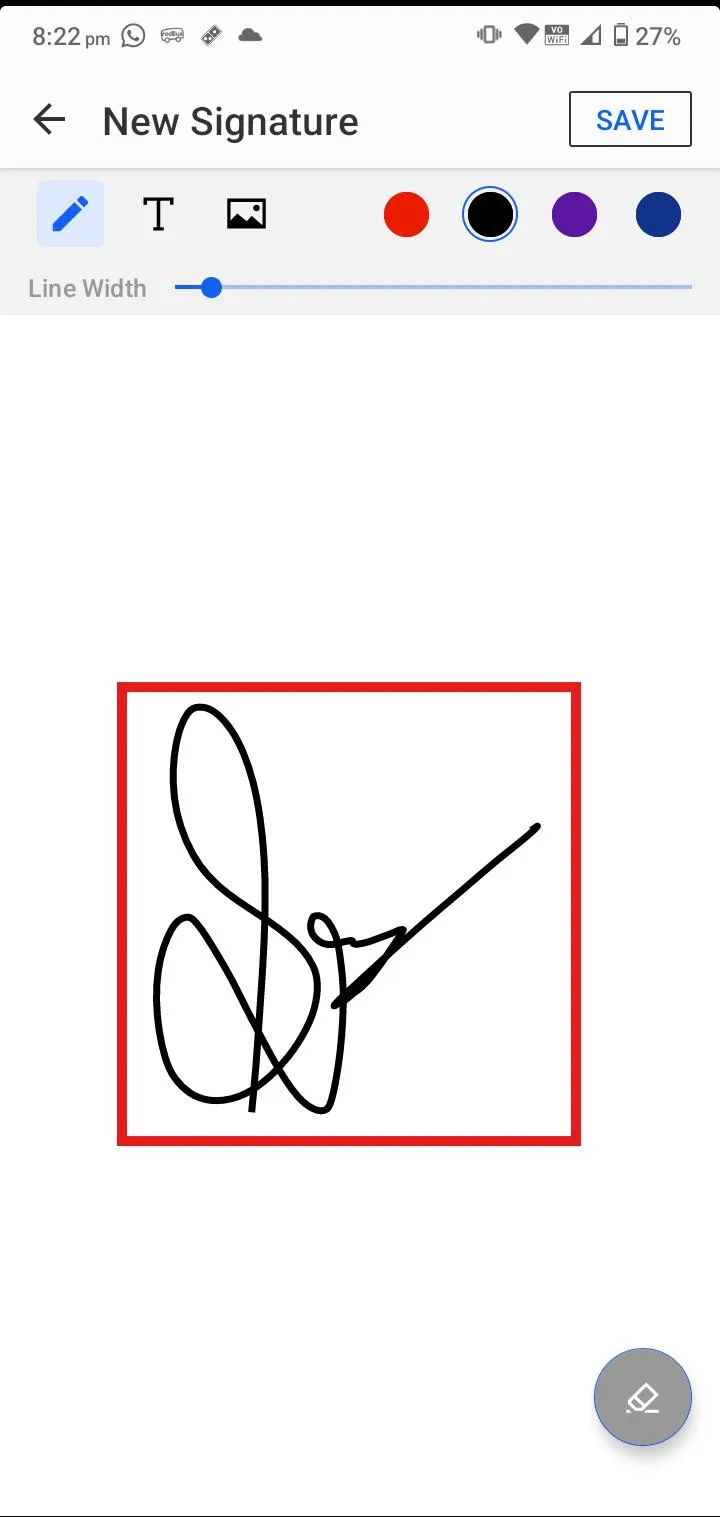
- You can click on the eraser icon to wipe it if you do make a mistake.
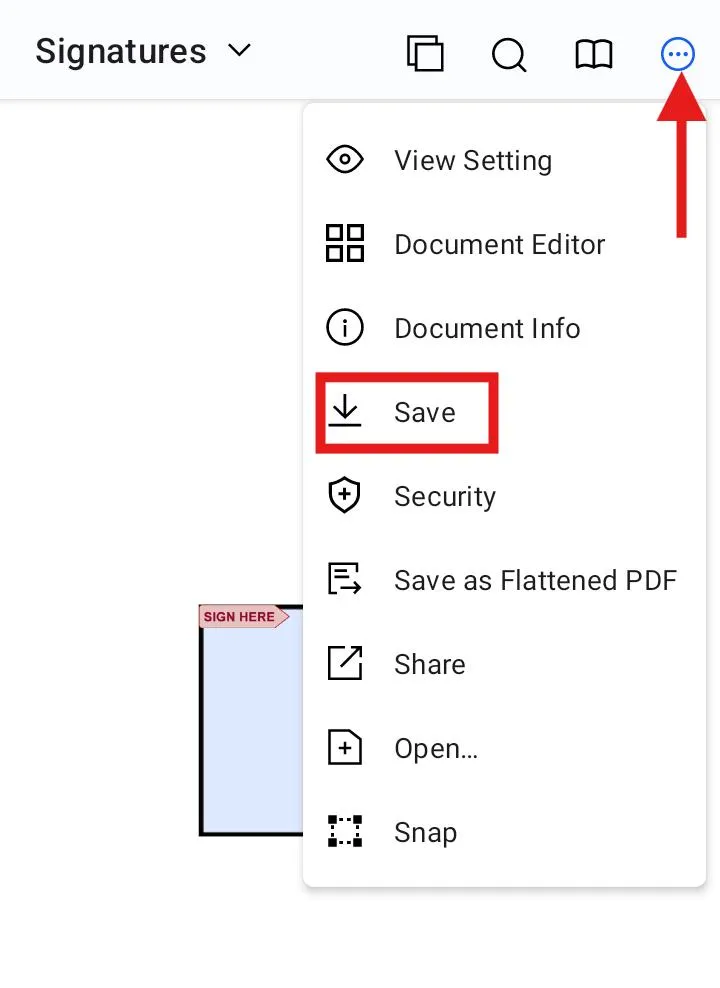
- Click on “save” by using those three dots that are at the top-right of the page. You should do this when you are finished.
Pro Tip: Sign as you usually do on paper. It’s slightly more accurate if you have a stylus.
Step 5: Sharing/Sending The Signed PDF
- After you save, you’ll be able to select a “Share” option. Tap it to send your file via: Email, WhatsApp, Google Drive.
- Or one of the other document-sharing apps you use
- Select the recipient, and you’re all set!
Your recipient will receive a clean, professional-looking PDF with your digital signature — no printers, no delays.
Additional Features You Can Use
Besides the signature, Systweak PDF Editor & Scanner offers a few additional features to assist you in dealing with PDFs:
- Add Text & Notes: Insert or modify text, and comment or annotate on the document itself.
- Highlight & Markup: Modify text instantly by highlighting important text or applying strikethrough/underline.
- Edit Content: You can readily alter the content inside the PDF file, be it text or an image.
- Password Protection: This enables the protection of passwords in order to prevent any unauthorized access.
- Instant Sharing: After you sign or edit a PDF with the application, you are able to share it via email or WhatsApp, and then you can use many other applications.
With the complete list of features, the app delivers a full end-to-end mobile PDF experience, enabling you to do not only your signing but also your full document processing when you are on the go.
Why Use Systweak PDF Editor & Scanner to Sign PDFs?
With all the PDF applications available, you may be wondering why Systweak PDF Editor & Scanner stands out. Here’s why it’s the best option when it comes to Android PDF signing:
- Easy to Use: The app is easy to use and has a nice, simple interface—great even if you’re not that tech-literate.
- Fast and Light: It’s quick on most Android devices without slowing them down.
- Offline Signing: Sign PDFs while staying offline after completing the installation of Systweak PDF Editor & Scanner.
- Reusable Signatures: Just create the signature once and later use it again on a different file. This saves time and effort by not creating signatures again and again.
- No Watermarks or Gimmicks: There are no Watermarks or Gimmicks by the application that will make your document look polished and more professional.
- One-Stop Tool: Beyond signing, editing, commenting, filling out forms, and password-protecting your PDFs, all in one application.
No matter if you need a secure, uncluttered process of signing documents remotely, Systweak PDF Editor & Scanner has the answers.
Best Practices for Signing PDFs Digitally
While signing a PDF is quick and simple using your cell phone, maintaining some best practices ensures your documents are professional, secure, and error-free:
- Create Password Protection for Sensitive Files
Add a password to the document containing personal, legal, or financial information. This adds a layer of privacy.
- Add a Date if Needed
For document or contract signatures required by time, place the date next to your signature. This makes it clear and official when the document is signed.
- Check First Before Signing
Double-check the information in the PDF before signing. Verify for any mistakes, blank fields, or outdated details so you don’t accidentally sign something incorrectly.
- Have a Clean and Consistent Signature
Sign your signature as cleanly as possible, especially if you are finger-signing. Use a stylus if it is available, for better precision. After saving, use the same signature to ensure consistency on all documents.
- Place the Signature in its Proper Position
Click on the proper spot where the signature should go—presumably at the end of the form or in a specific field. Resize or move it so that it appears natural and can be read.
- Save a Copy Before Sending
Upon signing, save a signed copy of the PDF. It is advisable to retain both signed and original (unsigned) copies for your reference.
- Name the File Clearly
Use descriptive and professional file names such as Signed_Contract_JohnDoe.pdf rather than jumbled characters. It is easy to identify and appears more professional when shared.
By following these best practices, you create your signed PDFs neat, professional, and secure to deal with—just like in a conventional office environment, but quicker and without paper.
Final Words
In a world where everything is technology-dependent, having the ability to sign PDFs on your Android device is not only convenient, it is essential. From office documents to school forms and personal agreements, Systweak PDF Editor & Scanner is one of the applications that make being quick, safe, and effortless a breeze.
Drawing and saving your signature, placing it just so, and signing the document all in a matter of minutes, this app provides a seamless workflow without sacrificing an ounce of professionalism.
If you haven’t already, don’t delay any longer. Get Systweak PDF Editor & Scanner and gain total mastery over your files-does fits into your pocket! Because go-where-you-please signing today shouldn’t be a hassle. With the right app, it’s as simple as a tap.




