




Portable Document Format (PDF) is widely used for document distribution as it preserves layout on any platform. But sometimes you would want to edit the same type of documents in an editable and scalable form, such as SVG (Scalable Vector Graphics). PDFs do not present graphics in the same vector format as SVGs, where any size can be printed (without the quality being compromised). The professional, code, and graphic creator who creates graphics, logos, diagrams, or illustrations, will want to convert their PDF to SVG.
We will go over the reasons to convert PDF files to SVG files for the immediate sake of giving you information, and also provide you with a step-by-step method to convert PDF to SVG in Windows. Whether it’s a standalone software such as Systweak PDF Editor, command-line processes, or fast online tools, you’ve got it all covered here.
Why You Need to Convert PDF to SVG Document?
Here are the most significant reasons why users prefer converting PDFs to SVG format:
- Scalability Without Quality Degradation
Whereas raster graphics (PNG, JPEG), SVGs are vector graphics. This means that you can zoom in or out without pixelation, hence perfect for printing, web graphics, and design.
- Editing Ease
After turning your PDF into an SVG, you don’t just see it—you can actually edit it. Each path, shape, and word can be changed in apps like CorelDRAW or Illustrator.
- Compatibility for Web Use
Most programs and websites prefer using SVGs because they are quicker to load, can be animated, and mesh nicely with CSS/HTML.
- Maintaining Transparency and Layers
SVG preserves transparency, colors, and usually layers (program-dependent), making it more of a design format than a flatted PDF.
If you’re asking yourself, “How to turn a PDF into a vector file?” or “What’s the best PDF to SVG converter?”—the following methods will guide you.
How to Convert PDF Files to SVG in Windows?
Let’s move to the step-by-step guide. You’ll find three proven methods to change a PDF file to an SVG:
Method 1: Using Systweak PDF Editor (Recommended)
Systweak PDF Editor is the best PDF to SVG converter for Windows because of its ease, speed, and high features. Along with helping you convert PDF into the vector file format, it even helps you edit, merge, split, and protect your PDF documents.
Let us learn how to use it:
Step 1: Download and Install Systweak PDF Editor
- Visit Systweak Software’s official website and download Systweak PDF Editor on your Windows PC.
Step 2: Open the PDF File
- Launch the program and hit ‘Open PDF’ to choose the PDF you want to convert.
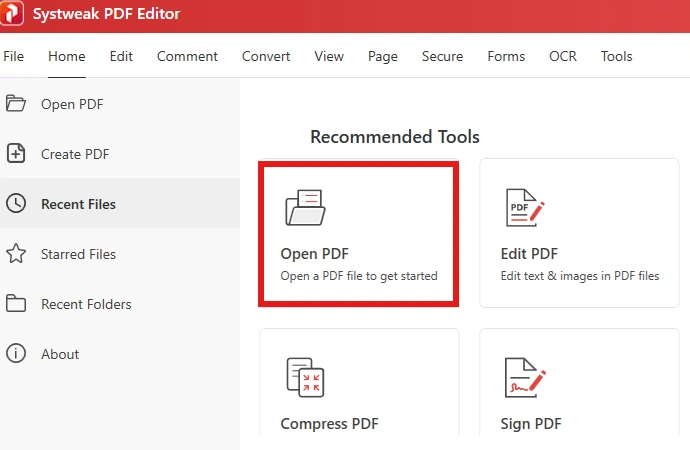
Step 3: Export the PDF
- Browse and open the PDF that you want to convert into an SVG File.
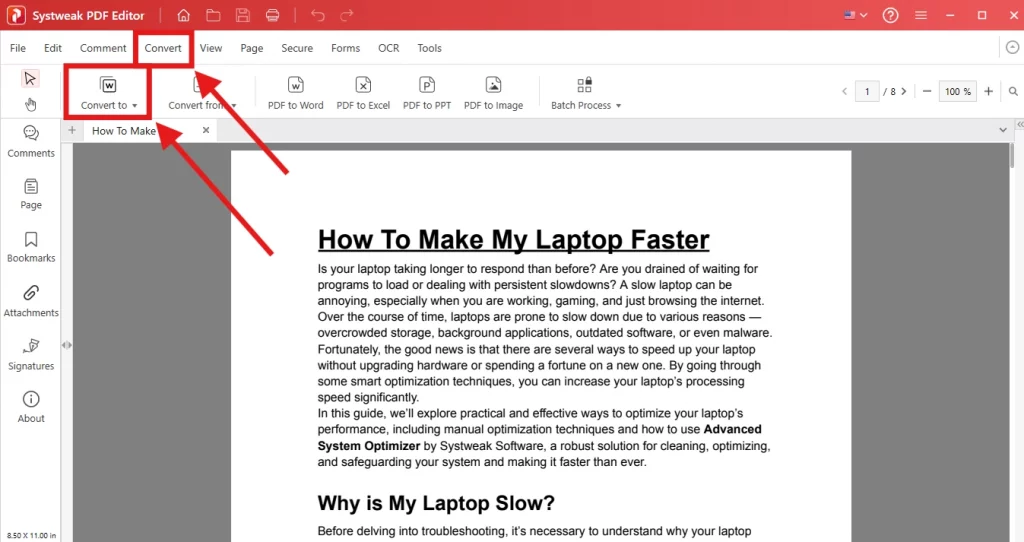
Step 4: Choose SVG Format
- Select the Convert tab and click on Convert to.
- Scroll down and select PDF to SVG.
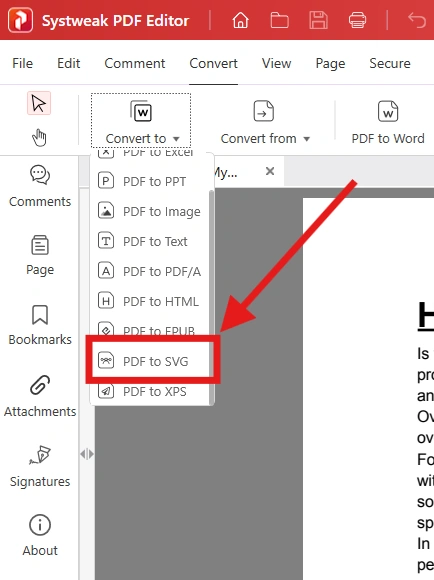
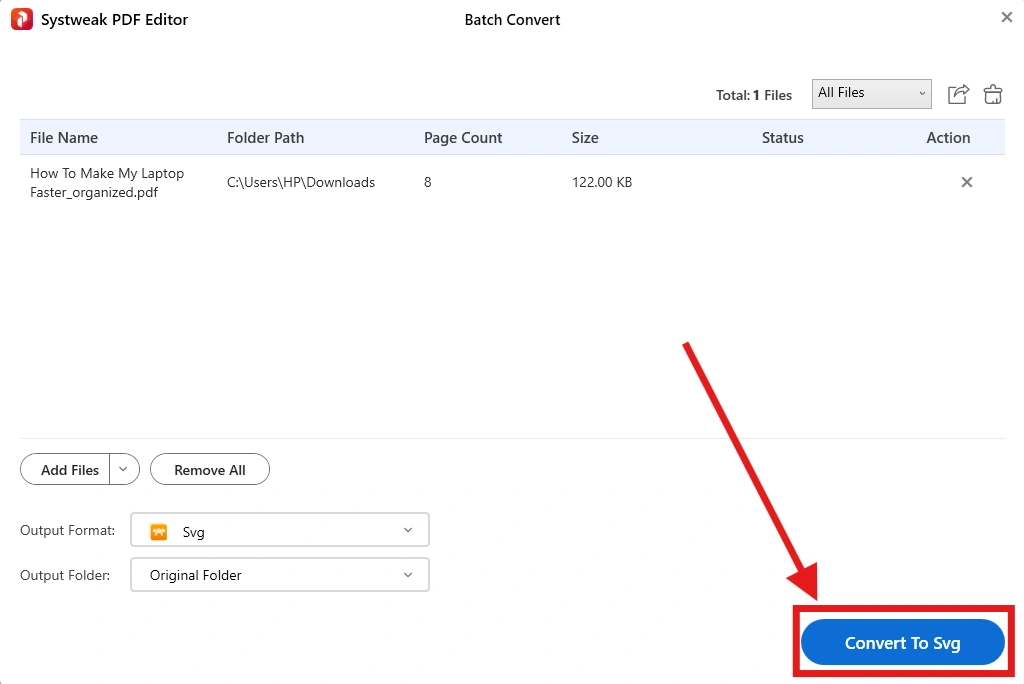
Step 5: Convert to SVG
Finally, click on Convert to SVG, and your file will be converted into a SVG document.
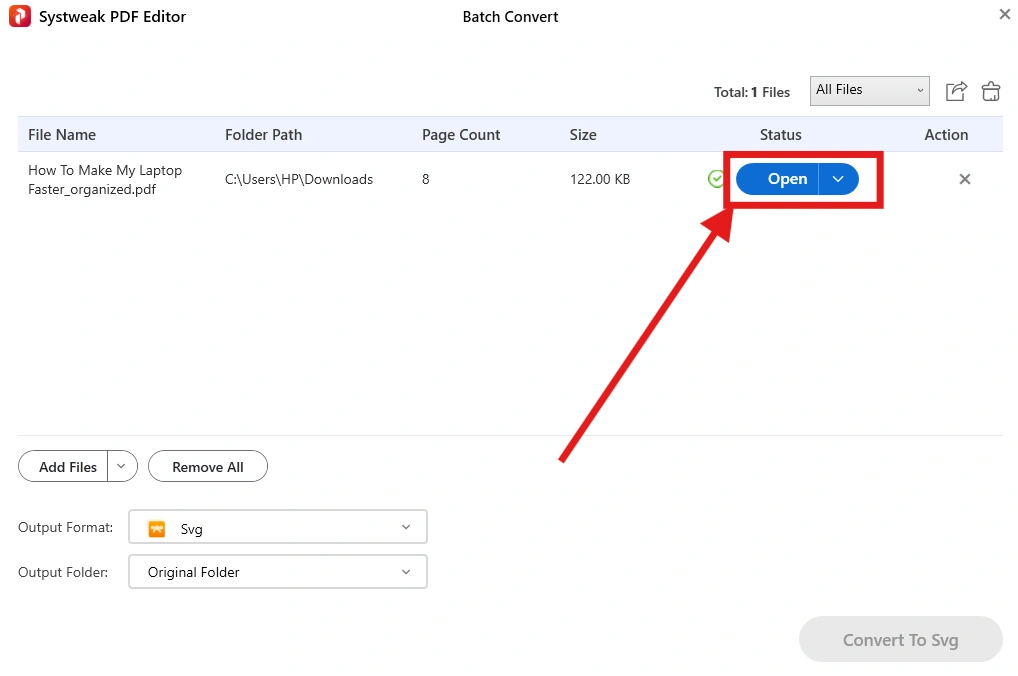
Step 6: Open your SVG File
- Click on Open and open the SVG file in the folder.
Why Systweak PDF Editor?
- Friendly interface
- Smooth conversion with text, images, and paths preserved
- Support to operate on multi-page PDFs
- Additional features for editing, annotation, and document protection
If you want a simple method of converting PDF files into SVG files, then use this tool.
Method 2: Using Command-Line Tools
For power users who are coding-friendly or like being in control, the command line is yet another way to go about PDF to SVG conversion. One popular tool for the purpose is Inkscape, which supports CLI (Command Line Interface).
Here’s how to do it:
Step 1: Install Inkscape
- Get Inkscape installed on your PC — it’s a free, open-source tool for editing vector graphics.
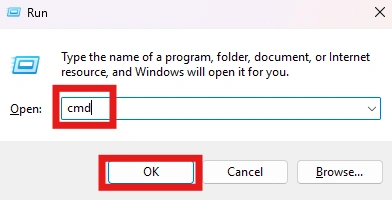
Step 2: Open Command Prompt (CMD)
- Press the key combination Win + R, type cmd, and press Enter.
Step 3: Run the Conversion Command
- Use the following syntax:
inkscape filename.pdf –export-plain-svg=output.svg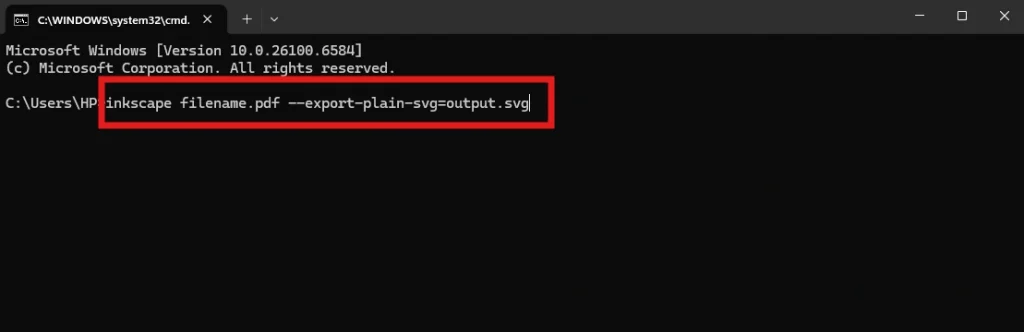
- Insert filename.pdf with your path to the PDF.
- Insert output.svg with your name for SVG
Step 4: Check the Output
- Once executed, the PDF will be converted into an SVG file and saved in the specified directory.
Advantages:
- Free and powerful
- Suitable for batch conversion with scripting
- Retains vector data accurately
Go for this method if you’re fine with using simple commands and like having conversions handled quickly.
Method 3: Using Online Tools (Quick & Accessible)
Don’t want to download programs? Several online tools let you turn PDF files into SVGs in just a few clicks.
How to Convert PDF to SVG Online:
Step 1: Go to a Conversion Website
- Next, go to a reputable source such as CloudConvert, Zamzar, or Convertio.
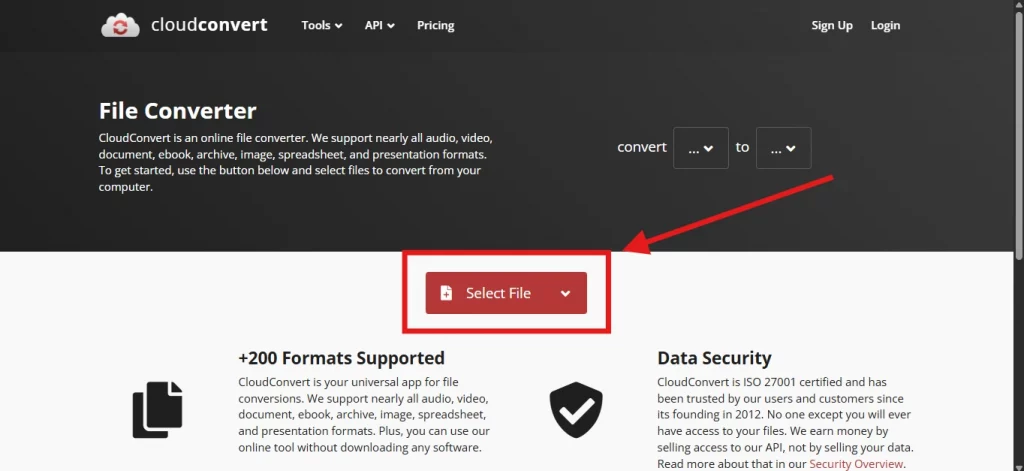
Step 2: Upload Your PDF
- Click on Upload File and choose your PDF.
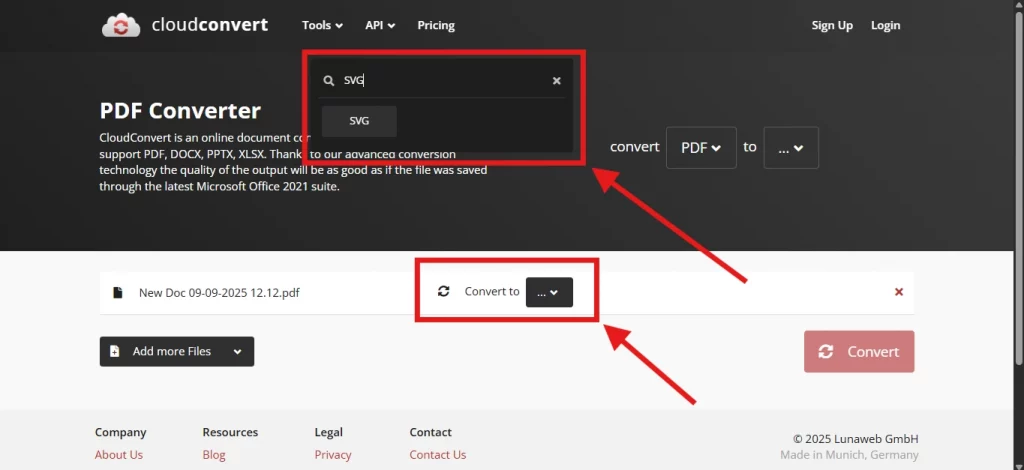
Step 3: Choose Output as SVG
- Click on Convert to and select output as SVG.
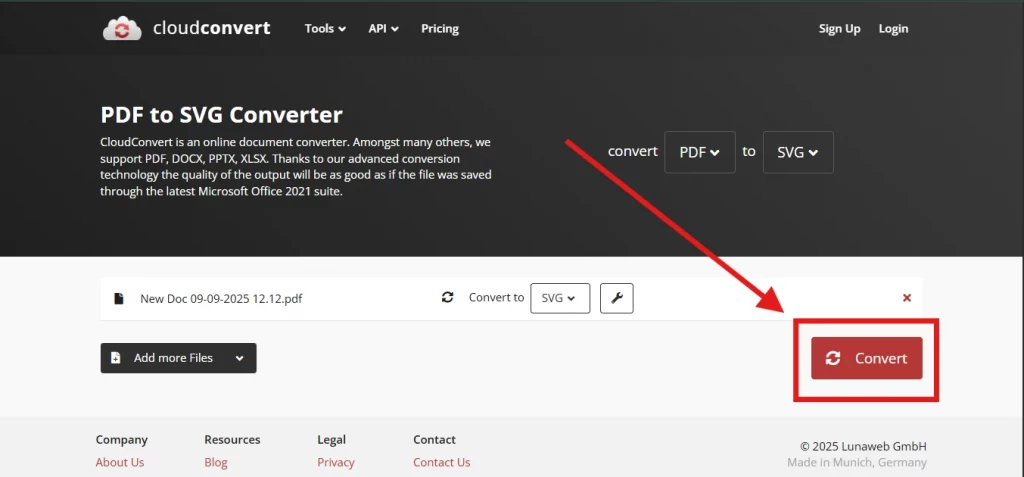
Step 4: Download and Convert
- Click Convert, wait, and download your file.
Notes:
- Some applications do impose a limitation on the size of the file.
- You will need access to the Internet.
- Therefore, uploading of sensitive files is not allowed.
Online tools are good; for larger or more sensitive reports, they are pretty bad. For accurate results, one should go for a Desktop application, such as Systweak PDF Editor.
Final Words
Conversion of PDF to SVG opens quite a few doors for designers, developers, and professionals who want to send art to print, web-proof graphics, or even edit diagrams; this is where SVG comes in.
- If you are looking for the best PDF to SVG converter, then your answer is Systweak PDF Editor.
- If you happen to be a technical wizard, then you can do a command-line conversion via Inkscape.
- Online converters are nice to have around for that one-off, random work.
In this how-to guide on converting PDFs to SVG, find the one that best fits your workflow and gets you up and running straight away!
Frequently Asked Questions




