



PDF is perhaps the most common document, presentation, report, and eBook sharing format. PDF performs well in preserving content quality regardless of platform, but images are difficult to retrieve from it. Whether you are looking to save an image, a chart, or an infographic, saving them without reducing their quality is exactly the problem.
Fortunately, there are decent methods to extract images from PDF files on Windows without sacrificing their quality. Throughout this guide, we will detail several techniques—covering simple, native tools all the way to enterprise-level software like Systweak PDF Editor—to extract images from PDFs, export them as JPG or PNG, and even batch export all images from PDF files.
Methods to Extract Images from PDF on Windows
There are different ways to pull images out of a PDF. Some are easy and meant for use once, but others are advanced and help you extract nice-quality images from PDFs easily and quickly. Let us walk through them one by one.
Method 1: Using Systweak PDF Editor
If you wish to save images from PDF documents without losing quality, the best way is to use Systweak PDF Editor. Unlike online tools or snipping, it provides you with a way to save images from a PDF in original resolution, be it JPG, PNG, or other formats.
Steps to Extract Images with Systweak PDF Editor:
- Download and install Systweak PDF Editor on your Windows PC.
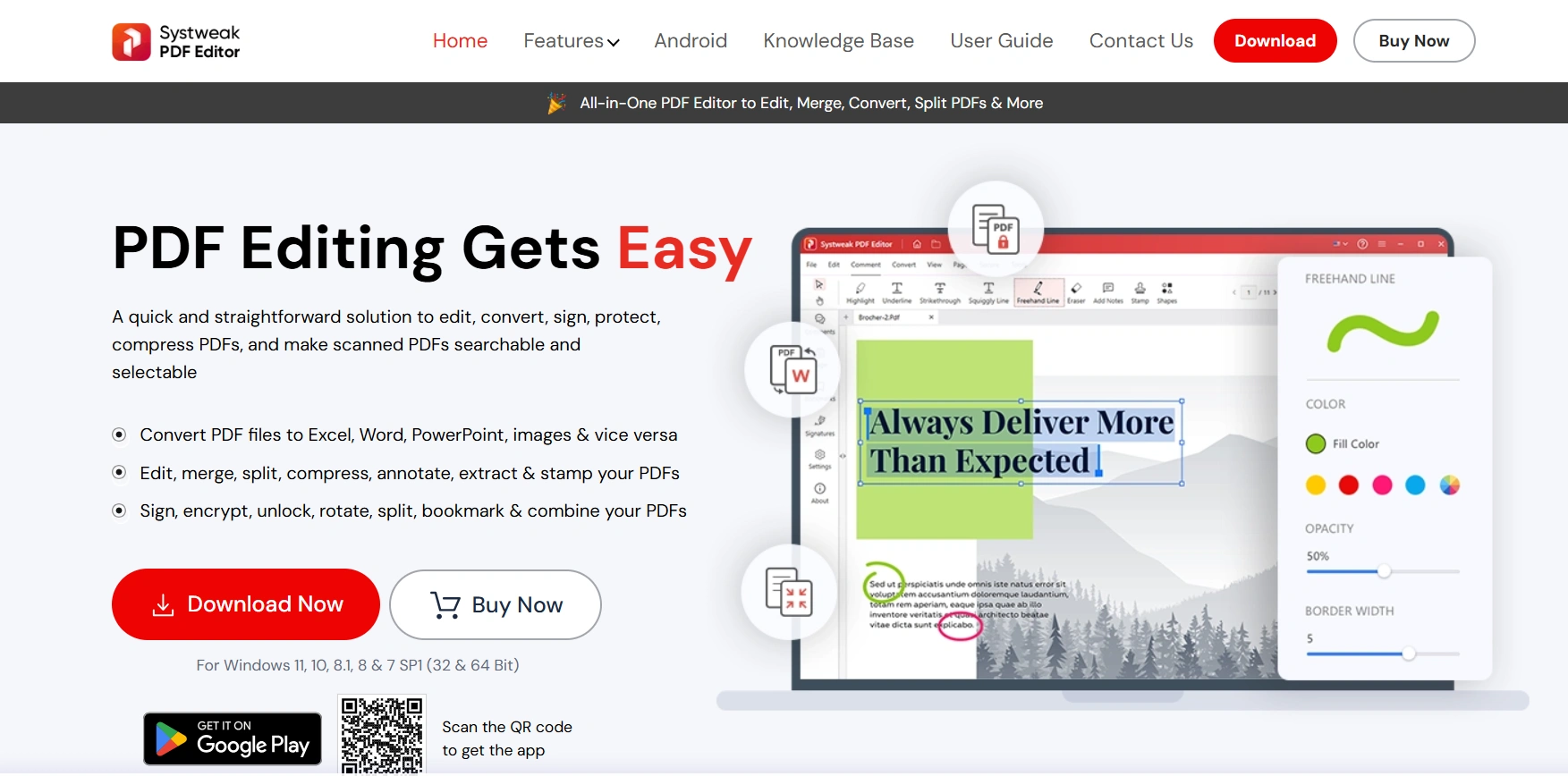
- Open the application. Click on “Open PDF” and select the desired Document.
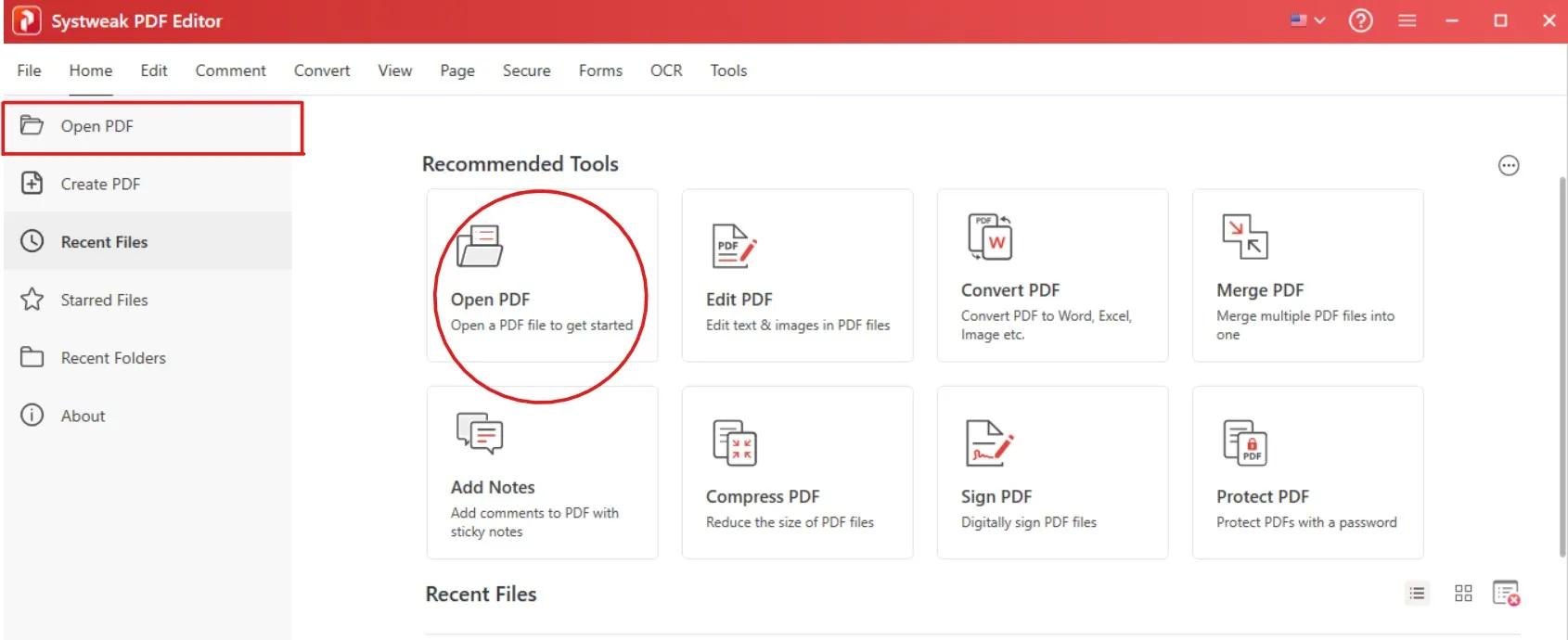
- Simply go to the Tools option and select More Options.
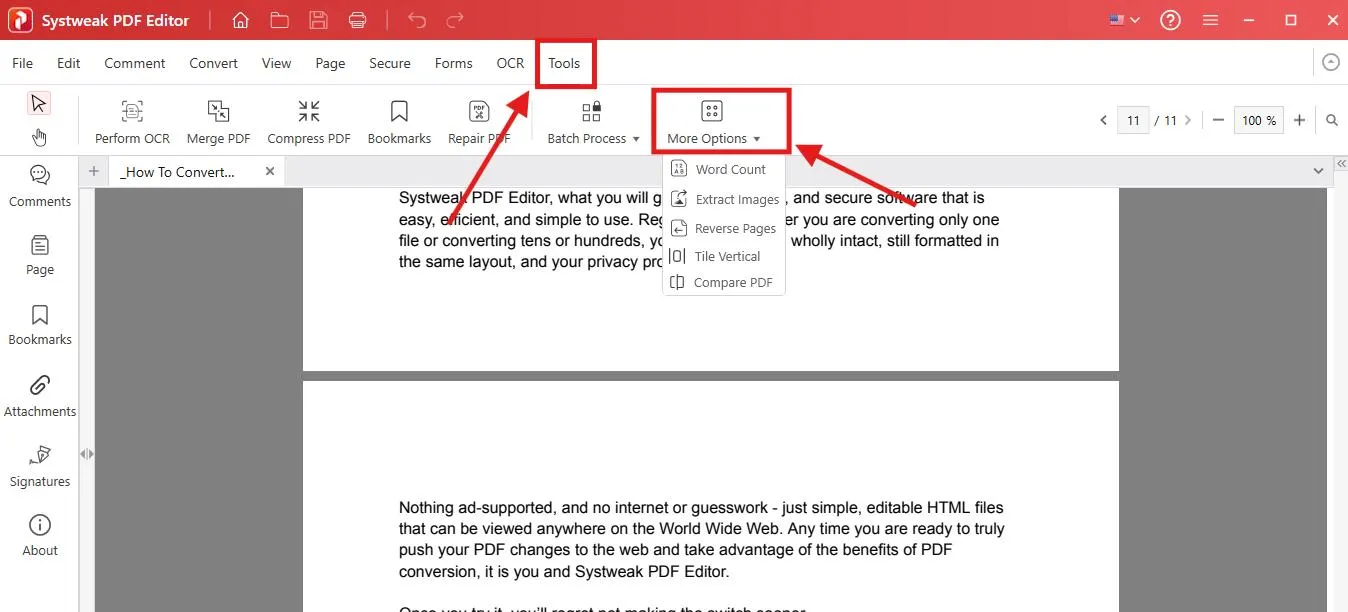
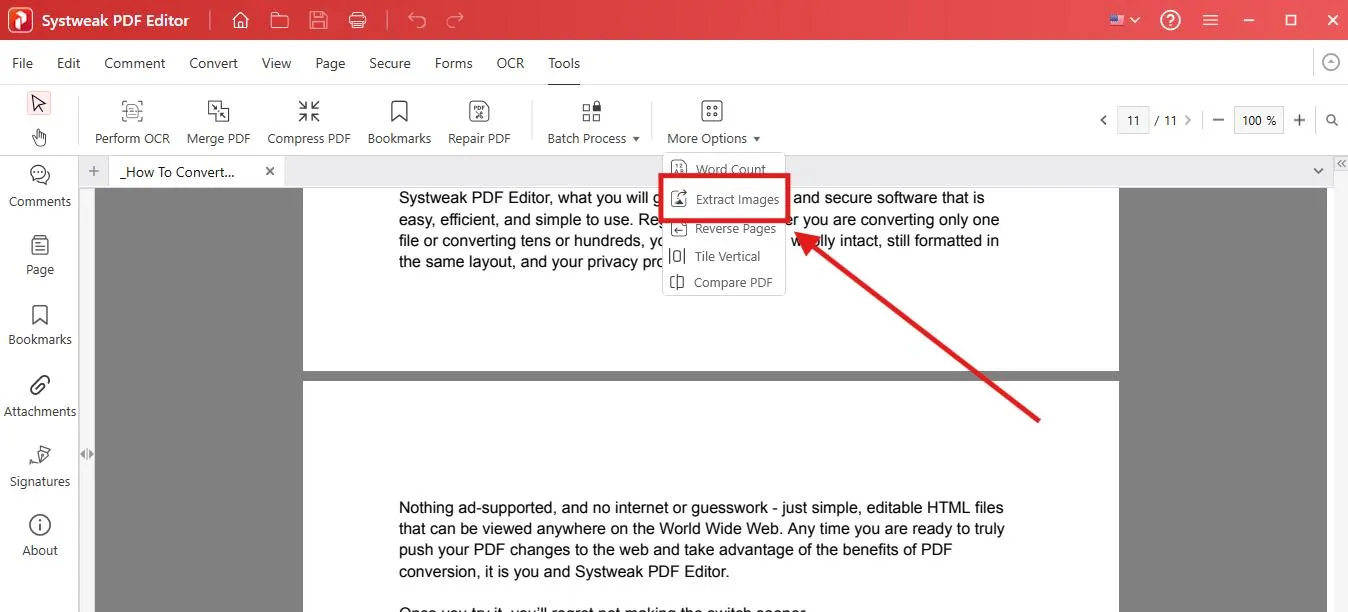
- Click on the option Extract Images.
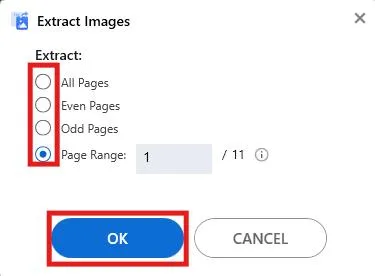
- Select the pages from which you want to extract images and click OK.
- Select the folder you want to save your extracted images in and save your images.
Why Choose Systweak PDF Editor?
- Supports mass image extraction from PDFs.
- Supports multiple formats for export, like JPG, PNG, and BMP.
- Ensures no image quality is lost when you capture a high-quality image (export) from your PDF.
- User Interface is friendly and beginner-friendly, and professional-friendly.
- Strong, stable, and offers additional functionality like edit, annotate, and convert PDFs.
If your goal is to extract images from a PDF file for presentations, reports, or reuse, Systweak PDF Editor is the most efficient choice.
Method 2: Extract Images from PDF With Snipping Tool
There is another way of capturing an image from a PDF is by using the Windows Snipping Tool!
How to Use the Snipping Tool:
Step 1: Open your PDF using any PDF reader program (Ex, Microsoft Edge, Adobe Reader).
Step 2: Browse the PDF and stop at the photo you want to take out.
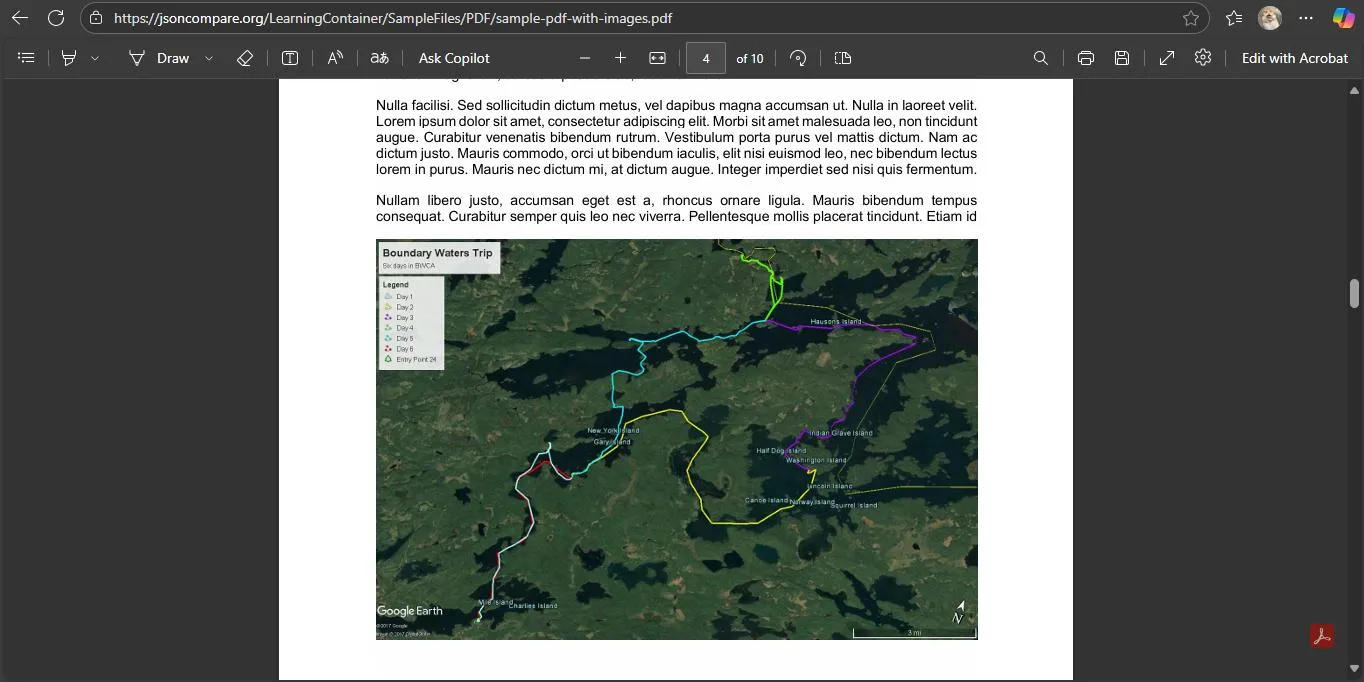
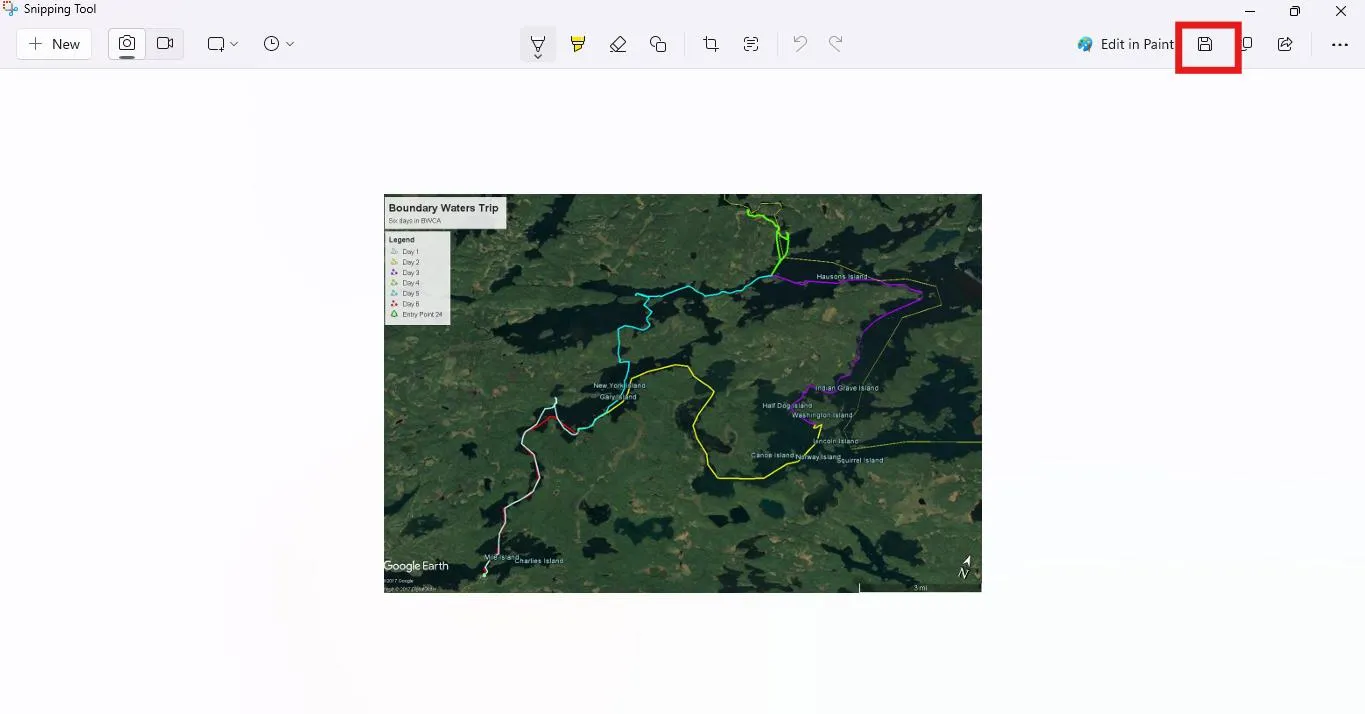
Step 3: Hit the keys Windows + Shift + S together, and the snipping screen will appear.
Step 4: Select the rectangle shape and drag the (+) cursor over the image.
Step 5: Click on the Save icon to save the image in a selected folder. You can also tap on “prt sc” to extract more images.
Advantages:
- Free and easy.
- Doesn’t require any additional software.
Disadvantages:
- Works only for capturing one image from a PDF.
- The quality will be based on the screen resolution, and therefore, you probably won’t obtain a high-quality export of the photo.
It is preferable for general purposes when you simply want to save one image from a PDF.
Method 3: Online PDF Extractor Tool
For those who do not wish to install other software, online PDF extractor software Smallpdf or iLovePDF, etc., can assist. These websites enable you to upload a PDF and then extract images from a PDF file for free.
Steps for Using an Online Tool:
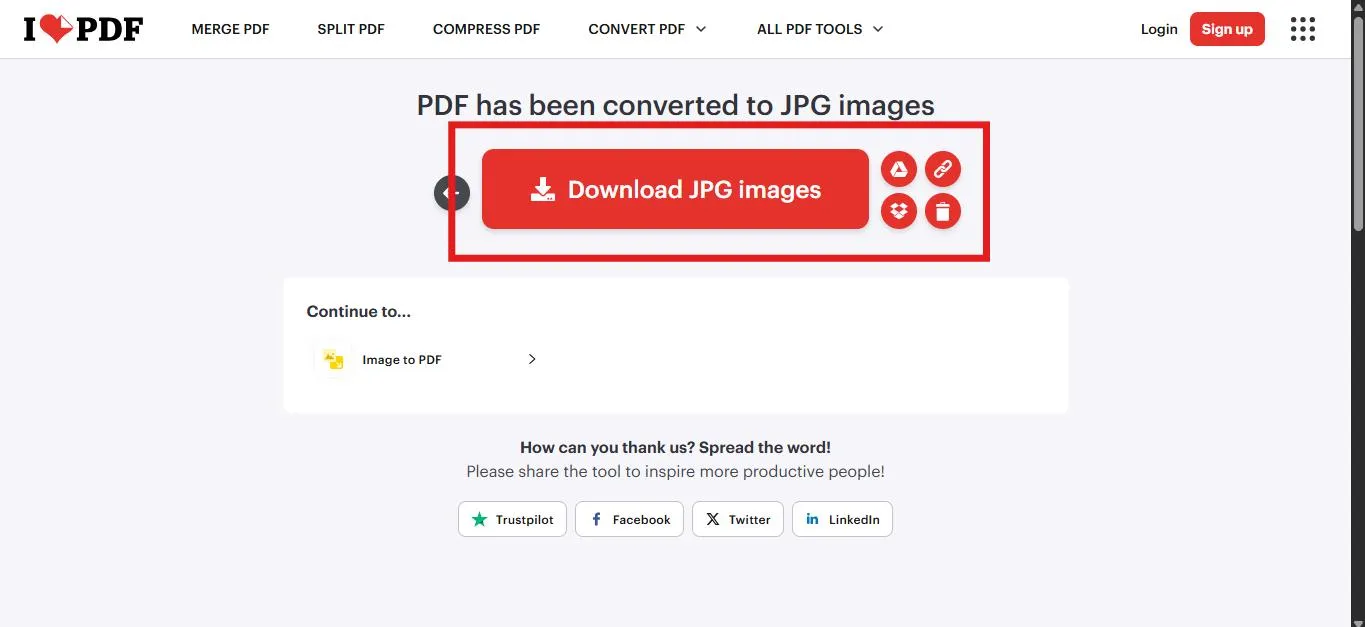
- Go to a reputable PDF image extraction site like iLovePDF.
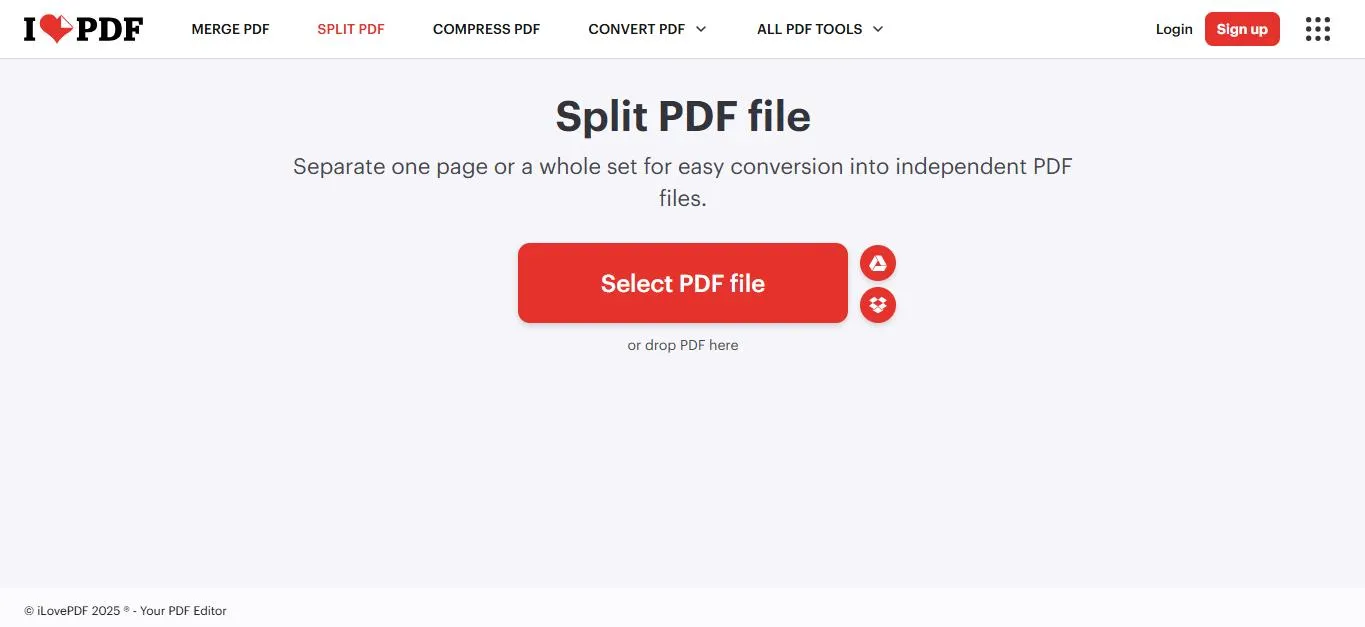
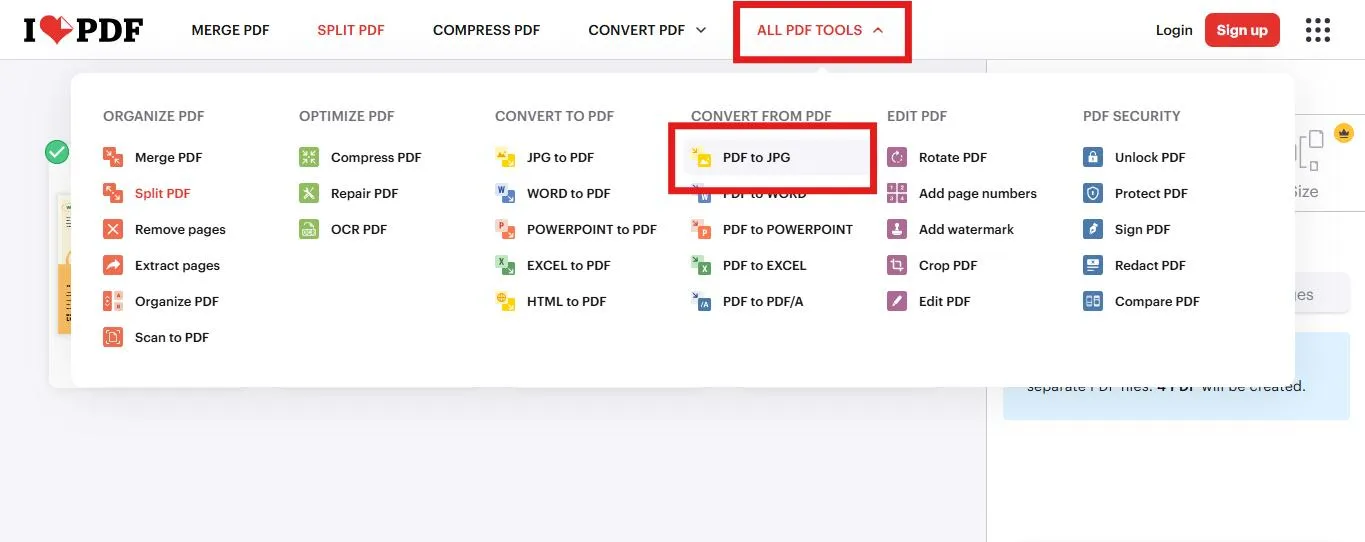
- Click on All PDF Tools and select PDF to JPG. Now, upload your PDF document by clicking on Select PDF file.
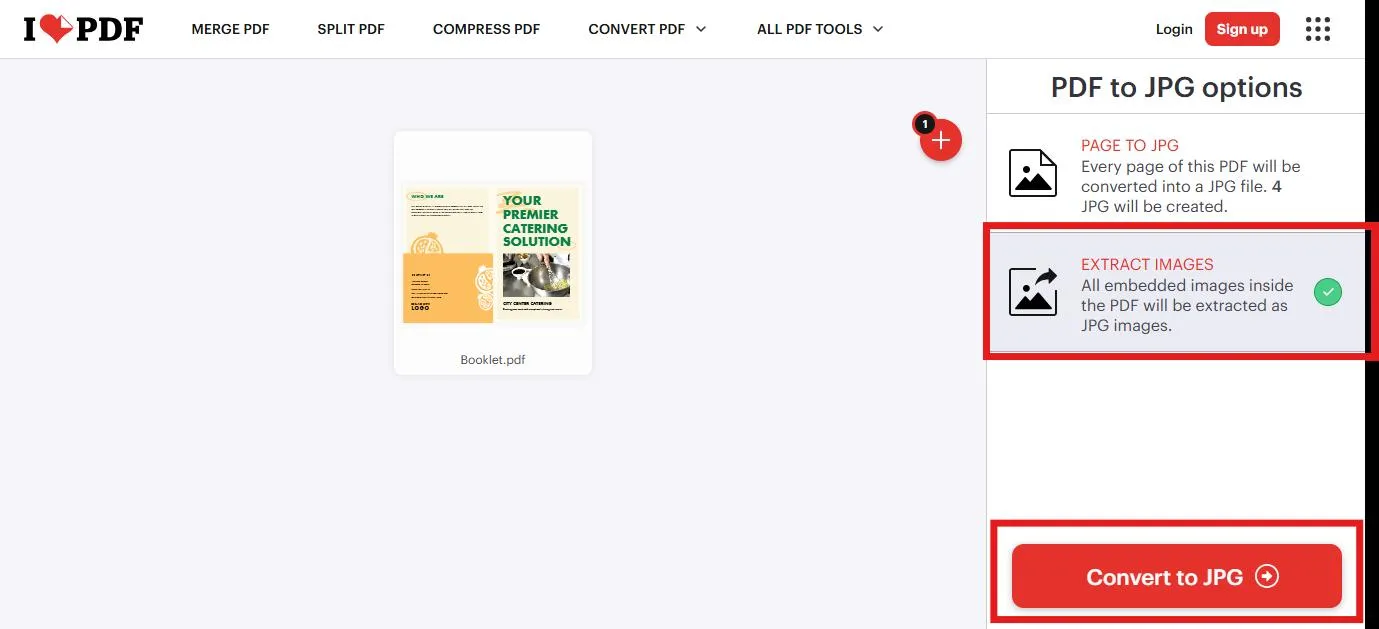
- Select the option Extract Images and click on Convert to JPG.
- Download the extracted images, typically in a JPG format.
Advantages:
- Free and handy.
- No need to install.
Disadvantages:
- File size restrictions.
- Internet needed.
- Needs unnecessary efforts.
- Privacy issues if your PDF contains sensitive information.
- Some products reduce image file sizes, which sacrifices quality.
This method is good if you need a single image out of the PDF instantly. But lack if you need to extract bulk images or extract images from a confidential document.
Conclusion
Extracting images from a PDF does not have to be complicated. You can choose based on needs:
- Snipping Tool – Easy but quick, great for single images.
- Systweak PDF Editor – Pro is a high-quality image extraction, supports bulk processing and is great for everyday use.
- Online Extractor Tools – Easy to access and free, but not the safest for sensitive or large files.
If you want the best result with no loss in quality, Systweak PDF Editor is the best option for extracting images from PDF files in Windows. It not only helps you export images from PDF in JPG and PNG, but it also retains the original resolution, and it is the best for professional use.




