


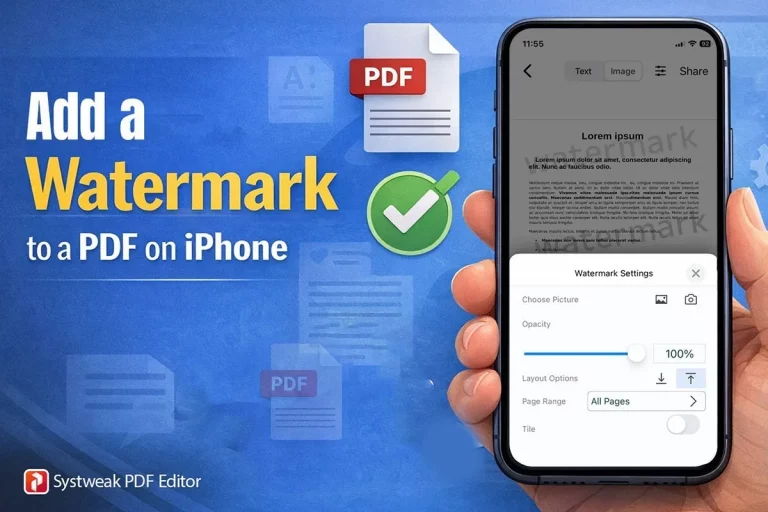

Like most people, do you also think that watermarks on a PDF can only be added using a desktop tool?
If so, you’ll be surprised to know that you can actually add text, watermarks, logos, or other images to a PDF on an iPhone using a free mobile app like Systweak PDF Editor.
Many users are unaware of this because it is a new app, and unlike most PDF editing apps available for iPhone, some don’t include watermark tools at all, while others offer them only in paid plans or on desktop versions. This one has it all.
If you’ve faced the same issue and couldn’t find an option to add a text or image watermark from your iPhone, you’re not alone. Across forums, users often ask:
“How do I add a watermark to a PDF on iPhone?”
Watermarking PDFs isn’t the real challenge; finding the right app is.
In this guide, we’ll share step-by-step instructions on:
- How to add a watermark on iPhone
- Technical caveats (layer type, image vs text, scanned content)
- Best practices & examples
- FAQs
Let’s dive in.
How to Add a Watermark to a PDF on iOS?
Before you learn to add a watermark using Systweak PDF Editor, you should know the following:
- Scope: Placement of watermark on the complete document or specific page range.
- Watermark style: Text or image.
- Opacity: 10-25%.
- Rotation: ~30–45° diagonal for a professional look.
- Tiling/repetition: Whether you want it to be repeated across each page.
Now that you know how and where you want the watermark, let’s learn how to use Systweak PDF Editor for iPhone and add it.
Step-by-step guide to add a watermark
- Install Systweak PDF Editor from App Store.
- Run the PDF editing tool.
- Tap the ‘+’ icon and select from the options to open the PDF to which you want to add a watermark.
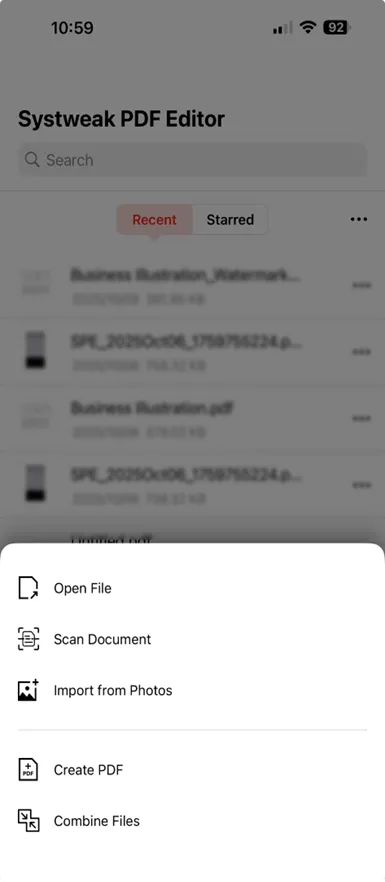
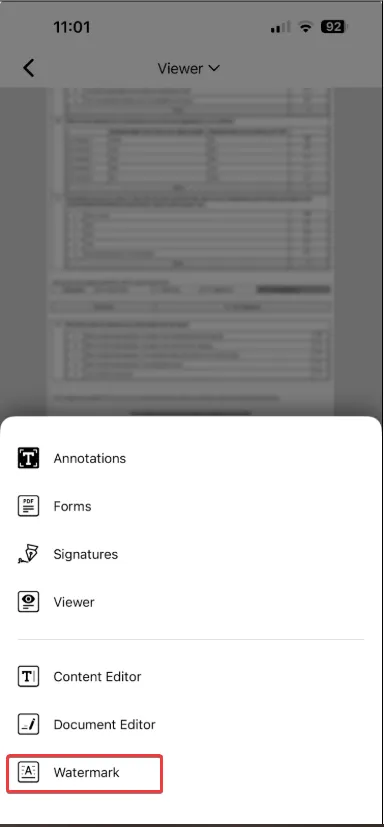
- Tap the Viewer drop-down with options and select Watermark.
- Tap the Add Watermarks option.
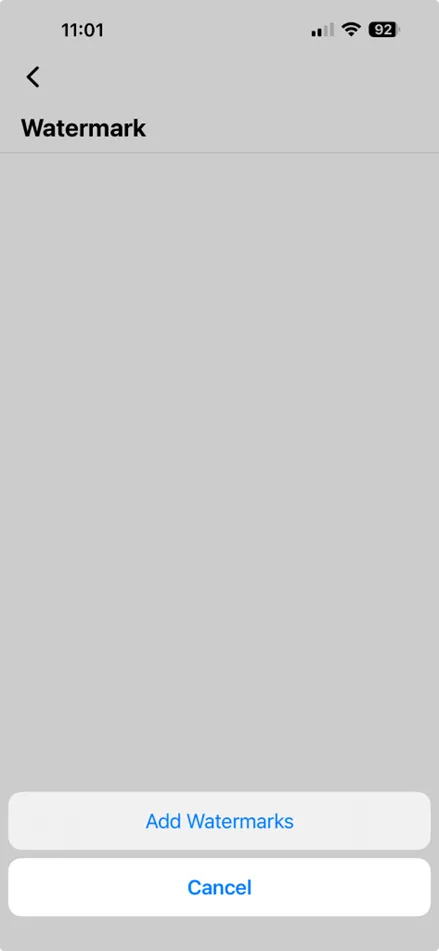
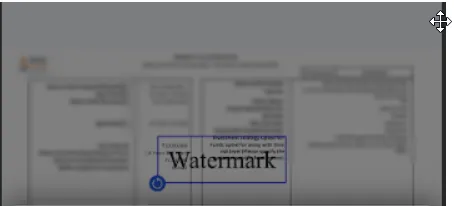
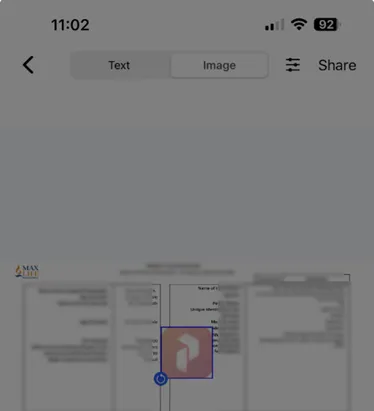
- By default, the text option is selected. To change, tap the Image tab.

- By default, the text label is ‘Watermark.’
- By default Systweak PDF Editor logo is added as an image watermark.
- Next, configure the watermark. If you add Text as a watermark, to change the text, click Watermark text and modify it.
- Next, from the watermark settings, you can select and change the color, font type, style, size, layout options, set opacity, layout options, page range and enable/ disable tile watermarking.
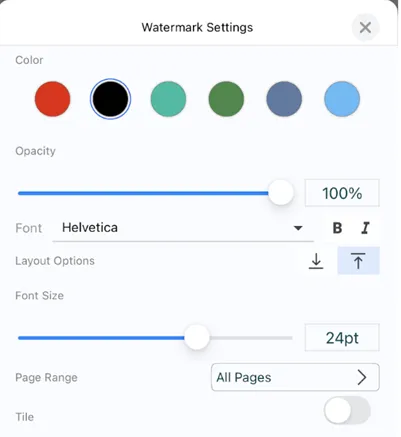
Similarly, to change the image, you can either select the logo from the Photos Library or click using the camera icon. Next, set the opacity, select layout options, page range and enable / disable Tile.
Watermark Text Options
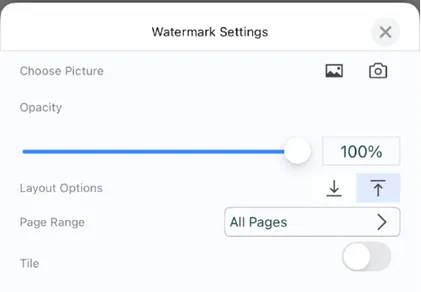
- Preview the watermark.
- To save changes, click Share > select Save to Files. This will apply the changes to the PDf file.
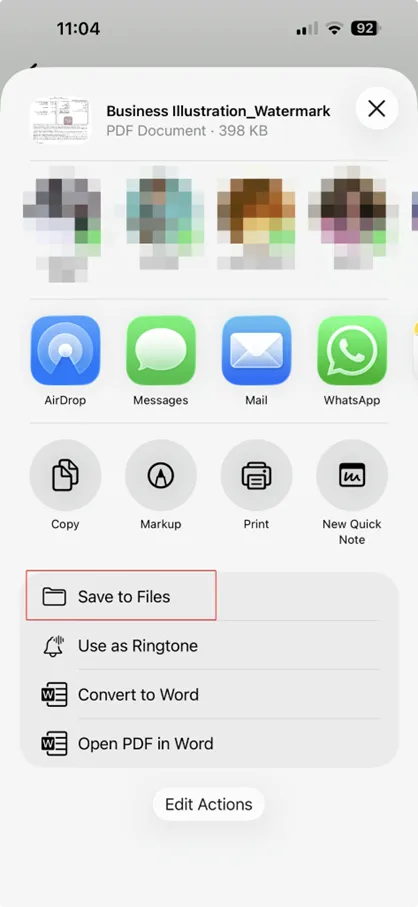
- You can now share the watermarked PDF.
Using these simple steps, you can easily add a text or image watermark to a PDF. Additionally, you can add a watermark to selected or all pages, preview the changes, and make other adjustments as needed. This means you no longer need to stamp the documents manually. This and other features, such as scanning pages, creating PDFs, and editing content, make Systweak PDF Editor a must-have tool for editing PDFs.
What are Different Watermark Types & How They’re Used?
1.1 Text-layer watermark vs Raster watermark
- Text-layer watermark — this is the most commonly used “watermark” in PDFs, and it is a separate content layer (vector/text) with transparency, making it easy to add, remove, and edit.
- Image-based (Faltten /Masked) — this watermark style is flattened into the page content as a JPEG or vector background. Removing or separating the object is not an easy task. However, if you attempt to remove it, it may destroy the content.
Comparison: Text-layer vs. Raster watermark
| Feature | Text Layer Watermark | Image Watermark |
| Flexibility | Highly flexible and easy to edit and delete | Uneditable and permanent |
| Application | Applied to a separate layer | Applied during export, flattening, or saving. |
| Distortion | Does not spoil the original content. | Modifies original pixel data |
| Format | Vector text | Raster image |
| Security | Weak, anyone can edit or remove it. | Secure, requires advanced software for removal. |
1.2 Multiple overlays & watermark stacking
Besides these, there are other watermarking types with multiple overlays: for example, a document may have a “DRAFT” watermark, a transparent brand logo, and some stamps. Each on a separate layer. To remove them, you need a tool that can identify them individually and help remove the correct one, not all of them.
1.3 PDF security, password protection, and watermark locks
In some cases, watermarks can be locked by permissions or digital rights. This means that unless the permission is revoked, even a powerful PDF editor might be unable to edit those overlays.
1.4 Layout preservation
When using a tool to add a watermark, ensure that it doesn’t alter the layout, text, image, or reflow content. An ideal till isolates only the watermark layer.
Frequently Asked Questions
Why iPhone Users Should Try Systweak PDF Editor
If you frequently work on your iPhone, watermarking should be as seamless as signing a document. Systweak PDF Editor makes this possible — you can add watermarks in seconds without switching devices. It’s fast, accurate, and built for modern mobile workflows.
Final Thoughts
Adding a watermark to PDFs when using an iPhone is no longer an impossible task. Now using Systweak PDF Editor, you can do everything from your phone. From watermarking documents to editing, creating PDFs, and more.




