




PDF files are helpful for sharing documents in a standard format, but sometimes you might need to split or divide a big PDF file into smaller files or extract just a few pages rather than the full document. Large PDF files can be time consuming and inconvenient to work with. Splitting a PDF can make it much simpler to share with others and easier to manage. So if you are a student or a professional, learning how to split a PDF in this article helps you stay organized and work more efficiently without any large file limitations.
Why Split a PDF?
There are many reasons to Split a PDF:
- Smaller files are easier to manage
- Extract specific pages for selective use
- Avoid unnecessary access of whole PDF
- Better organization
- Reduced file size are faster to upload
- Less storage space
- Improved productivity
How to Split PDF into Multiple Files Using Systweak PDF Editor
Here’s the exact method shown in the referenced video.
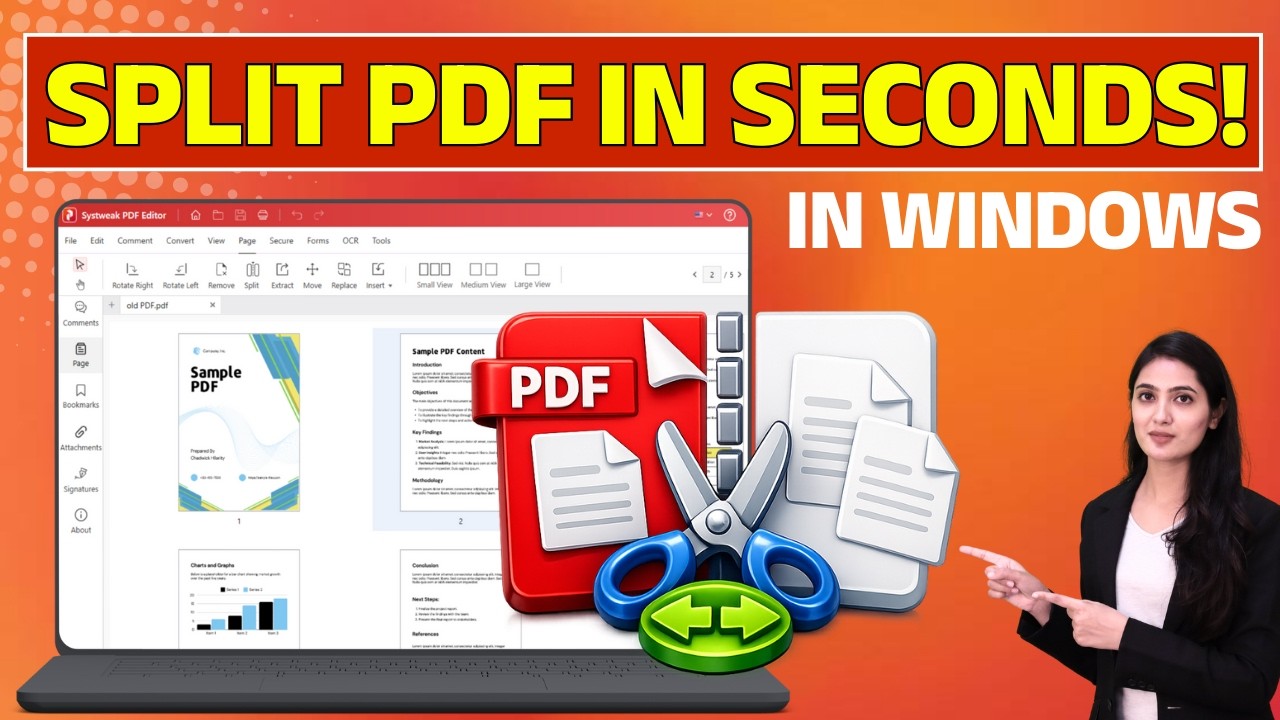
These steps let you separate PDF pages and split in several formats.
Launch Systweak PDF Editor
Open the Systweak PDF Editor on your Windows PC.
If you haven’t installed it yet, download and install the app first.
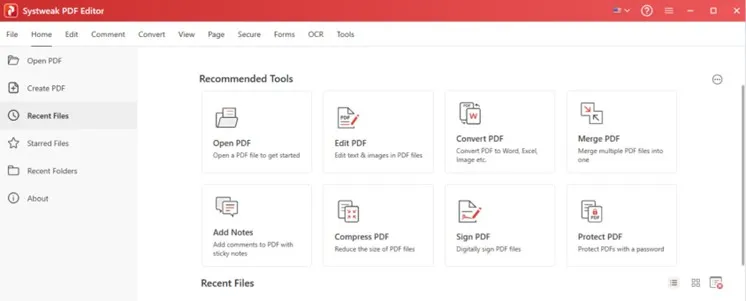
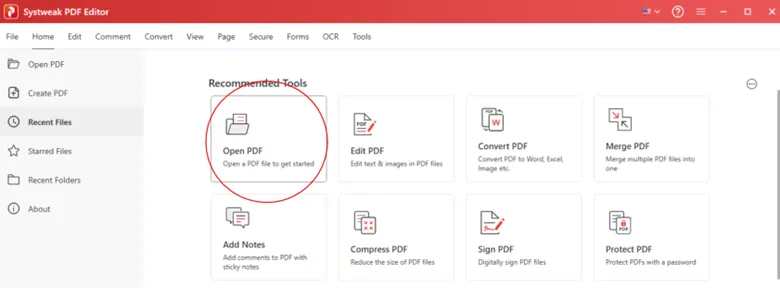
Open the PDF File
Click Open PDF and choose the file that you want to split.
Your PDF will load in the editor immediately.
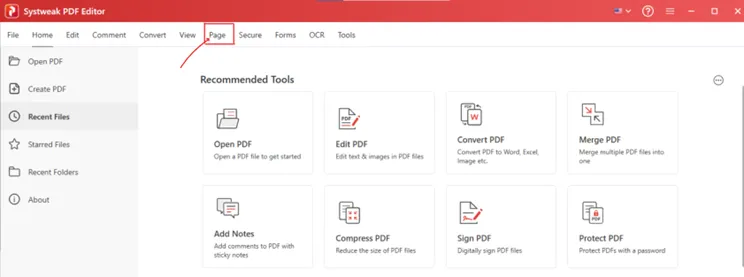
Go to the “Page” Tab
At the top menu bar, click on:
Page
This tab contains all PDF page-related tools like split, merge, extract, rotate, replace, etc.
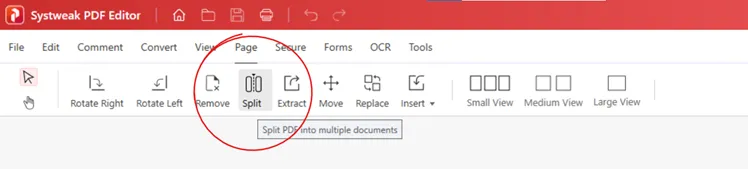
Click on “Split”
Inside the Page tab, click the Split option.
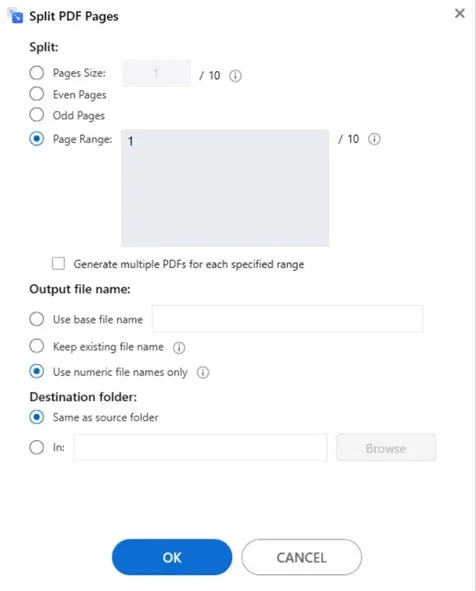
A pop-up window will appear showing several split options.
Also Read: How To Combine or Merge PDF Files Offline
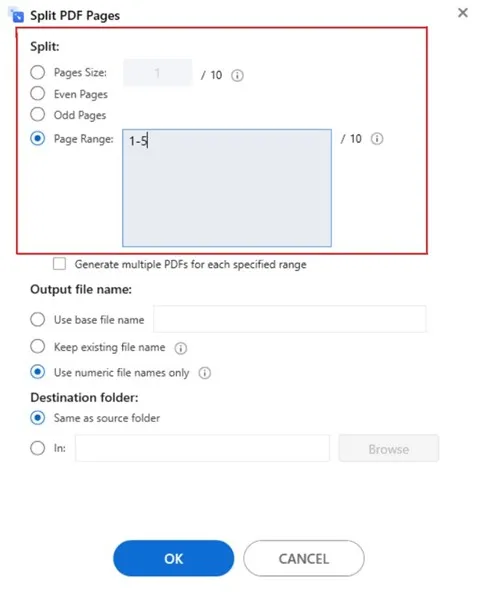
Choose How You Want to Split the PDF
Select how you want to split the pages, by size, odd, even, or page range. And Check ‘Generate multiple PDFs for each specified range’, if you want.
Then choose how you want the output file name to be
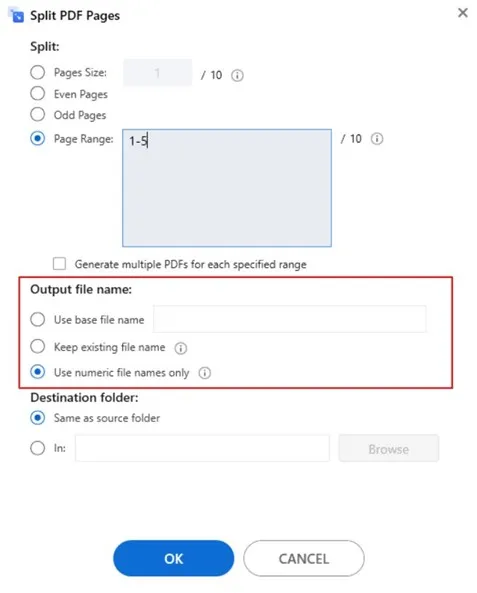
And finally set the destination folder and click ‘OK’.
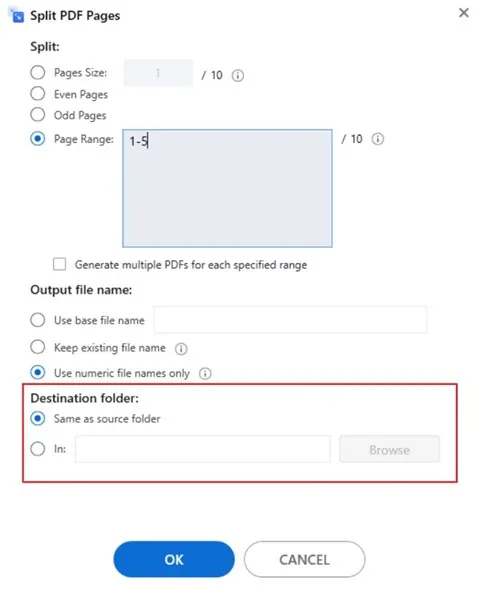
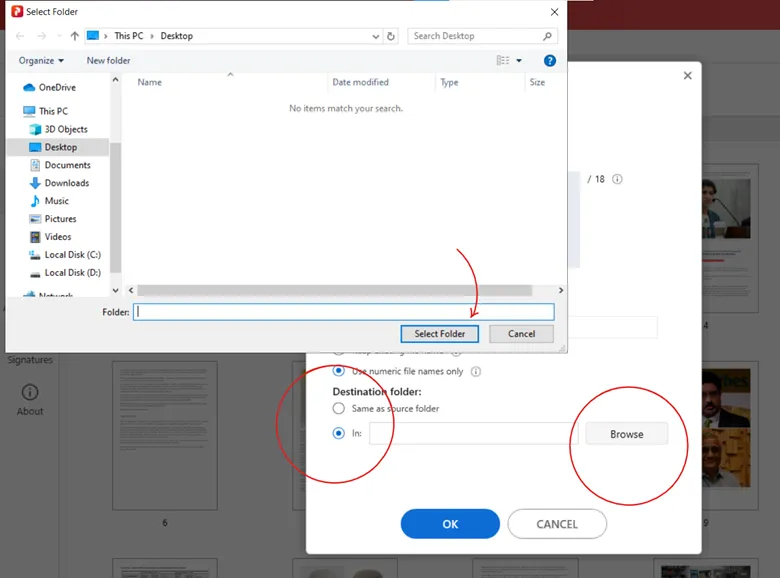
You can keep it the same or browse where you want the output files to be saved.
Then simply click on ‘OK’ and your large PDF will be Splitted.
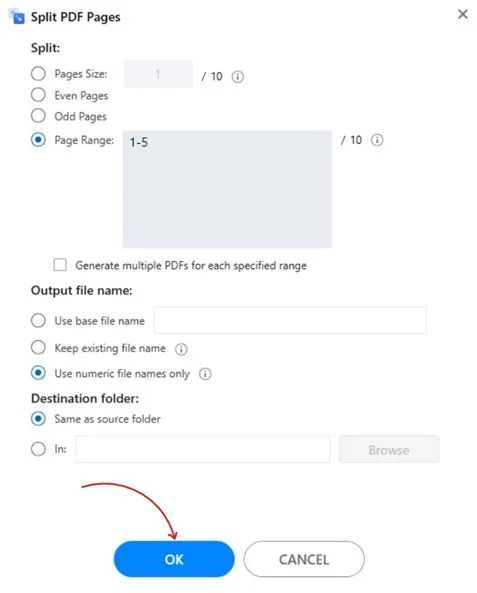
The app will process the file and within seconds, you’ll have multiple PDFs created exactly the way you wanted.
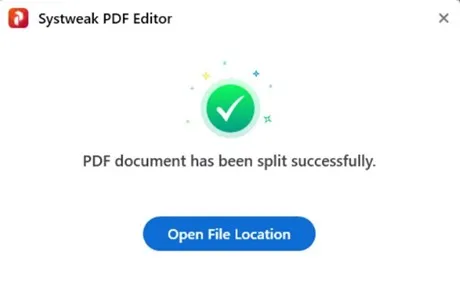
Click on ‘Open file location’ and spot your splitted PDFs.

Your PDF Pages Are Now Split!
This is one of the fastest ways to split a PDF into multiple files, separate PDF pages, or even split a PDF into single pages without losing quality.
But when you need only one page from a large file it’s better to extract that one particular page rather than sharing the whole PDF. So simply go to the “Page” tab and click on “Extract.
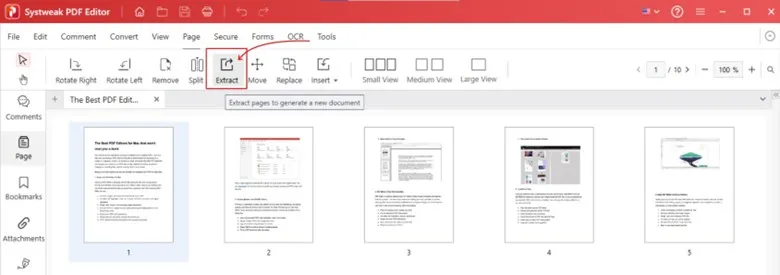
The “Extract” window will open. Check ‘Page range’ and write the number of the page that you want to extract.
Click on ‘OK’, and your page will be extracted.
Conclusion
Knowing how to split a large PDF into multiple files is not just useful, but necessary. Your files will be easier to handle, quicker to load, and faster to share. And with the Systweak PDF Editor the process of splitting PDF is very simple and fast, and you can organise your documents more efficiently.




