



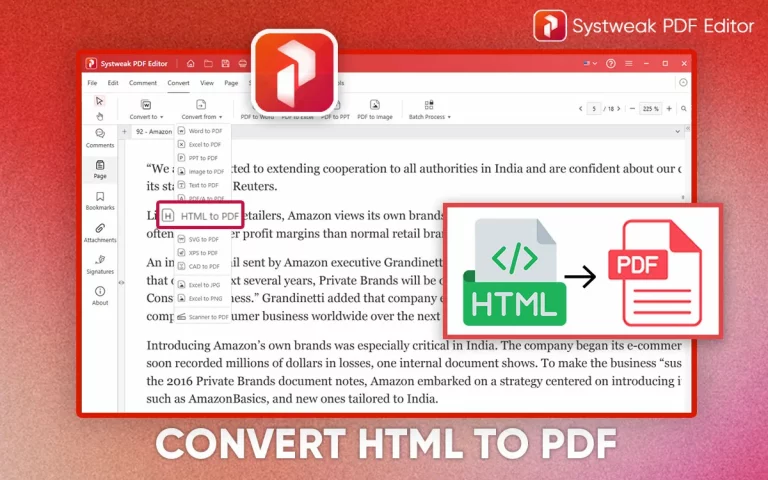

How many times do people wish to save a webpage? Honestly it’s impossible to calculate the exact number. There are many people out there who just wish, if they could save a webpage for some or the other reason, maybe just for offline access, or to avoid ads for long time use, or for any legal purpose.
These webpages can be of anything, a tutorial, recipe, blog, or any research article. And bookmarking doesn’t help with offline access, and copy-pasting just ruins the format and makes it weird. But why are you even trying these ways, when you can save a webpage in a PDF form, same as it looks on the web, as it is, and without doing something extra.
If you have tried saving a webpage and always ended up with HTML codes, then this blog is for you. Here I’ll tell you how you can save a webpage as a PDF without any Ads. You can simply convert HTML to PDF on Windows, and keep the layout of the webpage intact.
See Also: How to Convert EPUB to PDF with Systweak PDF Editor
Why Need to Save Webpages to PDF
There are many reasons why people want to save a webpage:
- Offline access
While traveling or working without Wi-Fi it’s best to have a webpage saved already for offline access and no delay in work.
- Ad-free experience
Saved webpages don’t show any ads, so no distraction while working, just clean content.
- Sharing made simple
A saved webpage that too on a PDF form is the easiest and most common form of sharing. Be it emails or for printing purposes.
- Archiving content
You can save any important webpage permanently for easy and quick access whenever you want. So you can save invoices, or research paper, or any other resource and keep it with you for offline and easy use.
Having a webpage permanently saved is the best wayway to get the content at your fingertips, whether it’s for work, study, or personal use.
How to Convert Chrome HTML Document to PDF on Windows 11/10
Most of the time, when you download or save a webpage, it comes in Chrome HTML format. The good news is, you don’t need any fancy setup to turn it into a PDF.
Here are two reliable methods:
- Use Systweak PDF Editor – Ideal if you want advanced editing and formatting after conversion.
- Use Chrome’s built-in Print feature – Quick and simple, no installation required.
Turn Chrome HTML to PDF Using Systweak PDF Editor
If you’re looking for a professional way to convert and edit PDFs, Systweak PDF Editor is your best option. It doesn’t just convert, but also lets you clean, organize, and secure your PDFs.
Steps to convert HTML to PDF with Systweak PDF Editor:
- Download and install Systweak PDF Editor.
- Launch the tool and go to the convert tab.
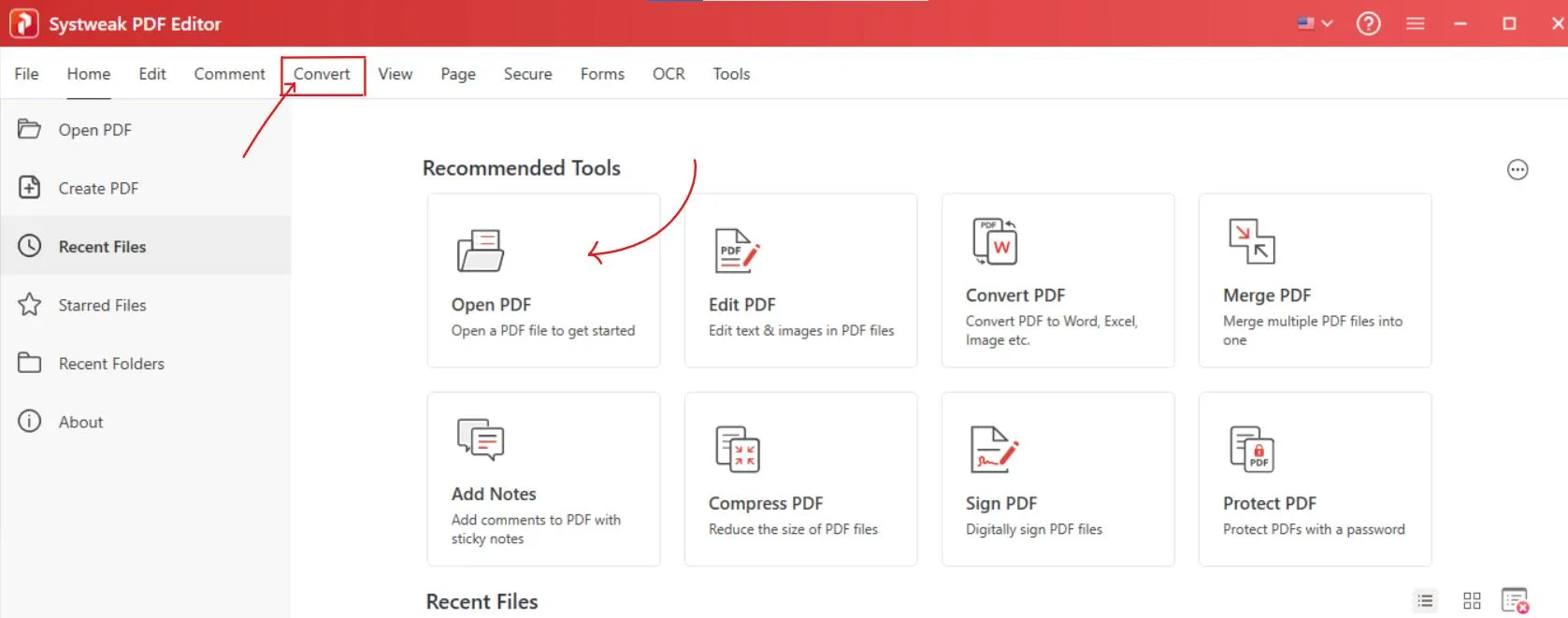
- In the convert tab, click on “Convert from” and from the options select “HTML to PDF”.
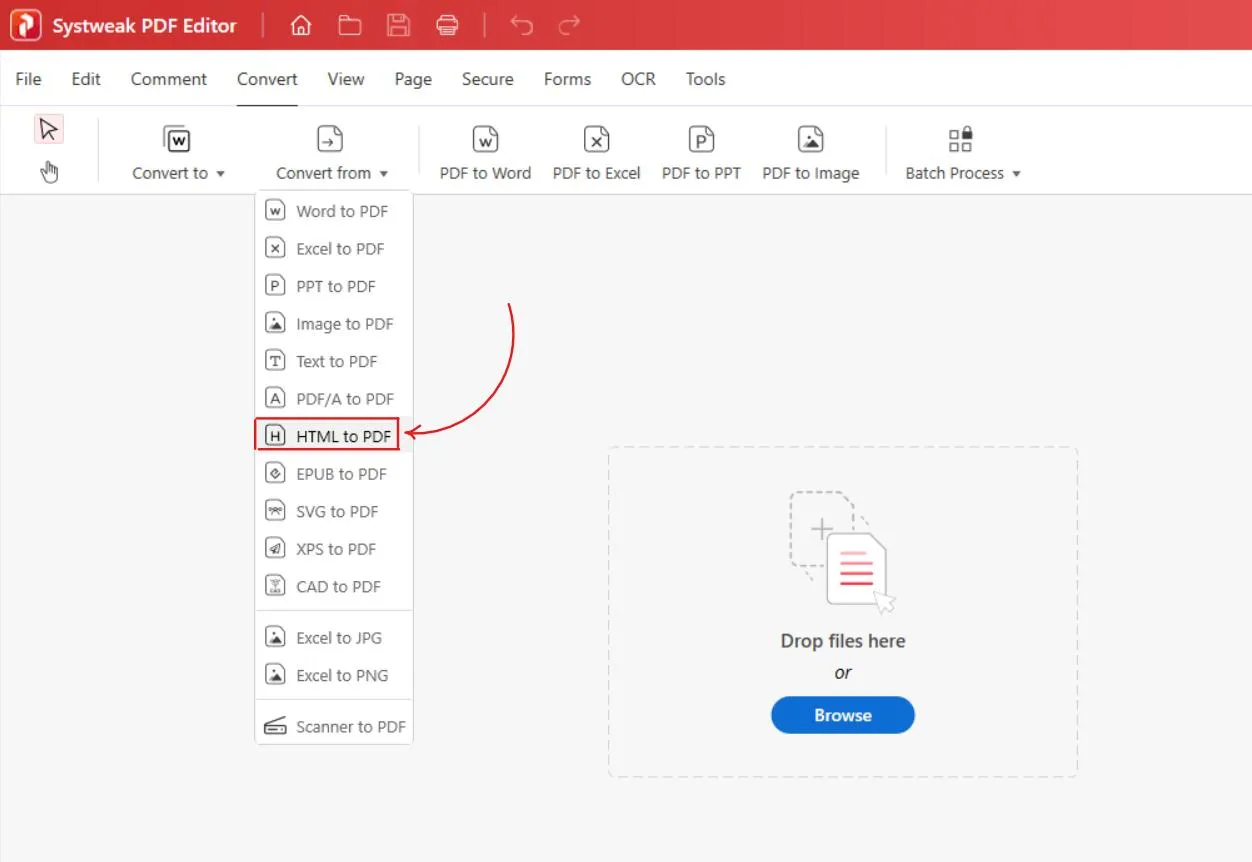
- Select your Chrome HTML file and click on open.
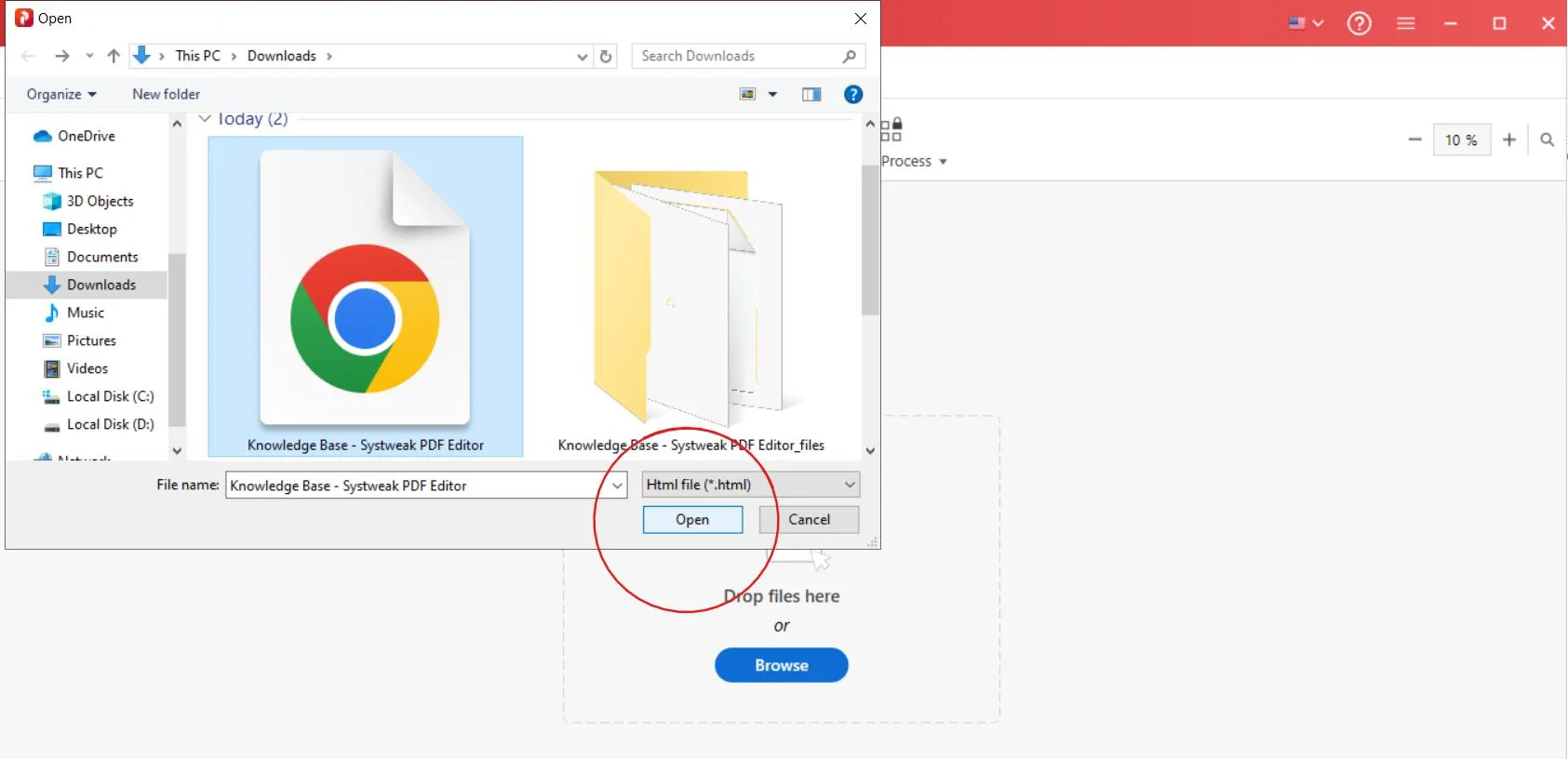
- Once you click on Open, it will start converting into PDF.
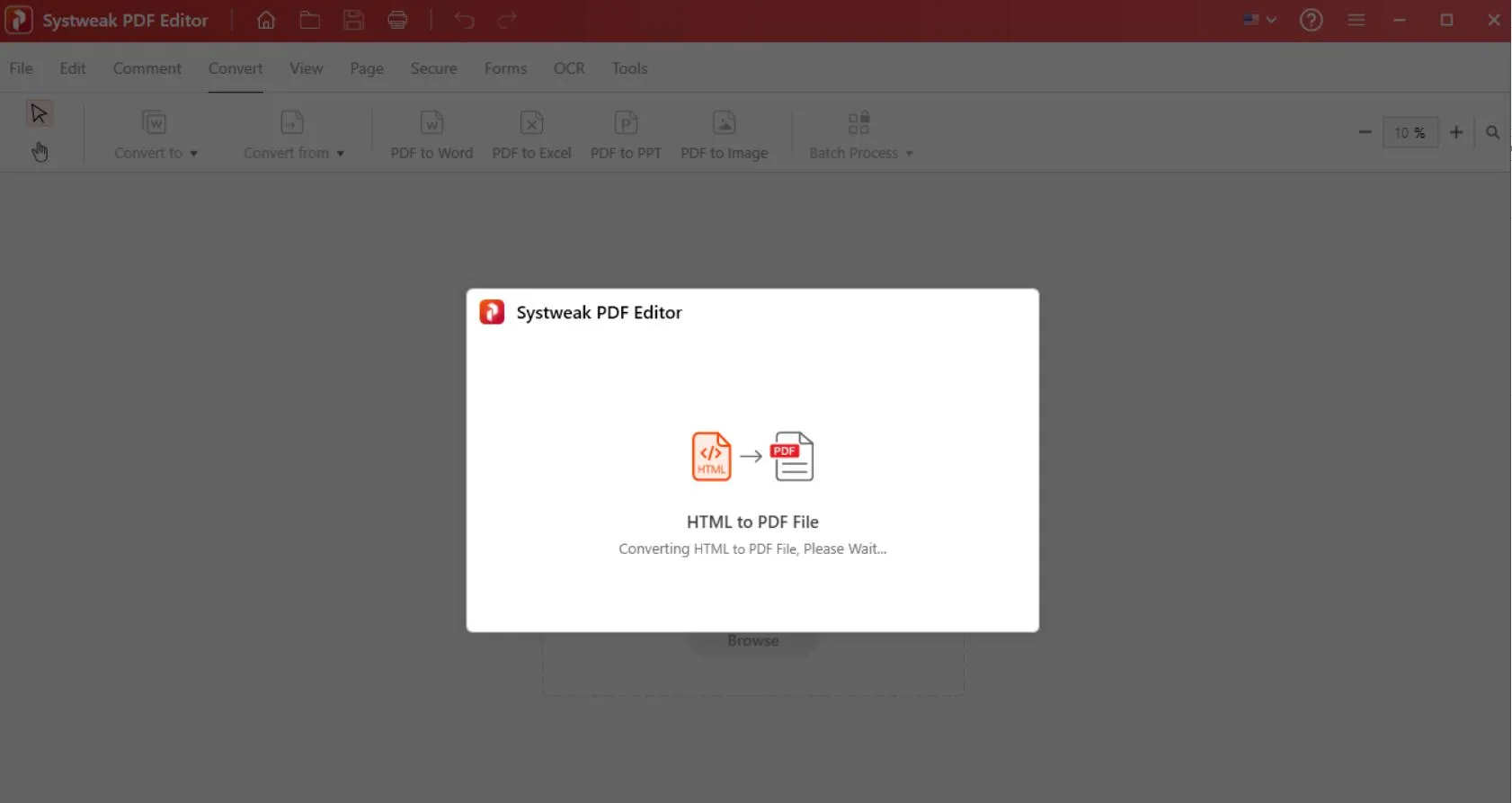
- The software will convert it into a PDF in just a few seconds.
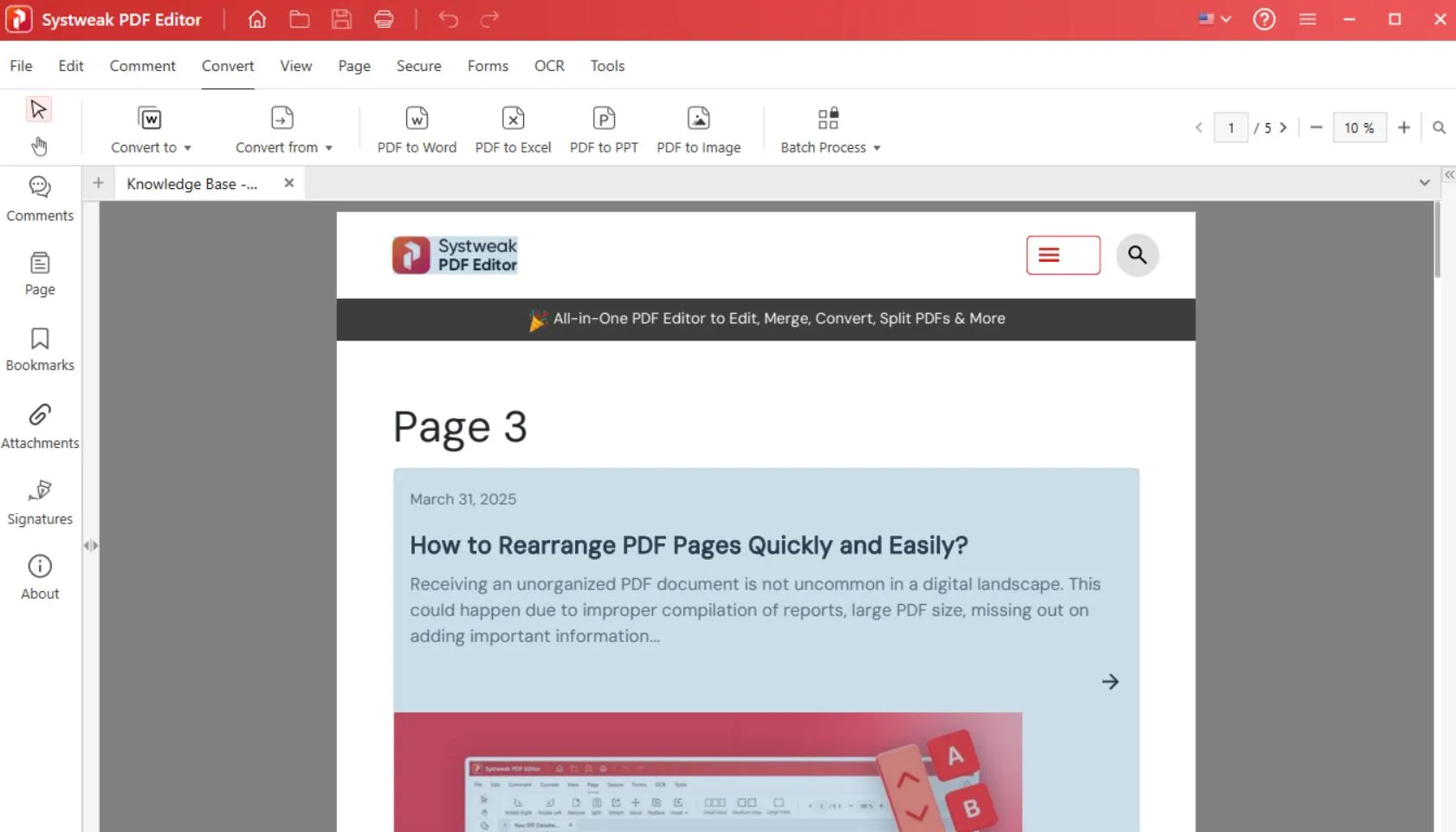
- Once converted, you can make changes as you want.
- There’s one more way, and even shorter.
- Right-click on your downloaded webpage and click on “ Convert to PDF with Systweak PDF Editor”.
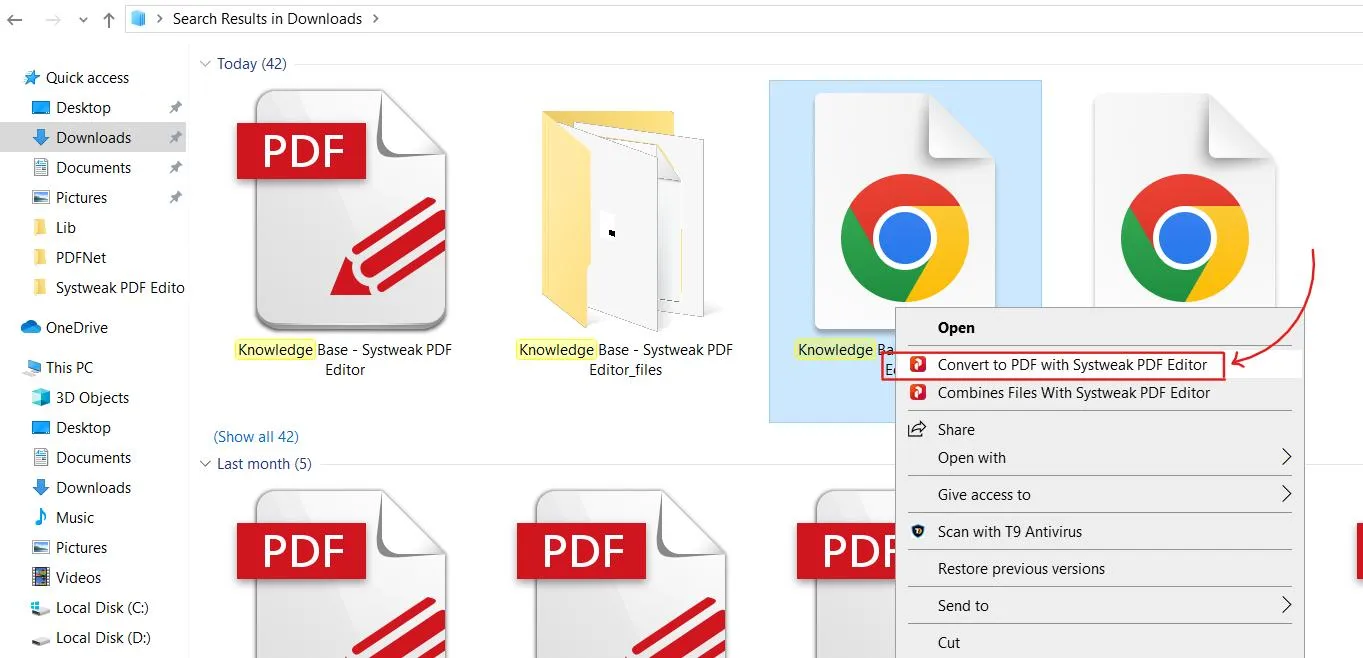
- The file will be uploaded in the application, just preview it, or if you have more Chrome HTML files that you want to convert into PDF add them and click on “Create PDF”.
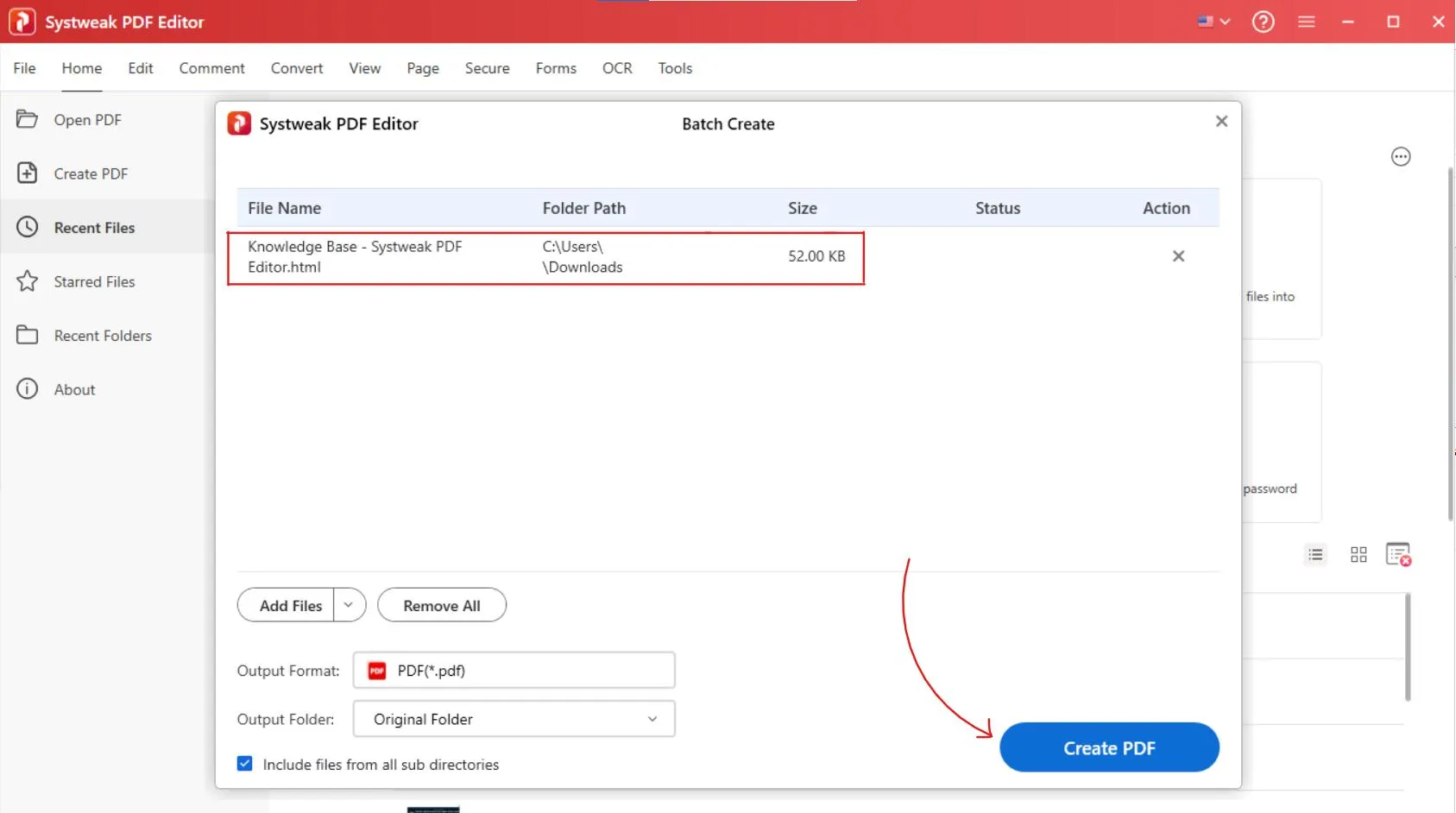
- It will take a few seconds and will convert it into PDF.
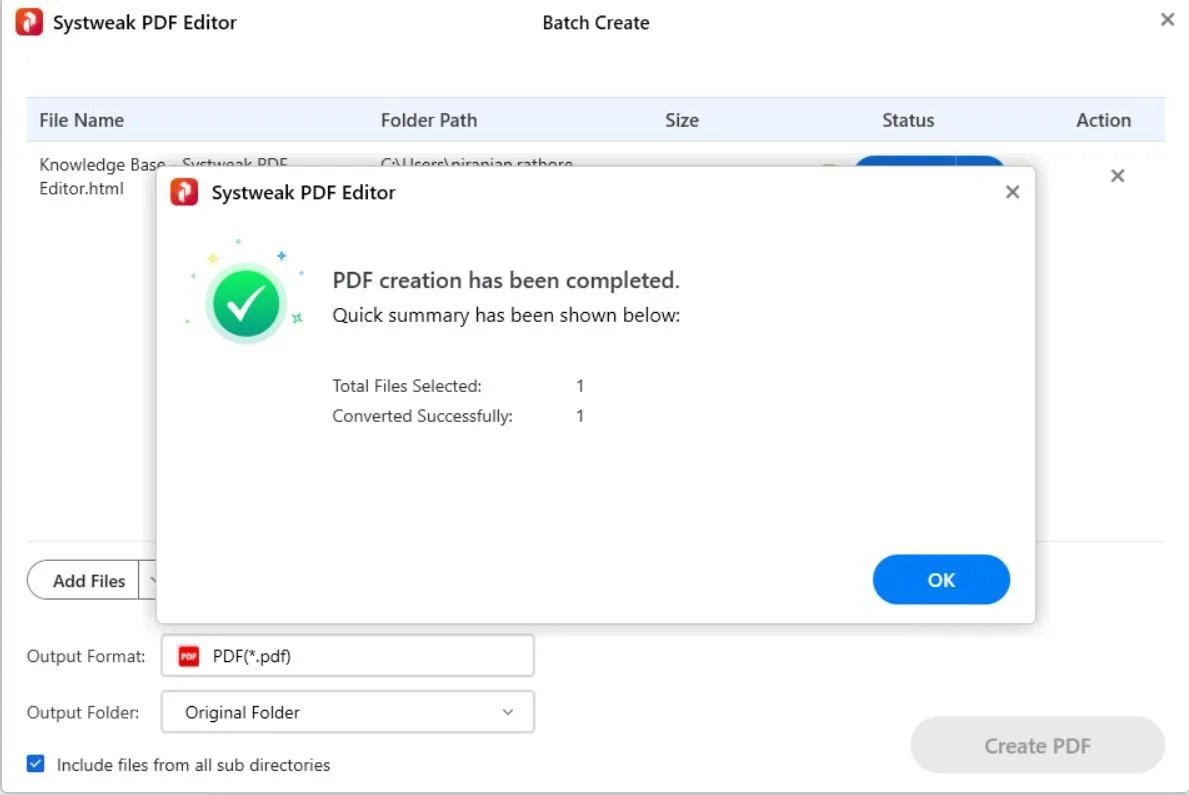
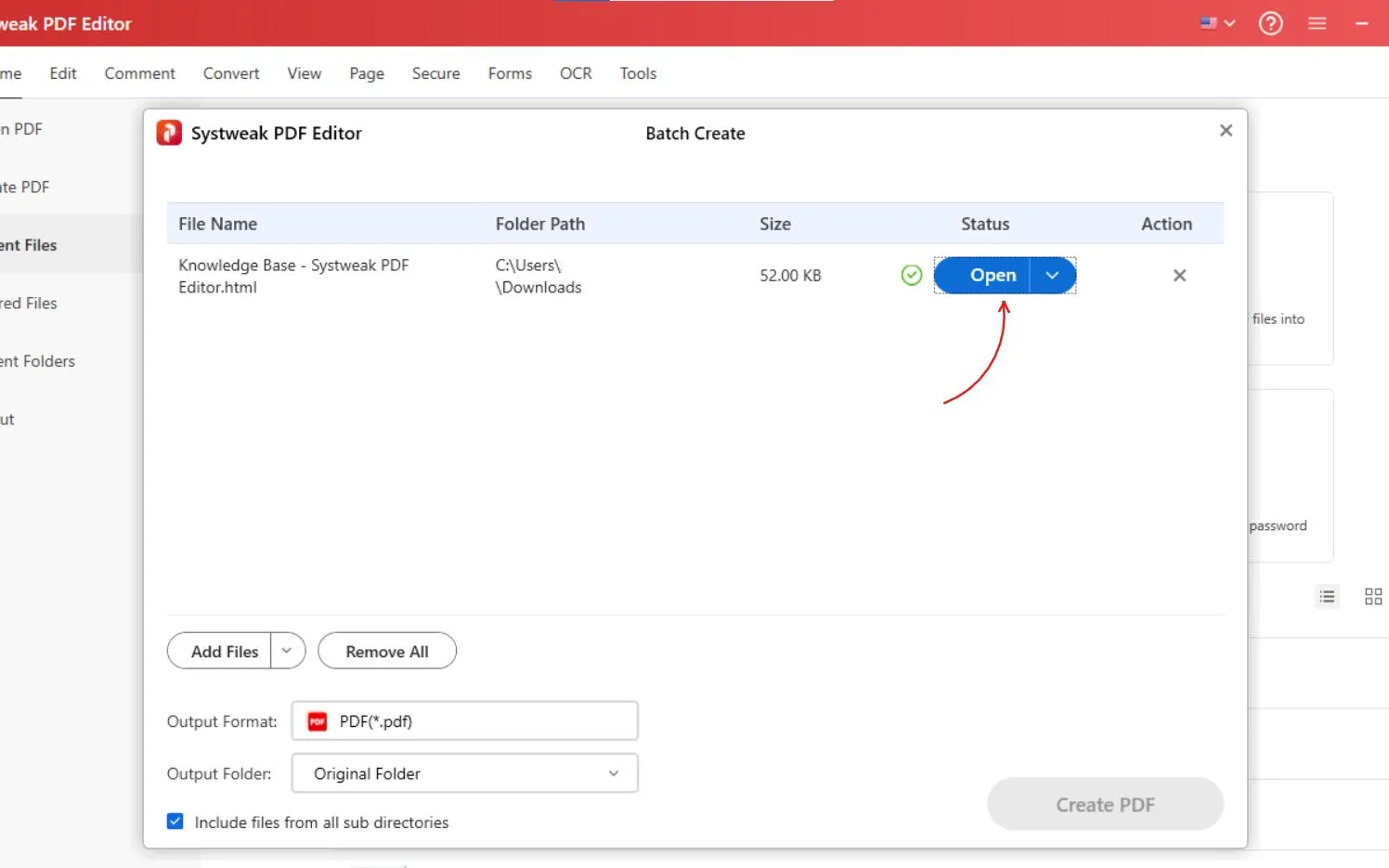
- Then click on open > open folder and view it.
- Like this you can get a perfectly polished and professional-looking PDF.
Turn Chrome HTML to PDF Using the Print Feature
Chrome’s built-in Print to PDF feature works great, if you want a quick conversion:
Steps:
- Open the webpage or Chrome HTML document in Google Chrome.
- Press Ctrl + P (it’s windows shortcut for print).
- In the Destination preference, choose Save as PDF.
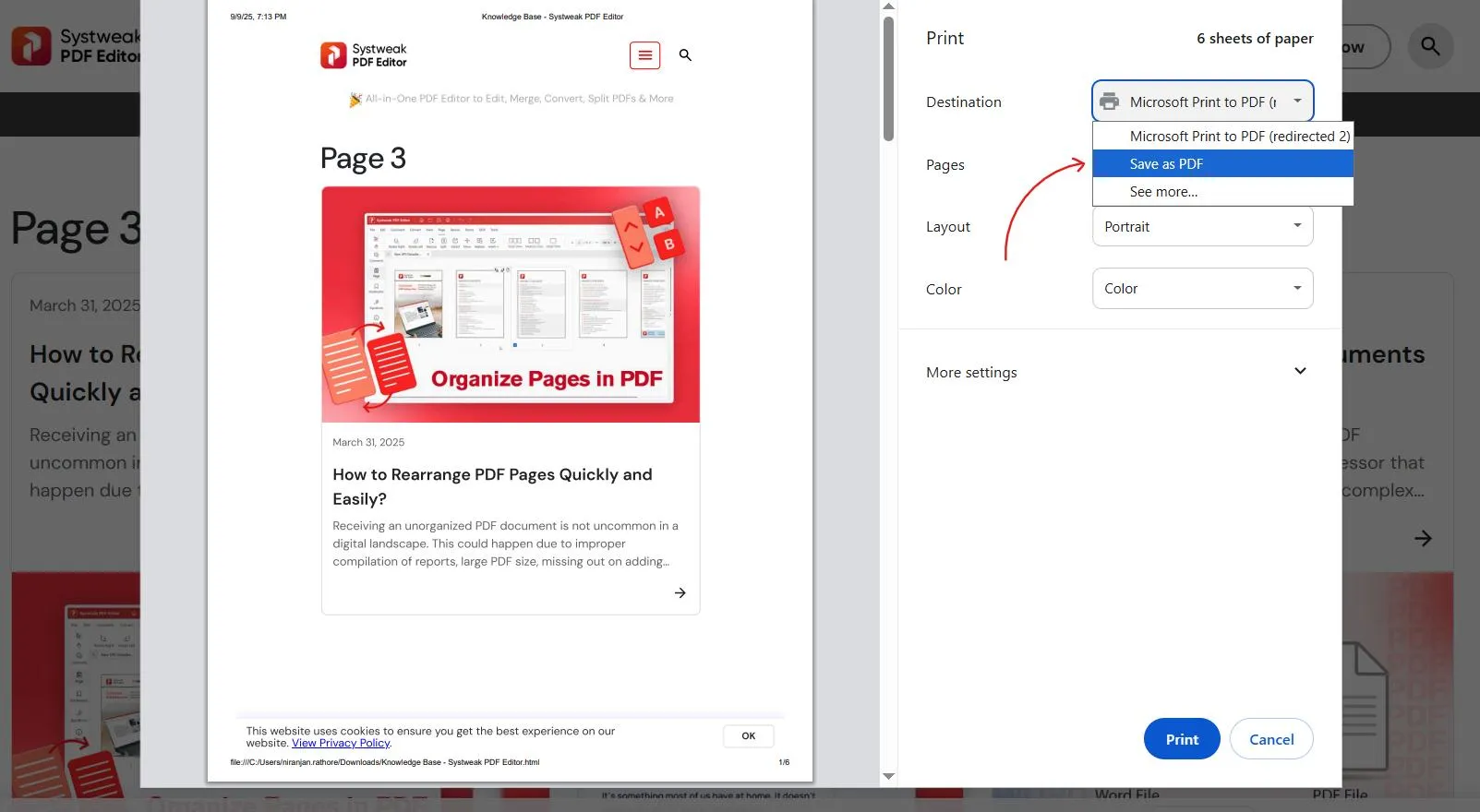
- You can adjust other preferences as you want.
- Then click on Save, select the location where you want it to be saved, and you’re done.
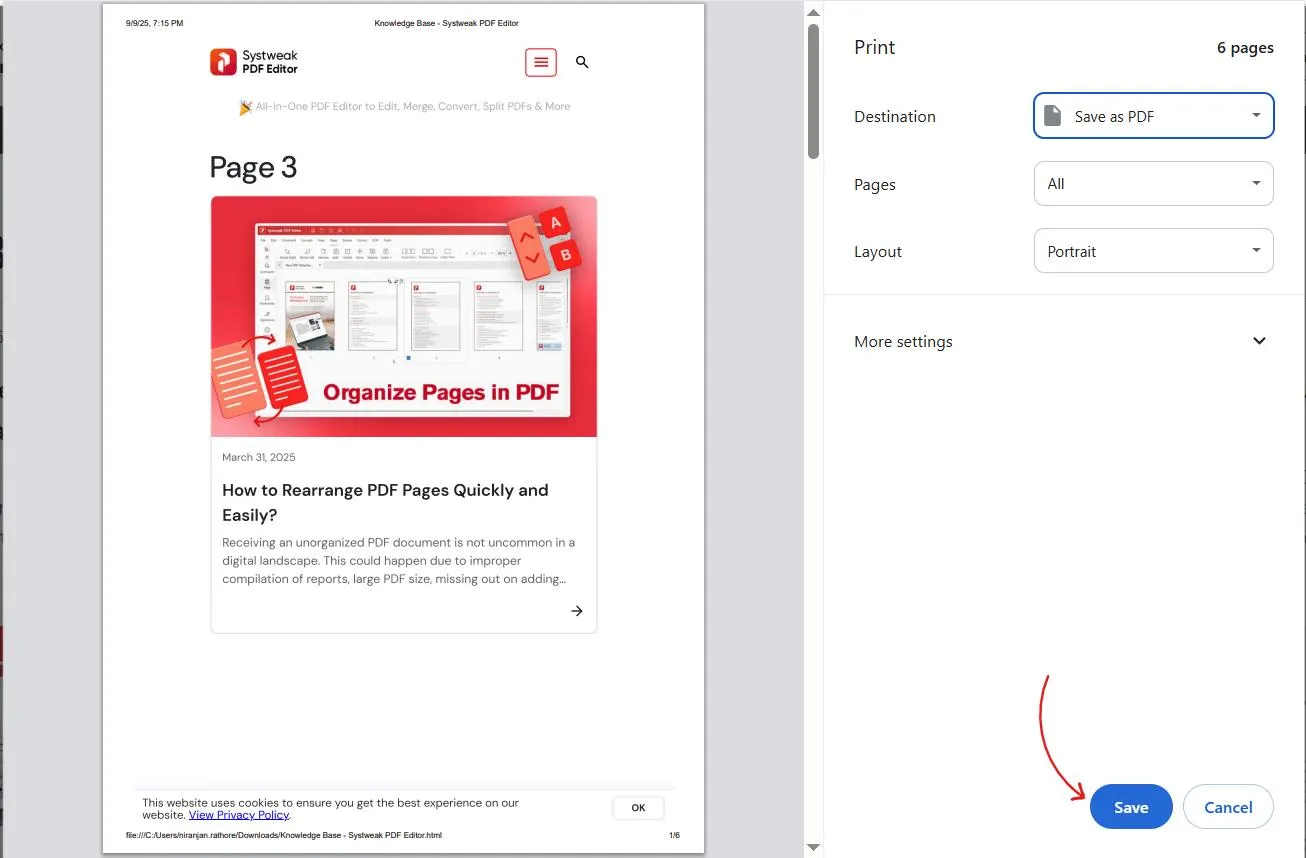
- While this method is fast, it might keep some unwanted elements like ads or page clutter.
Change the Default App Used by the PDF File Type
Sometimes after conversion, you might notice that your PDF files open in a browser by default instead of a proper PDF reader. If you’d like them to open directly in Systweak PDF Editor (or another PDF tool), you can change the default app easily.
- Steps to set default PDF app in Windows 11/10:
- Right-click any PDF file and choose Open with > Choose another app.
- Select Systweak PDF Editor.
- Check the box Always use this app to open .pdf files.
- Click OK.
- Now, every PDF you save or download will open directly in your chosen app.
See Also: How to Compress PDF File Size
Conclusion
Saving webpages as PDFs on Windows isn’t just convenient, it’s essential for keeping clean, ad-free, and offline-friendly copies of the web. With tools like Systweak PDF Editor, you can go beyond basic conversion and actually enhance your saved PDFs with edits, annotations, and security. And if you just need something quick, Chrome’s built-in print feature has your back.
So the next time you want to save a recipe, tutorial, or research article, skip the bookmarks and convert HTML to PDF the smart way.




