



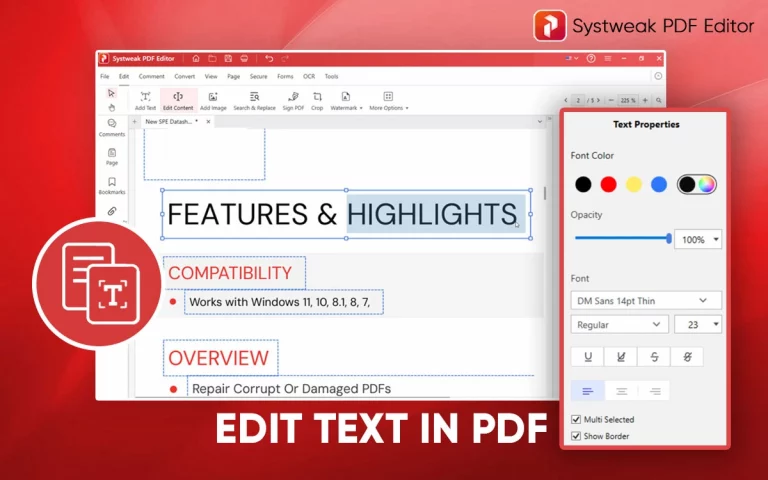

The need to edit text in PDF isn’t something you plan. It occurs when there’s a typo, a grammatical or spelling mistake in a final report. An incorrect date in a contract. An invoice issue you need to fix before sending. Sometimes it’s because the original document is unavailable, the PDF has restrictions applied, or you’re working with a scanned file—and you can’t convert or upload it online.
When this happens, the PDF won’t let you edit. You click on the text. Nothing happens. The file feels locked. So you try to convert it to Word, upload it to an online tool, or ask someone for the original file (which they’ve lost).
There’s a better way. Systweak PDF Editor lets you edit text directly in the PDF offline on your Windows desktop, no converting, no uploading, no formatting loss. This guide shows you exactly how to edit text in a PDF, whether you’re fixing a typo, updating information, handling scanned documents, or making bulk changes.
Why can you not edit a PDF (and how to fix it)?
Before you learn how to edit text in a PDF, it is best to understand why a PDF won’t allow editing. Different scenarios cause this issue, and each can be fixed with a dedicated solution.
Situation A: You’re using a PDF viewer instead of an editor
To view and read PDFs, you mostly use browser-based PDF openers, Windows’ built-in viewer, or a free version of apps like Adobe Reader. They all let you read, view, and add comments or highlights, but not edit the text.
The Solution: Switch to a dedicated PDF editor that allows viewing, reading, and editing text. In Systweak PDF Editor, open the file > click the Edit tab > activate text editing mode, and start changing the text and content of the PDF.
Situation B: The PDF is a scanned document
Scanned PDFs convert text into images, making it uneditable. You can read them, but cannot edit as the software reads words as pixels, not characters or letters. A standard editor without OCR (Optical Character Recognition) can’t help in this case because it cannot convert the image into an editable text layer first.
The Solution: Use a PDF editor with OCR (Optical Character Recognition) that converts the images into editable text. Once the file is processed via OCR, you can edit it like any other PDF.
Situation C: The PDF has editing restrictions
Sometimes, to keep the PDF safe and prevent others from making changes to it, its creators lock the PDF. To remove these restrictions, you need the document password so that you can edit the file.
The Solution: If you are the document owner or have edit permission, using Systweak PDF Editor, you can remove these restrictions. Go to File > Remove Password, enter the correct password, and remove the restriction by contacting the document owner for an unrestricted version.
For editing PDFs on Android or iPhone, see the guide on a free PDF editor for mobile.
How To Edit Existing Text in a PDF
To correct a typo, update information, rewrite a line, or perform any other text editing, follow these steps:
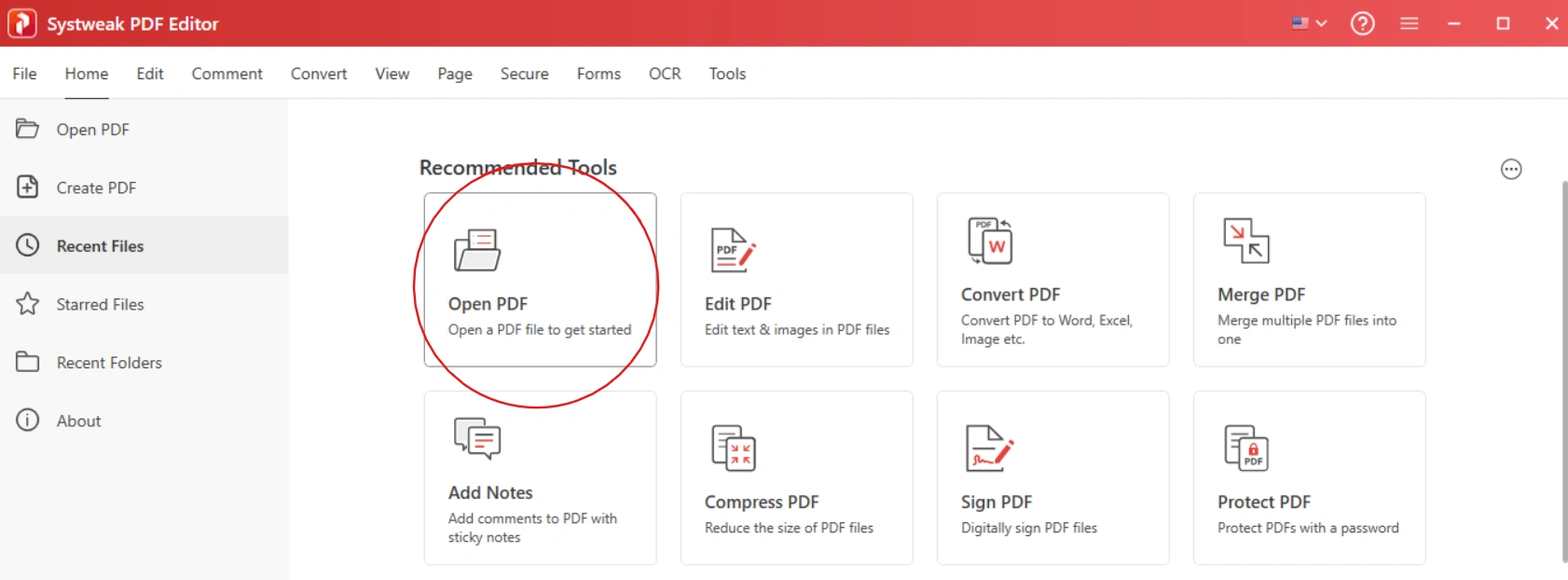
Step 1: Open your PDF
Download, install, and launch Systweak PDF Editor.
Click Open File > browse > select the PDF. The document opens in reading view.
Step 2: Switch to Edit mode
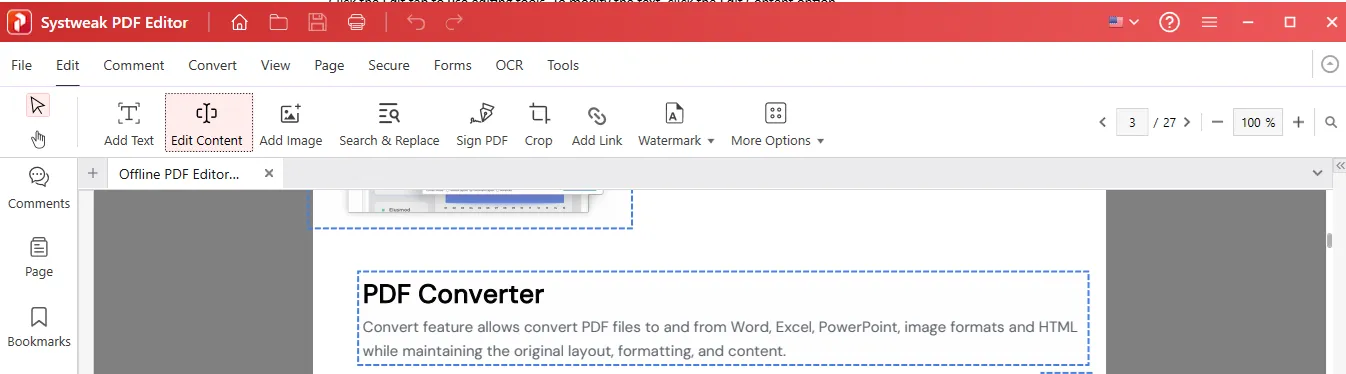
Click the Edit tab to use editing tools. To modify the text, click the Edit Content option.

You’ll now see text blocks appear over your text.
Step 3: Click on the text you want to change or add a new text
Click in the text block. You will now see a blinking cursor. Select, delete, or just type. From the right side, you can select font, color, size, and use other options to customize text.
Step 4: Make changes
Make as many changes as you want without any restrictions. When done, click anywhere outside the text block and save the file. Click File > Save As. Name the file to create a new version or save with the same name if you want to keep the original.
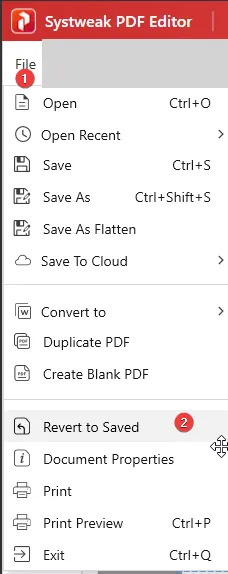
| Pro Tip: You can undo accidental changes by clicking the Undo icon or pressing Ctrl + Z.
You can also revert to save by going to File > Revert to Saved.
|

How to Add New Text to a PDF
When you want to fill blank areas, add labels, or insert a signature line, this feature can be used.
Step 1: Go to the Edit tab.
Step 2: Click Add Text > click on the page where you want the new text to appear.
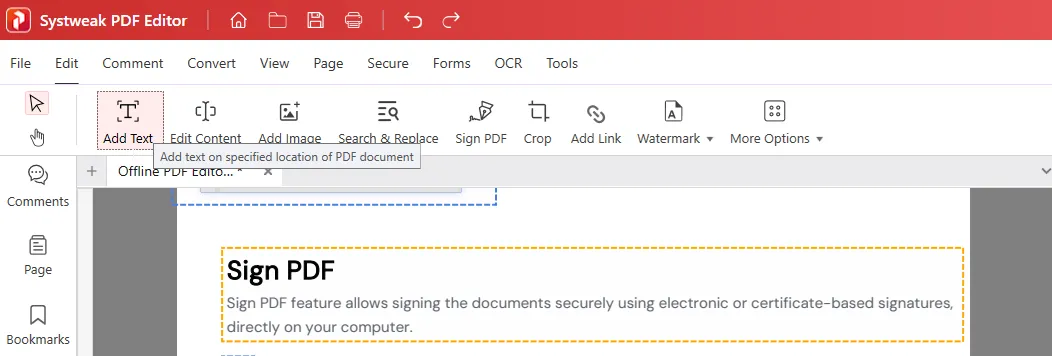
Step 3: Draw a text box and type your text.
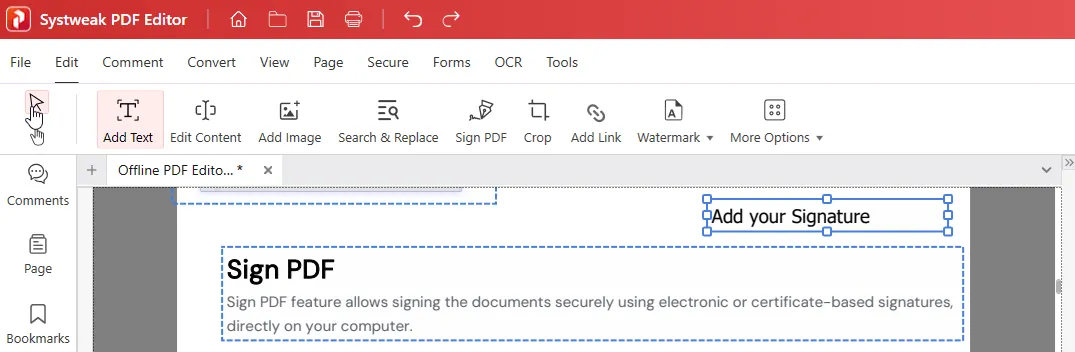
Step 4: Now, to resize or reposition the text box, drag its edges or move it. Alongside from the right pane can choose customization options.
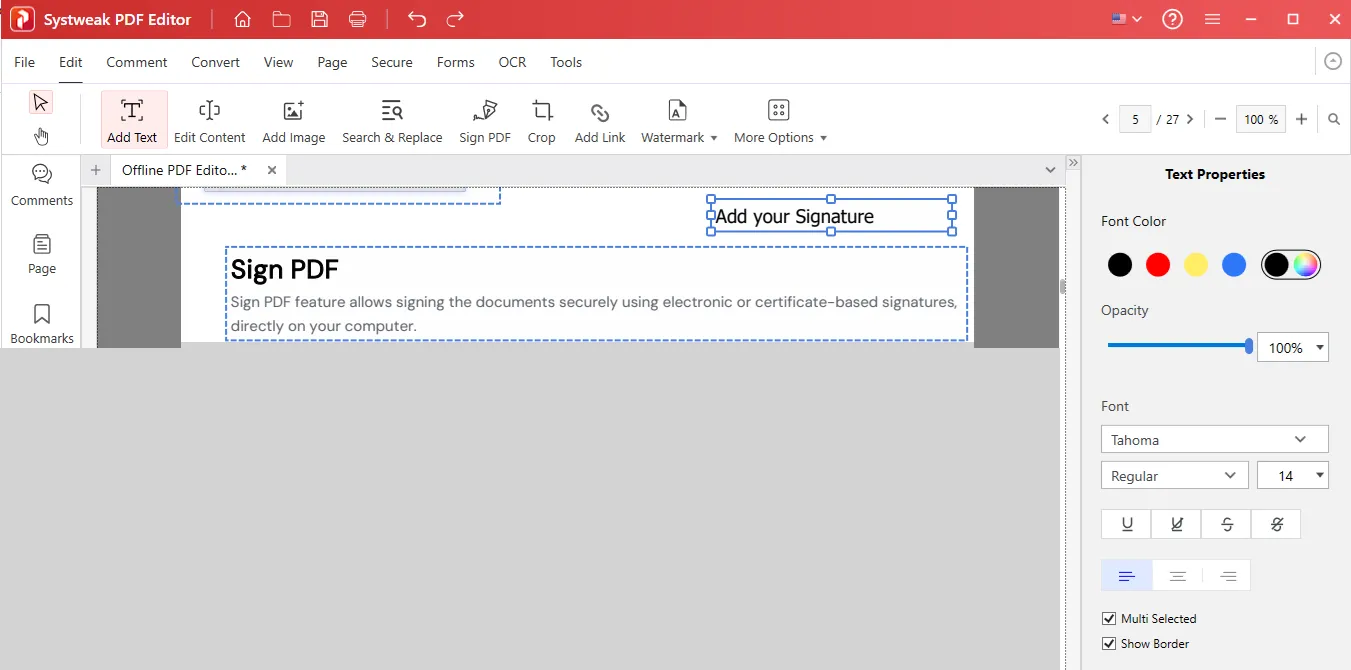
Step 5: When done, click outside the box and save the document.
How To Search and Replace Text in a PDF
When a term occurs multiple times in a document, and you want to find and edit it, use the Search and Replace Text option. It helps save them and correct the typos quickly.
Step 1: Open the PDF.
Step 2: Click the Search and Replace option. In the Search field, type the text you want to locate and click Search. You will get the search results and will be able to see how many times the word occurs in the document.
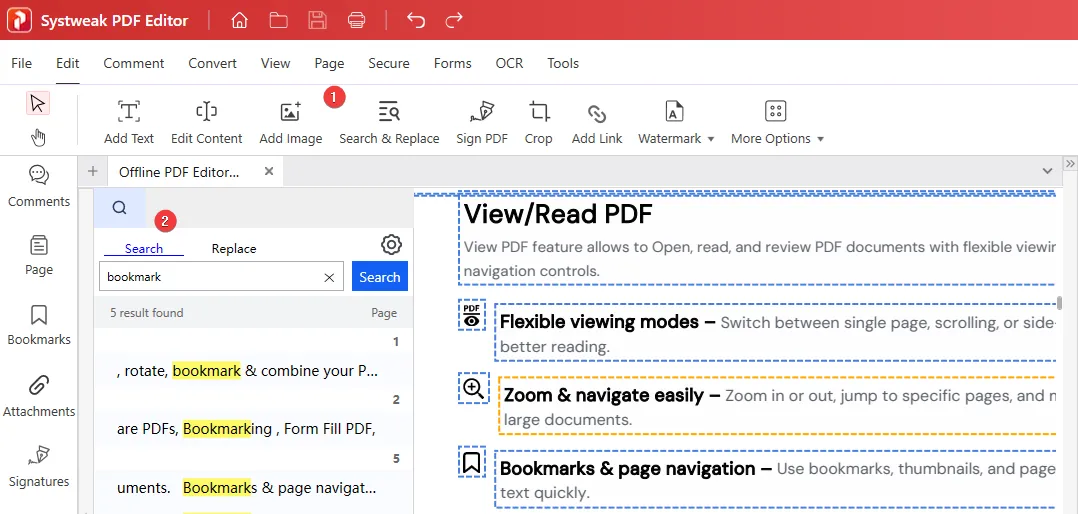
Step 3: To replace it, click the Replace tab > type the new text.
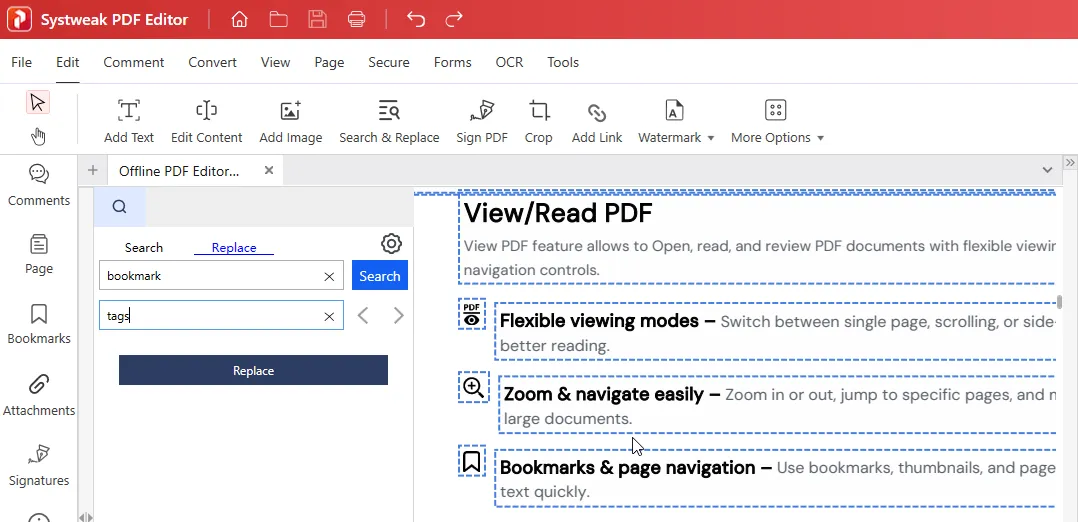
Step 4: Click the angel brackets to find the word and click Replace to change the text. One instance at a time.
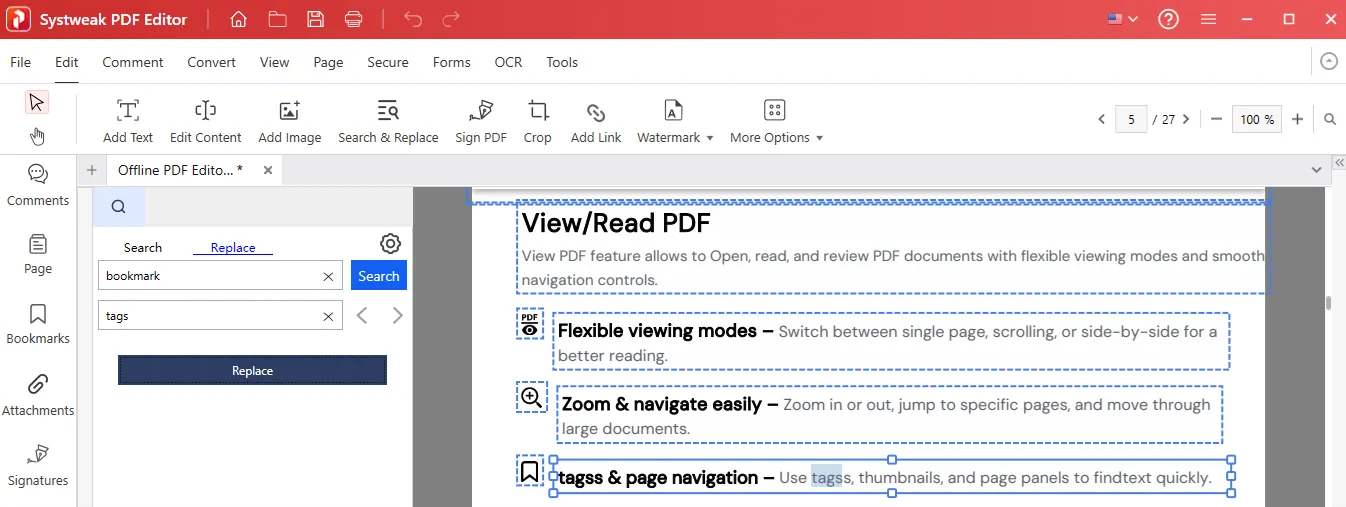
Step 5: Review the changes and save the PDF.
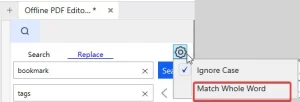
| Note: Search and Replace is case-sensitive. Click the gear icon to use the Match Case settings and find exact-case matching.
|
How To Edit Scanned PDF Files Using OCR
Scanned PDFs are images, not real text. This is why, when you try to edit them, nothing happens. To make them editable, you need to perform OCR and make them editable and searchable.
Step 1: Open the scanned PDF.
Step 2: Go to OCR > Perform OCR > choose from the options – OCR from PDF or OCR from Image.
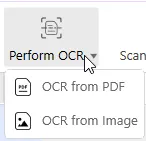
Step 3: Select the page range — All pages, current page, or a selection of pages. Select the OCR option > language > output folder and click Perform OCR.
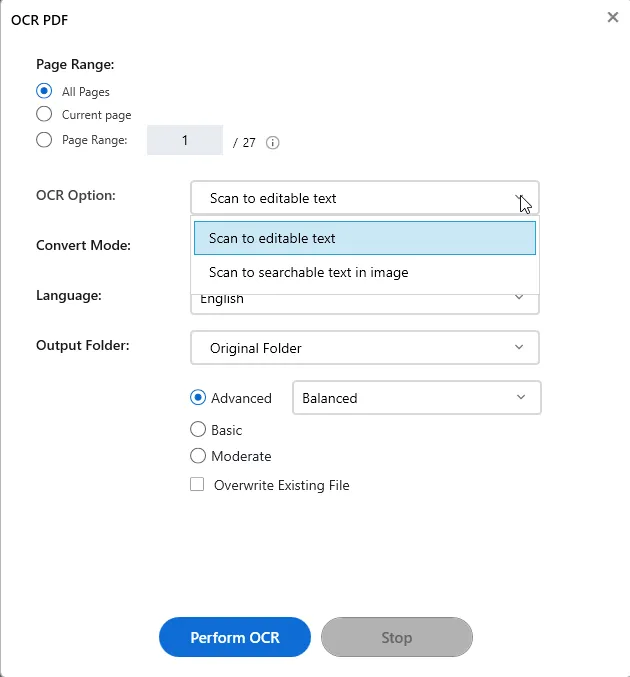
Step 4: Once complete, switch to Edit mode and edit the recognized text as needed, and save the file.
| Need to edit a scanned PDF? Get Systweak PDF Editor with built-in OCR → Download Free |
Frequently Asked Questions
Conclusion
Editing text in a PDF doesn’t mean you need to convert the file, lose formatting, or upload it. With an offline PDF editor installed on your Windows, you can open any PDF and make text changes. From correcting typing errors to updating numbers, adding new content, finding and replacing documents, and converting scanned documents into an editable file, you can do it all with Systweak PDF Editor.
Download Systweak PDF Editor and try it on your next document.
Related Articles
Before or after editing text, if you are looking for a way to combine, split, annotate, convert, and perform other operations, you can check out these guides:




