




Converting PDFs is mostly tricky, particularly into Excel formats, when you wish to do analysis or keep proper records while keeping all of your data, tables, and format the same as they were in the PDF, but we all know this process usually messes up the layout and merges cells incorrectly, and sometimes we even lose crucial details.
But don’t worry if you want to convert your PDF into Excel and you are so done with these troubles while processing your PDF conversion, because now we have a tool that works accurately in PDF to Excel conversion, making it stand out among other tools. And here I’ll walk you through the steps of converting a PDF to Excel without losing formatting with this dependable tool that ensures a precise and seamless conversion.
Systweak PDF Editor is a versatile PDF management tool that is easy to use and is specifically designed for Windows users. Its features not just offer editing and annotating but also converting, securing, rearranging, merging, and many others as well. Most importantly, what makes it stand out is its capability of preserving formats and layout while converting PDF into Excel accurately, which also saves time and effort.
Maintaining formats is very important when converting PDF to Excel!
Because when PDFs are converted to Excel, the original structure like columns, rows, cell borders, fonts, and formulas, need to remain the same; otherwise, the whole meaning of the data can be messed up and it can be very difficult to analyse it.
It is important because:
- It saves you time, because fixing those broken tables and formatting errors after conversion can be time-consuming.
- It keeps your data readable and ready for immediate use without extra editing.
- Preserving critical information, especially in financial reports, invoices, or complex spreadsheets, is very important.
Steps of converting PDFs into Excel with Systweak PDF Editor
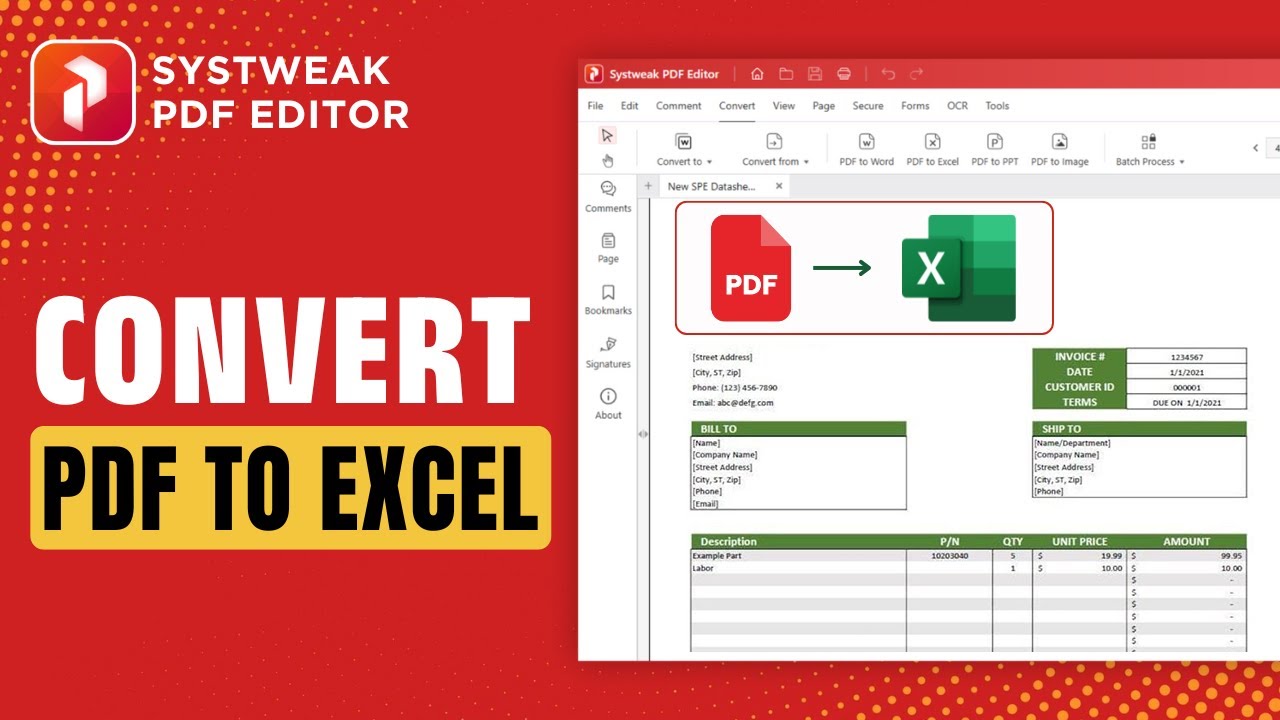
1. Download and install Systweak PDF Editor
- First, download Systweak PDF Editor and install it on your Windows PC.
- This user-friendly application is a lightweight yet very powerful PDF management tool specialising in conversion features.
2. Open the Systweak PDF Editor
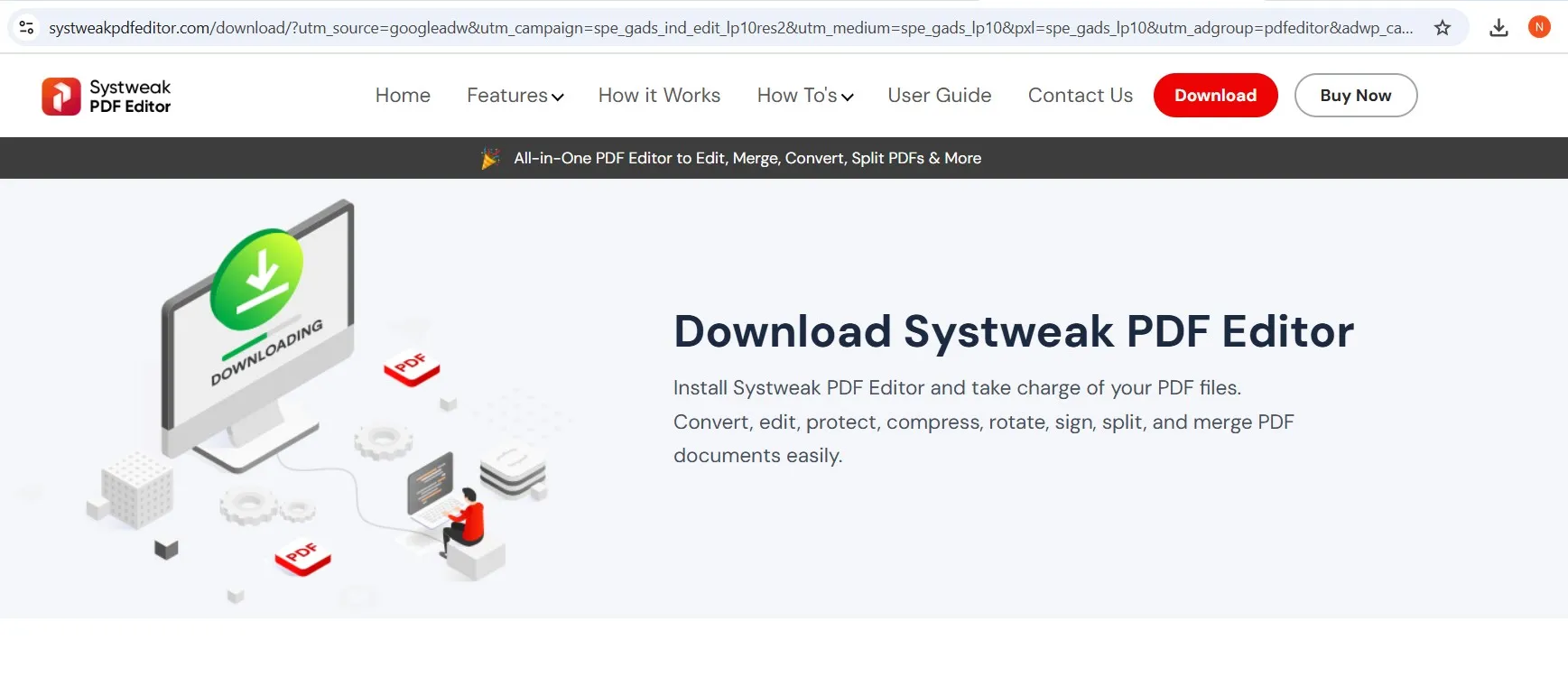
- Launch the app
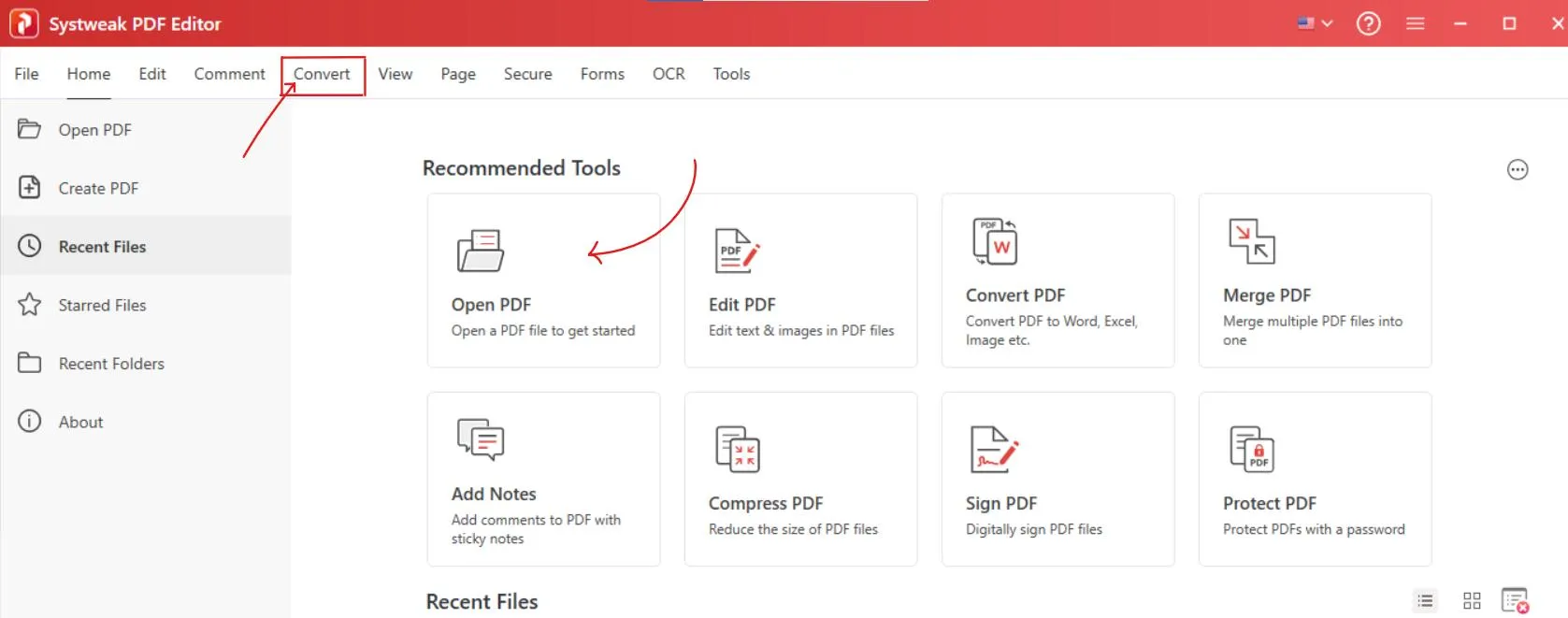
- Go to Open PDF and select the PDF that you want to convert.
3. Navigate to the Convert Tab
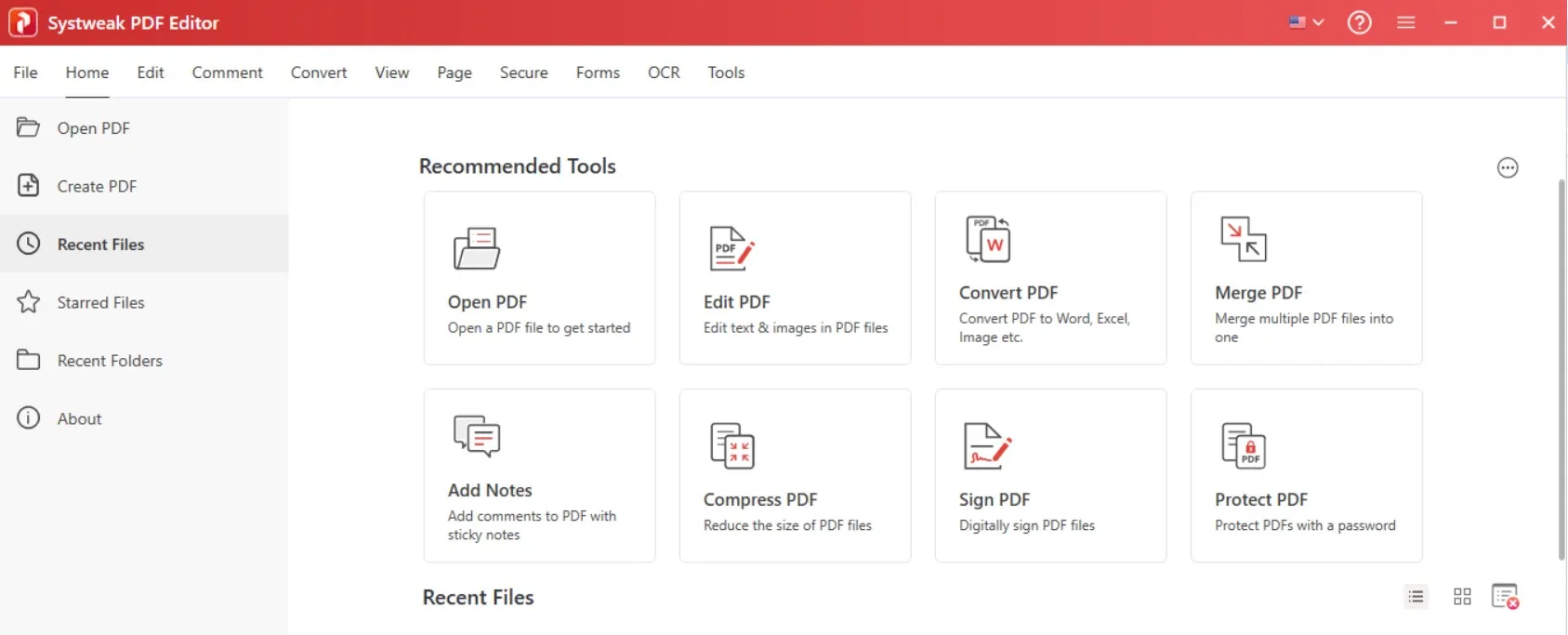
- Once your PDF is open, go to the Convert toolbar.
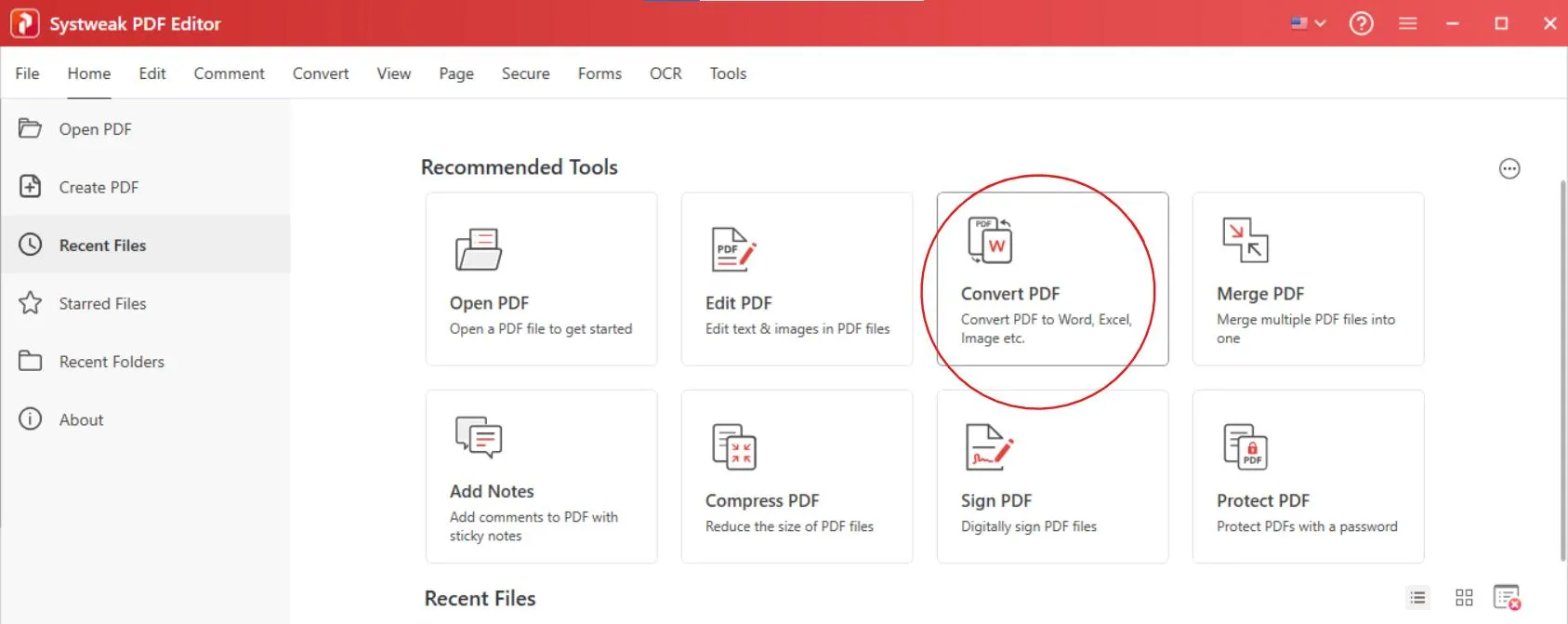
- Or you can directly click on the “Convert” tab located on the top and open your PDF file there or drag and drop it.
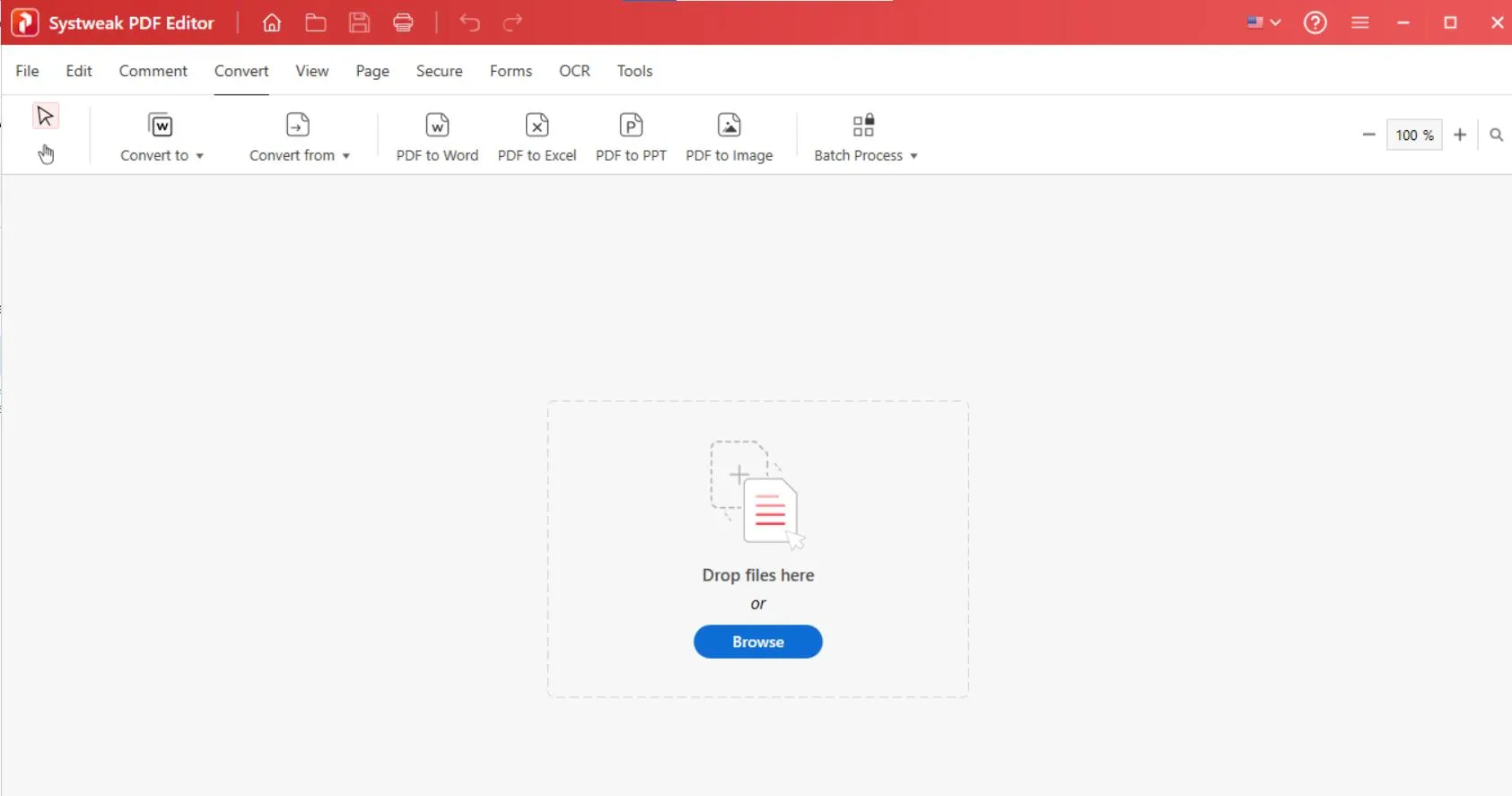
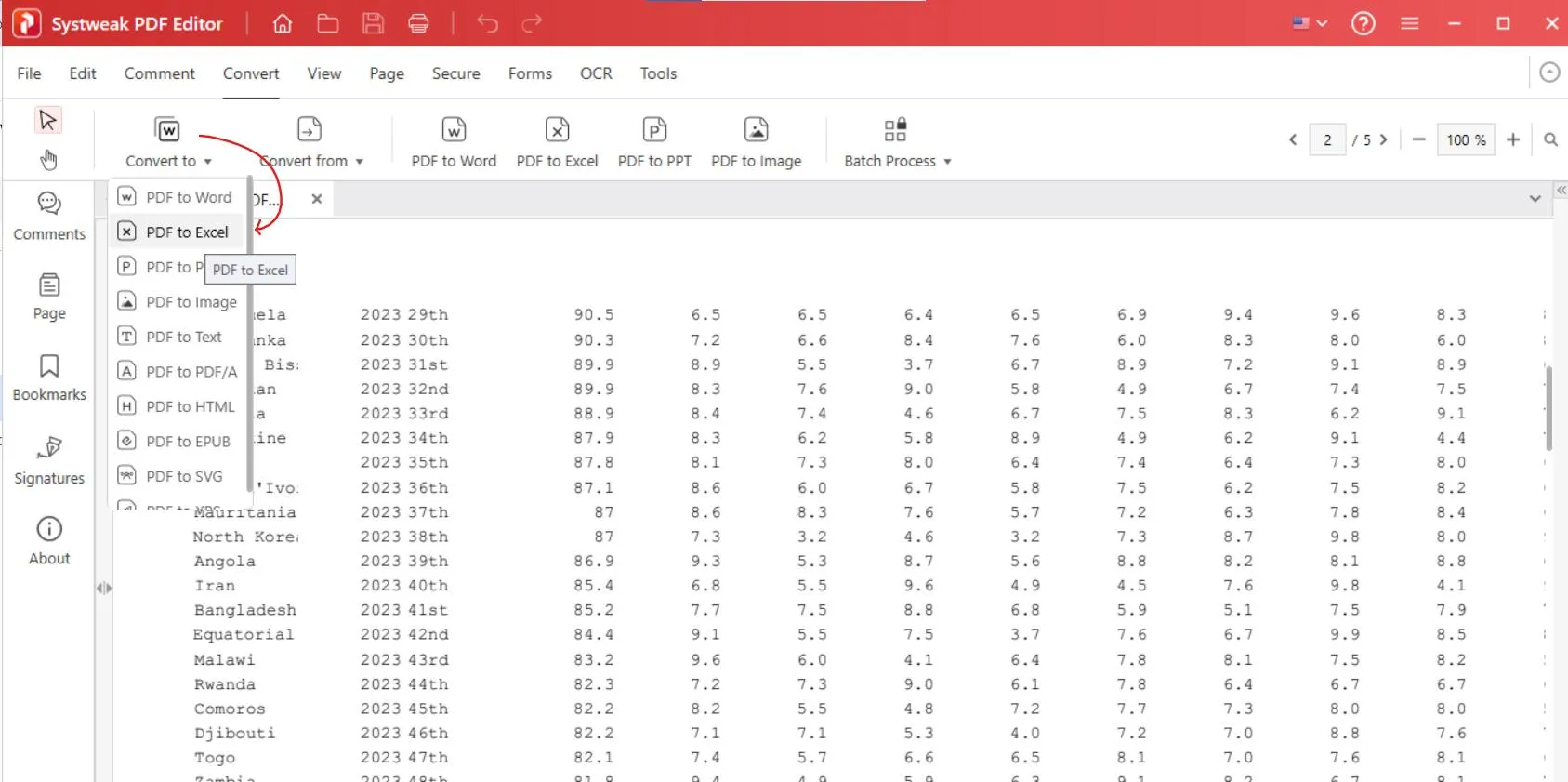
- Then choose “PDF to Excel” from the conversion options “Convert to”.
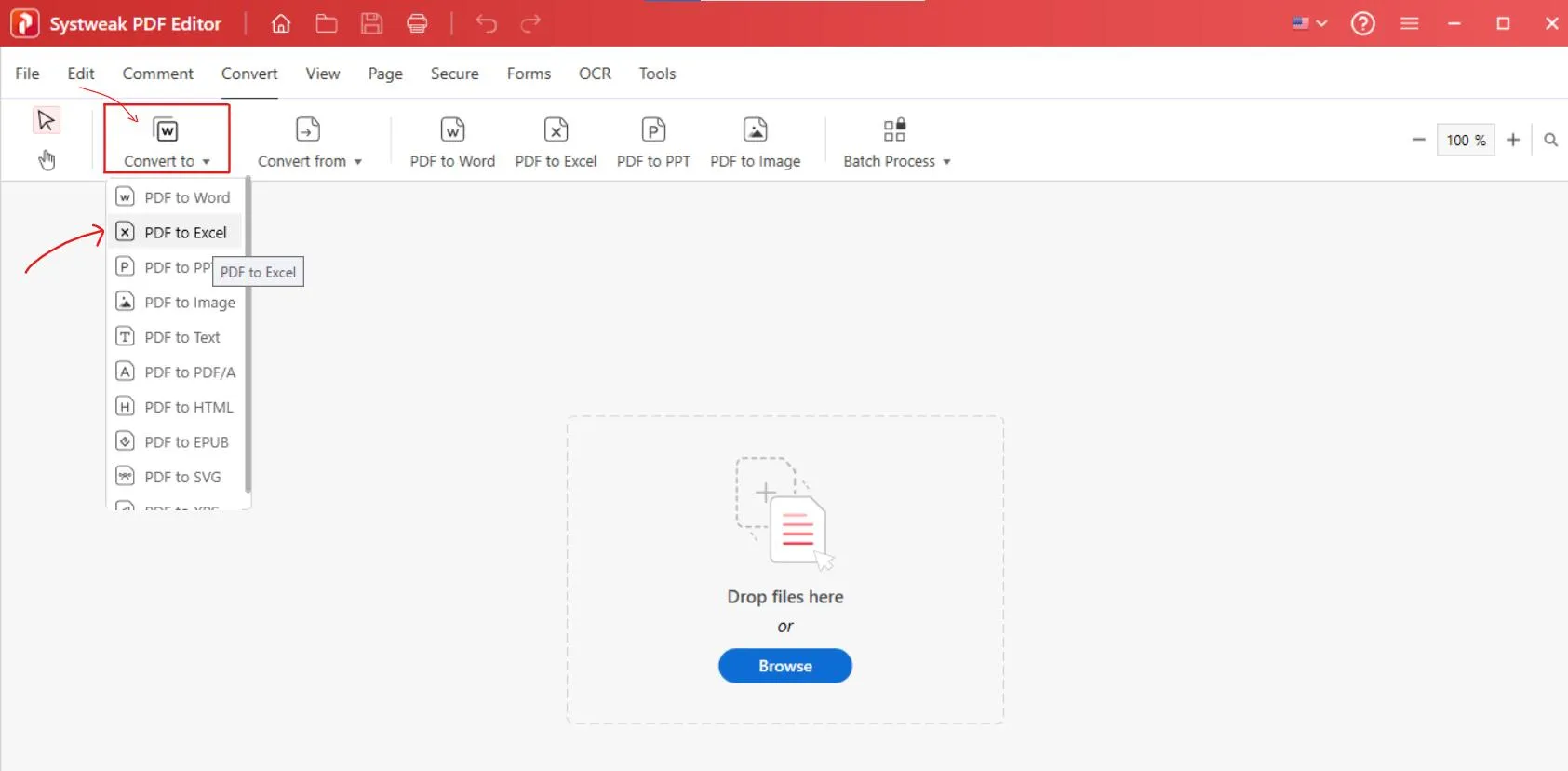
4. Select PDF to Excel Convert menu option
- Select the PDF
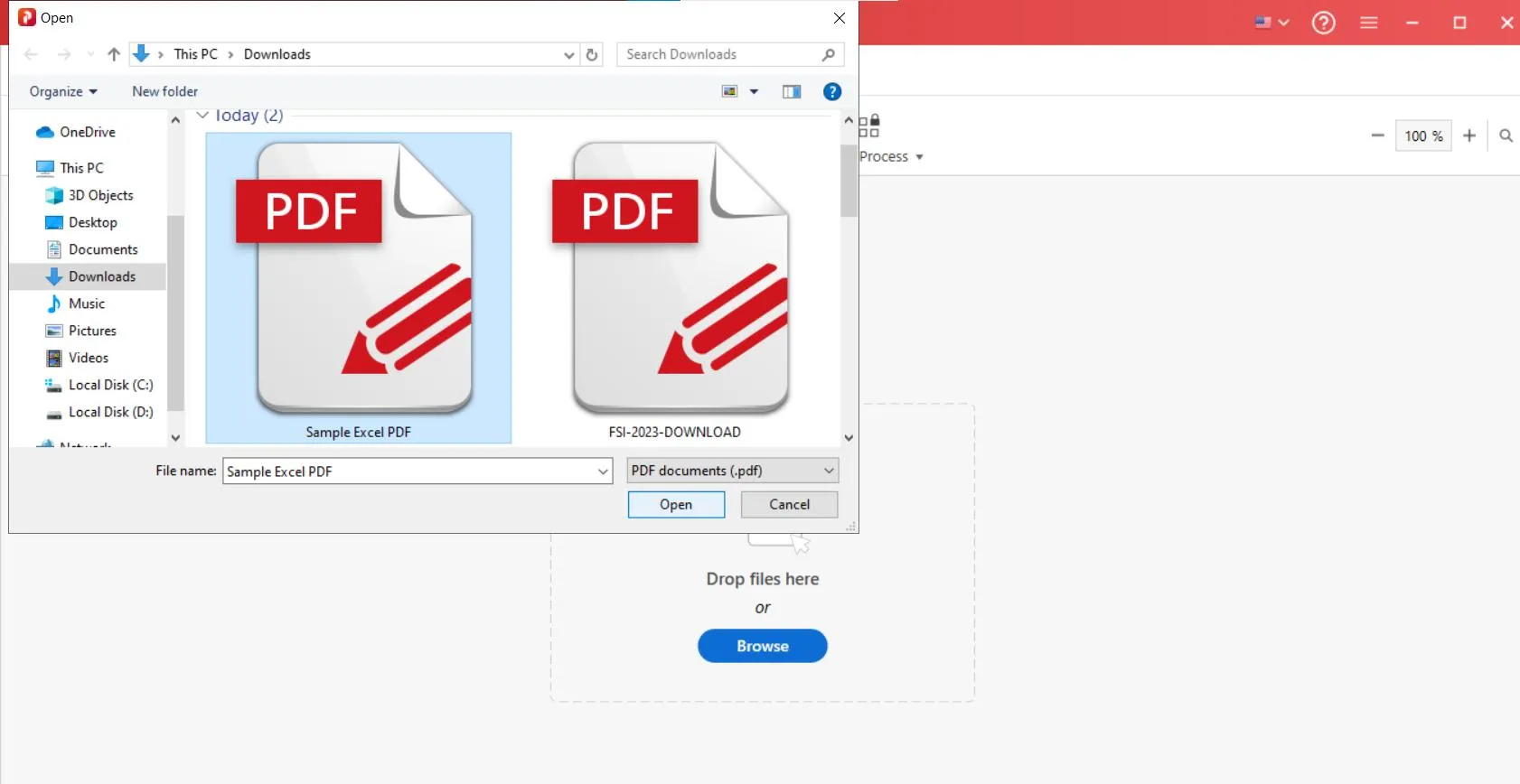
- Then select PDF file to be converted to excel.
- Also, if your PDF file is large and you want to optimize it before converting, then you can compress it without losing quality. You can take help from our guide on “How to reduce or compress PDF file size without losing quality”.
5. Start the Conversion
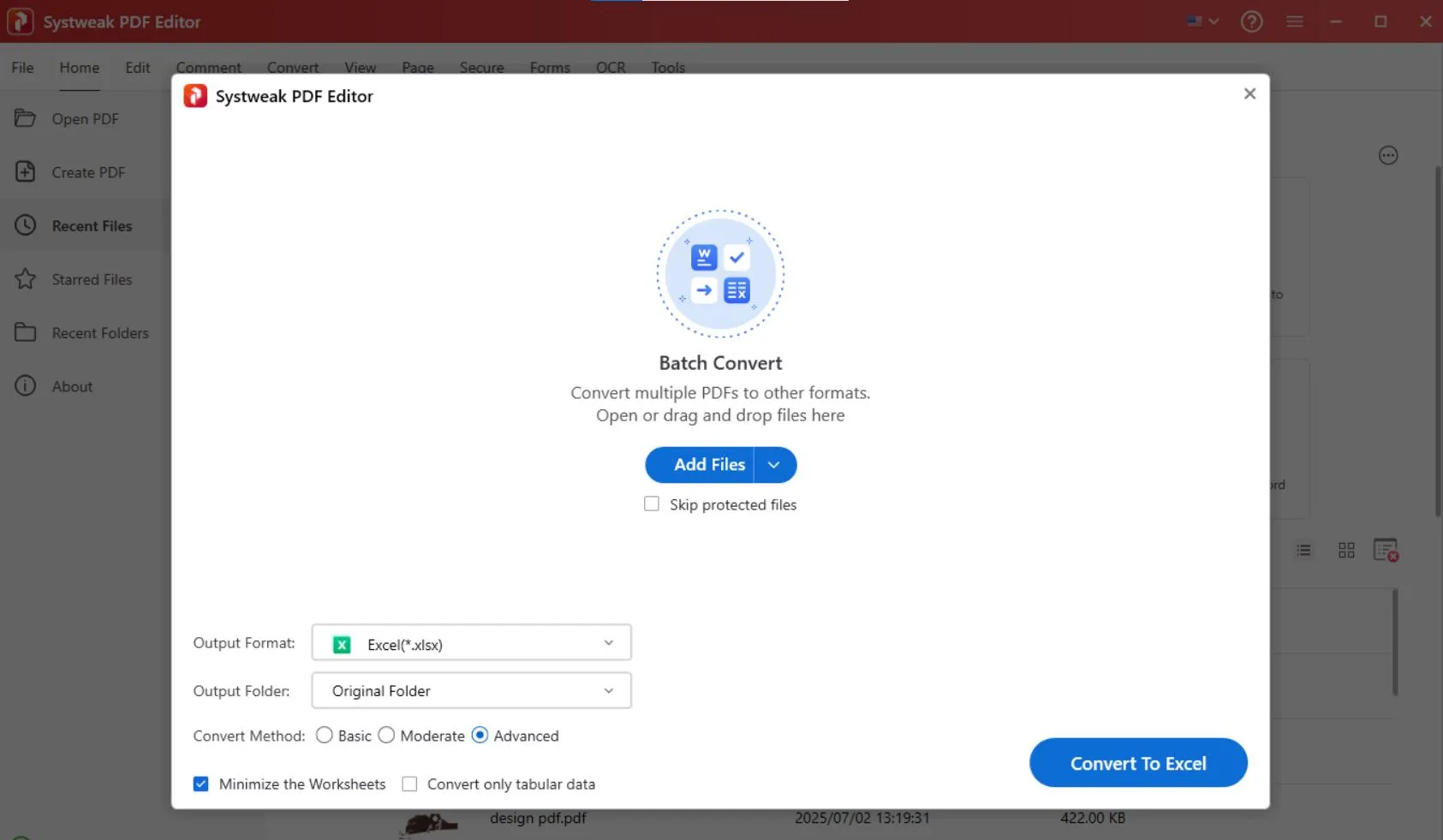
- Once you click on “PDF to Excel,” the process of conversion will start.
- The PDF file will be uploaded and ready to be converted in the conversion processor.
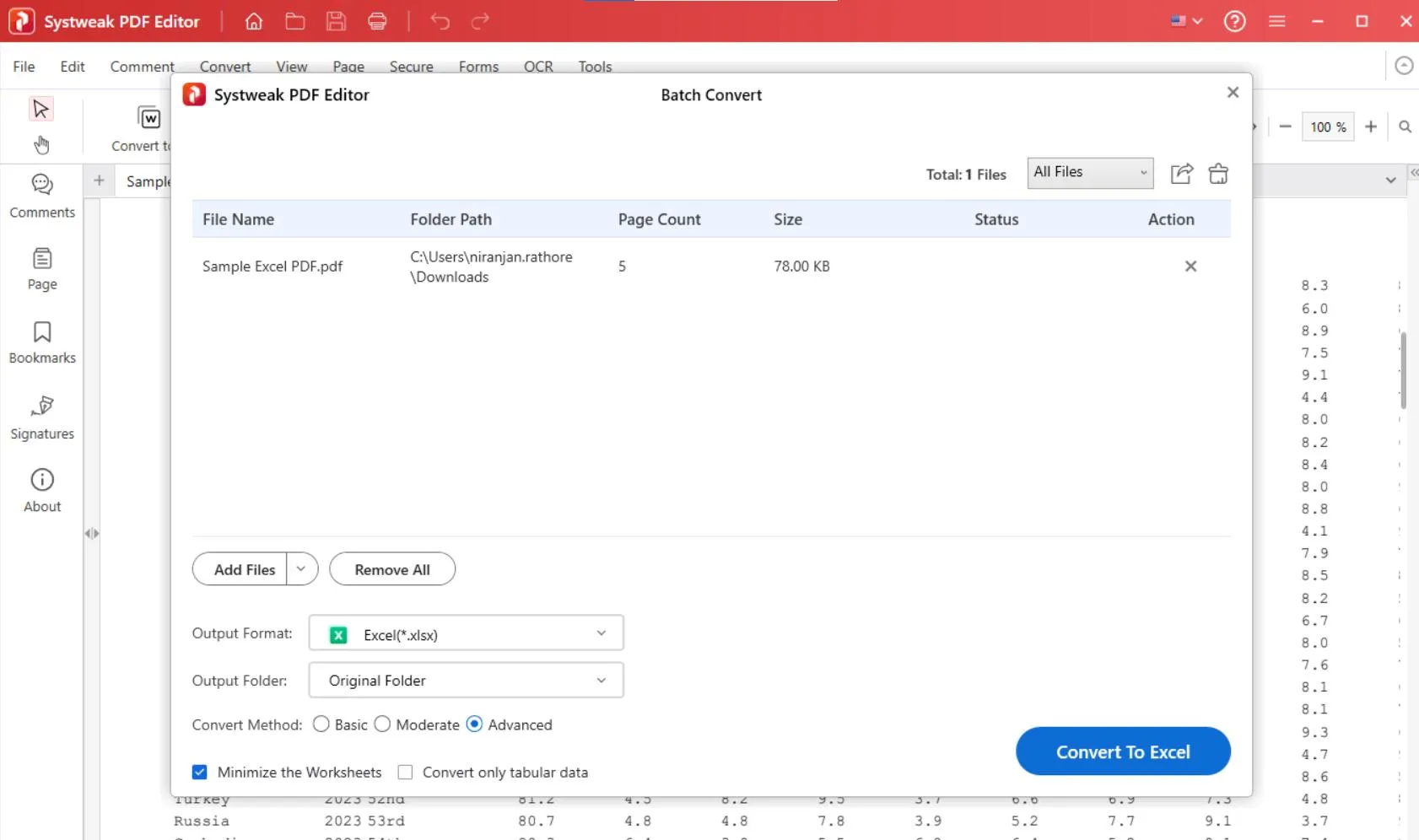
- Just click on “Convert to Excel,” and in a few seconds the process will be completed.
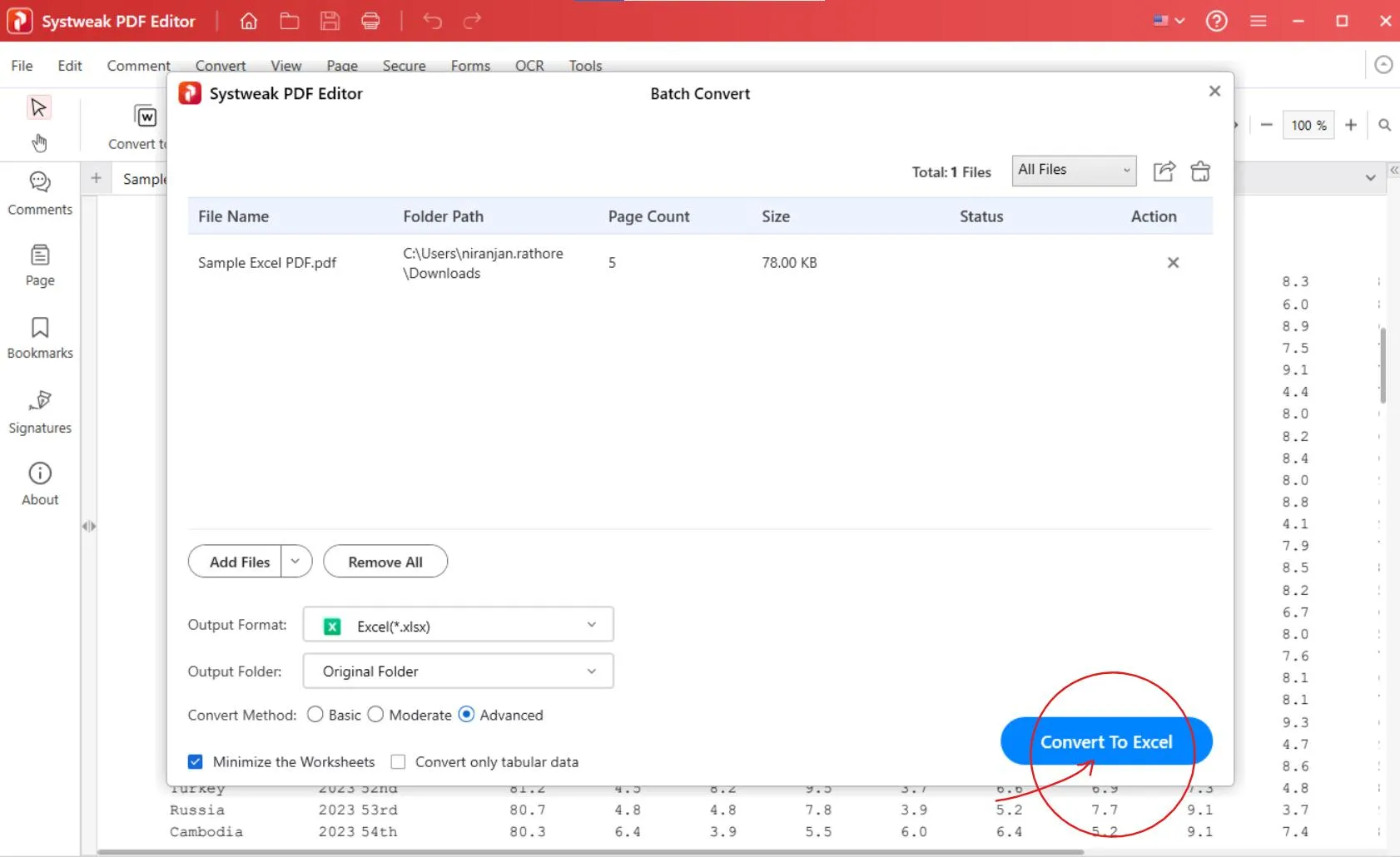
- Systweak PDF Editor will convert your PDF file into an editable Excel (.xlsx) file while keeping everything like fonts, cell structure, and data intact.

6. Open and Review Your Excel File
- Once the conversion finishes, the Excel format will be automatically saved in the original folder where it was in PDF form. You can also choose where you want your output to be saved before converting from “Output folder.”
- Open the Excel file to verify the formatting is accurate.
- Click on “Open” and select “Open file” to review your Excel sheet.
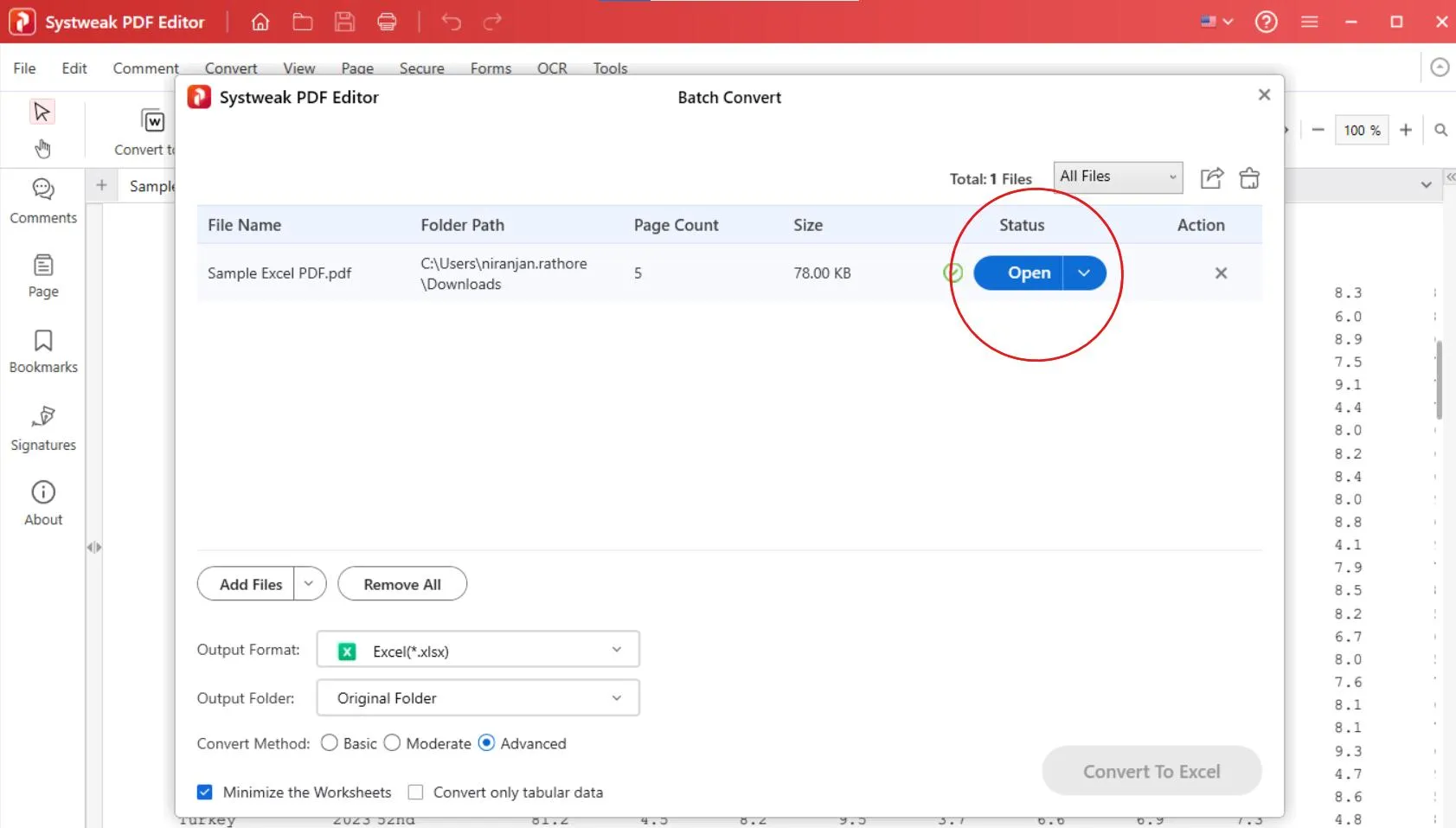
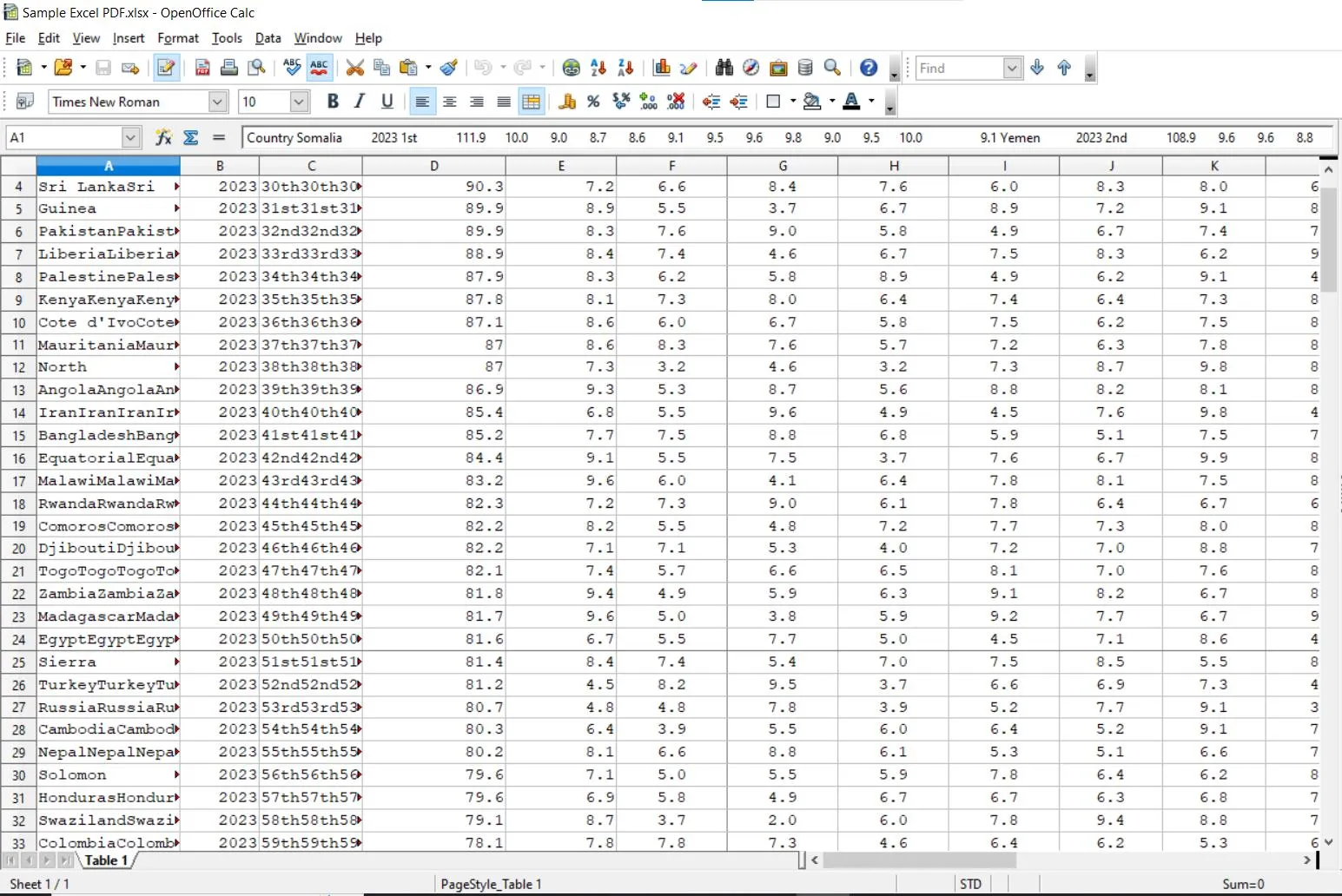
You can also perform “Batch Conversion” with Systweak PDF Editor, so if you have many files, you can convert them all together.
Some Additional Tips
- It will be better to use high-quality, digitally created PDFs instead of scanned images for best results.
- If your PDF contains scanned images of tables then consider using OCR (Optical Character Recognition) for better extraction.
- Split large files before conversion and remove unwanted elements for better results, because cleaning the PDF before conversion is good.




