
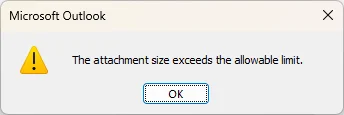
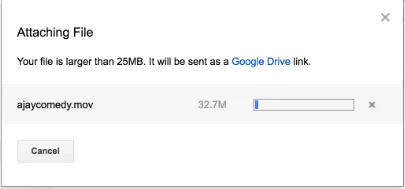
Messages like “The attachment size exceeds the allowable limit,” “Your file is larger than 25MB. It will be sent as a Google Drive link,” and “The selected file cannot be attached because it exceeds the maximum allowed size for attachments (20MB)” are common interruptions in the workflow.
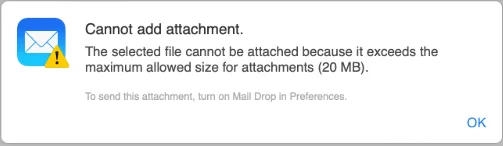
It is because of them emailing a PDF file which should be easy and convenient has now become difficult. Not only this, sometimes the email is sent, but after an hour or two, it bounces. This happens when the provider through which you are sending has a higher limit than the one receiving. For example, with Gmail, you can send a file up to 25 MB, but Outlook will only accept attachments up to 20 MB, which can result in a bounce.
Whatever the case, you are stuck because you cannot send large PDF files via email.
The solution is to compress PDFs under 10 MB without losing quality, which will make sharing, storing, and managing them easier.
PDF attachment Size limits as per the provider
| Provider | Attachment limit |
|---|---|
| Outlook.com | 20 MB (up to 150 MB on Microsoft 365/Exchange, if allowed by admin) |
| Gmail | 25 MB |
| Apple iCloud | 20MB |
| Yahoo Mail | 25 MB |
Why does the size of PDFs increase?
PDF file size increases due to embedded high-resolution images, pages scanned at 300 DPI or higher, vector graphics, embedded fonts, merged PDFs, annotations, form fields, and interactive elements.
How To Compress A PDF for Email?
A PDF can be compressed using desktop software, an online browser-based tool, or by zipping the file. The first two compress the PDF and the images within it, while the third just wraps the document, reducing the size to a minimum.
To use a browser tool, you must upload a file to a third-party server you have no idea about. While the offline tool processes files locally. However, with the zip method, the recipient has to first unzip the file to view it, which doesn’t seem effective. Keeping all this, document security, and privacy in mind, we suggest using desktop software.
Method 1 – Shrink PDF Size Using Desktop Software (Recommended Method)
Systweak PDF Editor is a comprehensive PDF editor that offers 5 compression modes to reduce PDF size for email attachment without losing quality. You can use any of them based on your requirement and compress the file size.
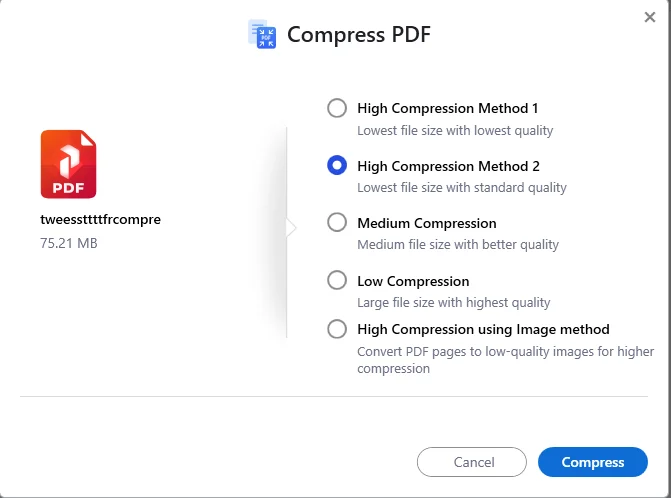
I tested all the compression modes on two different PDF files. One was 75.21 MB, the other was 9.9 MB. Here are the results:
Test 1: File Size 75.21 MB
| Mode | File Size After Reduction (MB) | Compression Percentage |
|---|---|---|
| High Compression (Method 1) | 14.37 | 80.89 |
| High Compression (Method 2) | 18.10 | 75.93 |
| Medium Compression | 21.51 | 71.40 |
| Low Compression | 39.38 | 47.63 |
| High Compression using image method | 29.40 | 60.90 |
Test 2: File Size 9.9 MB
| Mode | File Size After Reduction (MB) | Compression Percentage |
|---|---|---|
| High Compression (Method 1) | 3.45 | 65.05 |
| High Compression (Method 2) | 4.09 | 58.60
|
| Medium Compression | 4.59 | 53.50 |
| Low Compression | 7.94 | 19.57 |
| High Compression using image method | 3.19 | 67.66 |
All 5 modes work differently. This means you have options to choose from based on the data and requirements, which no online tool offers. If you are okay with reducing image quality within PDF High Compress Method 1 will give you a smaller file size. But if you want to keep everything looking like the original file, High Compression Method 2 is recommended.
Steps to Compress PDF
Now, to compress the PDF, you have to follow these steps:
1. Download and install Systweak PDF Editor on your PC using the button provided below.
2. Click Compress PDF under Recommended Tools.
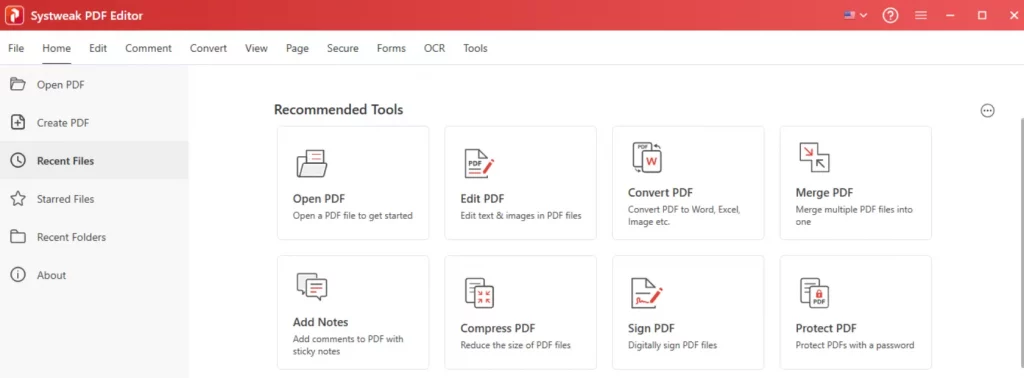
Or
Click on Tools tab in the toolbar and select Compress PDF.

3. The File Explorer window will open where you have to choose the PDF file.
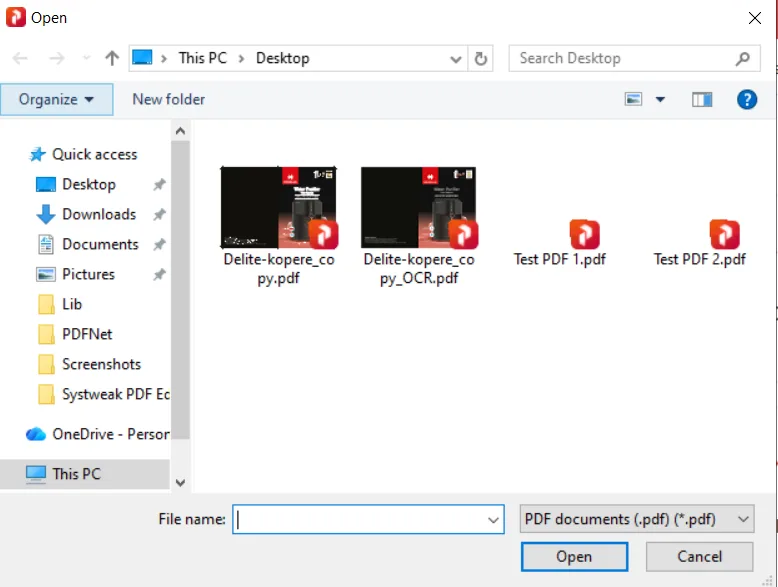
4. The PDF file will now be imported in Systweak PDF Editor.
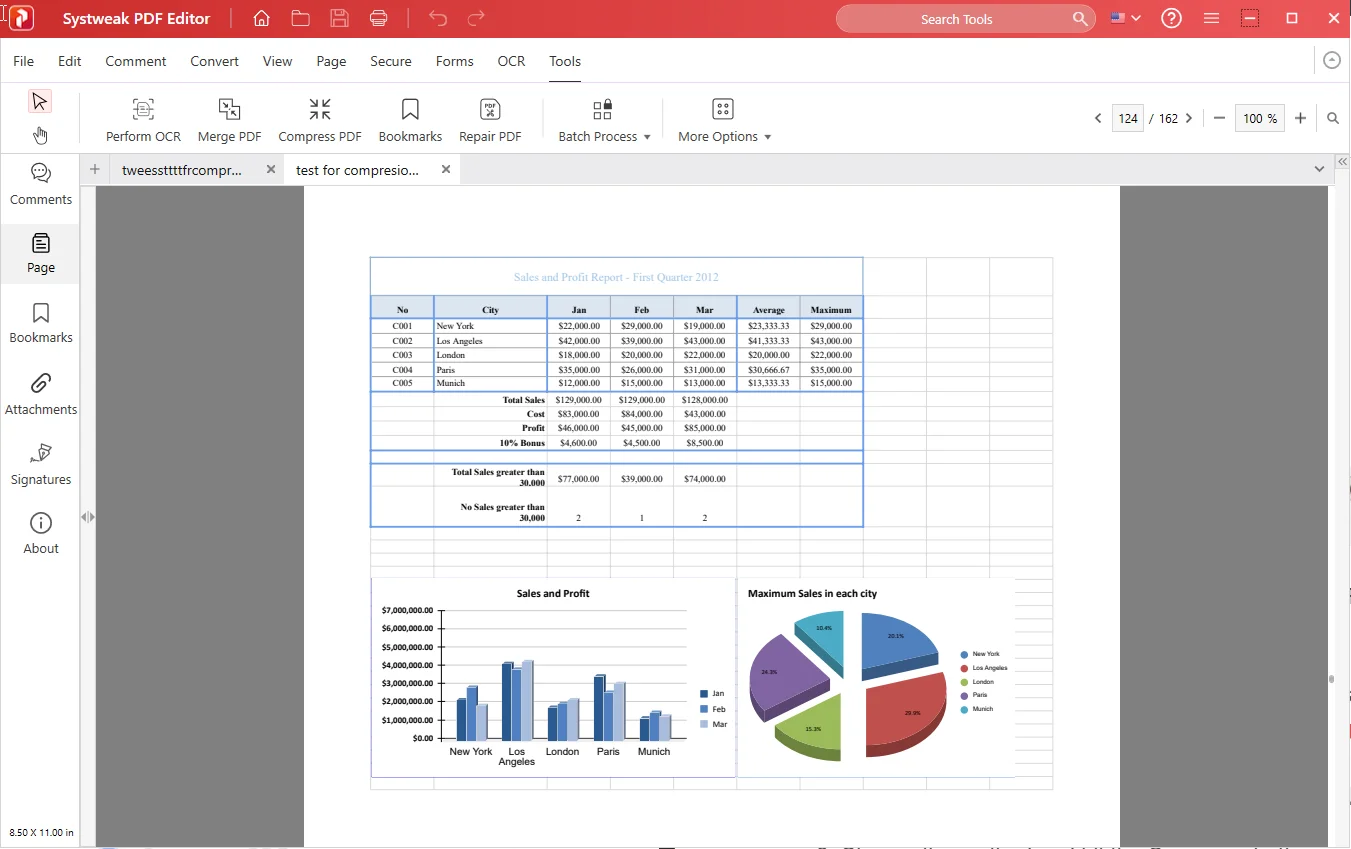
5. Click the Compress PDF button to begin the process.

6. Choose the method and hit the Compress button. You can select from 5 different methods.
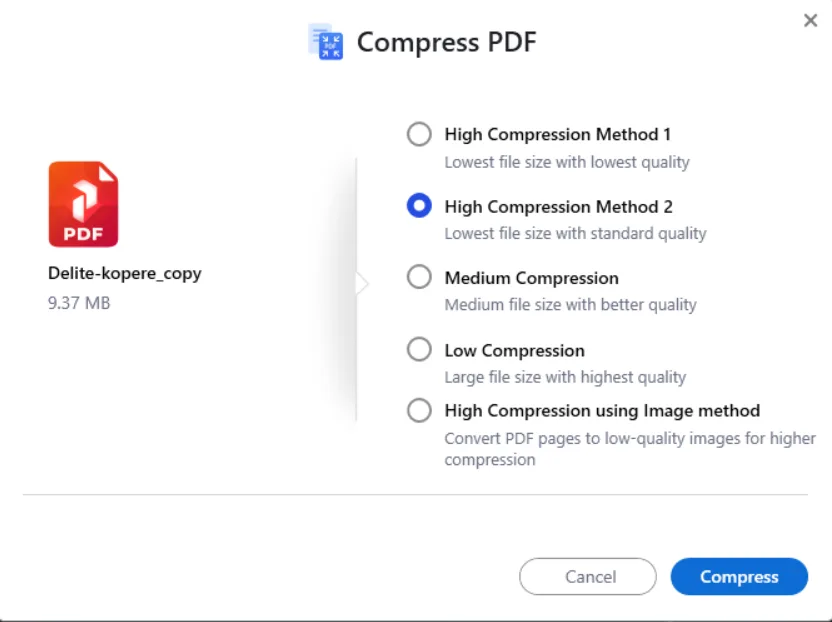
Method 1 – High Compression gives the smallest size with poor quality.
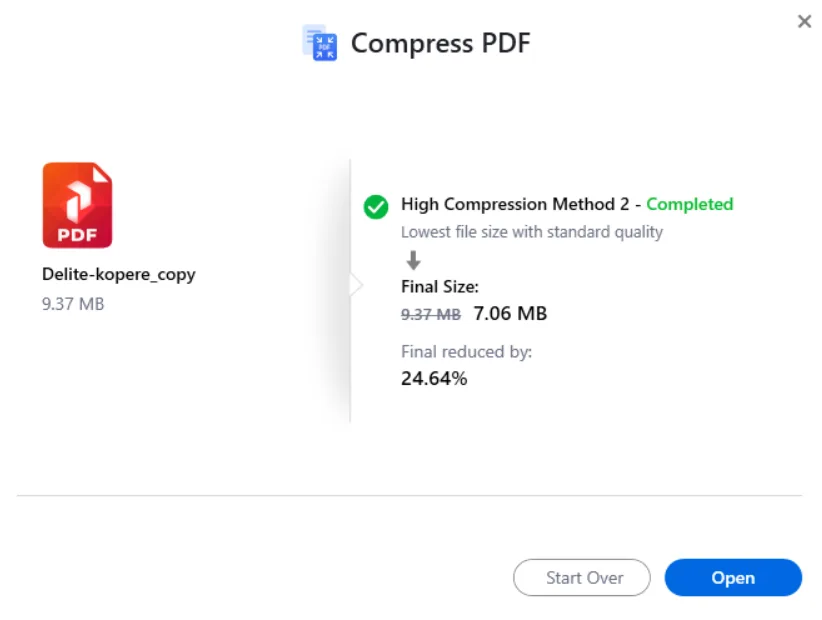
Method 2 – Recommended as it gives the smallest file size with standard quality.
Method 3 – Medium Compression gives a moderate file size with relatively high quality.
Method 4 – Low Compression, less file compression with retained quality.
Method 5 – High Compression with the image method reduces image quality for increased compression.
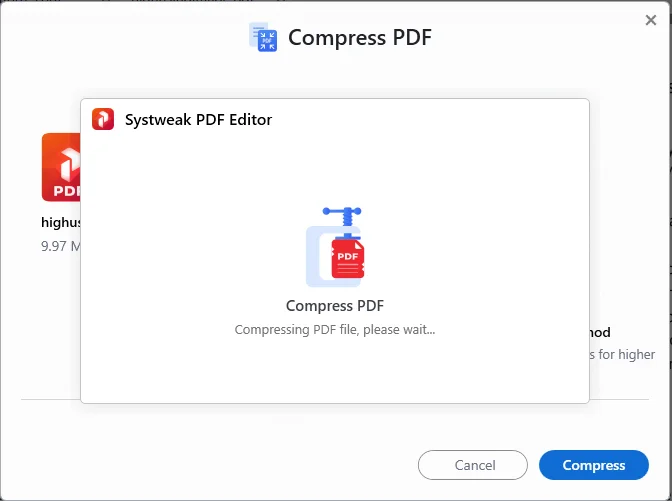
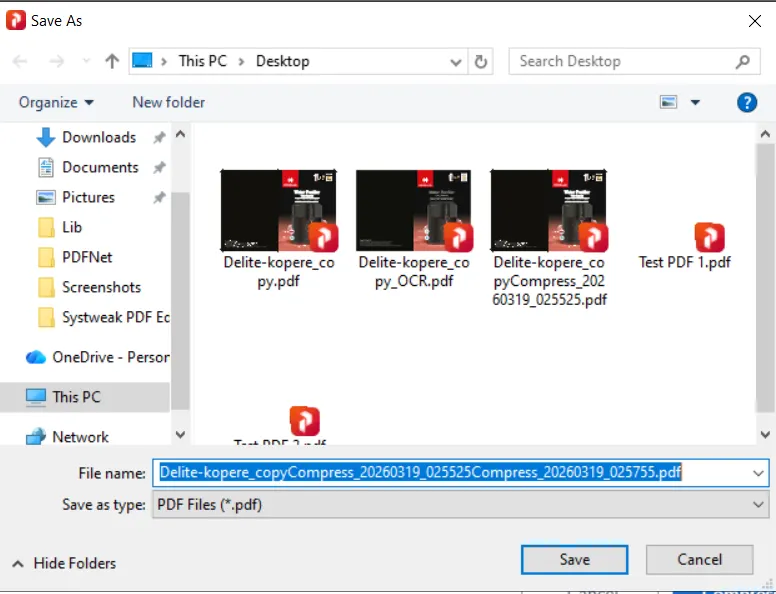
7. Select the destination folder to save the compressed PDF and click on Save.
8. Click on the Open button to check the quality of the PDF.
Method 2 – Use Online Software
To compress PDF online for free, use the I Love PDF online PDF compression software. This is a quick, free, PDF compressor tool that you can use to carry out basic PDF modifications, including optimize PDF for email.
1. Click this link to open the I Love PDF page.
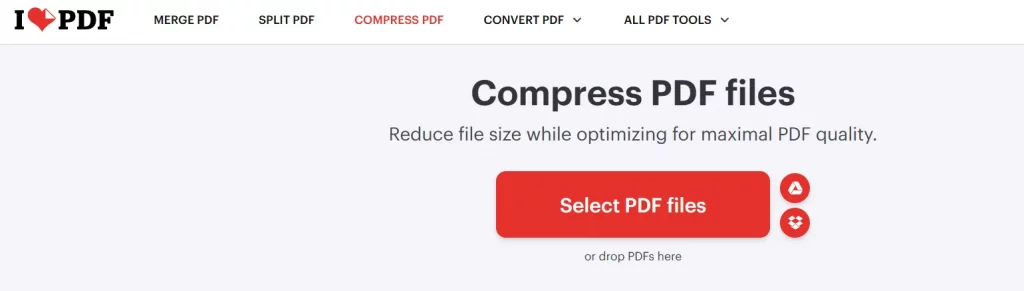
2. Choose the Select PDF Files button and use the File Explorer to import the files.
3. Select the Compression level and hit the Compress PDF button.
4. It will take some time to complete the process.
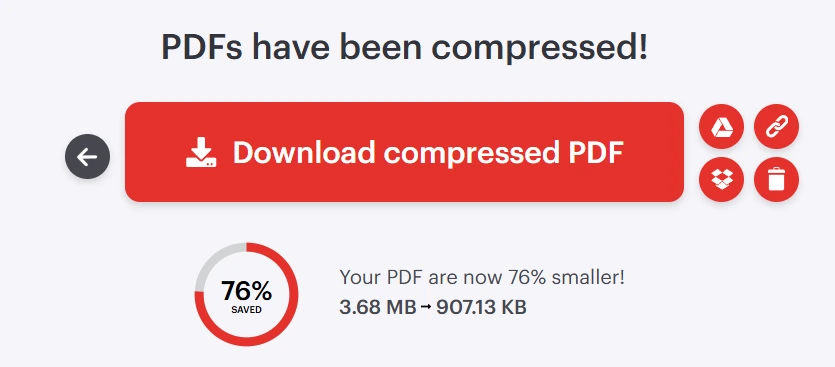
5. Click on the Download Compressed PDF button.
Bonus Method – Reduce Your PDF File Size By Zipping The Folder
If you do not wish to shrink PDF file size but share them as they are, then add them to a Zipped folder. The person who will receive the zipped folder can then unzip the PDF document to its actual size. Here’s what you need to do.
1. Launch File Explorer and locate the PDF document.
2. Click on the file once to select it. Then, make a right-click to view the quick access menu.
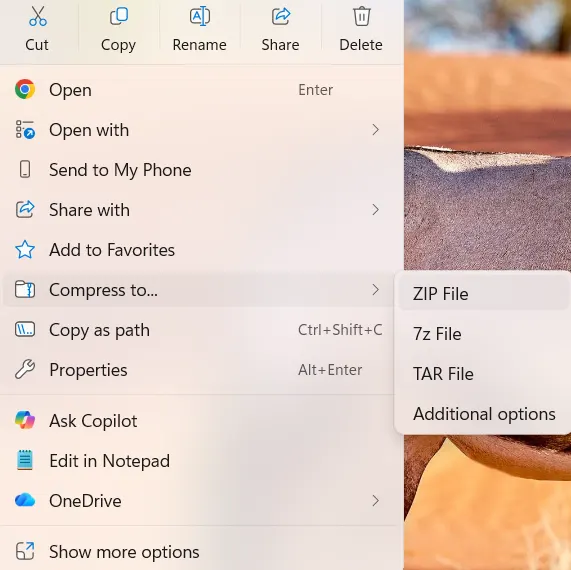
3. Click on the Compress to option to reveal more options.
4. Click on the Zip file, and the process will commence.
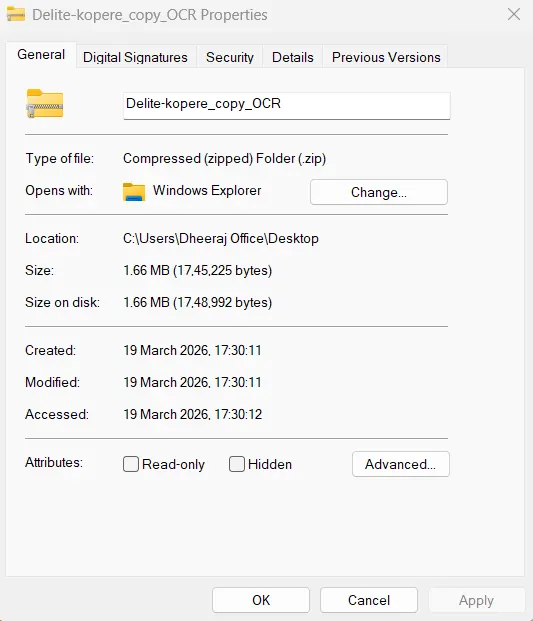
5. Right-click on the zip file and check the properties to view the new file size.
6. Finally, share the zipped folder on email.
Additional Tips For Lowering PDF File Size
Alongside using a tool to compress the file, also follow these tips to keep the file size optimized:
- Delete unnecessary or blank pages.
- Add compressed images.
- Change colors scans into grayscale images.
- Delete any unneeded annotations, watermarks, and other elements that increase file size.
- Reduce scan resolution to 150 DPI
- Prevent any graphic duplication.
- Flatten all form elements into the PDF base layer.
Can a scanned PDF be compressed?
Yes, these PDFs require more compression than any other file. To begin with, always scan at a lower resolution, convert color scans to grayscale, and then use either Medium or High Compression to bring down the size of the scanned document.
Why Use an Offline PDF Compressor?
Though using web-based solutions is easy, the absence of security features and slow processing speeds make using an offline PDF compressor a better decision. Software like Systweak PDF Editor for reducing PDF size for email attachments and compressing PDFs without losing quality helps:
- Enhance document security
- Doesn’t require an Internet connection
- Fast data processing speed
- Provides advanced compression controls
- Works well with larger files
Frequently Asked Questions
Conclusion:
Large PDF files are not only difficult to share via email but also consume more storage space. It is sensible to reduce the PDF file size without affecting the quality of the contents. We have described many methods to compress PDF for email, but we recommend using an offline PDF tool like Systweak PDF Editor. This is one of the best PDF compressor tool that not only keeps your data safe and secure but also allows you to edit the text and images within the PDF and manage the pages as well.