
Editing a PDF is not an easy task, as the format was developed to maintain the exact, original, and intended formatting of a document, no matter where it was opened. However, sometimes you do get PDFs where the images are not correct, could be replaced with better ones, or you need to make certain changes.
What you need is software that will allow you to change images in PDF files, as well as edit pictures in a PDF document. In this guide, we will explain how to replace an image in a PDF document step by step.
Systweak PDF Editor is one of the best PDF editors for image editing, helping users edit images in a PDF document and replace images in a PDF file. This complete PDF editor tool covers all aspects of editing a PDF document, making all possible changes to the content, and managing pages within. Let us begin our guide on how to edit images in a PDF without Adobe Acrobat.
Why Editing Images in a PDF is Difficult
Image editing in PDF format poses many challenges since PDFs were developed as fixed-format files and not for ease of editing. Below are some challenges.
- PDFs have a fixed layout, making editing not easy
- Images may be embedded in a single layer of the file
- Editing will require PDF editing software
- Compression affects the quality of the images
- Scanned PDFs view images as non-editable elements
- It’s hard to maintain the same format during editing
How to Edit Images in a PDF (Step-by-Step) using Systweak PDF Editor (Recommended)
This guide will explain how to replace an image in a PDF document step by step, along with other steps to edit pictures in a PDF document.
Step 1. Download and install Systweak PDF Editor on your computer using the Download button provided below.


Step 2. Open the app and click on the Open PDF icon in the recommended tools section to import the PDF on which you wish to change the images.
Step 3. After the PDF has been successfully loaded in the Systweak PDF Editor software, click on the Edit tab on the toolbar and choose the Edit Content option from the Ribbon.
Note – We have used a sample PDF to explain the image editing process along with detailed steps.
Replace Image in a PDF
1. Open any PDF in Systweak PDF Editor, click on Edit, and choose Edit Content. The text and images within the PDF will be highlighted for you to make the change.
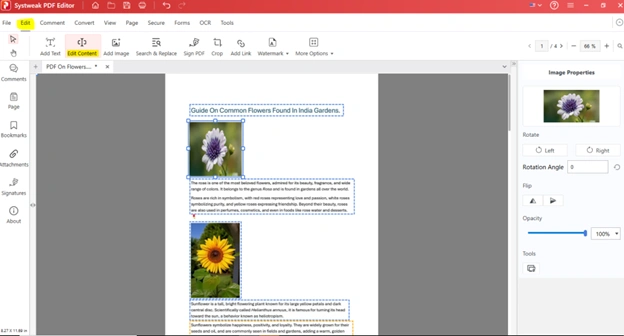
2. In the above screenshot, we will change the first image because the description mentioned is of the Rose flower, but the image does not match the description. Right-click on the image that you wish to change, and it will be highlighted and display a context menu.
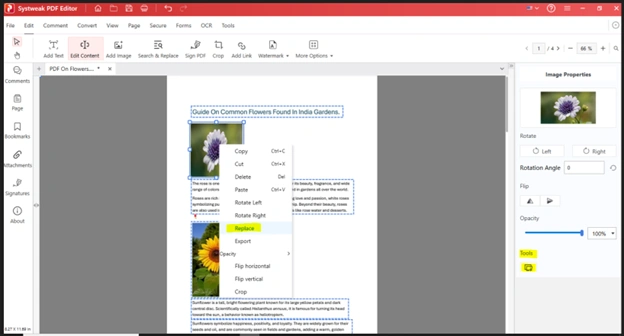
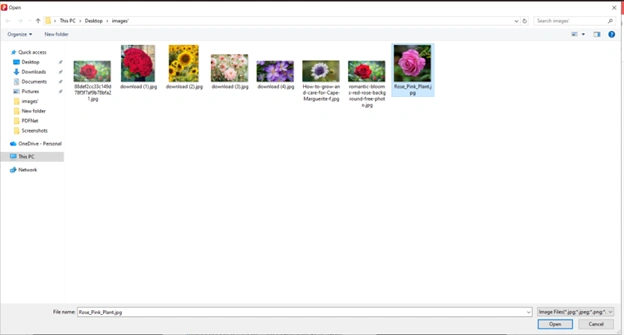
3. Choose Replace from the context menu or click on the icon under Tools. The File Explorer window will open, asking to select the new image. Click on the Open button, and the image will be replaced.
Resize/Move Image
1. To resize or move any image in a PDF, open the PDF in Systweak PDF Editor, click on Edit, and then on Edit Content.
2. Click the image you wish to move and drag and drop it to the new position with the left click pressed. Release the left click in the new position.
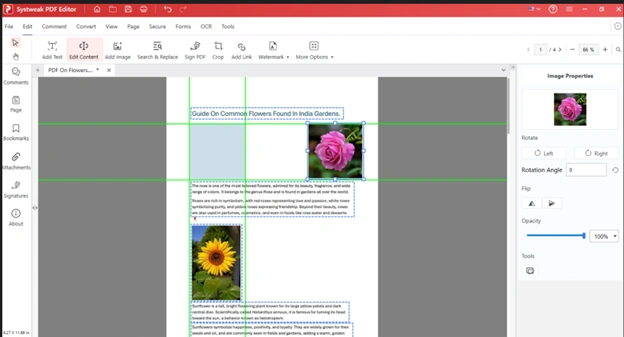
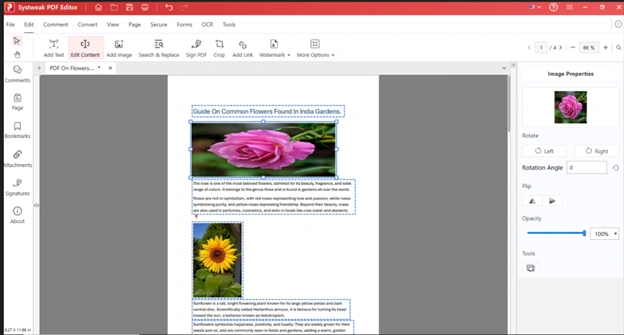
3. If you wish to resize the image, click on the image once, and you will observe eight square boxes appear on the image. Drag any box to increase and decrease the size of the image.
Add Image/ Delete Image
1. If you wish to add a new image to your PDF, then open your PDF in Systweak PDF Editor and click on the Edit option, followed by selecting the Add Image option.
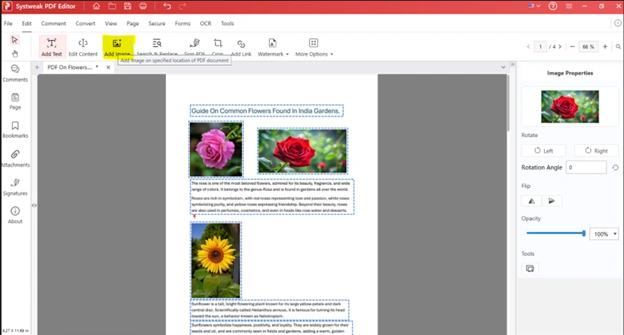
2. Choose the image stored on your PC and move the mouse cursor to the position where you wish to place the image and click once.
Note – You can only add images with extensions .jpg, .jpeg, .tiff, .png, and .gif.
3. To delete the image, click on the Edit Content option and right-click on the image you wish to remove and choose Delete from the Context menu.

Other Modifications on Images in PDF.
Moving on, we have certain other changes that you can do apart from adding, deleting, replacing, moving, and changing the size of the image. Read the steps below and follow them to modify images within the PDF.
Open the PDF in Systweak PDF Editor, click Edit, and then click on Edit content. Click on any image that you wish to modify and observe the new panel that pops out on the right side.
Or
You can right- click on any image, and you will find the same options as available in the panel.
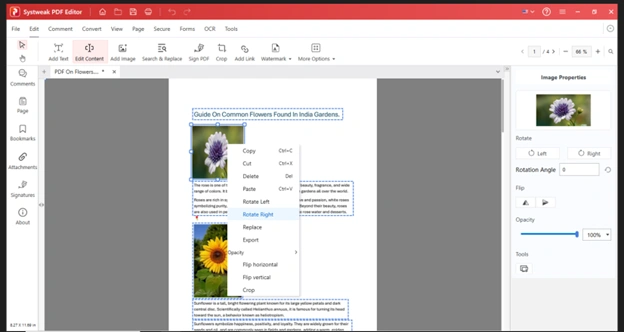
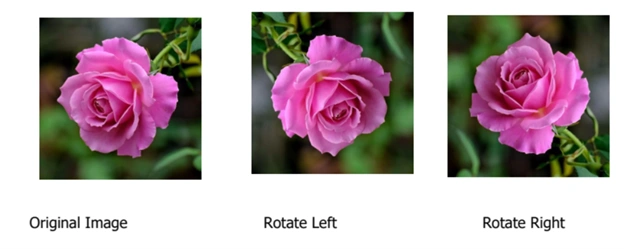
- Rotate Left – This option allows you to rotate your image towards the left.
- Rotate Right – This option allows you to rotate your image towards the right.
- Rotation Angle – This option is available in the right panel only and allows you to set the degree of rotation.
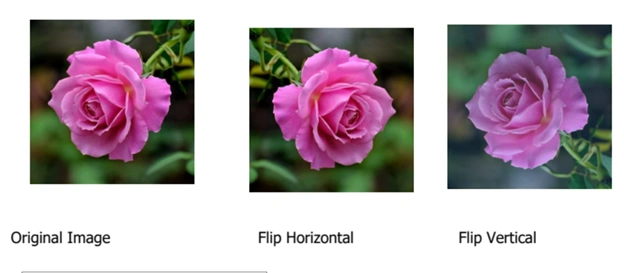
- Flip Horizontal – This allows you to flip the image horizontally.
- Flip Vertical – This allows you to flip the image vertically.
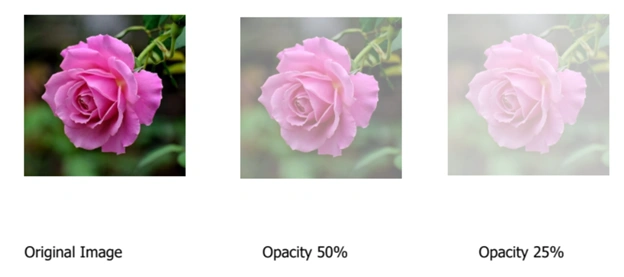
Opacity% – This option allows you to set the opacity percentage of the image. The default values set are 25%, 50%, 75%, and 100%. However, you can use the Slider in the right panel to set a custom %.
Export – The next option allows you to export any image from the PDF to your PC as a standalone image. You can right-click on the image and choose Export. Select the folder where you wish to save the image, and your image will be saved in the JPG format.
Alternate Method – Use Online Tool On Your Browser
There are a few online tools that can help to edit images in a PDF. However, all these tools require the users to upload the PDF file to the web tool’s server. This practice does not guarantee the privacy of the PDF file or how the file is treated after upload. We do not recommend this method, but if you have a file whose contents do no matter if leaked, then you can go for XARA online PDF editor.
Navigate to the XARA website.
Click on the Edit Now button.
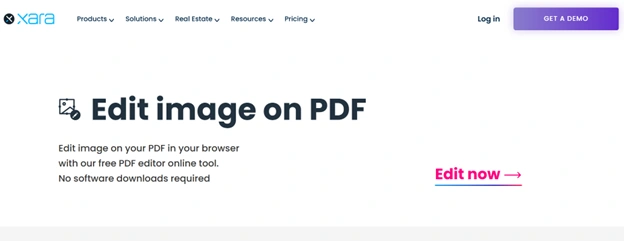
Next, click on the Select File button and open the PDF with images.
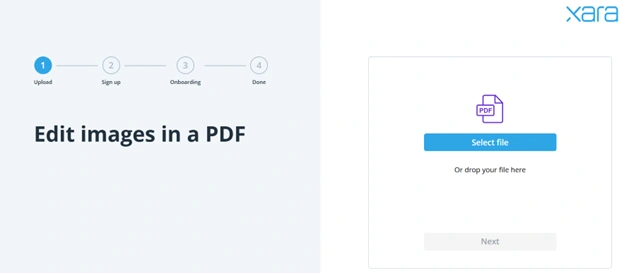
After the file has been uploaded, click on the Next button.
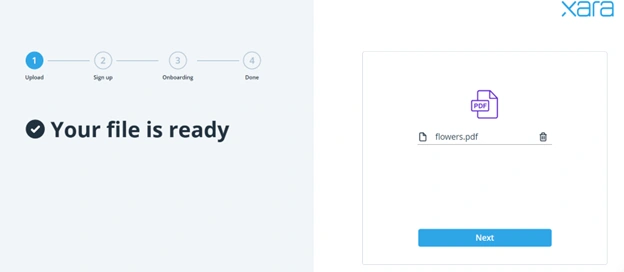
The file will now open on XARA servers. You can make changes to the images in your PDF. However, there is no way of removing the file from the server after you have made the changes.
Click on the Image you wish to edit and you will get a lot of options to make changes.
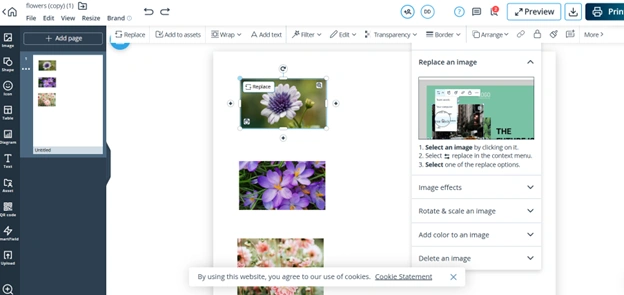
After you have made the changes, click on the Download icon in the top right corner and the PDF file will be downloaded to your default Downloads folder.
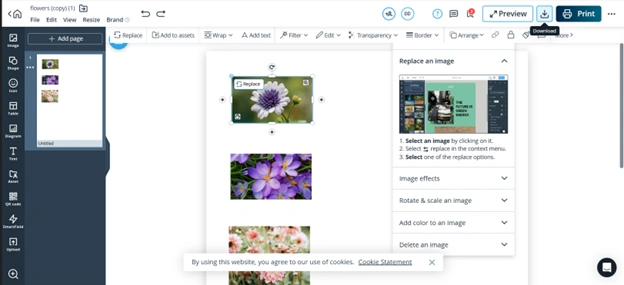
Note – You can close the Browser window/tab to exit the application after you have checked on your downloaded PDF file.
This method is not suitable for professionals, businesses, legal and confidential documents where the document privacy and secrecy has to be maintained.
Common Problems:
These are the most frequent problems that users face when working with PDF files:
- Images cannot be selected and edited
- Poor image quality when edited or replaced
- Disrupted formatting when editing
- Few editing features in basic PDF software
- Problems with image replacement without disrupting formatting
- Text and image overlaps and shifts unexpectedly
- No ability to edit images on scanned PDFs
- Increased file size upon inserting and editing images
- Incompatibility among PDF editors
- Image quality degradation due to compression
Tips to Maintain Quality
To preserve the quality of your images in the PDF file, you should be careful and follow these recommendations:
- Employ high-quality images (300 DPI) before inserting them into the PDF
- Do not save edited images more than once
- Work with a professional PDF editor that allows lossless editing
- Save the images in an appropriate format, such as PNG files for graphics and JPEG for photos, at high resolution
- Don’t compress the PDF file unless there is a compelling need
- Instead of shrinking images, use their replacement by default
- Preserve the original dimensions of the image to prevent any distortion
- Export/Saving PDF files with maximum quality or printing options
- Edit the original file first, and then insert the image back into the PDF
- Keep a copy of the PDF before making any edits
Frequently Asked Questions
Conclusion
While the process of editing images in a PDF format might appear to be difficult owing to the nature of PDF files, the use of proper software, such as Systweak PDF Editor, will make the task easier to accomplish. By grasping the limitations associated with PDF documents, including the need to use OCR technology on scanned PDF files, it is easy to perform image editing.
Can you add an alternative method, such as using free tool or based in browser, and an online tool too, but mention the downsides of it and recommend the offline line tool.