



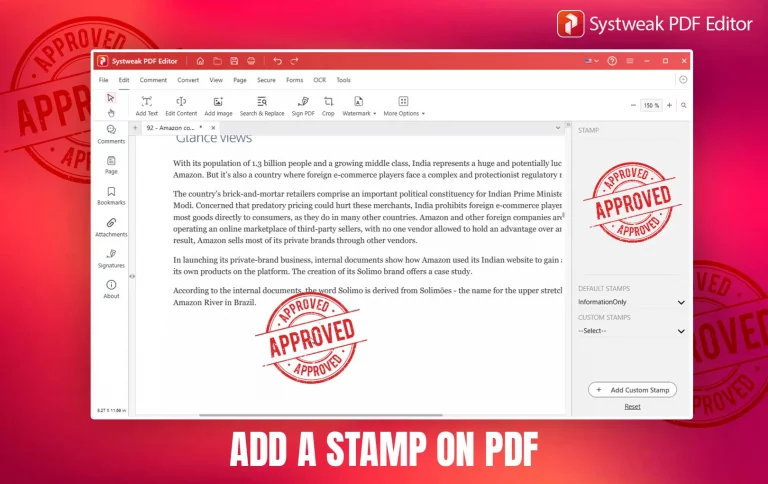

If you are a working professional who deals with PDFs then you must know that even PDFs I mean your digital documents can be stamped just like stamping paper. Those marked as Approved, Draft, or Confidential PDFs must have reached you as well, right?
Those marks are called stamps. They are quite helpful because they tell us the status of a document without reading every detail. If you have ever wanted to add a stamp on your PDF document for example any report that you have prepared as a draft and wanted to mark it as a Draft before sharing it, or stamp an invoice as “Paid” and don’t know how to do that then this guide is for you. Adding a stamp can make your files look professional and organized.
So let’s start this guide with, what a PDF stamp is, why it’s useful, and how you can easily add one using the Systweak PDF Editor.
See Also: How to Insert Transparent Signature in PDF
What is a Stamp in a PDF?
A stamp in a PDF is just a digital form of stamp that you put on paper. It’s just a mark or label that you can add to your document to highlight your document’s purpose or status.
Some commonly used Stamps, like
- Approved
This marks that the document is reviewed and approved by authority.
- Rejected
It shows the file didn’t pass review and has been rejected.
- Draft
Used to identify those documents that are in-progress.
- Confidential
To ensure that people know that the document has sensitive information.
- Custom stamps
You can add your signature, company logo, or any custom design that you want.
So stamps give the status of your PDFs and make them look more professional.
Why Use Stamps in PDFs?
You might be wondering why not just write a comment or put a watermark on your document? Well, stamps work differently.
Here’s why they are better in some cases:
- Instant status update
People can know the status of a file at a glance.
- Saves Time
Stamping is quite faster than adding comments.
- Professional Look
Putting a stamp on makes your PDFs look more official.
- Customizable
The best part is you can create your own stamp designs to own your PDF.
So whether you’re a student, office worker, or business owner, stamps can make your PDFs easier to manage.
How to Add a Stamp on a PDF Using Systweak PDF Editor
Adding stamps is simple. Just go step by step and your document will be stamped:
Open Systweak PDF Editor
- Open Systweak PDF Editor on your system.
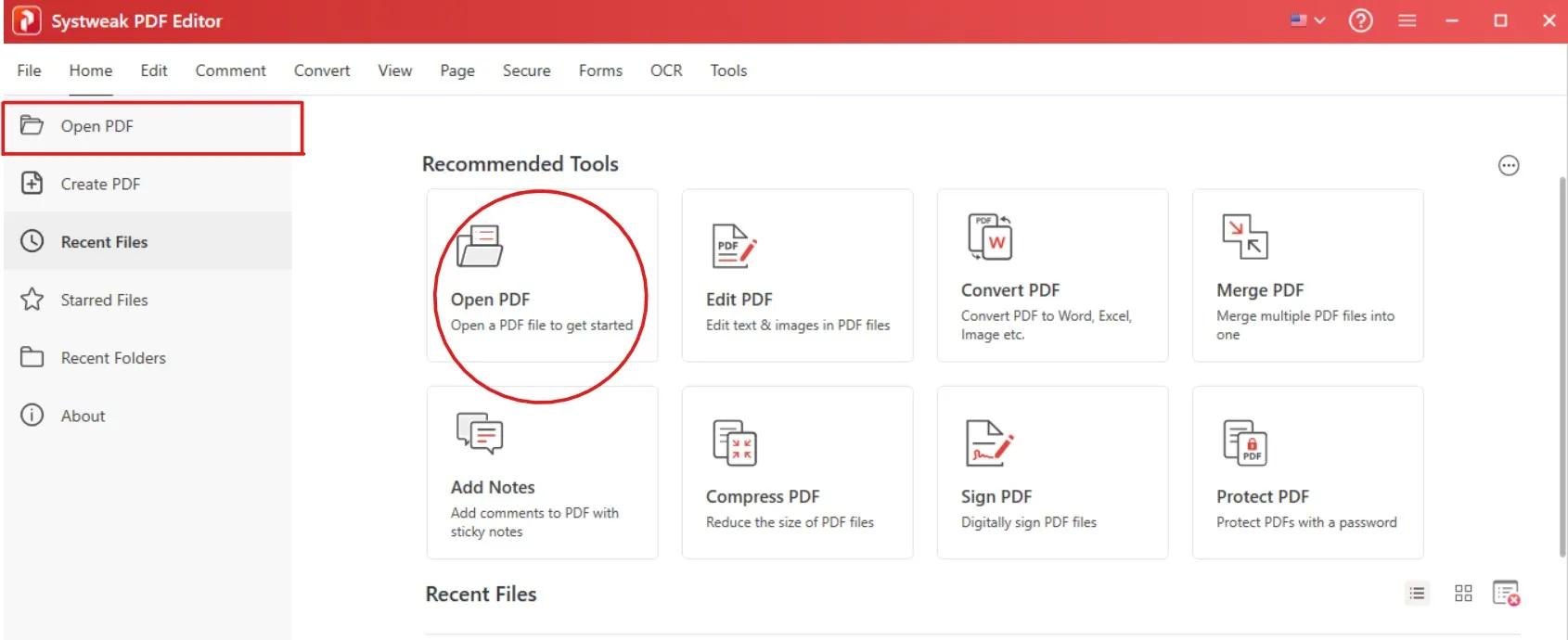
- Click on Open File and choose the PDF you want to stamp.
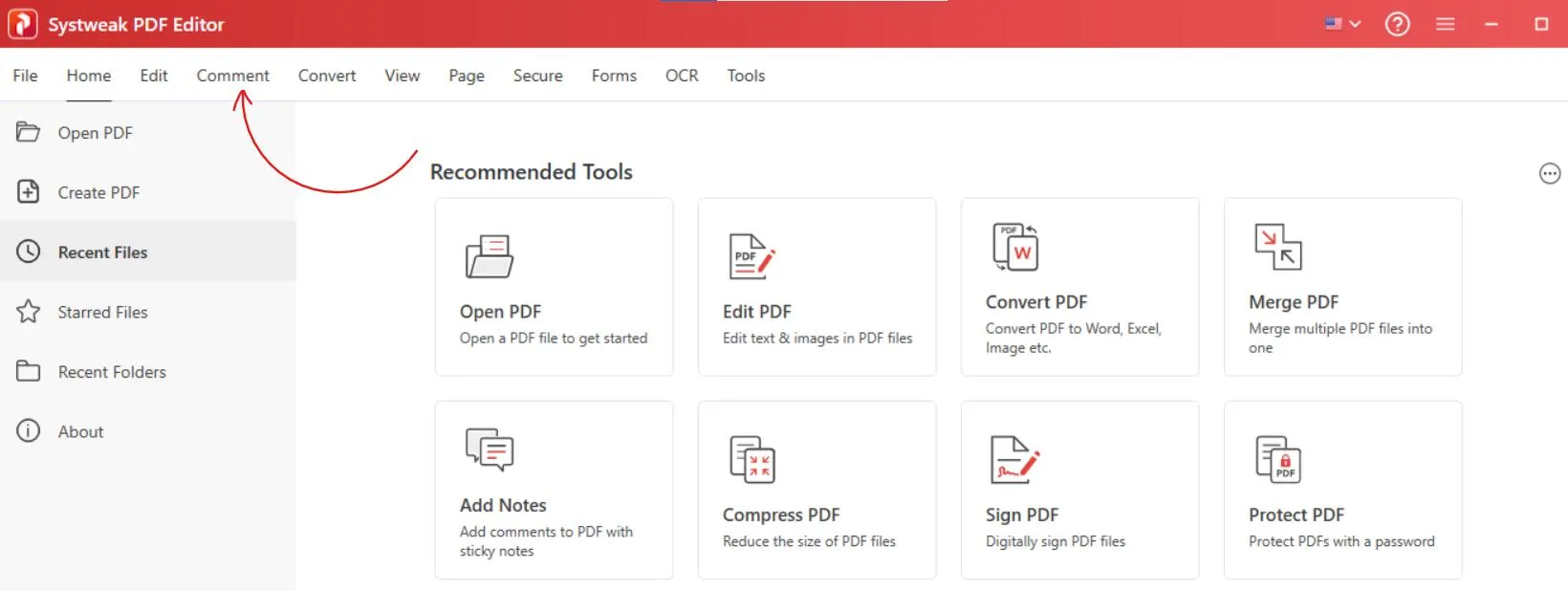
Go to the Comment Tab
- Click on the Comment tab from the top menu, you can directly click on it or you can open your PDF and then click on the Comment tab.
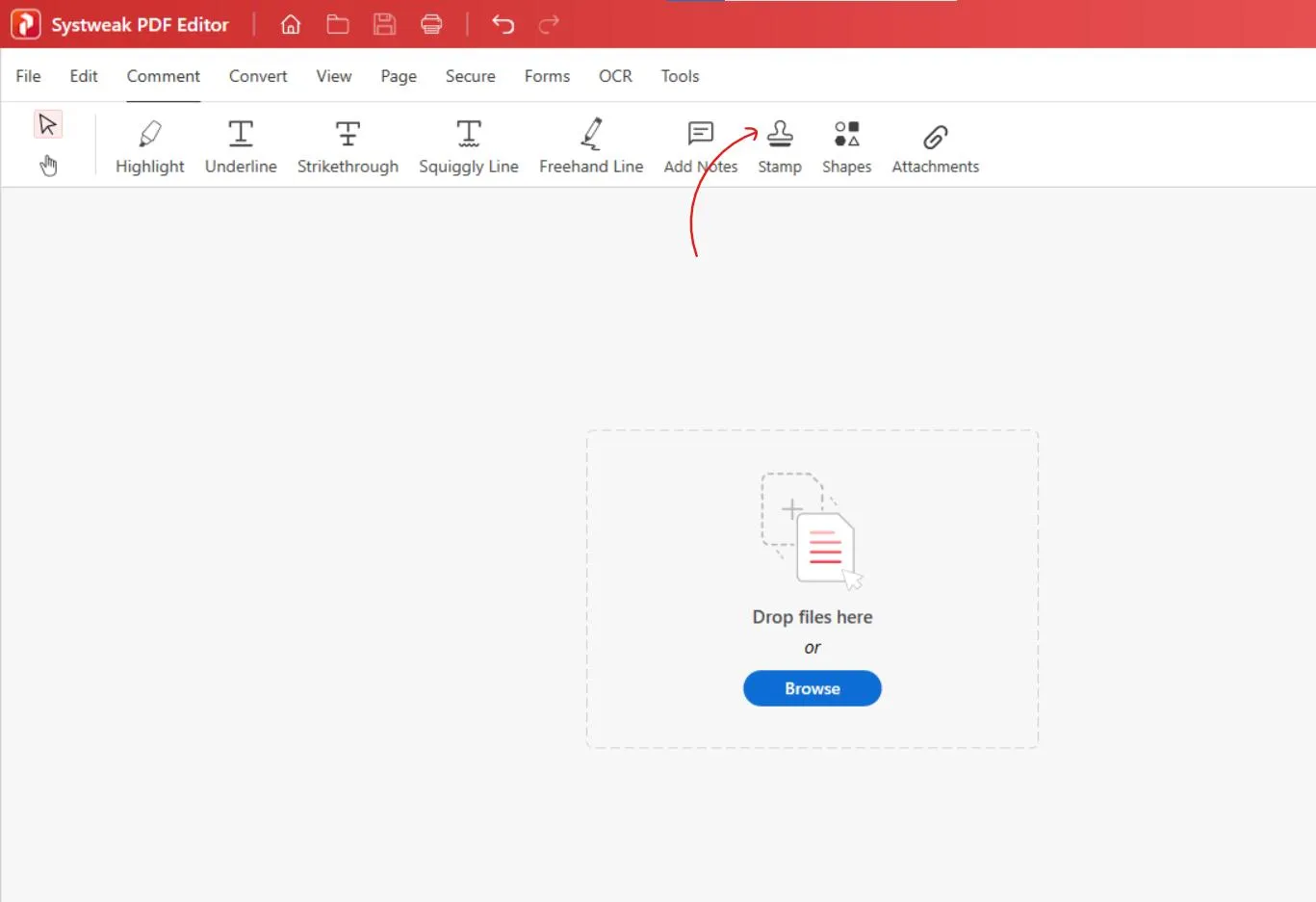
- Here you’ll see options like Highlight, Notes, and Stamps, etc.
Choose a Stamp
- Click on the Stamp tool.
- You got many Default options like Approved, Draft, Confidential, Reviewed, etc for stamping your PDF.
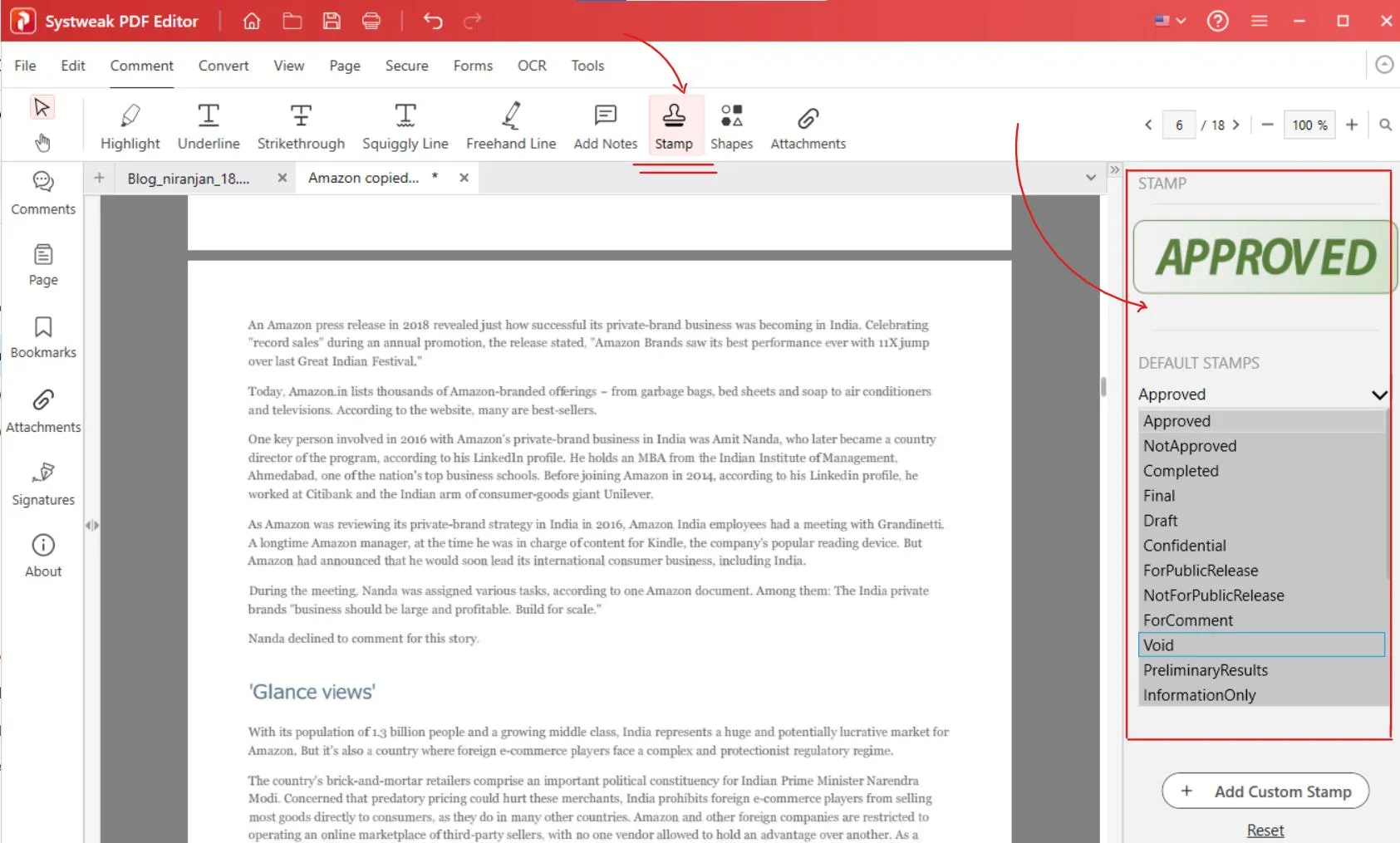
- So select the one that matches your needs.
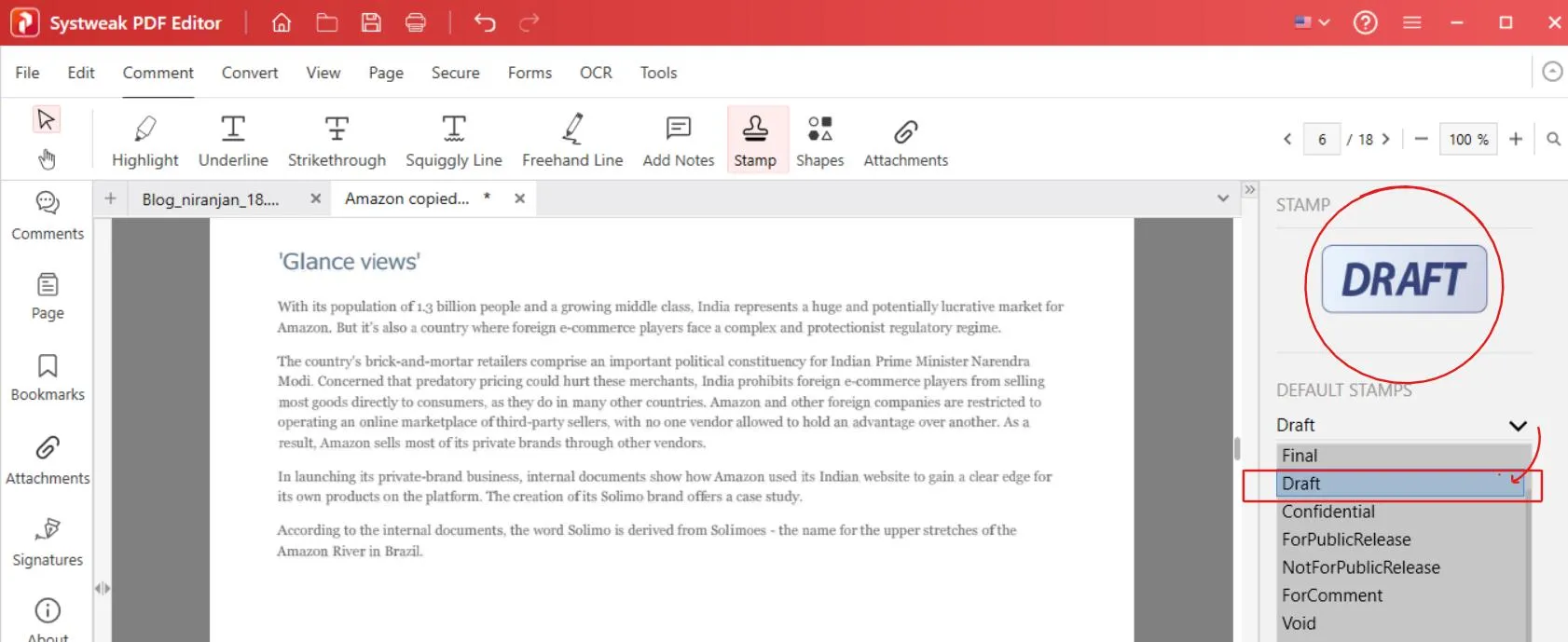
- Take your cursor where you want the stamp and click once, it will appear there as a stamp.
Create a Custom Stamp (Optional)
You can also add Custom Stamp in your PDF if you want something personal
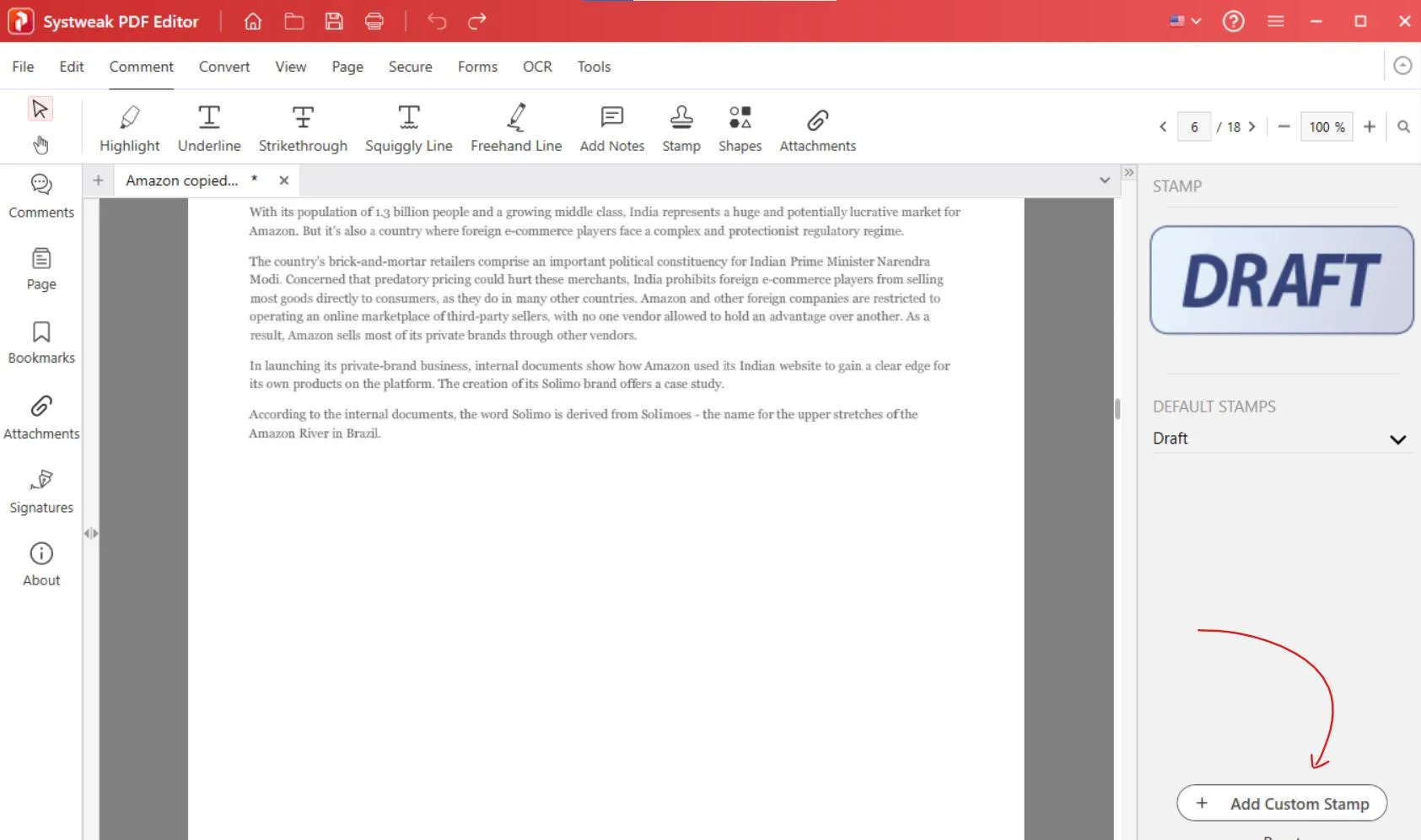
For example we’ll add one custom stamp:
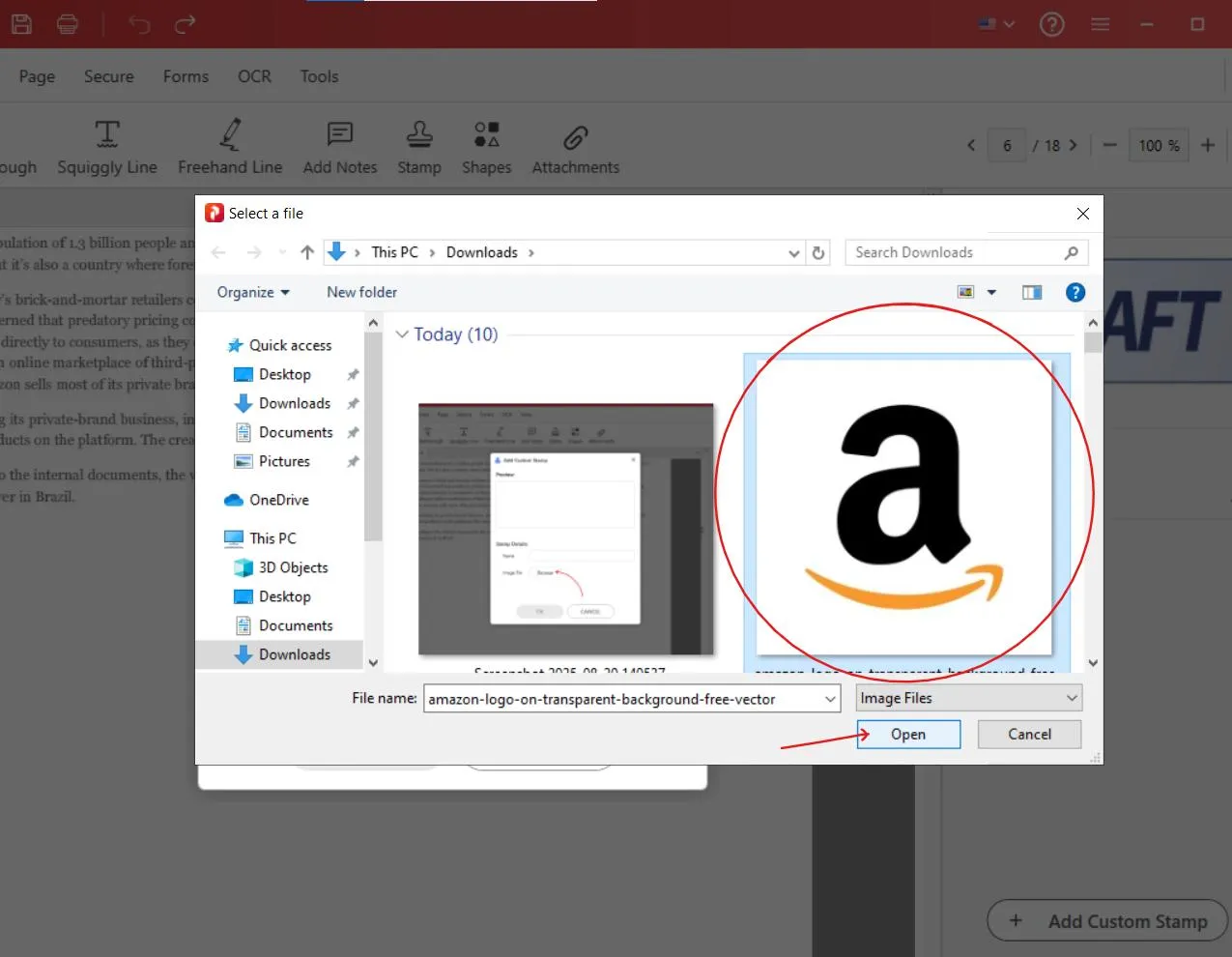
- Click on Add Custom Stamp
- Then click on Browse.
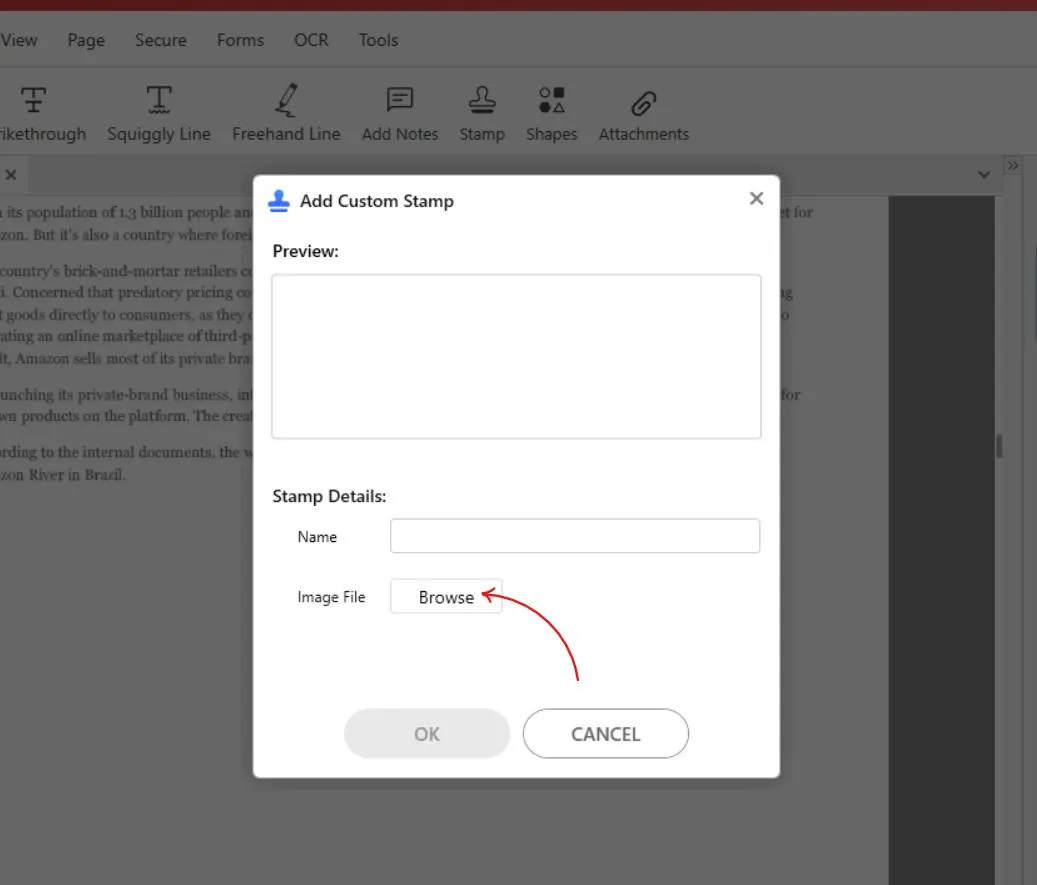
- And upload your personalized stamp like company’s logo, signature, or any text of your choice from your system.
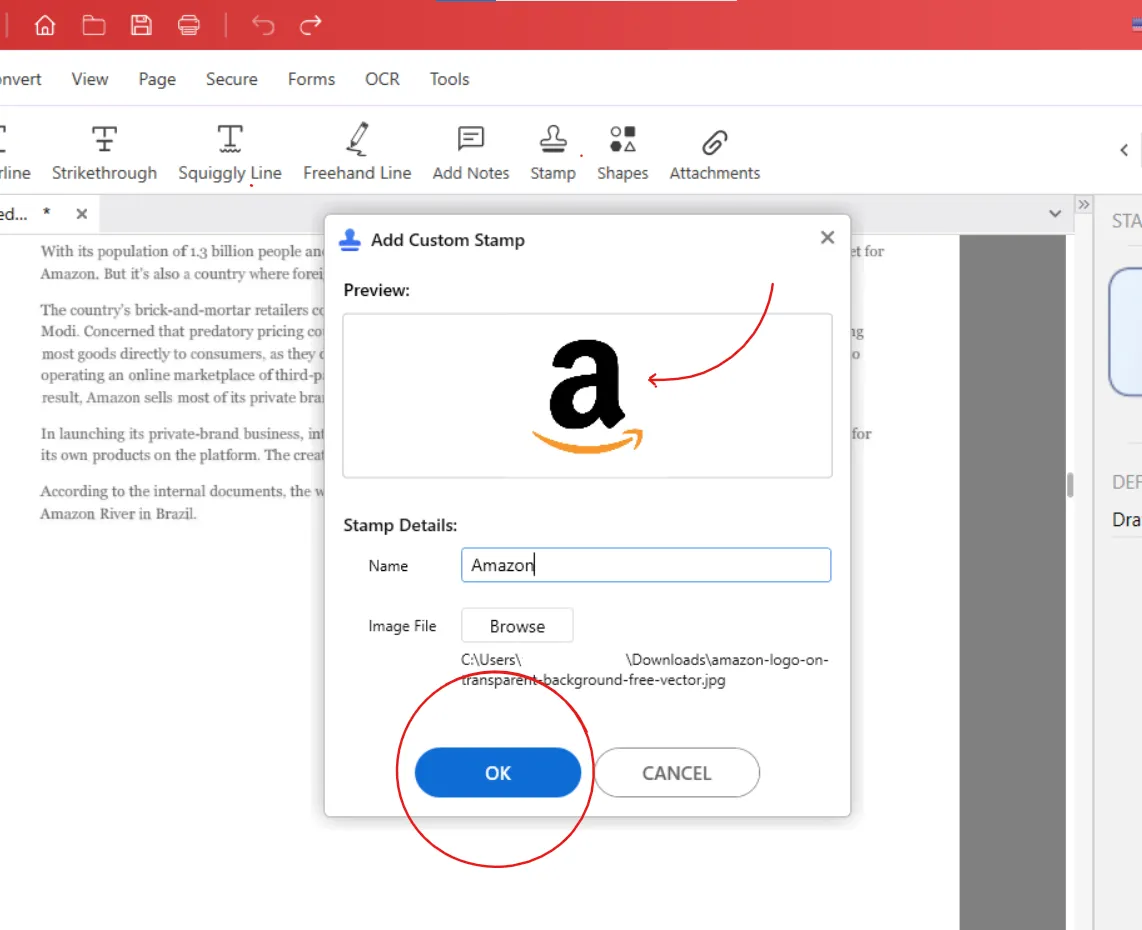
- Name your stamp, preview it and click on OK.
- It will be saved and now you can use it like any other stamp.
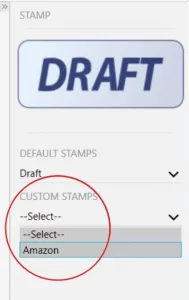
- Then select your stamp from Custom Stamps
- And place it where you want.
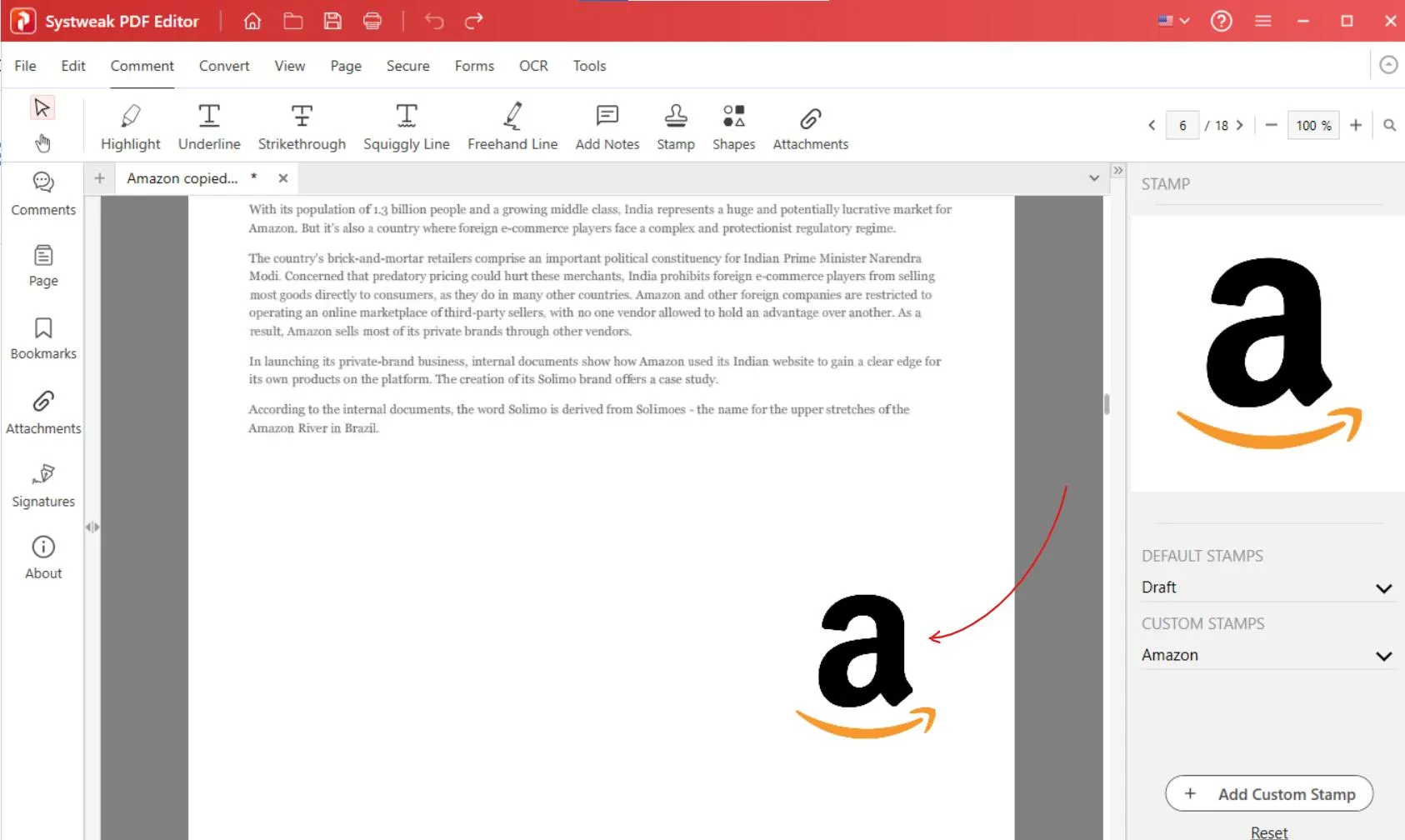
- You can adjust the size of your stamp as well.
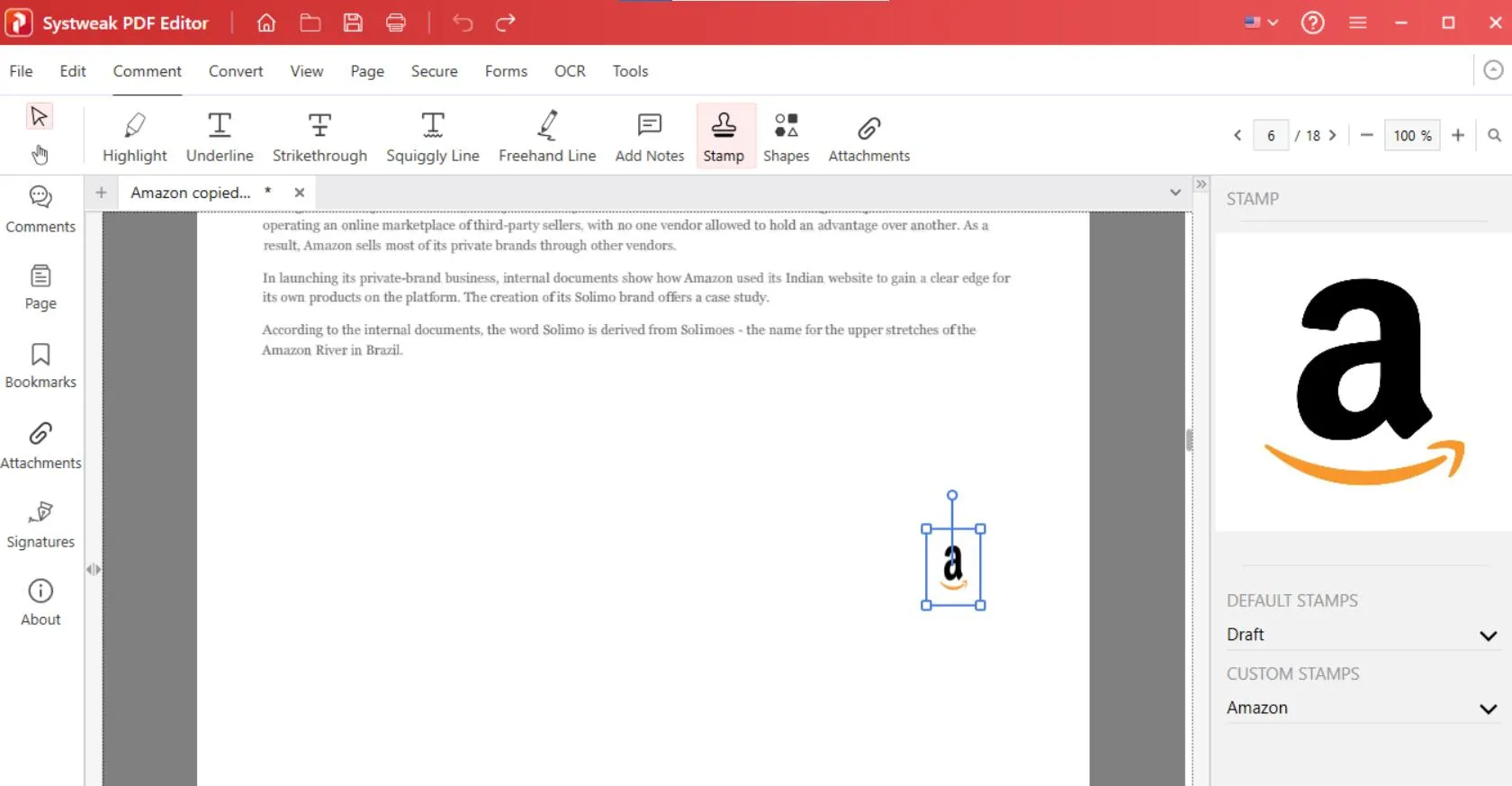
Stamp Placement tips:
- Move your cursor to that area of the page where you want the stamp.
- And click once, the stamp will be placed there.
- You can drag, move it around and even resize it on the page to make sure it fits in and looks right.
Save Your Document
- Once your stamps are placed and you are all done, go to File and click on Save As to save your stamped PDF.
That’s it, it’s just that simple. In less than a minute, you can add a stamp of your choice on your PDF.
See Also: How to Sign PDF Document
Conclusion
Adding stamps to your PDFs adds value to your document and makes it look official and professional. And the process is no doubt quick, simple, and super useful. So whether you want to show that your file is confidential, or mark it as a draft or sample, or simply just add your own custom stamp, Systweak PDF Editor makes it easy. No complicated or confusing menus, just a few clicks and you’re done.




