




Knowing how to crop a page in a PDF is a very essential thing. How many times do we need to extract any specific portion from a PDF or just remove some extra white margins from any page within a PDF? Many right, see whenever PDFs are created without double check or in hurry they lack clarity and proper alignment. So it’s better to know how to crop a Page in a PDF when dealing with such PDFs.
If you deal with PDFs and at times wish to fix such errors then this guide is for you. Stay here and I’ll explain to you how you can crop pages in a PDF with the Systweak PDF Editor which is an all-in-one PDF editor and gives you full control of your PDF document.
Why do you need to crop a PDF page?
We all know PDFs are the most common format people use. Everyone prefers PDF to share documents, not only because it’s the easiest way, but it is accessible to everyone without needing any specific tool. Also, PDFs are great to keep our documents in one place, organised and managed.
They lock formatting, and our original document remains the same, but because PDFs are very easy to create and share, people sometimes forget to cross-check the page’s angles and do not align them properly before sharing, which usually messes things up.
Here’s why to crop a PDF:
Remove unwanted margins:
Cropping helps remove those frame-like white margins around the page and makes PDFs cleaner and easier to read.
Focus on specific content:
When you crop the extra part, you can highlight the important sections of the PDF.
Improve consistency:
When pages are in different orientations or sizes, cropping them is a good way to make them clear and professional.
Crop PDF Pages Using Systweak PDF Editor
It’s not only about the extra white margins, there can be many reasons to crop a page in a PDF and with Systweak PDF Editor you can crop any page in a PDF for any requirements. It’s an all-in-one application that not only lets you crop pages, or edit text and content but it gives you full control of your document with so many features. So now let’s start the process of cropping a page in a PDF.
Read Also: How to Rotate Pages in PDF
How to Crop Pages in a PDF:
- Download and install Systweak PDF Editor in your system
- Now launch Systweak PDF Editor and click on ‘Open PDF’ and select the PDF in which you want to crop pages.
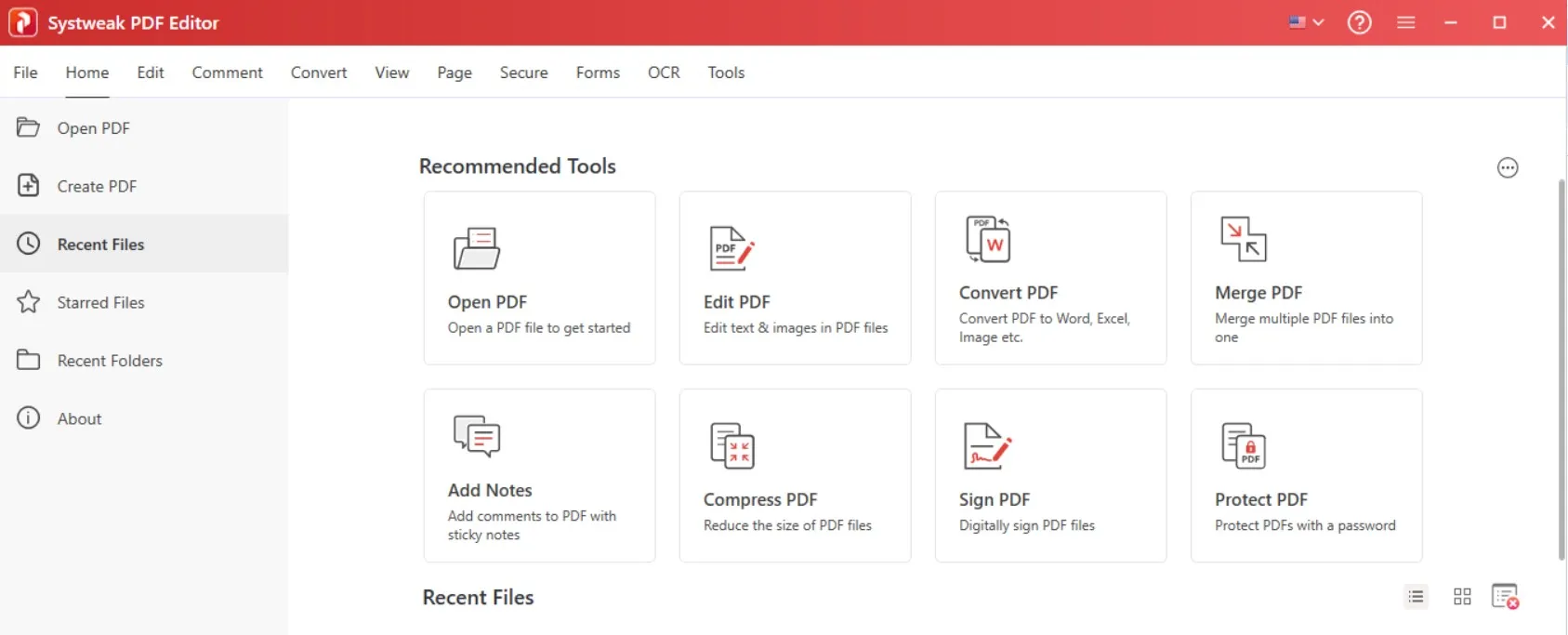
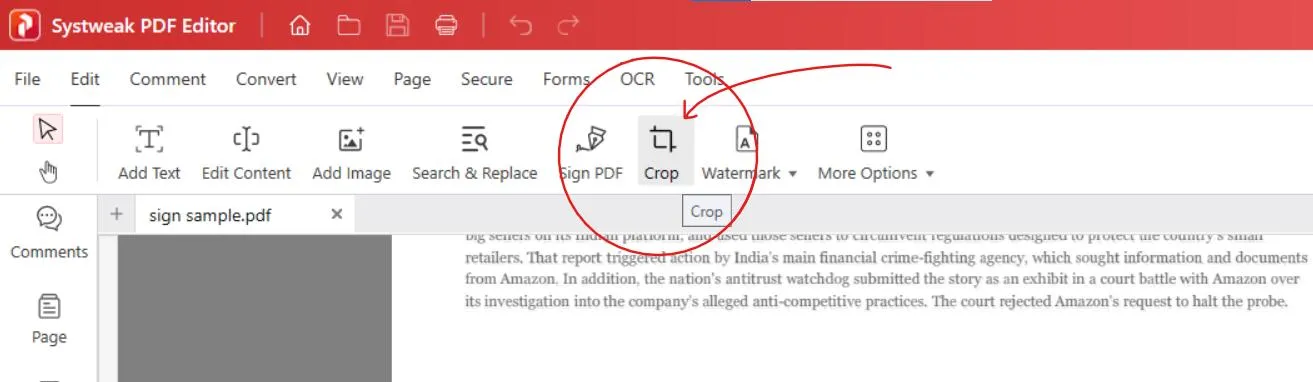
- Go to the Edit tab

- Then click on the Crop option from the menu.
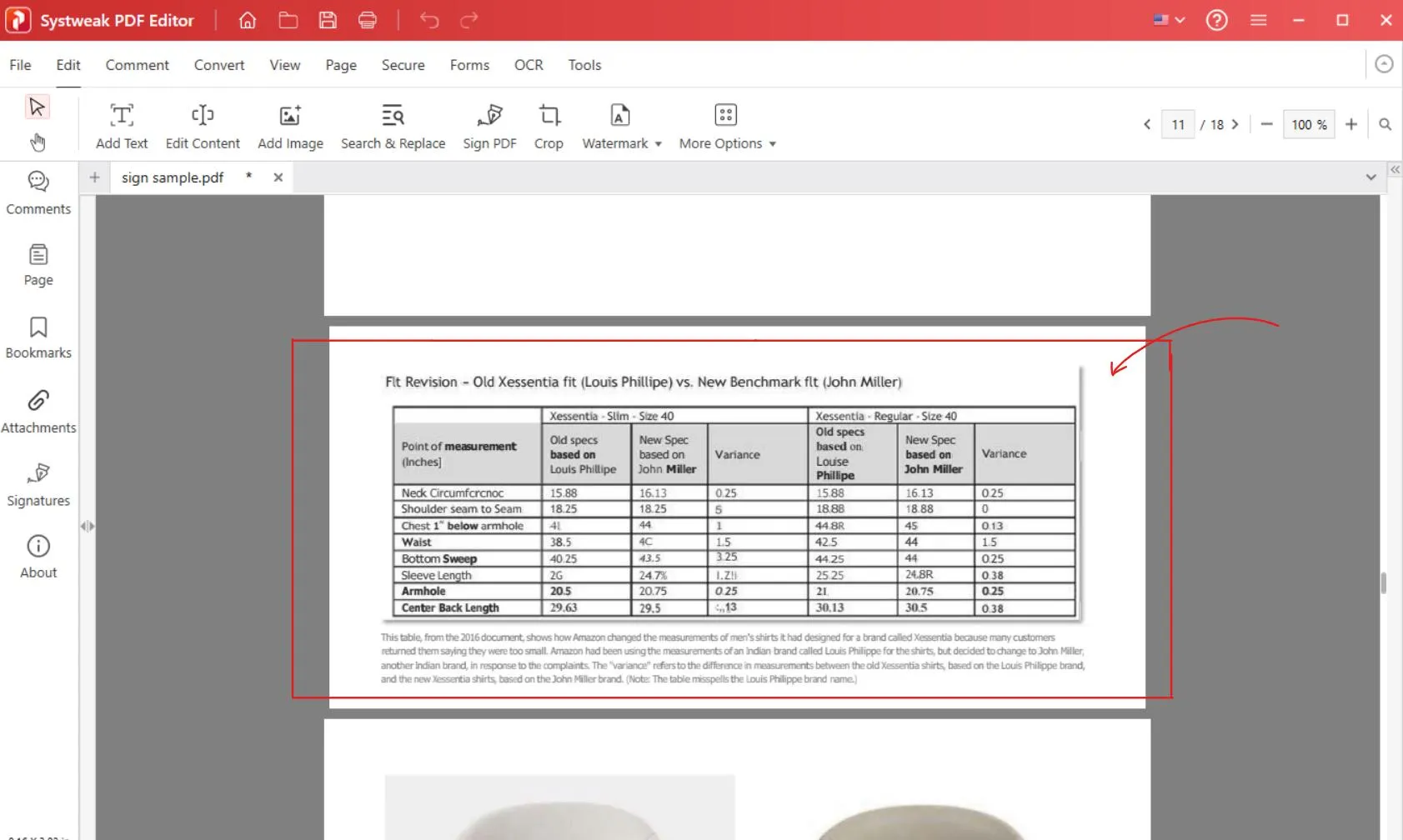
- Now you can drag and draw a box around the area that you want to keep.
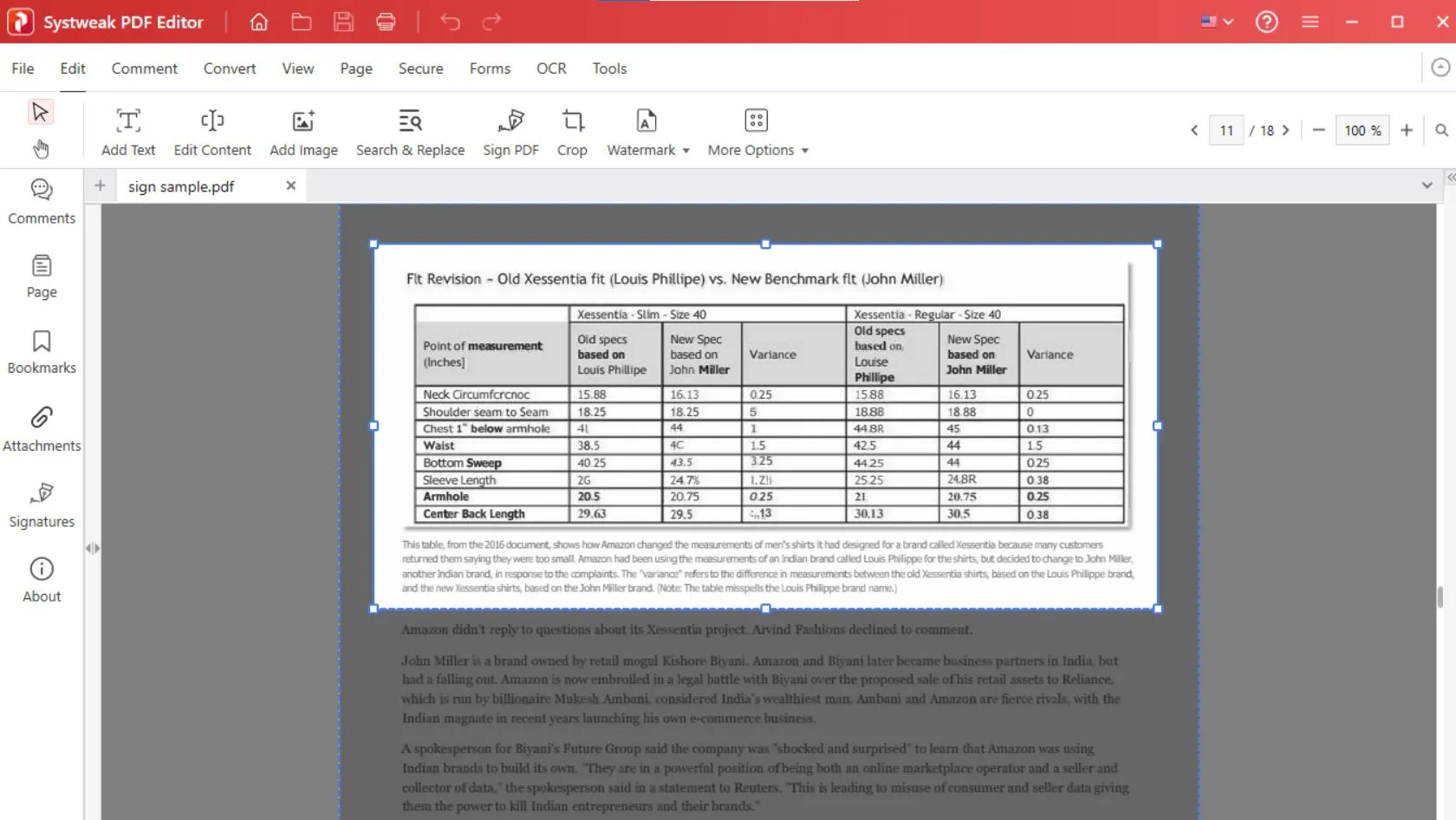
- You’ll see a few options once you drop your cursor.
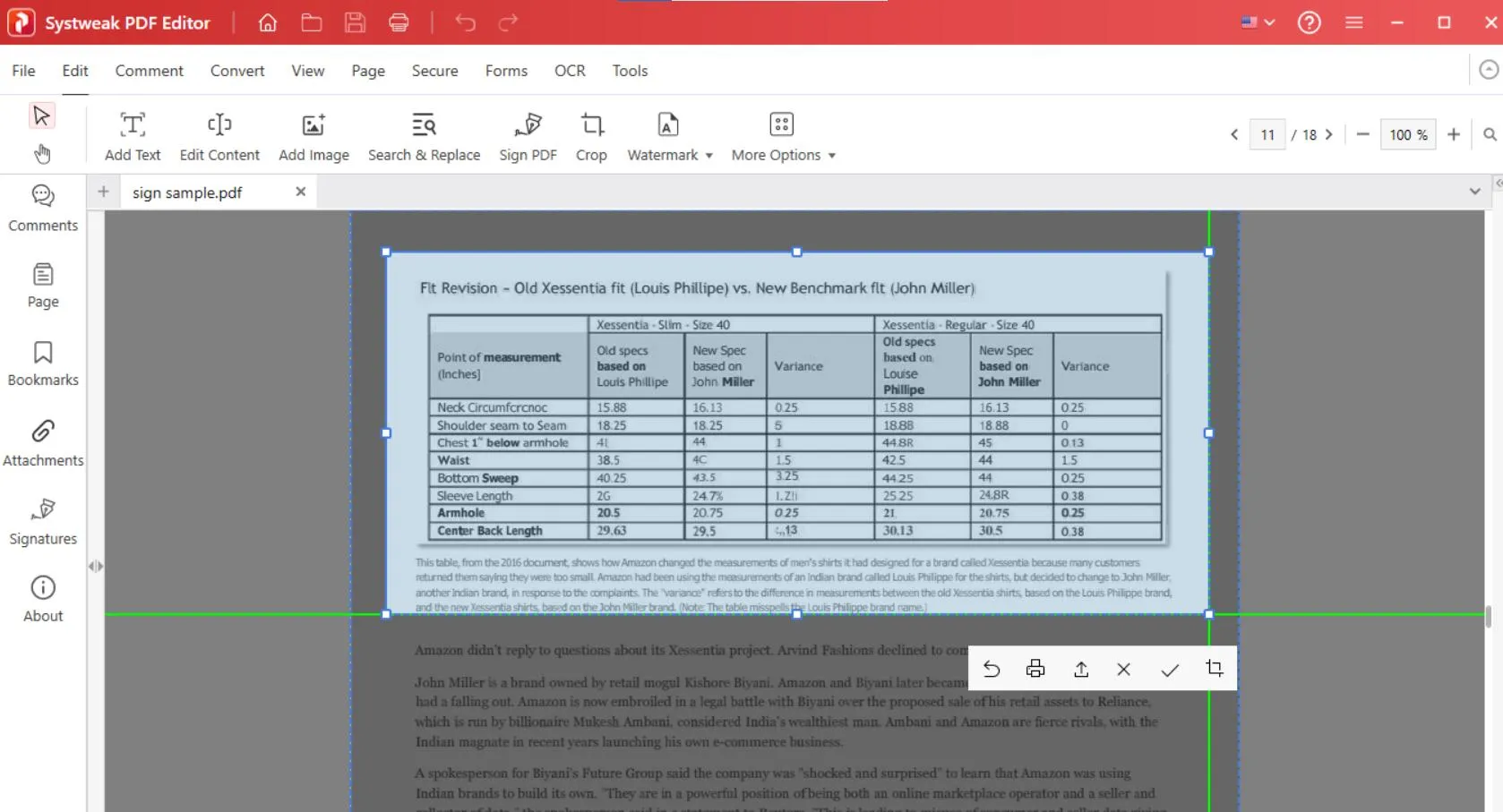
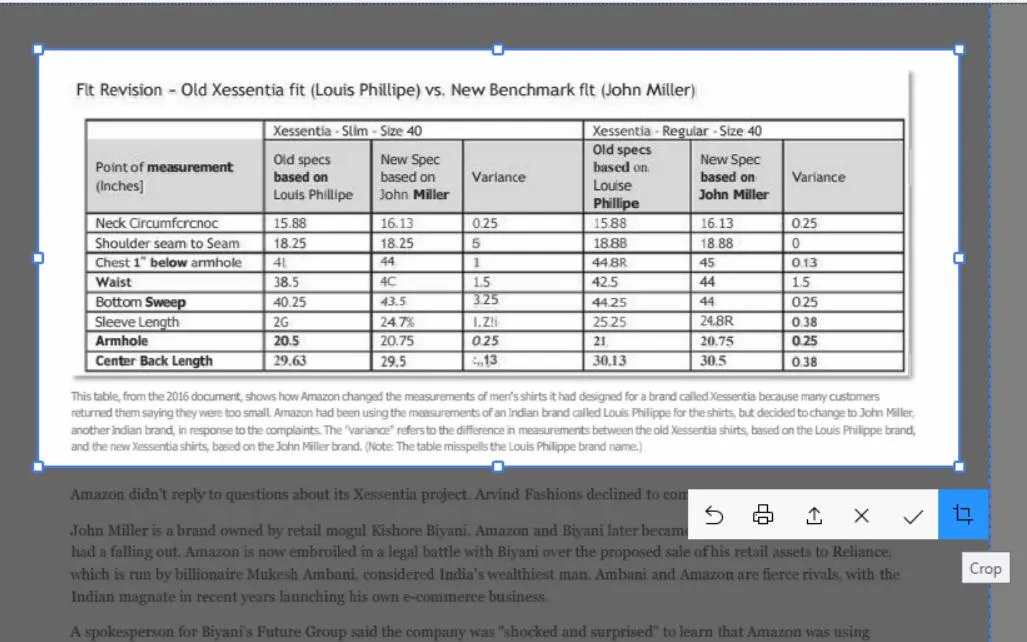
- Click on the crop option which is on the right corner, to remove the extra part (unselected one) instantly.
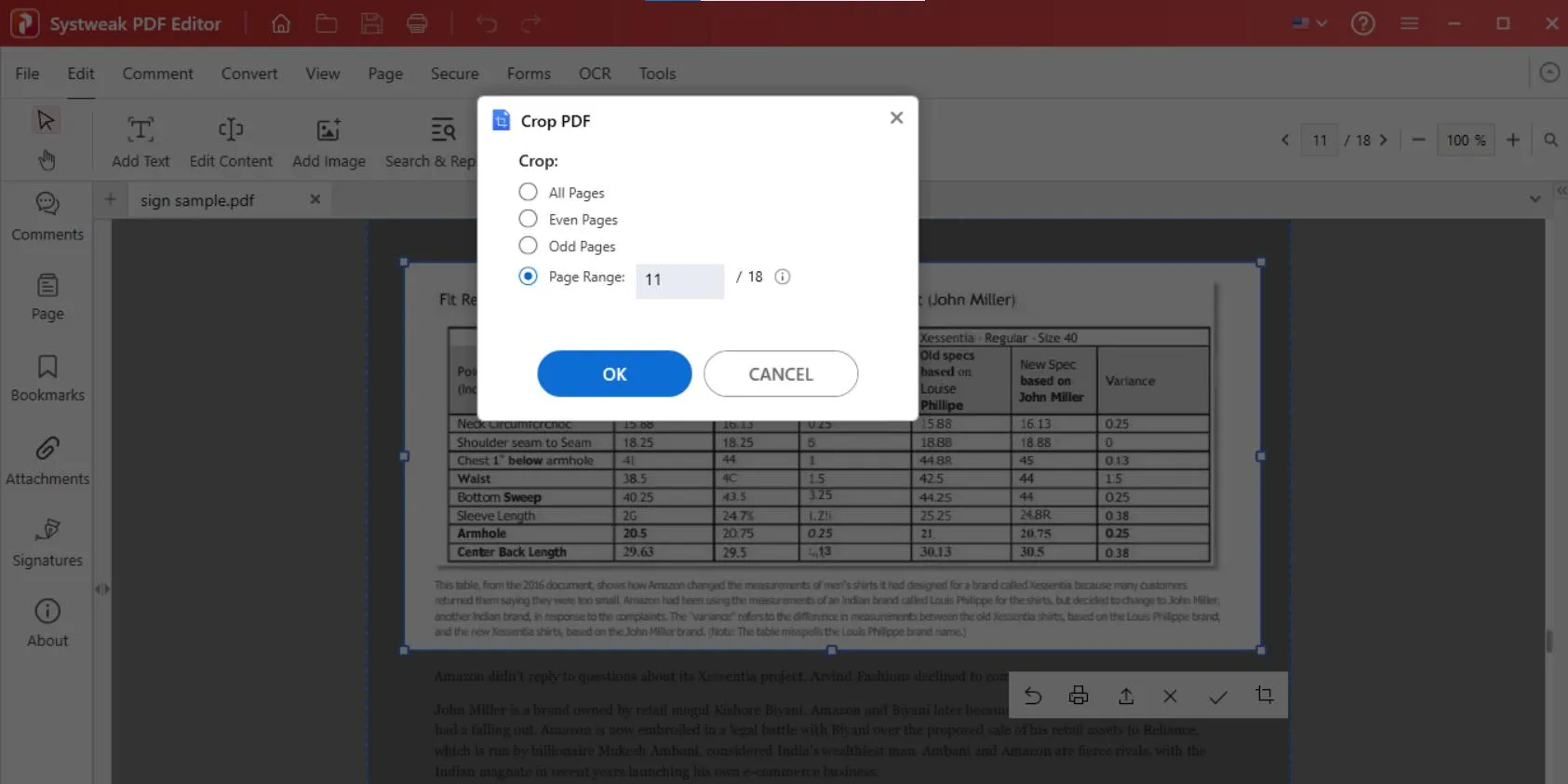
- Once you click on the crop you’ll see, a confirmation message will appear, check page range, or if you want to change it, select as you want.
- Everything sorted, then click on OK.
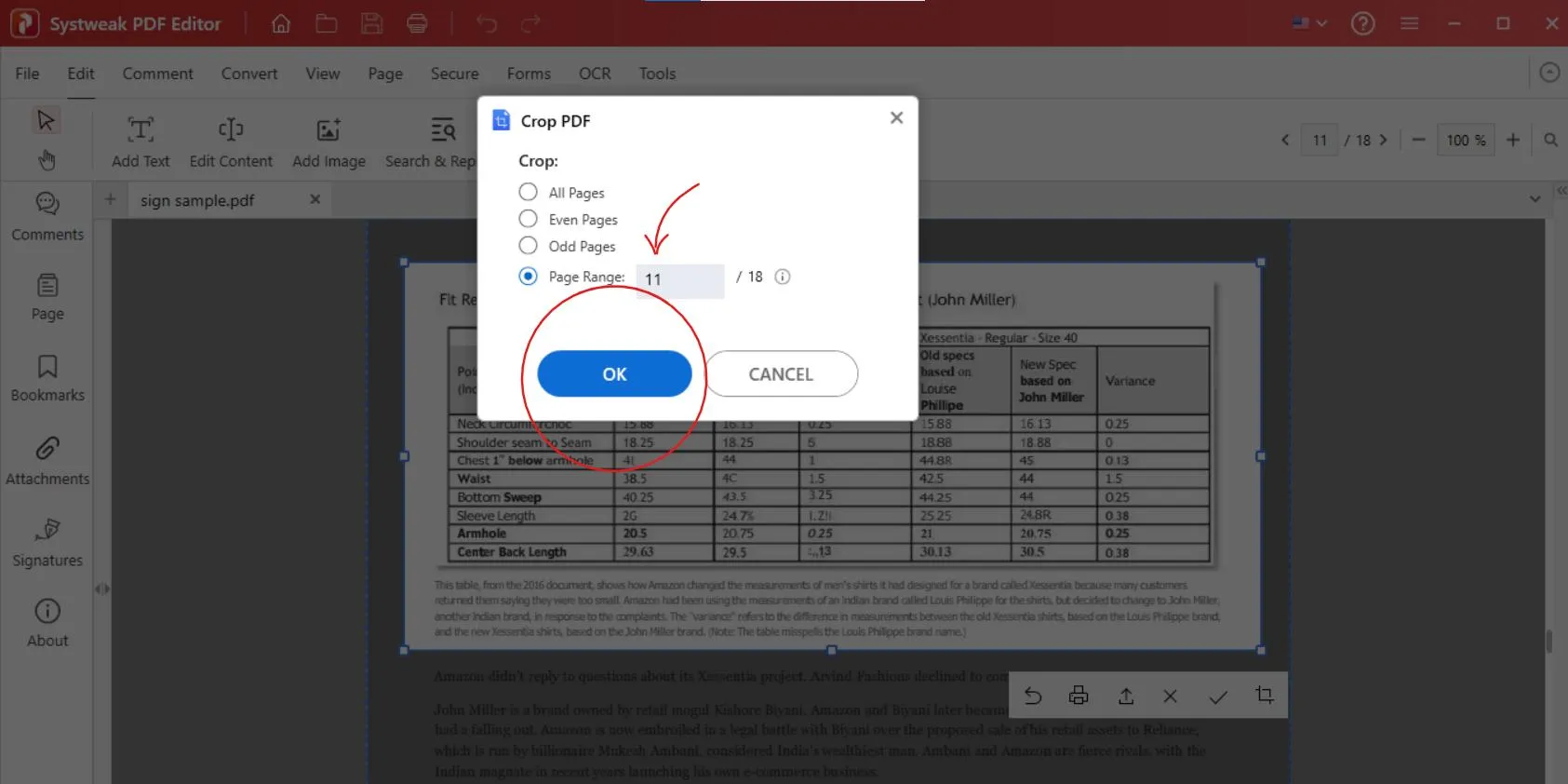
- And you are done here, your page will be cropped. The unselected portion will be removed.
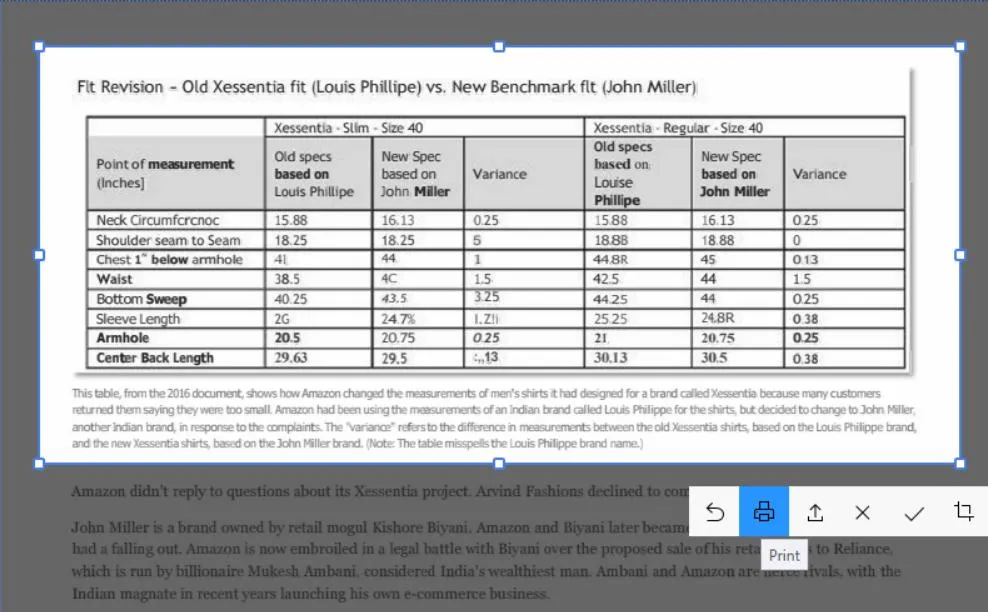
- Let me also explain to you the other options you get in the crop feature.

- The first one is to go back and ‘undo’ what you selected.
- The second one is to ‘Print’ what you selected.
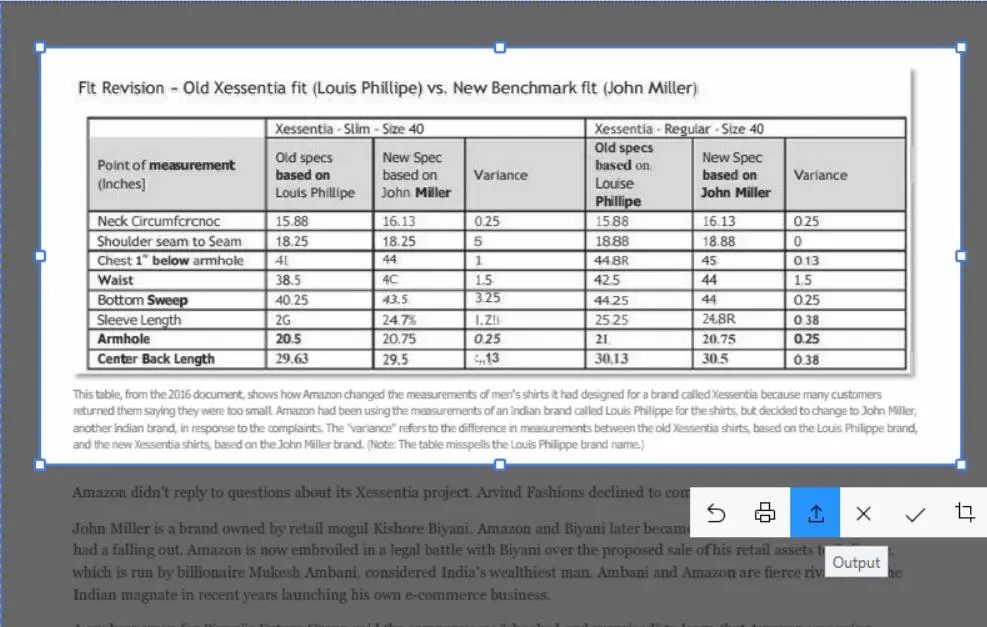
- The third one is to save that particular selection as an image.
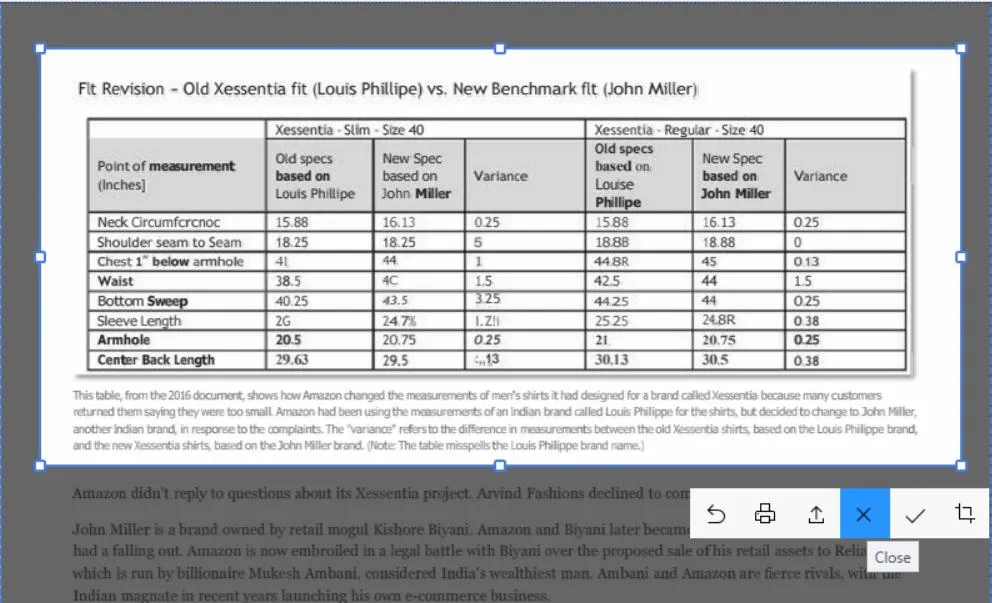
- The fourth one is to ‘Close’.
- The fifth one is to ‘copy’ the part.
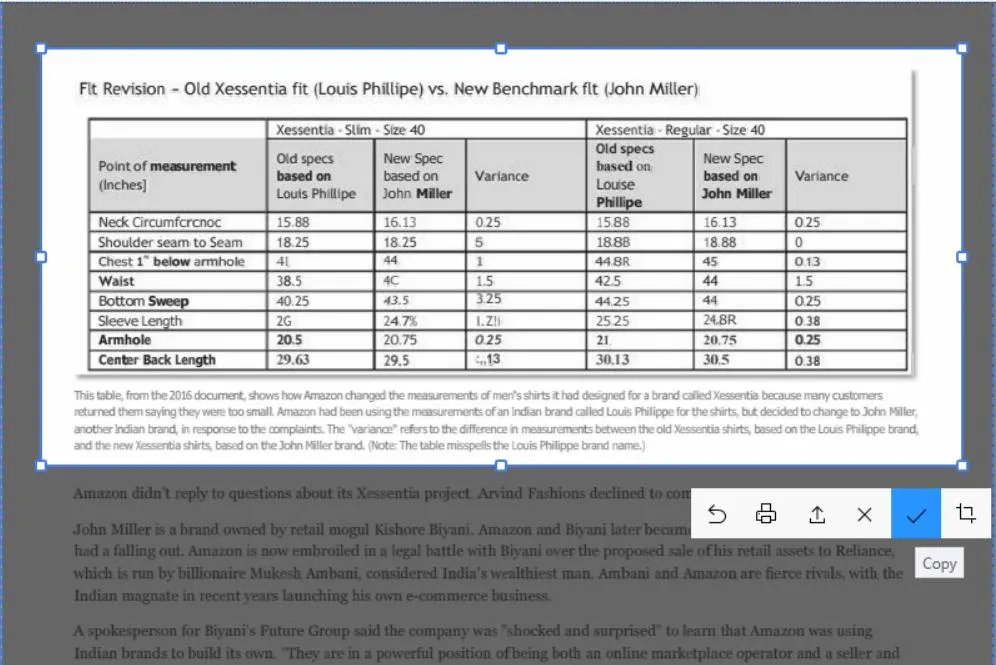
- And the last one we already did it’s to crop.
- So you can rotate pages either individually or all pages at once with Systweak PDF editor
- And you can even crop multiple pages in the same size in one go. It also ensures your document quality remains intact after editing.
See Also: How to Convert HTML to PDF
How to Crop PDF Pages Using Snipping Tool
If you just need a particular section of a page as an image and don’t want to install new software, then using Windows Snipping Tool is the best option.
This is not exact PDF cropping, but it can work if you only want to save any specific part or portion from a PDF as an image for a new file.
- Open your PDF and the specific page from which you want to crop any section.
- Now press Win + Shift + S to open the Snipping Tool or directly press the “PrtSc” key that we use to take a screenshot.
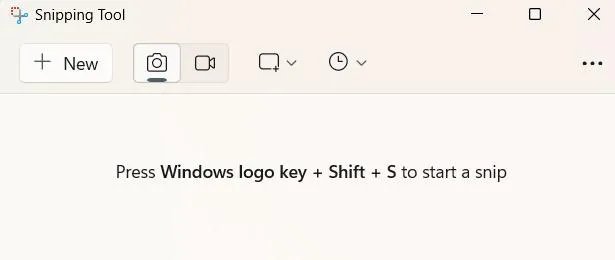
- Then drag your cursor and select the area that you want to keep.
- Save the snip as an image, then convert it back into a PDF if needed.
- This method is good for quick cropping but won’t let you edit within the PDF itself. For proper page cropping, a PDF editor is recommended.
How to Crop a PDF on an Android Phone
We don’t always carry our laptops along, so for those times when you don’t have your laptop with you and have to make any quick correction in a PDF or fix any such error, do it with your phone.
- Install Systweak PDF Editor for Android (or any similar tool available on the Play Store).

- Then just open your file in the app and do the needful changes in minutes.




