
You open the PDF, and the Edit button is greyed out. Or you click on text and nothing happens because the page is actually an image. Or a message appears saying the document is locked or signed and cannot be changed. These are a few reasons you can’t edit a PDF. Here’s how to identify which one is stopping you and how to fix you can’t edit a PDF.
Most common reasons why the PDF is not editable
| What you can and cannot do | Reason | Solution |
|---|---|---|
| You can read the PDF, but clicking does nothing | PDF is opened in a viewer, instead of an editor | Open in Systweak PDF Editor, go to the Edit tab > Edit content, and edit the text. |
| You are unable to select or highlight text. | It is a scanned file without any text layer. | Perform OCR using Systweak PDF Editor. |
| PDF is password-protected, or the editing is blocked with a message | Locked PDF file. | Go to Secure > Unprotect > enter password > Remove Password and restrictions. |
| Cannot access edit tools. | PDF creator has set read-only permissions, or it is a PDF/A format | Unprotect the PDF and convert it to a standard PDF version. |
| You see a message “This document has been signed and cannot be edited.” | The file is digitally signed and locked | You need to remove the signature, or get an unsigned copy from the sender |
| The editor crashes every time you try to open the PDF. | The PDF version might be old, the file can be corrupted, or it is an XFA form | Convert to a newer PDF version. |
Tested Ways To Fix Can’t Edit PDF
Problem 1: You’re Using a PDF Reader, Not a PDF Editor
PDF readers, including Adobe Acrobat Reader (the free version), the browser’s built-in PDF viewer, Windows Reader, and default apps, open the PDF but don’t allow editing.
Solution: To resolve it, use Systweak PDF Editor:
1. Download, install, and run Systweak PDF Editor.
2. Click Edit PDF and load the document you want to edit.
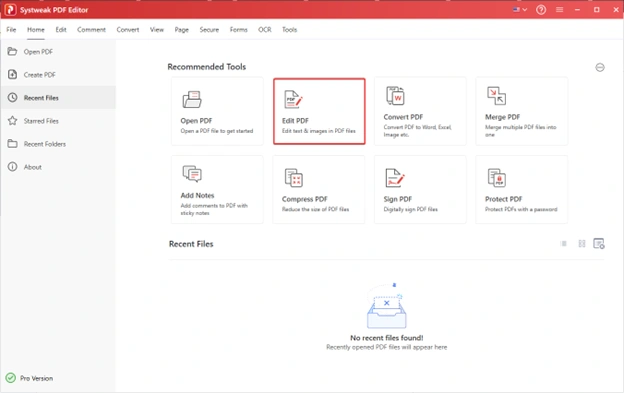
3. Click the Edit Content from the top menu. This will surround the text with dotted boxes.
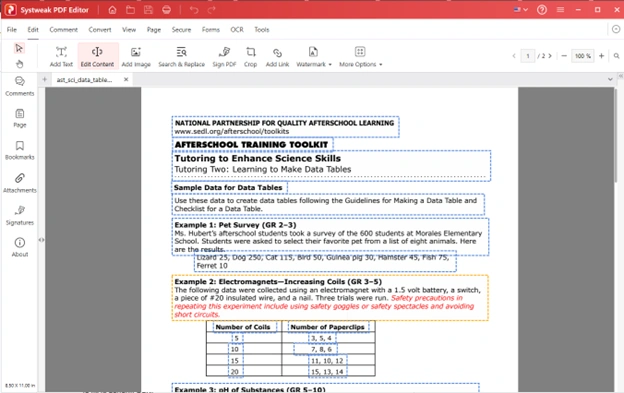
4. Double-click the section you want to edit, then start making changes.
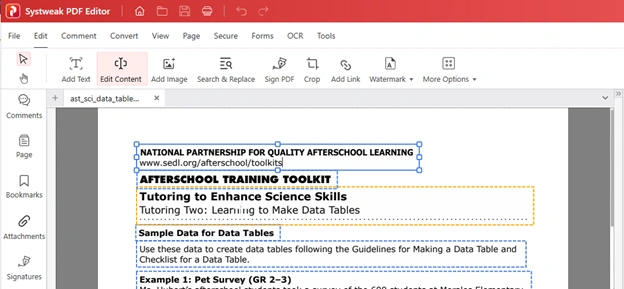
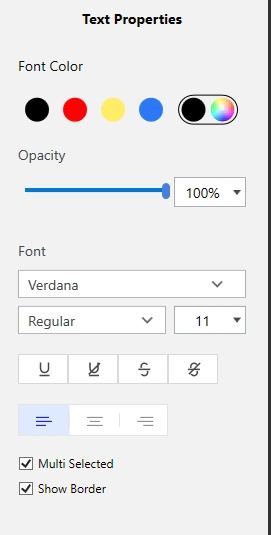
5. After making the changes, save the PDF, and that’s it.
To make more structural changes, you can convert the PDF to a Word document without losing formatting or quality, and then edit it.
Problem 2: The PDF is Scanned or Image-Based
A document scanned with a scanner or a phone-scanning app is saved as a PDF, but in image format rather than the actual text, preventing you from editing it. This means you cannot click or highlight any text. Also, it won’t let you copy text. To fix it, you will need to perform OCR, which will convert the images into editable text.
What is OCR?
OCR stands for Optical Character Recognition, and this technique, when used in PDF editing, allows translating images or printed text into machine-readable text. It is used to edit scanned or image-based PDF files directly, make PDF documents editable, searchable, and selectable, or convert them to other formats (such as Word, Excel, PowerPoint, etc.).
The OCR feature is used before editing or converting it.
Solution: Steps to Perform OCR and Make an Image-Based PDF Editable.
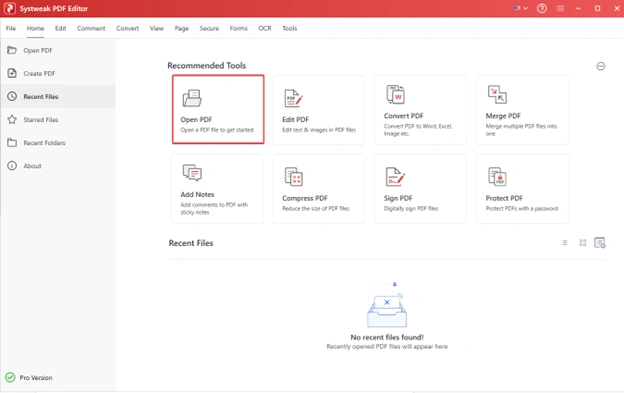
1. Launch Systweak PDF Editor and click Open PDF to load your scanned document.
2. Since it is a scanned document, Systweak PDF Editor displays a blue floating bar with a Perform OCR button, which makes it editable, selectable, and searchable.
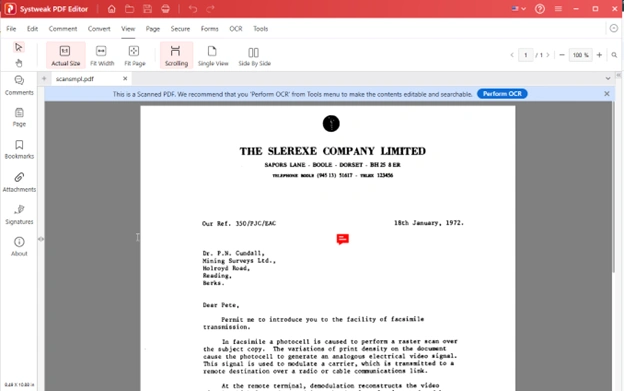
3. Click the Perform OCR button.
4. This will open the OCR PDF window with different settings to choose from.
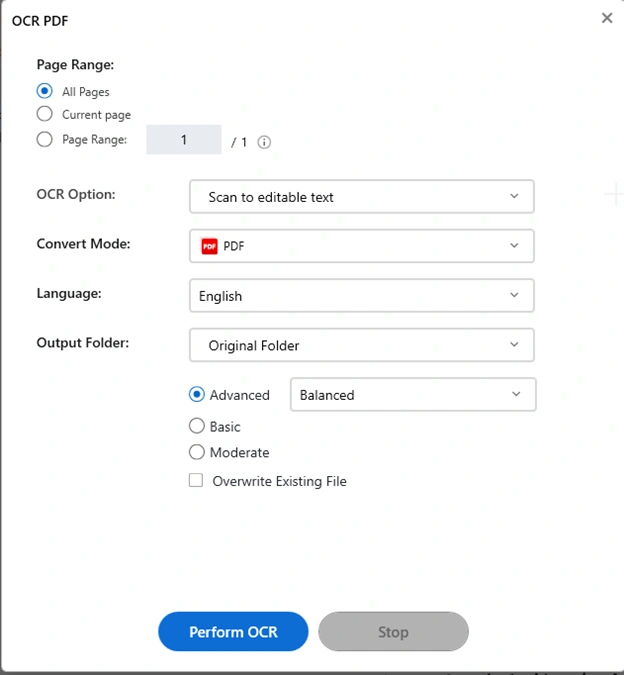
Page Range – allows you to select pages to convert. Good for a document with multiple pages.
OCR Option: Gives you two options –
- Scan to editable text – Extracts and converts text into editable content.
- Scan to searchable text in an image – Without altering the image, extracts the text from the image.

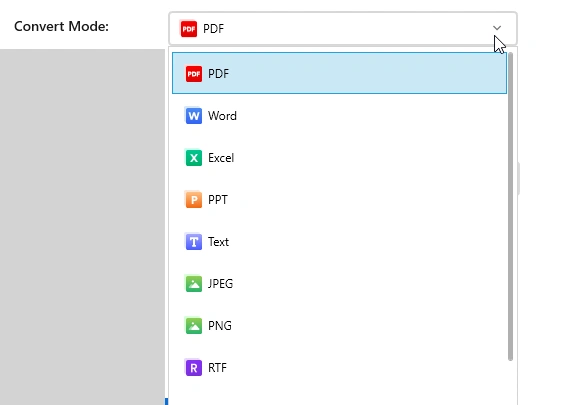
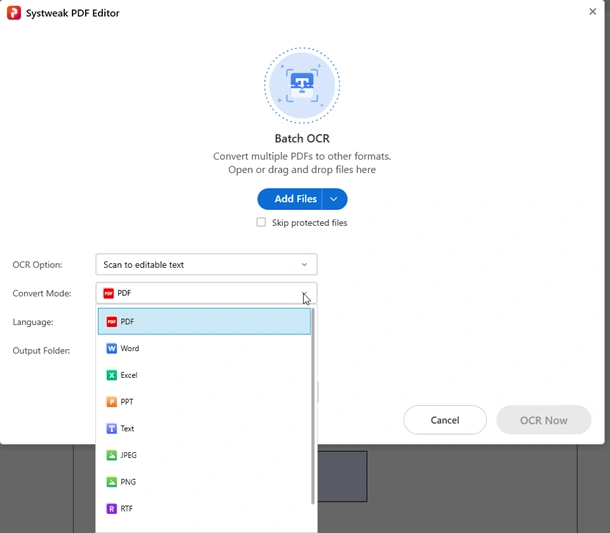
Convert Mode – Allows selecting the output format from a list of options, including PDF, Word, Excel, PPT, Text, JPEG, PNG, RTF, etc.
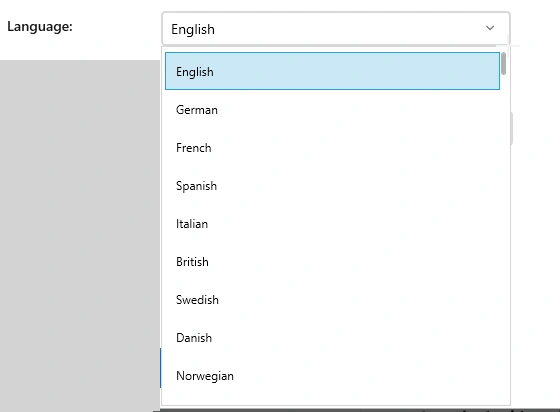
Language: Gives you the option to select the language in which you want to perform OCR. Best when you have a document in a different language.
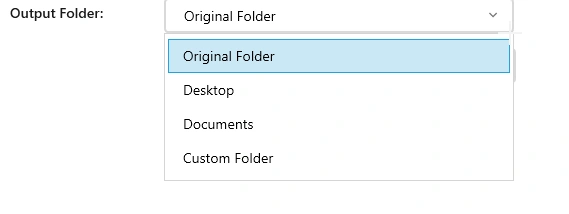
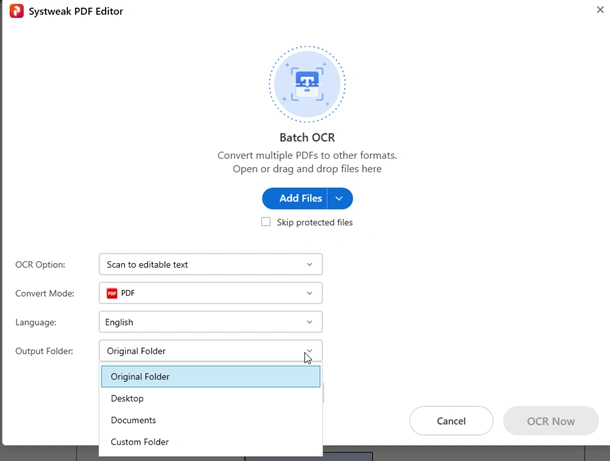
Output Folder: Choose where to save the processed file:
- Original Folder
- Desktop
- Documents
- Custom Folder
Processing Method – Choose the recognition level:
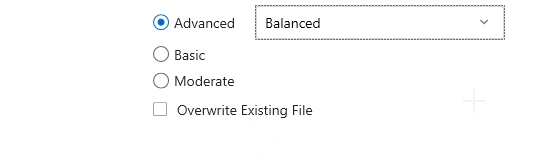
- Basic – Quick scan, limited accuracy.
- Moderate – Balanced between speed and quality.
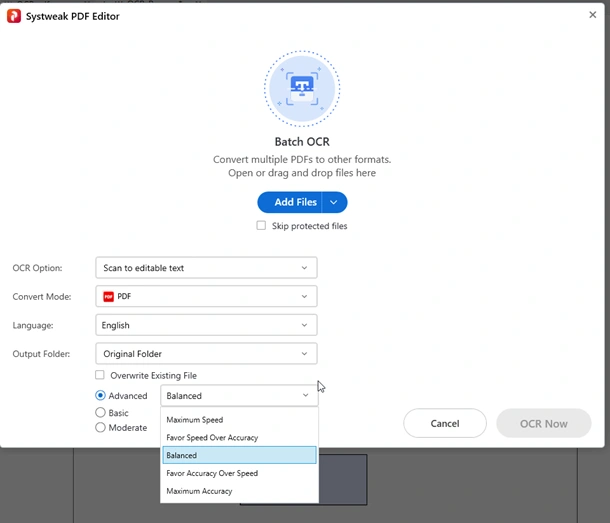
- Advanced – Best for detailed text extraction. You can refine it by selecting from the following options:
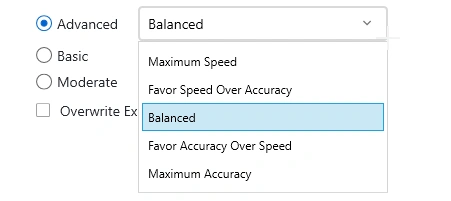
- Maximum Speed
- Favor Speed Over Accuracy
- Balanced
- Favor Accuracy Over Speed
- Maximum Accuracy
5. Once the preferences are set, click Perform OCR.
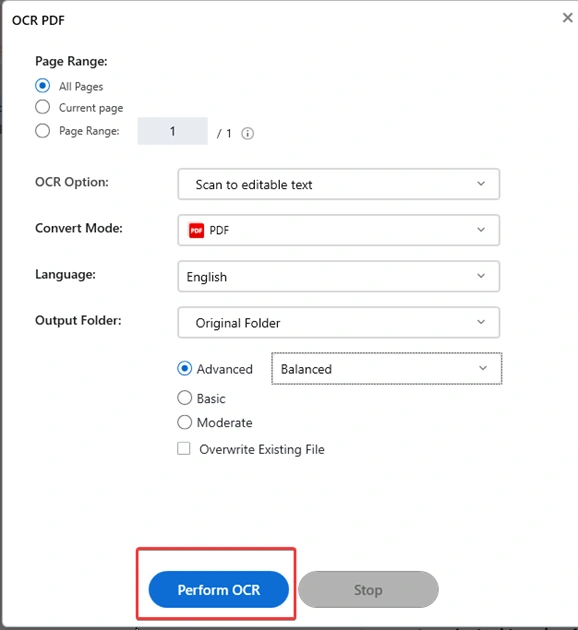
6. Once the process is done according to the selected option, the document will either be fully editable or you will be able to select text in the image.
What to do if the OCR output looks wrong?
If the output is not correct, follow these steps as OCR accuracy depends on scan quality:
- Re-scan the original document at a higher resolution (300 DPI or above)
- Flatten the page before scanning
- Select the correct language in OCR settings if it is non-English.
Problem 3: The PDF is Password Protected
You cannot open the PDF because it requires a password, or you can open it but cannot edit it because you get a message that editing is restricted or not permitted. To fix the first one, you need the password; for the latter, check permissions.
PDF editing is usually locked behind two types of PDF passwords:
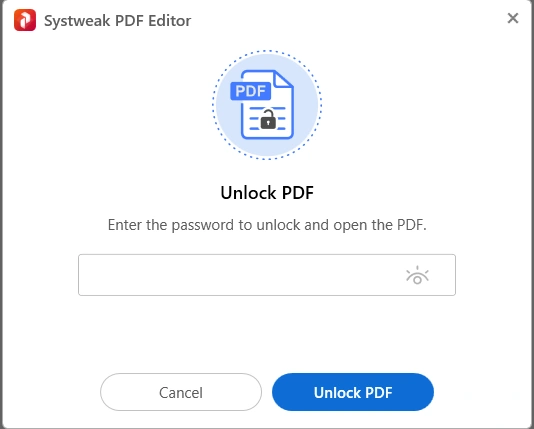
- A password to open a PDF, in the absence of which you cannot open a PDF.
- Permissions password that lets you revoke lets you open and read the file, but blocks editing, copying, or printing.
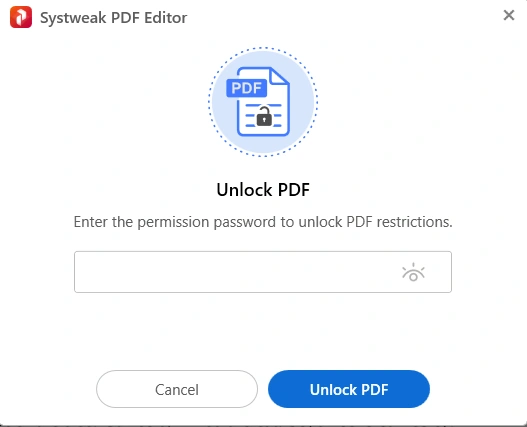
The second type allows you to read the document but restricts you from making changes.
Solution – Removing the permission password is the way to fix it
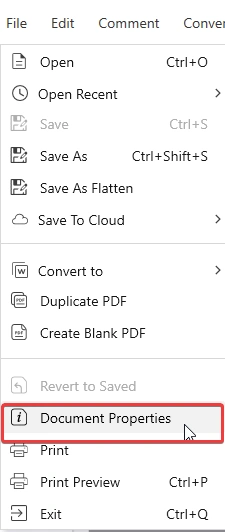
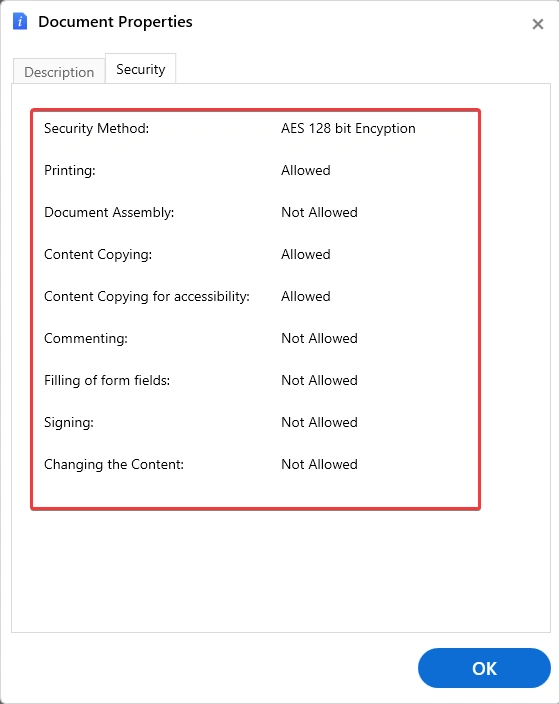
To check if your PDF is permissions-restricted: In Systweak PDF Editor, open the PDF, click File > Document Properties.
Click the Security tab. Here you will see whether changing the content is allowed or not.
Steps to remove password protection (only works if you have the password):
1. Launch Systweak PDF Editor and open your password-protected PDF.
2. You will not be prompted to enter the password to unlock it.
3. Enter the password and click Unlock PDF. The PDF will now be accessible.
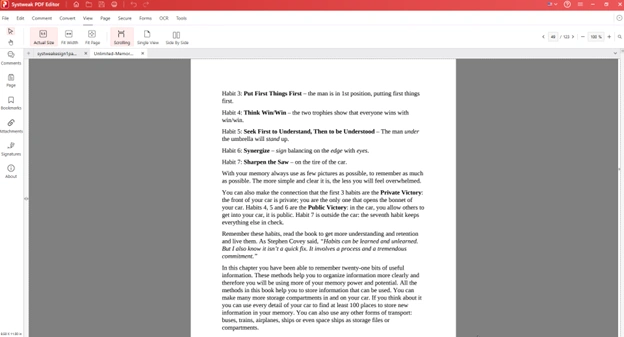
4. To remove the password, click Secure tab in the top menu.

5. Click Unprotect, enter the password in the dialogue box that appears, then click Remove Password.
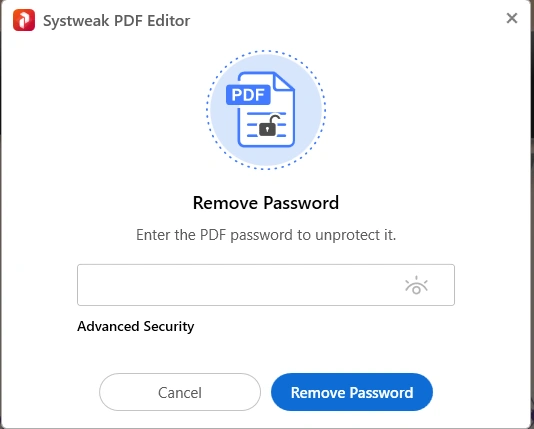
6. Wait for the process to finish. Then apply the changes, and you will no longer need to enter a password to open and edit the document.
Problem 4: The PDF Has Read-Only Permissions
This means the document owner has set permissions that prevent you from editing the document. Usually, legal contracts, government forms, official reports, and any document that’s meant for reference only have it.
Steps to remove restrictions (only works if you have the password):
1. Launch Systweak PDF Editor and open your PDF.
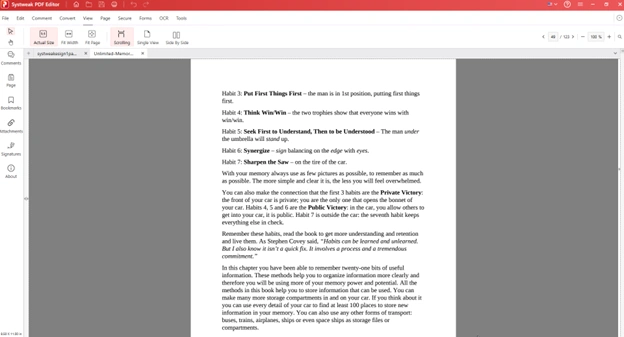
2. To remove the password, click Secure tab in the top menu.

3. Click Unprotect, enter the password to revoke permission in the dialogue box that appears, then click Remove Password.
4. Wait for the process to finish to apply changes.
5. You can now edit the document.
1. Click the Convert tab > Convert From in Systweak PDF Editor.
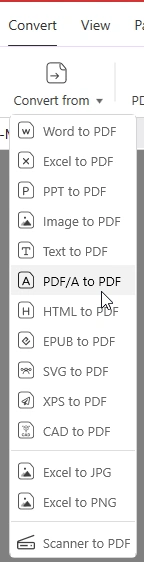
2. Select the file to open.
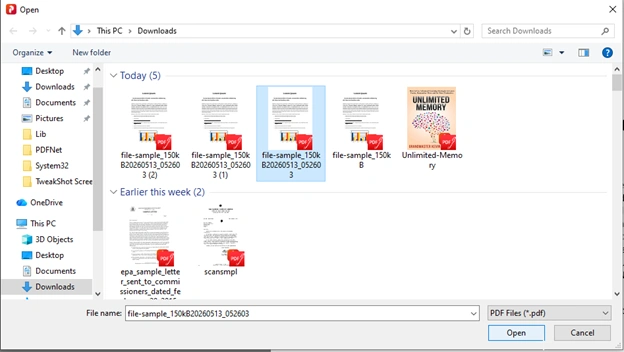
3. The file will be converted to PDF, and you are now ready to make edits in the converted file.
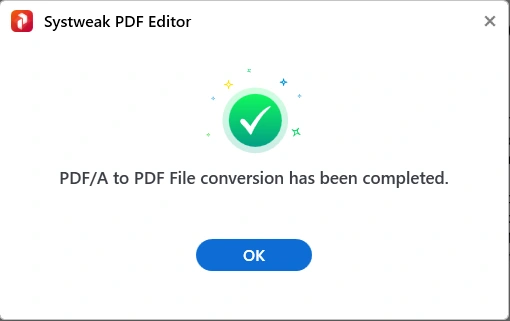
4. Save or convert back to PDF/A when done.
Problem 5: The PDF Has Been Digitally Signed
You have a digitally signed PDF that you can read but cannot edit, as it is blocked. When a PDF is digitally signed with a certificate-based signature, the file is locked to preserve the integrity of the signature. Editing the file after signing invalidates the signature. Therefore, to edit it, you can do the following:
- If you are the only signer, remove your signature, edit the document, and re-sign when done.
- If multiple people have signed, go to the original, unsigned version, make your changes, and get it signed again.
- If you don’t have the unsigned version, contact the document owner and ask them to send the unsigned copy, make the changes, and send it for re-signature.
Problem 6: Software Compatibility or Corrupted File
There are no restrictions on the file; you are using a PDF Editor, yet you cannot edit. This happens when the PDF is created with non-standard tools, embedded fonts aren’t properly installed on your system, or the PDF is damaged or corrupted.
In some cases, if the PDF is created in Adobe LiveCycle Designer (XFA forms), then this can also happen. XFA-based PDFs cannot be edited. The only way to fix it is to request a non-XFA version from the file creator.
However, if the PDF is corrupt, you can repair it using Systweak PDF Editor and can edit it.
💡 Bonus: Quick Workarounds
If nothing works, you can use the following tricks:
- Print-to-PDF option in the browser:
If a PDF has some restrictions but not strong encryption, open it in Chrome or Microsoft Edge, press
Ctrl + P (Windows) or
Cmd + P (Mac) to print, then choose
Save as PDF as the printer.✅ You can now use this saved copy and edit it as the basic restrictions get removed.
This will not work on files with strong password encryption. - When you cannot edit, and it is a lot of work, you can use the Whiteout and Add Text tools in Systweak PDF Editor.
✍️ This will help cover the old text, allowing you to type over it. It’s not true text editing, but for minor corrections, it’s faster and cleaner.
📌 Editor’s Note – Batch OCR, Scan Document, and Edit PDF Directly
To perform OCR on multiple PDFs, scan documents directly from within the app, or work with scanned images and PDFs separately, you can do it all using Systweak PDF Editor.
🖨️ To Use Scanner to PDF:
- Go to: OCR Tab → Scanner to PDF
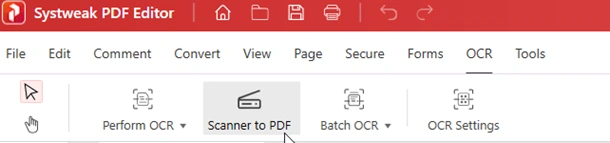
- Configure scanner and output settings.
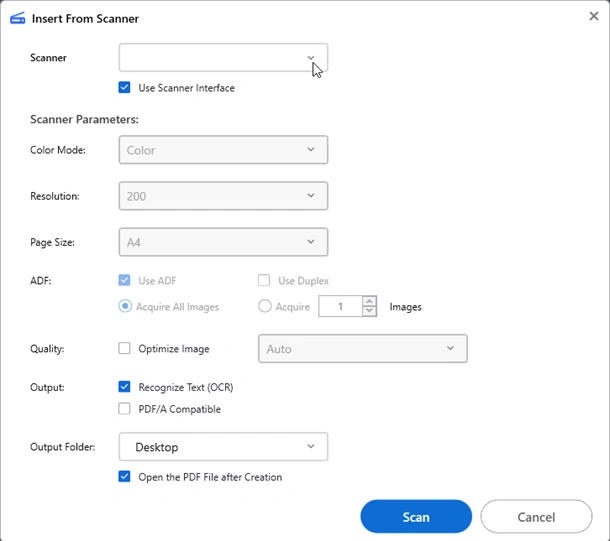
Scanner – Select the connected scanner from the dropdown list.
Use Scanner Interface – Access your scanner’s interface for advanced controls.
Color Mode – Choose how the document should be scanned:
- Color – for images or colorful pages
- Grayscale – for mixed tone documents
- Black & White – best for text-heavy documents
Resolution – Defines scan quality (DPI). Higher DPI = better quality and larger file size.
Page Size – Select the paper size like A4 or Letter.
ADF (Automatic Document Feeder) – Scan multiple pages in sequence.
Use Duplex – Scan both sides of pages if supported.
Acquire All Images – Scan the complete page stack.
Acquire [X] Images – Scan a selected number of pages.
Quality (Optimize Image) – Improve clarity and contrast.
Output (Recognize Text – OCR) – Convert scanned text into editable/searchable text.
PDF/A Compatible – Create archive-friendly PDF files.
Output Folder – Select where the PDF should be saved.
Open the PDF File After Creation – Automatically opens the file after scanning.
📂 How to Make Multiple PDFs Editable?
The easiest way is by using Batch OCR. This feature processes multiple scanned PDFs or image files in one go.
Available Options:
- OCR from PDF
- OCR from Image
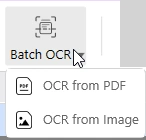
📄 A. Batch OCR from PDF
This option performs OCR on multiple PDF files simultaneously.
- Click Batch OCR ▼ → OCR from PDF.
- Add files using drag & drop, Add Files, or Add Folder.
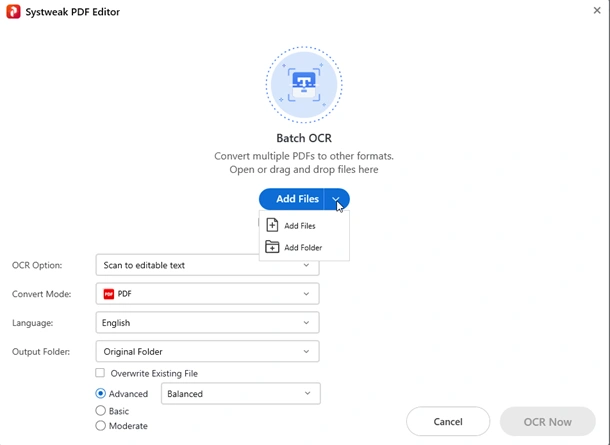
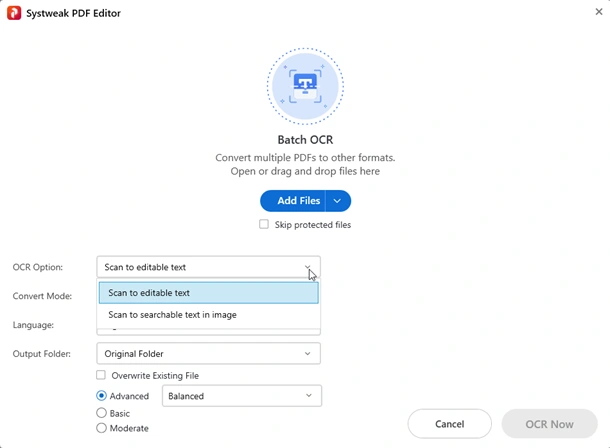
OCR Option –
- Scan to editable text
- Scan to searchable text in an image
Convert Mode – Export as PDF, Word, Excel, PPT, Text, JPEG, PNG, RTF, etc.
Language – Choose OCR language like English, German, Italian, etc.
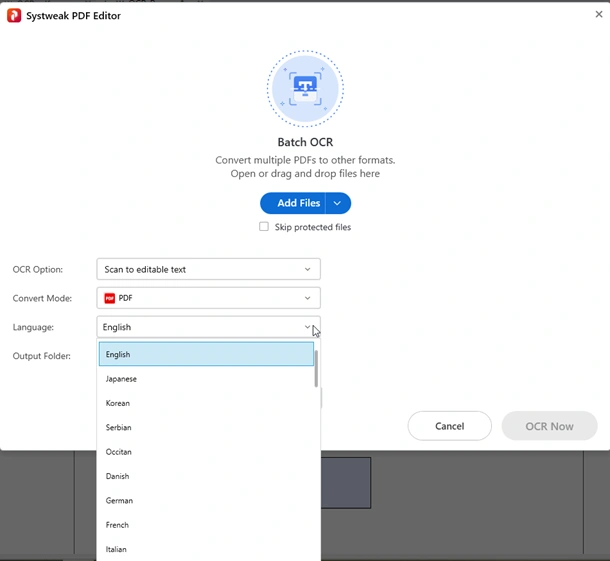
Output Folder – Save to Original Folder, Desktop, Documents, or Custom Folder.
Overwrite Existing File – Replace the original file if needed.
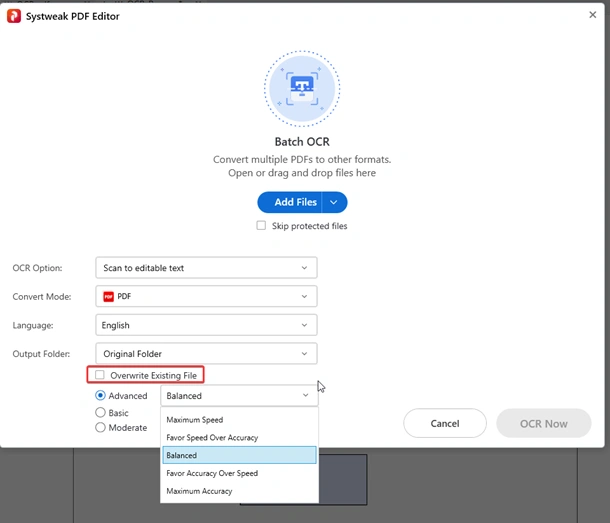
OCR Level – Select Basic, Moderate, or Advanced with Balanced, Max Speed, or Max Accuracy.
🖼️ B. Batch OCR from Image
Convert multiple image files (JPG, PNG, BMP, etc.) into editable/searchable documents.
- Go to Batch OCR ▼ → OCR from Image.
- Add image files using drag & drop, Add Files, or Add Folder.
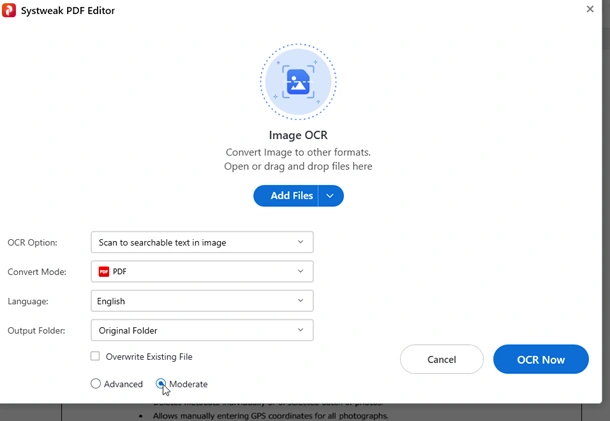
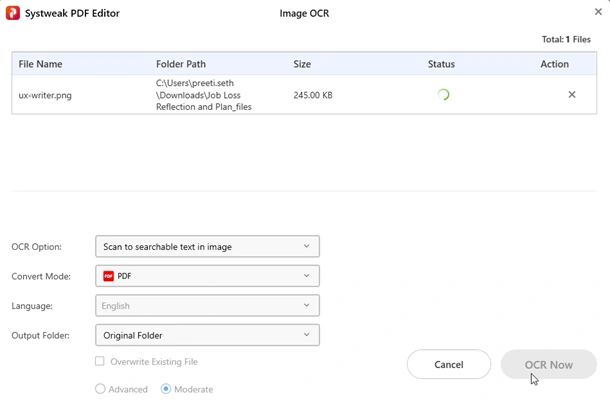
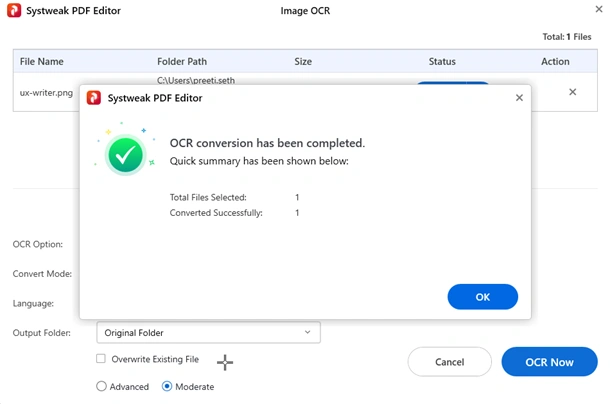
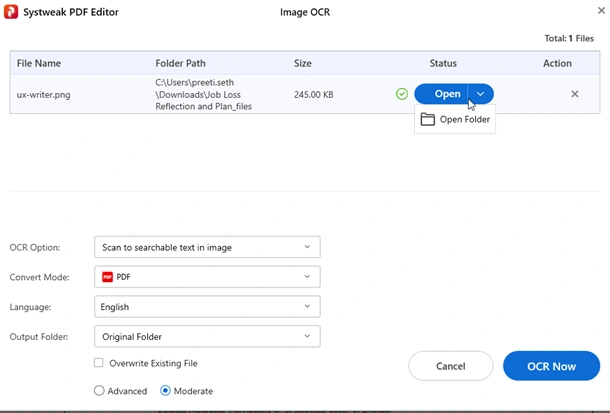
Customize settings using the dropdown options before starting OCR.
Frequently Asked Questions
Key Takeaways:
- A PDF can be uneditable if it is scanned, has restrictions, is password-protected, incompatible, or corrupted.
- Scanned PDFs need OCR before they can be edited.
- Password protection comes in two types: one to open a PDF, and the other, a permission password that allows editing, copying, pasting, and printing.
- Digitally signed PDFs are locked by design. To edit them, you need the unsigned version.