
Introduction
PDF editing feels simple until you open a tool and it asks you to create an account or enter your card details before you can change a single word. Sometimes a tool skips all that but then stamps a watermark across your file. And sometimes the tool is fine, but the PDF itself has restrictions that block any editing.
You just need something that opens the file and lets you work, edit text, sign, and annotate without any of this.
Systweak PDF Editor does exactly that. No account, no monthly subscription, works offline on your desktop. Adobe Acrobat does the same job, but at a monthly price that is hard to justify for everyday use.
In this guide, we will show you how to edit a PDF the simple way.
Why Does Editing PDFs Feel Difficult?
PDFs are built to preserve formatting. The text, images, and layout are locked so the file looks the same on every device. But the moment you need to make a small fix, like correcting a spelling or updating a date, that same lock works against you, preventing you from making changes without the right PDF editor.
If the PDF is scanned, it gets harder. A scanned PDF is just an image, and to edit it, you need a tool with OCR (Optical Character Recognition) that converts it into editable text first.
And if you try an online editor to get around this, you are uploading a sensitive document to a server and risking a broken format or a watermarked file in return. So the real question is not whether you need a PDF editor, but which one is worth your time and money.
Adobe Acrobat Vs Systweak PDF Editor
Adobe Acrobat needs no introduction. It is the most recognised name in PDF editing, and it does the job well. But it is built as a professional suite, which means it comes with a professional price tag of around $19.99 a month. Even to try it, you need to enter your card details first.
For someone who edits a PDF occasionally, that is a lot. And if the interface feels heavy or the features feel more than you need, you end up paying for a tool that does more than what the task requires.
On the other hand, Systweak PDF Editor covers everything you need for everyday PDF editing. Edit text, add images, annotate, sign, run OCR, convert, and password-protect documents. It works fully offline, your documents never get uploaded anywhere, and you do not need to enter your card to try it. All of this at a significantly lower price than Adobe.
The steps below will show you exactly how to use it.
How to Edit a PDF using Systweak PDF Editor
Follow these steps to edit your PDF file using Systweak PDF Editor.
Step 1: Download and install Systweak PDF Editor
Download the application. Once installed, launch it.
Step 2: Open your PDF file
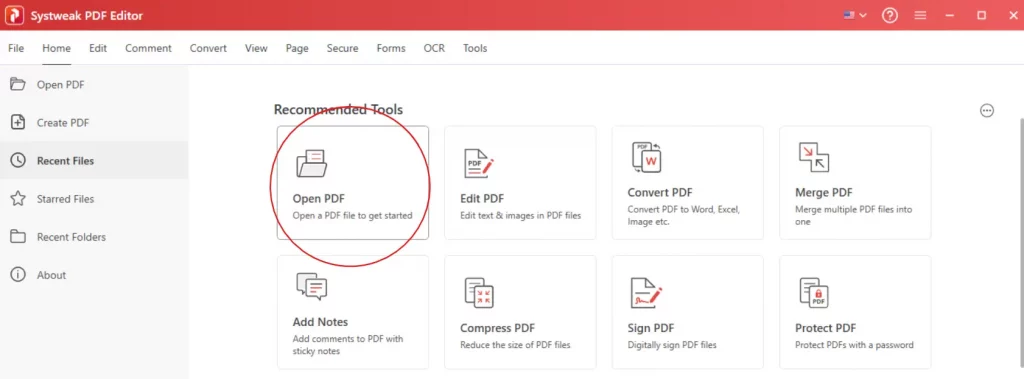
Click Open File on the home screen. Browse to the PDF you want to edit and click on “Open”.
Step 3: Edit text and images
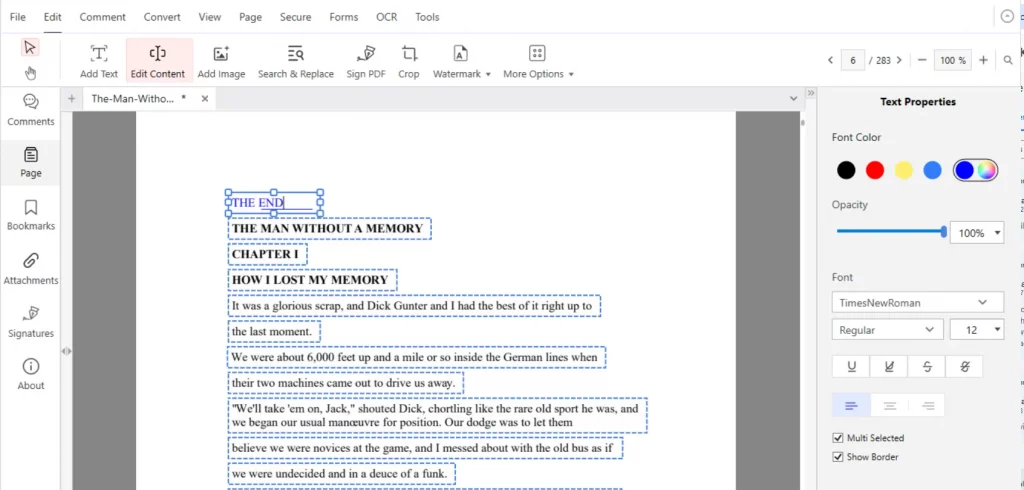
Click the Edit tab in the top toolbar, and you will see a lot of options to make changes in your PDF.

You can “Add New Text” anywhere in the document to include any missing detail or update in the document. And also manage new text properties from the toolbox at the right end of the editor.
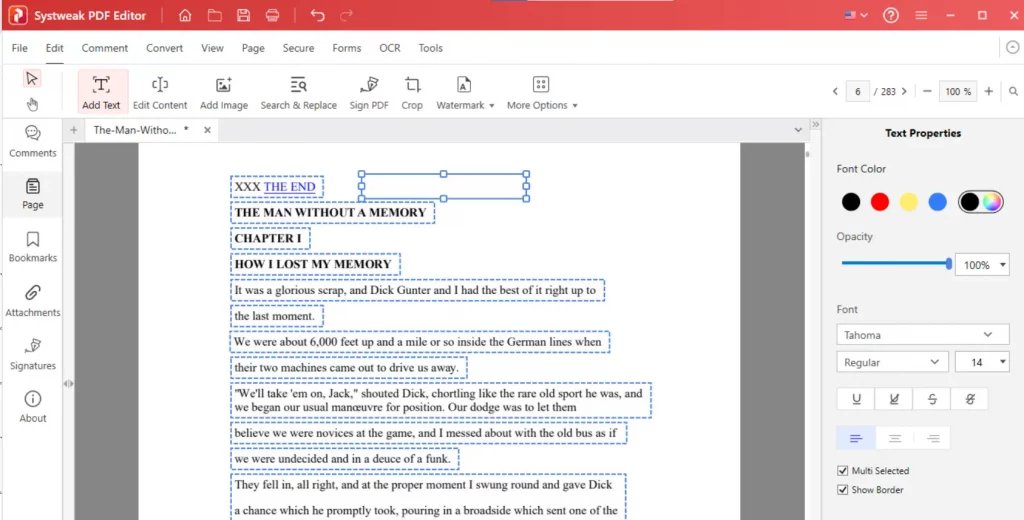
You can also “Edit existing content” to fix errors or update information.
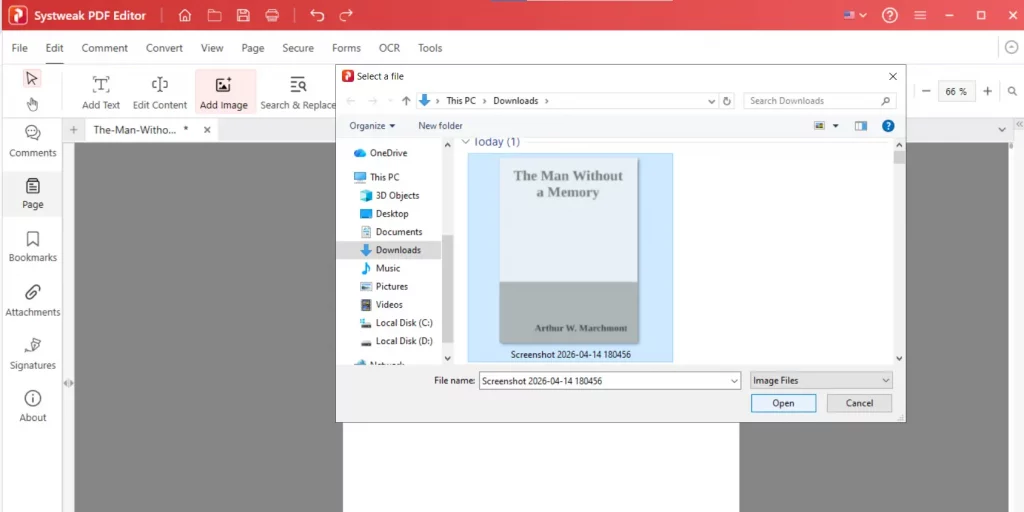
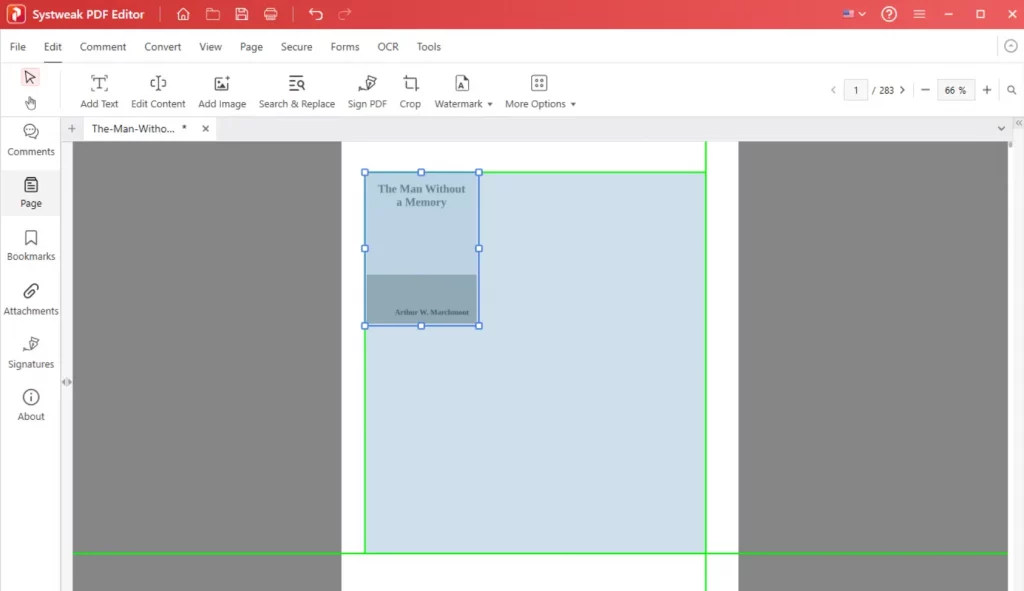
If your document requires visuals, you can easily “Add Images” or replace old ones to keep everything up to date.
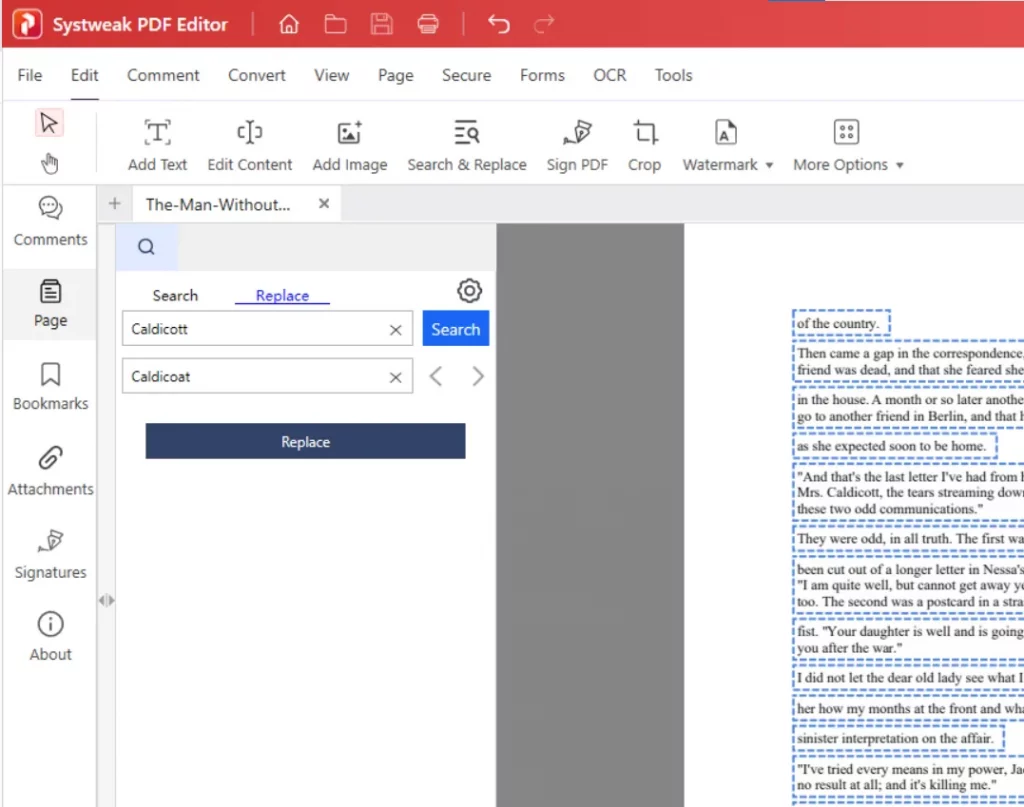
You can also “Search” for specific words and “Replace” them in the document, which will save a lot of time when searching for them manually across the document.
In addition to editing, you can “Sign” your PDF digitally too with Systweak PDF Editor, which is quite useful for contracts or official documents.
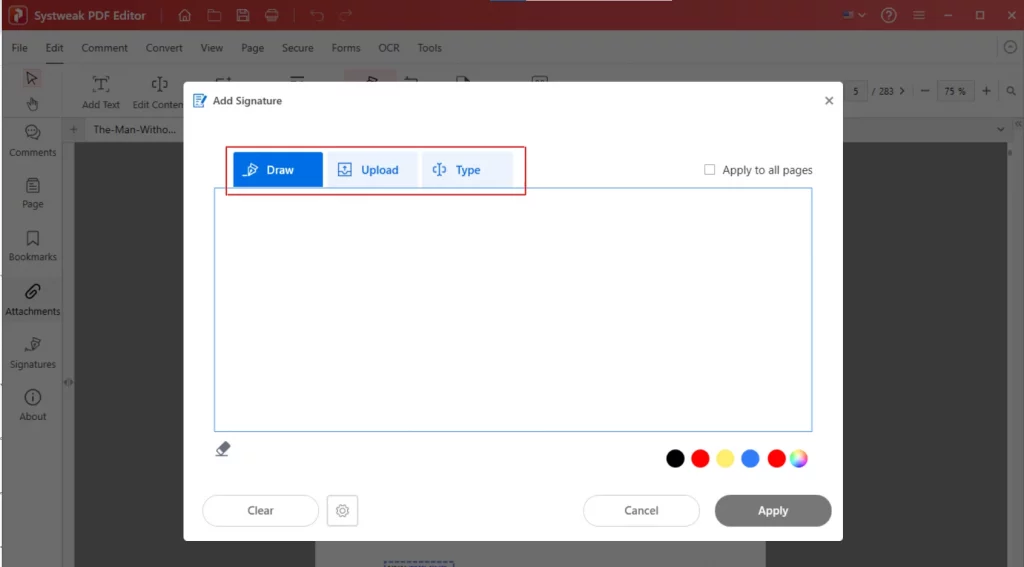
For adjusting and making the formatting look better, you can “Crop” PDF pages and remove unwanted sections that are not aligning properly with the PDF format.
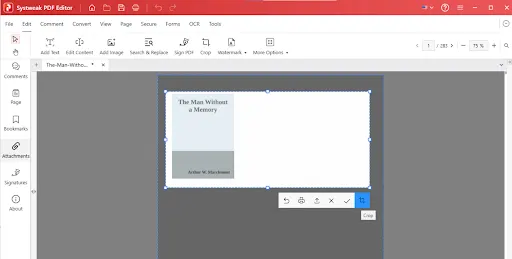
And if needed, you can “Add Watermark’ or “Remove watermark” to protect your document and update its branding.
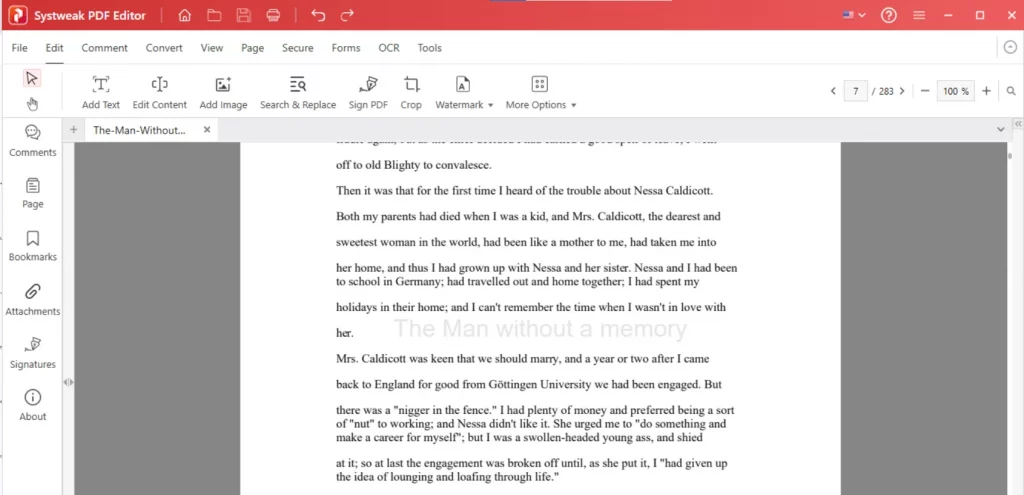
All these features make PDF editing much more flexible and practical for everyday use.
Step 4: Use more editing options
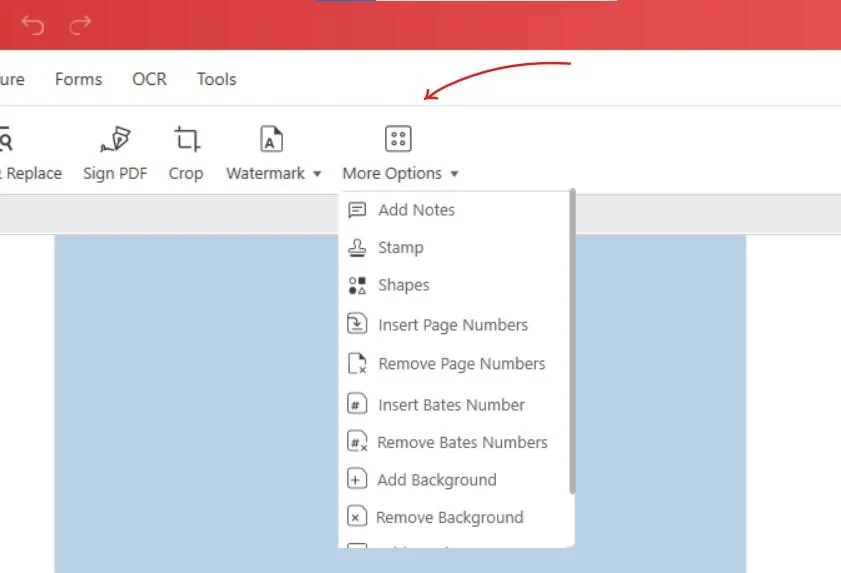
Systweak PDF Editor also lets you organize and enhance your document further. You can Add Notes without changing the original content. Use stamps to mark a document as Approved, Draft, or add a custom stamp. Add shapes like arrows, lines, rectangles, and circles to highlight sections visually.
For structure, you can insert or remove page numbers. You can also add Bates numbers for professional document identification and tracking.
You can also add a “Background” in your PDF for either professional use or just to make your document look better. Add headers and footers to include titles, dates, or any other information, and remove them whenever you need a simpler layout.
Step 5: Annotate and add comments
Along with editing, you can annotate and review your PDFs with the Systweak PDF Editor. Click the “Comment” tab from the toolbar, and from here you can “Highlight”, “Underline”, or use “Strikethrough” to cut off the content that is no longer needed or was wrong.

Annotations are useful when you are working with your team on one document. It helps you to review documents and leave feedback without altering the original content. For a full look at annotation options, see Top PDF Annotation Tools Every Professional Needs.
Step 6: Use OCR for scanned PDFs
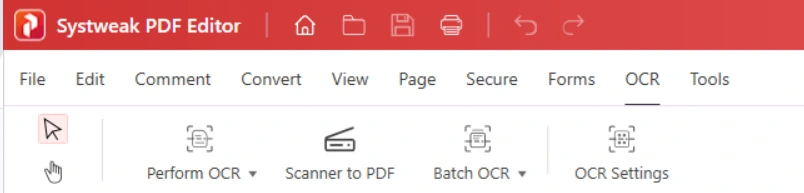
If your PDF is scanned (in image format), then first use the OCR (Optical Character Recognition) feature to make it editable and searchable.
To use OCR, go to the “OCR” tab > click “Perform OCR” > select the option, and you are done.
Step 7: Convert your PDF if needed
Go to the Convert tab and use Convert To or Convert From to switch between PDF, Word, Excel, and image formats. This is useful when you need to edit content in Word first and then save it back as a PDF.

Step 8: Merge, split, or replace pages
If you need to bring multiple documents together, you can combine PDF files, whereas if you need to share only part of a document, you can split a PDF into multiple files. Not only if one section of the PDF needs updating, but the rest of the document is fine, you can replace PDF pages
Step 9: Save your file
Once you have edited your PDF, go to “File > Save or Save As”. To keep the original file unchanged, use this option
Conclusion
Editing a PDF without Adobe becomes easy when you use a simple desktop tool like Systweak PDF Editor. This software does not cost you much. With it you can open your file, edit text and images, add comments or highlights, and even use OCR in case it is scanned to make it searchable and editable. Once your changes are done, you can save your file.
This method works well for everyday tasks, keeps your files secure with offline editing, and removes the need for complex or expensive software.
Download Systweak PDF Editor
Frequently Asked Questions
What is the difference between Adobe Acrobat and Systweak PDF Editor?
Both let you edit, annotate, sign, and convert PDFs. Adobe Acrobat costs around $19.99 a month. Systweak PDF Editor offers the same everyday editing features at a significantly lower cost, works offline, and does not require a monthly subscription to get started.