
PDFs are among the formats of documents used in sharing resumes, reports, invoices, forms, and just about every other type of professional or academic document. Sometimes, though, you find there is either one spelling mistake or another, a wrong number, or certain text that you do not want to show. That’s where you start looking for a method to “white out” on a PDF.
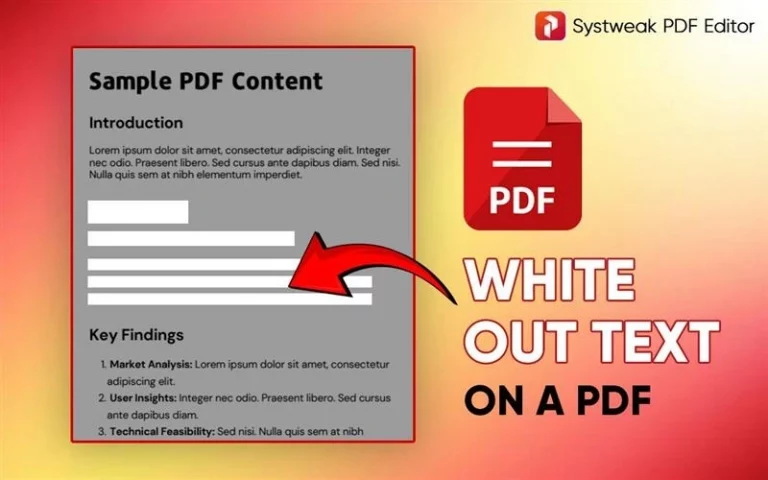
That is, whiteout in a PDF means overlaying some text or image, or any portion of a page, with a white overlay, so to say-like you do with correction fluid on paper. You don’t actually edit the original text; you simply lay another white layer over the unwanted area so it appears to be visually hidden.
Whiteout in PDFs is commonly required for:
- Everything will be proofread, including small mistakes, indicating that this is not a full rewrite of the text.
- Mask information for identifying any details connected to personal data, such as email IDs, numbers, or account numbers.
- Cover old signatures or dates in scanned documents
- Clean noisy or messy scanned PDFs
- Prepare forms for re-use
- Eliminate all distracting marks and irrelevant information.
Whether a student, professional, or person dealing with online documents, it is very handy to know how to white out on a PDF.
But before we outline the methods, there is something quite crucial to understand: whiteout and redaction are not the same.
White Out vs Redact: What’s the Difference?
A lot of people confuse whiten-out with redaction, although these words do very different things.
White Out
- Only text is covered by a white box.
- It’s just that the content is hidden; it is still underneath.
- In other words, any person can disclose it by copying text, removing a layer, or opening the PDF in another application.
- It is good for multiple layout solutions or format preparation.
- Not safe for sensitive information
Redaction
- Permanently removes text from PDF
- The following content becomes irretrievable.
- Best for sensitive or confidential information
- Cannot be reversed once applied correctly
Briefly:
- Use Whiteout for non-sensitive cosmetic fixes
- Redact protects private/confidential information.
The following are the step-by-step methods to Whiteout a PDF, as we already understood the difference between Whiteout and Redaction:
Methods to White Out a PDF on Windows
Method 1: White Out a PDF on Windows Using a PDF Editor (Recommended)
The fastest and easiest way to white out a PDF on Windows is by using a dedicated PDF editor like Systweak PDF Editor. This tool gives you a clean “Whiteout” or “Rectangle” tool that covers anything flawlessly.
You can use any professional editor; the steps below, however, follow the general workflow common to most tools.
Steps to White Out a PDF Using a Systweak PDF Editor:
- Open your PDF in a PDF editor.
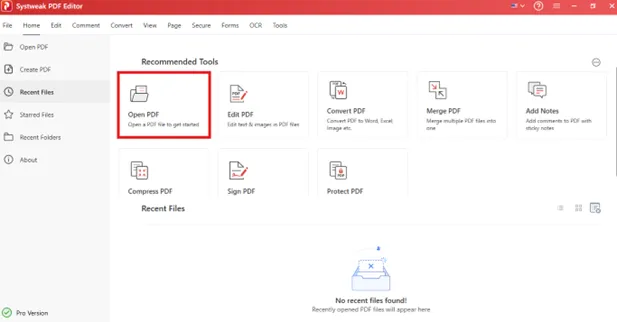
- Download and install Systweak PDF Editor and open the file.
- Click on Open PDF and select the document.
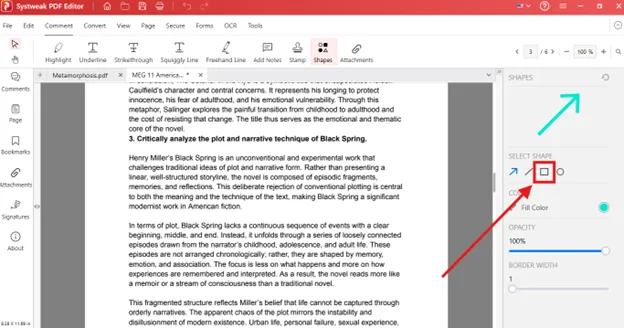
- Select the ‘Shapes’ or ‘Annotations’ tool
- Select the Comment section and look for the Shapes
- Click on the rectangle icon shown on the right of the page
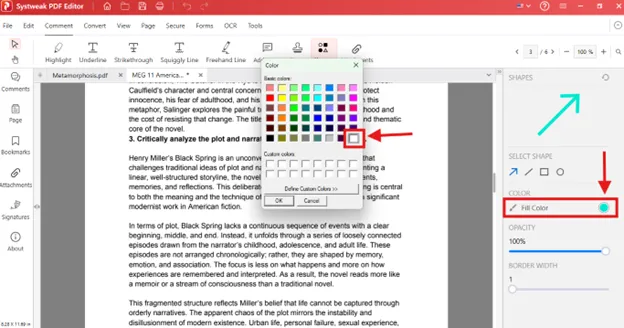
- Click on “Fill Color” and select white.
- Select the Fill Color as White.
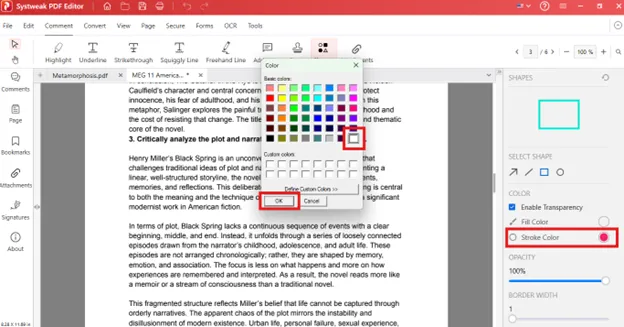
- Also, set the border color to none or white.
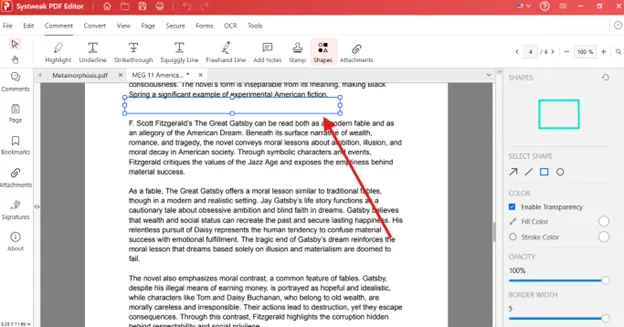
- Draw a rectangle over the text that you’d like to hide.
- Size the shape to completely cover the text on this page.
- Flatten the PDF (very important!)
- Flattening ensures that the white shape becomes a permanent part of the PDF.
- Without flattening, one could just delete the white box.
- For this, click on the File section and select
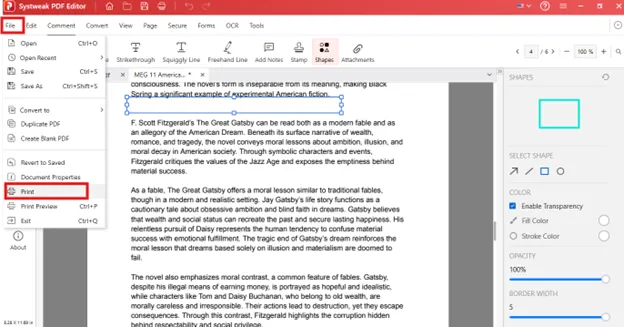
- Save your document
- Click on Print and Save your file with a new name so you don’t get confused with the original.
Why This Method Is Recommended:
- Gives the cleanest, most professional output.
- Shapes meld into the background.
- Works for text, images, and scanned pages
- Flattening locks your whiteout
- No loss in quality.
If you edit PDFs a lot, this is the safest and smoothest method.
Method 2: White Out Text in PDF Using Microsoft Edge (Free Method)
Not having an editor for PDFs is no problem.
Yes, Microsoft Edge is indeed the default PDF viewer on Windows 10 as well as Windows 11. Microsoft Edge possesses the capability to perform basic ‘white-out’ editing functionality with the help of the tools provided.
That is not as good as editing in PDF files; however, it is merely adequate for light editing.
Steps to White Out a PDF in Microsoft Edge:
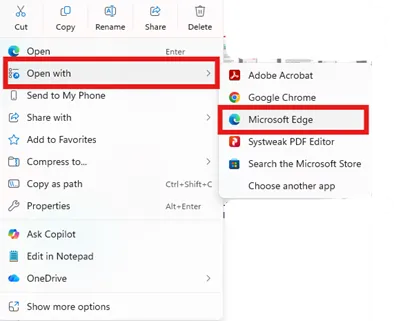
- Right-click the PDF → Open with → Microsoft Edge
- This opens your PDF inside the browser.
- Click the Draw Tool, commonly depicted by the pencil icon
- Select white from the palette.
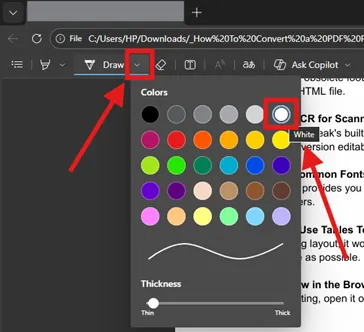
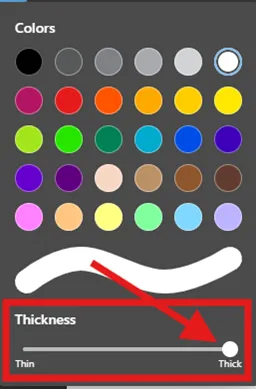
- Change the pen thickness
- A thicker pen produces a smoother white cover.
- Draw over text you’d like to redact
- Paint over the area carefully. In order to paint straight lines, hold the mouse steady.
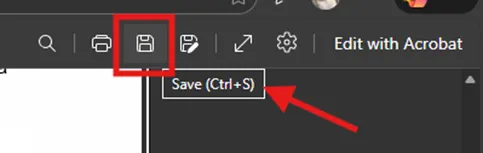
- Save as PDF
- Save icon at top right – use to save changes
Advantages of Using Edge:
- 100% free
- Built into Windows
- No installation needed.
- Quick for small corrections
Disadvantages
- Hand-drawn whiteout is uneven.
- Can’t precisely cover the text in one line.
- Not for professional edits.
- No option to flatten.
- Easy for a person to remove your scribbles.
The method applies only in cases when one needs simple, non-professional masking.
Method 3: White Out a PDF Using Word (Indirect Method)
Microsoft Word opens some PDFs and can let you edit them, just like regular documents. Far from perfect, especially with more complex PDFs, but this may be one indirect method to white out text.
Steps to White Out Using Microsoft Word:
- Open Word
- Open Microsoft Word on your Windows system.
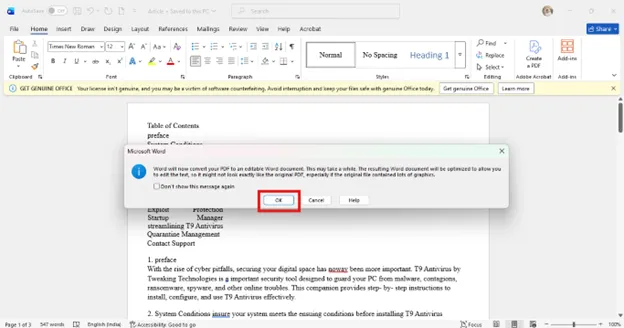
- Drag and drop your PDF into Word
- A message will appear:
“Word will automatically convert your PDF into an editable document.”
- Click OK.
- Draw a white rectangle
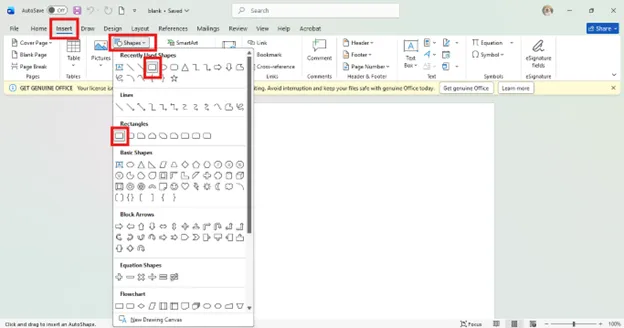
- Go to Insert → Shapes → Rectangle
- Draw the shape over the unwanted text
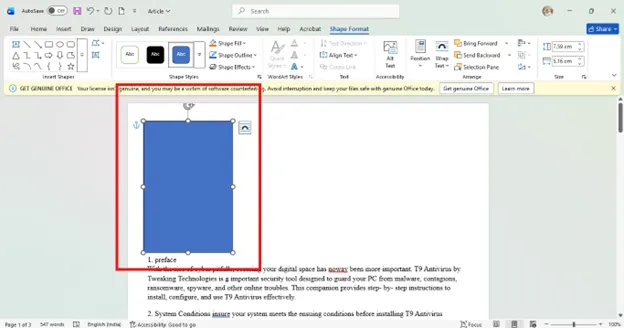
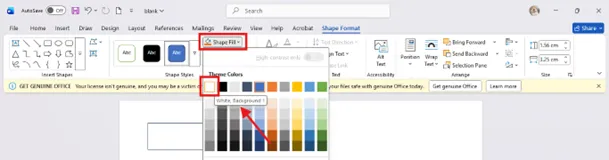
- Set Fill: White
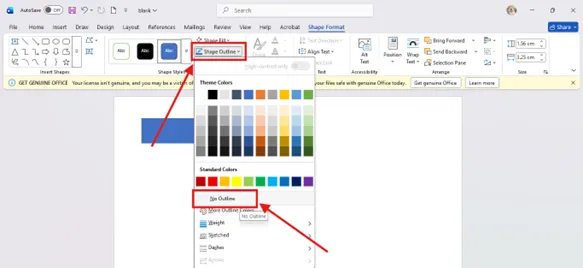
- Set Outline: No Outline
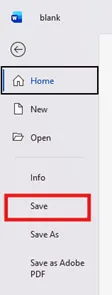
- Save the file as a PDF
- Go to File → Save.
When to Employ This Strategy:
- When your PDF contains mostly text
- When you want white-out to appear more naturally in Word
- When there are any mistakes concerning formats or layouts.
Limitations:
- Conversion may distort fonts or spacing.
- Complex layouts like tables may shift.
- Images may be shifted.
- Not suitable for scanned PDFs.
This works well with the simple PDFs.
Common Mistakes to Avoid
Users are usually misusing whiteout and revealing the information that is hidden beneath. Erasures that are most frequently made and how not to make them are as follows.
1. Using Whiteout for Sensitive Data
Whiteout is NOT the same as redaction.
For instance, if you cover your email address or account number with a white box, a third party can:
- Select and copy the text underneath
- Remove the white box in another editor
- Layered highlighting of hidden contents in a PDF reader.
Never use white-out on sensitive or private information.
Always use a Redaction tool instead.
2. Forgetting to Flatten Annotations
If you are operating within a PDF editor, white shapes that you add will remain editable unless you flatten them.
Unflattened white shapes can be:
- Deleted
- Moved
- Transparent to some readers
- Exposed by Selecting All Elements
Always flatten or print to PDF after whitening.
3. Whiteout visible in Dark Mode
When someone opens your PDF in Dark Mode or Night Reading Mode:
- Your white box may turn grey
- Text underneath may still shine through
- The page may look patchy.
This happens because whiteout is just a layer mode that inverts page colors.
To avoid this:
- Flatten the PDF
- Use redaction for critical data
- Test the PDF in various readers: Adobe, browser, and mobile
Final Words
Whitening out a PDF is an easy yet effective way of keeping irrelevant material out of the way, correcting mistakes, or cleaning up a scanned document. However, there is a great difference in how effective and safe the results will be because of the different choices one may make.
Summary in a nutshell-
- For neat and professional results:
Use a PDF editor that supports shape tools and also allows for flattening.
- For quick and free repairs:
Draw on text with white marks using Microsoft Edge.
- For reformatting or editing text-heavy PDFs:
Use Microsoft Word as an indirect method
- For sensitive or confidential information:
Do not use whiteout – use permanent Redaction.
Using a dedicated PDF editor will give you the safest and most accurate process of whiteout. You have exact control over it, mask the things cleanly, and you can even flatten the layers so that nothing gets exposed by accident.
FAQs
Q1: Is whiteout the same as redaction in a PDF?
Answer: No. Whiteout only covers text, while redaction permanently removes it.
Q2: Can whiteout hide sensitive information?
Answer: No. It is not secure. Use redaction for confidential data.
Q3: Why is my whiteout visible in dark mode?
Answer: Because whiteout is a layer. Flatten your PDF to avoid visibility issues.
Q4: How do I remove whiteout from a PDF?
Answer: If it’s not flattened, you can delete the shape. If flattened, it cannot be removed.
Q5: What’s the easiest way to white out text on Windows?
Answer: Using a PDF editor—clean, accurate, and professional results.