




The digital signature is a very important feature of digital documents. It doesn’t just sign off on documents; it verifies identities, introduces trust, and ensures tamper-free security. When working with anything from legal documents to business contracts, a signature alone will no longer do – it requires something more powerful, smarter, and authenticable. Here’s all you need to know about digital signature certificate and how to digitally sign a PDF.
What Is A Digital Signature?
A digital signature is defined as a form of electronically signing a document using certificates that ensure the signer is authenticated, and the information cannot be changed at all after signing. It uses encryption technology and creates a distinct digital signature that links the document with the signer’s authentication.
Why Should Digital Signatures Be Used For PDF Files?
Digital signatures come in handy when a degree of trust is required. Here are some reasons why we should sign PDF digitally.
- Strong security based on encryption
- Detection of any tampering with the file
- Legal recognition across various countries
- Time-saving process without printing or scanning
- Impressing clients with a professional document
These digital signatures are popularly used in contracts, financial agreements, compliance documents, and official approvals.
How to eSign a PDF with a Digital Signature (Step-by-Step)
There are two methods to eSign a PDF with a digital signature. We have explained both methods to sign PDF digitally with a digital signature certificate.
Using Systweak PDF Editor. (Recommended Methods)
Systweak PDF Editor is a PDF editing tool that allows users to make changes to their PDF documents in a simple and swift manner. With this tool, users can edit the text and images within the document, apply annotations, passwords, digital signatures, watermarks, and more to the PDF files. Here are the steps to add digital signature certificate to PDF to protect your PDF document.
1. Download and install Systweak PDF Editor on your PC using the Download button.
2. Click on the Secure tab in the toolbar and click Digital Sign in the ribbon.
3. You will now get a prompt with instructions to drag your cursor and draw the signature area on the PDF.
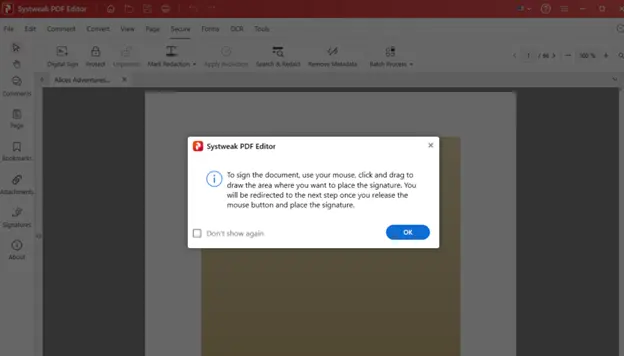
4. Click Ok and use your cursor to select the area where you want to input the digital signature.

5. Once the area is selected, you’ll be redirected to the Sign Document window.
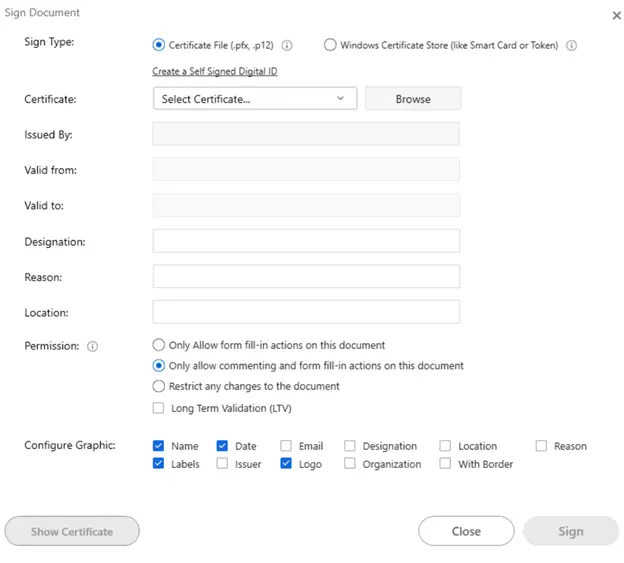
6. Here, you can choose the certificate type. You will get two options to pick from:
Certificate File (.pfx, .p12) – upload a certificate from your system.
Windows Certificate Store – use a certificate stored in your OS.
7. Select either of them, followed by selecting or browsing for your certificate. Once you add or select the certificate Issued By, Valid From/To will be auto-filled if available.
Mention the reason for better identification (Optional)
8. Add location: e.g., USA.
9. Set permissions by selecting from the given choices:
Only allow form fill-in actions – Selecting this option means that the person with the PDF will only be able to fill in form fields like text boxes, checkboxes, radio buttons, etc.
Allow commenting – This option allows users to only add comments, notes, highlight text, and use other annotation tools. However, they cannot edit content.
Restrict changes entirely – When you select this option you lock the PDF and prevent anyone from editing content, filling form fields, adding annotations, comments, or making any other changes.
10. Configure Graphic: Choose signature display elements:
Name, Date, Location, Reason, Labels, Issuer, Logo, etc.
11. After making the changes, click Sign to apply and sign PDF digitally.
12. This will add digital signature certificate to PDF and secured based on selected permissions.
Did you know that you can also apply customised Bates numbering to your PDF document with Systweak PDF Editor?
Use The JSign App To Digitally Sign Your PDF
The JSign app was designed to apply digital signature certificate to your PDF documents by adding a digital certificate while signing the PDF. Here are the steps.
1. Download the JSign app from the GitHub website.
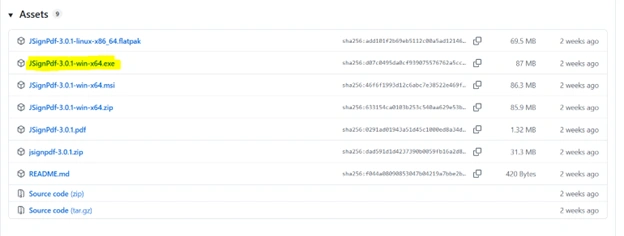
2. Double-click on the downloaded EXE file and follow the onscreen steps to install the JSign software on your computer.
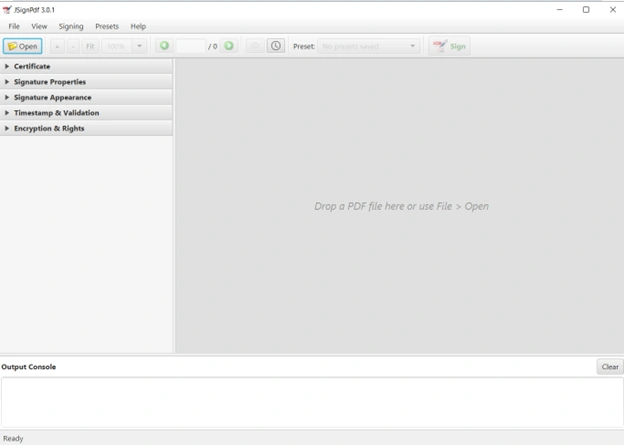
3. Next, launch the software using the Shortcut created on the desktop.
4. Click on the Open button in the top-left corner to import the PDF you wish to sign digitally.
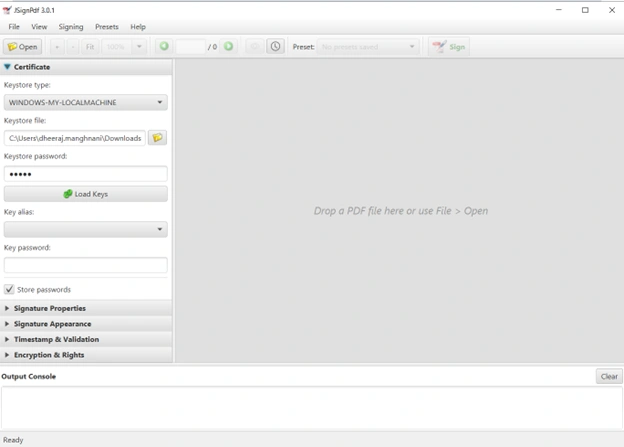
5. Next, click on the Certificate dropdown and select the Keystore type, Keystore file, Keystore Password and other parameters.
6. After you have filled in all the details, click on the Sign button in the top ribbon.
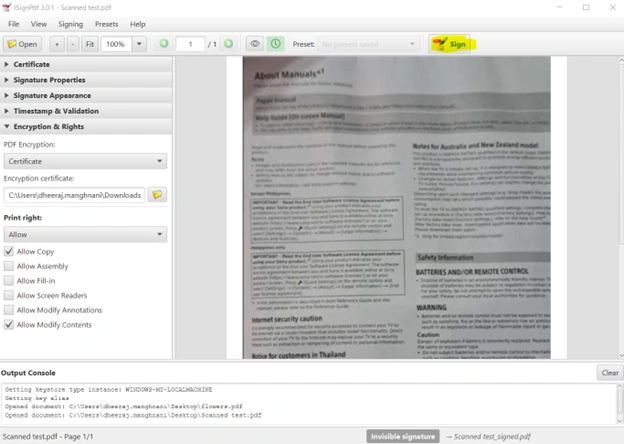
7. The document will now be digitally signed.
Where Are Digital Signatures Applied?
You can apply digital signatures wherever there is a need for trust, like –
- Legal agreements
- Government papers
- Finance
- Corporate authorization
- Compliance and auditing documentation
Split or merge your PDF with ease using Systweak PDF Editor.
How to Ensure Digital Signature Security
- Choose a strong password for your digital signature certificate
- Never let your certificates fall into other hands
- Always check the document before signing
- Try not to sign documents on a public computer
- Make sure you have backups of signed documents
Frequently Asked Questions
Conclusion
Digital signatures make your documents legally bound by making sure of who signed them. This gives the guarantee that the documents are genuine. With Systweak PDF Editor, signing your documents legally becomes quite straightforward without any hassle. We hope that your queries on how to digitally sign a PDF have been answered with this guide. Feel free to drop in a comment or query in the comments section below.




