
Working with a PDF containing rotated or flipped pages or images is frustrating. Usually, this happens when the PDF is scanned, merged, or shared. The best way to address this and make your reports and documents look professional is to correct the page and image orientation.
Luckily, you can do it without recreating the PDF from scratch using an offline PDF editor or a few online alternatives. In this post, we will discuss all those methods in detail. Please follow the step-by-step instructions and make your PDF look professional.
Why are PDF pages or images rotated?
- During document scanning, the pages were not kept in the correct orientation, and the scanner could not detect that.
- Images were added later without checking.
- The page layouts were mixed. It has both landscape and portrait.
- Images were captured using a mobile phone and were added later.
- Edited images or pages with an unreliable PDF editor.
How to Rotate PDF Pages and Images
Changing the orientation of PDF pages and pictures is easy with the right tool and methods. Here are 7 ways to correct PDF alignment.
Method 1: Rotate PDF Pages Using the Best & Easiest Method (Recommended)
If you are looking for the most accurate and best result, then using a powerful dedicated PDF Editor is what you need. Systweak PDF Editor allows users to rotate PDF pages and images within a page without losing the document’s formatting or quality.
The following are the easy steps to rotate PDF pages:
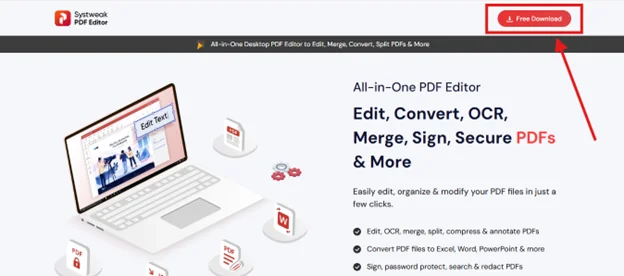
Step 1: Download and install the Systweak PDF Editor on your Windows.
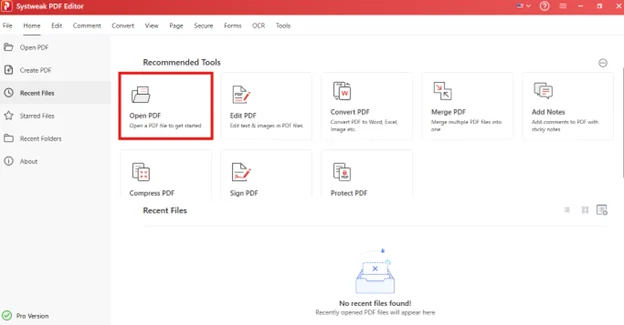
Step 2: Click on Open PDF from the homepage.
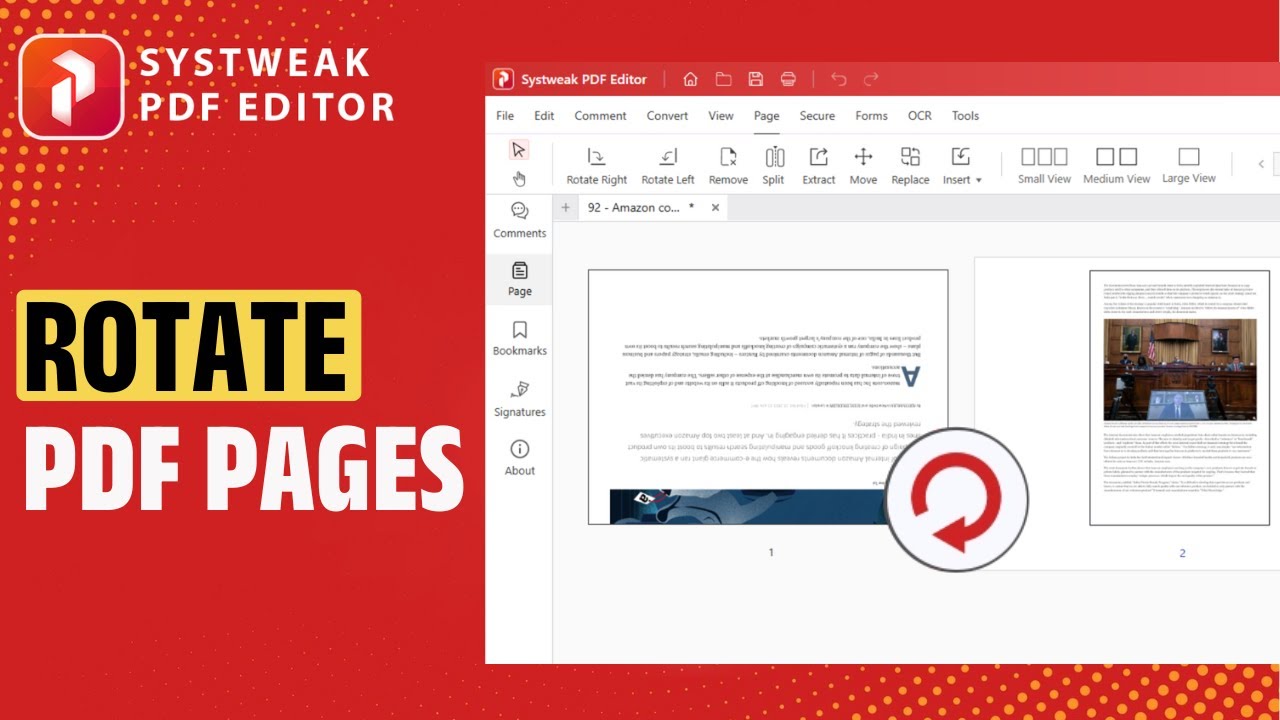
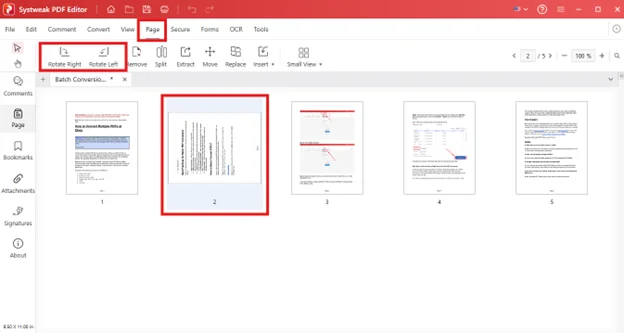
Step 3: Click Page, then rotate one page in the PDF. Click on whatever position you want to rotate the single page in PDF: Rotate Left or Rotate Right.
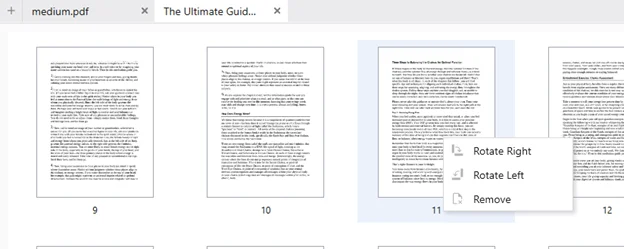
Alternatively, you can click on the page itself and choose the orientation.
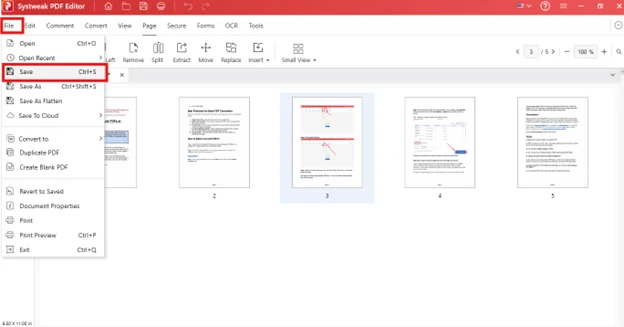
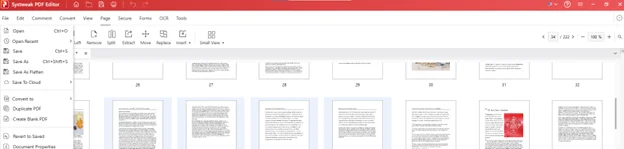
Step 4: Click File, then Save.
Rotate multiple pages in a PDF document
Step 1: Select all PDF pages you wish to rotate in a PDF document by clicking on the pages.
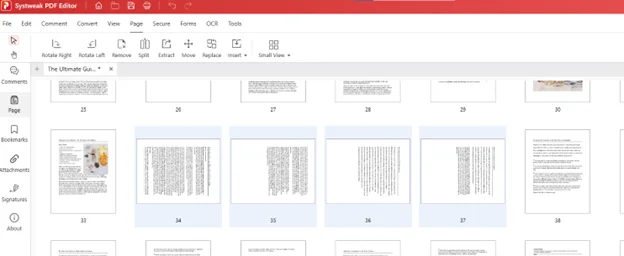
Step 2: Right-click on any selected page and select the orientation from the menu.
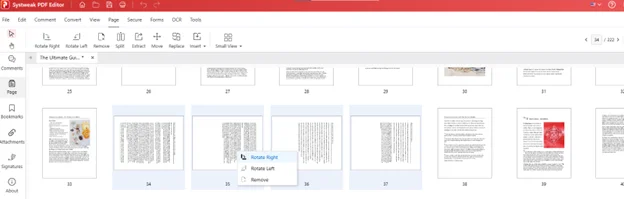
Step 3: Pages are correctly rotated in the desired orientation
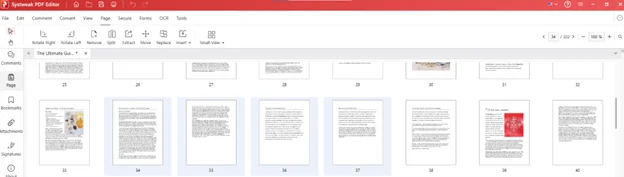
Step 4: Save the document File > Save
Why this method suits best:
- Maintain the image or document’s quality.
- You can rotate multiple pages at once, saving time and effort.
- Only rotates the specific images without affecting the whole page.
- Works well with scanned and large PDFs.
- The user interface is beginner-friendly.
- Rotate the pages or images permanently to avoid reset issues.
Method 2: Rotate the Entire PDF Pages Using Microsoft Edge
To rotate the entire page of a PDF, using Microsoft Edge, follow these steps:
Step 1: Right-click the PDF and click Open with, select Microsoft Edge from the context menu.
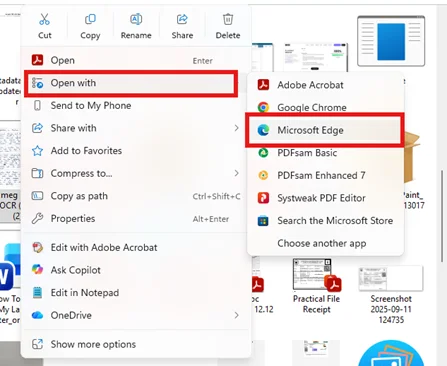
Step 2: To change orientation, click the rotate icon in the top menu bar.
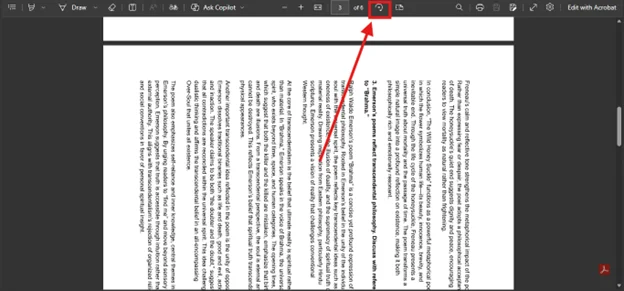
Step 3: Save the PDF file.
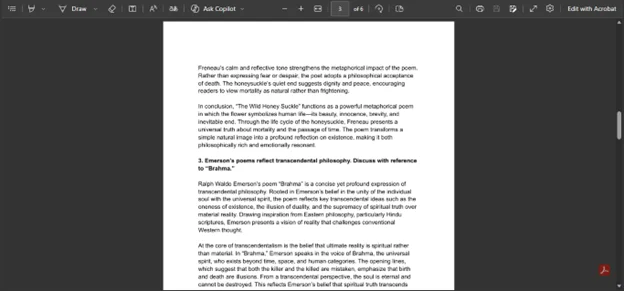
Limitations:
- The complete PDF is rotated.
- You cannot select specific pages and rotate them.
- PDFs with images and text don’t work well with this method.
Method 3: Rotate Pages using Online Tools
Using online tools, you can rotate only PDF pages, not images. Here we are giving step-by-step instructions to use Smallpdf online tool:
:
Step 1: In the search bar, copy and paste https://smallpdf.com/
Step 2: Click Tools, and under Organize select Rotate PDF
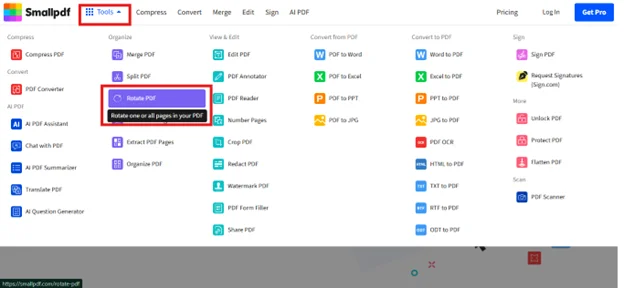
Step 3: Upload the PDF file
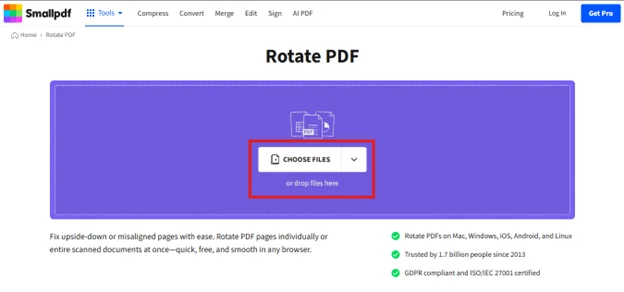
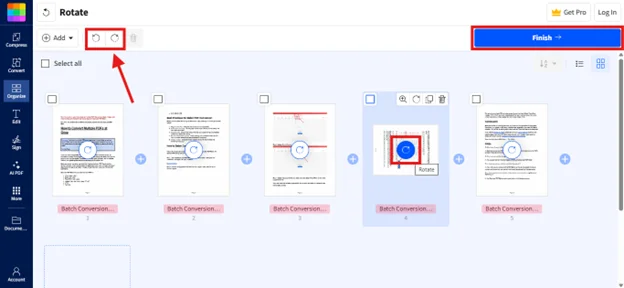
Step 4: Select the page, then click the icons to rotate it left or right. Click on Finish after rotating the page.
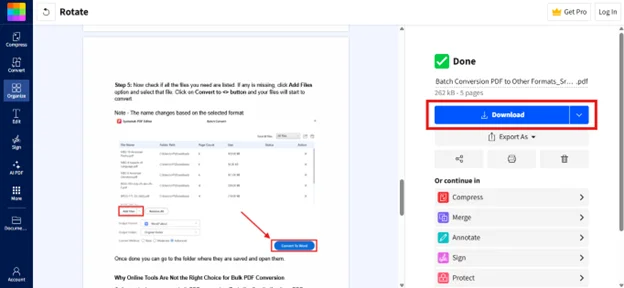
Step 5: Now save the document by clicking on Download.
Warning: Online tools should not be used when you are working with confidential or private documents. To use them, you have to upload the file to an unknown server.
Page Rotation vs. Image Rotation
Mostly, people get confused between Page rotation and Image rotation.
- Page Rotation: When the entire page, including text, images, and everything, is turned upside down or sideways.
- Image Rotation: Only the image in the PDF is rotated.
So if the entire page is rotated incorrectly, rotate the page; if the image within that page is tilted, rotate only the image.
Ways to Rotate images in a PDF
Method 1 – Using an Offline PDF Editor
Step 1: Run Systweak PDF Editor > click on Open PDF from the homepage.
Step 2: Click on Edit > Edit Content > select the misaligned image.
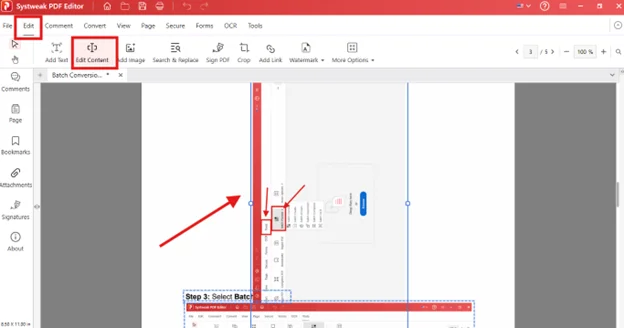
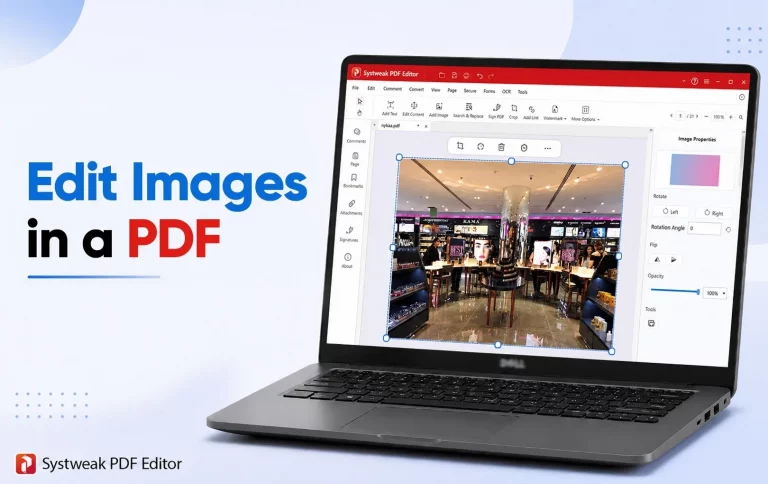
Step 3: Double-click the image, then select the Rotate Left or Right option in the right panel. (You can also rotate the image to a desired angle and flip it)
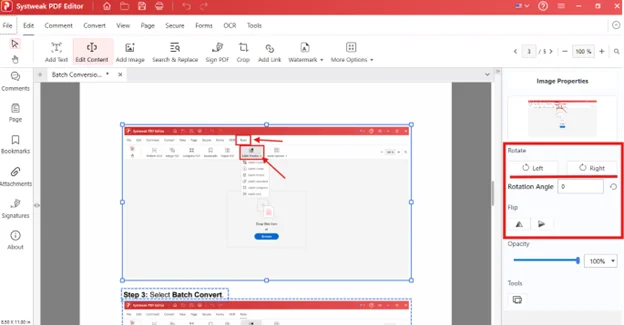
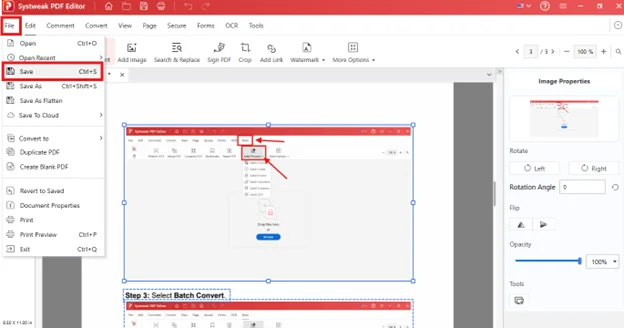
Step 4: Save the document File > Save.
Method 2: Rotate images in a PDF using Microsoft Word
You can use Microsoft Word, a built-in tool, if you do not want to install any software, but it may affect the document’s formatting and layout.
The following are the steps to rotate images in a PDF:
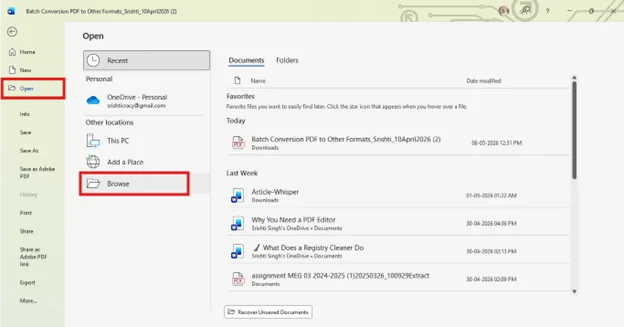
Step 1: Open Microsoft Word, click Open > Browse, and open the PDF file. The Word program will ask for permission to convert the PDF. Click OK.
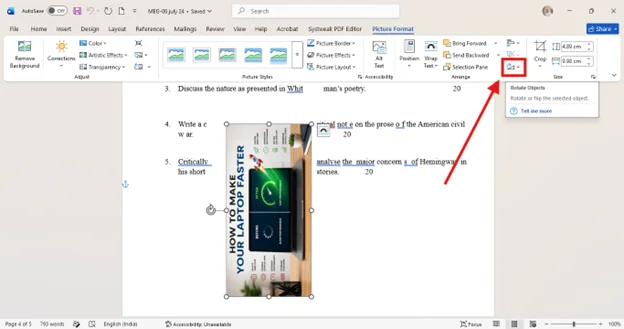
Step 2: Scroll down to the image and double-click on it. Click on the Rotate Objects icon.
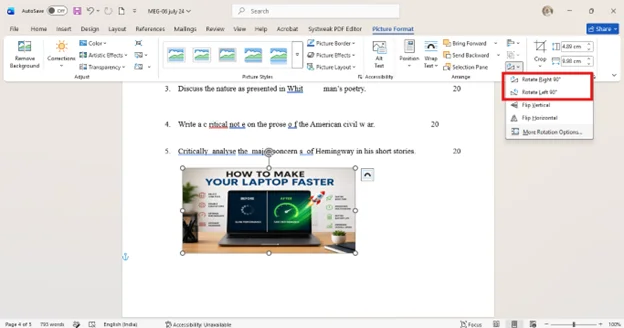
Step 3: Select the direction you want to rotate the image, then click it.
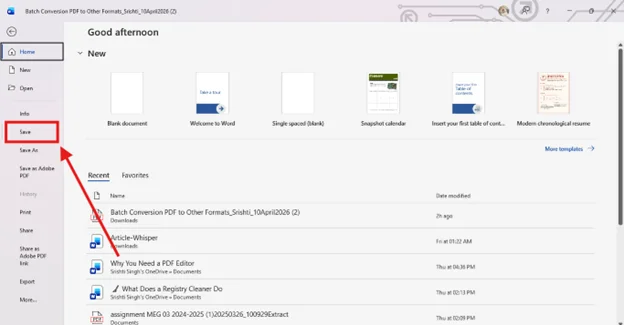
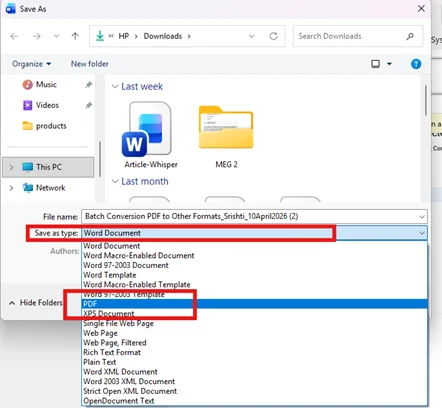
Step 4: Save the document as a PDF by clicking on File > Save. And before saving the document, select PDF in the Save as type column.
Limitations:
- Formatting can change
- The layout may look different
- Do not work well with complex or scanned documents.
Method 3: Rotate images using Google Docs
If you want to rotate images only with online tools, Google Docs is best for you.
The following are the steps to rotate an image using Google Docs:
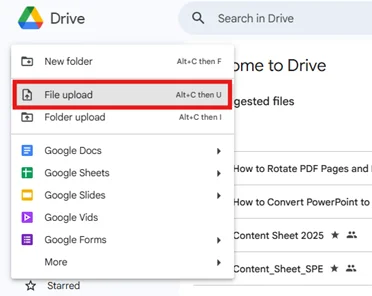
Step 1: Open Google Drive and upload your PDF to it (New > File Upload).
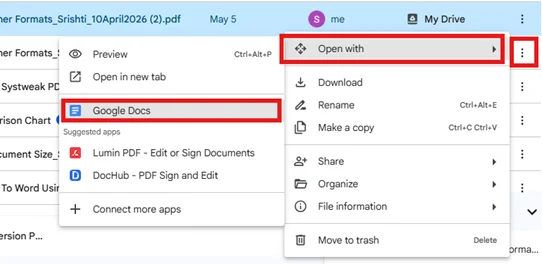
Step 2: Open the document with Google Docs.
Step 3: Double-click the tilted image and use the rotation handle to rotate it correctly in the PDF.
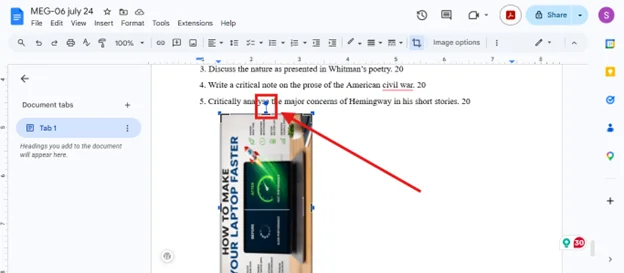
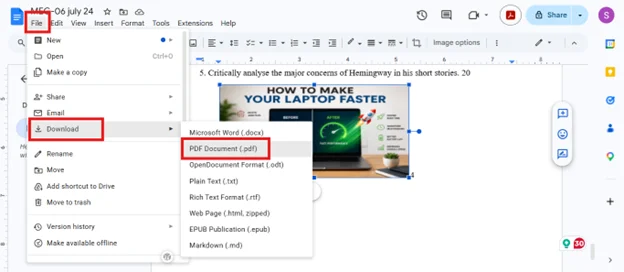
Step 4: Now save the document as a PDF by selecting File > Download > PDF.
Limitations:
- Converting sometimes disturbs the document’s formatting and layout
- You need internet connectivity.
- Do not work well with complex documents.
Common Problems & How to Fix Them:
Problem: Changes are not saving
Fix: Always use reliable tools that allow saving the changes.
Problem: Layout Breaks after Editing
Fix: Complex PDFs should not be converted as their formatting is changed.
Problem: You can’t select image
Fix: Usually, this happens when the document is scanned. To select an image, perform OCR, make it editable and selectable, and then rotate.
Problem: The file looks different after editing
Fix: This happens when the tool you are using to convert doesn’t know how to handle text and images. Always use the right PDF conversion tool.
Best Practices for Editing Images in PDFs
- Do not convert the document multiple times
- Always preview the document before finally saving it
- Use reliable, trusted offline tools, especially if working with important documents
- Save an original backup copy of the document in case any mistakes happen
Conclusion:
Rotating PDF pages or images is easy when you use the right tool and method. The best way to avoid the common problems discussed above is to use a reliable offline PDF editor. However, if you want to try other methods can use Google Docs, Microsoft Word, and other browser-based tools.
The key to choosing the right method is to understand what you need.
Frequently Asked Question (FAQs)
Q1: Can you rotate PDF pages or images without compromising the quality of the PDF?
A: Yes. When you use a PDF editor that knows how to rotate PDF pages without converting, the formatting and quality are intact.
Q2: Why is the layout broken when I use Microsoft Word and Google Docs?
A: This is because both these tools first convert the PDF into .docx or . Word format. This changes the layout, especially for complex PDFs.
Q3: Is it possible to rotate just one image in a PDF?
A: Yes. PDF editors that allow editing content, like Systweak PDF Editor, let you rotate a single image.
Q4: For scanned PDFs, is it possible to rotate pages?
A: Yes, you can, but you need a PDF editing tool that supports scanned PDF page rotation, like Systweak PDF Editor.
Q5: How to rotate a PDF permanently?
A: Use a PDF Editor like Systweak PDF Editor, and don’t forget to save the document properly and permanently rotate the PDF.
Q6: Why won’t my PDF stay rotated?
A: This can happen because you are using a viewer like a browser that only rotates the PDF for viewing only and does not save the changes, so use a PDF Editor instead and save the changes permanently.
Q7: How do I rotate a PDF 90 degrees?
A: Open a PDF Editor and rotate it left or right, which generally turns the PDF pages to 90 degrees.
Q8: How to lock rotation in a PDF file?
A: Save the rotated PDF using a reliable PDF Editor and put a restriction on editing or add a password to prevent further changes.