
Rearranging pages with PDF is a sudden task that appears from nowhere out of the blue. You receive a PDF and find that the pages are in the wrong order, or students want to set their notes or research papers in a particular way, or professionals want to rearrange their pages for better client understanding. Whatever the case may be, everyone using a PDF document has to rearrange or reorder the pages at some time or another.
Making changes to the pages of a PDF is not an easy job and cannot be completed by free PDF viewers like Adobe Reader or web browsers. Editing a PDF and managing the content within can be easily done with a PDF Editor tool like Systweak PDF Editor. This fantastic tool helps you with countless modules of editing a PDF, other than rearranging pages, like adding/editing text, images, annotations, watermarks, passwords, digital signatures, and a lot more.
This guide will help our readers to understand the concept of rearranging pages of a PDF and how to successfully carry out this process quickly and easily using Systweak PDF Editor.
Why Should You Rearrange Pages Of Your PDF Document?
There are several cases when one might rearrange the pages of a PDF.
1. Fix Scan Order Problem
After scanning, your pages may be out of order. You must rearrange the pages in your PDF.
2. Arrange Your Professional Documents
Your reports or presentation may require a proper flow of information. Reordering pages will ensure all information is placed in the right order.
3. Combine Several PDF Documents into One
In this case, after merging your files, you may find your content is disordered. You can organize all the PDFs by using Systweak PDF Editor.
4. Delete Unnecessary Pages Or Make Certain Pages Come First. Systweak PDF Editor helps users to place certain pages at the exact position that they think is appropriate and even remove unnecessary pages.
If you wish to reverse the pages of a PDF document, then click this link to find out how
How To Rearrange Pages In A PDF
Arrange pages in PDF using Systweak PDF Editor (Recommended method)
Systweak PDF Editor is a comprehensive PDF tool that allows users to edit PDFs easily and quickly. Users can also manage PDF pages like rearranging them, adding or deleting them, splitting or merging PDFs, and rotating the pages if required. We will discuss the steps to reorder PDF pages.
1. Download and install Systweak PDF Editor using the button provided below.
2. Launch the software and click on the Page tab on the top ribbon.
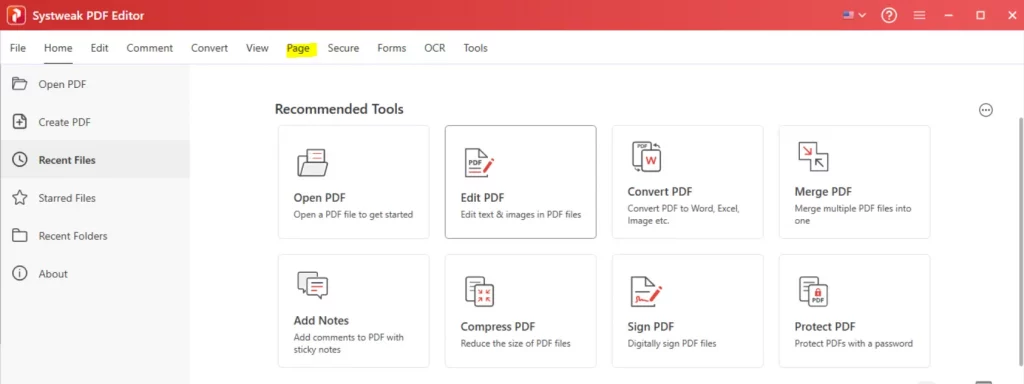
3. Next, click on the Move option and open the PDF in which you wish to rearrange the pages.

4. The PDF will open in the software, displaying all the pages numbered from 1 to the last number.
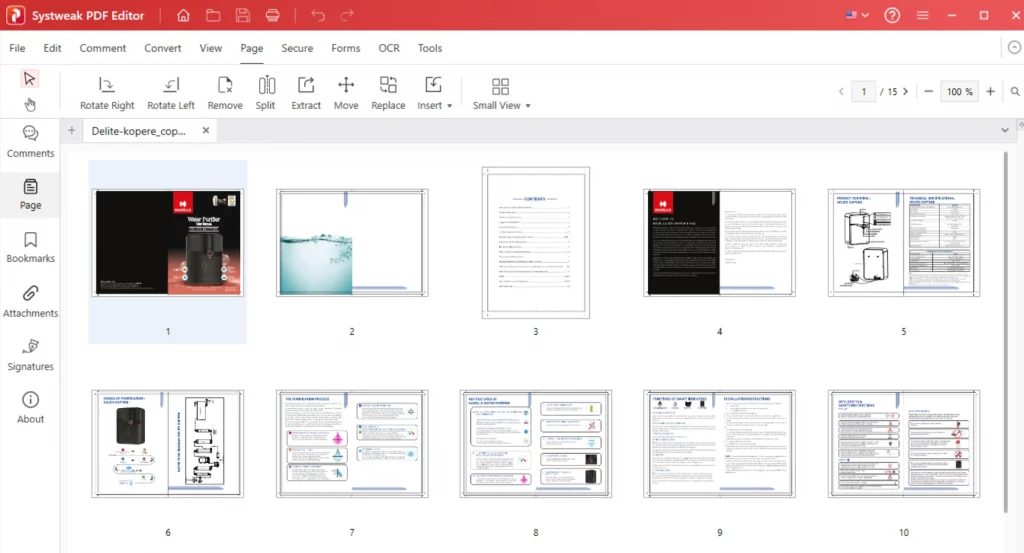
5. Simply select a page and drag it to the desired position. Complete rearranging the pages by selecting them and dragging and dropping them to their new position.
Or
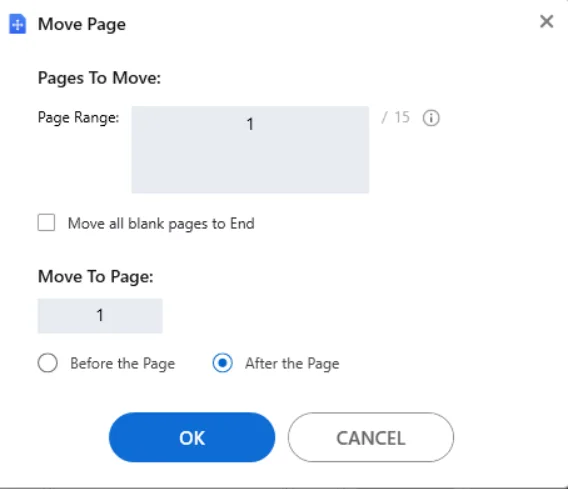
Select a page that you wish to move and click on the Move button again. You will get a window where you can specify the new page number under the Move To Page section and click on OK. Your page will be moved to the desired location.
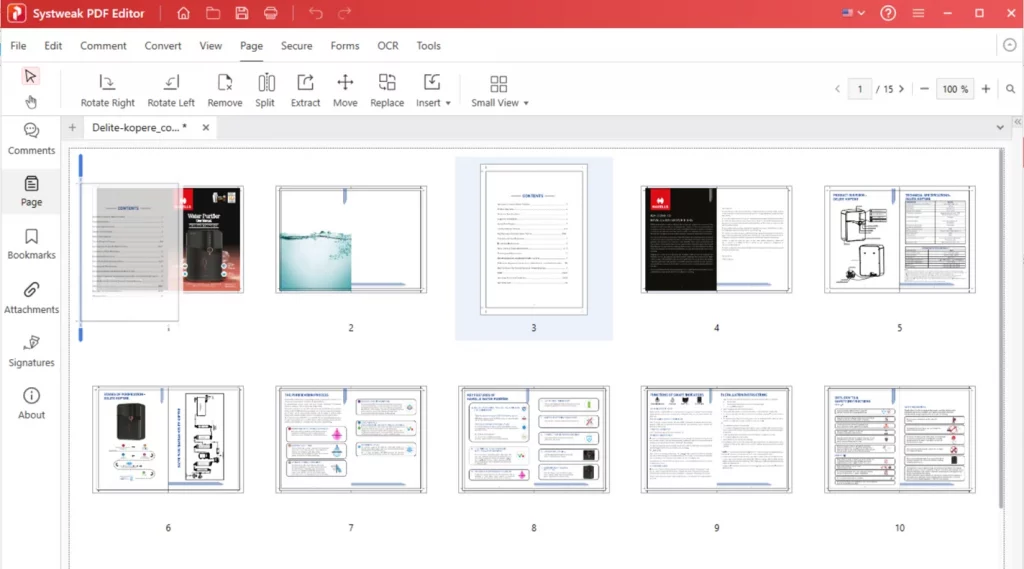
6. Click on the File tab and choose Save as, and specify the file name and location where you wish to save the reorganized PDF.
This way, you can organize PDF pages with an offline PDF page organizer tool like Systweak PDF Editor. You can also add page numbers to your PDF after rearranging the pages. Click here to read how.
Bonus Tip – Organize The Pages Within The PDF
We have explained the steps to rearrange the pages of your PDF using Systweak PDF Editor in the above section. Now we will show a few extra steps to organize the pages within the PDF using Systweak PDF Editor.
1. Open the PDF in Systweak PDF Editor and click on the Page tab in the toolbar.
2. You will get a few page management options as displayed below.
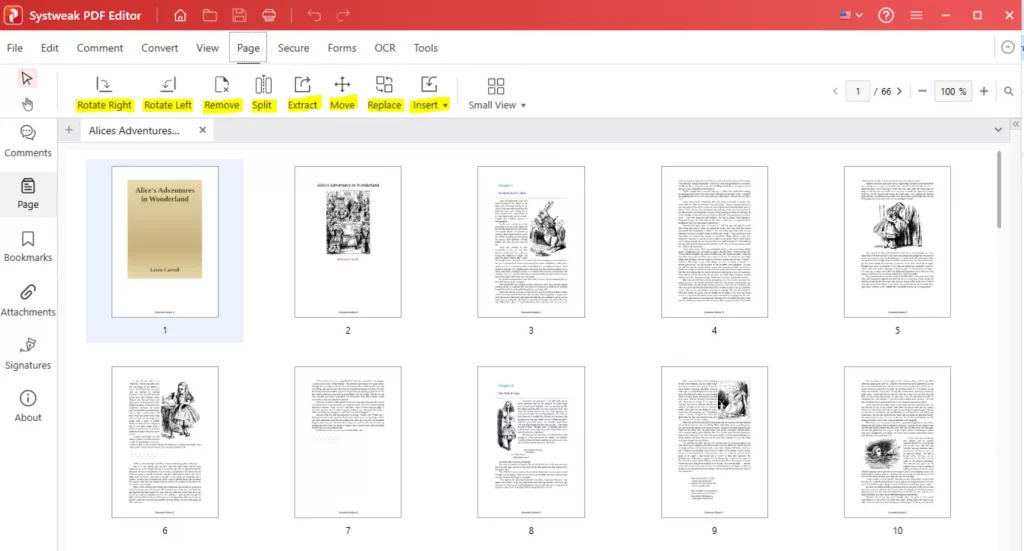
Option 1 – Rotate Right.
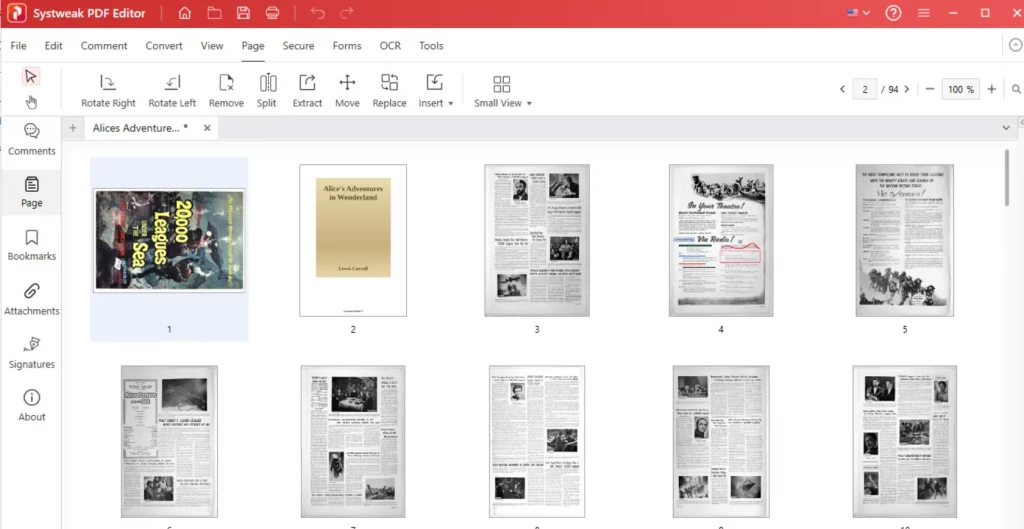
This will rotate the page towards the right side.
Option 2 – Rotate Left.
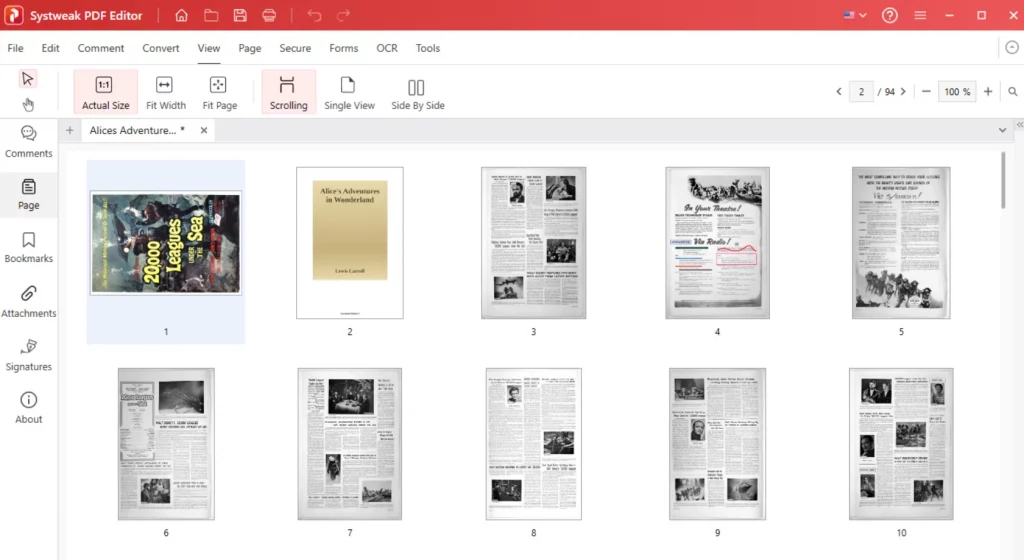
This will rotate the page towards the left.
Option 3 – Remove.
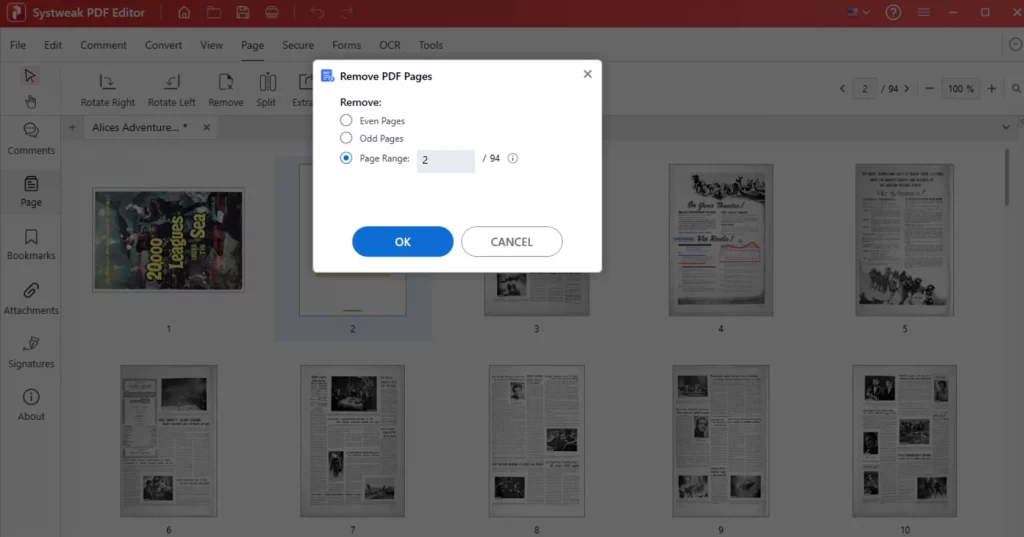
This will delete the page from the PDF. Users can choose to remove Even pages, Odd pages, or select a Page Range to delete the pages.
Option 4 – Split.
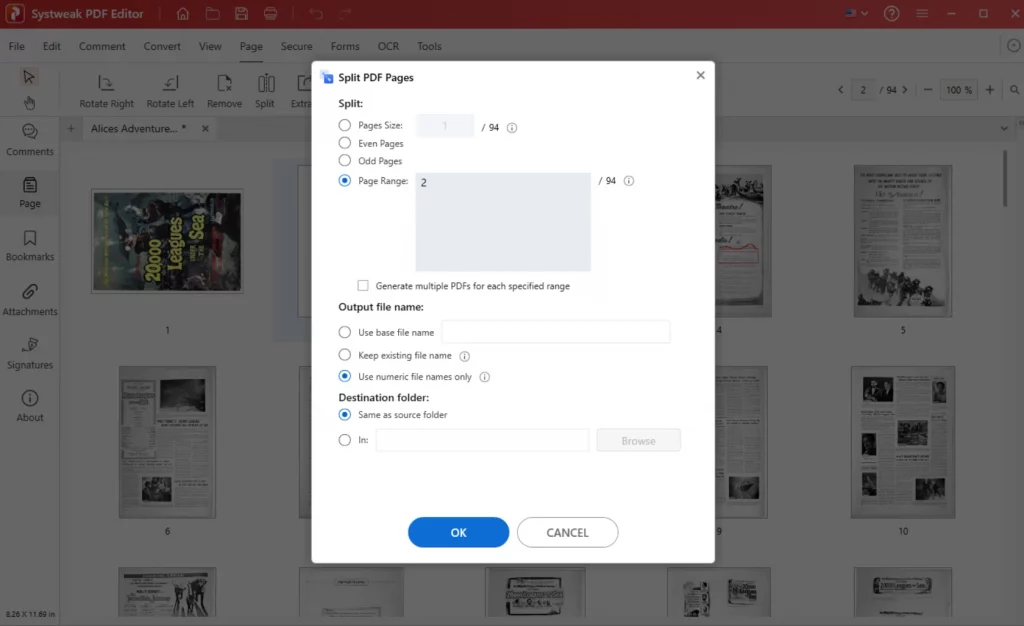
You can split the PDF into two separate PDFs using the multiple options to determine the condition of the split.
Option 5 – Extract.
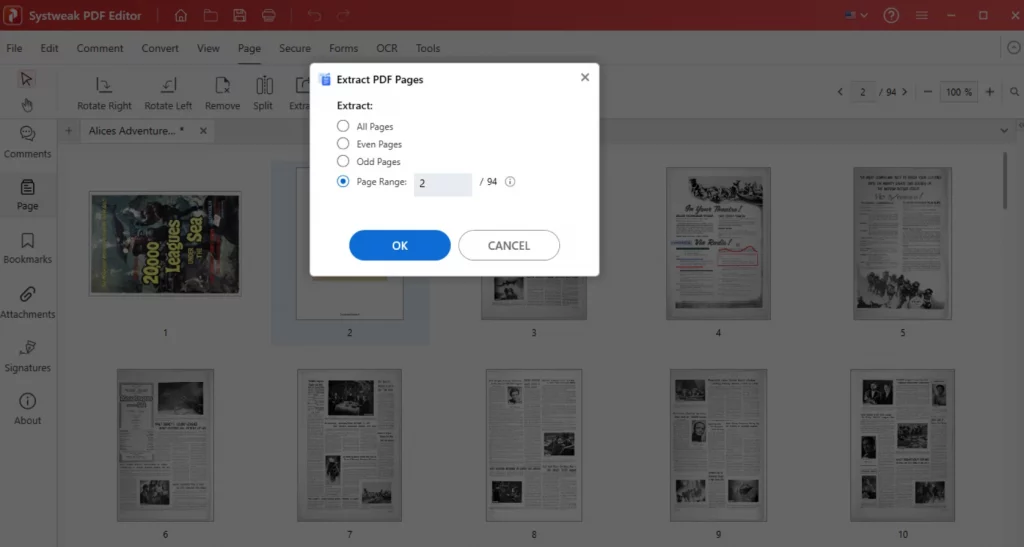
Extract a few pages from the PDF and create a new PDF. Users have the option to extract all pages, Odd pages, Even pages, or specify a page range.
Option 6 – Replace.
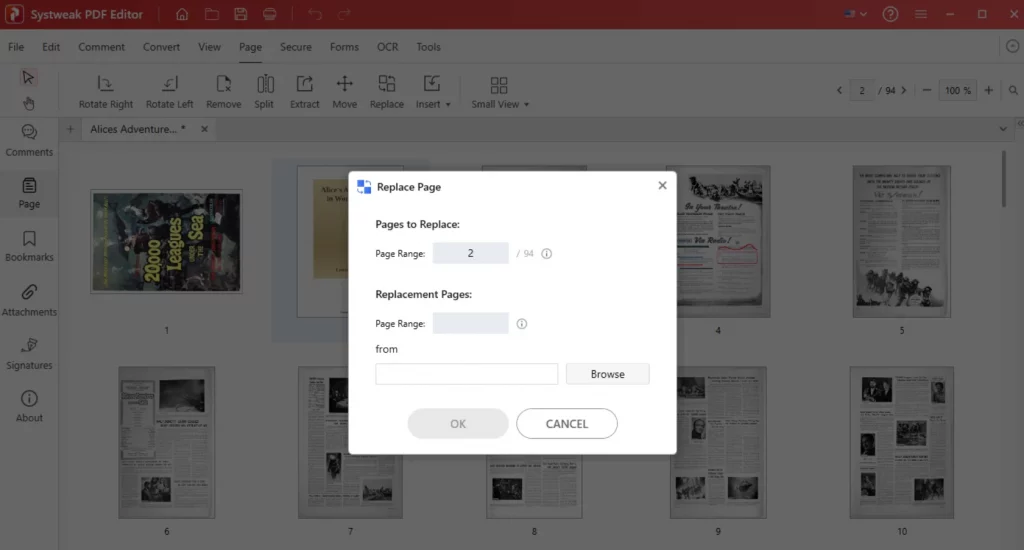
Replace a page or a range of pages with pages from another PDF.
Option 7 – Insert.
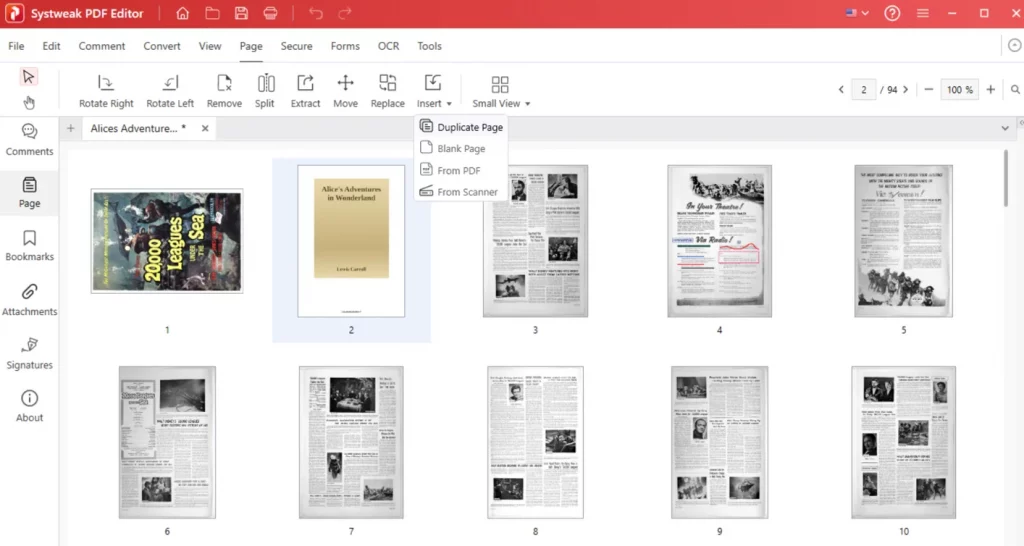
Add a new page from a different PDF, scanner, a blank page or a duplicate page from the same PDF.
7. After you click on the organize options in the PDF, you can carry out the action. Remember to click on File > Save to save your PDF with the new changes.
Use An Online Tool To Rearrange Pages
There are a few online tools that can help you rearrange pages in your PDF file for free. However, we do not recommend using these tools. One of the most important reasons is that you will have to upload your PDF to a foreign server, where it will be edited using the web tool in your browser. The process is quick and simple, but there is no guarantee of the privacy and security of your file, when it will be deleted from the server, or whether the file will be shared in the public domain, and so on. However, if your file does not contain any important and confidential information, then you may use an online PDF editor tool. Here are the steps to use the ILovePDF online tool.
1. Navigate to the ILovePDF online tool page.
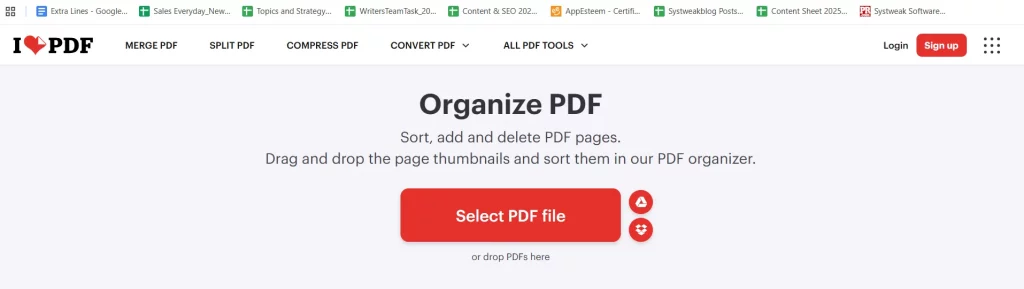
2. Click on the Select PDF Button and choose your PDF.
3. Drag and drop the page to the new position, and this way you can rearrange the pages.
4. After you have rearranged the pages, click on the Organize button.
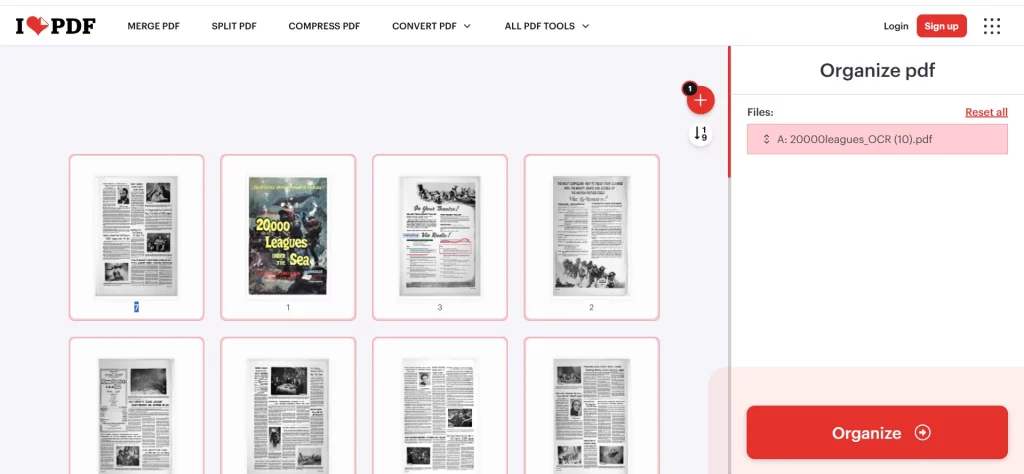
5. Click on the Download File button, and the PDF document with rearranged pages will be downloaded to your default download folder.
Why Should You Choose Systweak PDF Editor Features?
Before we move on to the procedure, here are some reasons why Systweak PDF Editor is a good choice for editing your PDF files:
- Ability to drag and drop pages to reorder them easily.
- Option to rotate, delete, and insert new pages.
- Ability to merge and split multiple PDFs with ease.
- An interface that’s friendly to beginners.
- Offline editing features to keep your documents safe.
Pro Tips for Managing Your PDF Files Efficiently
- Make sure you always back up your file before editing
- Check that you’ve arranged the pages correctly
- Use bookmarks for long PDFs
- Name your PDFs properly
- Always edit the correct version of the PDF.
- Save your PDF after you have made the changes.
- Proofread your document after editing.
Conclusion – How To Rearrange Pages?
What sets Systweak PDF Editor apart is that it offers users the convenience of drag-and-drop features along with an easy-to-use user interface. It integrates several useful features, providing a platform where users can rearrange, combine, and sort documents in a more efficient manner. Begin managing your PDF files in the right way. Get Systweak PDF Editor now and reorder your pages with ease. Are you ready to manage your PDF files?
Frequently Asked Questions
1. Is it possible to reorder pages in a PDF document?
Yes, with Systweak PDF Editor, you can rearrange the Pages within your PDF.
2. What is the way to reorder scanned pages in a PDF document?
Open the scanned PDF document in a PDF editor program like Systweak PDF Editor, and then reorder the pages.
3. Will the rearrangement change the format of pages?
No, the rearrangement will not influence the content and layout of pages.
4. Is it safe to edit PDF documents?
Yes, but use only reliable programs for editing such files, for instance, Systweak PDF Editor.