




A PDF document can be protected by applying a strong password. This prevents unauthorized people from viewing the document. Password protection is used for professional documents like bank statements, company offer letters, contracts, and other legal documents. This PDF password-protection guide walks you through applying a password to a PDF document. We have also included a few tips to protect your PDF document beyond applying a password.
Why You Should Password Protect A PDF
Adding a password to a PDF is like turning it into a secure data vault that cannot be accessed without it. This way, your information will be protected, under your control, and guaranteed safe in a time when constant digital sharing has become routine. Here are other reasons why everyone should lock PDF with a password.
- Protecting Sensitive Information. Often, a PDF file contains sensitive data, such as financial information, private documents, or a contract that should not be disclosed.
- Control Who Can Access Your Document. Only those with the correct password can open the PDF.
- Keep Control Over Your Documents. It is possible to restrict editing, copying, and printing of the document, making sure that no one misuses its content or alters it.
- Protect Files While Sharing. Whenever you send documents by email or share them on online platforms, there is always a chance that someone could intercept the transfer. Using passwords provides additional security.
- Stay Compliant. Different sectors have their own standards for document safety, and password protection can help ensure compliance.
- Protect Your Intellectual Property. Your report, research, or design in PDF form needs to be properly protected as well.
- Prevent Accidental Leaking of Your Files. If a document gets into someone else’s hands, your information will stay secure with a password.
What Is AES 256 Bit Encryption, And What It Does?
AES 256-bit encryption is a powerful approach for securing your data through encryption by transforming plain text data into ciphertext using a 256-bit key. At its very essence, the AES-256 encryption algorithm transforms readable information into unreadable code in such a way that the latter appears to be digital noise. AES-256 is extremely difficult to break, making it widely used for securing files, networks, and sensitive information across systems.
Different Kinds Of Passwords
There are different types of passwords used to lock PDF with password as well as regulate the manner in which they are viewed and used. Open passwords restrict access to a document without a password. On the other hand, access permission passwords enable individuals to open files and view the contents but prevent users from certain activities, such as editing or printing.
Open Passwords
Open passwords are used to restrict access to files or documents by asking for a password in order to open them. They are frequently used in securing important PDF documents or files.
Access Permission Passwords
Users are able to open files, but cannot edit or print the document. It is used to secure the PDF document from misuse.
How To Add A Password To A PDF File (Recommended)
To protect any PDF with a password, users need to use the Systweak PDF Editor. This all-in-one Offline PDF editor software for windows includes many features to edit a PDF and make changes to it. Let us learn more about how to password-protect a PDF file with detailed steps and illustrations.
Steps To Password-Protect A PDF document
- Download & Install Systweak PDF Editor using the download button provided below.
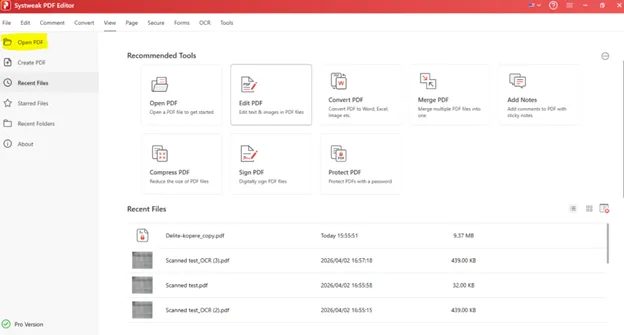
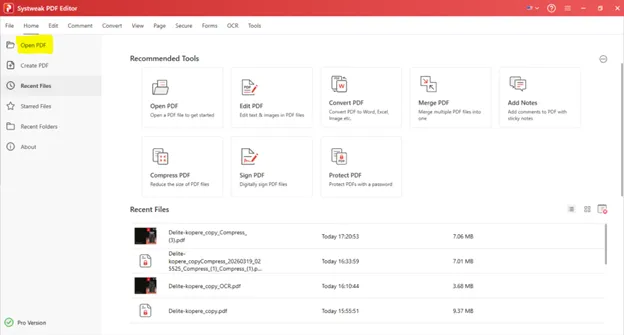
- Open the application and click the Open PDF option in the left panel to select the PDF you want to password-protect.
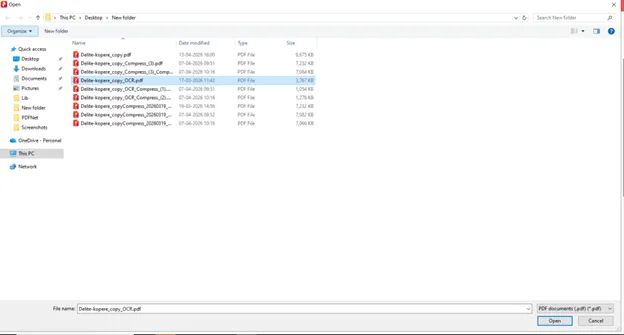
- After you select the PDF in File Explorer, click Open to import it into the software.
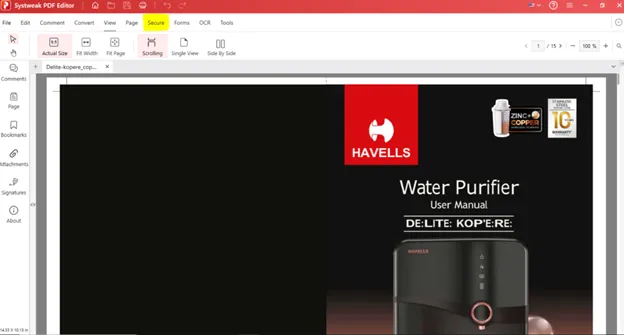
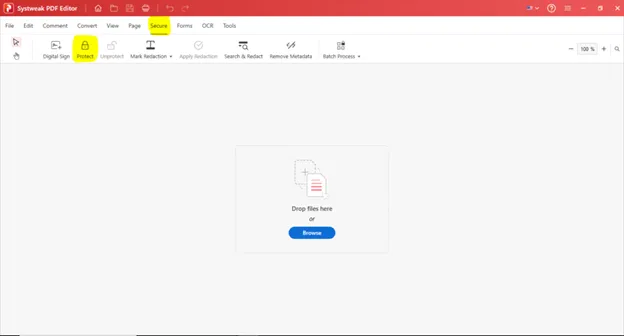
- Once the PDF file has been loaded, click on the Secure tab on the top taskbar.
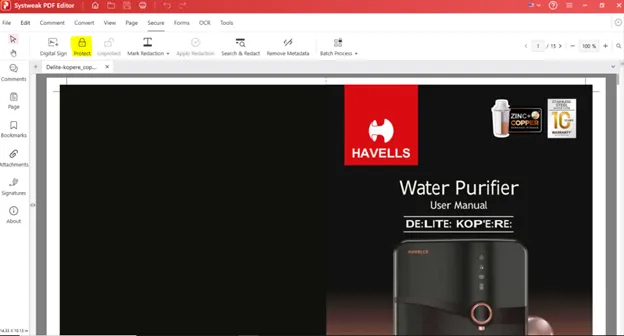
- Next, click on the Protect button in the top ribbon.
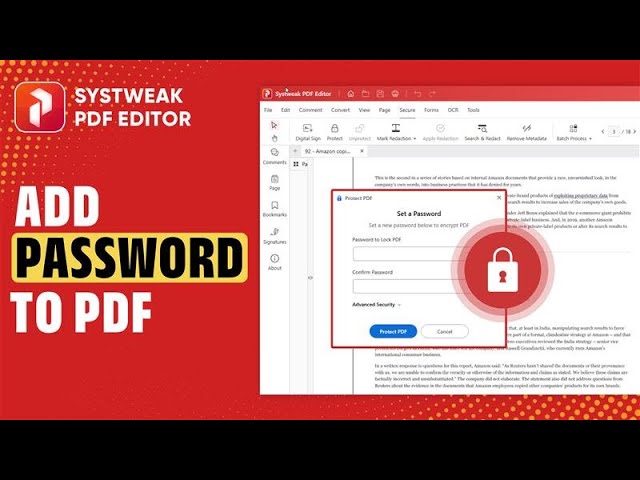
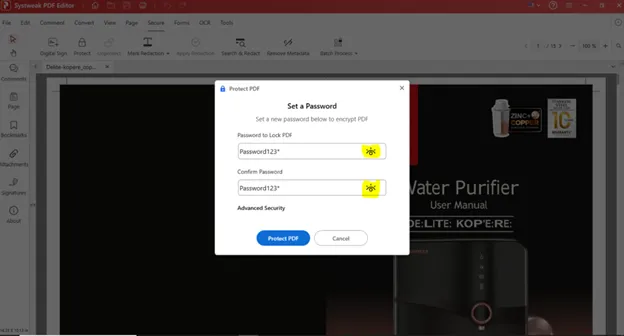
- A new window will pop up, where you can enter a password of your choice in the first box. Remember to enter the same password in the second box. You can click on the Eye symbol in the boxes to view the password. This password will be used to open the document securely and lock PDF with password.
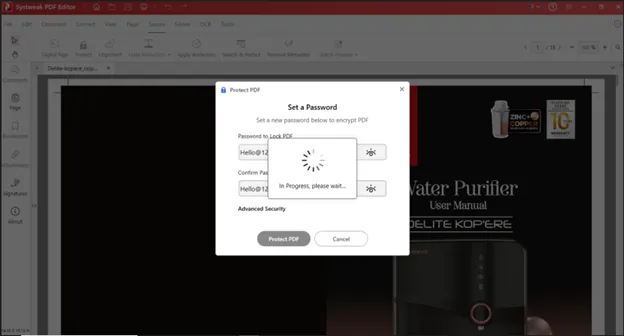
- Click on the Protect PDF button.
- Wait for the process to complete.
- Close the PDF in the Systweak PDF Editor app. Try reopening the PDF from within the app or from the folder in another app, like your browser. A prompt box will appear in both cases, asking the user to enter the password to open the PDF.
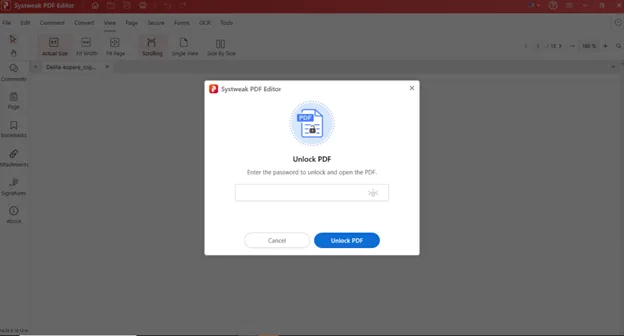
Advanced PDF Security With Restricted Permissions To PDF
With advanced PDF security that provides restricted access permissions over a PDF document, the user has the power to dictate what the other party will be able to do with his or her file once it has been opened. Through the use of password-controlled permission, one will not be able to edit, copy, or print the file while still being allowed to open and read it.
Here are a few restrictions that you can apply.
- Allows one to control how a PDF is utilized after it is opened
- Prevents actions such as editing, copying, and printing
- Enables users to read the file, but without making any changes
- Protects sensitive and confidential documents
- Safeguards content from being used improperly
How To Share The PDF As View Only And Restrict The Changes To The PDF?
Systweak PDF Editor allows users to add a password to a PDF and apply certain security features to a PDF document. This includes restricting the printouts and restricting the ability to make changes to the PDF. Here is how to set these permissions and lock PDF with password.
- Download and install the Systweak PDF Editor on your PC using the Download button below.
- Open the software and click on the Open PDF button to import the PDF on which you wish to make the changes.
- Click on the Secure option at the Taskbar and then click on the Protect button in the ribbon.
- A new box will open where you have to click on the Advanced Security Link.
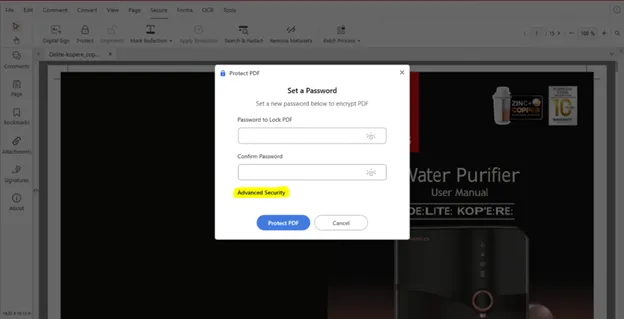
- Now you will get an option to set a password for opening the document or set a password to change the document content.
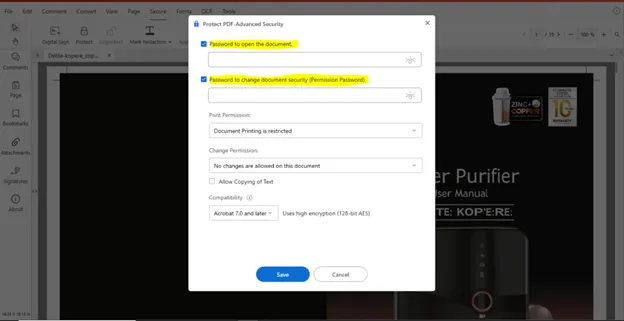
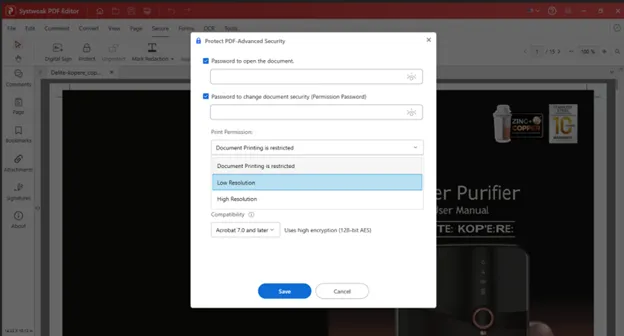
- You can also set the Print Permission in high or low resolution. If the user chooses the “ Document Printing is restricted” option, then the receiver of this file will not be able to print the document.
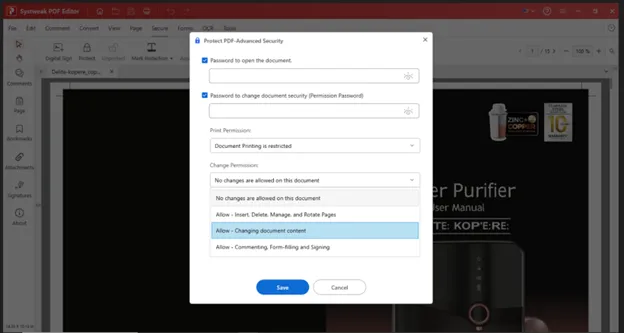
- You can also change the document permission and select the appropriate option from the drop-down such as restricting the document contents to be copied or document printing can be restricted completely. If you choose the “No changes are allowed on this document” option, then the document can be viewed only and the user cannot edit the document.
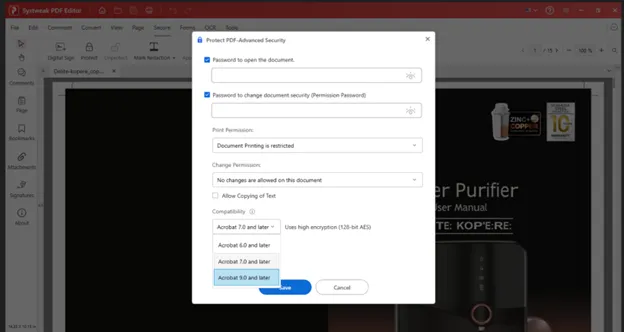
- Click on the Compatibility drop-down and choose the Acrobat Compatibility
- Click on the Save button
How To Password-Protect Multiple PDF Files?
If you have multiple PDF files and wish to protect them with a password at once, you can do so with Systweak PDF Editor. This process is known as Batch Protect, where multiple PDFs are protected with the same password. Here are the steps for securing PDF with password.
- Download and install Systweak PDF Editor on your PC using the Download button provided below.
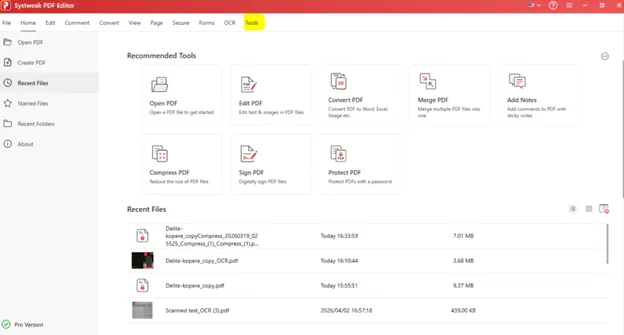
- Launch the program, then click the Tools option in the taskbar at the very top.
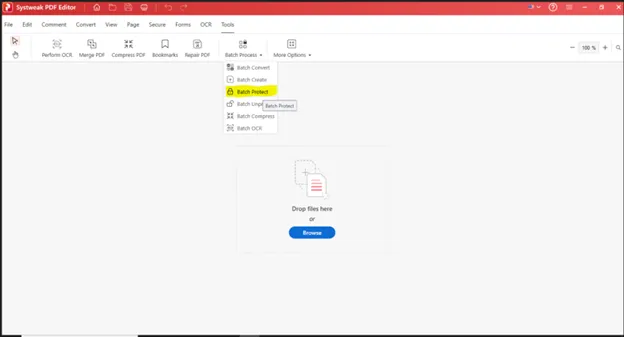
- Click Batch Process on the top ribbon, then select Batch Protect.
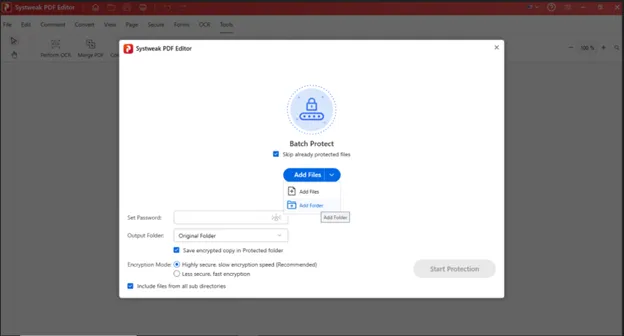
- A new window will open; click the Add Files button. You will get two options –
Add Files – Choose this option if you need to select multiple PDF files for password protection that are scattered across your PC.
Add Folder – Choose this option if you have a folder containing PDF files you want to password-protect.
- After opening multiple PDF files, you need to enter a Password in the text box labelled as Set Password. This password will be applied to all the PDF files.
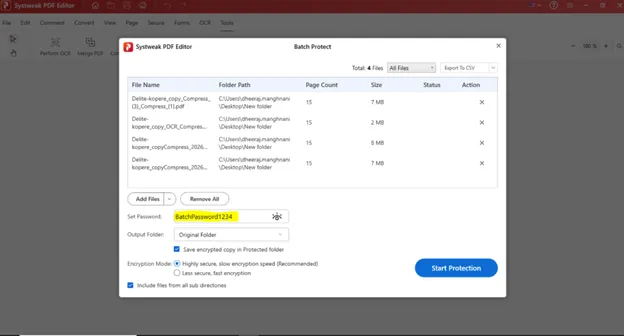
- Next, choose the Output folder where you wish to save your password-protected PDF files.
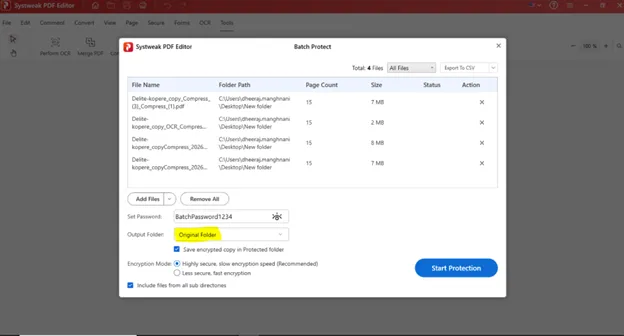
- Click on the Start Protection Button.
- After the process has been completed, click on the OK button.
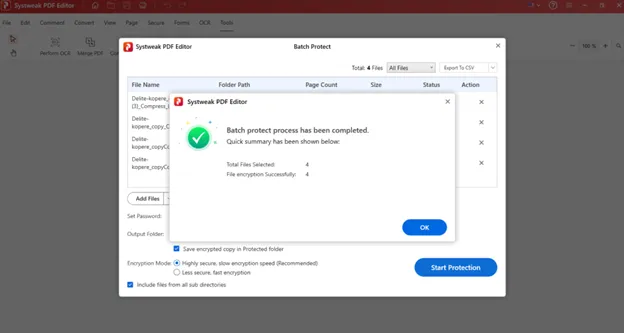
- Navigate to the output folder, and you will find a copy of your PDF files protected by the password you have set.
Additional Security Features Of Systweak PDF Editor
Add password to PDF is only one layer of securing the PDF file. Users can add more layers of security by using Systweak PDF Editor.
Digital Signatures. By digital signing, users can authenticate the sender’s identity, ensuring that the content of the file isn’t altered. In addition, they are very valuable when preparing legal contracts.
Permissions. Instead of just locking the file, it allows the user to decide whether others are allowed to print, copy, or edit their content.
Redacting of Sensitive Content. Systweak PDF Editor gives the ability to remove sensitive information from PDF files by redacting text and images from the document. It even gives the option to search for specific keywords and then redact them from the document.
Removing Metadata. Removing the metadata from a particular document means removing all the information about the author who created the file, its creation date, and the application used.
Watermarking. Adding a watermark like “Author’s name” in the PDF file will protect the copyright and prevent anyone from misusing your document.
Alternative Methods To Add A Password To A PDF With Microsoft Word (Free)
You can also use Microsoft Word for securing PDF with password for free. Here are the steps.
- Launch the MS Word application.
- Open the PDF you want to secure.
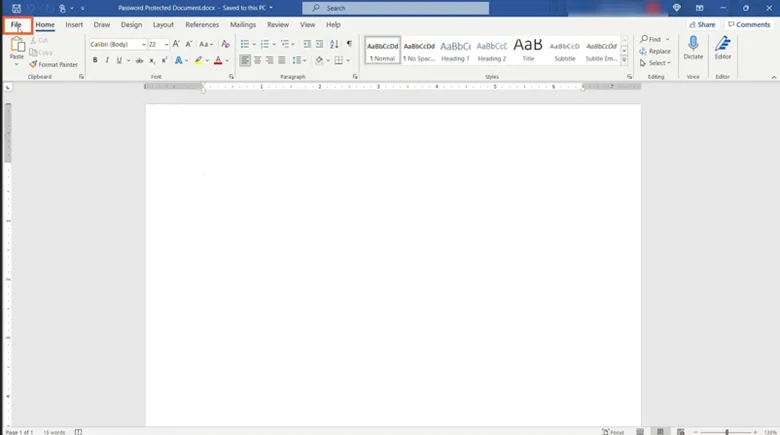
- Click the File tab in the top-left corner.
- Select Info in the left-hand menu.
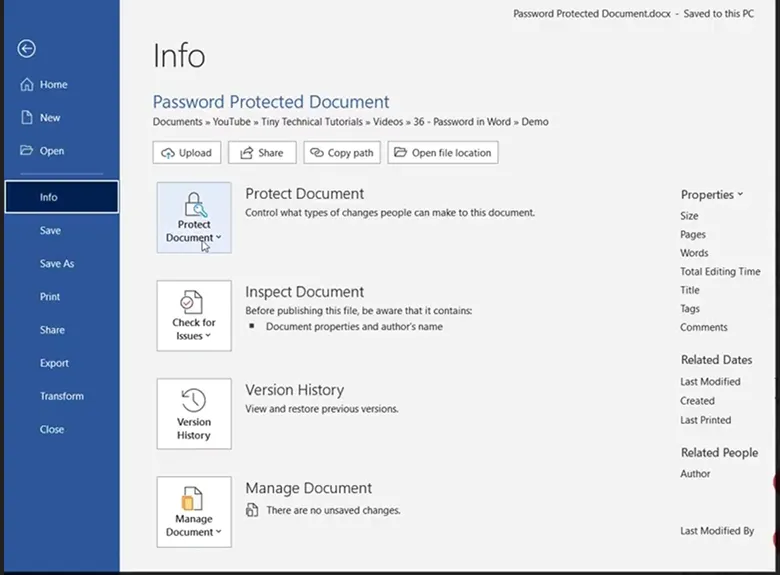
- Click the Protect Document box.
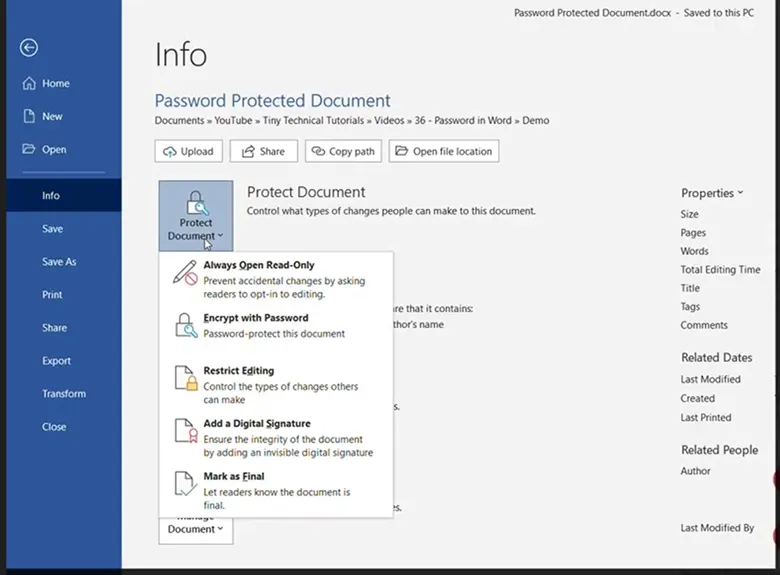
- Choose Encrypt with Password.
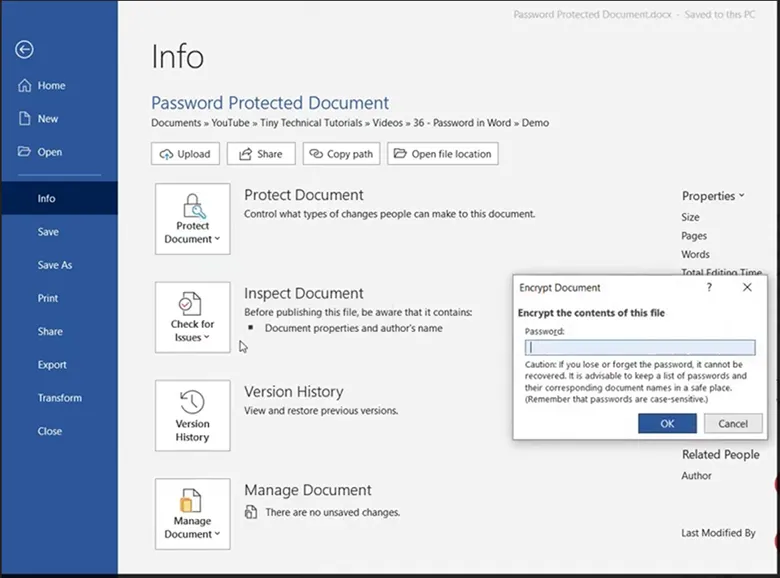
- Enter a password in the box, then click OK.
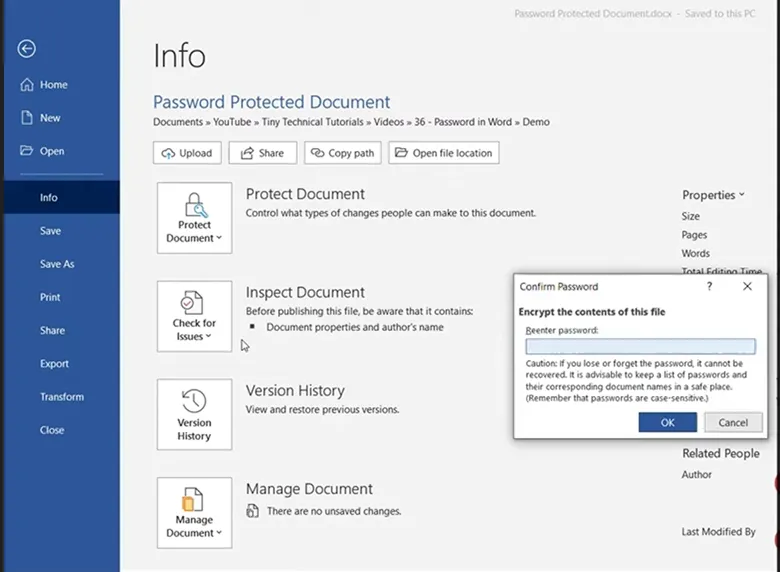
- Re-enter the password to confirm it and click OK.
- Save the document by pressing Ctrl + S to apply the protection.
Tips for Creating a Strong Password.
- Use both upper and lower case, numbers, and symbols
- Ensure that it is not less than 8–12 characters
- Do not use dictionary words, names, or sequential characters
- Never use the same password for different files
- Password storage should be secure by using a password manager
Use the above tips to add password to PDF
Password Security Mistakes to Avoid
- Using insecure or easily cracked passwords
- Did not create a backup for the password.
- Sharing the password and the PDF file.
- Using online tools for PDFs containing confidential information.
Best Use Cases for Password-Protected PDFs
Securing PDF with password is not only an option but actually a necessity in such cases.
- Business contracts and agreements
- Financial statements and invoices
- Legal documents
- Personal identification files
Frequently Asked Questions
Conclusion – Have You Protected Your PDFs With A Password?
The idea of securing PDF with password is a very good approach to ensuring that your data stays private and secure. Systweak PDF Editor is a top-notch PDF editor app that allows you to protect the PDF in more ways than one. However, it also becomes a hassle to open PDFs, especially remembering all those passwords.
We suggest that you apply a password to the most important, private, and confidential PDF files only. Also, do remember to save your Passwords in a safe place so that you can access them when needed and they do not get compromised. Hope our PDF password protection guide will help you resolve your PDF password issues.




