Merging PDF documents is one of the most sought-after solutions for handling a large number of PDFs. Combining multiple PDFs ensures that users can combine multiple PDF documents easily as per the sequence they want and they can manage a single PDF file and it helps organize their files and save storage space. Merging two or more PDFs also helps in file sharing, easier printing, archiving documents, and easy submissions of reports, portfolios, research papers, instruction guides, and legal documents. This blog will help readers combine and merge PDF offline.
Why Do Users Want To Combine PDF Files?
1. Better Organization – Managing a single document is better than handling multiple PDF files or chunks of the same or related documents.
2. Easy Sharing – Merge PDFs into one and send one file as opposed to sending five or ten is easy.
3. Better Workflow – Combining multi-page documents into one makes reviewing, editing, and presenting simpler.
4. Presentable Output – A single document is more appealing than sharing multiple PDFs.
5. Easier Printing – Merging PDF files into one makes it convenient for printing because the right order is preserved.
Use Cases for Combining PDFs
Work Related Reports/Proposals – Create a comprehensive report out of different sections.
Academic Purposes – Compile assignments/research papers/notebooks into one PDF.
Contracts and Financial Work – Keep all legal documents and receipts together in one file.
E-books and Guides – Compile all chapters into one PDF document and merge PDFs into one book.
Resume and Portfolios – Combine multiple PDF of your portfolio along with your resume.
Travel and Event Plans – Keep all travel documents together in one file.
How To Combine PDF Files Offline Using Systweak PDF Editor?
The following steps will help you merge PDF offline.
1. Click on the button provided below to download the installer file of Systweak PDF Editor.
2. Double-click the downloaded file to start the installation process. Adhere to the instructions onscreen to complete the process.
3. Once installed, launch the program by double-clicking on the shortcut created on the desktop.
4. Click the Tools tab located in the top ribbon.

5. Next, click on Merge PDF.
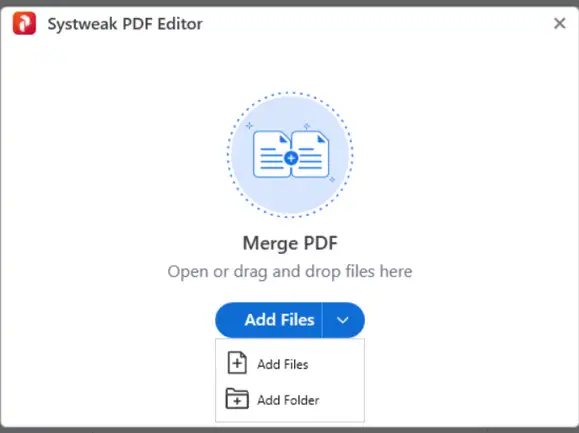
6. This will open a Merge PDF box where you click the Add Files button and choose the PDF files.
1) Add Files – This allows users to select individual PDF files from the PC.
2) Add Folder – This allows the users to select an entire folder, which means all the PDF files within the folder will be selected and imported into the software for merging.
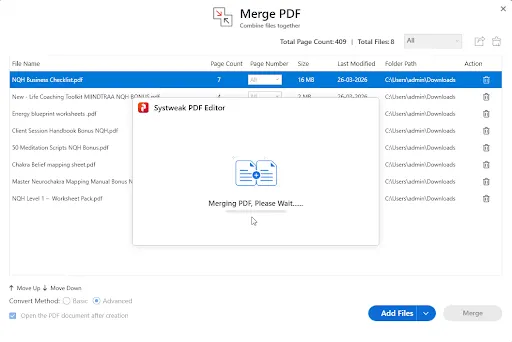
7. Once the files are added, you get a new box displaying details of all the added PDFs.
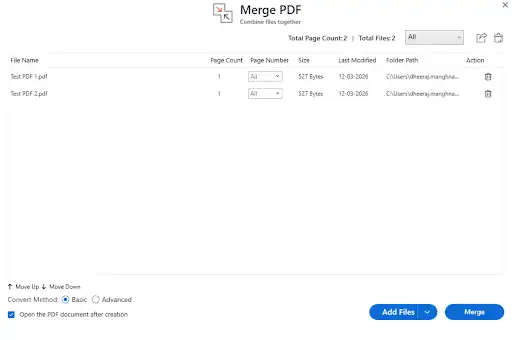
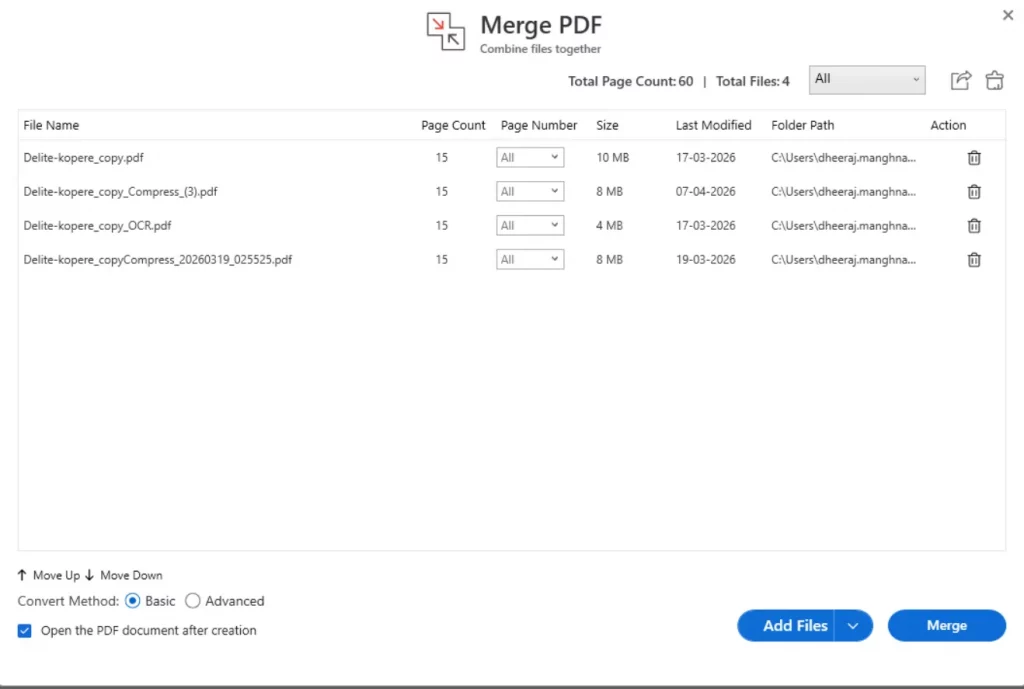
Page Count – This tells the user about the number of pages in each PDF.
Page Number – This allows the users to select if all the pages of the PDF are to be merged or a select few. Users can click on the text box and add the number of pages to be merged, separated by a comma.
Size – This mentions the current size of the PDF document.
Last Modified – This informs the user about the last modification date of the PDF.
Folder Path – This notifies the users about the path where the PDF file is stored.
Action – This includes the Trash Can icon, which deletes the PDF from the list if you do not want a particular PDF to be merged with this lot.
Export – This option helps users to export a list of PDF files that are being merged into one document. This will help trace the individual PDFs that were merged in the near future.
8. You can rearrange the files in the order you wish them to appear in the final merged PDF file using the Move Up and Move Down options, set page numbers to be merged, and click on the Merge button located at the bottom right corner. There is also an option to select a particular page range from the PDF rather than the entire PDF file.

9. Provide the name of the combined file and the location where you wish to save this file.
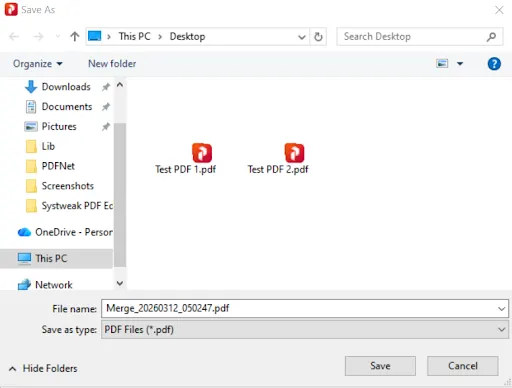
10. Click on the Save button, and the merged PDF will be saved in the chosen folder.
Final output

Systweak PDF Editor is a comprehensive PDF Editor tool that allows users to merge and split PDFs, Edit and Annotate PDFs, add or remove a password, and includes many other features. It includes multiple modules that can help users manage the pages within the PDF document and edit the content of the pages, as well as add a signature, and extract images from PDF whenever required.
Tips For Effectively Merging PDF Files
- Determine the order of the PDFs you want in the final combined PDF document.
- Use a good offline or online PDF editor that provides privacy and speed to merge PDFs into one document.
- Reduce file size before merging. This ensures the size of the combine multiple PDF document remains small.
- Documents you are merging should have the same format, orientation, size, and page margins for consistency.
- Avoid merging a large number of files at once. Instead, split them into batches.
Merge Multiple PDFs Offline
Merging PDF documents has become more of a necessity today. It is simple to merge PDFs provided you use the right software and follow the correct steps. This will help you organize your multiple PDFs into a few documents and make it easy to refer to them when needed. We also recommend that you perform OCR on your PDFs before you merge PDFs into one. This will make the PDF searchable and help to locate the correct PDF among the merged ones, when required, by just searching for a keyword. If you have any doubts regarding the process of combine multiple PDFs, you can drop your query in the comments section below.
Frequently Asked Questions
1. Can I merge PDFs without compromising their quality?
Yes, using the steps explained above and Systweak PDF Editor, you can merge PDFs without losing the quality.
2. Is it safe to merge PDFs online?
Uploading your documents to a third-party server on which you have no control to perform any action, be it merging, editing, conversion, compression, etc, is not safe. It can result in data leaks and insecurity.
3. Can I shuffle pages in merged PDFs?
Yes, using a PDF editing tool like Systweak PDF Editor, you can reorder, insert, and delete pages from a PDF after it has been merged.
4. What is the maximum number of PDFs that I can merge at one time?
An offline PDF Editor allows merging multiple PDFs at once. However, for faster results, merging PDFs ( 5 to 10) in groups is suggested.
5. Will merging PDFs result in an increased file size?
Yes, if you merge PDFs into one document, then the size of the final PDF will definitely increase. This is due to the increased number of pages and content from different PDFs being merged into one document.
6. Can I merge scanned PDFs?
Yes, you can merge scanned PDFs into one PDF document.