




Resumes in PDF format are very common, but when it comes to making changes to them, things can be frustrating because PDFs are not editable- that’s what we have been told, right?
The good news is that with the right PDF editor, you can edit PDFs. However, if it is image-based, things differ because how a PDF is created determines the next step.
PDFs created in Word, Google Docs, Canva, or a resume builder are editable. You can select text, click into it, and make changes. However, if you scan a printed resume, the document becomes an image that you cannot select text in or click anywhere. To make it editable, you need OCR (Optical Character Recognition), which converts the image into real text.
This means that when you think about editing a PDF resume, you should first know its type.
How to Check a PDF File
Open the PDF and try selecting a single word.
If you can highlight text, the file is editable. However, if the entire page is selected when you click anywhere in the document, it is a scanned image.
In addition, if it is a Canva resume, the body text will be editable, but the headers with custom fonts and background color blocks are often image-based. Clicking them does nothing.
This means you need to test the exact area you need to change before assuming the whole document works the same way.
Why Can’t You Edit A Resume in PDF Format?
Word documents store text in a linear format. This means the paragraph auto-adjusts as you move one word. However, PDFs don’t work in this way. In a PDF, each character has a fixed position on the page, so the content appears the same on any device it is accessed on. This consistency makes editing PDFs almost impossible. Yet if you try, either nothing responds at all, or changing one element alters everything: the format, positioning, structure, fonts, sizes, and columns collapse; bullet points disappear.
A resume that looked clean becomes a mess. Only a dedicated PDF editor helps avoid facing such issues.
When to Edit PDF vs. When to Start Over
If the resume requires some minor changes or additions, edit it. However, if the design is outdated, formatting is spoiled, build from scratch.
| Situation | What to Do |
|---|---|
| When you just have to fix a typing error or contact information. | Edit the PDF |
| A new job skill, certification, or some other information has to be added. | Edit the PDF |
| You want to tailor the resume for a specific role | Edit the PDF |
| You don’t have access to the original Word file, or there is no Word file. | Edit the PDF |
| Resume design is outdated. | Rebuild it |
| You are switching industries. | Rebuild it |
| Formatting is already broken. | Rebuild it |
How to Edit a PDF Resume
Method 1- Using Systweak PDF Editor, An Offline Tool (Recommended)
Systweak PDF Editor is an offline desktop application that handles PDF editing, conversion, merging, compression, and other PDF tasks. Using it, you can edit text in the resume, add an image, sign, search and replace text, add a link, a watermark, a stamp, a shape, a note, etc.
To edit a resume in PDF, follow these steps:
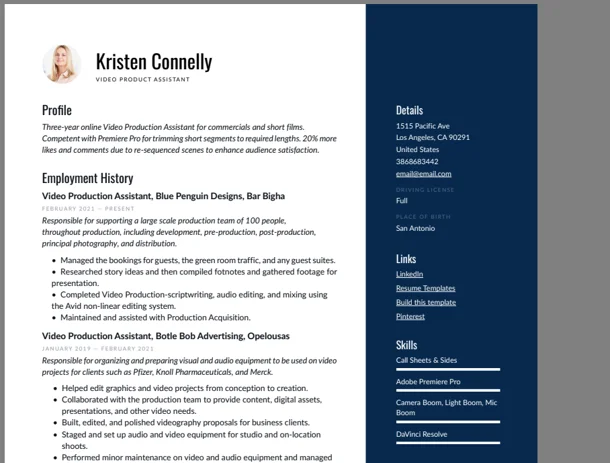
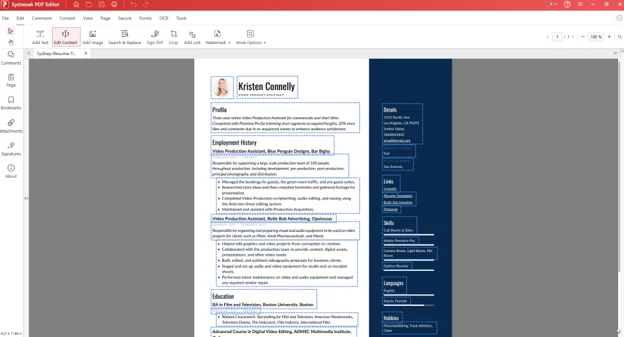
The resume we used for testing and our findings.
We tested on a resume with a main column and a sidebar that has contact info, skills, and languages. Both columns were fully editable and completely independent. Editing a bullet point on the left side had no effect on the sidebar content. Each column gets its own set of dotted boxes. Click into either column the same way.
Step 1: Download and run the setup file to get the product. You can install it without creating an account or sharing card details.
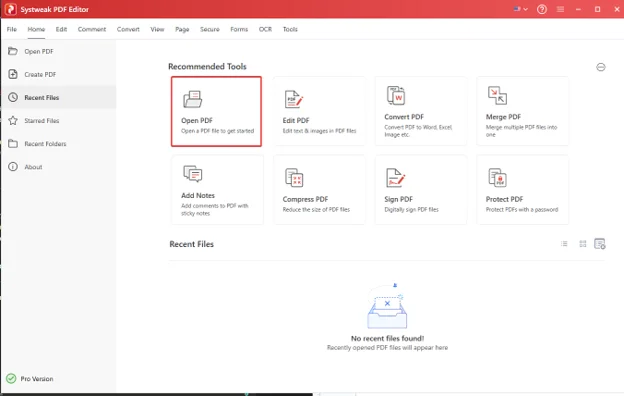
Step 2: Click Open PDF > select the resume.
The document will load immediately.
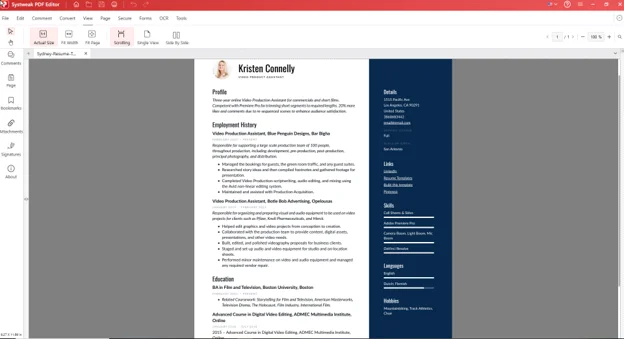
Step 3: Click Edit in the top menu bar to access editing tools like Add Text, Edit Content, Add Image, Search & Replace, Sign PDF, Crop, Add Link, Watermark, and More Options.

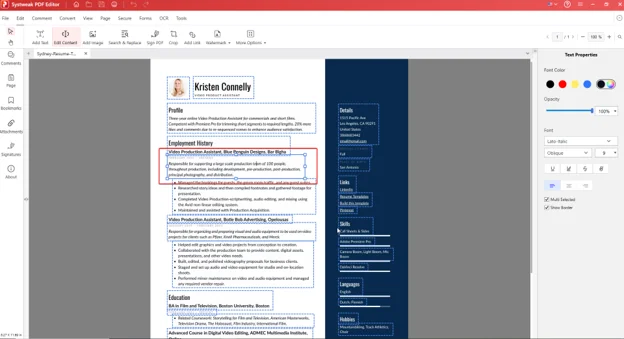
Step 4: To start making changes, click Edit Content. The editable text in the resume will now be surrounded by blue dotted boxes, and on the right a Text Properties panel will open, showing the font name, size, style (Regular, Italic, Bold, Oblique), color, and opacity.
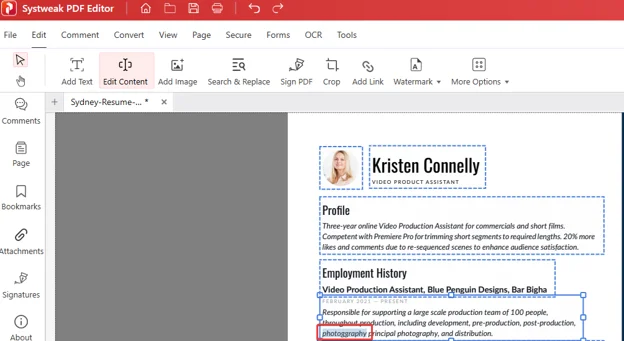
Double-click the text box and select a single word, or a full paragraph, and type the changes directly. The dotted box will now turn into a solid blue color line.
Step 5: Update the details. When you use the Edit Content option, the font is auto-detected and written in the same font as the document.
Step 6: To change or add an image, click the Add Image button. You can resize and reposition the added image.

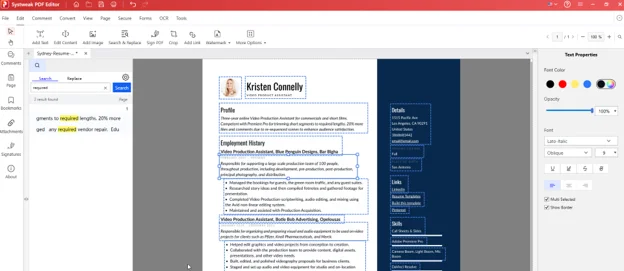
Step 7: To replace the same text in one go, use Search & Replace.
Step 8: Once the changes are complete, click File > Save As to keep the original document unchanged.
Other Options You Can Use
Alongside this, you can find other tools in the Edit tab like:
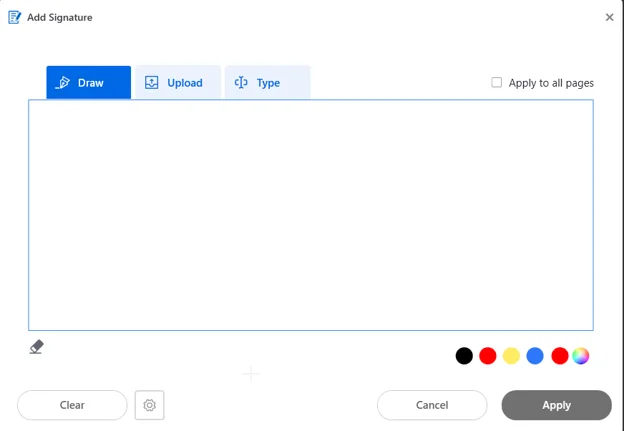
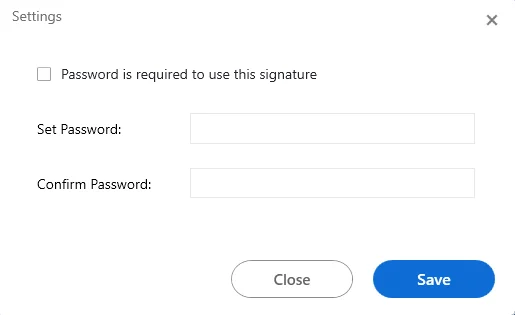
Sign PDF: It offers options to draw, type, or upload a signature image. You can also password-protect it so no one can use the signature. Click the gear icon next to the added signature and add a password, confirm it and that’s it.
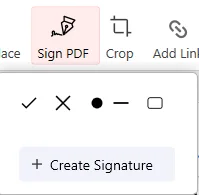
Click Sign PDF > Create Signature > select from the three options – Draw, Upload or Type and click Apply.
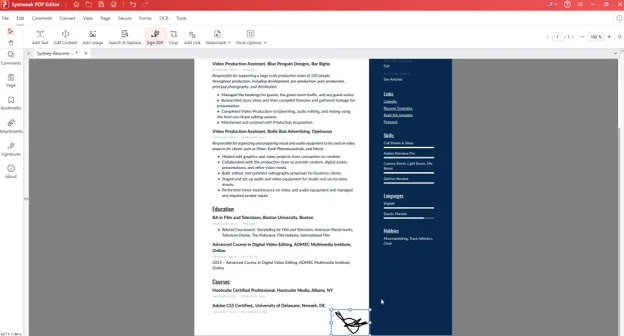
The signature will be placed in the document. Resize and move it if required.
Once the signature is applied, it will be added under Sign PDF. Reuse it when you want and save time.
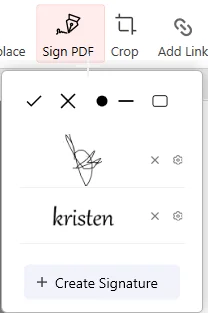
To add a password, click the gear icon next to the signature and set a password > confirm it and Save.
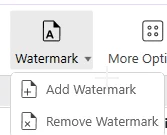
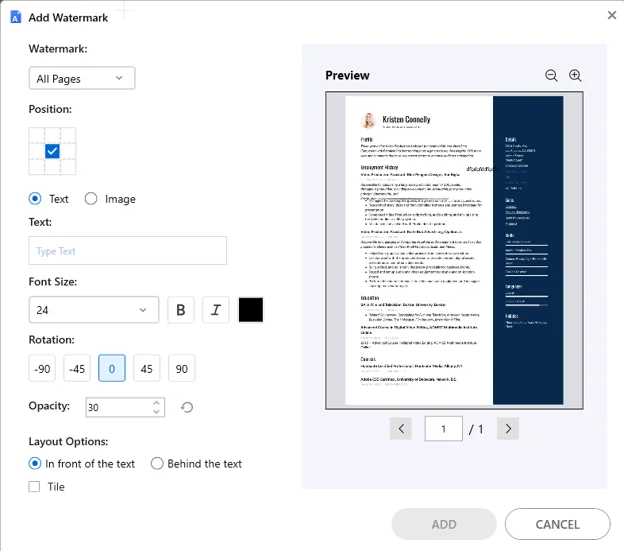
Watermark: There is an option to watermark the PDF. Click the Watermark > Add Watermark and select page, position, font size, style, color, rotation, and opacity.
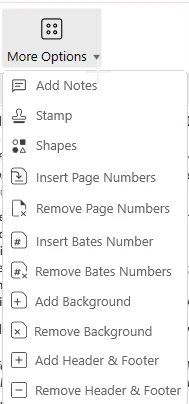
More Options: Includes headers, footers, page numbers, backgrounds, and stamps. Not typical resume edits, but available if needed.
Alternate Ways To Edit a PDF Resume
Method 2: Convert to Word
For quick edits, Word is preferred. However, when it is converted from PDF, the formatting usually changes. A plain-text file sometimes retains its quality, but a complex one, like a double-column resume, will not survive. Therefore, before you convert PDF to Word, you should understand:
If the PDF contains images, double columns, and design elements, there is a sidebar; the formatting changes, and you will have to fix it. This will take a long time. However, a PDF with text, a single column, and no design elements can be easily edited.
To edit the converted PDF resume in Word, open MS WORD > open the converted resume > and start making changes.
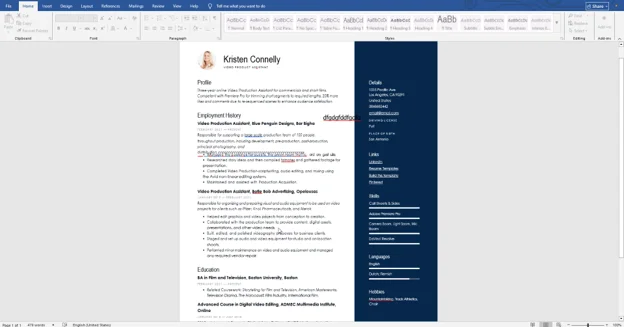
When done, check the formatting and save the file.
Method 3: Online PDF Editor
Online tools like Smallpdf, iLovePDF, and similar tools can be used in a browser tab without installation. You can use them to fix minor errors in a plain-text resume.
We are using iLovePDF as an example to explain how you can use online tools:
Step 1: Go to https://www.ilovepdf.com/
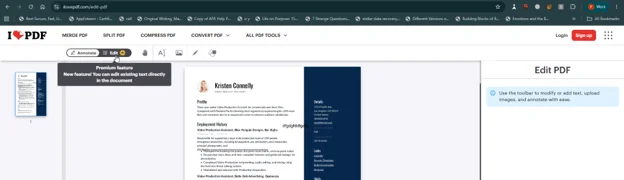
Step 2: Click the Edit PDF option.
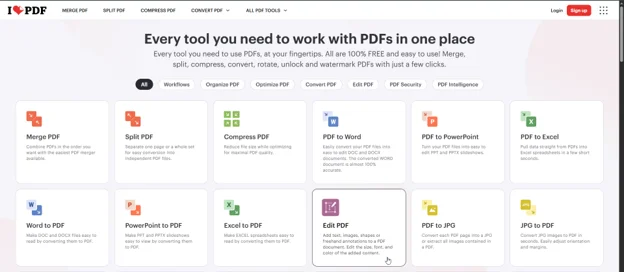
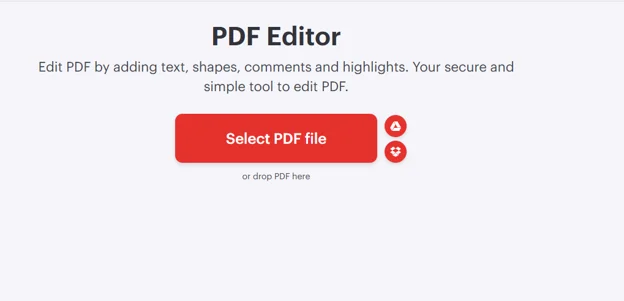
Step 3: Drag and drop the PDF or click on Select PDF > browse and add the PDF you want to edit.
Step 4: To edit, click the Edit option. This will activate the edit mode, and each paragraph will be surrounded by a dotted box. Click inside the box where you want to edit and make the change. From the right pane, you can select font style, size, alignment, color, add a link, and undo the operation.
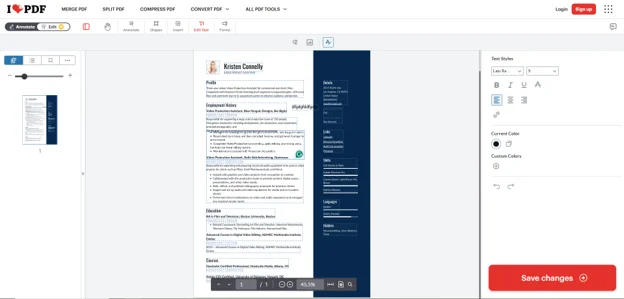
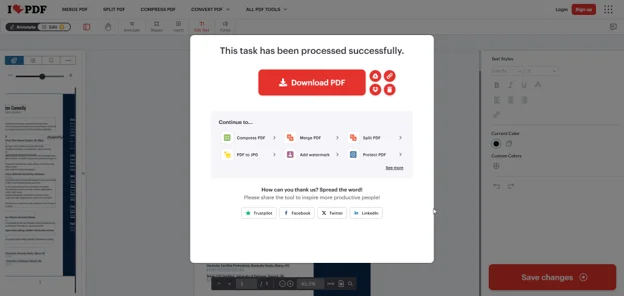
Step 5: When done, click Save Changes and download the PDF.
After reading these steps, you might be thinking it is so easy. Without installing software, I can edit any PDF document. But you are forgetting there are limitations.
Disadvantages of using an Online PDF Editor
- Can only be edited with a paid version.
- Your data is at risk. We are editing a resume that includes your full name, phone number, home address, and employment history. Uploading it to a third-party server means you have no control over it. You don’t know who can access this data or whether it will be protected.
- Online editors can easily handle simple resumes, single columns, but not complex layouts. They change the font, alignment, and spacing in ways that aren’t visible until you download the file.
- Some online platforms also compress files on download, which can slightly alter character spacing, something ATS systems may interpret differently from the original.
We recommend using an online editor when a quick fix is required. However, always read the privacy policy before uploading your document.
Offline PDF Editing VS Word VS Online PDF Editors
| Features | Systweak PDF Editor | Word Conversion | Online Tools |
|---|---|---|---|
| Edit PDF directly | Yes | No | Yes |
| Handles two-column and complex layouts | Yes | Limited | Limited |
| Works offline | Yes | Yes | No |
| File upload required | No | No | Yes |
| ATS-safe output | Yes | No guarantee | No guarantee |
| Free to try | Yes | Yes | Yes |
Editing a Canva Resume Saved as PDF
To make a resume look stylish and eye-catching, Canva is used. Once it is done, the file is exported as a PDF, and only when a change is required does reality hit that it was a Canva project. They start to look, but in most cases, as months pass, the project becomes inaccessible, and since fonts, spacing, and design elements are all native to Canva, editing the PDF becomes almost impossible.
Luckily, with a PDF editor like Systweak PDF Editor, even without the Canva project, you can easily edit text in the resume designed via Canva.
Step 1: Open Systweak PDF Editor.
Step2: Click File > Open.
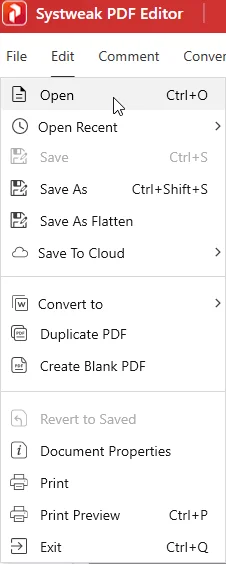
Step 3: Browse > Open resume PDF.
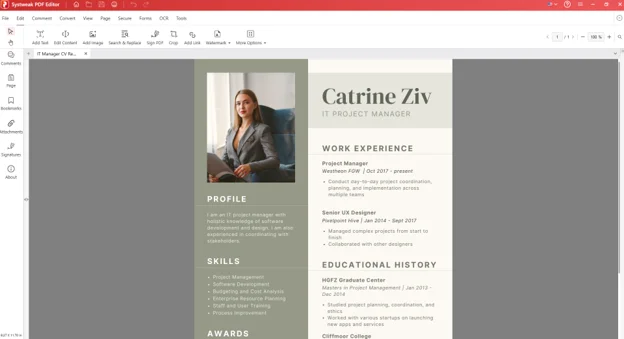
Step 4: To edit it, click the Edit tab > Edit Content. As you do so, the paragraphs will be surrounded by dotted blue boxes. Click inside them and start editing.
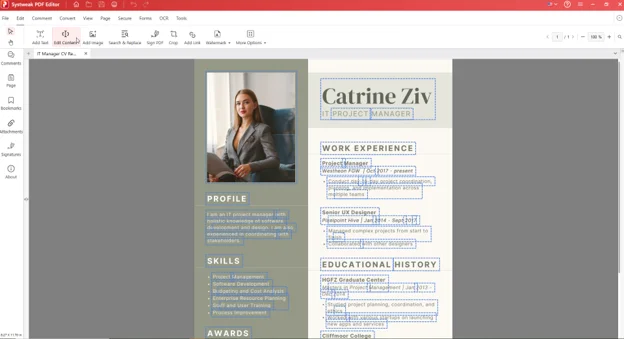
When done, save the file. This will keep the formatting intact, and you will be able to make the changes.
Tips To Prevent Issues When Editing
1. Always check the font before typing.
2. Zoom to 100% to see the changes. This way, you can detect whether there is text overflow.
3. Save As PDF, not Print to PDF, to preserve the text layer in the PDF. This will help ATS to read every word. If you do Print to PDF, the page is rendered as an image and becomes unreadable to ATS.
4. The resume should be a maximum of two pages. When adding new content or editing, keep this in mind.
5. Save the file with a proper name so it’s easy to locate.
6. Use Edit Content instead of Add Text because Add Text creates a new box with a default font. Edit Content automatically inherits the existing font.
7. Re check the document after saving in 100% Zoom.
8. Use a separate device to open the PDF and check the formatting before sharing it with someone, as editing can sometimes shift things and it may look different on another OS or PDF viewer.
Pre-Submission Checklist
Before you send a resume, always check the following things. This will make it better, ATS-optimized, and leave no room for errors.
Content
- Latest experience added
- New certifications included
- Relevant achievements listed
- Skills section updated for this specific role
- Summary tailored to the job description
ATS
- Keywords from the job posting appear naturally in the resume
- Standard section headings used (Experience, Education, Skills)
- Text is selectable after editing; highlight a sentence to confirm
- Saved via File > Save As, not Print to PDF
Formatting
- Font consistent throughout, checked via Edit Content, not by eye
- No text overflow visible at 100% zoom
- No overlapping elements
- Readable on a phone screen
Contact Details
- Phone number is current
- Email address is active
- LinkedIn URL works
- Portfolio or website links tested
Final
- Spell check run
- File opens correctly on a second device
- File name follows: Firstname-Lastname-Resume.pdf
Frequently Asked Questions
Conclusion
Editing a resume PDF doesn’t have to mean converting it to Word and losing formatting. With Systweak PDF Editor, you can make changes, be it minor, like updating a phone number, a new role, or a missing certification, or major, like updating a tailored summary or adding skills, can be done directly in the PDF, offline. Just run the PDF editor, open your resume, and make the edit you actually need.




