
Converting a PDF to Word is a frustrating task because most PDF-to-Word converter tools do not maintain the layout, and original formatting accuracy is not always preserved. Elements like tables, images, fonts, and spacing can become misaligned, test appear missing or misspelt, which means that users are spending more time and effort fixing the layout and making a lot of changes manually. Some users have complained of not getting the hyperlinks to work and distorted bullet points.
The best possible solution is to convert PDF to Word using a powerful tool that maintains the document formatting and layout accuracy, and at the same time, it must be quick and easy to use.
This guide covers the swift and simple steps to convert your PDF documents to MS Word format using Systweak PDF Editor software, which is a well-known PDF to Word converter softare. It also covers the concept of PDF to Word conversion, along with tips to follow and mistakes to avoid.
Why Convert PDF To Word?
There are multiple reasons why one would convert a PDF file to a Word document. We have covered a few common ones.
- Easier editing for text, images and formatting than the PDF format.
- Reuse the content of the document without starting from scratch.
- Enhanced collaboration due to features such as comments and track changes
- Carry out easy updates to existing documents.
How to Convert PDF to Word
Method 1: Convert a PDF to Word using Systweak PDF Editor (Recommended)
Systweak PDF Editor is a complete PDF solution, including a PDF to Word converter tool that has helped millions of users across the globe. Here are the easy steps to convert PDF to Word document. Systweak PDF Editor is a comprehensive PDF editing tool that allows users to make changes to any PDF document. Converting the PDF to different formats and vice versa is just one of the modules included in the amazing software. Users can avail this tool and easily convert all the PDF documents to MS Word format without losing the quality, formatting and layout of the document.
Step 1 – Download and install Systweak PDF Editor using the Download button provided below.
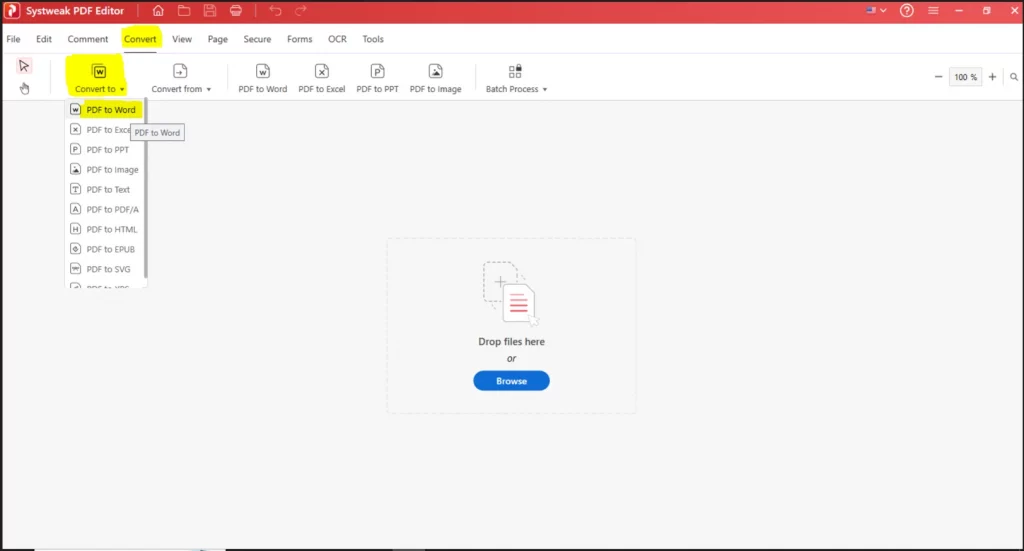
Step 2 – Open the application and click on the Convert tab in the toolbar at the top.
Step 3 – Next, click on the Convert To icon and choose PDF To Word from the drop-down options.
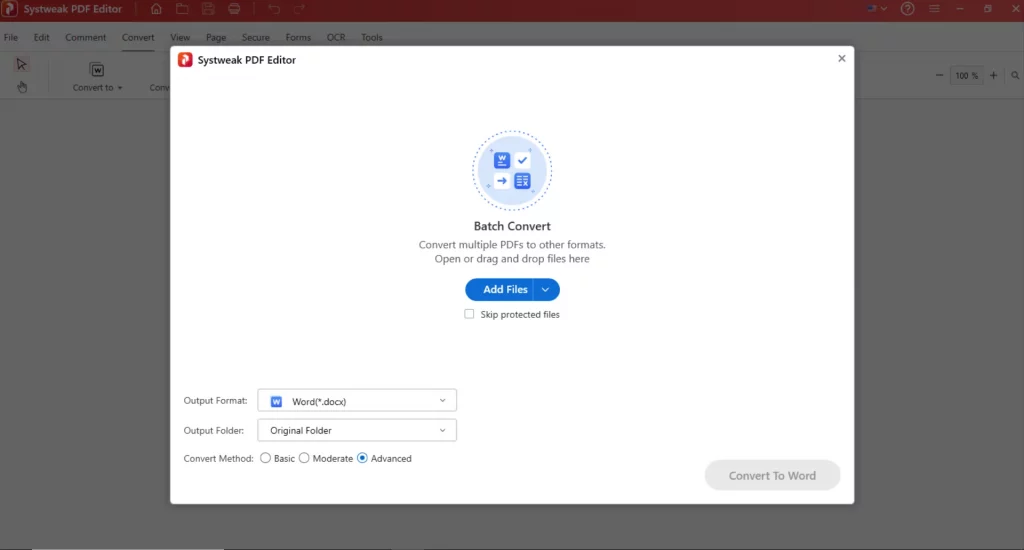
Step 4 – A new window will appear here; add the PDF file to convert.
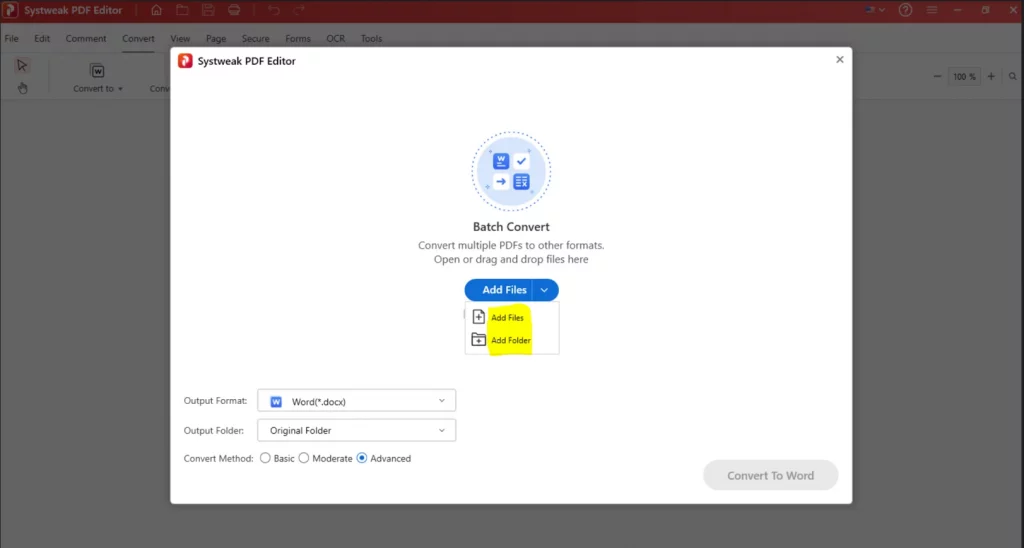
Step 5 – Click on the “Add Files” button, and you will get two options.
Add files – To select individual PDF files.
Add Folder – To select a folder that contains all the PDF files that you wish to convert to Word document format.
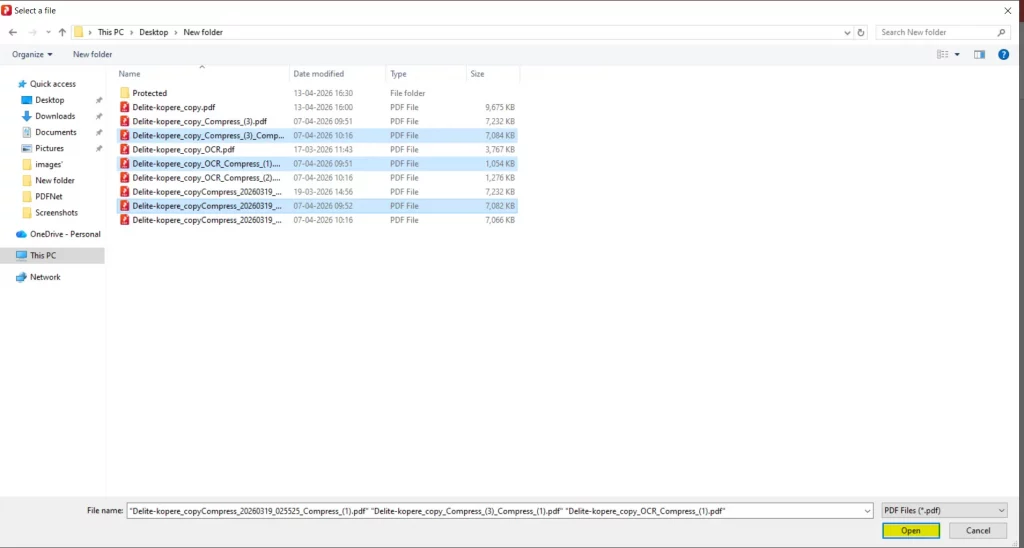
Step 6 – Select the relevant options, and the File Explorer window will open. Choose the files or folder and click on Open.
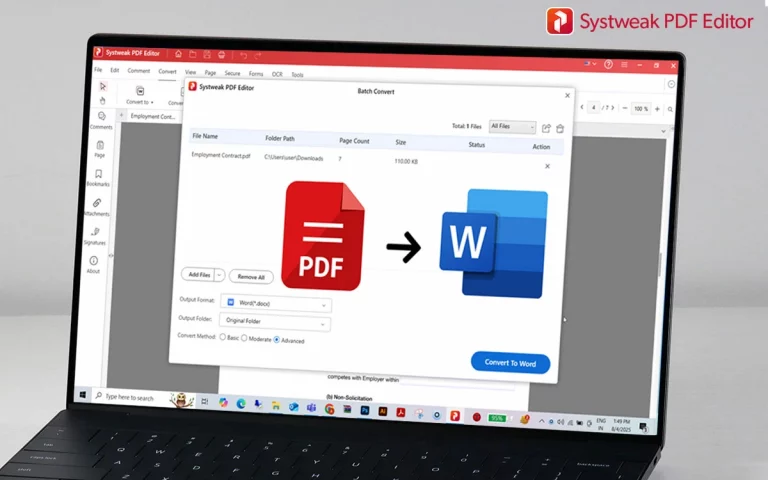
Step 7 – Once the files have been imported into the tool, a list will be available on the screen that will include the File Name, Folder Path, Page Count, File Size, and an Action button to delete the file if it was mistakenly added.
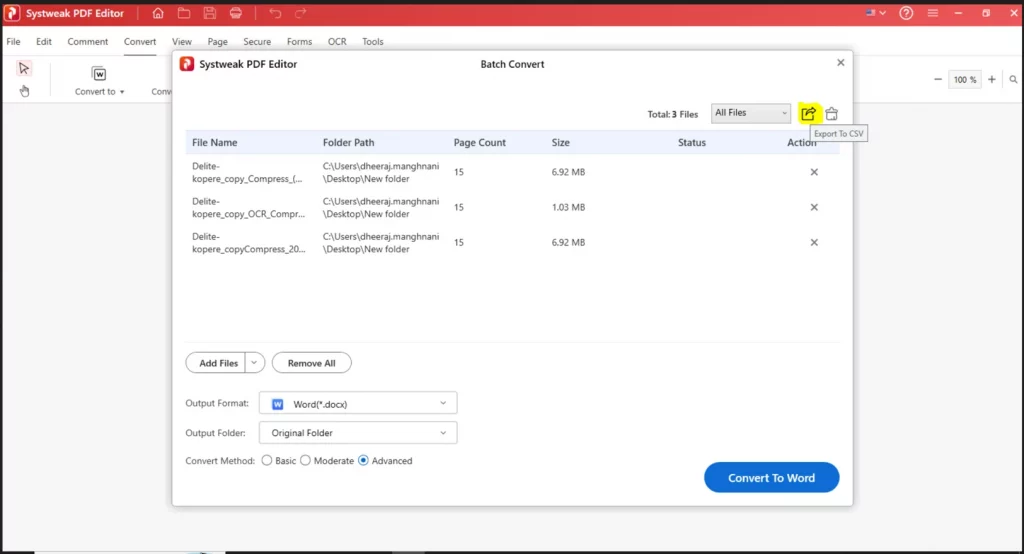
Step 8 – You will also get an option to export the list of these PDF files, along with the displayed information, to a CSV file format for future reference.
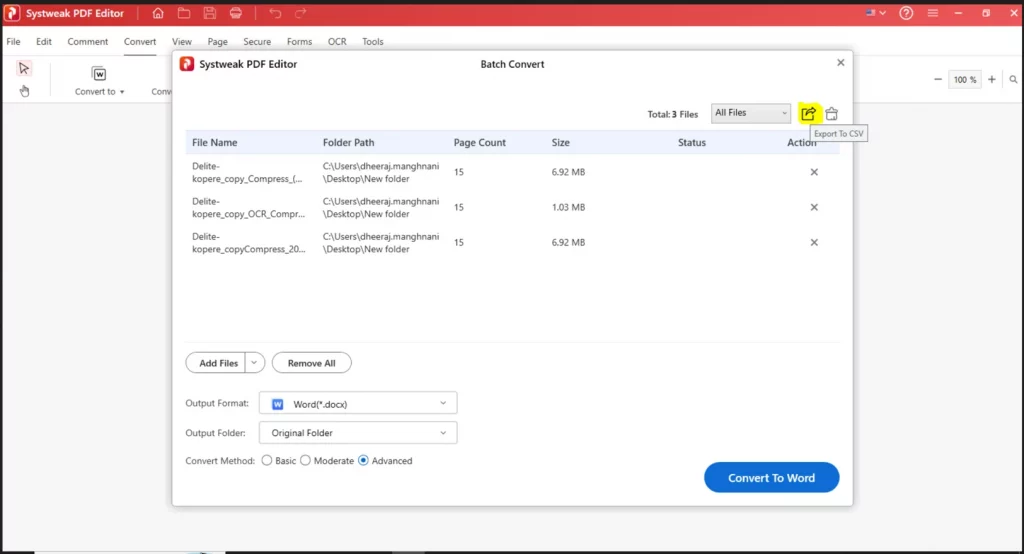
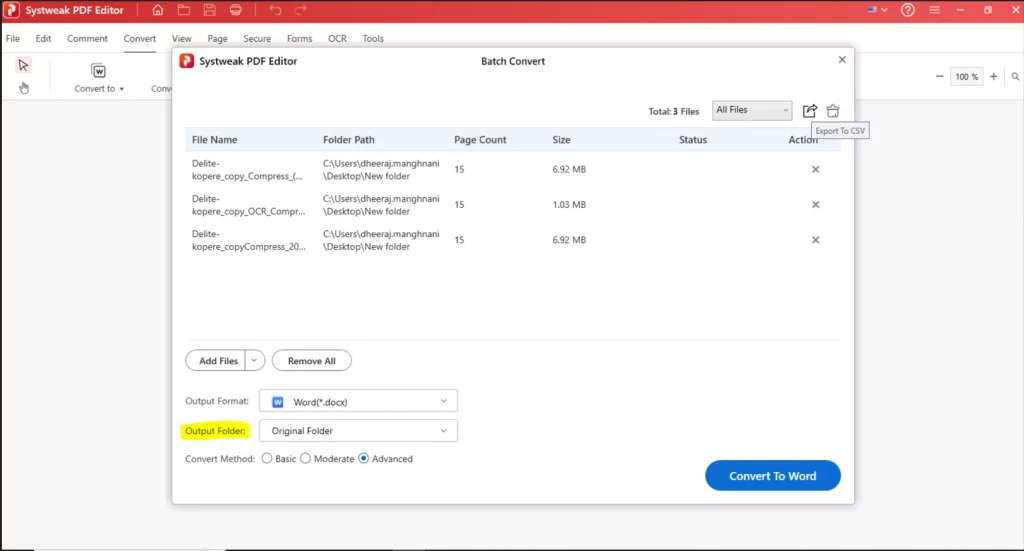
Step 9 – Select the Output folder where you wish to place the final Word Documents and click on the Convert To Word button.
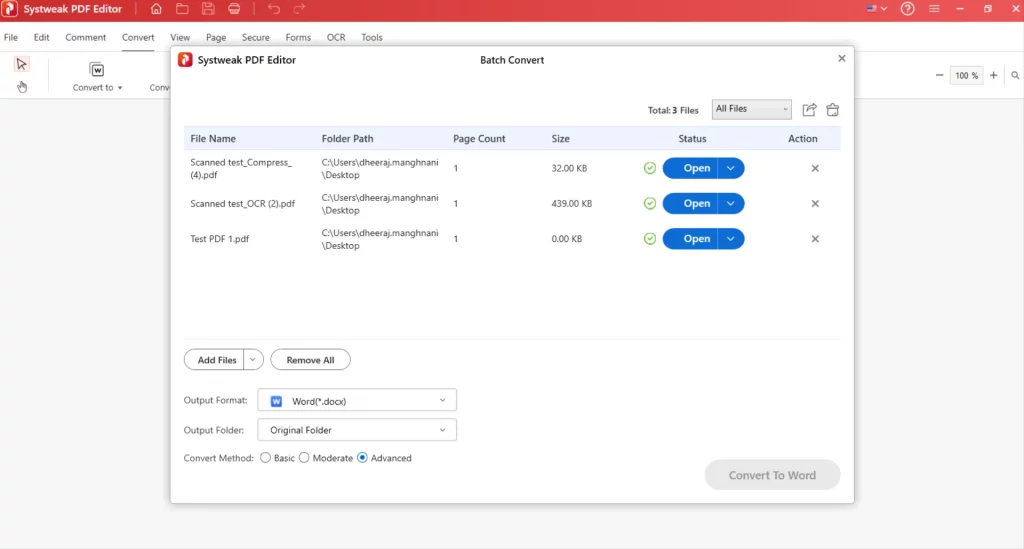
Step 10 – Wait for the process to complete, and you can click on the Open button next to each file to view the Word document.
If you wish to convert a Word document to PDF, then click here to read more
Method 2: Convert a PDF to Word using Microsoft Word
Microsoft is a well-known word processor app that allows users to create documents with text, images, and other types of content. But few people know that this app can be used to convert PDFs to Word documents. It also has an inbuilt OCR technology that will auto-trigger when you open a PDF in the Microsoft Word app. This means any scanned PDF document will be editable and searchable after being converted to Word format. However, the conversion from PDF to Word Document results in loss of formatting and quality, as Microsoft Word is not designed for a perfect conversion of PDF to Word. Here are the steps.
Step 1 – Open the MS Word app and click on Open.
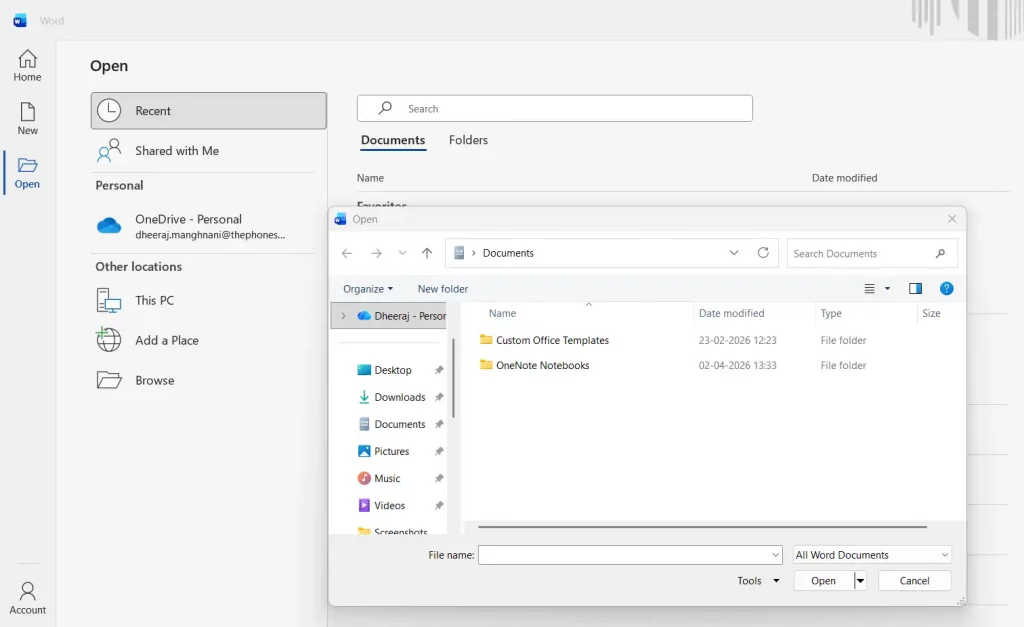
Step 2 – Choose the PDF you wish to convert. You will get a message prompt. Click on OK.
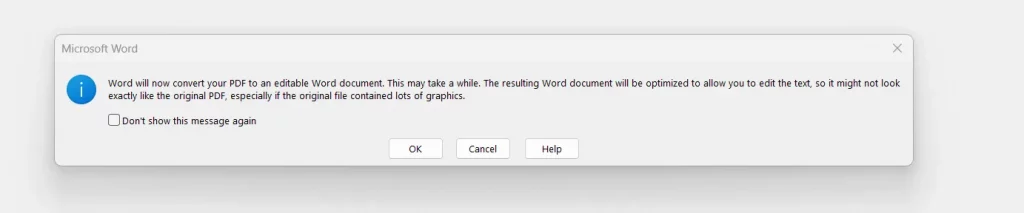
Step 3 – The PDF will now open in an editable and searchable mode. This app will automatically convert the PDF to Word doc format. You need to click on File > Save to save the document.
Method 3: Convert a PDF to Word using Online Word
Online tools offer free and limited PDF conversions to Word format. But these tools are for informal documents that contain shareable and non-confidential information. Once you upload your document to the web tool’s server, you can make some sorts of changes online and then download the file in your desired format. But there is no assurance that the PDF file will be deleted from the foreign server. You can use this tool for casual and unimportant documents by following these steps.
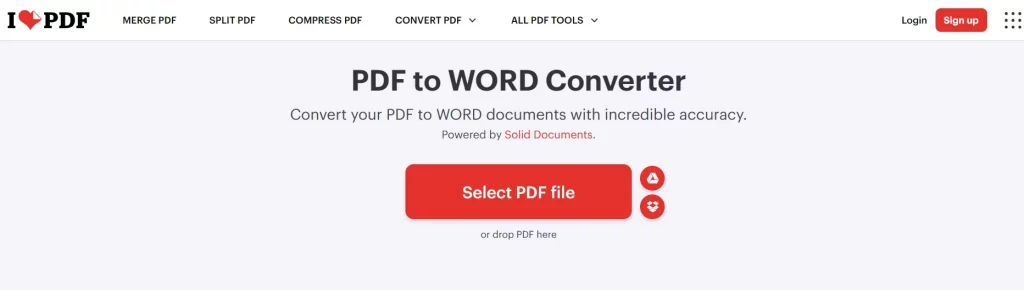
Step 1 – Navigate to the ILOVEPDF official website.
Step 2 – Click on the Select PDF File button and open the PDF that you wish to convert to Word format.
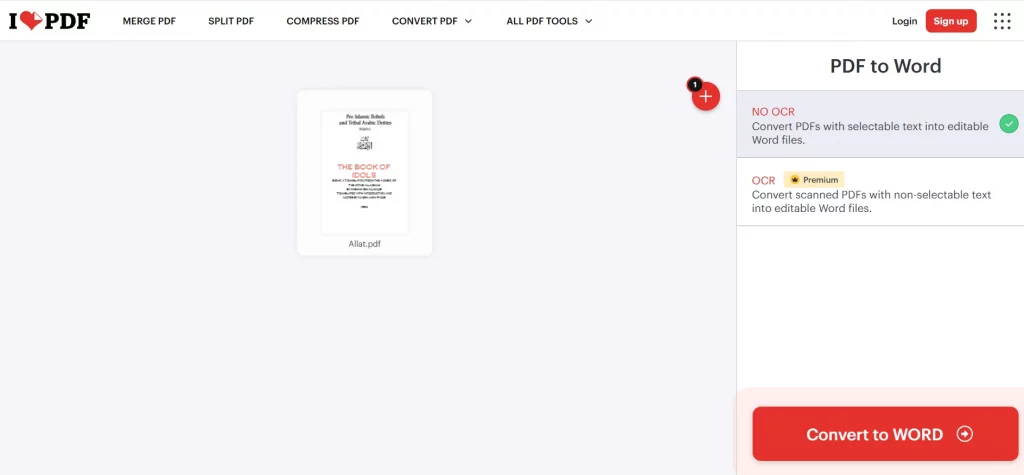
Step 3 – Click on the Convert to Word button and wait for the process to complete.
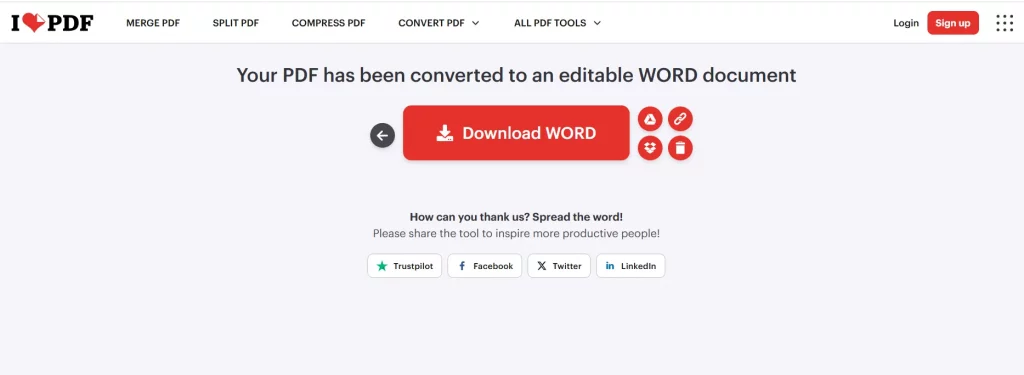
Step 4 – Click on the Download Word button, and the PDF converted to a Word document will be downloaded to your computer’s default download folder.
Tips To Improve The Accuracy of PDF To Word Conversion
For better conversion results, follow these tips and tricks.
- Use good-quality PDFs.
- Avoid using low-resolution PDF scans.
- Check for any formatting issues.
Issues Faced While Converting PDF To Word
1. Formatting issues might appear, which could be resolved by changing the style and font options.
2. Issues related to image alignment could be sorted out by inserting the images again.
3. The issue with table breakup could be sorted by making the tables simpler before the conversion process.
4. Large-sized PDF files might result in a delay in the conversion process; however, these can be overcome by breaking down large PDF files into smaller ones before converting them into Word format.
5. If your PDF file is password-protected, then it is important for you to provide the password for the file to convert it into Word format.
To know about more apps for converting PDF to Word format, click this link.
Frequently Asked Questions
Q1. Is converting PDF to Word safe?
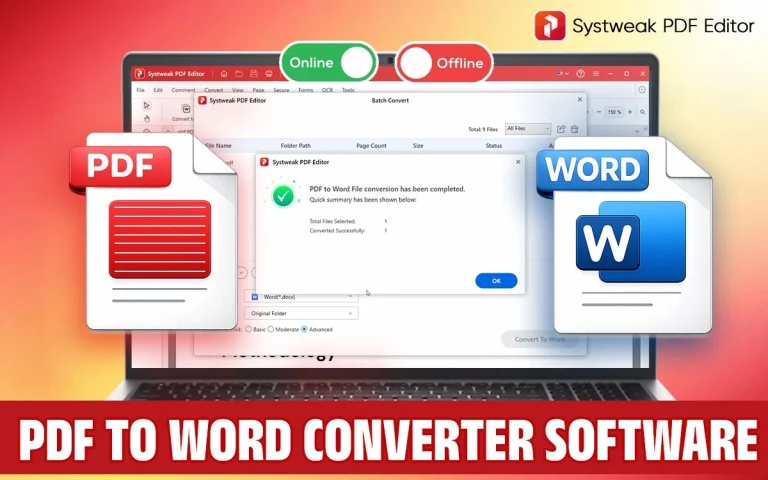
Yes, if you convert PDF to Word with same layout without compromising your document security, then you must use an offline PDF to Word converter software like Systweak PDF Editor.
Q2. Does formatting get lost during conversion?
No, if you use Systweak PDF Editor, then you can convert PDF to Word with same layout and not lose any formatting.
Q3. Can I convert multiple PDFs to Word files?
If you want to batch convert PDF to Word documents, then you must use Systweak PDF Editor program.
Q4. Can I edit the converted Word file?
Yes, if you use an offline PDF to Word converter software like Systweak PDF Editor, then you can easily edit the Word file.
Q5. Can You Convert PDF to other formats?
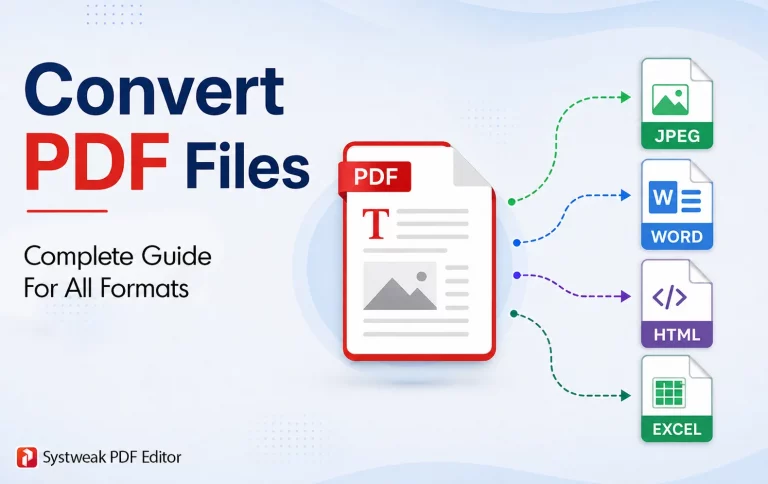
Yes, Systweak PDF Editor allows users to convert PDF files to Excel, PPT and Image, among other supported formats.
Converting PDF To Word Is A Simple And Swift Process
Converting PDF files to Word does not have to be a difficult process. There are a few reports of text misalignment, loss of formatting, and missing text while converting PDF to Word. Using software such as Systweak PDF Editor, one can easily convert any PDF document to Word while retaining all its formatting and structure.