
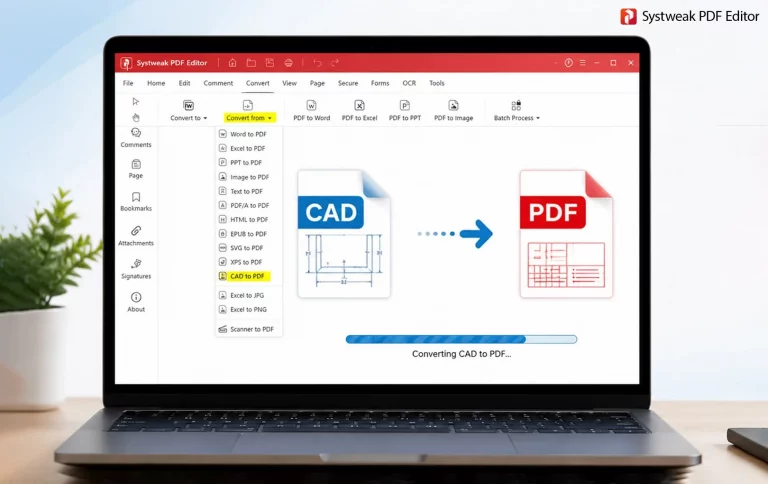

Technical drawings created by AutoCAD software are commonly utilized in architecture, engineering, manufacturing, and construction industries. Nevertheless, sharing CAD files may become a troublesome task because it demands certain software programs to view and modify them. We suggest that you convert your drawings to the PDF format. No matter which format of CAD file you use – DWG, DXF, or DWF – You can convert it to PDF quite simply and swiftly. This guide covers three different methods to convert your CAD file to PDF.
What Is A CAD File? What Are The Popular CAD File Formats?
A CAD (Computer Aided Design) file is a document format that contains architectural or engineering designs made using computer technology. Common CAD file formats are DWG, DXF, and DWF. These file formats contain designs and drafts used for construction, manufacturing, and product design purposes.
What is the Need to Convert CAD to PDF File Formats?
- Easy to share on different devices and software
- Doesn’t need any CAD software for opening
- Preserves all the layout and formatting in the drawing
- Best format to print technical drawings
- Prevents accidental alterations or editing of designs
- PDFs are smaller files that are suitable for emailing
- Works well with all kinds of operating systems
- Adds professionalism and accessibility to project files
- Facilitates secure sharing using password protection features
Problems People Encountered While Converting Their CAD Files Into PDF Format
- Problems with font availability
- Inability to scale pages properly
- Unwanted blurring in the PDF file
- Losing some layers and hidden objects in the file
- Layout distortion and displacement of the drawings
- Time-consuming process for complex CAD files
- Issues in plotting colors and styles
- Problems with conversion due to outdated software
- Difficulties in batch conversions
Best Methods On How To Convert CAD Files To PDF Easily & Quickly
Method 1 – Use Systweak PDF Editor To Convert CAD Drawing To PDF
Systweak PDF Editor is a comprehensive PDF Editor and Converter software that supports converting different file formats to PDF and vice versa. It also allows users to edit and make changes to the text and images within a PDF file. Another important feature of this program is it works offline and converts all the AutoCAD files locally on your PC without uploading them to any external server. This ensures that your designs are safe, secure, and will remain confidential on your system. Here are the steps to convert a CAD file to PDF using the best CAD to PDF Converter – Systweak PDF Editor.
1. Download & install Systweak PDF Editor using the Download button provided below.
2. Open the software and click on the Convert tab from the top toolbar.
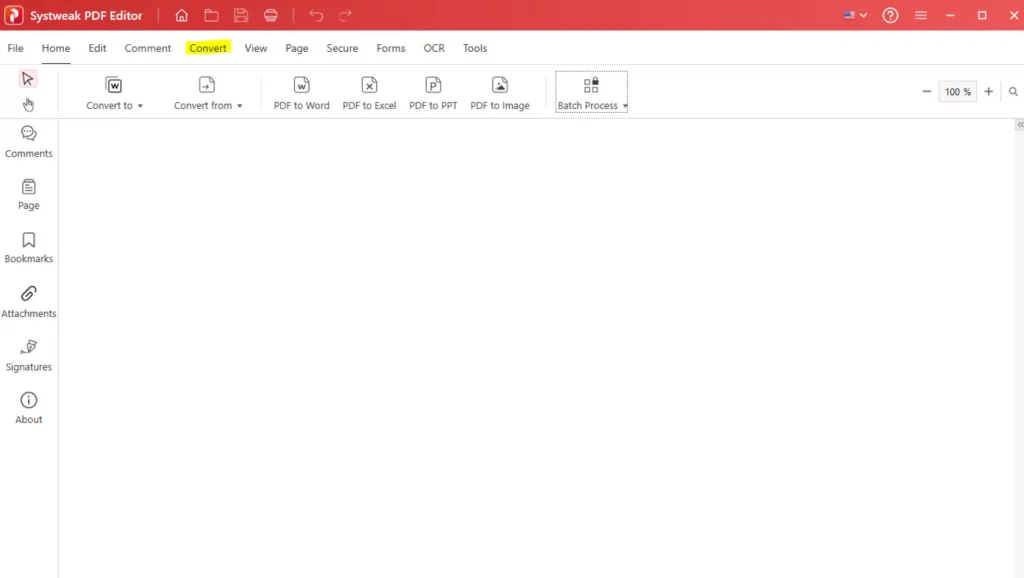
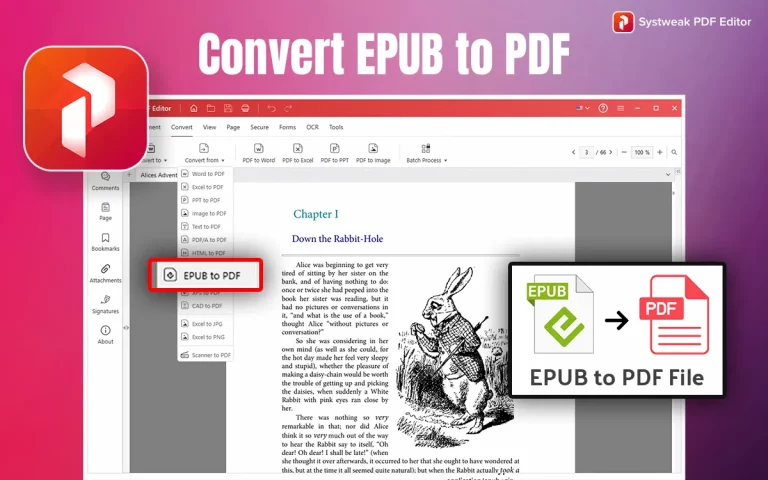
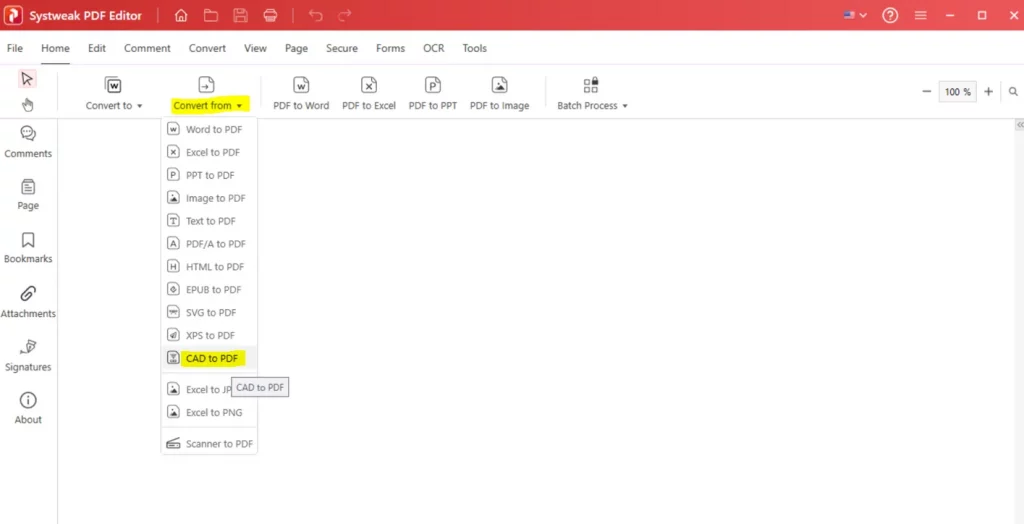
3. Click on Convert From and choose CAD To PDF.
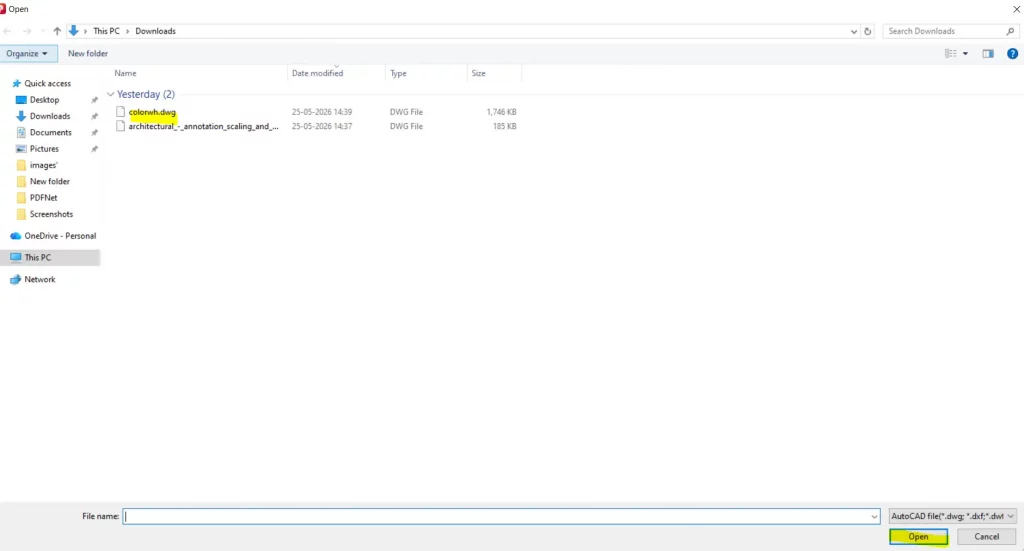
4. A new window will open asking to import the CAD file that you wish to convert.
5. Choose your CAD file and click on the Open button to import the file into the software.
6. The conversion will now begin. Wait for the process to complete.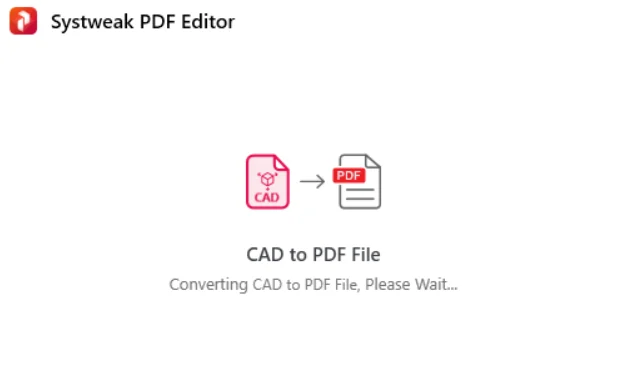
7. After the conversion process is complete, click on the OK button.
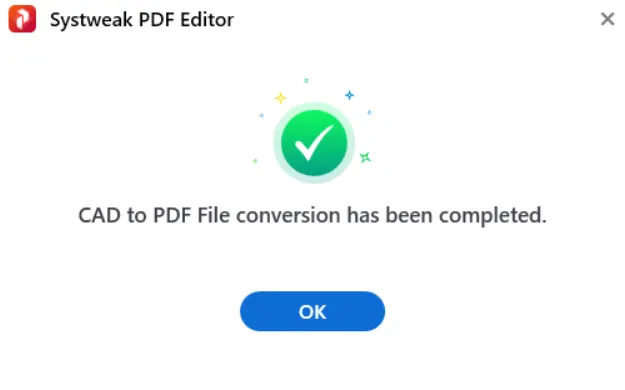
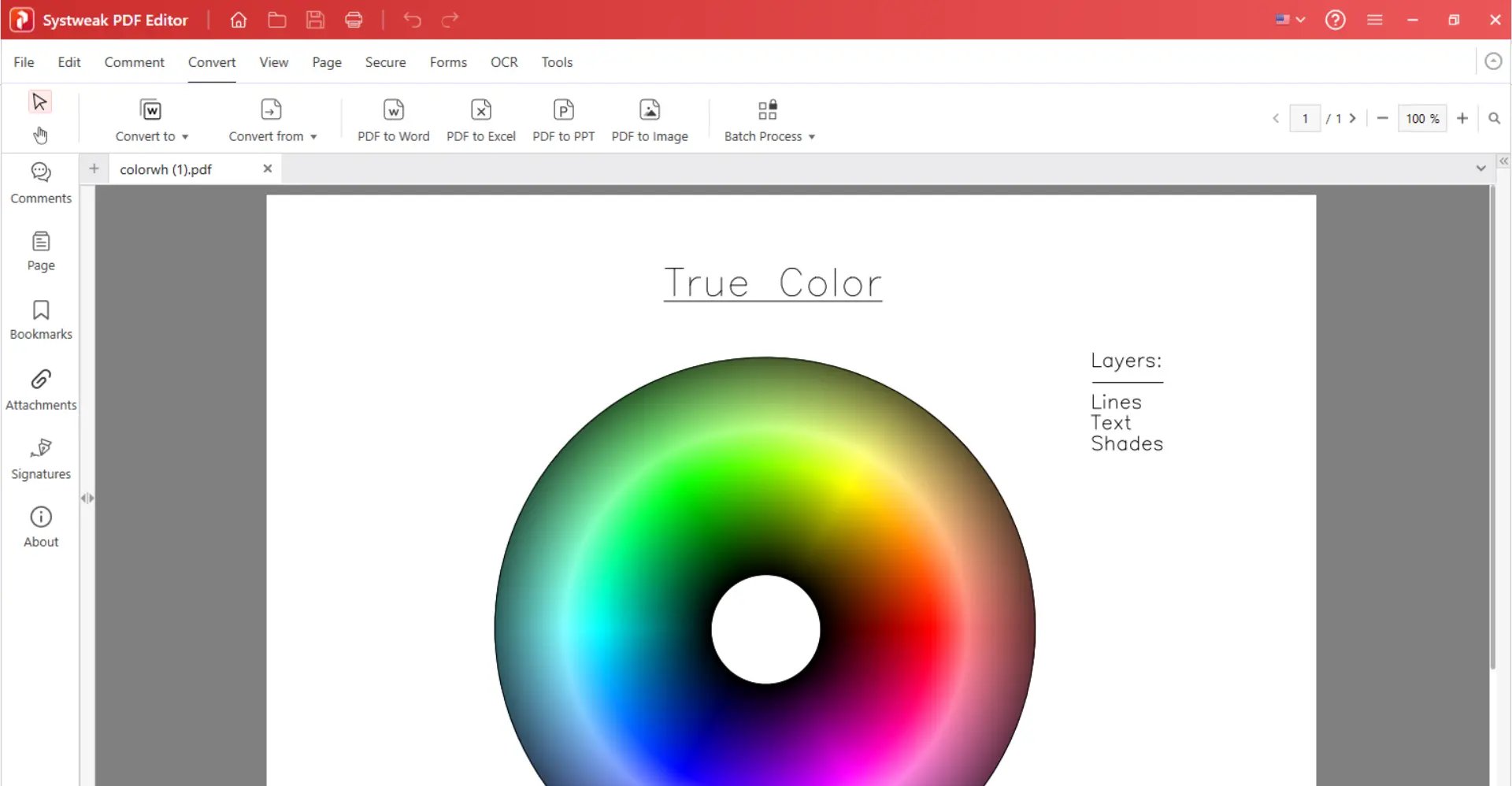
8. The CAD converted PDF file will now open in the Systweak PDF Editor app.
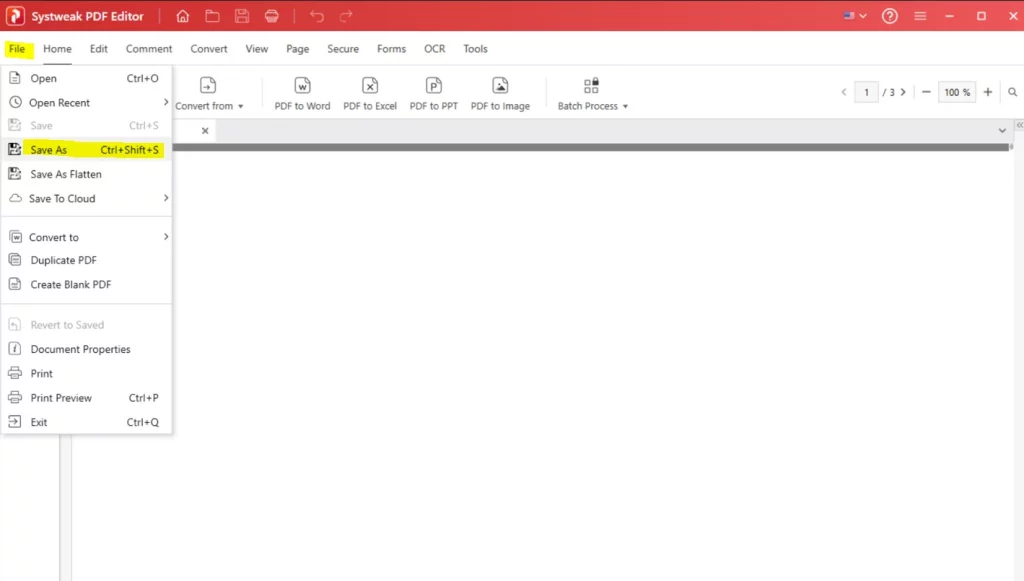
9. Click on the File tab and choose Save As to save your new converted PDF file.
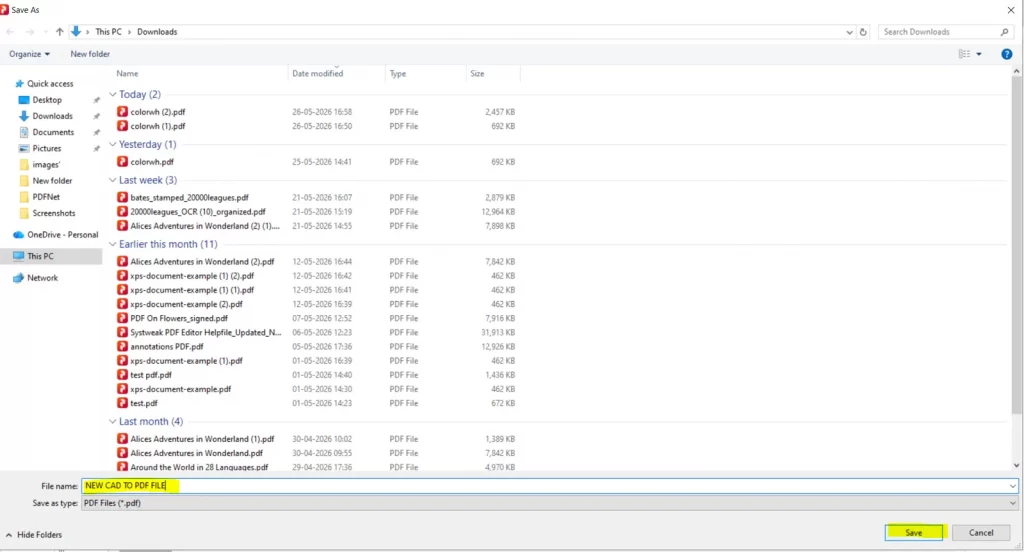
10. Provide a new name and specify the location where you wish to save your file.
11. The cad design converted to PDF will be shown in the application.
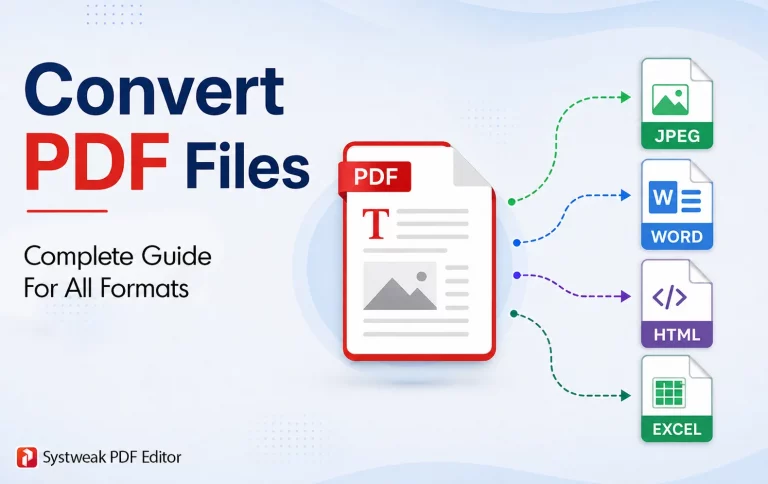
Also Read: How To Convert PDF Files (Complete Guide For All Formats)
Method 2 – Use AutoCAD To Convert CAD Drawing To PDF
AutoCAD is a software that is designed to create, open, and edit PDF files. It can also export CAD files to PDF format. However, this is a rather expensive software that is only used by Architects, engineers, and designers. It is not used by a vast majority of people due to its cost and complexity. Here are the steps to use AutoCAD as a CAD to PDF Converter.
1. Open the CAD file in AutoCAD.
2. Click Plot/Print.
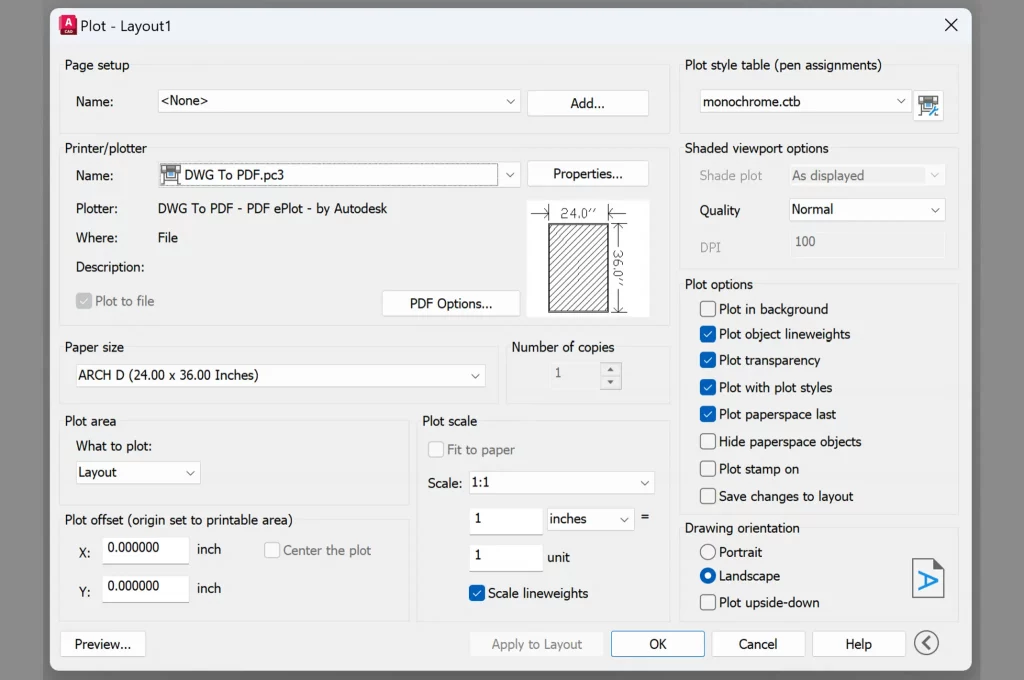
3. Select DWG to PDF.pc3.
4. Adjust page size and layout.
5. Click Save as PDF.
Method 3 – Use An Online Tool To Convert CAD Drawing To PDF
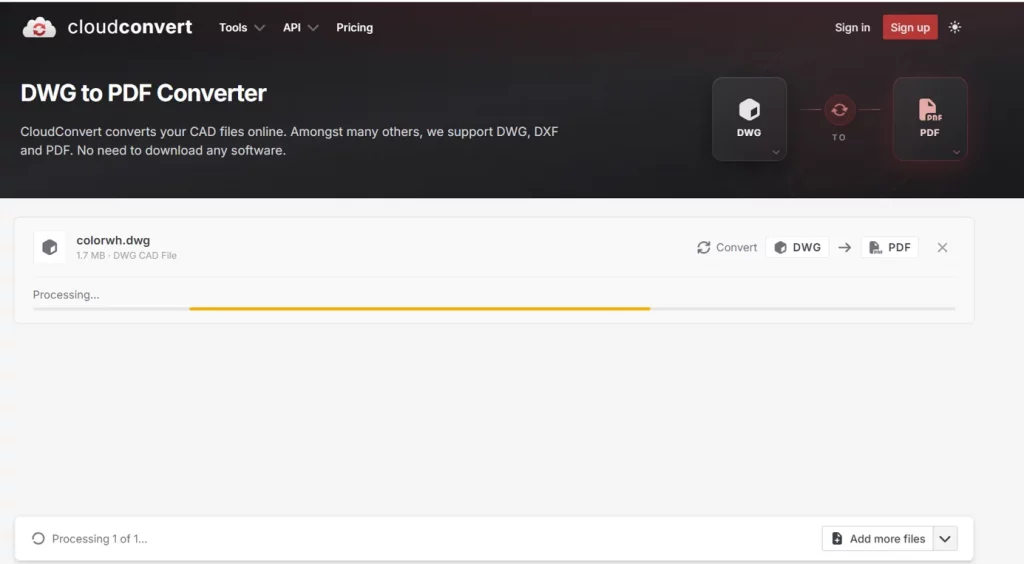
There are a few online software programs that can convert AutoCAD Files to PDF online for free. However, this method does not guarantee the security and privacy of your CAD document. Users have to upload the CAD file to a foreign server so that the online web tool can convert it to PDF. However, users cannot determine what happens to the CAD and PDF files after the user closes the tool page in the browser. If you have a CAD file with information that is not important or private, then you can use the CloudConvert tool, which is an online CAD to PDF Converter.
1. Navigate to the CloudConvert Webpage using any browser.
2. Click on the Select File button.
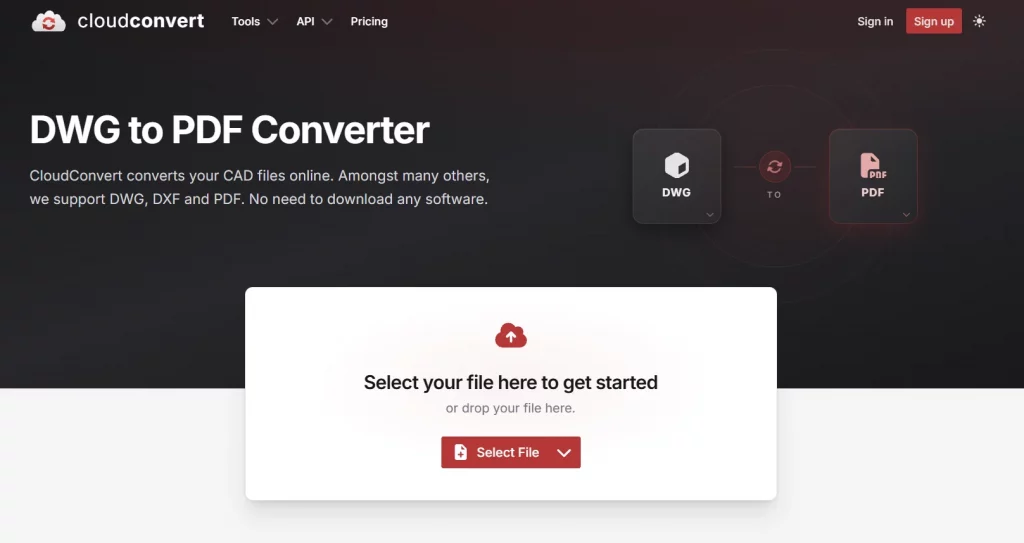
3. Click on the Convert button in the right bottom corner.
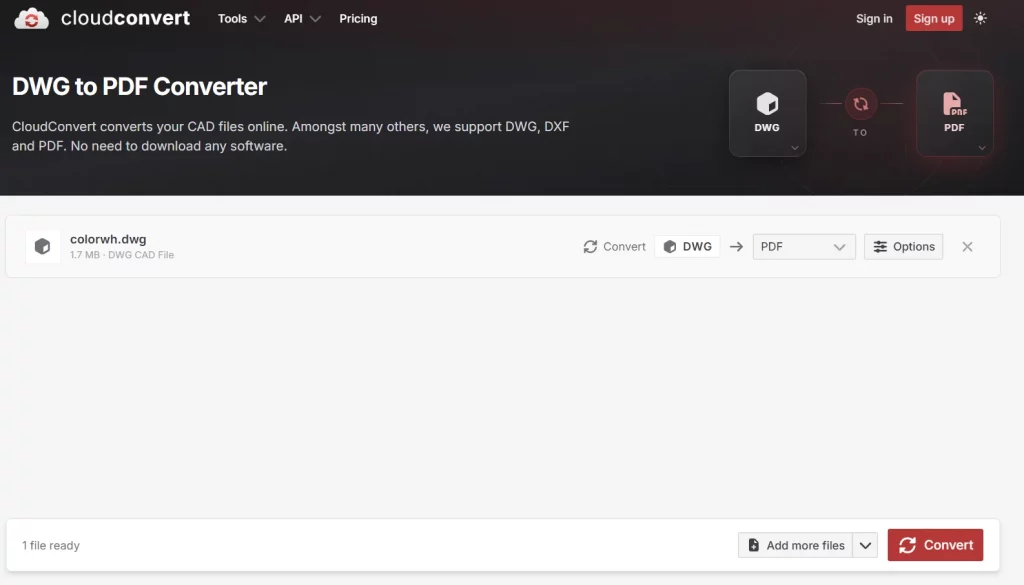
4. Wait for the process to complete.
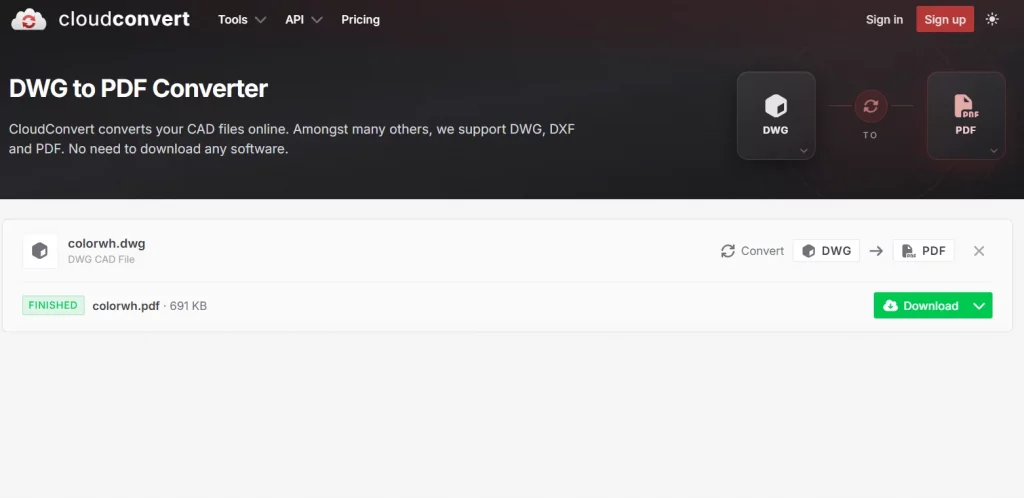
5. Click on the Download button, and the converted PDF file will be downloaded to the default Downloads folder.
Frequently Asked Questions
Conclusion
The conversion of AutoCAD Files to PDF format is a very easy process and can be done using any of the three methods described above. Be it AutoCAD software or a PDF Converter online, or Systweak PDF Editor, it just takes a few minutes to complete this task if it’s done properly. We recommend Systweak PDF Editor as it also allows you to make changes to the PDF file if needed, and the entire conversion process is carried out offline on your PC.