

PDF files are some of the most popular documents used in the exchange of reports, eBooks, business proposals, presentations, résumés, manuals, and forms. PDF documents maintain formatting consistency across all devices and operating systems, making them very appropriate for professional purposes.
Adding hyperlinks to your PDF documents makes them interactive, navigable, and user-friendly. Whether you are creating an eBook that has a clickable table of contents, a business brochure with website links, or a report with references, adding hyperlinks will make the entire process easy. In this article, you are going to get to know all about hyperlinks in PDF files; types, advantages, and how to create and add them to your PDF documents.
What Is a Hyperlink in a PDF?
A hyperlink is a part of the PDF file that is designed to perform a certain action upon being clicked. As opposed to showing a web address, it lets the user interact with the document. It could take the reader to a website, lead them to a different page in the current PDF document, launch an email application, open another document, or connect to other online sources.
Hyperlinks are extremely flexible since they can be put into many different parts of the document. Hyperlinks can be created in text, images, buttons, icons, and shapes, which allows you to make the documents more interesting for users. As opposed to URLs, hyperlinks give the document a more professional look since there is no need to copy and paste web addresses.
Why Add Hyperlinks to PDFs?
The interactive PDF has many advantages over the normal document.
- Eases Navigation. Big PDF files have lots of pages. The reader can jump from one part of the PDF file to another using the link instead of constantly scrolling through the document. It includes a Table of Contents, Chapter links, Appendix links, and Index links.
- Enhances the Reader’s Experience. It is easy for the reader to get more information without having to copy and paste the URL. These include Company websites, Product pages, Online documentation, and Support websites.
- Gives the Document a Professional Feel. Clicking on links makes business proposals, Marketing brochures, Product catalogs, Annual reports, and whitepapers look more professional.
- Saves Time. There will be no need to ask the reader to look for extra information; they simply have to click on the link provided.
- Enhances Engagement. It allows readers to visit the website, register for an event, download the software, contact the business, and explore the product.
How to Create a Hyperlink in a PDF
Method 1 – Use Systweak PDF Editor
Systweak PDF Editor is a top-notch PDF editor tool that contains many modules for PDF editing and management. One of the features include adding a hyperlink. Here is what you need to do.
Download Systweak PDF Editor using the Download button provided below.
Install the app and open it using the shortcut created on the desktop.
Click on Open PDF to import the PDF where you wanted to add Hyperlinks.
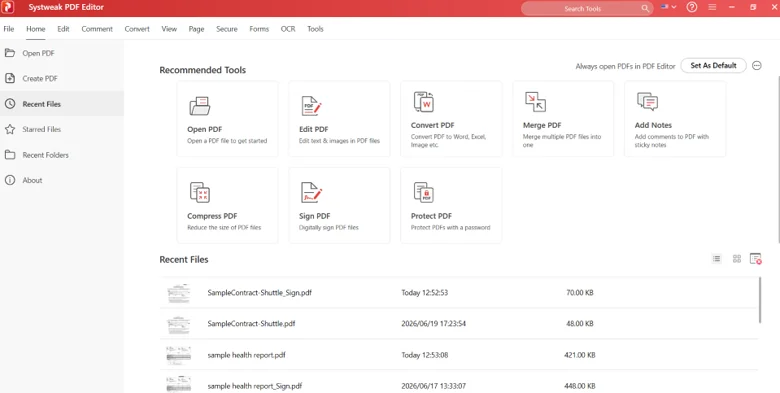
Click on the Edit tab on the toolbar.
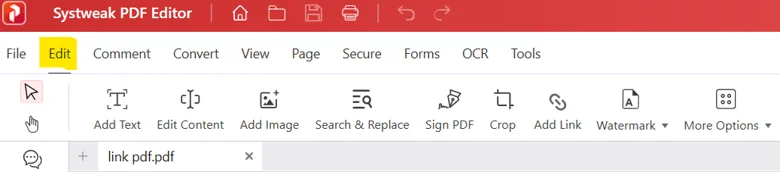
Click on Add Link button in the ribbon.
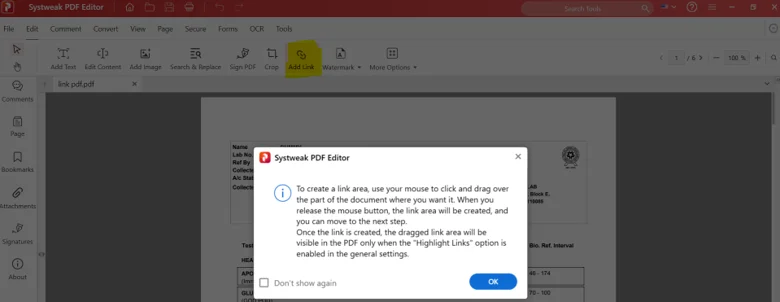
You will get instructions on how to add a link. Click on the OK button.
Drag the mouse to select any area on the PDF and then you will get three options.
Jump to Page View – This will help the reader to jump to the predetermined page in the PDF.
Open Web Page – This will open any webpage depending on the link provided.
Jump to Email – This will lead the reader to the preset email.
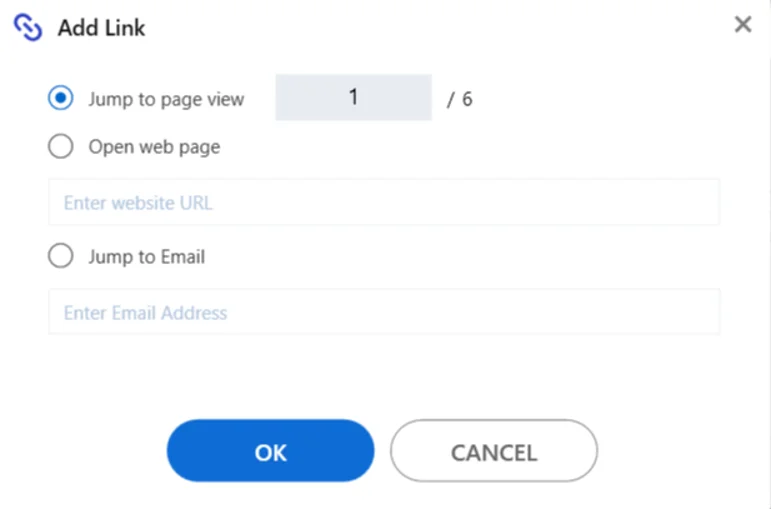
Click on the File tab and choose Save as to save the document.
Method 2 – Use An Online Tool
Online tools are free to use, but you have to upload your PDF file to a foreign server. There is no guarantee of when your file will be deleted from the web tool’s server. Hence, this method is not recommended for the privacy and security of your PDF file. You may use it if the contents of the file are not important. Here are the steps.
Click on the link to visit the PDF Aid website.
Click on the Upload button and choose the file you wish to add hyperlinks.
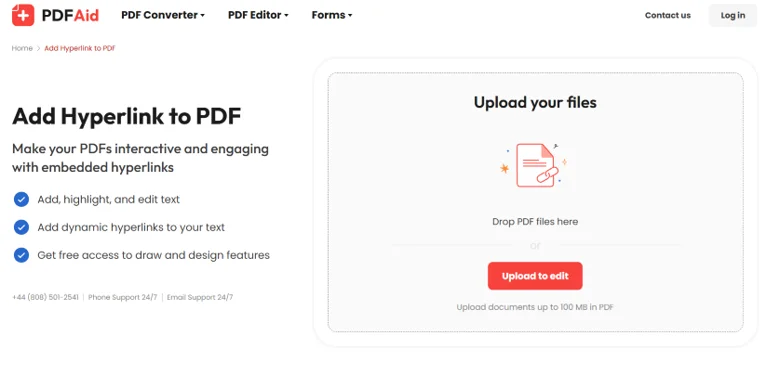
After the file is uploaded, look for Link tab in the top ribbon and click on it.
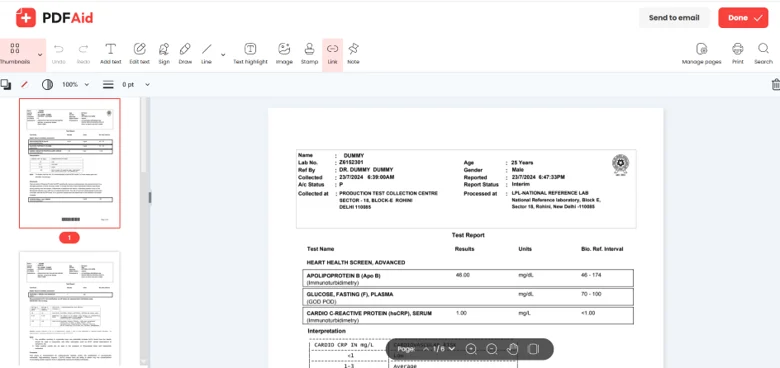
Select an area where you wish to apply the hyperlink and choose between two options.
Website – Enter the URL of the website and it will open the webpage when someone click on this link.
Page – Enter the number of the page in the same PDF and the person will be redirected to that page when he/she clicks on it.
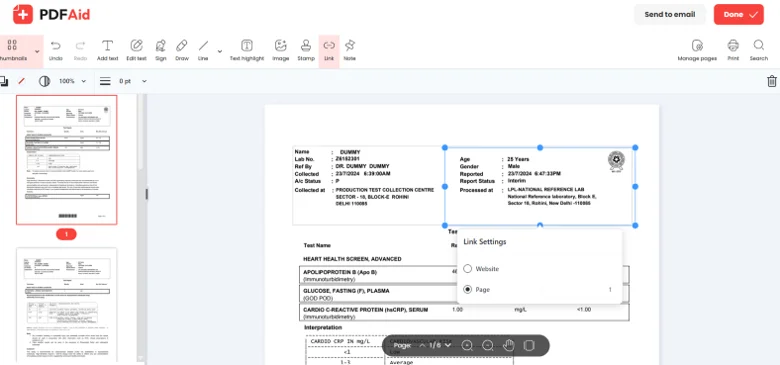
After you have added the hyperlink, click on the Done button on the top right corner.
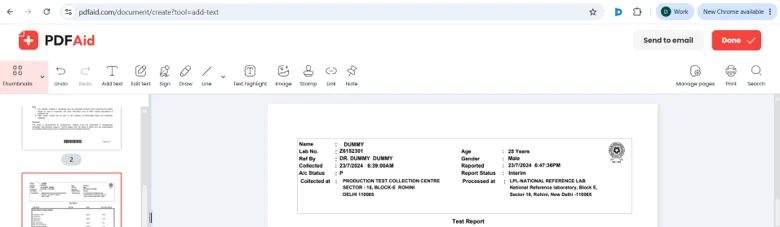
Choose the format in which you want you PDF with hyperlinks to be downloaded in and click on the Download Button.
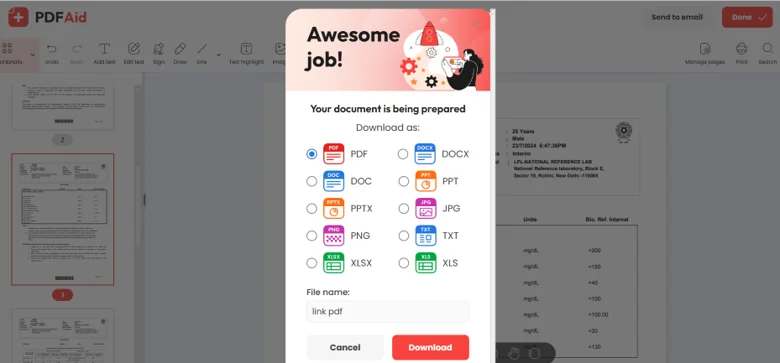
You file with hyperlinks will be downloaded in the default Downloads folder.
Benefits of Using Systweak PDF Editor
The Systweak PDF Editor provides numerous editing options apart from adding a hyperlink. Some of its major features are:
- Hyperlink addition and editing
- Editing PDF text
- Annotation
- Combining PDFs
- Splitting PDFs
- Converting PDFs into Word, Excel, PowerPoint, and images
- Compressing PDF files
- Organizing pages
- PDF password protection
- Digital signatures
- OCR for scanned PDFs
This editor will be useful for students, professionals, educators, and business people who deal with PDF files on a regular basis.
Frequently Asked Questions
Conclusion:
Creating hyperlinks within a PDF turns your static file into an interactive document. Regardless of whether you want to redirect your visitors to your website, take them through the different parts of the document, provide some downloadable material, or allow them to get in touch with you via email, adding hyperlinks will increase the value of your PDFs, making them both professional and functional.
If you have a proper PDF editor at hand, creating hyperlinks is no rocket science, especially when you deal a lot with business-related documents, eBooks, reports, presentations, or marketing content.