You are reviewing a document and want to leave comments on incorrect numbering, points, grammatical mistakes, and additional information, but can’t as your PDF reader has no comments option. So you do what everyone else does – copy the text, paste it into an email, and share your comments, hoping the other person understands your context and makes the corrections.
Luckily, there is a faster and more effective way to do this than following these steps. This how-to-add-comments guide explains how you can do it directly on your PDF in just a few clicks.
Trying to leave comments on a PDF for the review or highlighting important sections? You can quickly do it using the Systweak PDF editor. Add notes, highlights, and comments on any device, then share a single updated file in no time.
Adding comments is the best way to turn a static PDF into an interactive review file. Rather than creating a long email chain and attaching screenshots to convey changes. Attach comments directly to the exact sentence, number, or section that needs attention, then send it.
In this guide, you’ll learn the simplest ways to add comments to a PDF.
Quick Answer:
To add comments to a PDF, open the file in a PDF annotation tool, select the text you want to mark, and choose the comment or sticky note option. Tools like Systweak PDF Editor work across Windows, Android, and iOS, letting you annotate, save, and share the updated file without uploading it to a third-party server.
How to Add Comments to a PDF
Method 1: Add Comments to a PDF line Using Systweak PDF Editor (Recommended)
This single PDF editor lets you add comments, annotate, and highlight your PDF. Even more, you can edit, convert, compress, merge, and do more. all processed locally on your device. In short, if you want a tool that handles your entire PDF workflow without switching apps while keeping confidential documents private, this is it.
Here is how to get started:
Steps to add comments online:
1. Download the Systweak PDF Editor from the button given below:
2. Add PDF by clicking on the “Open PDF” option. Browse the file > select and it will open in the editor.
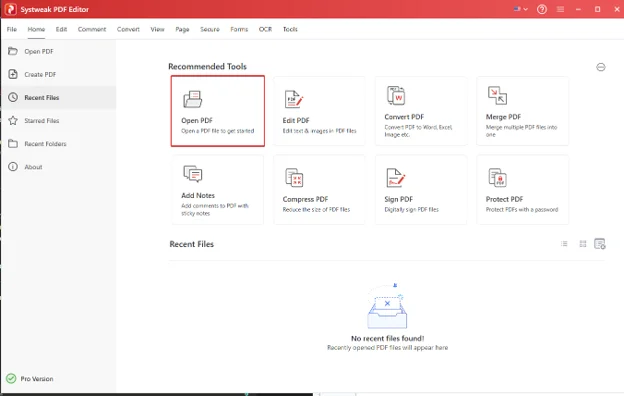
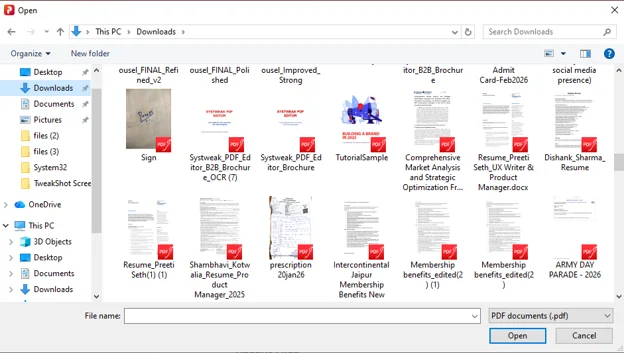
3. Click the Comment tab in the top menu bar. You will now see the annotation tool bar with options like Highlight, Underline, Strikethrough, Squiggly Line, Freehand Line, Add Notes, Stamp, Shapes, and Attachments.

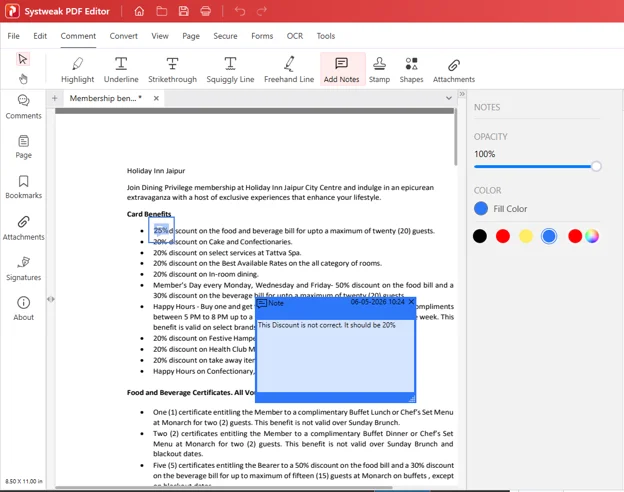
4. To add a comment click Add Notes. Click anywhere on the PDF where you want to place the comment. A note box icon appears. Double-click on it to get the text box. Here, type your feedback. From the right pane you can adjust the opacity and fill color.
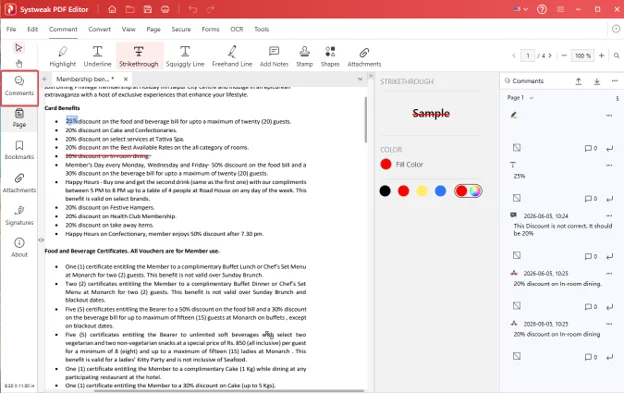
5. Once you are done adding the comments. To view them in one place, click the Comments icon on the left sidebar. A comments panel opens on the right listing every annotation with its timestamp.
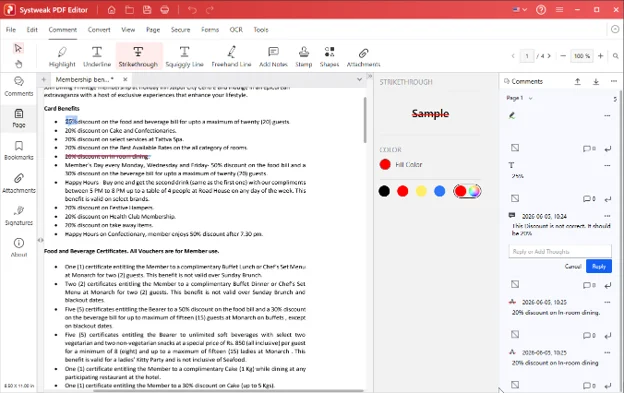
6. To reply to a comment, click the Reply icon and type your thoughts in the box.
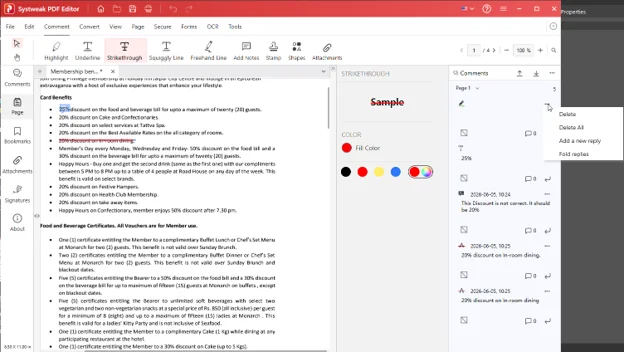
7. For more options like Delete, Delete All, Add a New Reply, or Fold Replies click the three dots (…) next to any comment .
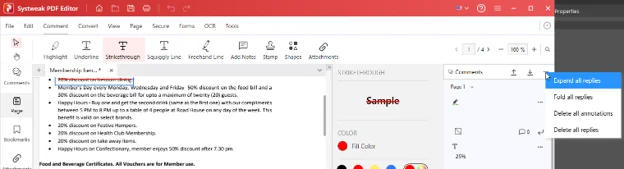
8. To manage all comments at once, click the three dots (…) at the top of the Comments panel. Options include Expand All Replies, Fold All Replies, Delete All Annotations, and Delete All Replies.
9. When done Save the file. Now when the file is opened in any viewer or browser the receiver will see the comments.
10. Select the option and select the text that you want to work with.
11. Once done, click File > Save to apply changes.
This method is perfect as it keeps the original formatting intact. The annotations are not embedded and anyone can see them when opening it in a compatible viewer.
Method 2: Add Comments to a PDF With Microsoft Edge
Microsoft Edge has a built-in PDF viewer with basic annotation tools useful for quick edits when you have no software available. However, it does not support OCR ,this means you cannot annotate scanned PDFs. Comments may also not display correctly in other PDF viewers, and there are no options to add stamps, edit form or any advanced markup tools.
Here is how to use it:
Step 1: Open your PDF in Microsoft Edge.
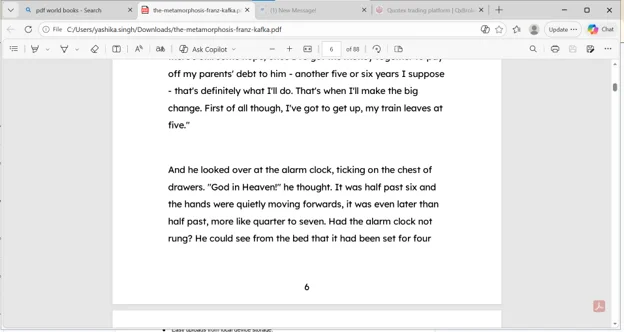
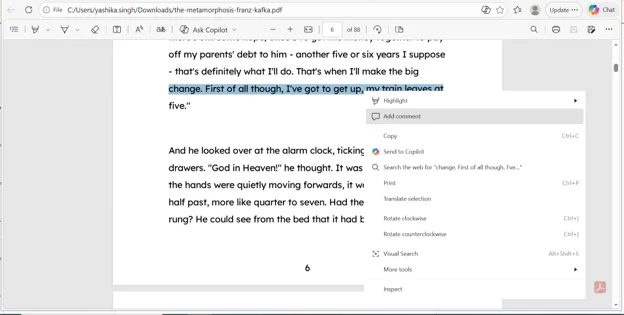
Step 2: Select the text you want to comment on. Right-click and select the “Add comment” option.
Step 3: Type your note into the comment box.
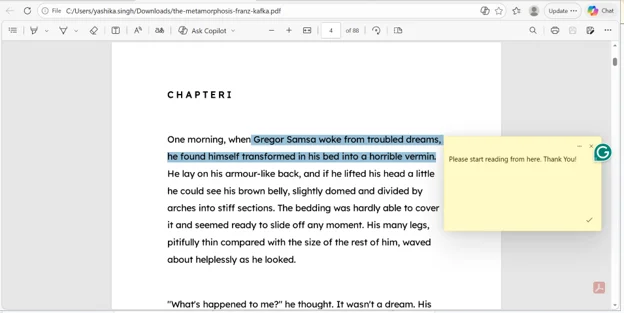
Step 4: Click the tickmark to save the comment.
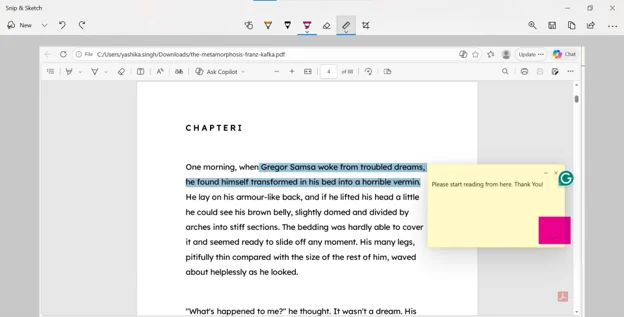
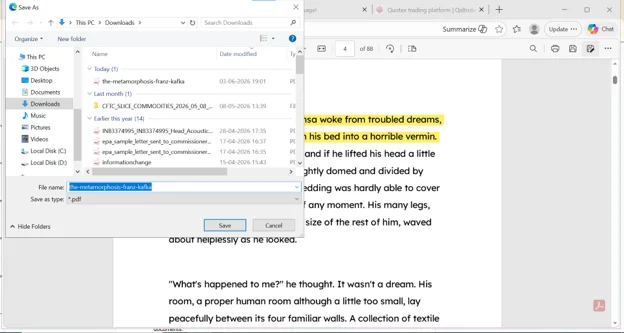
Step Press “Ctrl” + “S” to save the changes.
Where Edge PDF Annotation Can Feel Limited?
Built-in PDF annotation tools are great for quick edits, but they are not enough to meet the advanced document review requirements.
- Annotation options are often limited to basic highlighting and text additions.
- Collaboration features can vary, especially when files are shared across different PDF viewers.
- Some password-protected or secured PDFs may restrict annotations altogether.
Advanced features such as stamps, form editing, or OCR are usually unavailable.
If you regularly review documents with clients, colleagues, or teams, a dedicated PDF annotation tool can provide a more consistent and feature-rich experience.
Systweak PDF Editor vs. Microsoft Edge
| Feature | Systweak PDF Editor | Microsoft Edge |
|---|---|---|
| Sticky notes and comments | Yes | Yes |
| Highlight and markup tools | Advanced | Basic |
| OCR for scanned PDFs | Yes | No |
| Password-protected PDFs | Yes | No |
| Advanced features | Yes | No |
With Edge you can handle basic commenting. However if you are looking for an advanced tool that handles scanned files, professional documents and does not change formatting, Systweak PDF Editor is a better choice. This editing tool for PDFs streamline workflow without making you switch between applications.
How Comments Reviewing PDF Easier
PDFs are great for maintaining formatting, which is why they’re widely used for contracts and reports. However, that same stability can make feedback harder.
Comments solve this by allowing you to:
- Attach feedback directly to specific content.
- Speed up approvals with clear highlights.
- Maintain context in tables and structured data.
- Easier collaboration by sharing files directly.
For effective collaboration, keep comments concise and placed precisely.
Common Problems When Adding Comments to a PDF
1. Unable to Add Comments
Possible reasons:
- PDF is read-only
- The file has restrictions or is password protection
- It is a scanned document.
2. Comments Not Visible to Others
Possible reasons:
- Unsupported viewer
- File not saved
- Non-standard annotation format
3. Cannot Highlight Text in Scanned PDF
Possible reasons:
- It is a scanned PDF withotu a text layer
Perform OCR to enable text selection and highlighting.
Frequently Asked Questions
1. Can I add comments without Adobe Acrobat?
Yes, using Systweak PDF Editor you can add comments, highlights, sticky notes, and annotate PDF.
2. How do I view all comments?
Comments added to the PDF can be viewed in any compatible PDF viewer. You can also veiw them in the Systweak PDF Editor by clicking the Comments option present in the left pane.
3. How do I add a sticky note to a PDF?
Open the PDF in Systweak PDF Editor, click Add Note, then click anywhere on the page to place the note. Type your comment and click outside the box to save.
4. Why can’t I comment on my PDF?
It may be because the file is read-only, scanned image or password protected. Request edit permissions or use OCR to enable annotation on scanned files.
5. How do I edit or delete comments?
Select the comment and choose edit or delete from the menu.
6. Is it safe to annotate a PDF online?
It depends on the tool. Many online editors upload your file to their servers. Systweak PDF Editor processes files locally and your document never leaves your device.
Conclusion
Commenting PDFs directly saves time and makes things clearer. Anyone viewing the PDF can see what needs attention and make quick edits. Those who don’t have a software can use Edge for basic commention. However, for scanned documents, multiple reviewers, or professional workflows, Systweak PDF Editor gives you more control without the third-party upload risk.