
Managing hundreds of pages in legal, corporate, medical, and compliance documents is difficult without a system.
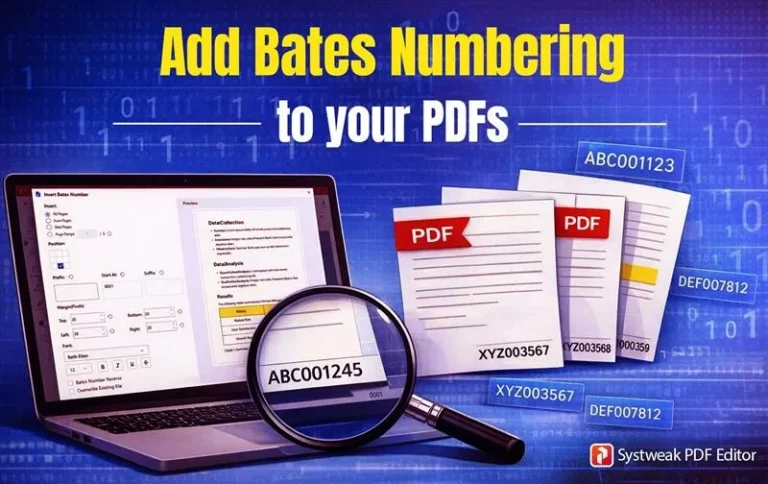
Bates numbering fixes this. It allows adding a unique identifier, such as ABC000001, directly onto every page of your PDF, giving each page its own identity. Thus, creating a structured system to find a specific page, reference it in a meeting, or submit it for review without guessing.
This guide explains how to add a Bates number using Systweak PDF Editor completely offline with no uploads or cloud sync. Your document stays on your machine, private and secure.
Why Bates Numbering is important
Before getting into “how-to” add Bates number, let’s understand why it is important for professionals to add them in their documents.
1. Stay Organized: Bates numbers make your document look organised, giving every page its own unique ID.
2. Keep Things Consistent: It gives a clean, uniform look to all your PDF documents, making them easy on the eyes.
3. Follow the rules: Places like courts or law firms require Bates stamping for filing and records.
4. No confusion: You can easily identify the page your teammate is talking about without any confusion.
So, if you’re staring down a mountain of invoices, reports, or legal docs, learning how to add these stamps is a skill you definitely want in your back pocket.
How to Add Bates Numbers to PDFs Using Systweak PDF Editor
Whether you are preparing files for litigation, audits, or internal record-keeping, here are the step-by-step instructions to add Bates numbering in PDFs with Systweak PDF Editor:
Open Systweak PDF Editor in your system.
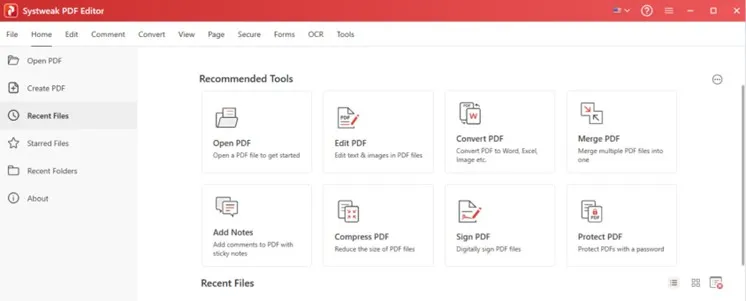
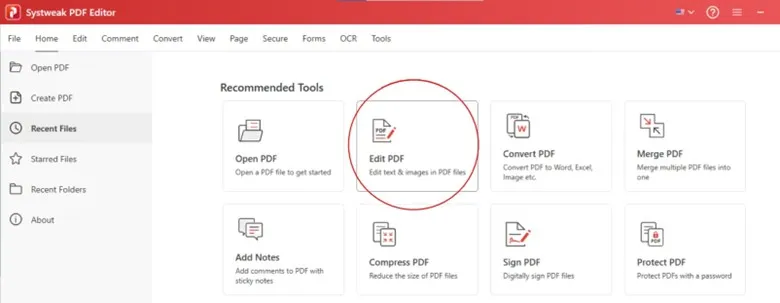
Now, click on ‘Edit PDF’ from the recommended tools or from the above toolbar menu.

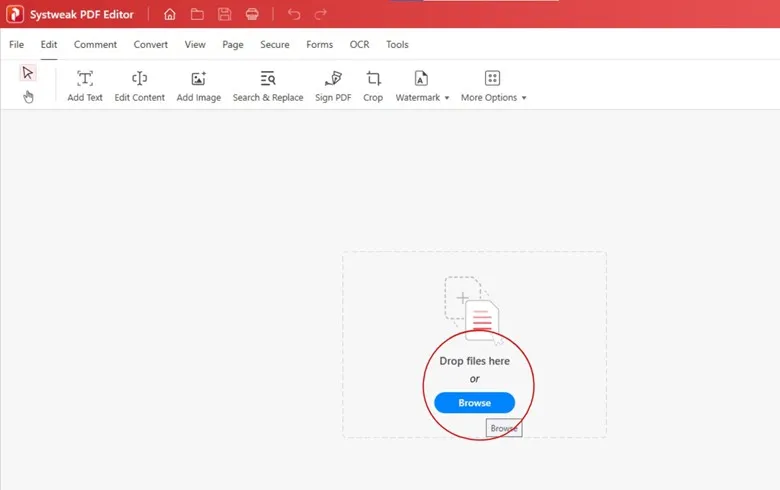
‘Browse’ and add the PDF file to which you want to add a Bates number.
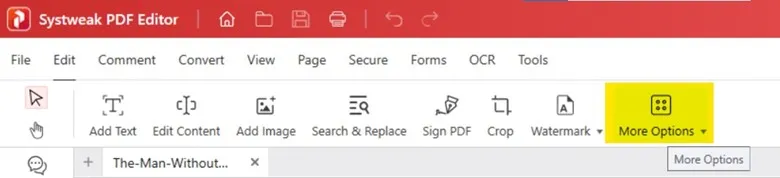
Once your PDF file opens, click on ‘More Options’ from the menus in the Edit tab and select ‘Insert Bates Number’.
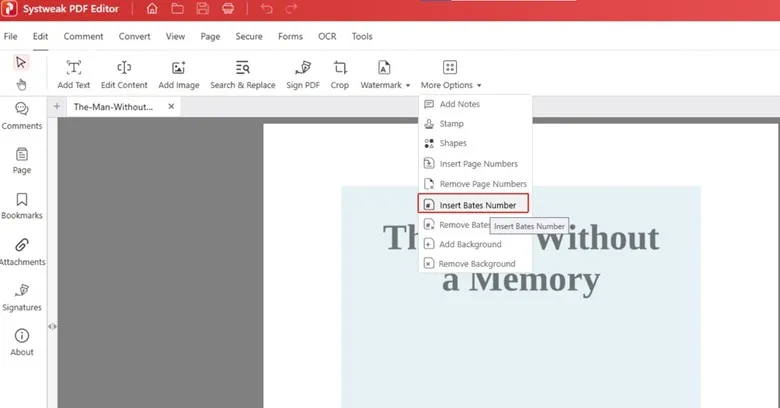
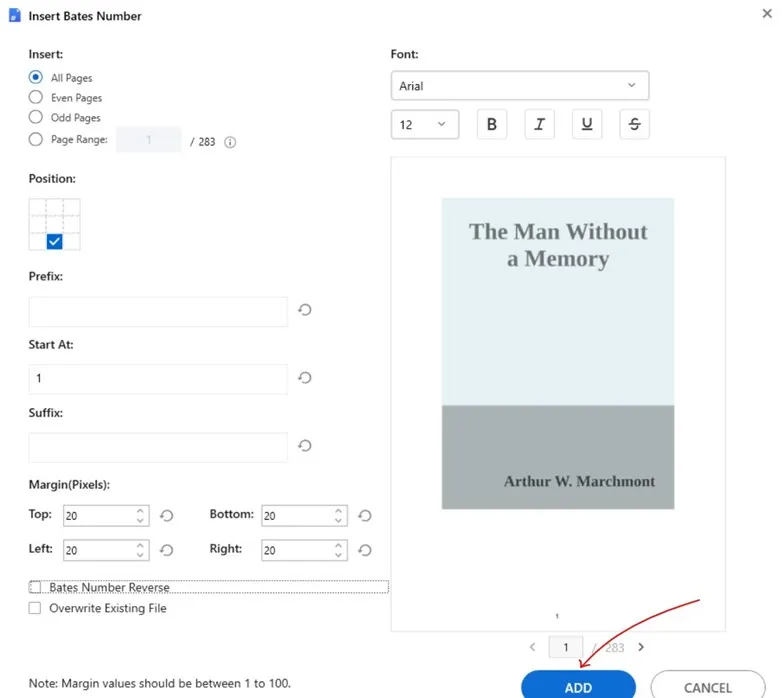
You will now get a window with options to customize and apply the Bates number on your document.
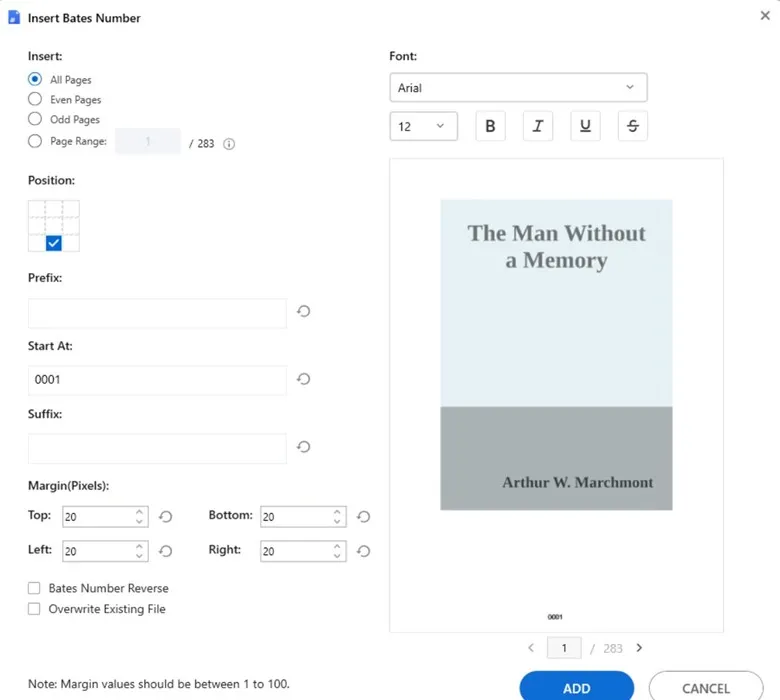
Here, you can customize your Bates number in PDF as you see fit.
Start by selecting the pages on which you want to add Bate numbers.
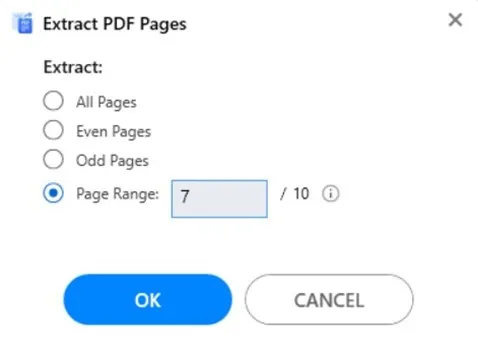
Then set the number placement. Users can decide where they wish to place the Bates number, top,left,up,bottom,center and other placements can be chosen.
After the position comes ‘Prefix’, ‘Start at’, and ‘Suffix’.
- “Prefix” is the letter/letters that are attached at the beginning of a word.
- “Start at” is for the core word, which will hold the fundamental meaning.
- “Suffix” is the word added at the end of a word.
Fill them as you want.

You can set the Margins
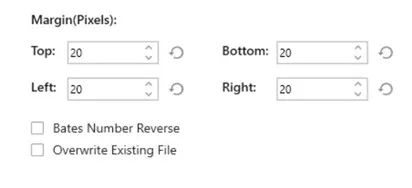
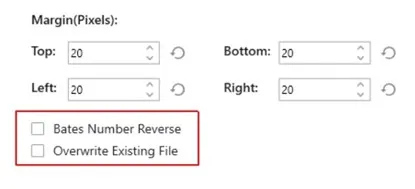
You can even place Bates number in reverse order. Just check “Bates Number Reverse”. And to overwrite an existing number, check “Overwrite existing file”.
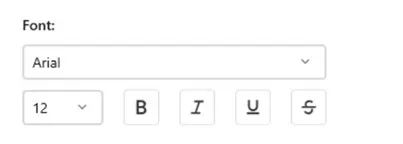
You can also choose a font of your choice, adjust the size, and patterns.
Once everything is done, click on ‘Add’.
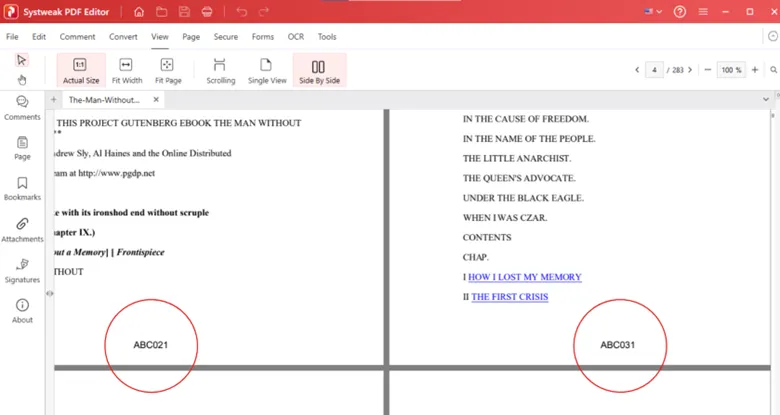
And the Bate numbers will be added in the PDF.
That’s all, it is that simple and quick to add Bates numbering in a PDF.
Conclusion
Adding Bates numbers should be simple and easy without spending hours or sharing confidential data. With Systweak Editor, you can easily stamp unique identifiers across every page of your PDF, with full control over prefix, suffix, position, font, and page range. And as the tool is fully offline, your document stays safe.
Try it yourself.
Frequently Asked Questions:
What is Bates numbering in PDF?
Bates numbering is the way of assigning unique identities to pages in a PDF document, for better organization and reference.
Can I customize my Bates stamp?
Yes you can do that with the Systweak PDF Editor. It allows you to customize font, color, position, prefix, and numbering style to match your needs.
Can I apply Bates numbering to multiple pages at once?
Yes you can. Systweak PDF Editor asks you about the number of pages, page range, etc on which you want to insert Bates number.
Is Systweak PDF Editor a good Bates numbering software for legal use?
Absolutely. Since it is an offline tool there is no privacy concern and it offers professional formatting and precise control that is suitable for legal documents.