




Did you know that you can add Bates numbers to your PDF? The Bates number may include a certain text followed by numbers or letters. These are not just page numbers but a sort of identification markers for your document. You can add a set of Bates numbers to one particular section of the document and another sequence to another section of the PDF. The Bates number is required in corporate, legal, compliance, and medical documents. The Bates number will help users to sort the pages and even print a section of the PDF rather than the whole document.
Systweak PDF Editor is an amazing tool that helps to edit any content within the PDF and manage the pages as well. It also allows users to add Bates numbering to the pages and customize it as per their requirements.
What Is Bates Numbering?
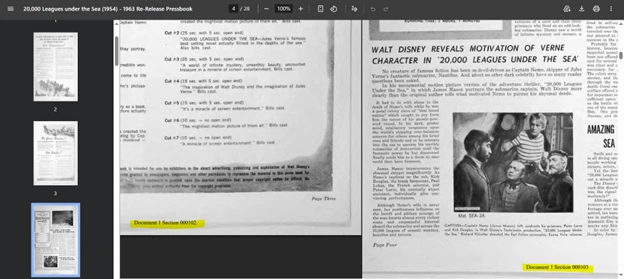
Bates numbering is a system for marking pages with unique numbers to create an index of documents that includes prefixes like –
DOC-0001, DOC-0002, DOC-0003
The Bates numbering system originated in the field of legal document control, but is now widely utilized by businesses of all types.
Why Is Bates Numbering Required In PDF Files?
Adding Bates numbers to your PDF files brings some benefits, like –
- It improves navigation through a document.
- It helps in organizing the document, ensuring each page has its own unique identity.
- It maintains consistency in documents.
- It facilitates collaboration among different teams working on the same PDF.
- It is mandatory in some industries and legal departments.
Steps On How To Add Bates Numbering To Your PDFs
1. Add Bates Number Using Systweak PDF Editor
Systweak PDF Editor makes it easy to add a Bates number to your PDF document. All you need to do is open your PDF in the Systweak PDF Editor app, select the right options, and you are all set. Here are the detailed steps to add a Bates number to any PDF.
Step 1 – Download and install Systweak PDF Editor using the Download button below.
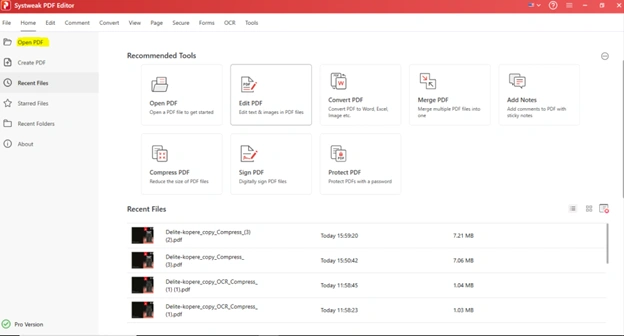
Step 2 – Open the application and click on the Open PDF option.
Step 3 – Click on the Edit option in the toolbar and click on More Options in the ribbon to view the dropdown menu.
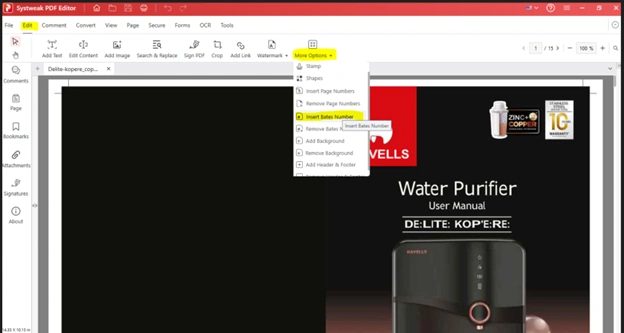
Step 4 – Choose Insert Bates Number.
Step 5 – A new window will open where you will have the following options to make your choice.
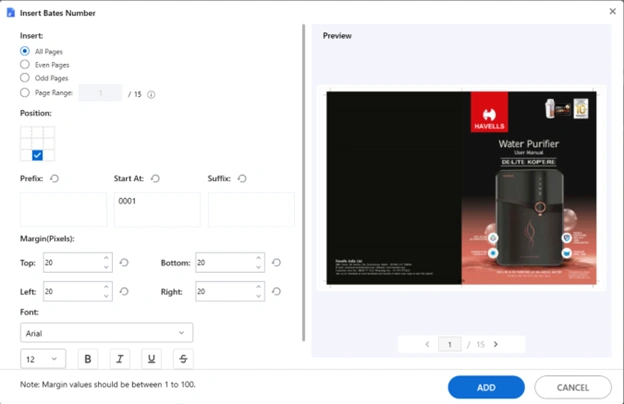
- Insert – You can choose to insert the Bates number on all pages, even pages, odd pages, and a range of selected pages.
- Position – There are nine positions where you can place the Bates number on your document.
- Bates Number – You can add a Prefix, a Number, and a Suffix.
- Margin (Pixels) – Define a margin with Top, Bottom, Left, and Right margins.
- Font – Choose a Font type, Font size, and if you wish, the text to be Bold, underlined, Italics and Strikethrough.
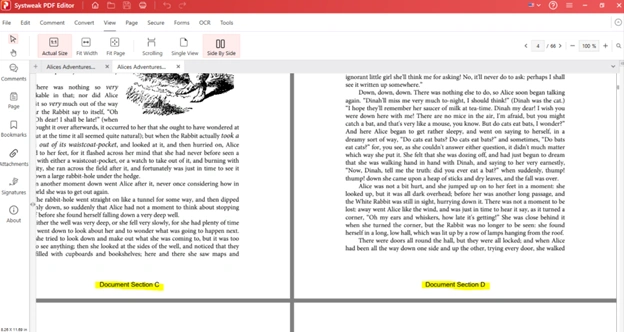
Step 6 – Click on the Add button, and the Bates number has been added to your PDF.
Step 7 – Click on the File tab in the toolbar and choose Save As.
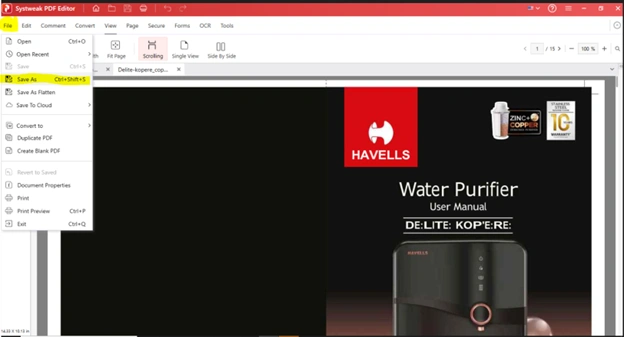
Step 8 – Specify the location and a new file name for your PDF and click on Save.
That’s It! You can open the PDF file and check that the Bates number has been applied successfully.
If you want to insert page numbers into your PDF, then click this link to read more.
2. Add Bates Number Using Online SejdaPDF Tool
There are several ways you can use to add a Bates number for free, through several online websites. The major concern here is that you will have to upload your file to the web tool’s server. There is no guarantee that your document will be secured and safe at all times, or when it will finally be deleted from the foreign server. If your document does not contain any confidential information, you can opt to use an online editor. Here is what you need to do.
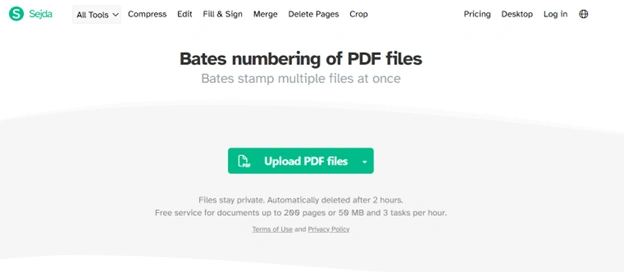
Open your browser and go to the SejdaPDF tool.
Click on the “Upload PDF files” button and upload your PDF document.
On the next page, you can choose Select Style, Customize Style, Location On Page, Numbering, and Document Margins.
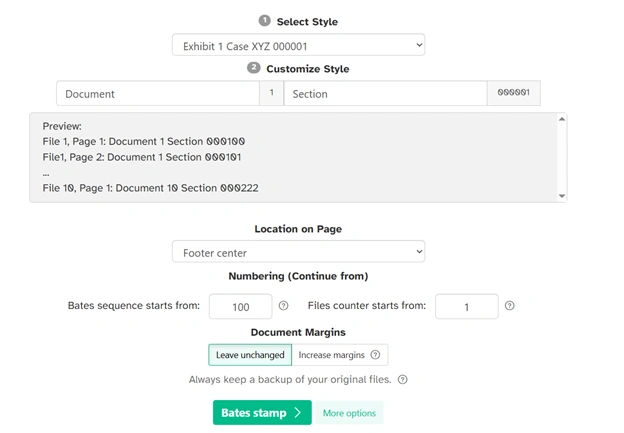
Click on the Bates Stamp button, and the processing will start.
Finally, click on the Download button, and the PDF will be downloaded with Bates Number.
Common Mistakes to Avoid
Despite how easy it may be to add Bates numbers, there are some points that you should avoid:
- Take a backup of your original file before overwriting it.
- The placement of the Bates number must not hinder the readability.
- The sequence must be related to the type of PDF.
Bates Numbering Best Practices
For effective Bates numbering, consider the following recommendations:
- Always use proper prefixes for each type of document
- Keep the numbering consecutive across several files
- Do not overlay important information with numbers
- Use clear and simple formatting.
Frequently Asked Questions
Conclusion
Bates numbering is an important feature for individuals managing large volumes of documentation. Systweak PDF Editor makes the task fast and efficient while providing extensive customization. Be it legal practice, business, or administrative work, Bates numbering will help you create well-organized and professionally looking PDF documents.




