
There are many document formats, and one such uncommon format is XML or XML Paper Specification. Most people have not heard of this format and do not know how to open the XML document or make changes to the content. It also does not make sense to purchase new software just to open or edit a specific file format.
The best possible solution is to convert the XPS document to a more common document format like PDF, without losing the formatting or layout of the file.
Systweak PDF Editor is the answer to all XPS issues. With an inbuilt converter module, this software supports converting other formats to PDF and vice versa. It also allows users to edit and make all possible changes to the PDF document, including adding a password, which makes it a must-have software on your PC.
What Is An XPS File?
XPS stands for XML Paper Specification. It is a document format created by Microsoft that ensures the layout, fonts, graphics, and design of a document remain intact and consistent regardless of where it is viewed. XPS files can be used for viewing and printing purposes, and like a PDF document, this file format is compatible with security features such as digital signatures and document encryption.
Why Convert XPS to PDF?
Better compatibility with different devices
PDF documents will open seamlessly in Windows, Mac, mobile, and browsers, but XPS lacks support for other devices.
Easy for file sharing and distribution
Since the PDF format is highly recognized for email, uploads, and professional purposes, sending the file becomes effortless.
Maintains formatting and appearance
The PDF will keep the fonts, pictures, and overall formatting intact, giving you a replica of your XPS document.
Greater editing capabilities
Unlike the XPS format, you will have greater editing, annotation, and signing features with PDF documents.
Enhanced security features
You can password-protect and encrypt the file, along with setting permissions.
Compact file size
The PDF file format has been known to produce smaller files with high levels of optimization.
Features advanced capabilities
PDF documents allow you to add bookmarks, comments, watermarks, etc.
Methods to Convert XPS to PDF
There are different methods to convert XPS file to PDF. We have explained 3 methods to convert XPS to PDF with the built-in tool, an online web tool, and an offline PDF powerhouse – Systweak PDF Editor.
Use Systweak PDF Editor
Systweak PDF Editor is a complete PDF solution that offers users all the different ways to edit a PDF document and manage the contents within. It also has a conversion module that can convert XPS file to PDF and other formats like images. The conversion process works both ways. Here are the steps to use this tool.
1. Download and install Systweak PDF Editor using the Download button provided below.
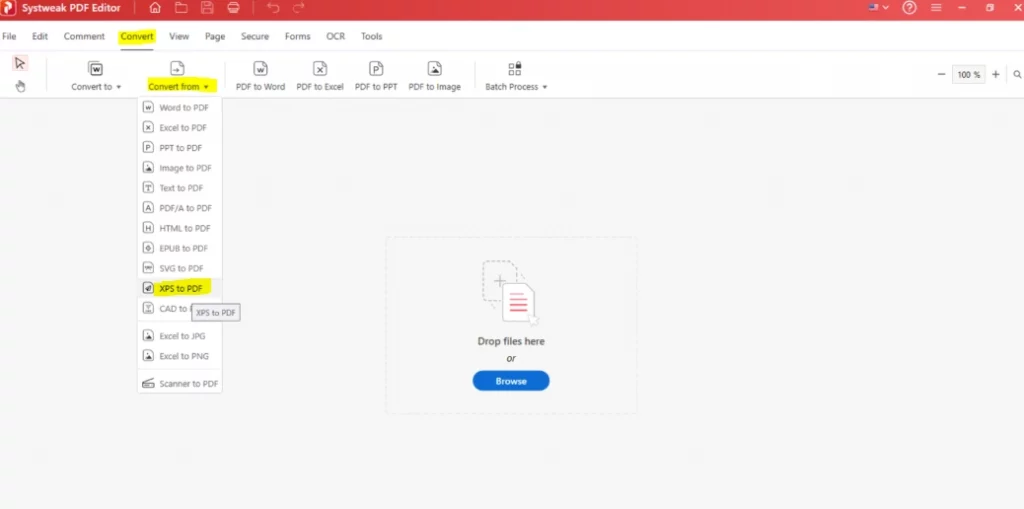
2. Open the app and click on the convert tab in the toolbar.
3. Next, choose the Convert From option from the ribbon, and from the dropdown menu, choose the XPS to PDF option.
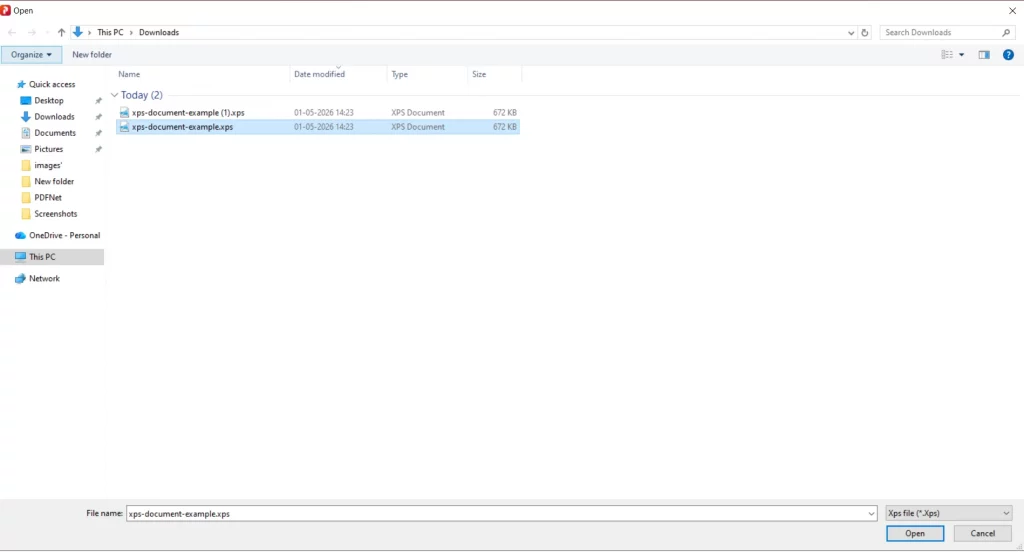
4. The File Explorer window will open; choose the XPS file and click the Open button.
5. Wait for the process to complete.
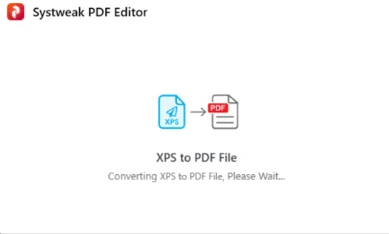
6. Click on the OK button.
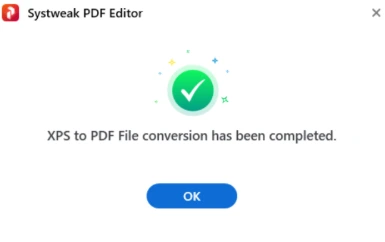
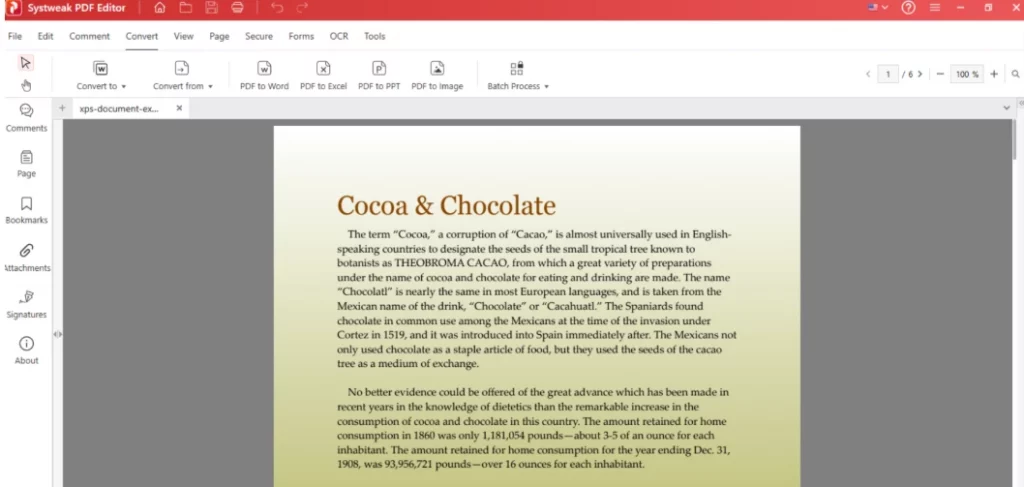
7. The file will be converted to PDF format and open in the Systweak PDF Editor app. You can begin editing the text and images of the PDF document or manage the pages. For a complete guide on how to edit your PDF, click this link.
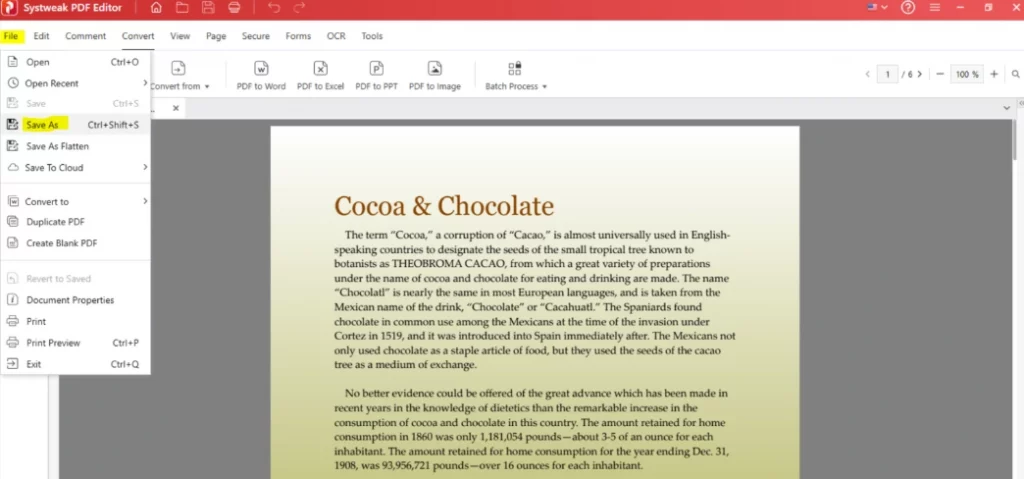
8. Do not forget to click on File > Save As to ensure that the changes you have made are saved.
Use Microsoft XPS Viewer
1. Open the XPS file with the Microsoft XPS Viewer.
2. Click on File > Print.
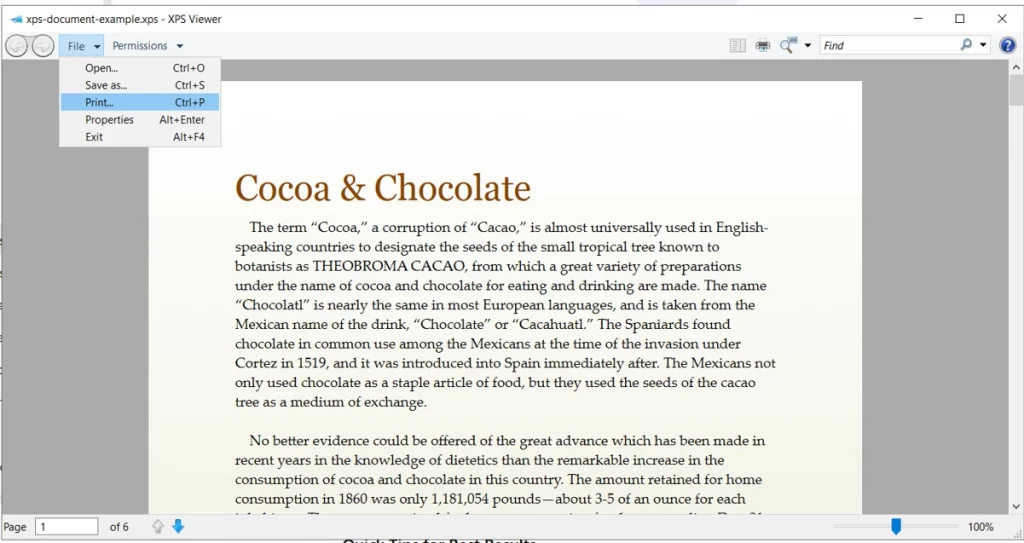
3. Choose Microsoft Print To PDF under Printers
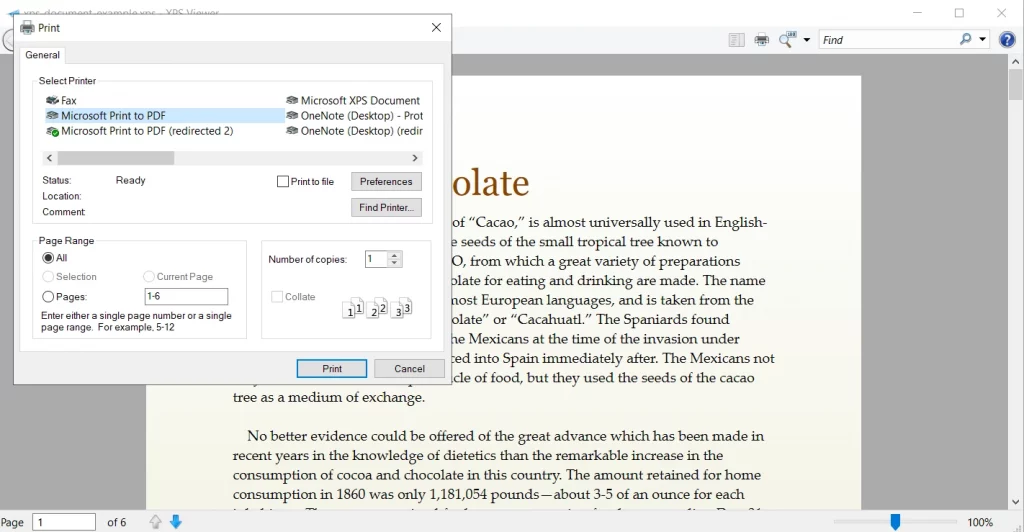
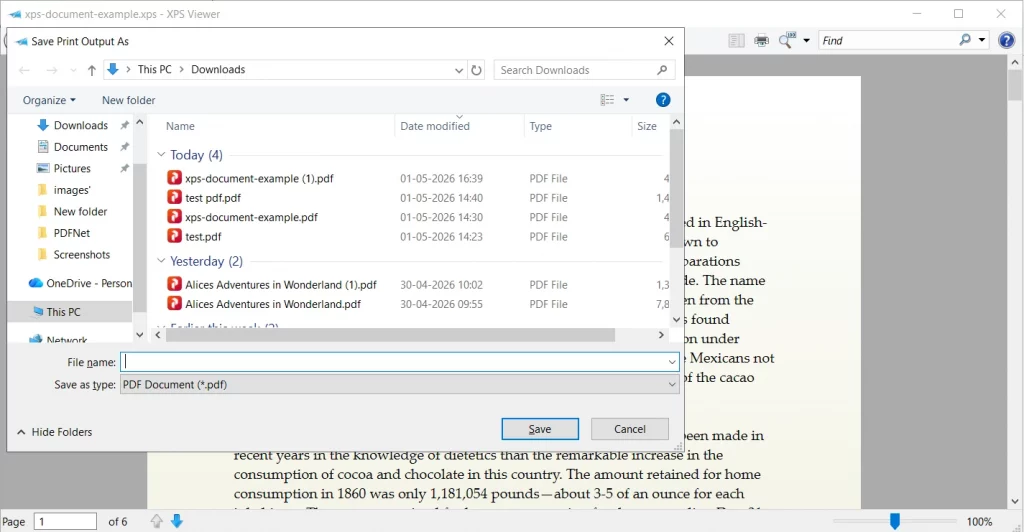
4. Click on the Print button and specify the location where you wish to save the PDF file, and click on Save.
Online XPS to PDF Converters
If you are looking for a free XPS to PDF converter online to do a quick job to convert Microsoft XPS to PDF, then you are in luck. But these XPS to PDF online are not reliable, as your file will be uploaded to a foreign cloud-based server for conversion. There is no guarantee what will happen to your file after it has been uploaded. Hence, for the security and privacy of your data, we do not recommend using online tools.
1. Navigate to the XPS To PDF official website.
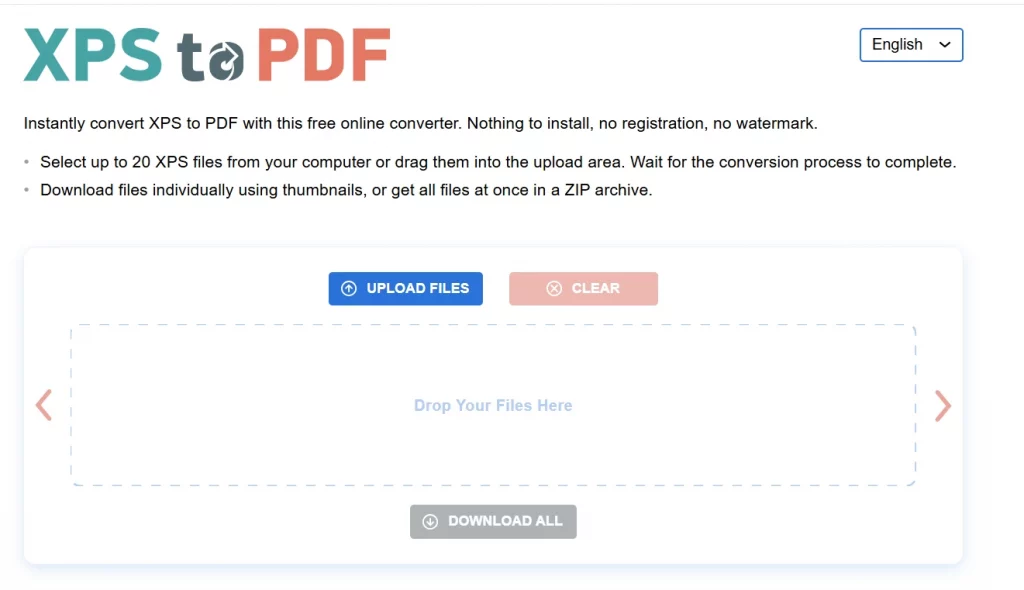
2. Click on the Upload Files button and the file will be converted to PDF.
3. Click on the Download button, and the PDF file will be downloaded.
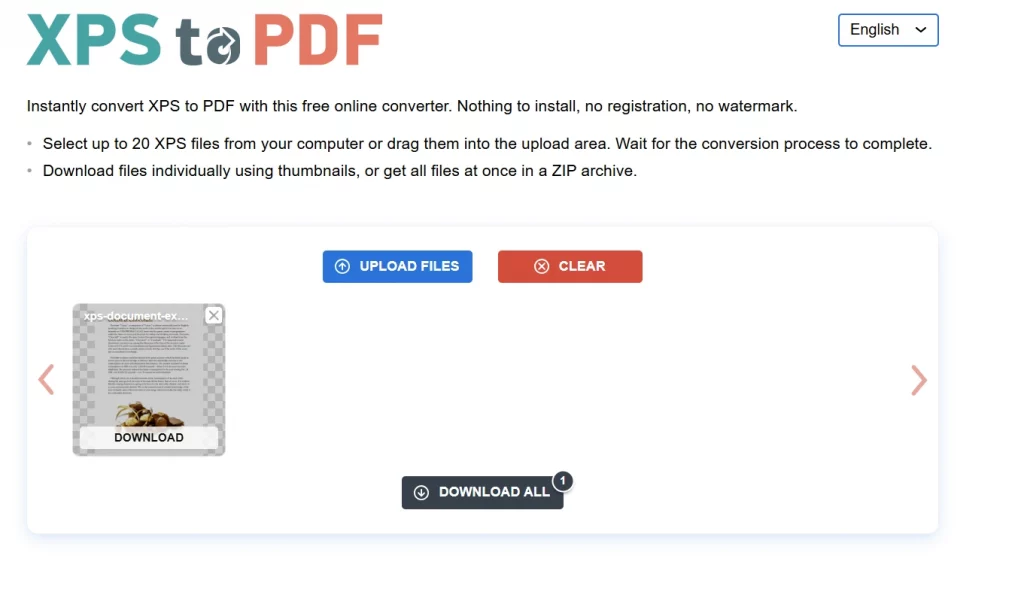
4. The PDF file will be downloaded to your default Downloads folder.
Tips to Maintain Quality During Conversion
Tip #1 – Choose a good conversion tool – Poor tools will damage font types and alignments, so use a high-quality software like Systweak PDF Editor.
Tip #2 – Enable high-resolution options – Always go for the highest possible resolution or DPI to get better images/text after conversion.
Tip #3 – Embed fonts before conversion – By doing this, you guarantee that your text will always look the same in PDF format.
Tip #4 – Do not convert more than once – Every conversion causes loss of quality, so convert only once and save your original file.
Tip #5 – Look through the layout after conversion – Check for spacing, text alignment, and images in your document.
Tip #6 – Use offline software for important documents – Offline desktop software like Systweak PDF Editor gives more opportunities for editing without compressing the file.
Tip #7 – Save your original XPS file safely – The original XPS file will always be a backup copy for your PDF document.
Conclusion
XPS and PDF are both fixed-layout documents, though the latter is much more popular than the former. The XPS format can only be accessed on Windows machines, whereas the PDF format is available on all platforms, supports greater editing capabilities, and is much more secure. It is more commonly used for sharing and printing purposes. It doesn’t matter what process you choose for converting the XPS files into PDF; however, we recommend that you use an offline and multipurpose tool such as Systweak PDF Editor.
FAQS
1. Can I convert XPS to PDF for free?
Yes, you can convert XPS to PDF for free using built-in tools like Microsoft Print to PDF or various online converters. However, it is not wise to trust online tools with your data, and the built-in tools do not retain the exact layout and formatting as Systweak PDF Editor.
2. Is it safe to use online XPS to PDF converters?
Online tools are convenient, but may pose risks for sensitive files. For better privacy, use offline software like the best XPS to PDF converter, Systweak PDF Editor.
3. Will I lose formatting when converting XPS to PDF?
Usually no, but low-quality converters may affect fonts or layout. Using a reliable tool like Systweak PDF Editor helps maintain formatting.
4. Why is my PDF file larger after conversion?
High-resolution images and unoptimized settings can increase file size. Compressing the PDF can fix this.
5. Can I edit the PDF after converting from XPS?
Yes, once converted, PDFs can be edited, annotated, or signed using the Systweak PDF Editor.